Momscode-AMIDC Production Customization
Production Plan
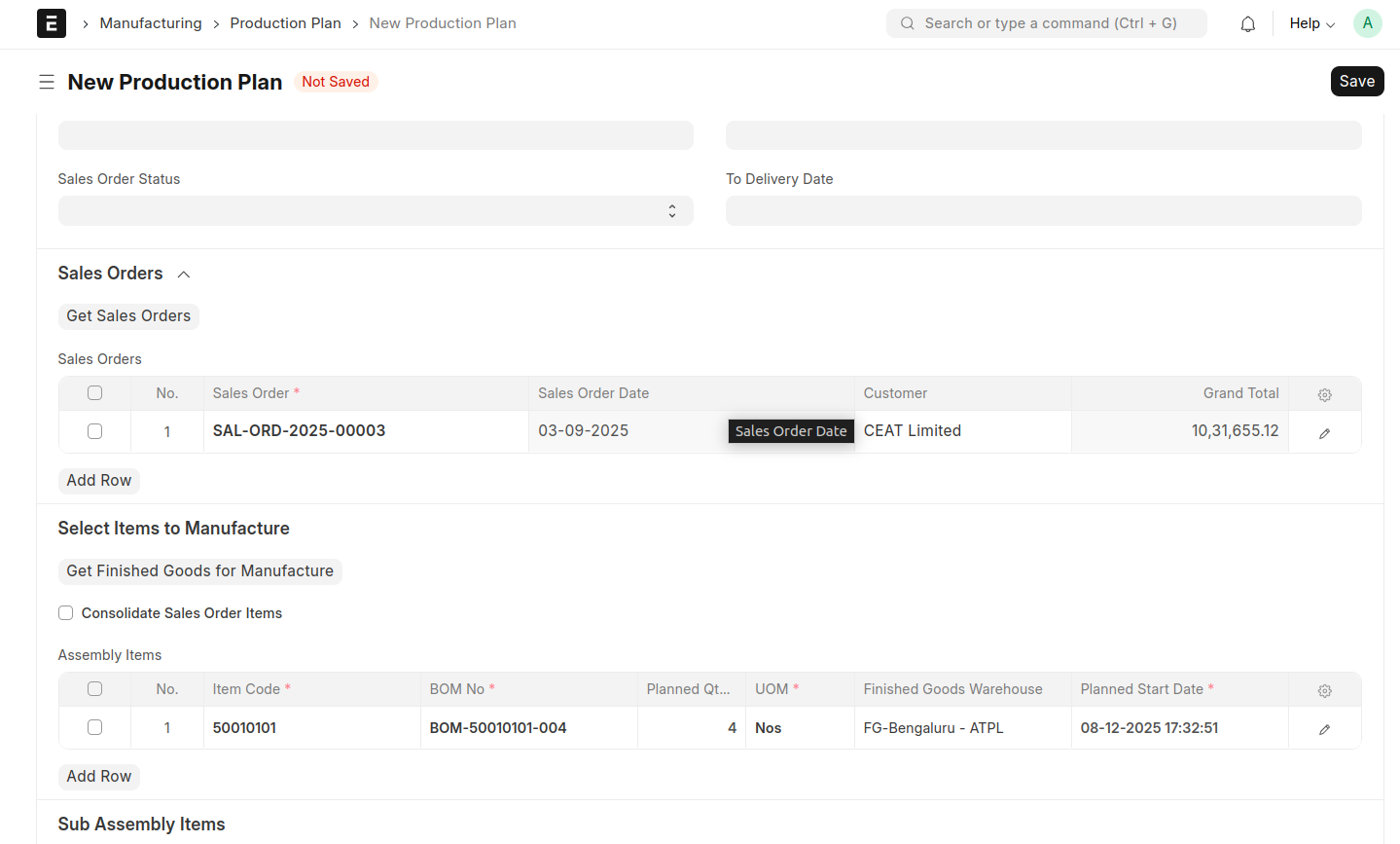
- We can fetch the FG items either from the Material Request or from the Sales Order.
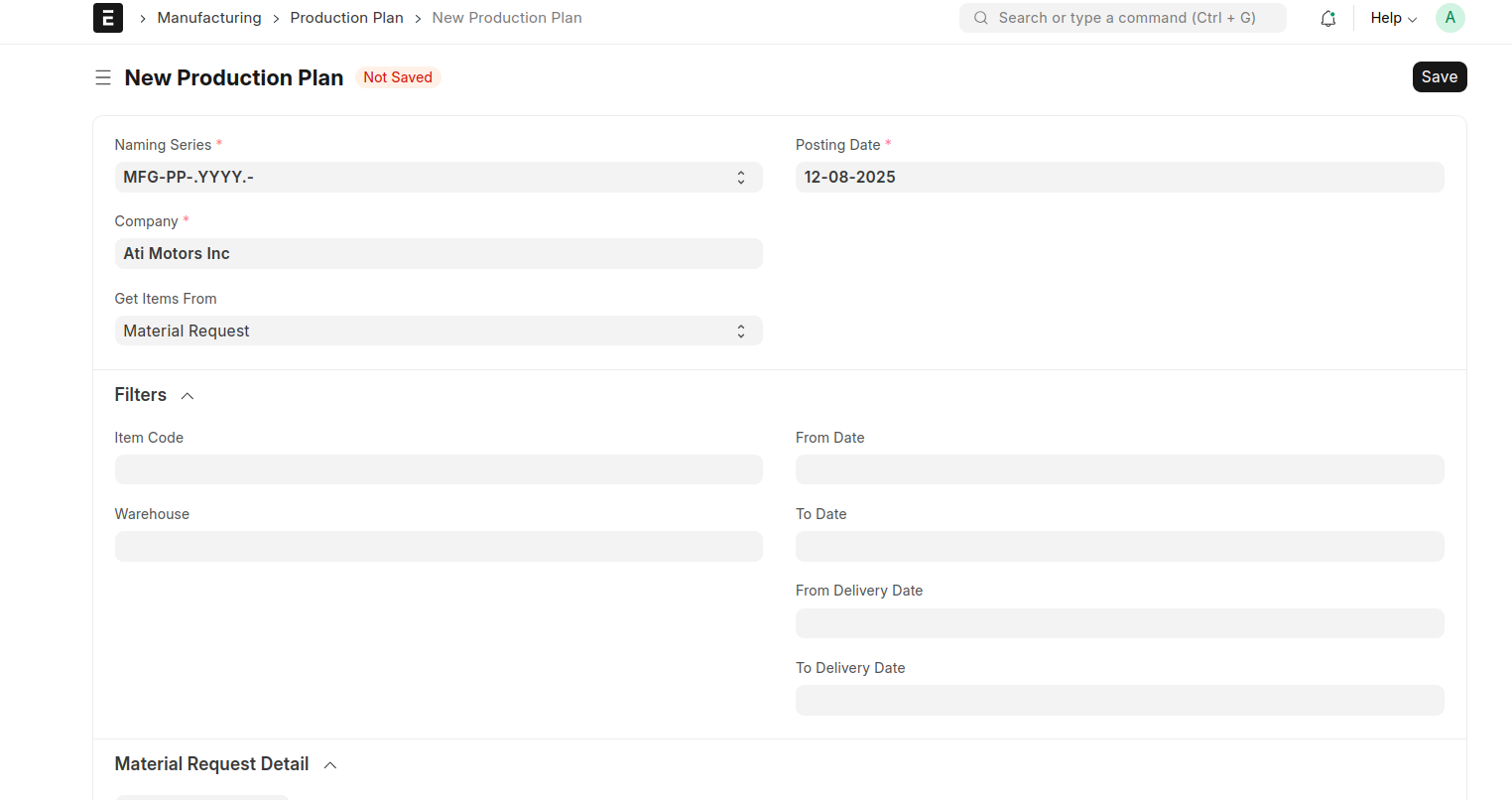
- Select the Get Items From.
- If you want to fetch specific filtered data, you can set the required filters in the Filters section.
- If the 'Get Items From' field selected as 'Sales Order'. There is a button 'Get Sales Orders' will be Displayed to fetch the Sales Orders.
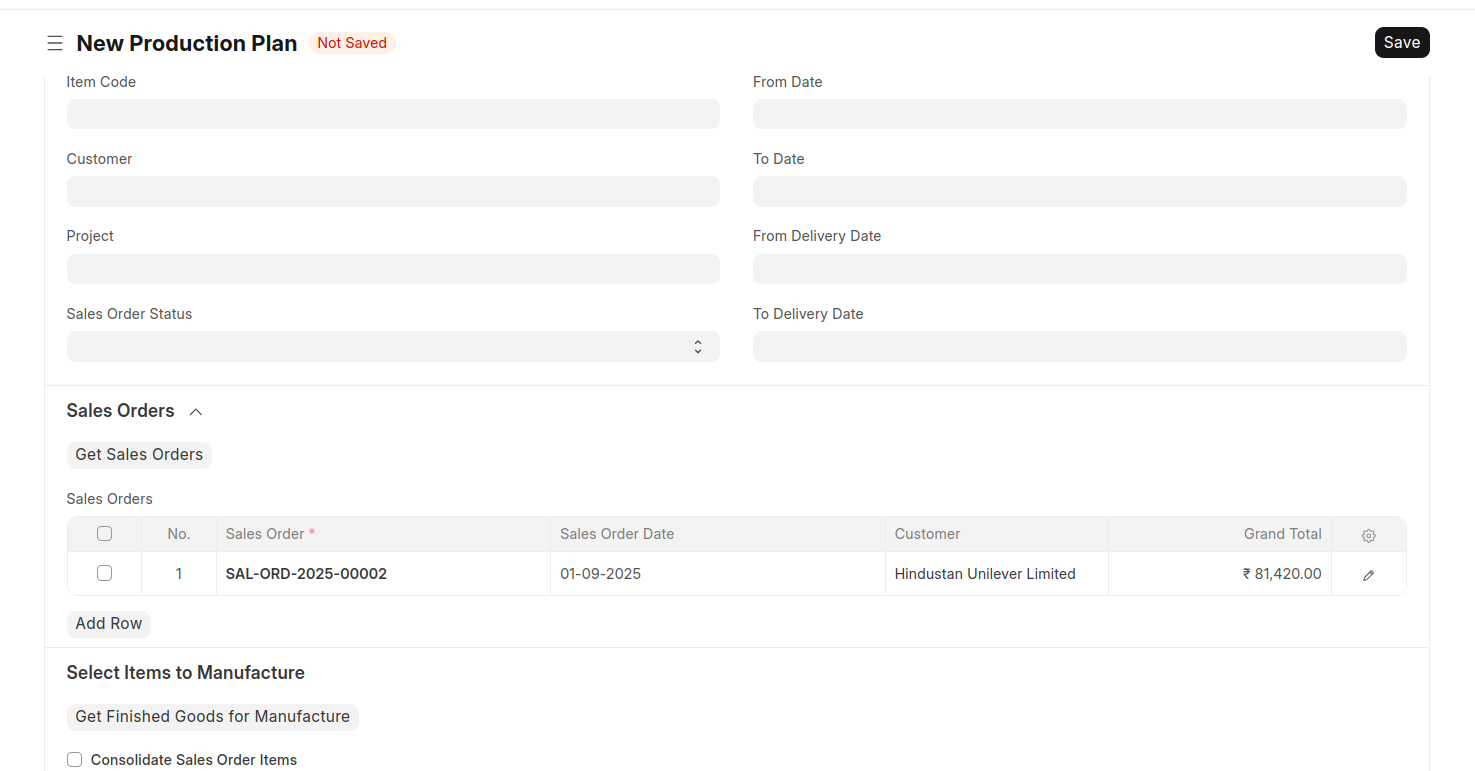
- When you click ‘Get Finished Goods for Manufacture’, the finished good item linked to the selected Sales Order will be fetched into the assembly items table.
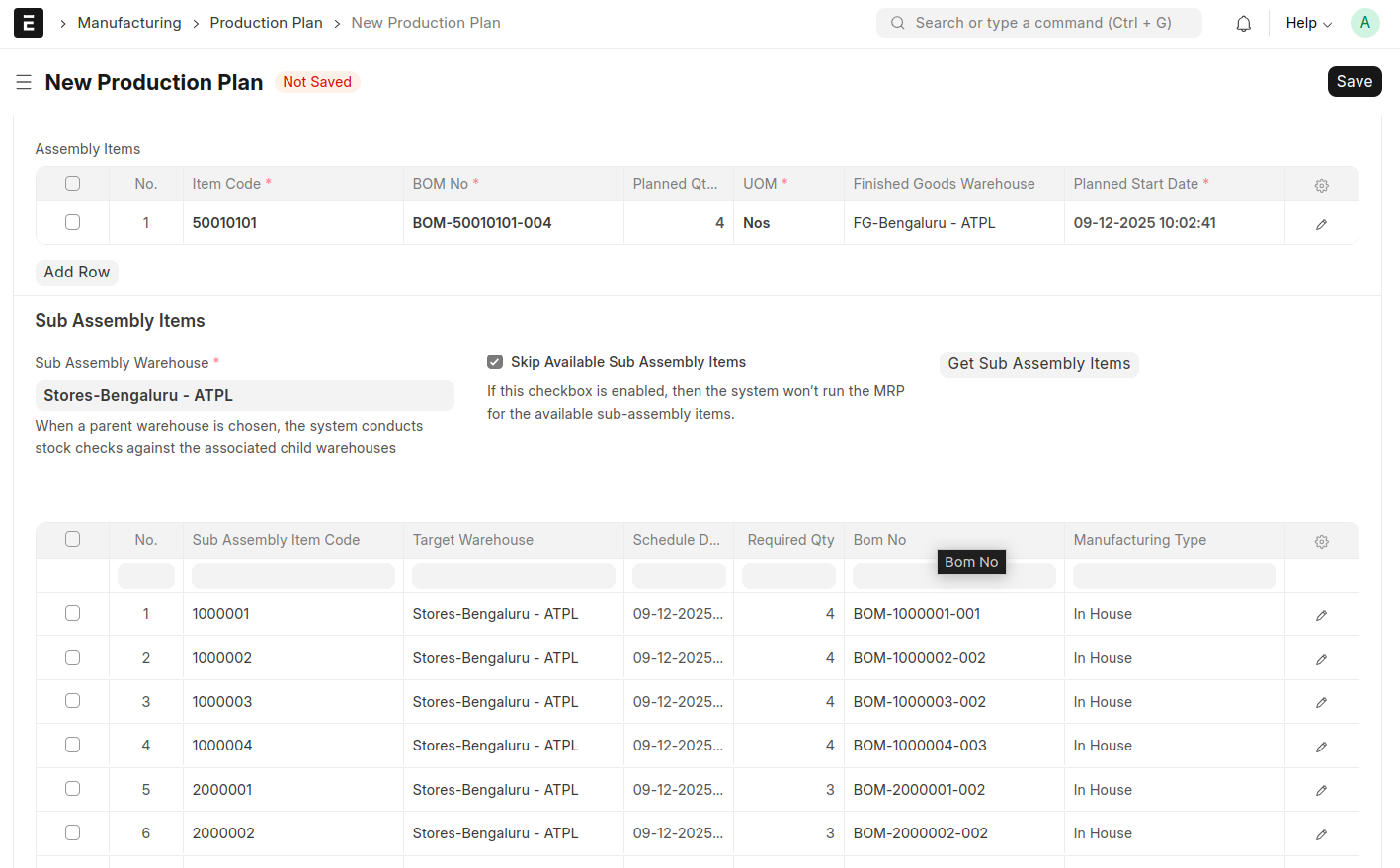
- Select the Sub Assembly Warehouse and click the ‘Get Sub Assembly Items’ button. All sub-assembly items that are not available in the selected warehouse will be fetched into the child table below. A hidden table will also be customized to fetch all sub-assembly items, regardless of whether they are available in the warehouse or not.
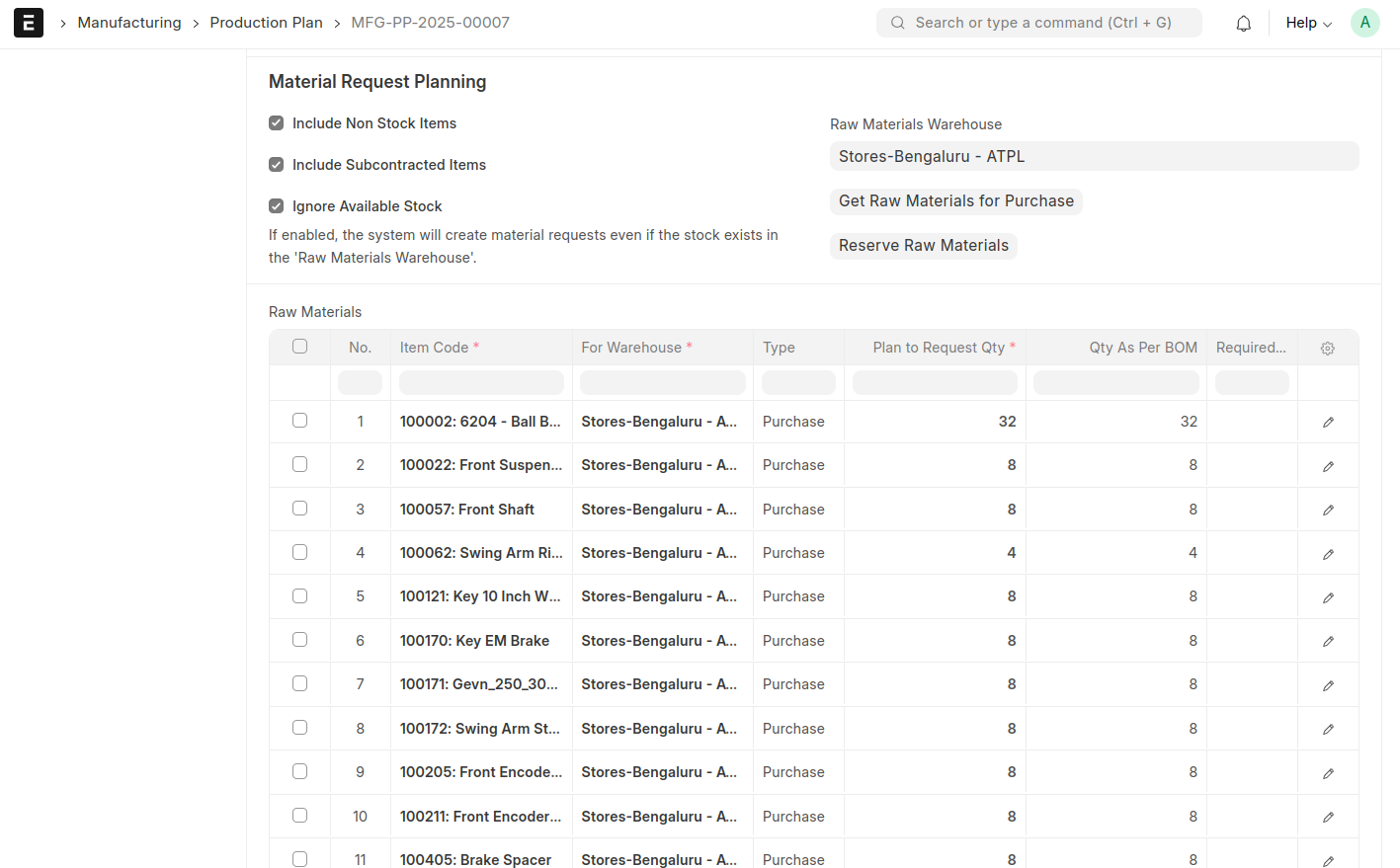
- Select the 'Raw Materials Warehouse' and click the 'Get Raw Materials for Purchase' button. All the raw materials will be added to the Raw Materials Table.
- There is a checkbox called ‘Ignore Available Stock,’ which is enabled by default. You can disable this option if needed. The visibility of the ‘Reserve Raw Materials’ button depends on this checkbox. When ‘Ignore Available Stock’ is enabled, the system will not consider the available stock, and all raw materials will be fetched.
- When you click the ‘Reserve Raw Materials’ button, the Type will automatically update to ‘Material Transfer’ for the items that are available in the Raw Material Warehouse from the Raw Materials table.
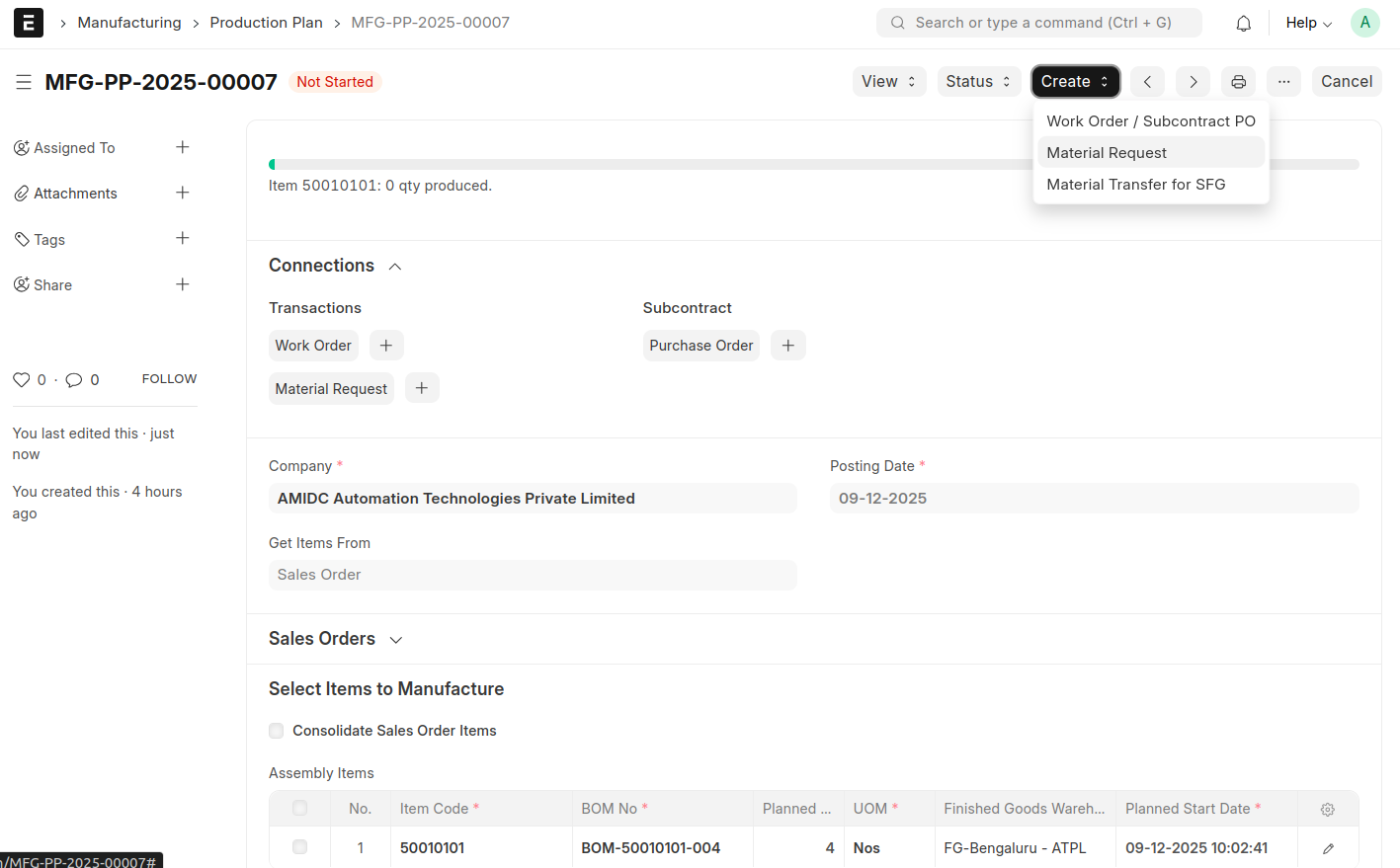
- After submit the document there is a button will be displayed for create material request against the document.
- Before doing the Material Request you should set the default values in Moms Custom Settings.
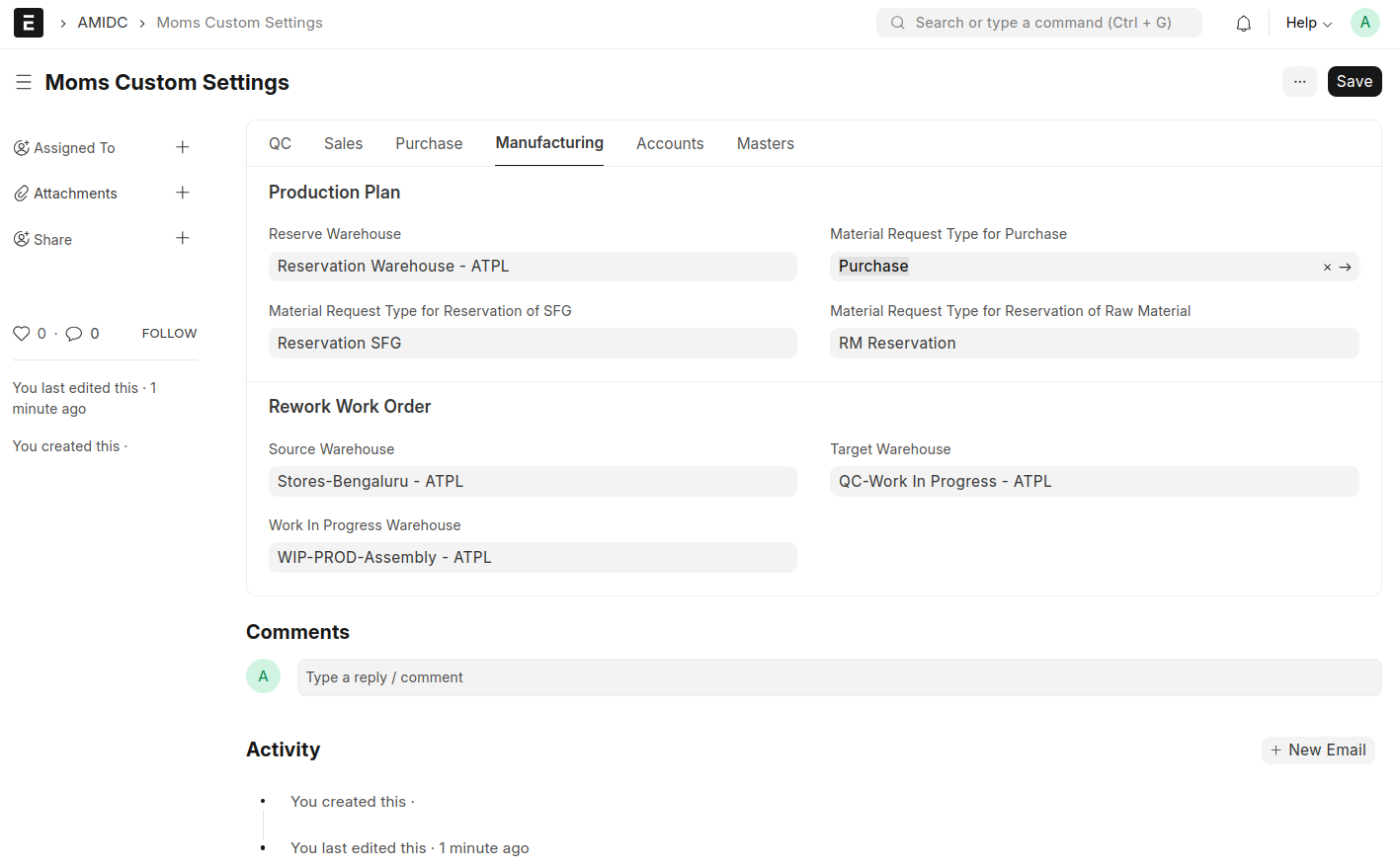
- 2 Material Request will be created while clicking the Material Request Button.
- One Material Request for Raw Material Purchase and another one for Reservation Trandfer.
- You can create Purchase Order against Purchase Material Request.
- You can create Stock Entry against Material Transfer Request.
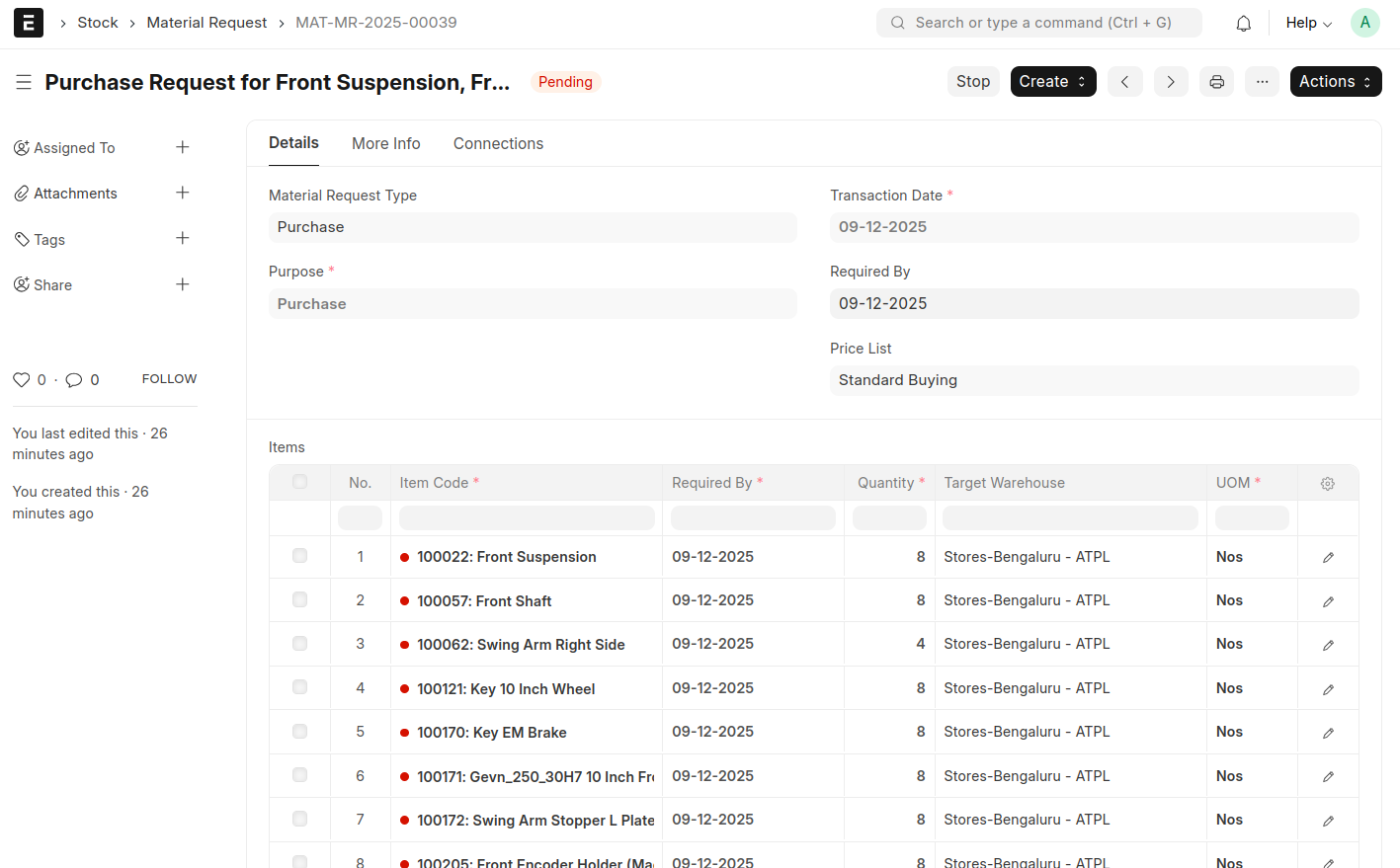
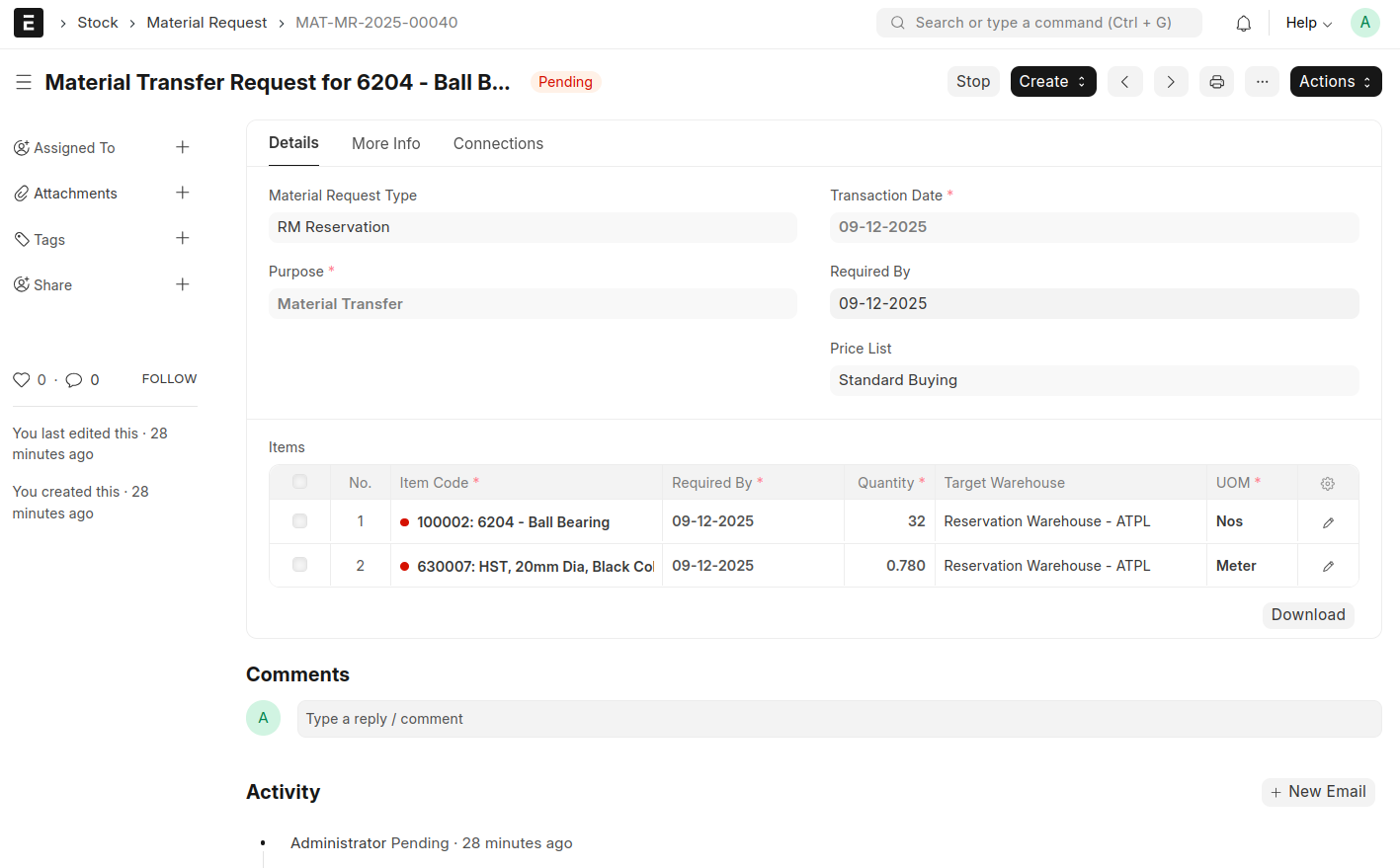
- Material Transfer For SFG Button is used for Transfer the available SFG items from SFG Warehouse to Reservation Warehouse. Material Request document will be created while clicking the button.
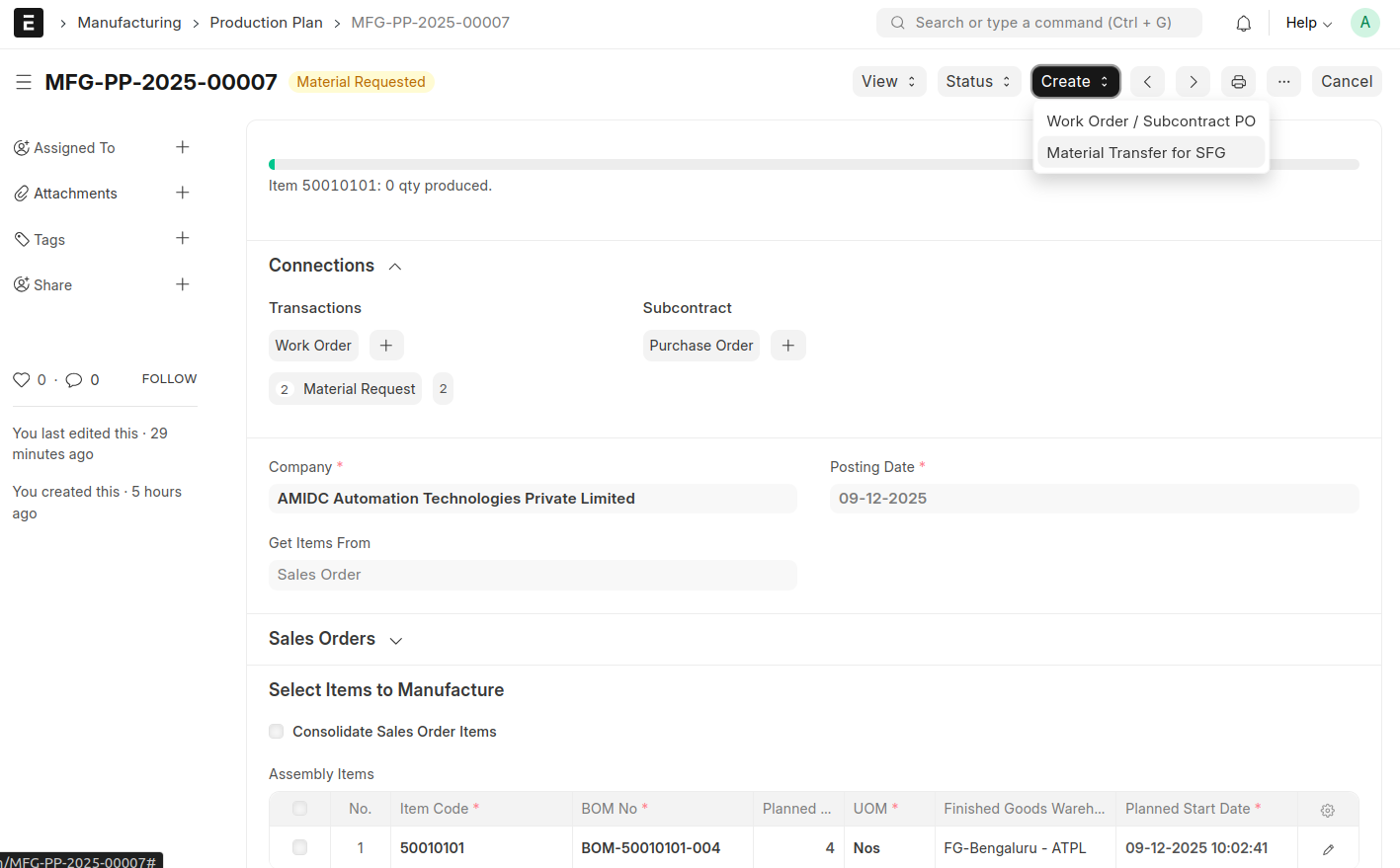
- The available SFG items will be determined by taking the difference between all SFG items and the SFG items marked to be skipped.
Rework Work Order
- Before doing Rework Work Order need to set the Default warehouse in moms custom settings.
- In the Manufacture Stock Entry you can create In Process QC through a Button.
- Update the QC Status in In Process QC Document and submit.
- If the QC Status is 'Rejected'. The Item will be moved from In Process QC warehouse to Rejected warehouse.
- From the Rejected In Process QC you can create Rewor Work Order.
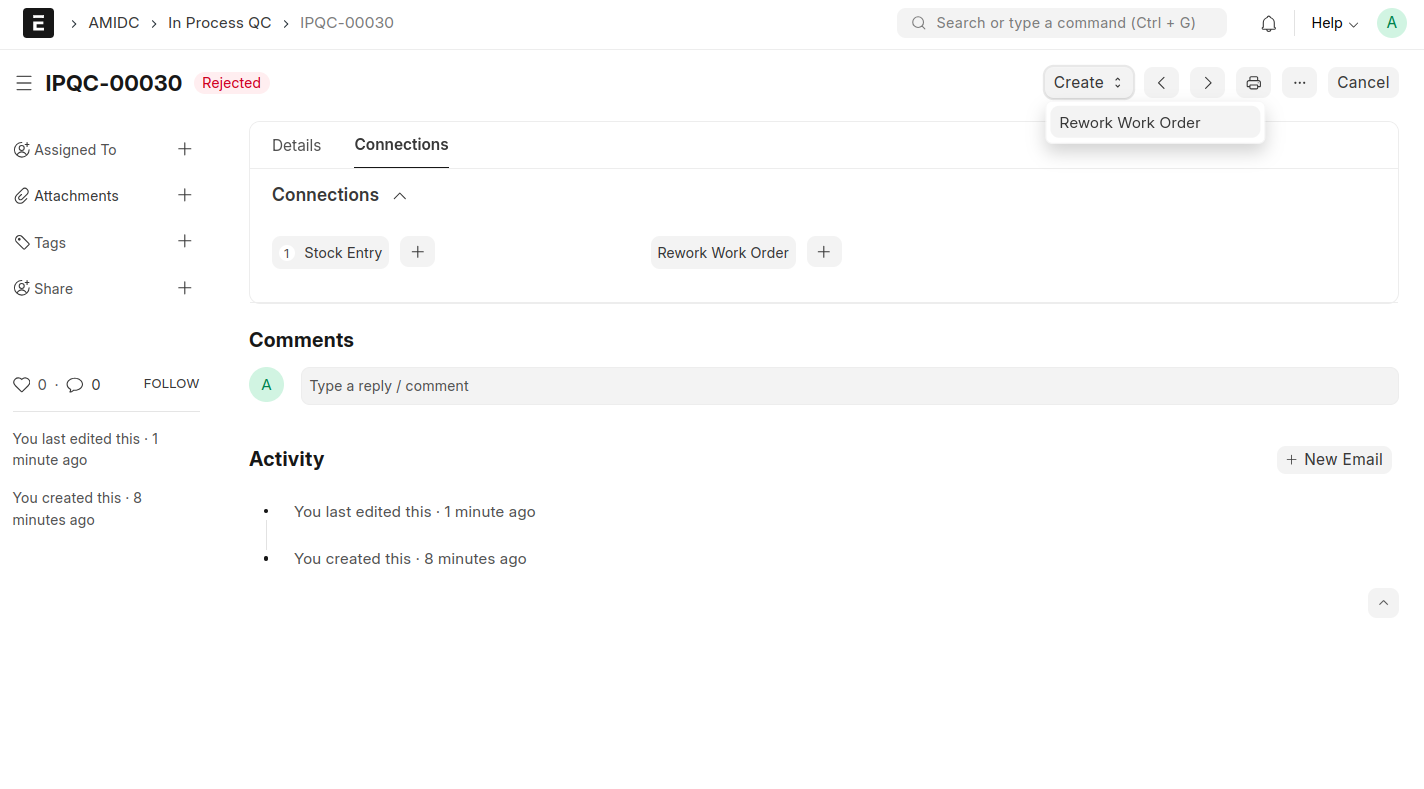
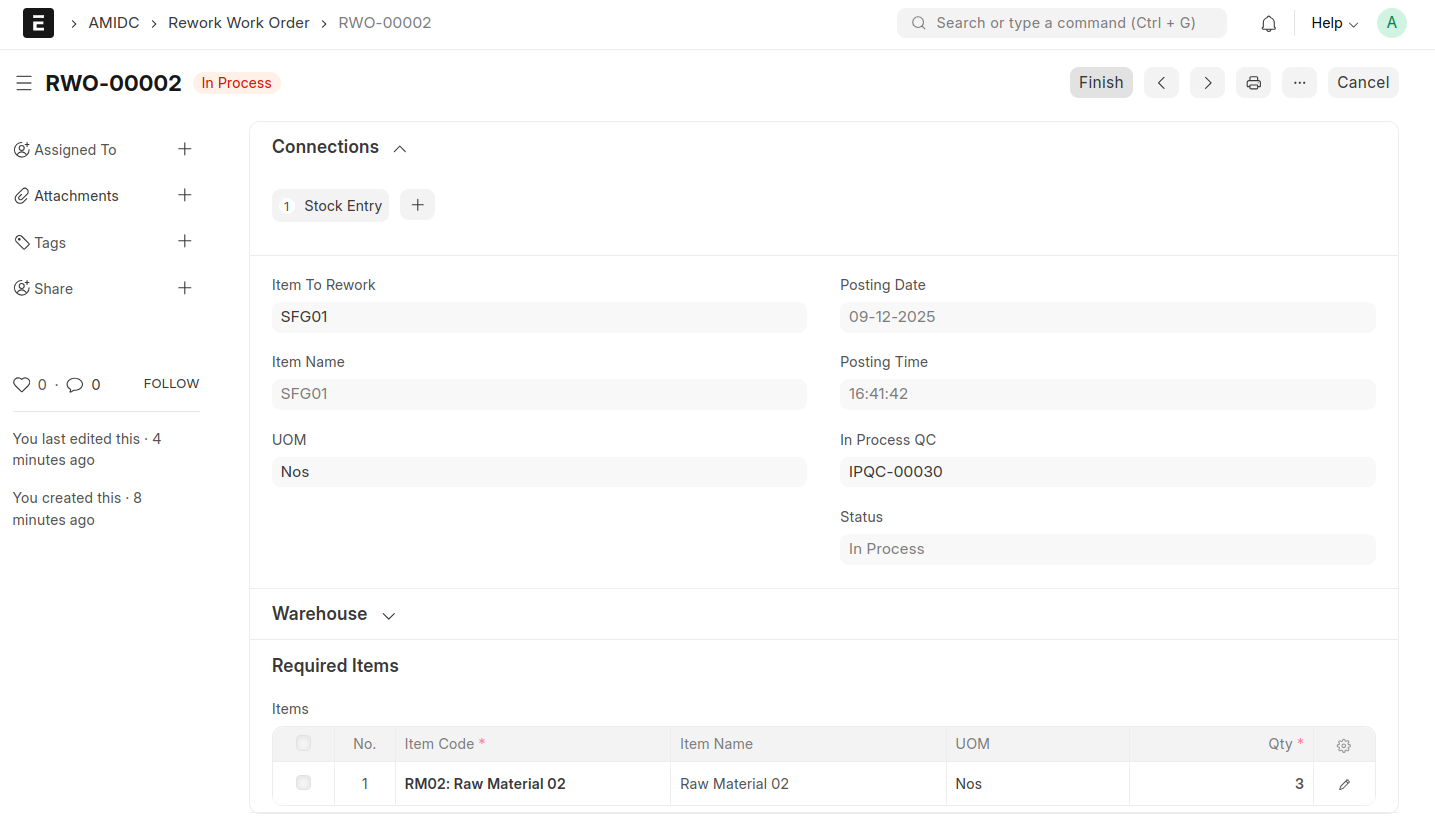
- Enter the Required items and Qty in Rework Work Order and save and submit.
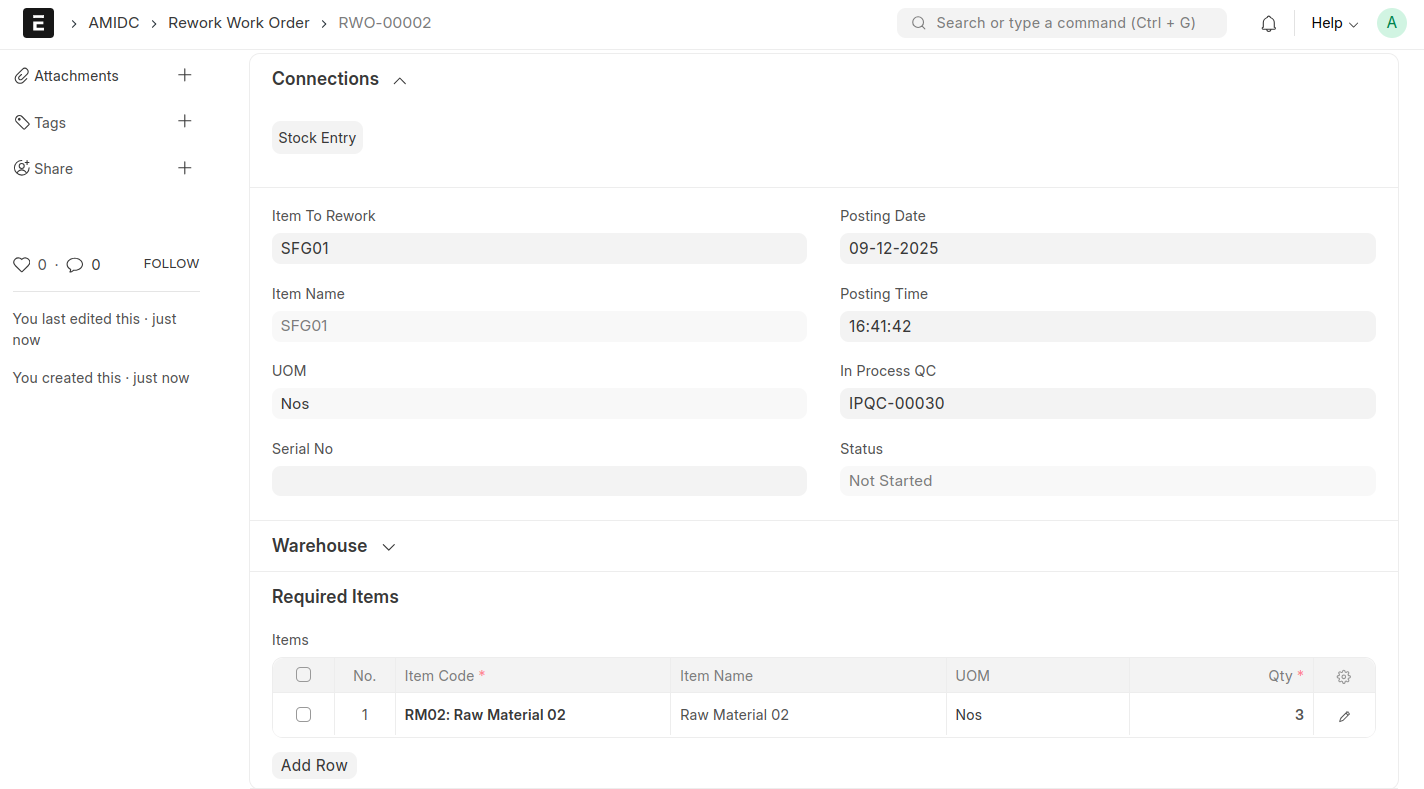
- There is a button 'Start' will be displayed after submit the document. While clicking 'Start' a stock entry will be created to transfer the additional raw materials from Source Warehouse to WIP warehouse( which is configured in the Moms Custom Settings.)
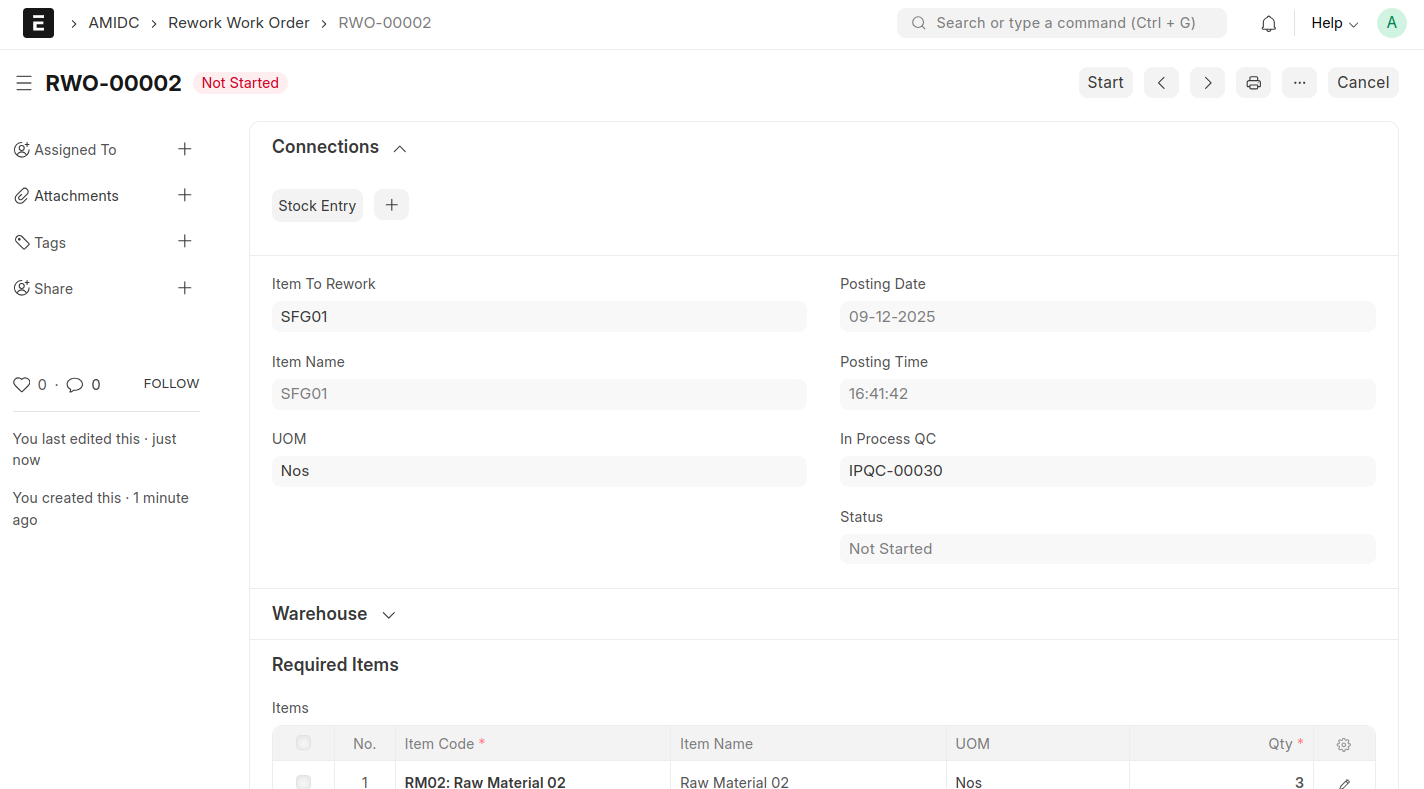
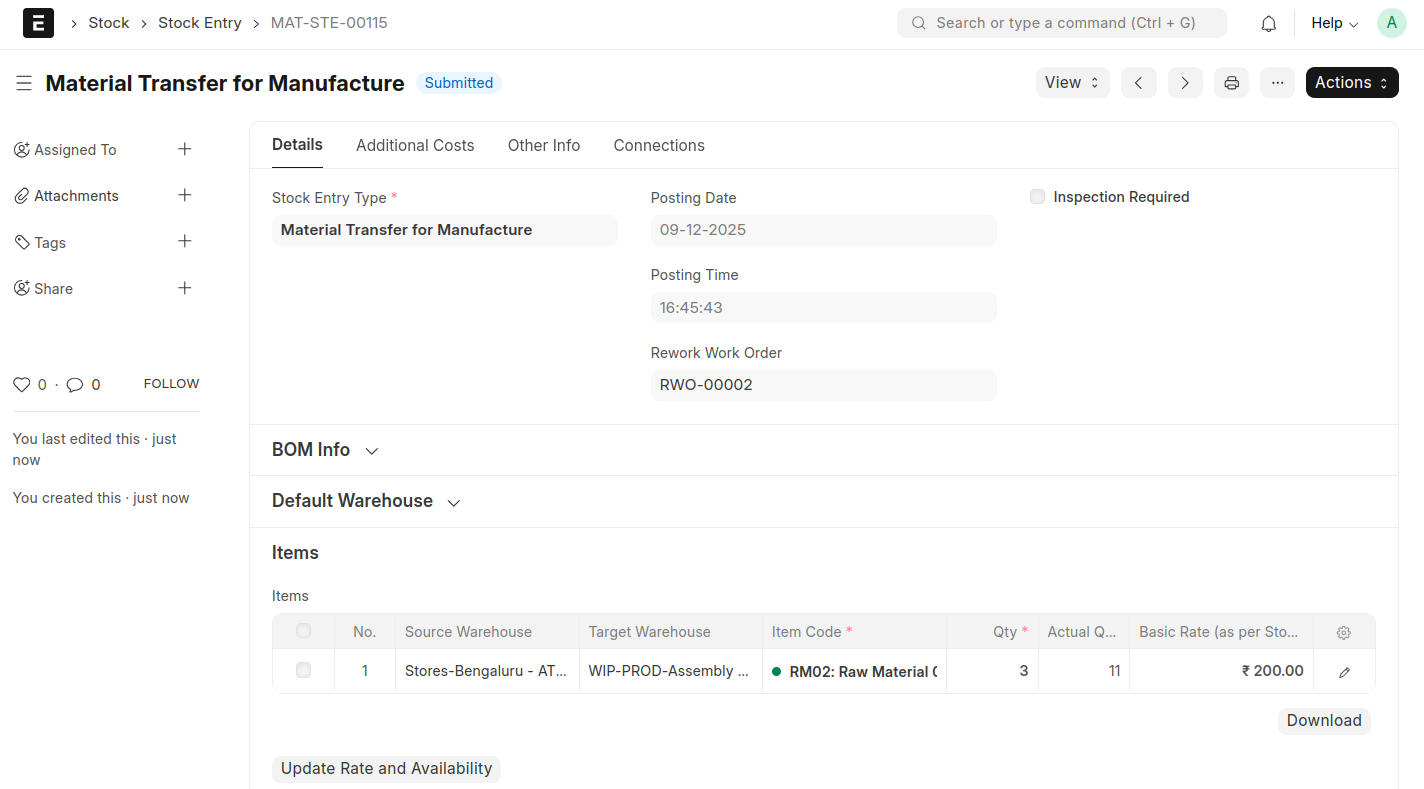
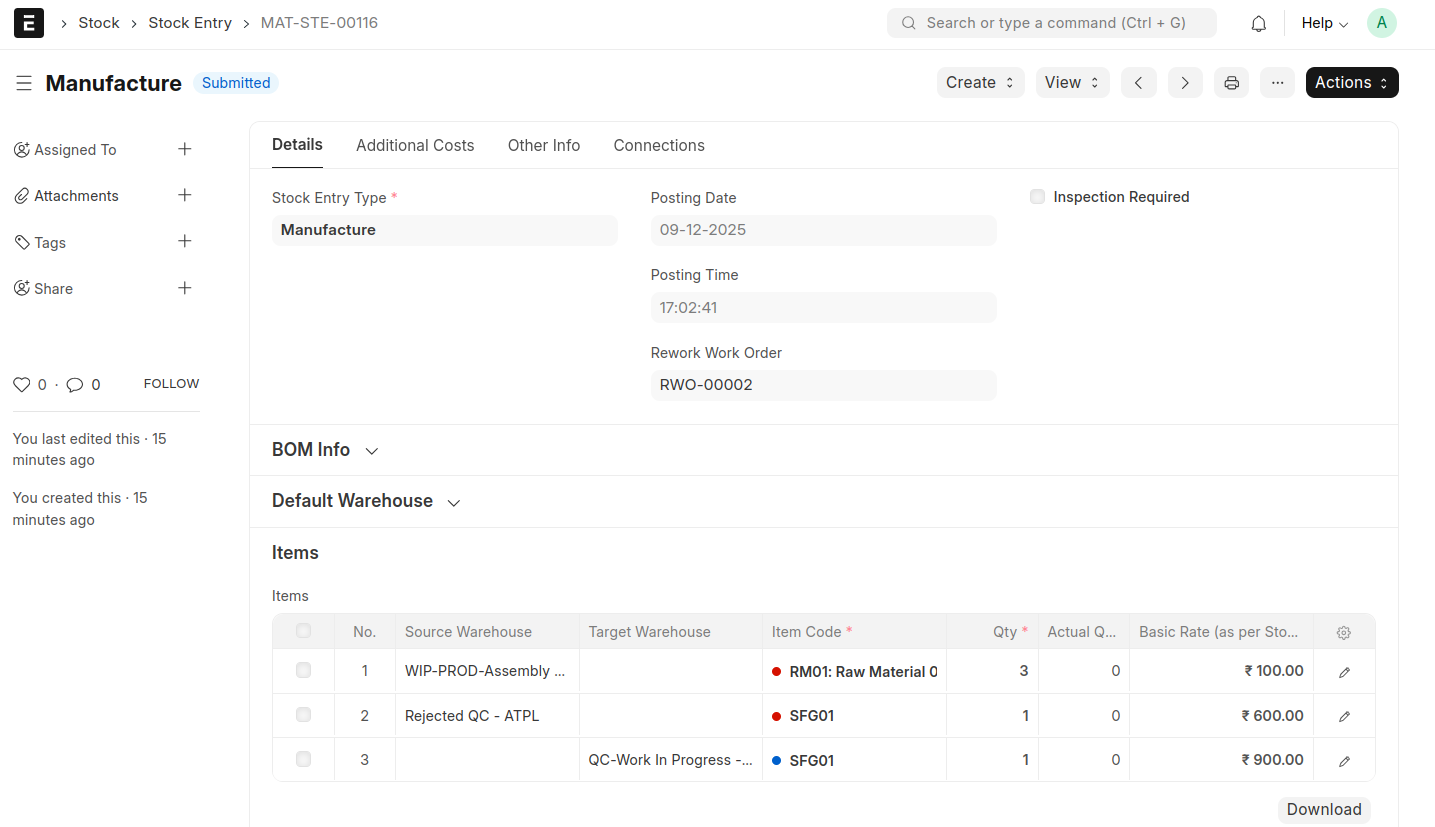
- Once the raw materials are transferred from the source warehouse to the WIP warehouse, a ‘Finish’ button will be displayed. When clicked, it will generate the Manufacture stock entry, and the finished item will be created and transferred to the In-Process QC Warehouse for quality inspection.
- Then the status will be changed into Completed.