Momscode-AMSECC PMR Customization
Project Material Request is customized in the Amsecc App.
Project Material Request prerequisites
Material Request Purpose
- Create Material Request Purpose (ensure all field values are filled).
Stock Entry Type
- Create Stock Entry Types using the same name as the Material Request Purpose.
Moms Custom Settings
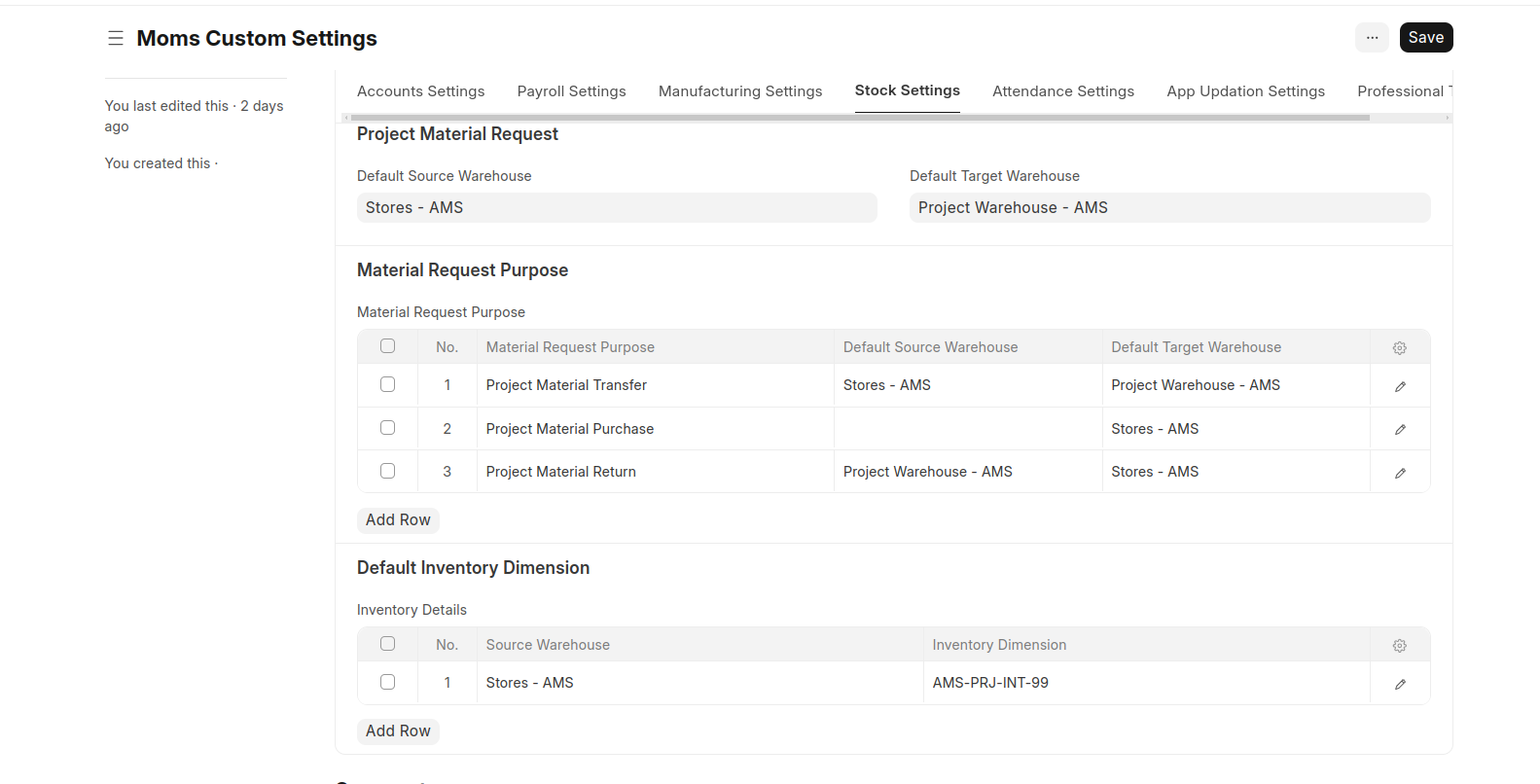
Set default warehouses for Project Material Requests in Moms Custom Settings.
Set default warehouses for Material Request Purpose in Moms Custom Settings.
Set default Inventory Dimensions in Moms Custom Settings.
Project Material Request Process
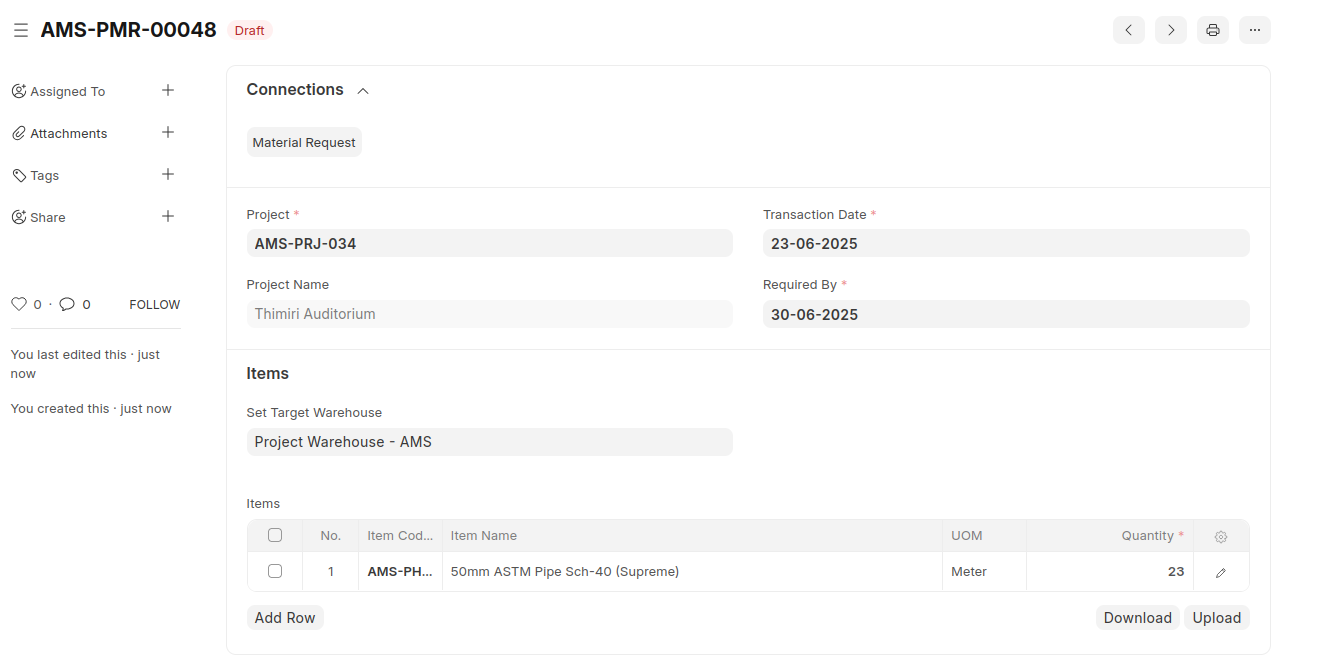
Fill in details such as Project, Dates, Items, and Requested Quantity by the Project Material Request User.
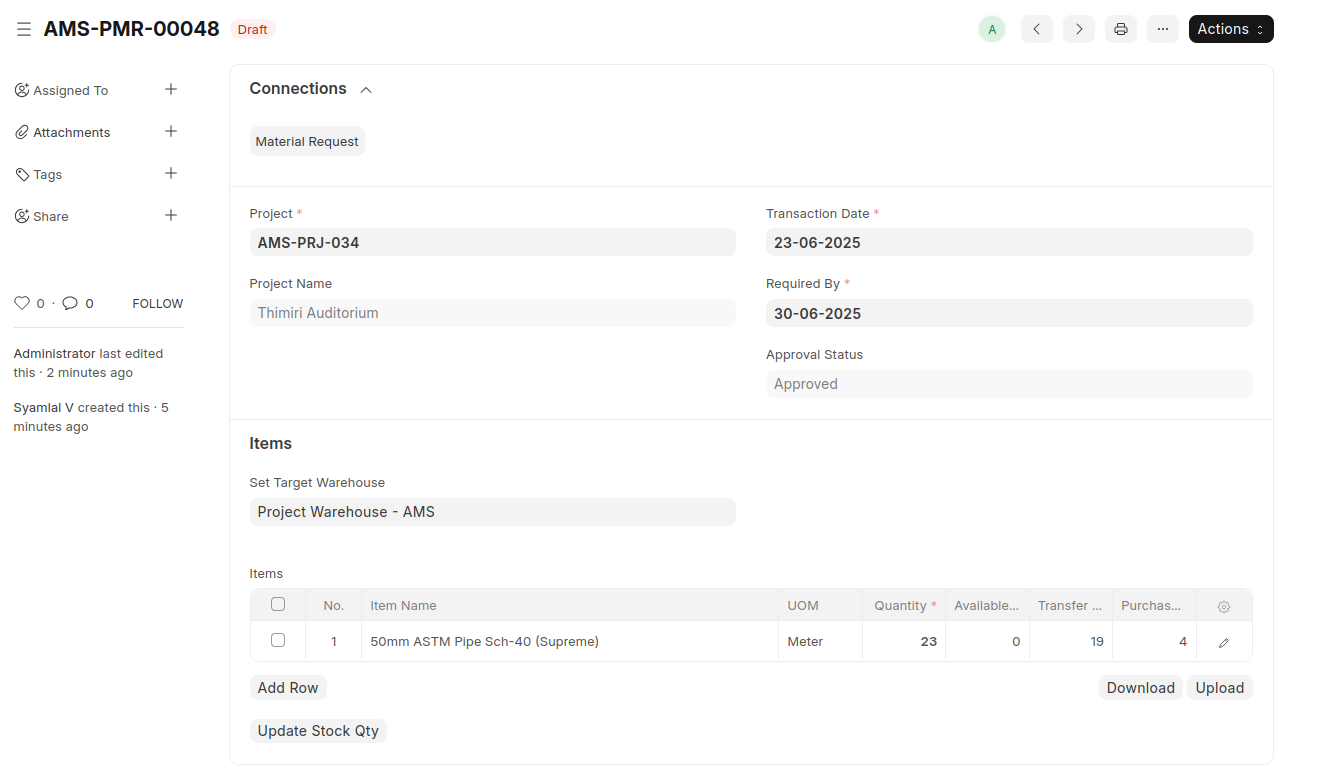
Once the request is verified, the Project Material Request Approver changes the Approval Status from Draft to Approved.
After approval, the Project Material Request Store User clicks the "Update Stock Qty" button. The system displays Available Stock Quantity in the “Available Qty” field.
Based on the Available Qty and Requested Qty, the user manually enters the Transfer Qty for each item, and the system automatically calculates the Purchase Qty.
After submission Project Material Request document, the "Create" button becomes visible for Material Request.
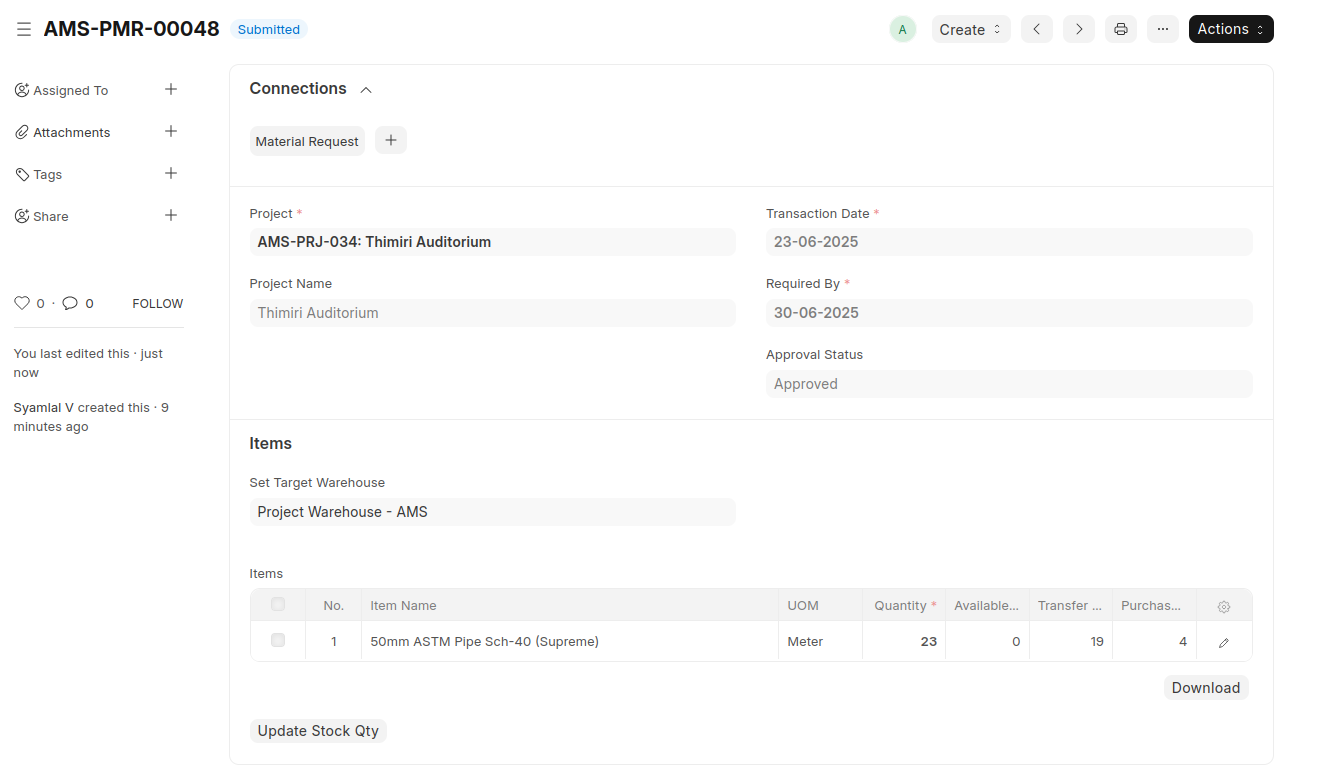
Click the "Create" button to generate Material Requests for: Material Transfer (based on Transfer Qty) , Material Purchase (based on Purchase Qty)
Once Material Requests are created, disable the Create button on the Project Material Request.
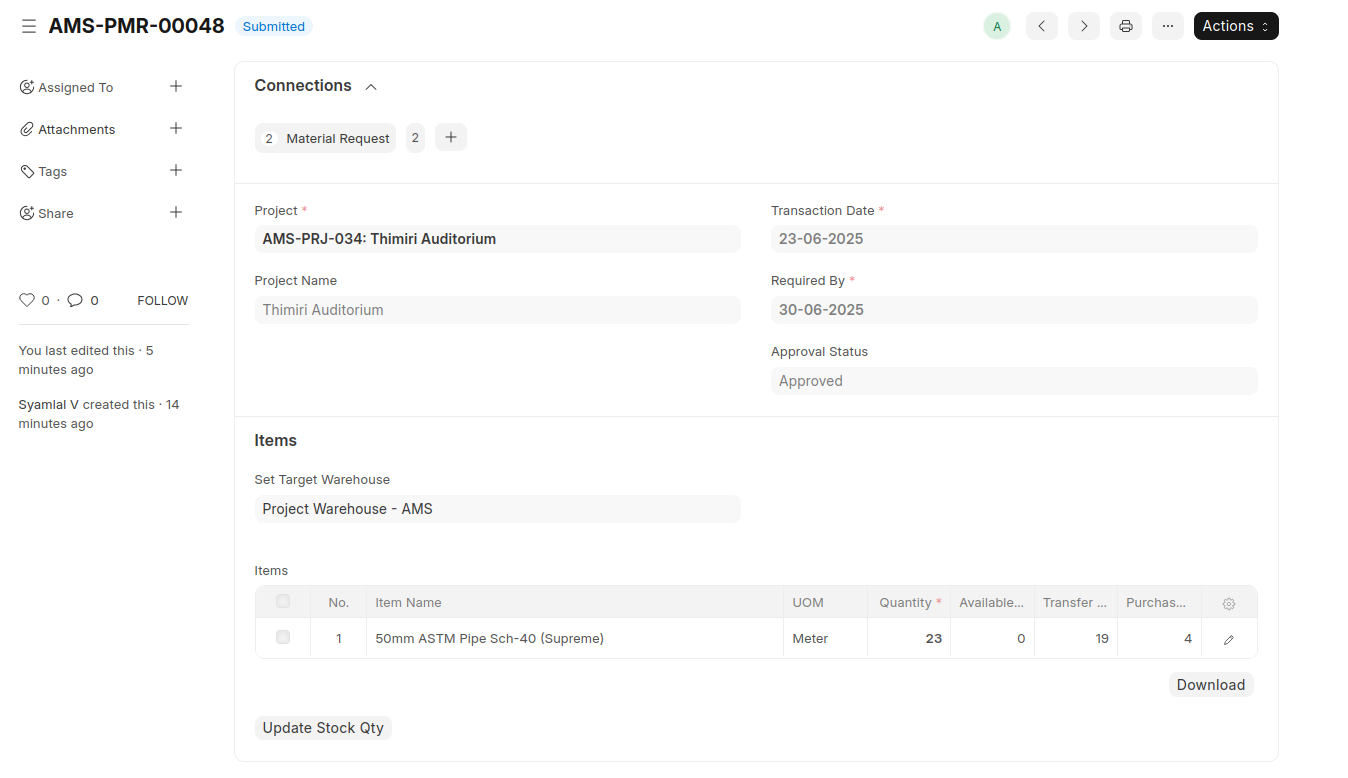
If the created Material Request document is deleted, re-enable the Create button on the Project Material Request.
Material Request
Automatically fetch all values from the Project Material Request.
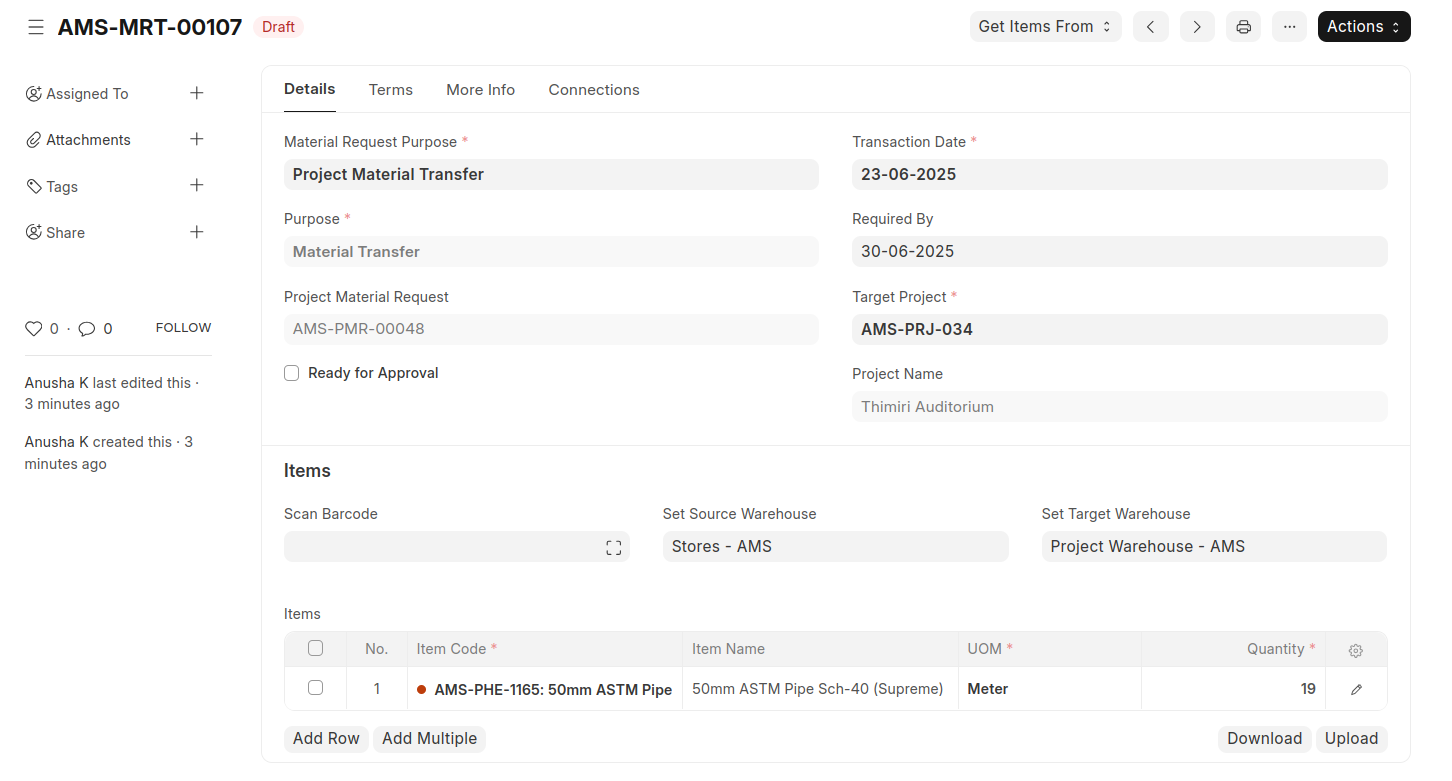
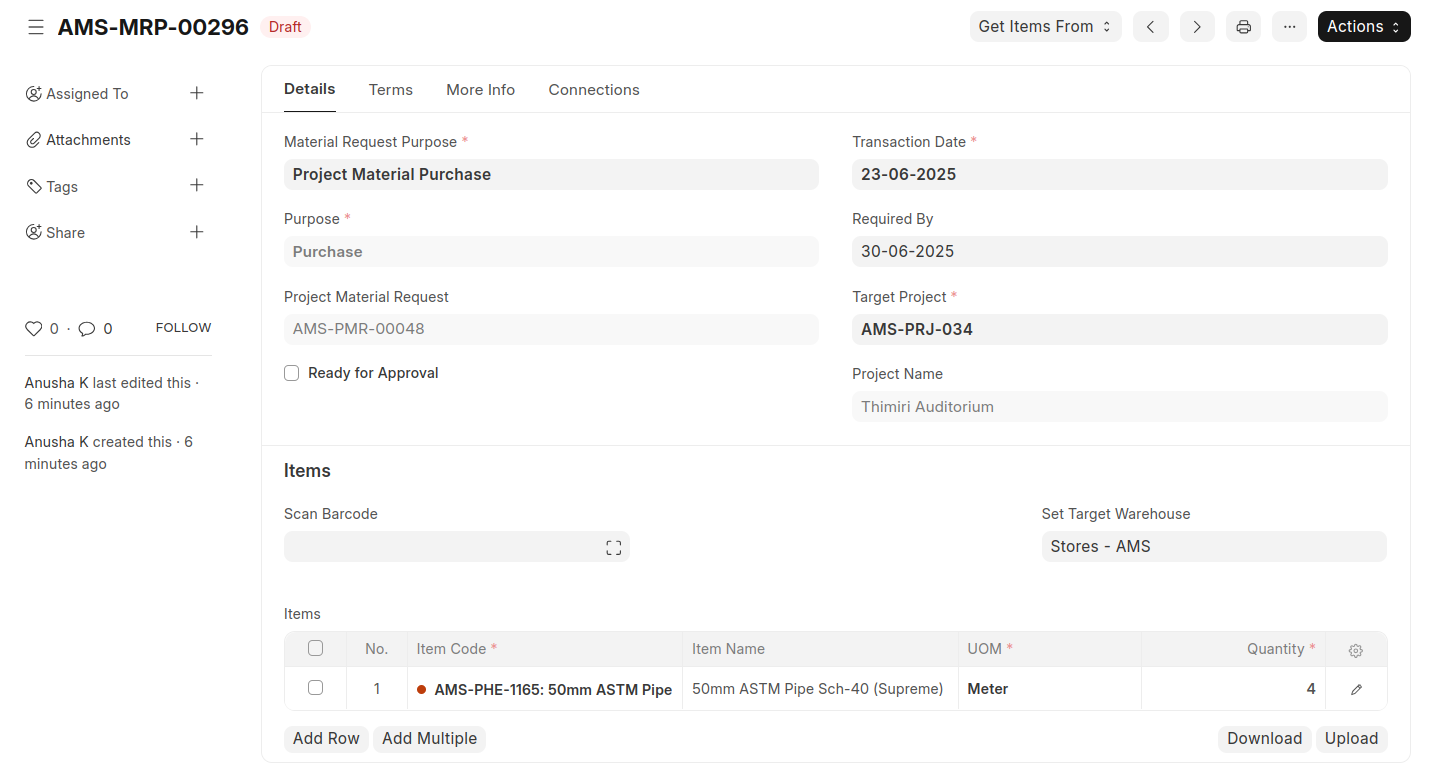
After submitting the Material Request, the "Create Stock Entry" button becomes visible.
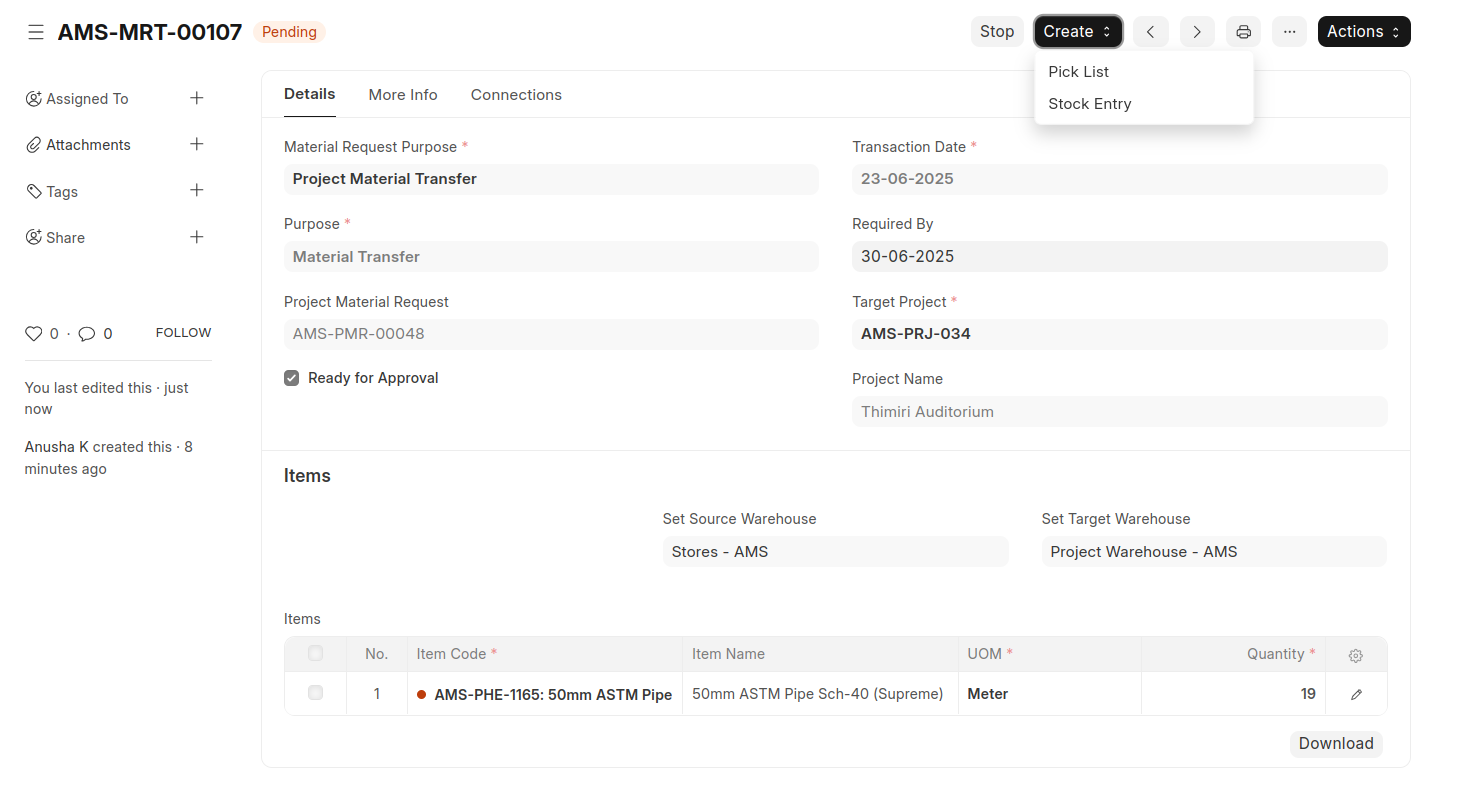
Upon clicking the "Create Stock Entry" button, a new Stock Entry document is opened in an Not Saved state.
Stock Entry
Fetch values from the related Material Request.
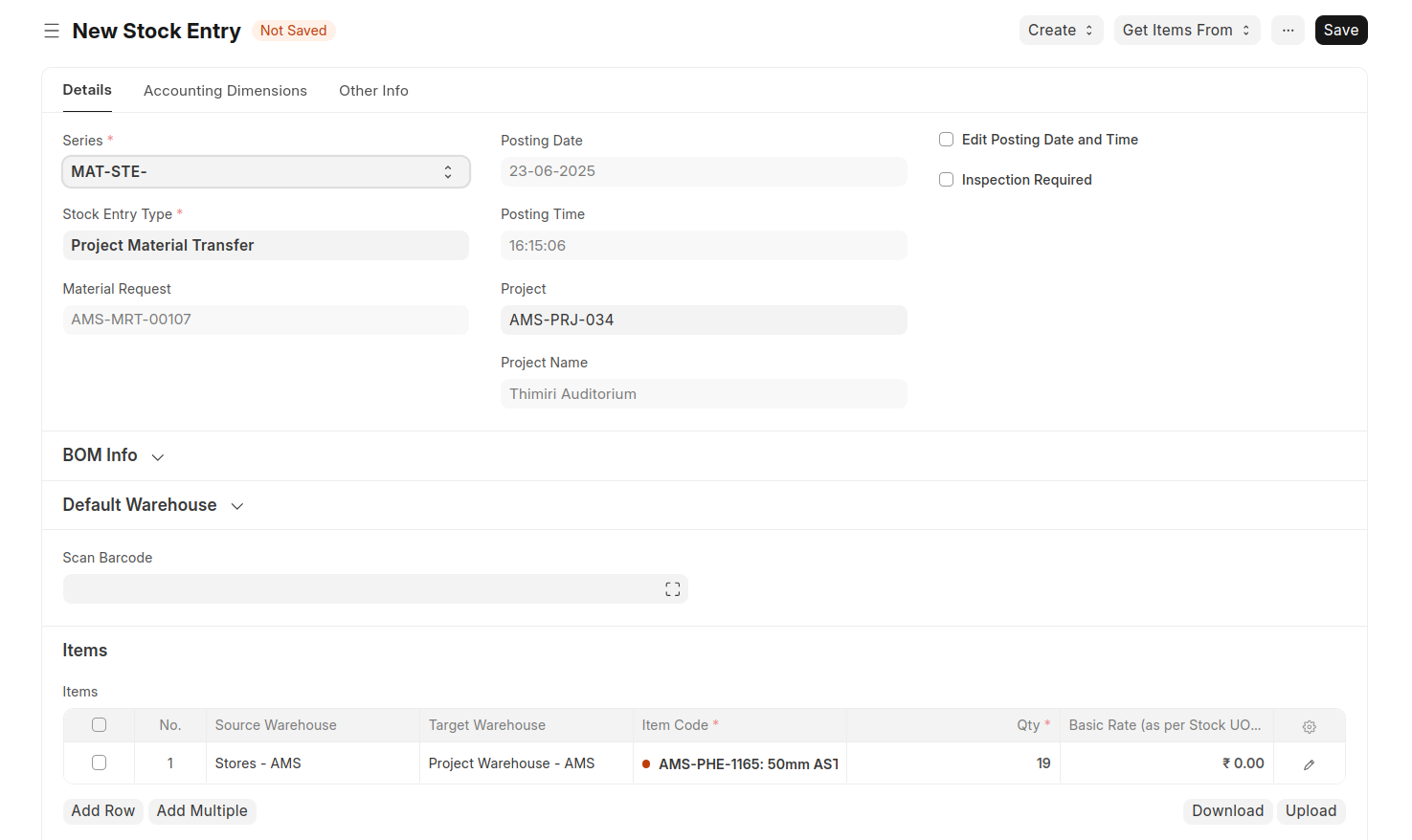
During validation, the Source and Target Inventory Dimensions are automatically populated based on the selected Stock Entry Type.