Momscode - MVS-Tools and Ticket Management System
No Content
Momscode - MVS-Tools and Ticket Management System
praseeda.kp edited 1 year agoBefore creating and using a Service Ticket, it is advised that you create the following first:
Employee
Customer
Service Tools
1.How to create a Employee
Home > Human Resources > Employee
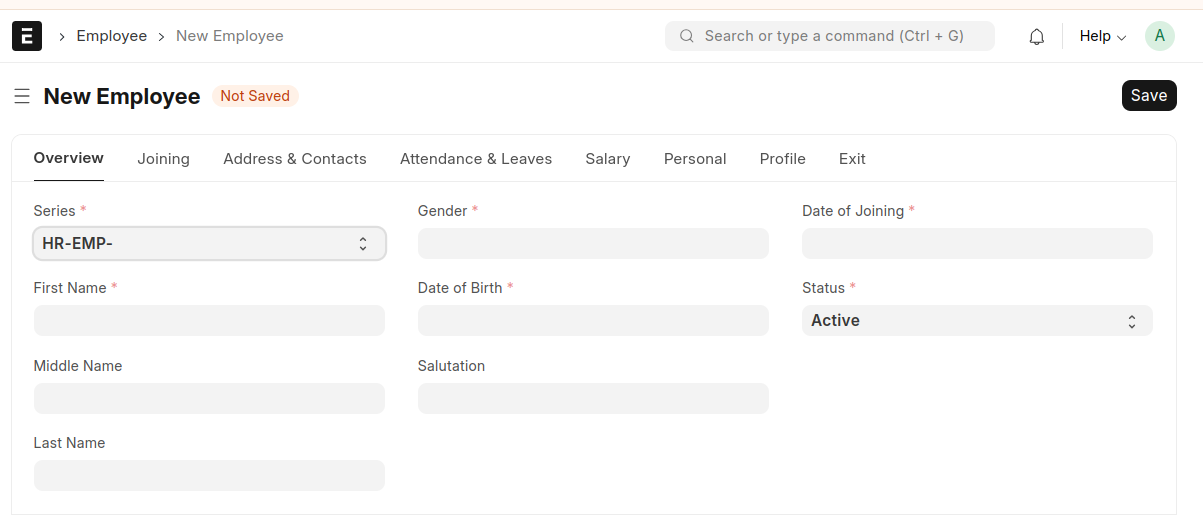
Go to the Employee list, and click on New.
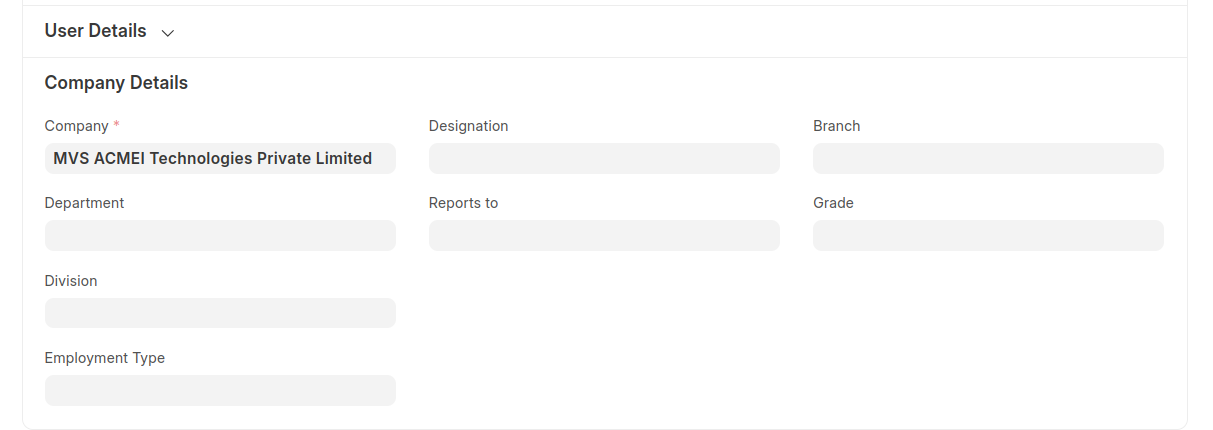
Enter the Employee's personal details such as Name, Gender, Date of Birth,Date of Joining and Division.
Save.
To Create Division,Go to Division List and create Division and save.
2.How to create Customer
Home > Selling > Customers
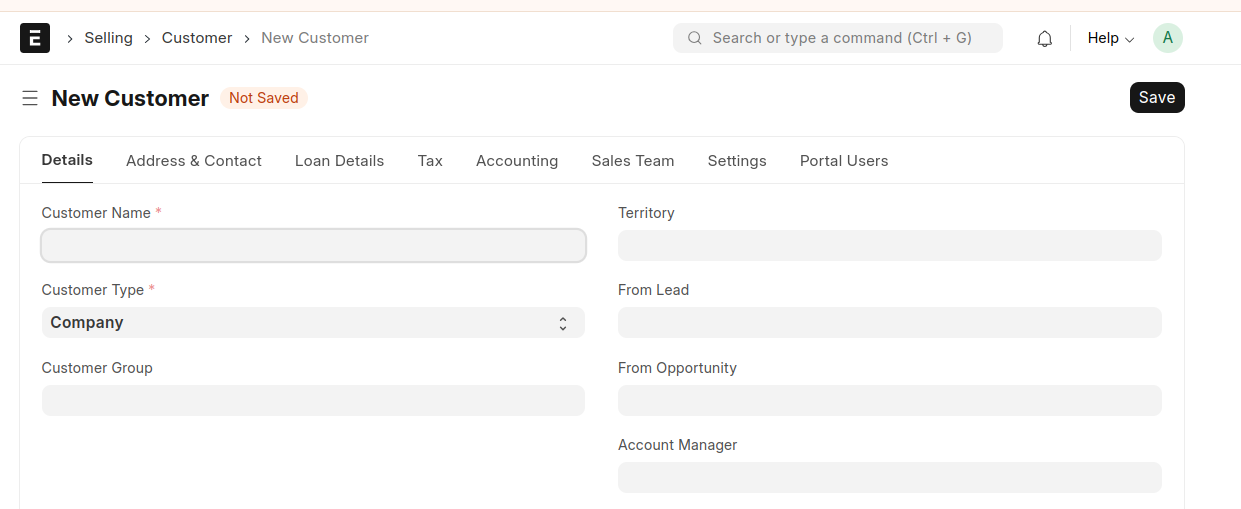
Go to the Customer list and click on New.
Enter Full Name of the customer.
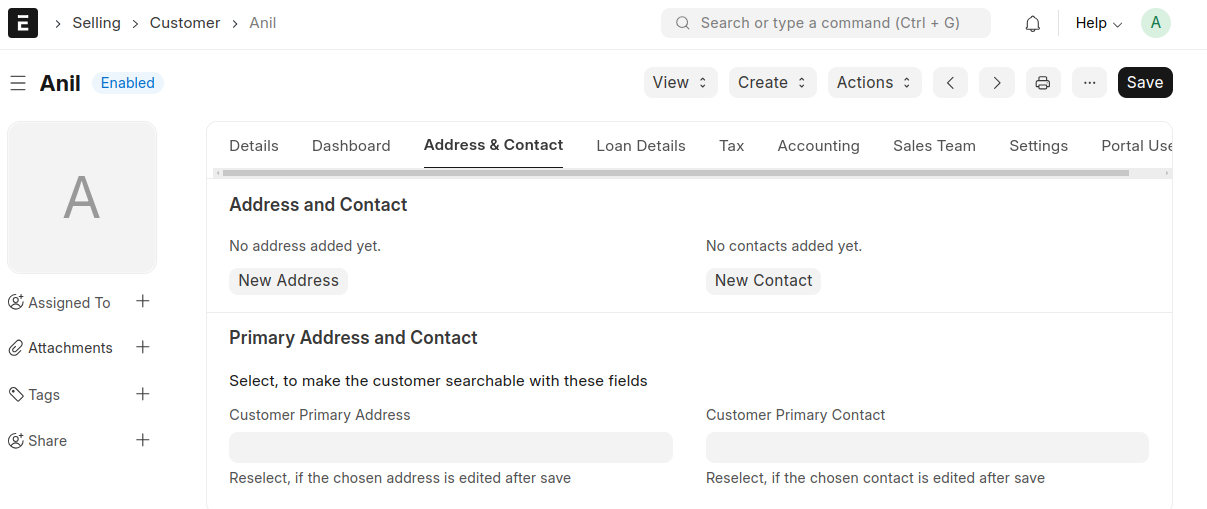
Select Address& Contact ,Enter the Customer Primary Address and Customer Primary Contact.
Save.
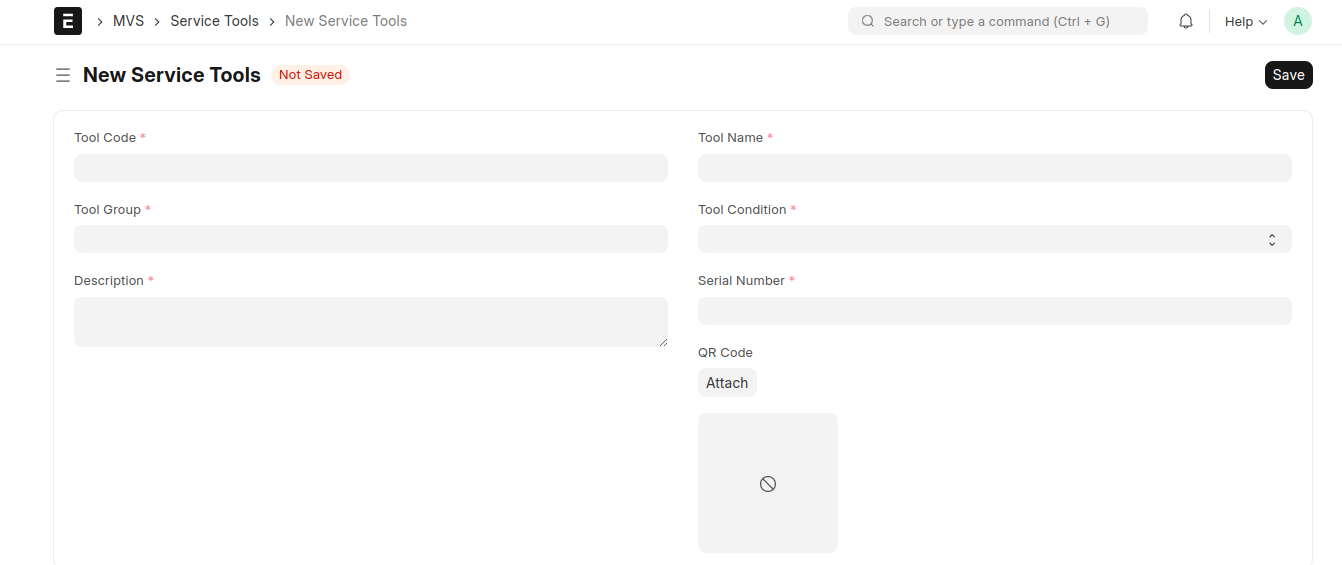
3.How to create a Service Tools
Go to the Service Tools list and click on Add Service Tools.
Enter Mandatory Fields such as Tool Code,Tool Name,Tool Group,Description,Tool Condition,Serial Number.
QR code is generated while saving the document.
4.How to create a Service Ticket
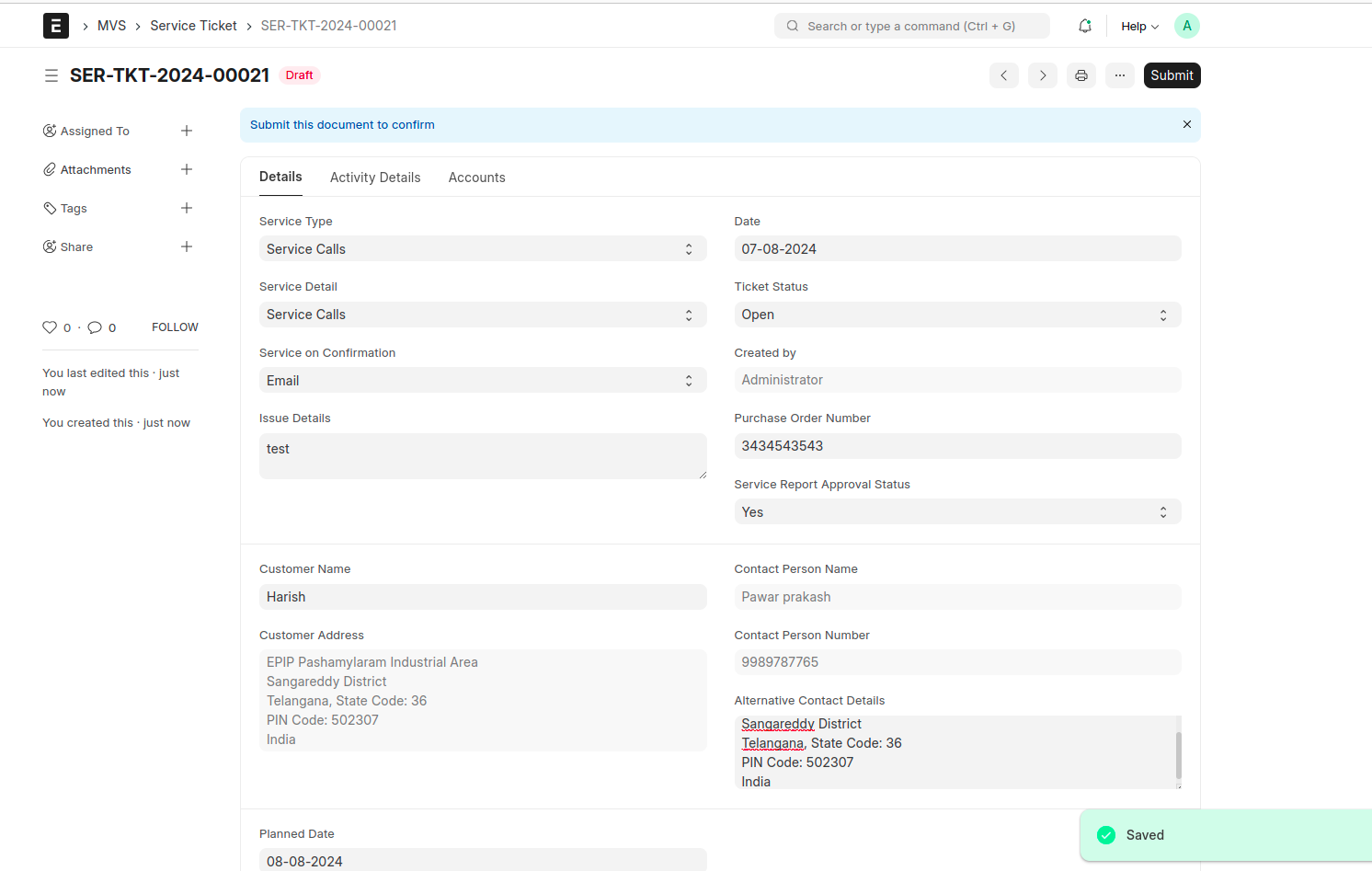
Go to the Service Ticket list and click on Add Service Ticket.
Enter details and select the tools in the tools required table .
Save.
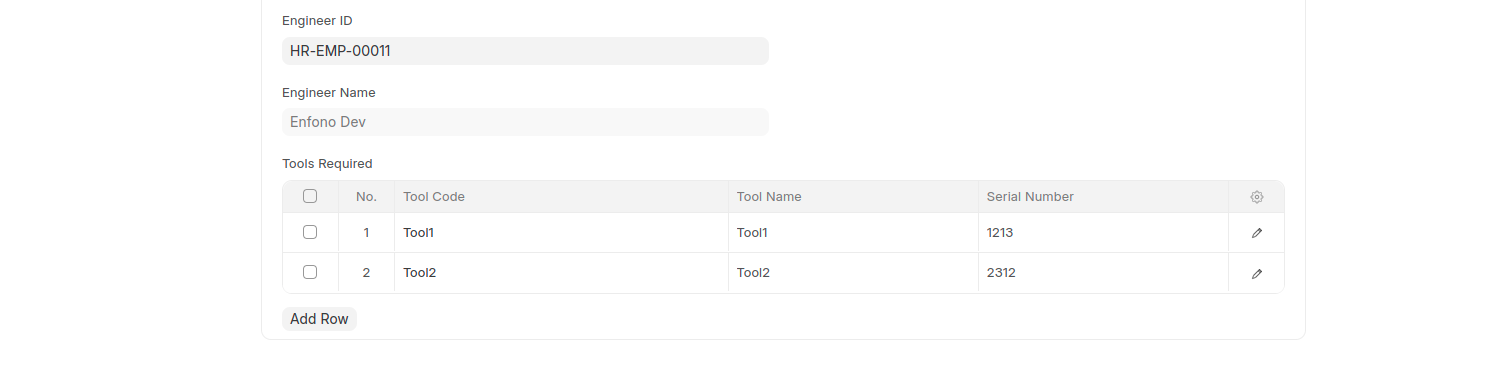
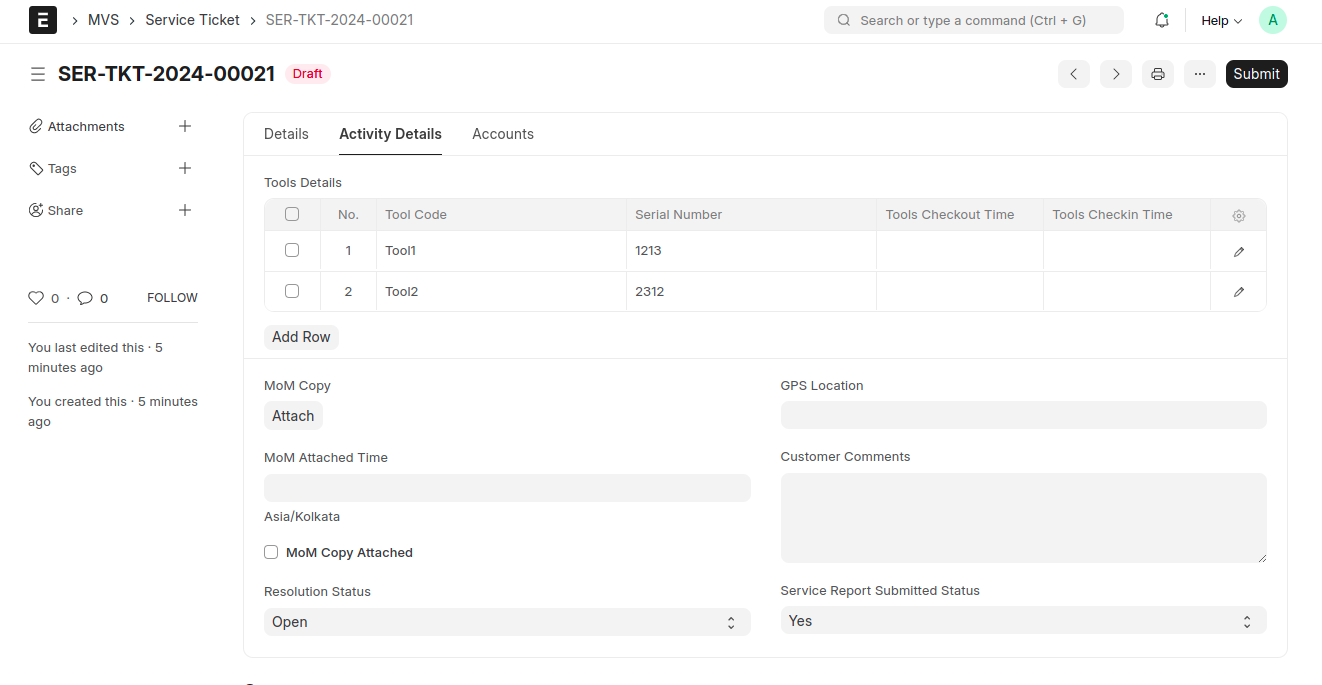
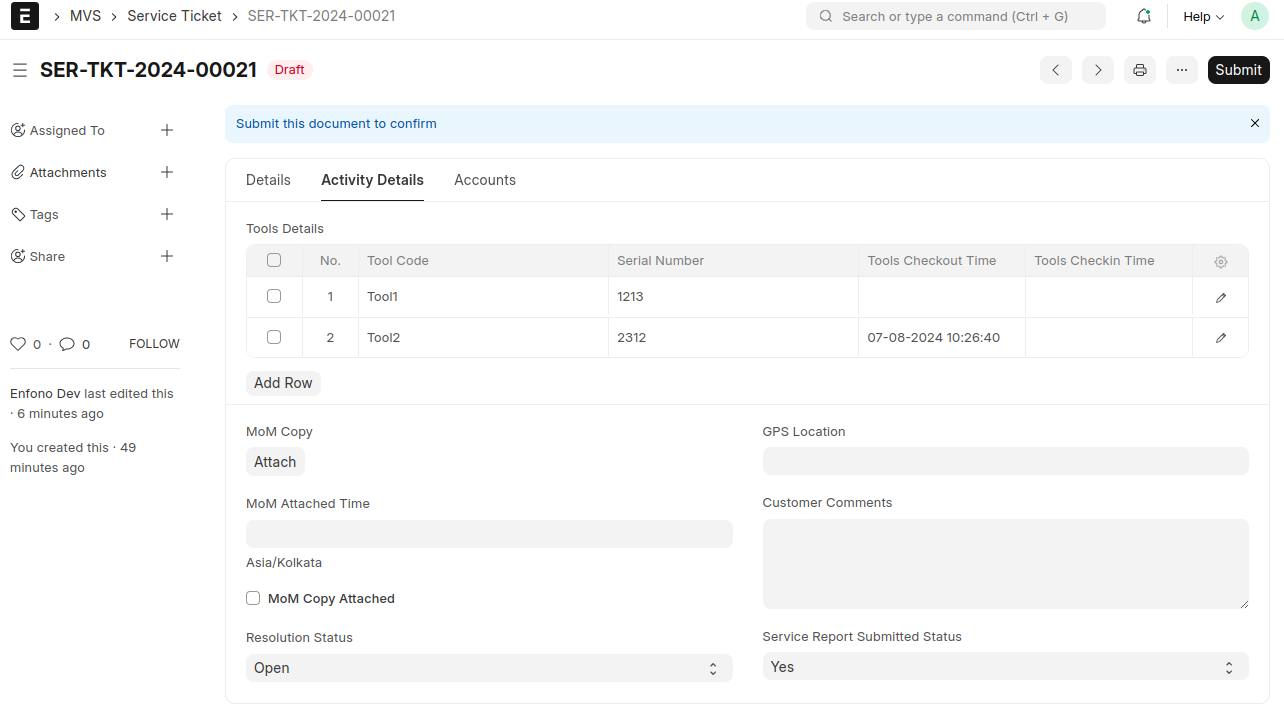
Tools Details table ('Activity Details' tab) will be updated based on the Tools Required table.
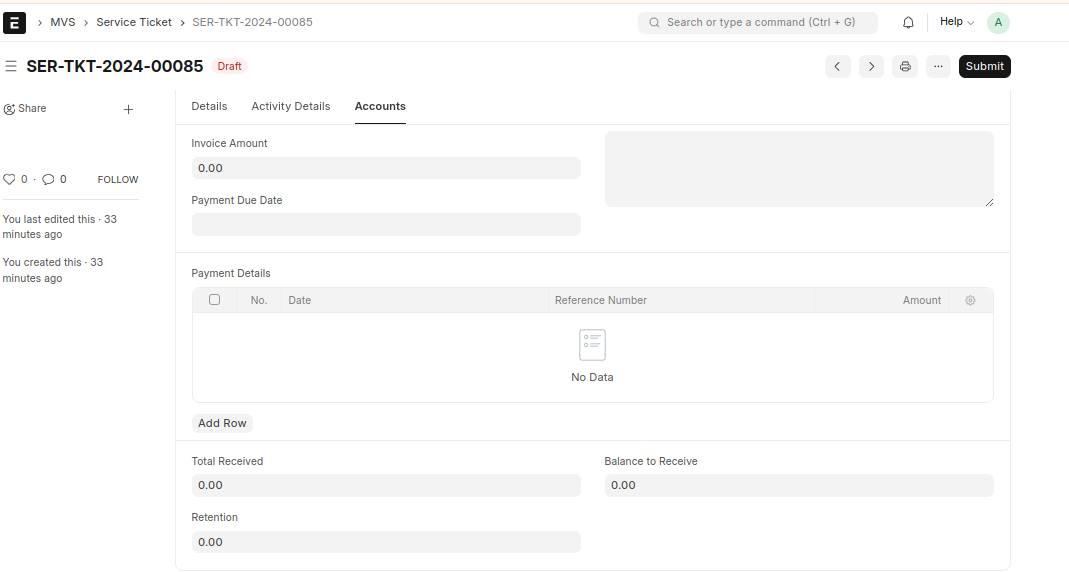
Select Accounts tab and enter details.
Save.
Workflow of Mobile App
Install the 'MvsApp' on your phone
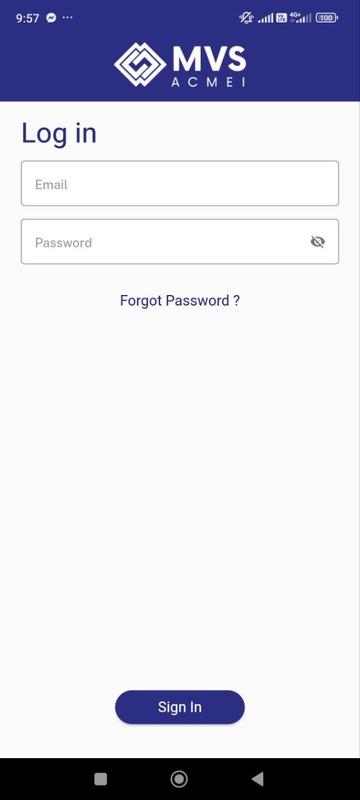
Login into the app with the provided credentials.
The user can view the Service Tickets with open status.
.jpg)
Click on the 'View details' button to view the ticket details.
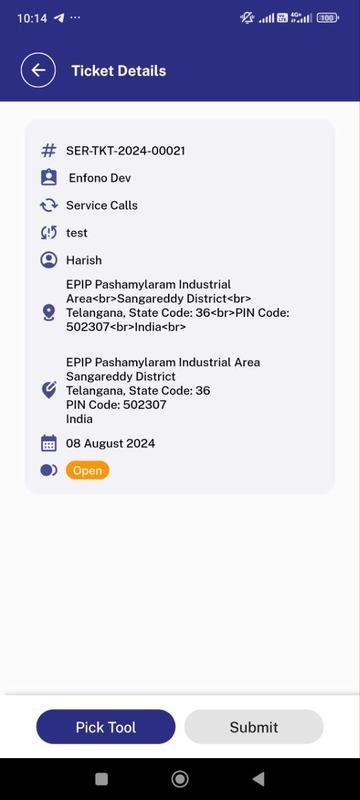
Click on the 'Pick Tool' button to view the assigned Tools.
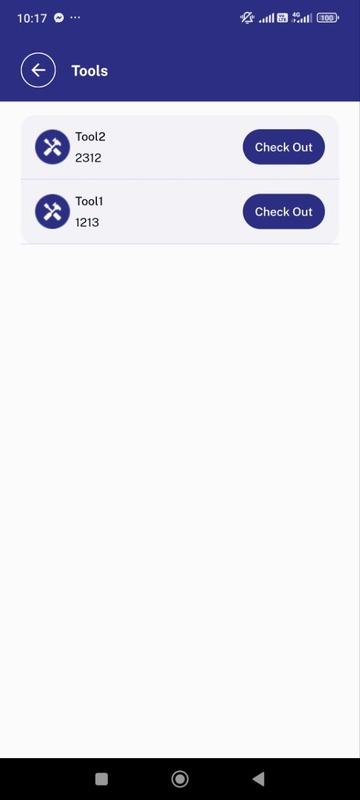
Click on 'Checkout' button to take the Tools from the store and scan the QR code of the tools.
After Scanning QR code the 'Checkout' button changes to 'Checkin'.
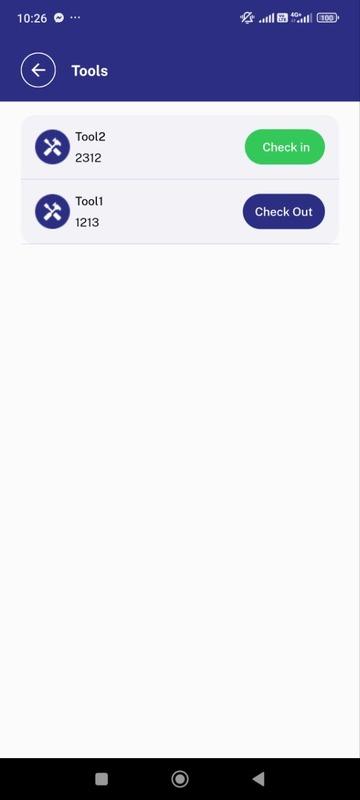
The Checkout time will be updated in the 'Service Ticket' document of ERPNext.
After servicing,click on the 'Checkin' button and scan the QR code to return the Tools to the store.
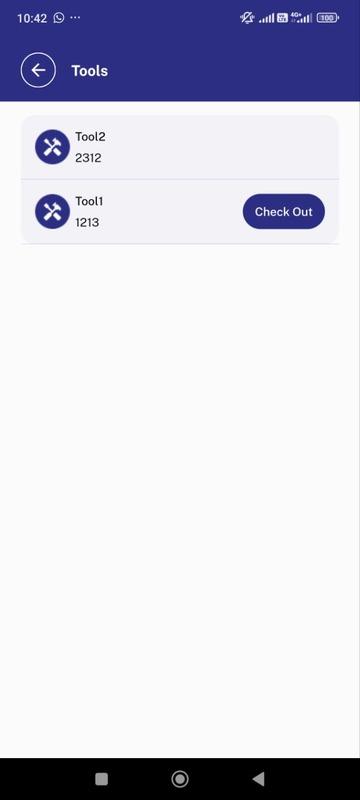
After 'Checkin',the Tools cannot be accessed by the assigned person.
The Checkin time will be updated in the 'Service Ticket' document of ERPNext.
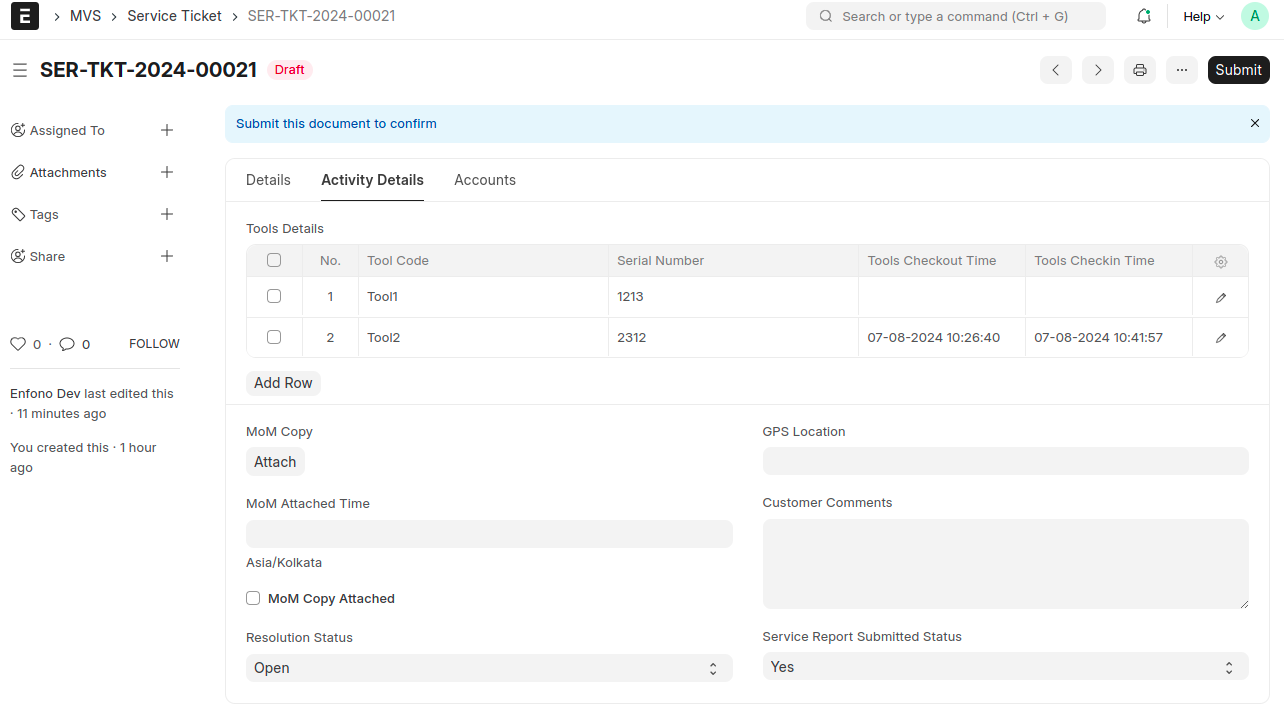
After checkin the tools , the fields for attaching the MoM copy and Customer comments will be visible.
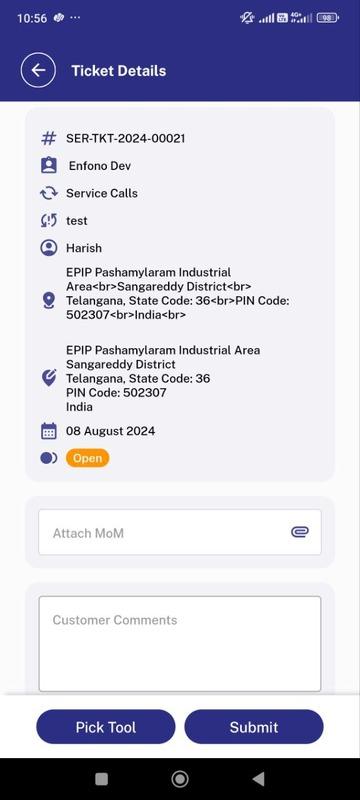
User can attach the MoM copy and add customer comments,then click the 'Submit' button.
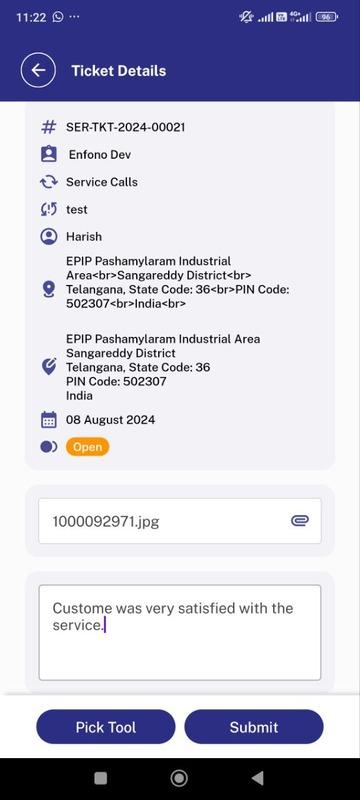
The attached copy ,MoM attached time,GPS location and customer comments will be updated in the 'Service Ticket' document of ERPNext.
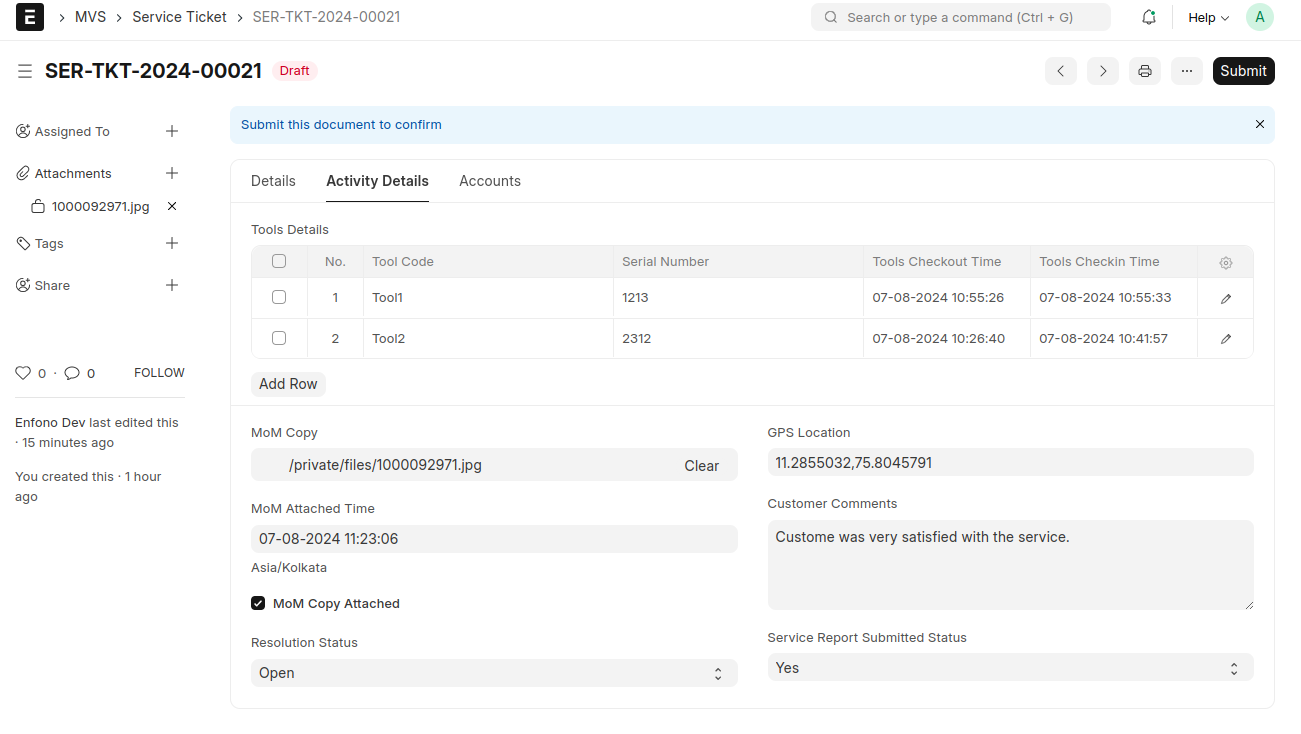
After verifying the 'Service Ticket',the ticket status should be set to 'Closed' upon submitting the document.
The closed 'Service Tickets' should not be visible in the Mobile app.