Momscode - MVS Manufacturing
Moms Custom Settings
Fabric Work Shift
- Fabric Workforce
Fabric Job Card
Rewinding Work Order
- Rewinding Job Card
I. MOMS CUSTOM SETTINGS
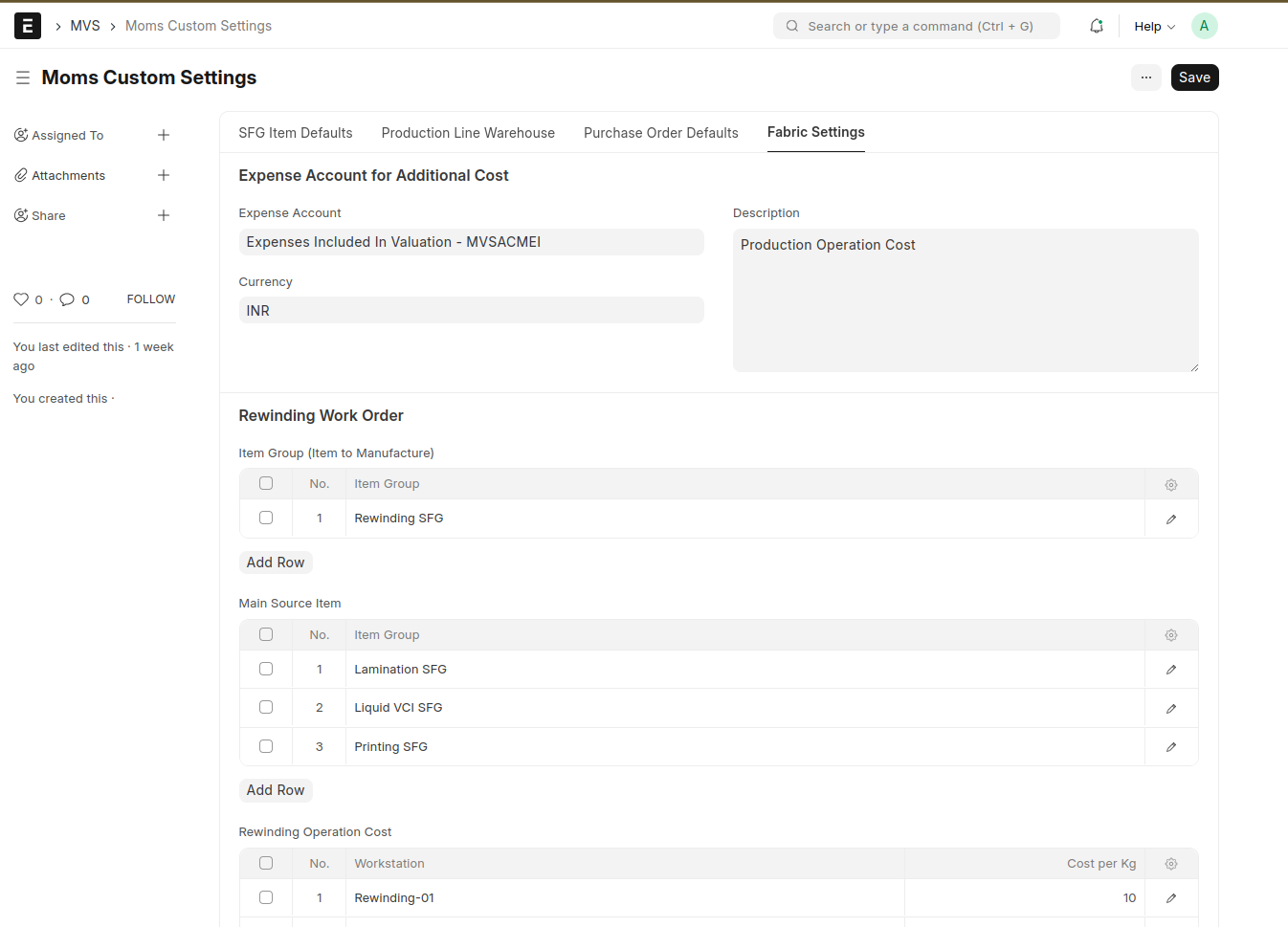
Expense Account for Additional Cost section values are used for the additional cost expense account head and its description
Rewinding Work Order sections 'Item Group (Item to Manufacture) 'table is used for filtering the 'Item to Manufacture' field of "Rewinding Work Order"
The 'Main Source Item' table is used for filtering the 'Item' field in the 'Items to Rewind' section of the 'Rewinding Work Order.'
The 'Rewinding Operation Cost' table is used to mention the Workstation Cost for calculating additional costs in the 'Rewinding Work Order'.
Set all the data in Moms Custom Settings as default data, because these are the default values used for filtering in the Fabric Job Card and Rewinding Work Order. The filters will work based on this default data
II. FABRIC WORK SHIFT
This document is used to create shifts for production work
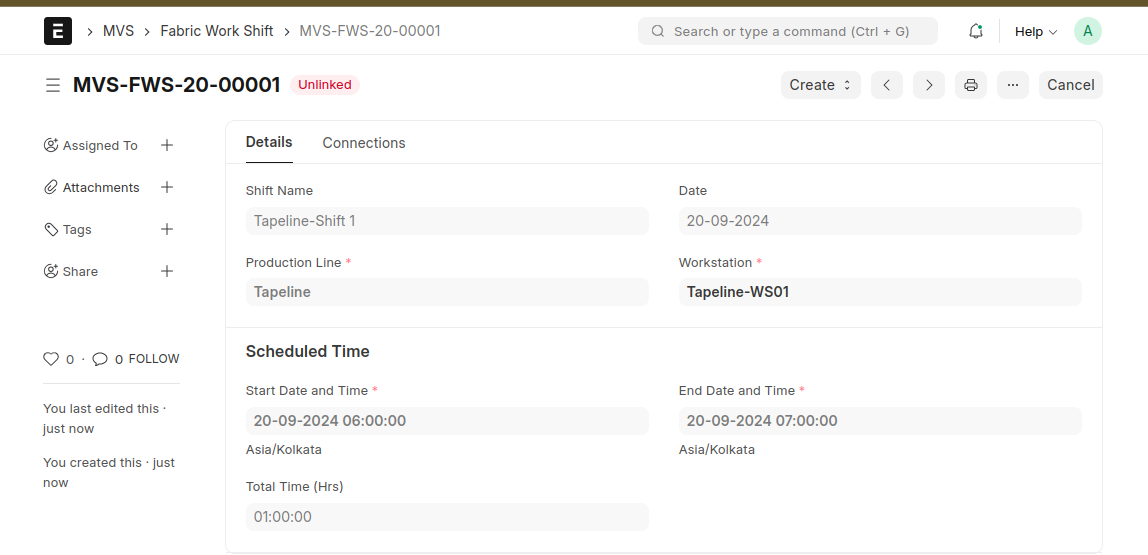
After saving and submitting, show a button labeled 'Fabric Workforce' for creating a fabric workforce.
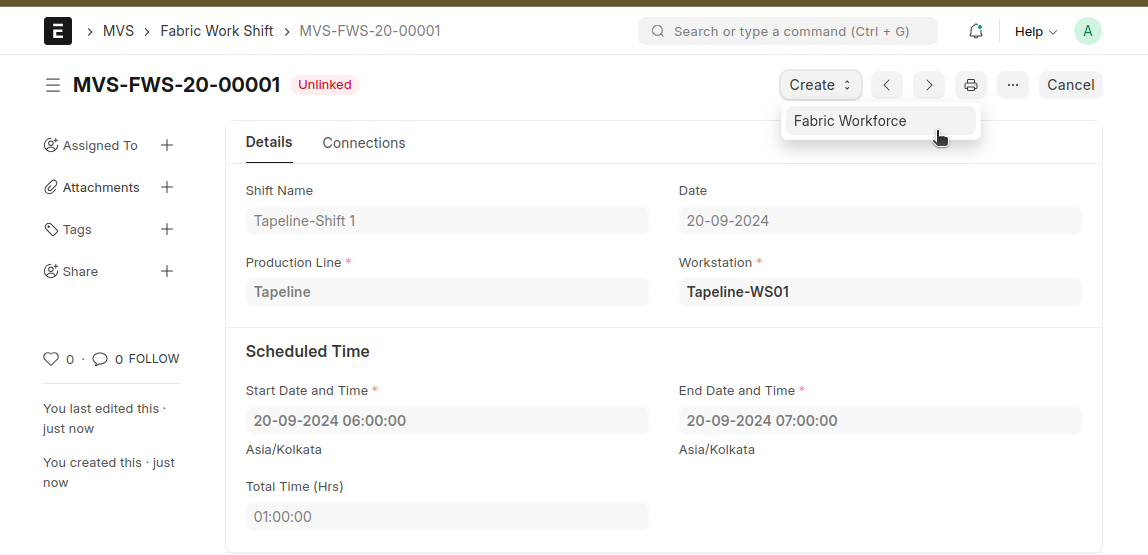
III. FABRIC WORKFORCE
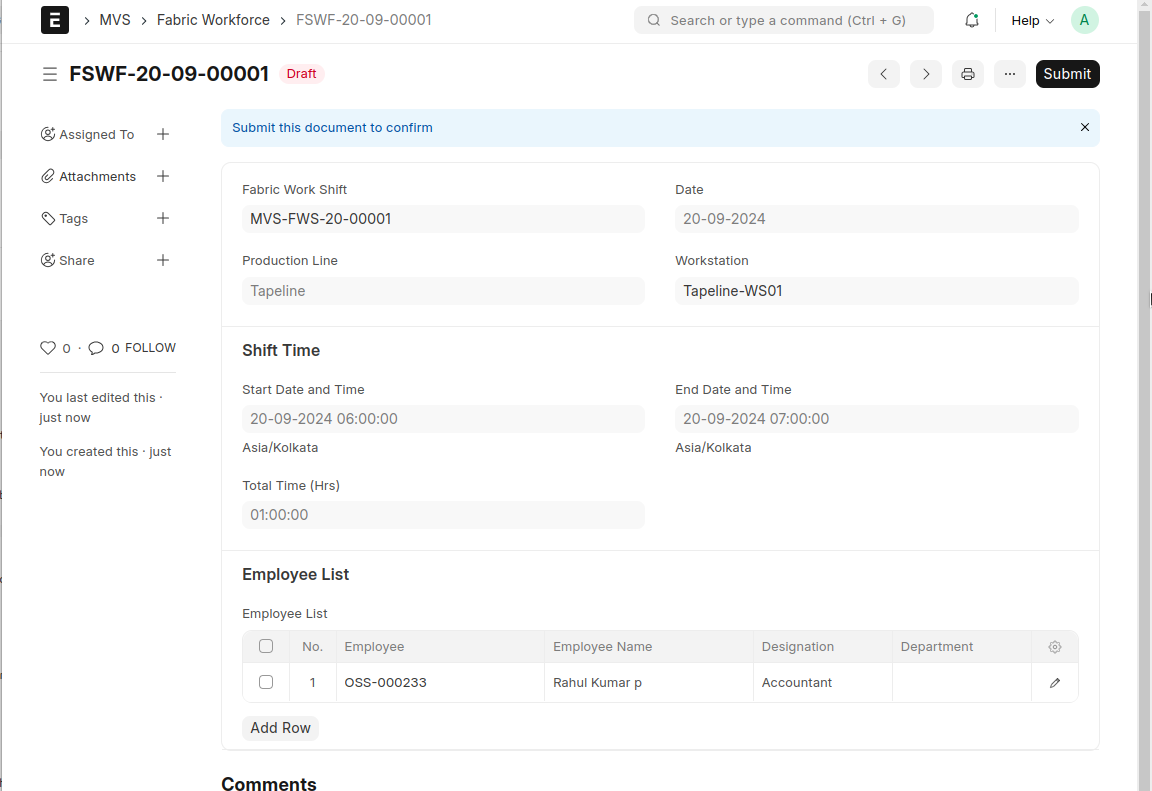
The fabric workforce is created for assigning employees to the shift.
IV. FABRIC JOB CARD
After creation of BOM and Work Order > A button comes in Work Order > Create > Fabric Job Card
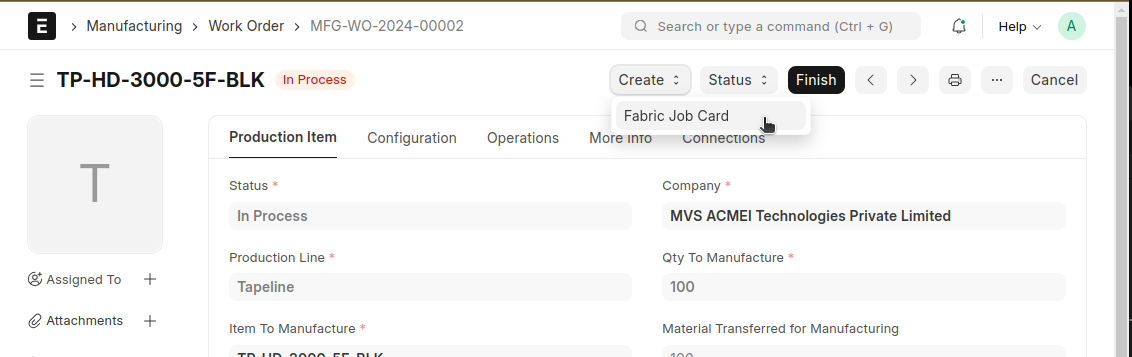
Then create Fabric Job Card Document >
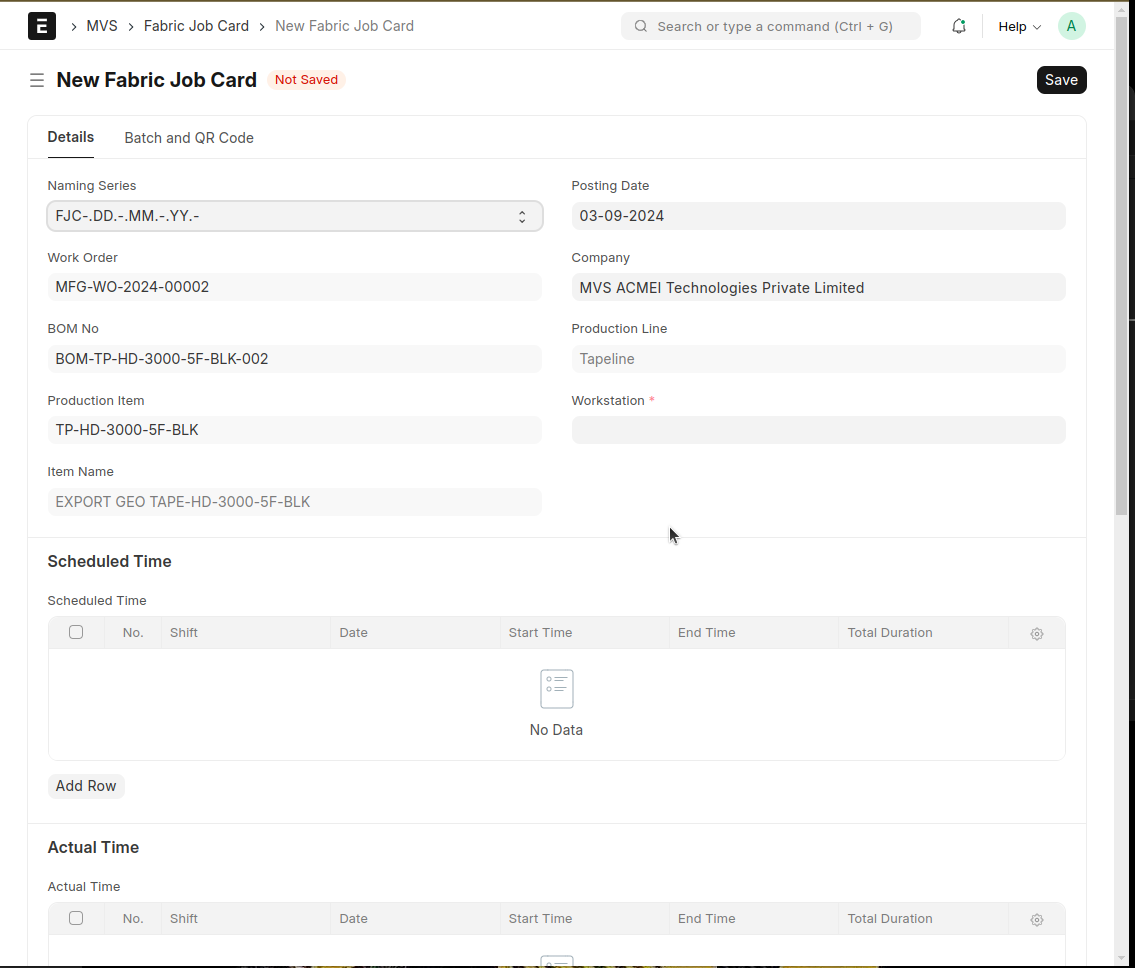
In the Schedule Time and Actual Time sections, the Fabric Work Shift doctype is used to create shifts for each day and each shift. A Fabric Workforce doctype must be created for every Fabric Work Shift because employees (production staff) are assigned to the Fabric Work Shift.
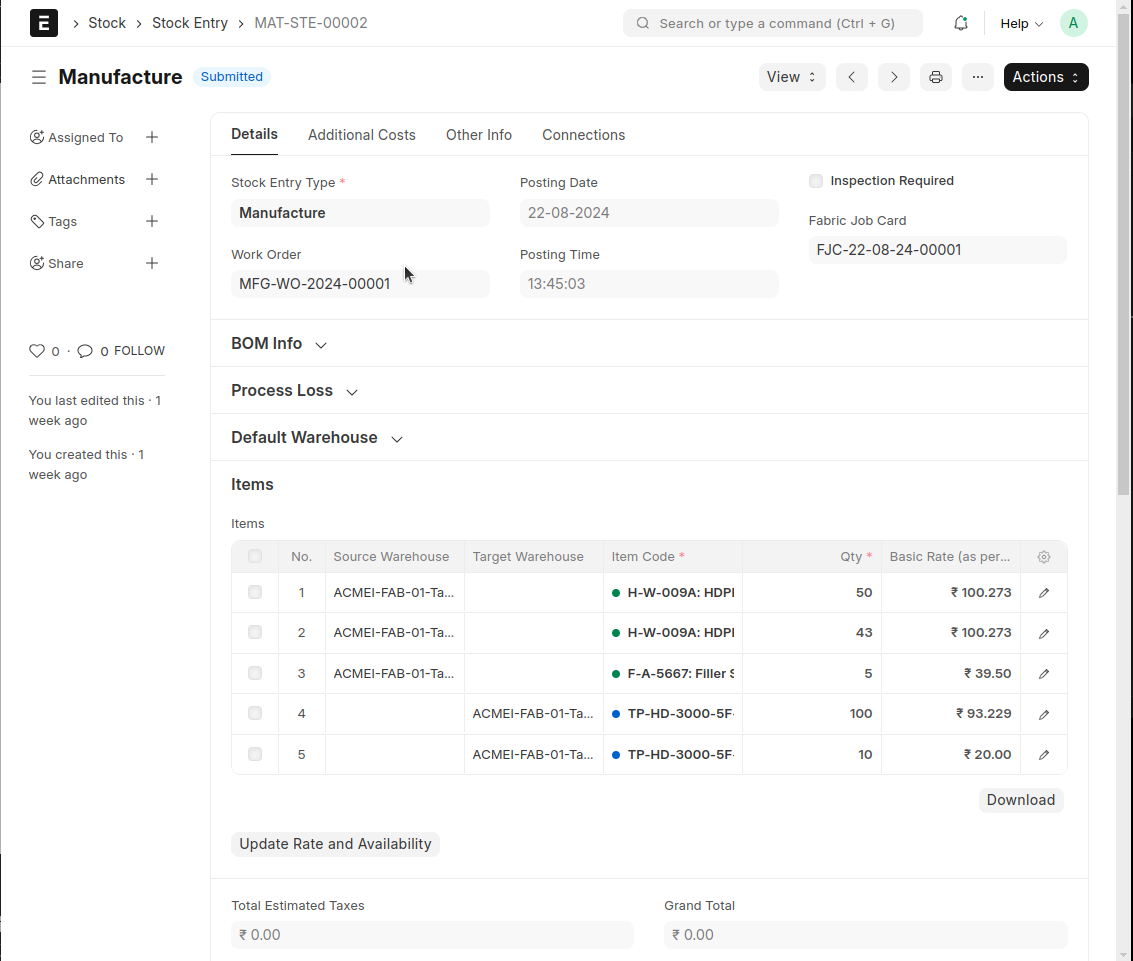
input all field required datas and save then create a Batch No and there is button comes for create QR Code > then Submit > Create a manufacturing Stock Entry

QR Code Created
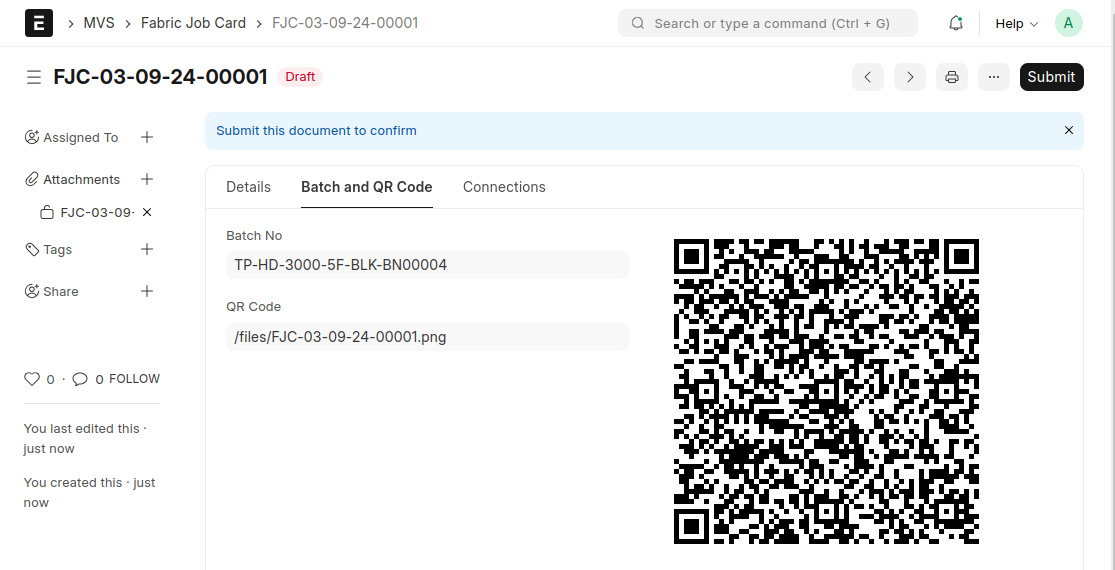
Submit > Create a Stock Entry
V. REWINDING WORK ORDER
- BOM (Bill of Materials) The BOM doctype is used to define the components required for manufacturing a product. Here’s how it works:
1.1 Creating and Submitting a BOM
Create a BOM:
Define the components required for manufacturing a product. This includes specifying raw materials and quantities.
Submit the BOM: After creating the BOM, submit it to finalize the record.
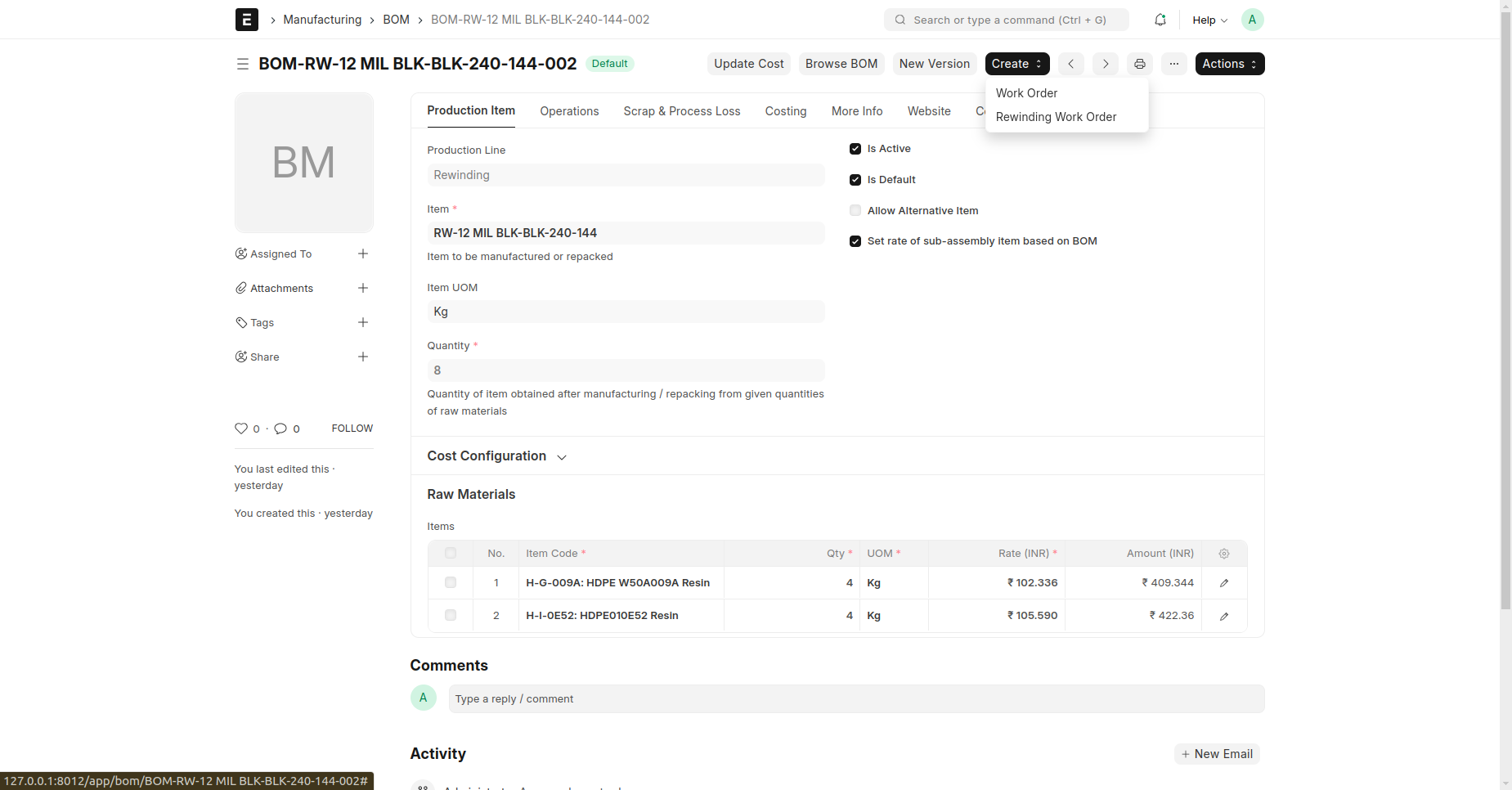
1.2 Rewinding Work Order Button
Location: After submitting a BOM, a button named "Rewinding Work Order" appears on the BOM form. Function: Clicking this button generates a Rewinding Work Order based on the BOM items and raw materials. Action: Creates a new Rewinding Work Order document using the details from the BOM. Redirection: After creation, you are redirected to the Rewinding Work Order doctype.
- Rewinding Work Order
The Rewinding Work Order doctype facilitates the creation and management of work orders for the manufacturing process.
2.1 Creating a Rewinding Work Order
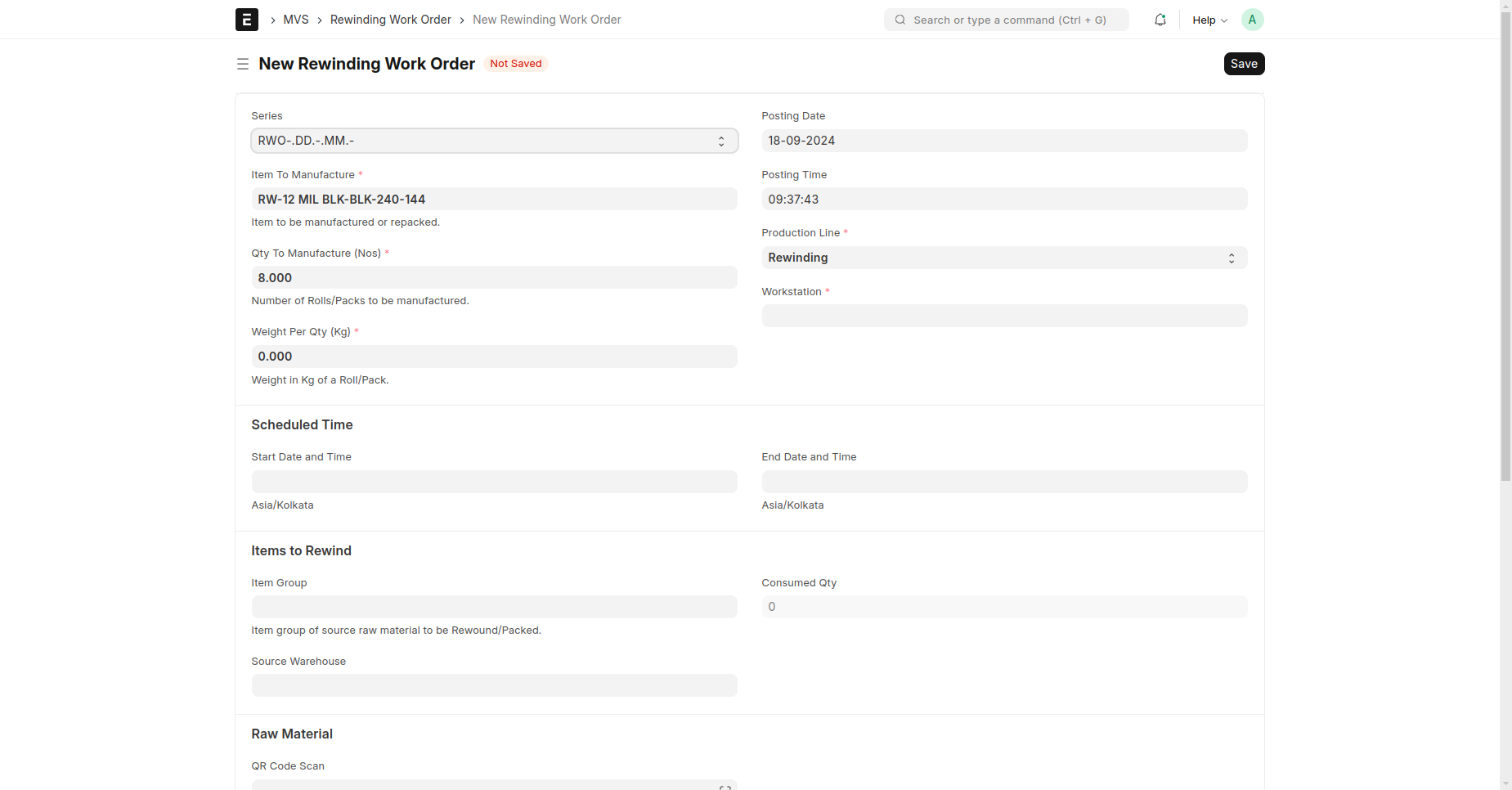
There are two ways to create a Rewinding Work Order:
Option 1: From BOM
Process: Create and submit a BOM. Use the "Rewinding Work Order" button in the BOM to generate a Rewinding Work Order.
Option 2: Directly from Rewinding Work Order
Process: Open the Rewinding Work Order doctype. Enter the necessary details, including: Item To Manufacture: Select an item that you intend to manufacture. This field is linked to the Item doctype. BOM No: If an item is selected, the BOM No field is auto-filtered to show only BOMs related to the selected Item To Manufacture.

Item Group: Choose an item group to filter items available for selection in the "Item To Manufacture" field. The item groups are predefined in the Moms Custom Settings doctype. Workstation: Select a workstation. This field is filtered based on the selected Production Line. Production Line: Select a production line to filter workstations.
2.2 Items to Rewind
This section defines the main raw materials required for the manufacturing process:
Item Group: Select an item group. Item: Choose an item from the selected item group. Source Warehouse: Choose the source warehouse to check stock availability. Available Qty (Kg): Displays the available quantity of the selected item in the chosen warehouse.
2.3 Other Rewind/Packing Material
Add Additional Materials: Specify any other raw materials needed for the process.
2.4 Update Available Qty
Button: "Update Available Qty" updates the available quantity of raw materials based on the source warehouse.
2.5 BOM No
Selection: If the Rewinding Work Order is created directly (not via BOM), select the relevant BOM No.
2.6 Finalizing the Work Order
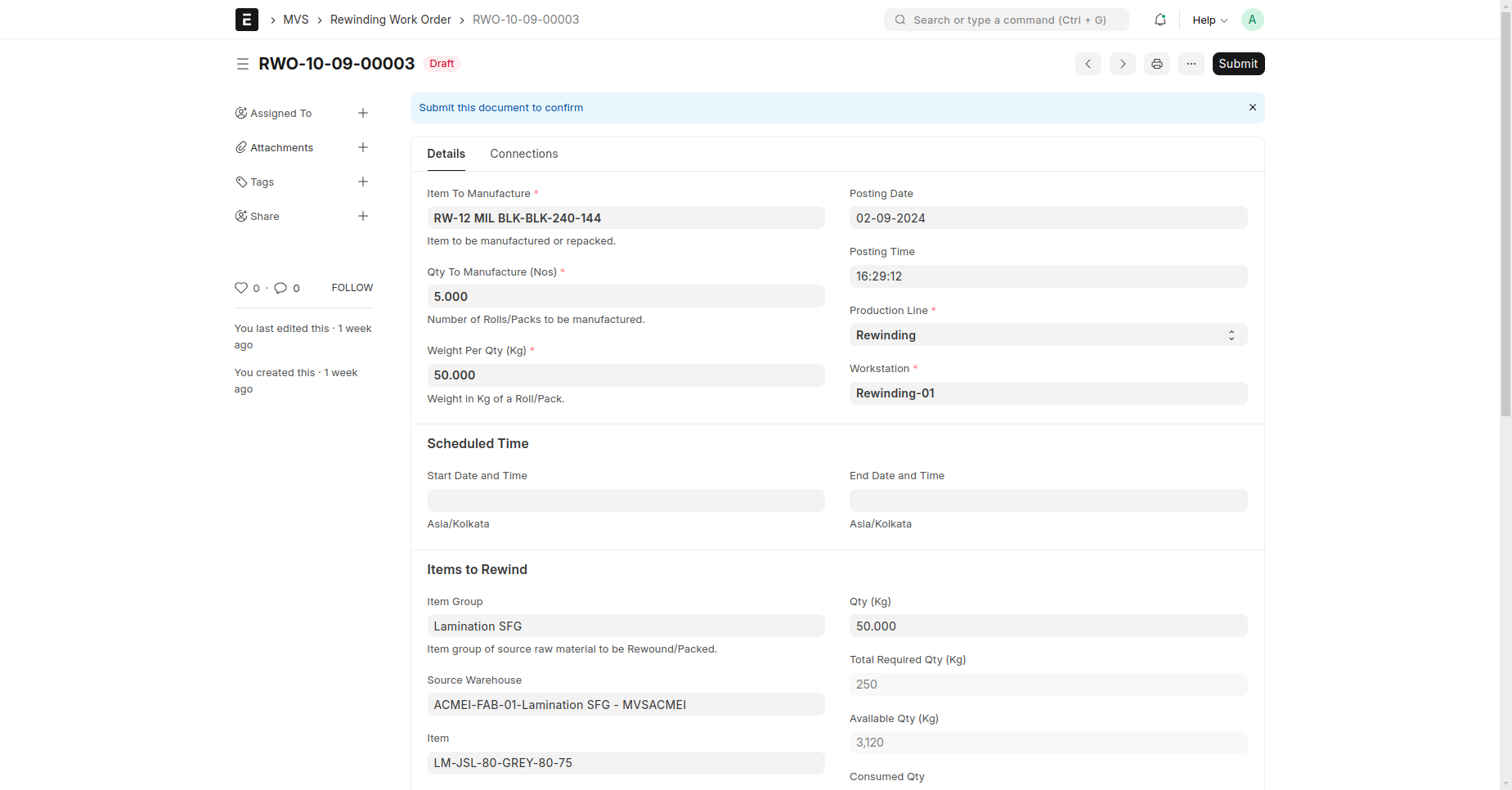
Save and Submit: Save and submit the Rewinding Work Order. Start Button: After submission, a "Start" button appears. Click this to generate a Rewinding Job Card.

VI. REWINDING JOB CARD
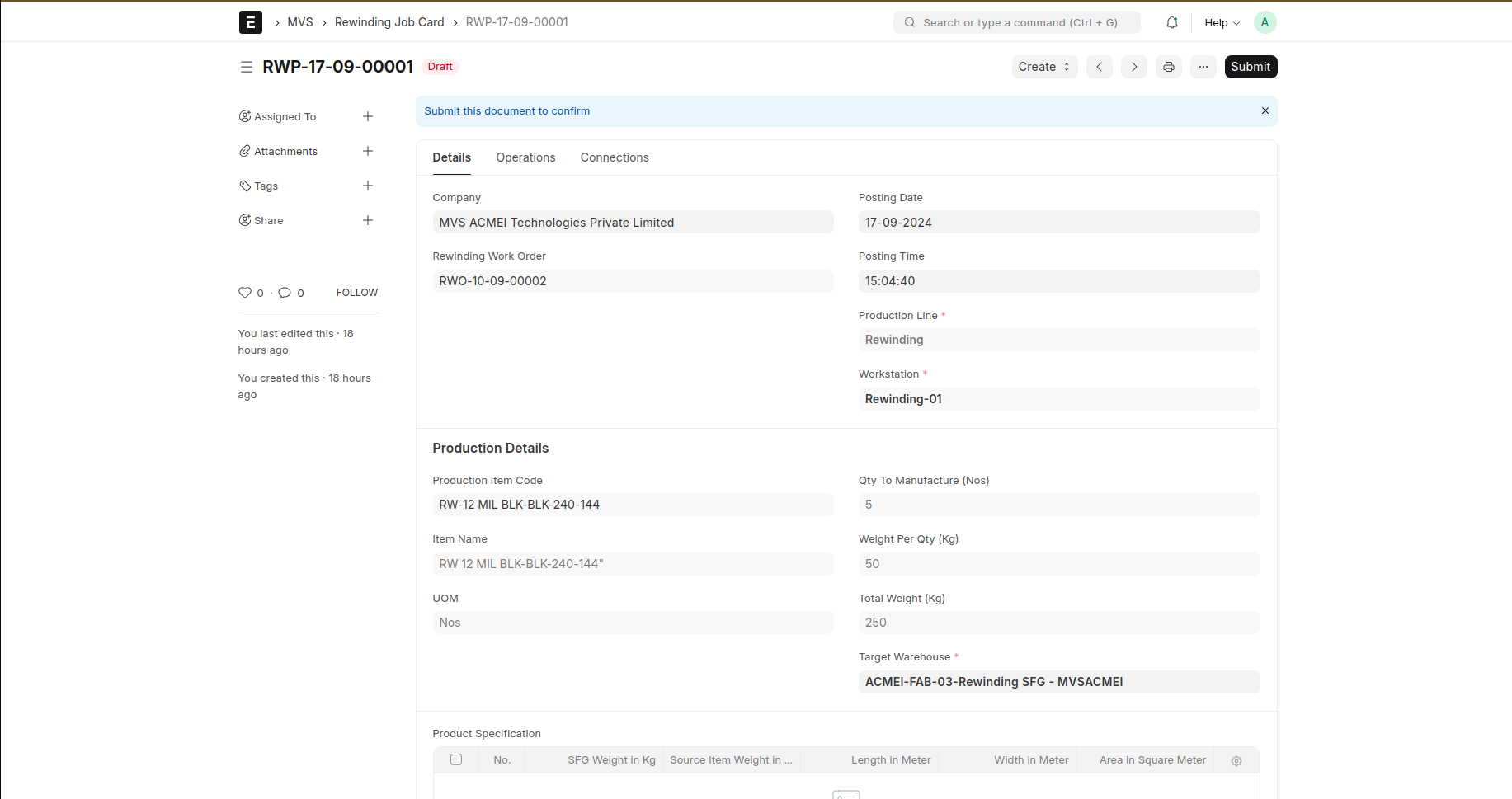
The Rewinding Job Card facilitates tracking and managing the manufacturing process defined in the Rewinding Work Order. Here’s a detailed guide on completing and finalizing the Rewinding Job Card:
3.1 Product Specification Table
Download Template:

Locate and download the table template for Product Specification from the provided link or system.
Fill in Data: Enter all necessary data in the template, including product details, specifications, and any relevant scrap items.
Upload Template: Upload the completed template back to the system.
Update Table: After uploading, click the “Update Table” button to process and integrate the data into the Rewinding Job Card.
3.2 Raw Materials Section
Table Items: Batch Input: For each item in the Raw Materials table, enter the batch number in the "Batch No" field. Ensure that all required batch numbers are correctly entered to match the available inventory.
3.3 Operation Tab Additional Cost: Calculation: Source Item Total Weight (Kg): Obtain this from the Rewinding Work Order or relevant document. Workstation Cost: Refer to the "MOMS Custom Settings" doctype under the “Rewinding Operation Cost” table.
Formula:
Additional Cost = Source Item Total Weight(Kg) × Workstation Cost AdditionaL Cost=Source Item Total Weight (Kg)×Workstation Cost Enter the calculated additional cost into the Additional Cost field based on the selected workstation.
3.4 Enter Actual Time and Employee List Actual Time:
Input the actual time spent on the job. Employee List:
Include the list of employees who worked on the job. There is a doctype named 'Production Staff'. Create a 'Production Staff' record for each employee.
3.5 Create Serial Number


Button: Click the “Create Serial No” button to generate a serial number for the finished good item.
3.6 Create QR Code


Button: Click the “Create QR Code” button to generate a QR code with relevant data.
3.7 Save and Submit Save: Click “Save” to store your changes. Submit: Click “Submit” to finalize the Rewinding Job Card.
3.8 On Submit Actions
Manufacturing Stock Entry:
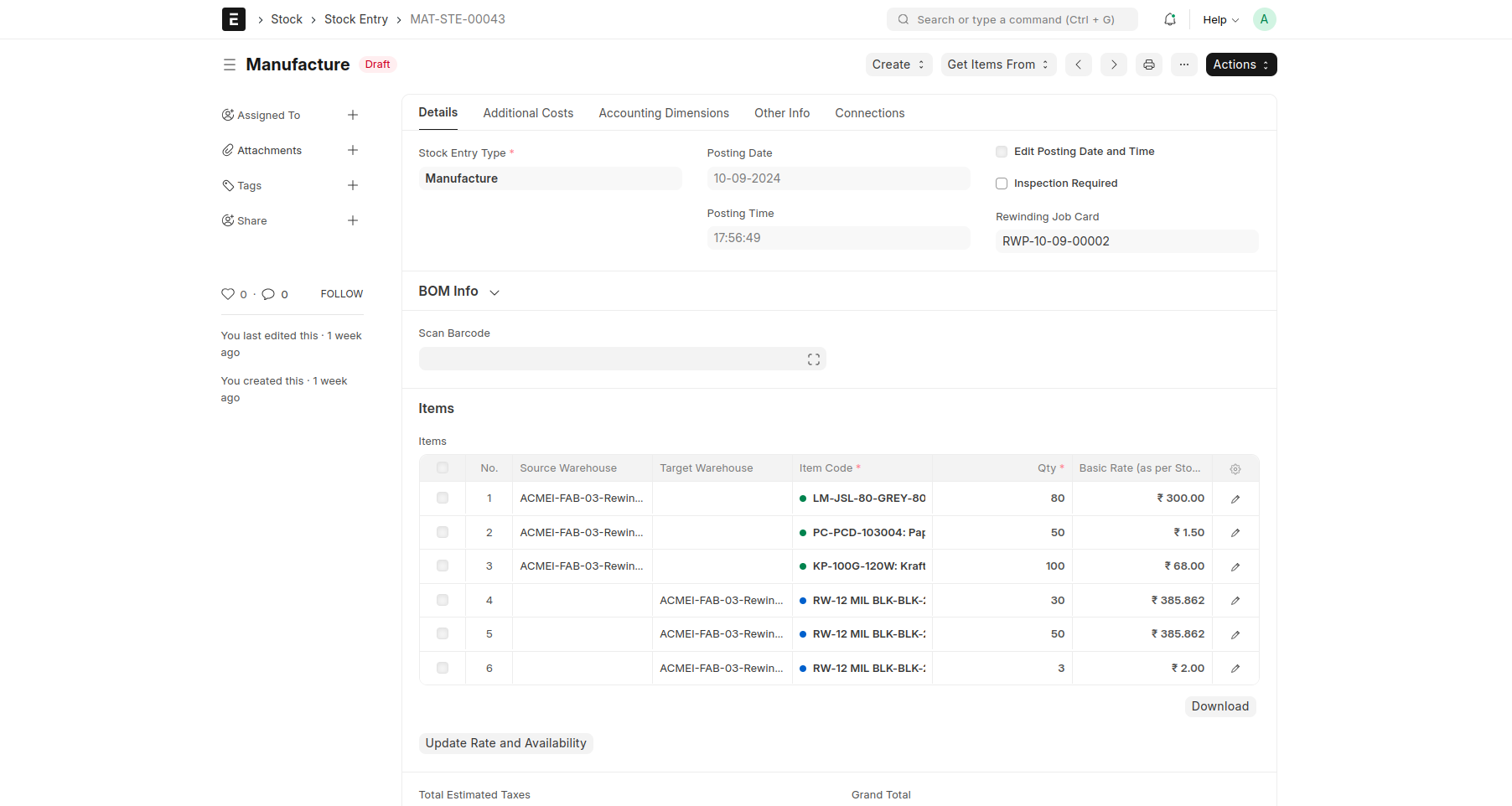
The system will automatically create a Manufacturing Stock Entry for the raw materials consumed. The finished good item will also be created as per the specifications.