Momscode - Hub-Trace Integration With ERPNext
body { font-family: Arial, sans-serif; margin: 0 auto; /* Center align content and add margin space for left and right / max-width: 800px; / Limit maximum width for better readability / padding: 0 20px; / Add padding for left and right space / text-align: center; / Center align content / } header { text-transform: uppercase; / Capitalize headings / text-align: center; background-color: #f2f2f2; padding: 10px 0; } nav ul { list-style-type: none; margin: 0; padding: 0; overflow: hidden; background-color: #333; text-align: center; } nav ul li { display: inline; } nav ul li a { display: block; color: white; padding: 14px 16px; text-decoration: none; text-transform: uppercase; / Capitalize nav links / } nav ul li a:hover { background-color: #ddd; color: black; } article { padding: 20px; text-align: left; / Reset text-align for article content / } article section { margin-bottom: 30px; } section h2 { text-transform: uppercase; / Capitalize section headings / / text-align: center; / } section img { display: block; margin: 0 auto; max-width: 100%; } section h4 { text-transform: uppercase; / Capitalize h4 headings / font-size: 18px; / Maintain font size for h4 headings / margin-top: 20px; / Add margin to separate h4 headings / } section p { text-align: left; / Reset text-align for paragraph content / } / .itemcreation { padding: 20px; text-align: left; } .itemcreation h2 { text-align: center; } */
Hub-Trace Integration With ERPNext
Introduction
Integrating ERPNext with the Hub-Trace mobile app can revolutionize the way your business operates, streamlining processes, enhancing efficiency, and empowering your workforce with real-time insights. ERPNext, known for its comprehensive suite of enterprise resource planning tools, coupled with the dynamic capabilities of the Hub-Trace mobile app, presents a formidable combination poised to elevate your business operations to new heights.
Work Space
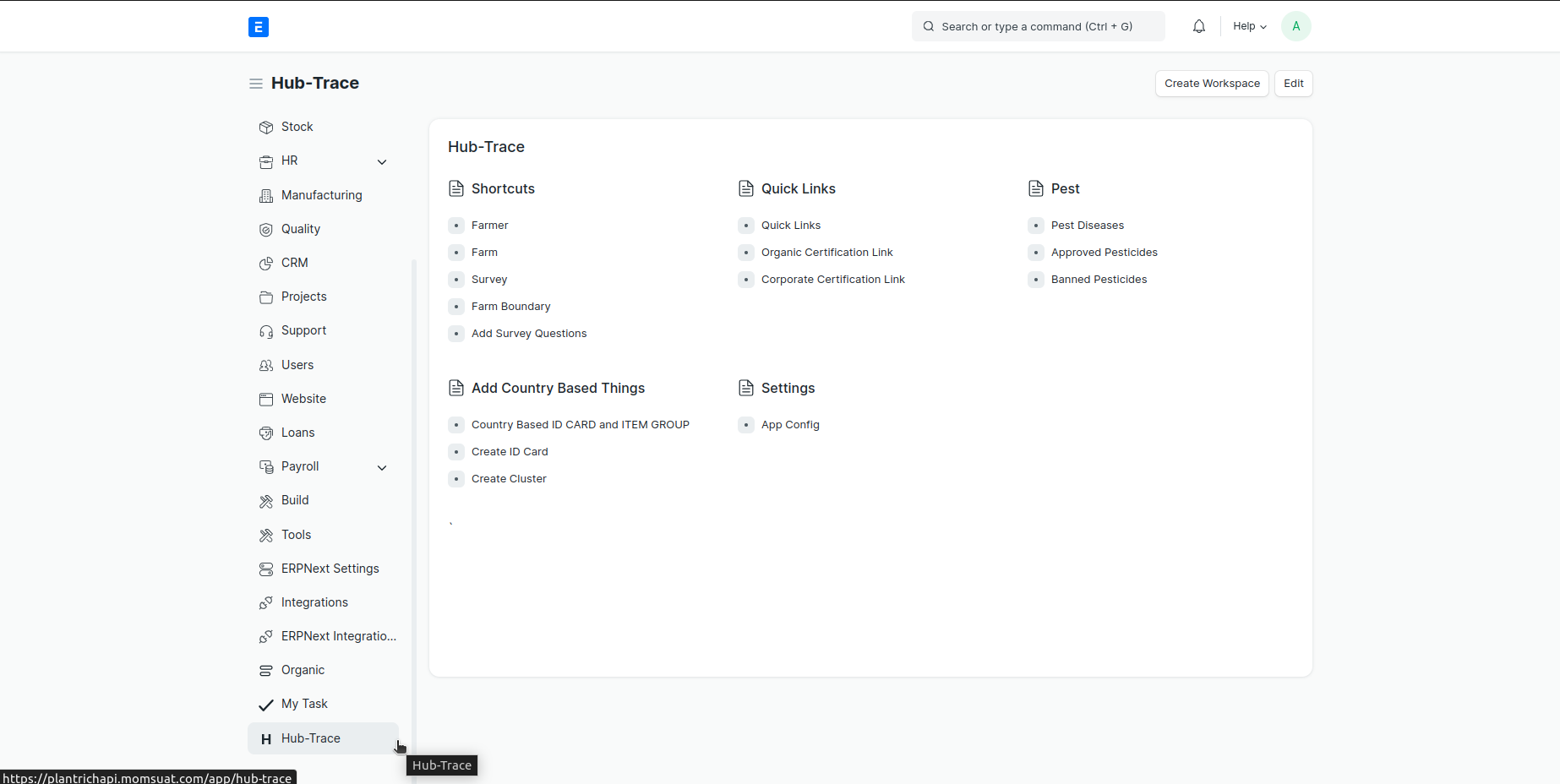
Master Datas
App Config
App Config are use for default settings
- Whats App URL
- Survey Risk Threshold Low
- Survey Risk Threshold High
- Risk Value( YES )
Risk Value( NO )
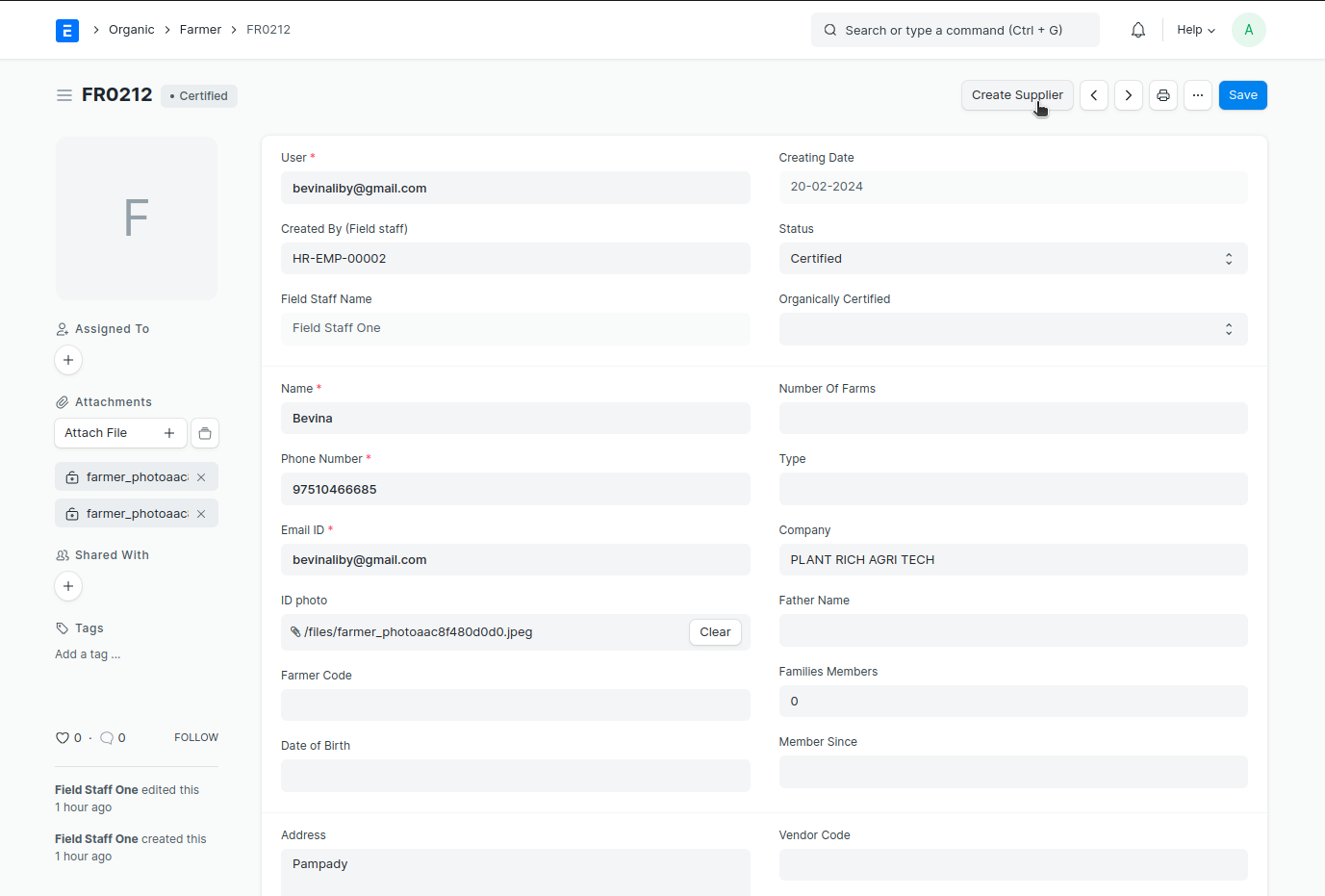
Supplier Group If create a supplier agianst the farmer go to farmer and there was button ' Create Supplier' > click > create a Farmer Automatically ( against that particular Farmer )
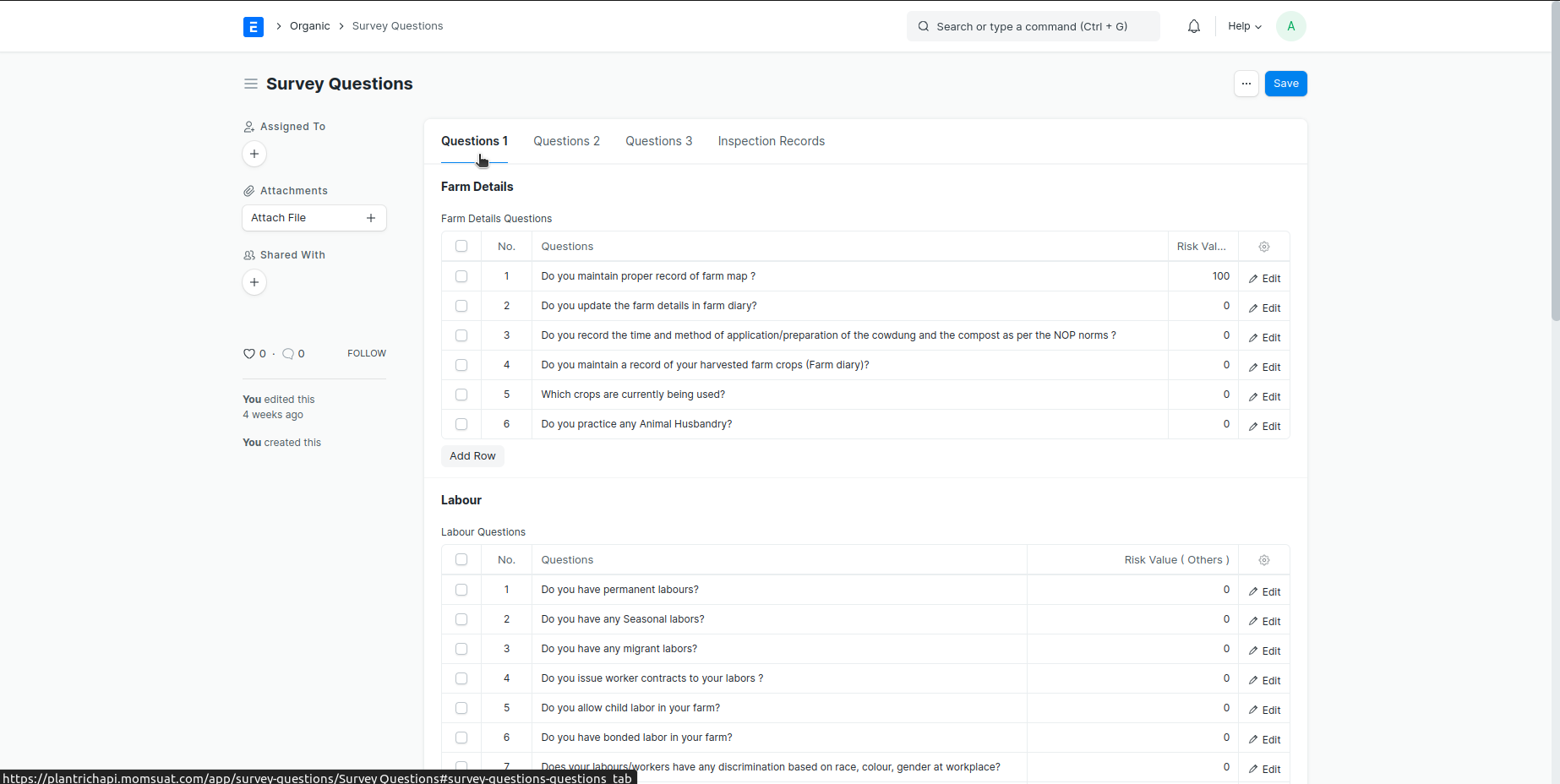
Survey Questions
- Add Survey Questions > Survey Questions > Add/remove Questions (This questions are reflected in Survey )
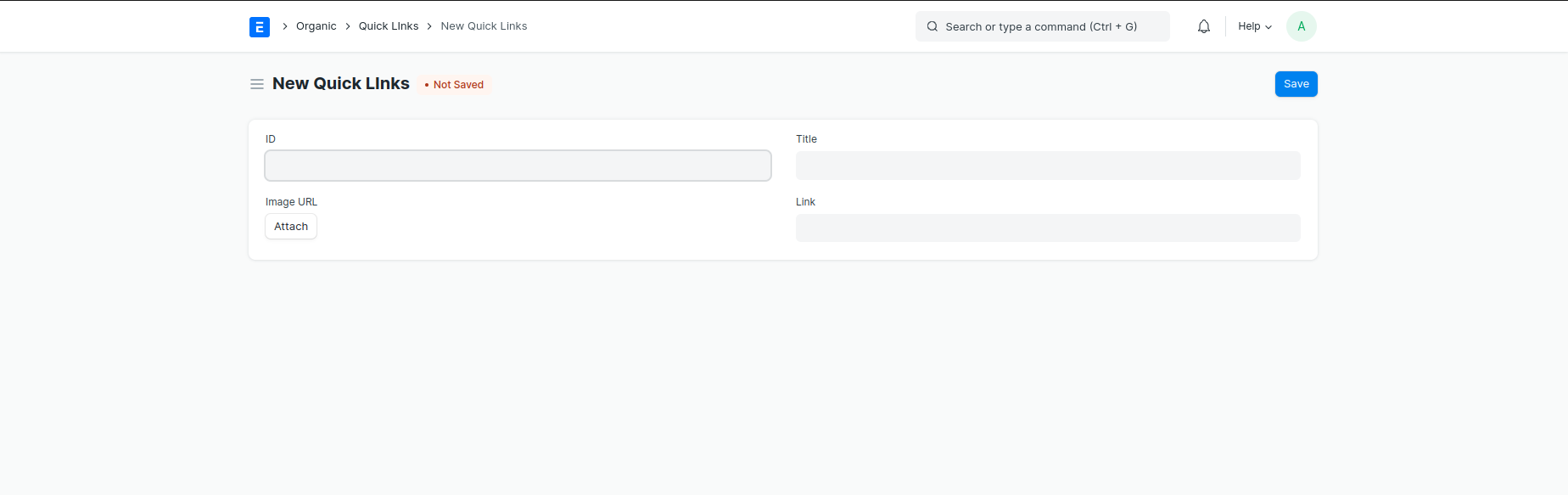
Quick Links
Quick Links
Quick Links > Add
Organic Certification Link
Organic Certification Link > Add
Corporate Certification Link
Corporate Certification Link > Add
Pest
Pest Diseases
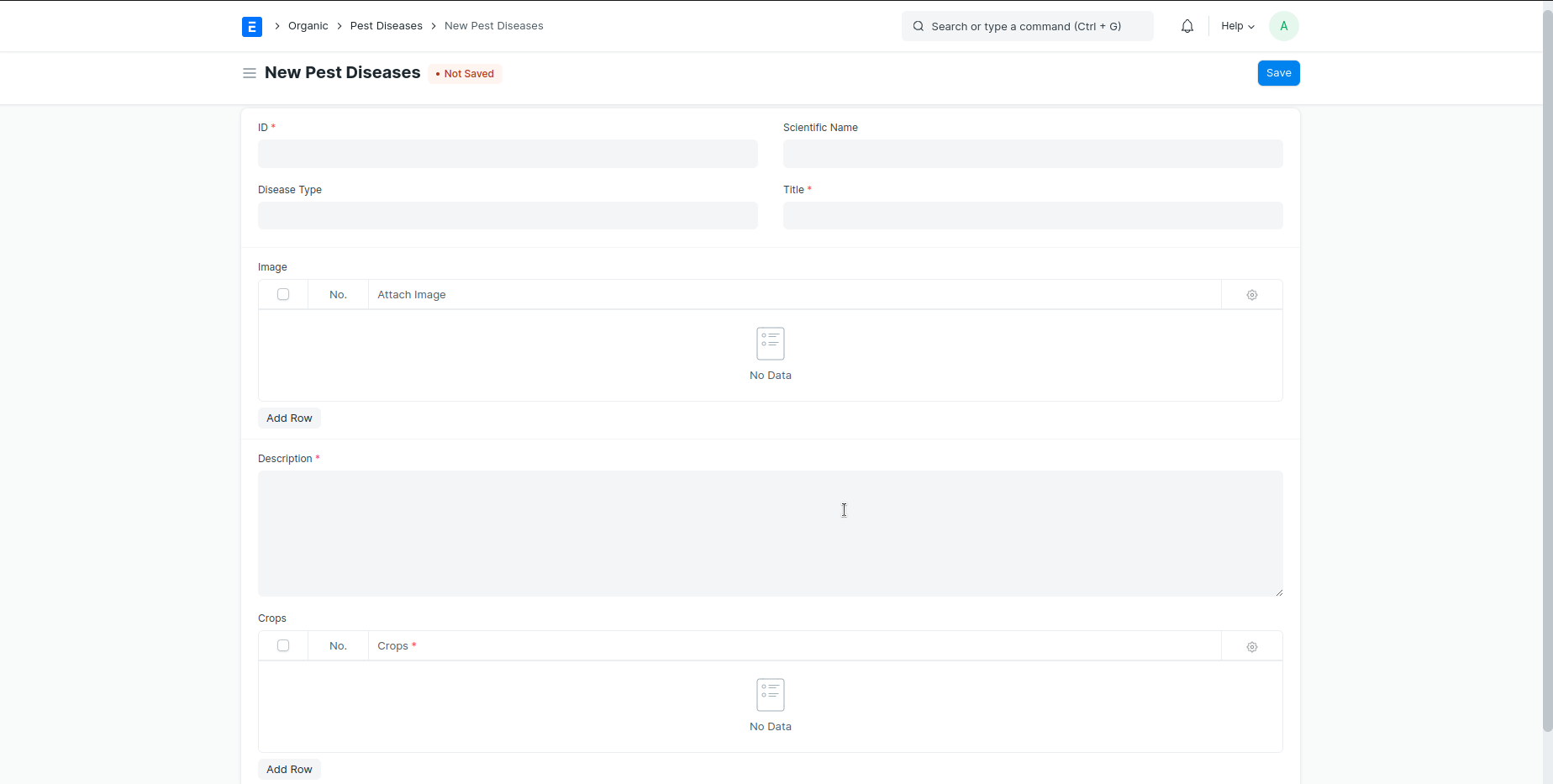
Pest Diseases > Add
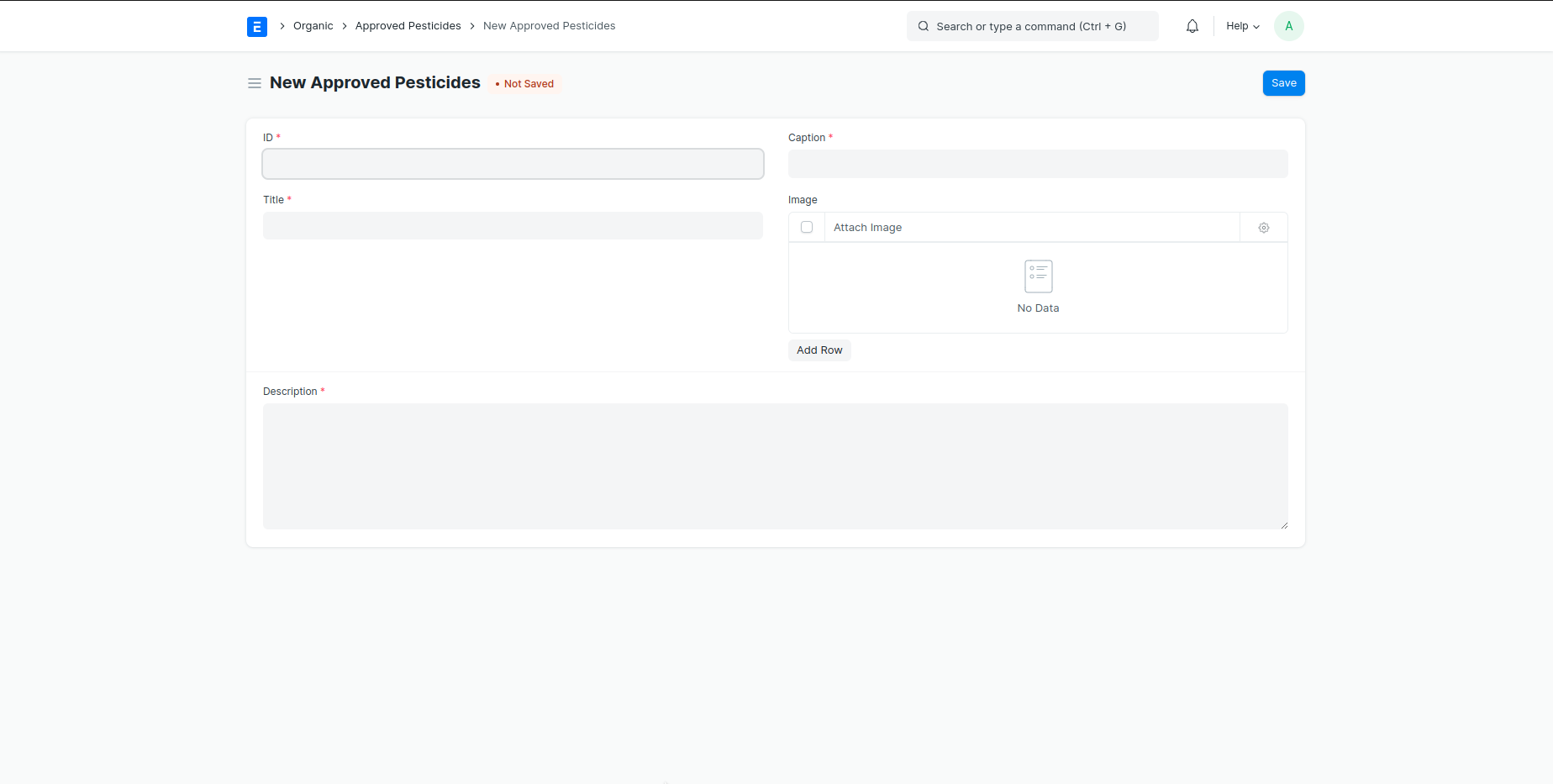
Approved Pesticides Approved Pesticides > Add
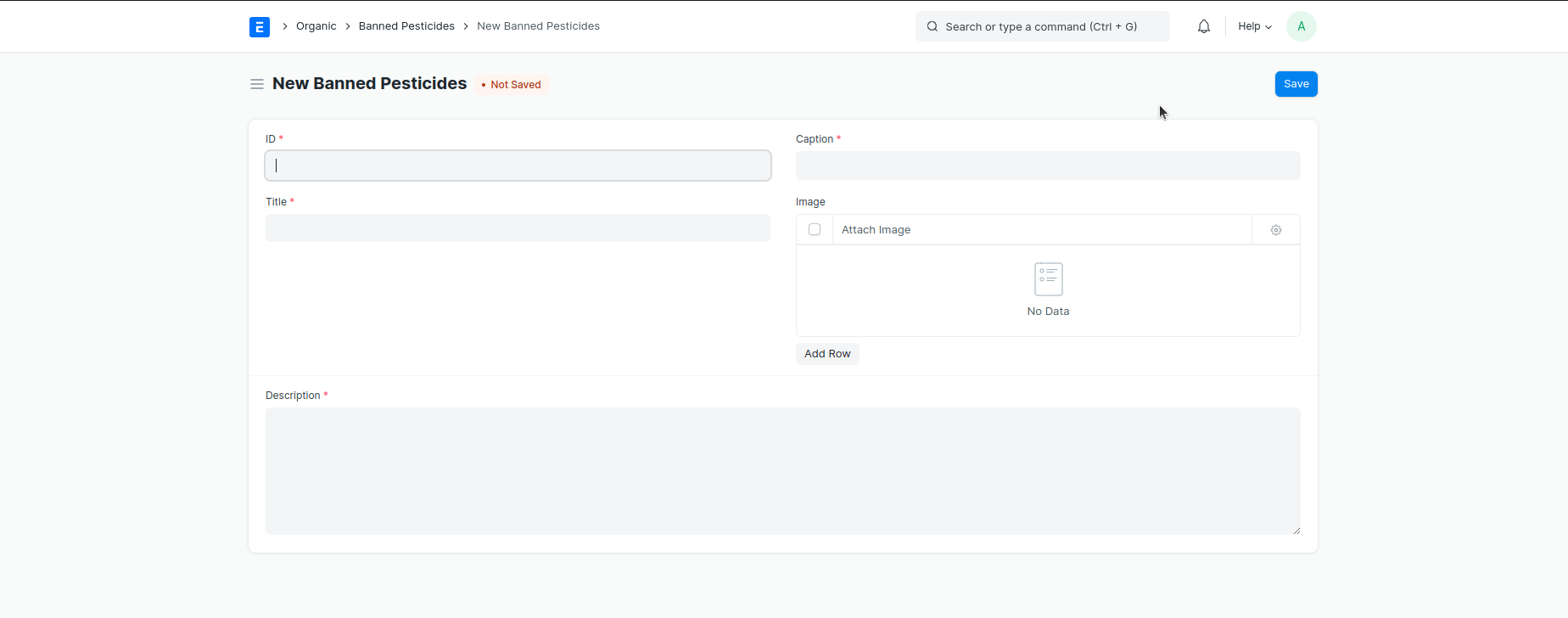
Banned Pesticides Banned Pesticides > Add
Country Based Things
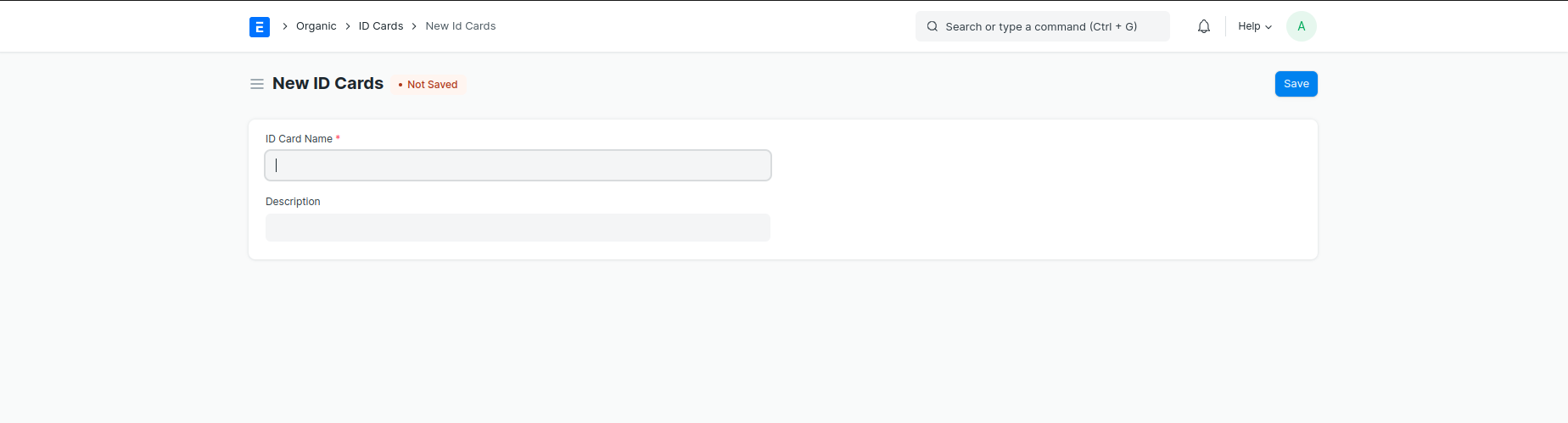
Create ID Card
ID Cards > Add
Country Based ID CARD and ITEM GROUP Set Country Based ID Cards and Item group for Only Available in Specific Countries
Country > Select Country > Table for Add ID card > select alredy created Id Card (this table is liked by ID Card )
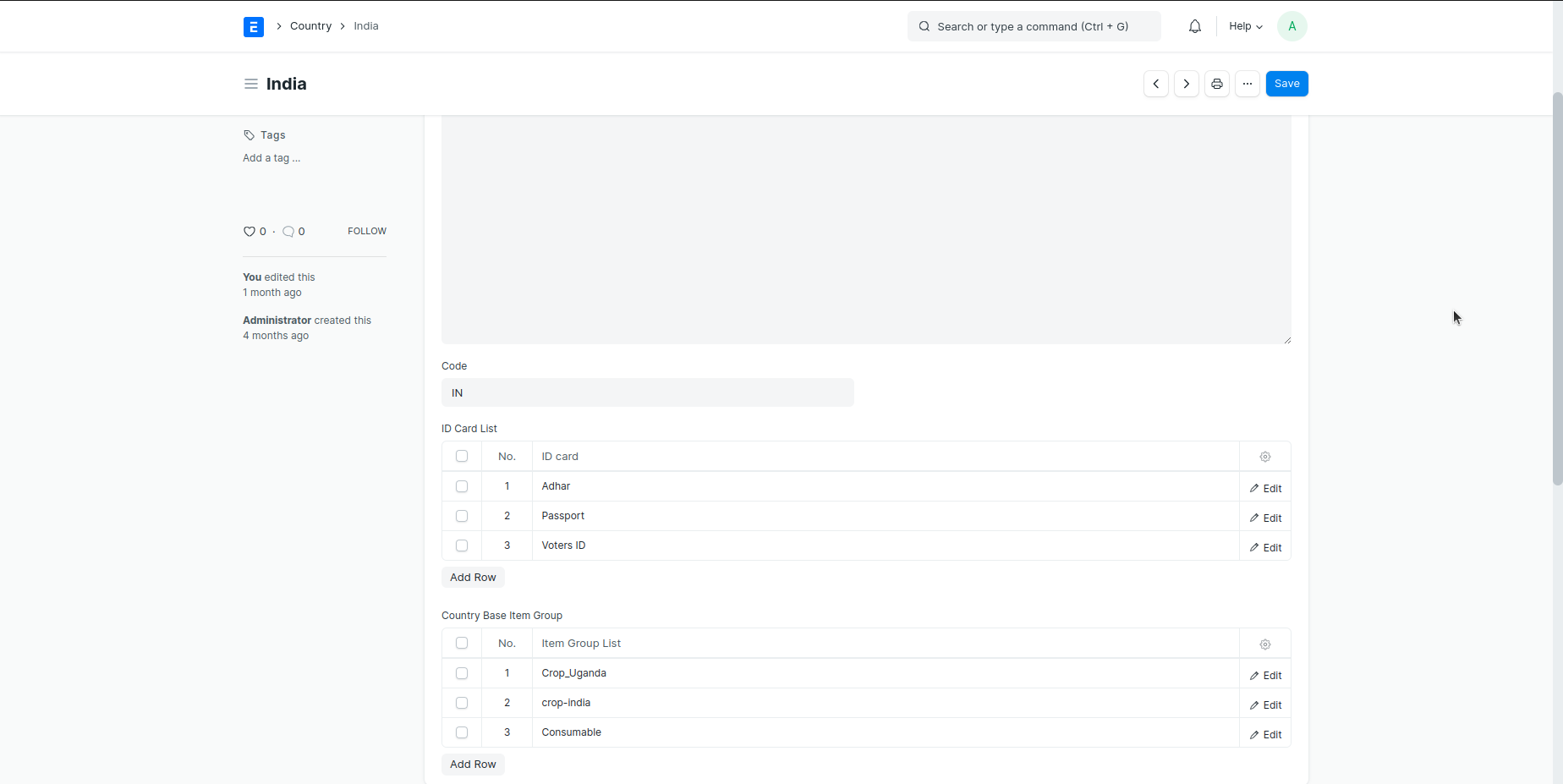
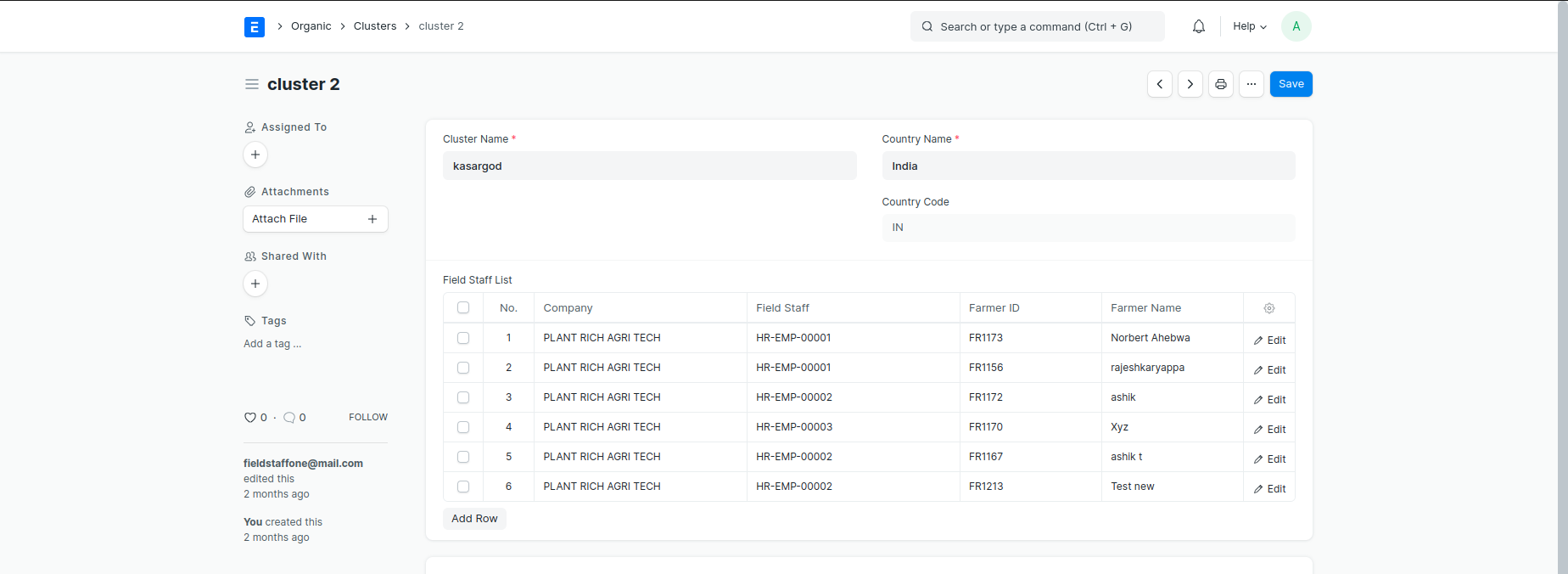
Create Cluster Cluster > add > (Clusters are used for devide farmer and farm, cluster basis and table for 'Field Staff List' is table for assigning field staff to individual farms and farmers.)
Item Creation
Item Creation and Variant Creation
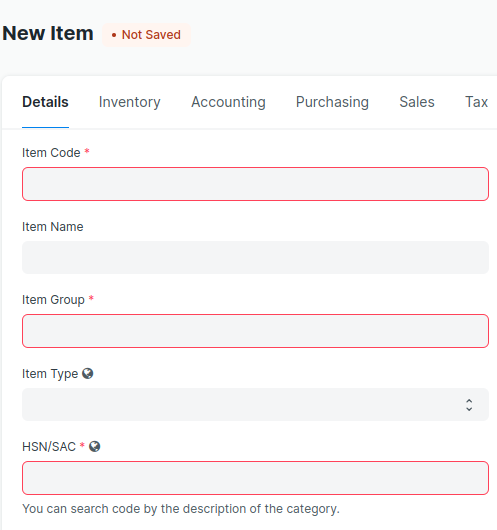
- Item > Add Item
- Mandatory Fields > Item Code , Item Name , Item Group , Item Type , HSN Code
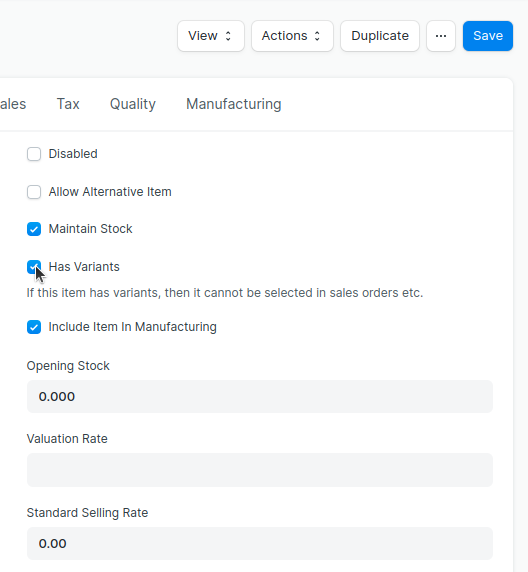
- #### If The Item Has Variant
- Enable Check Box > Has Variants
- Then Go to > Variant (Tab) > Create or Select > Attribute > Save Item
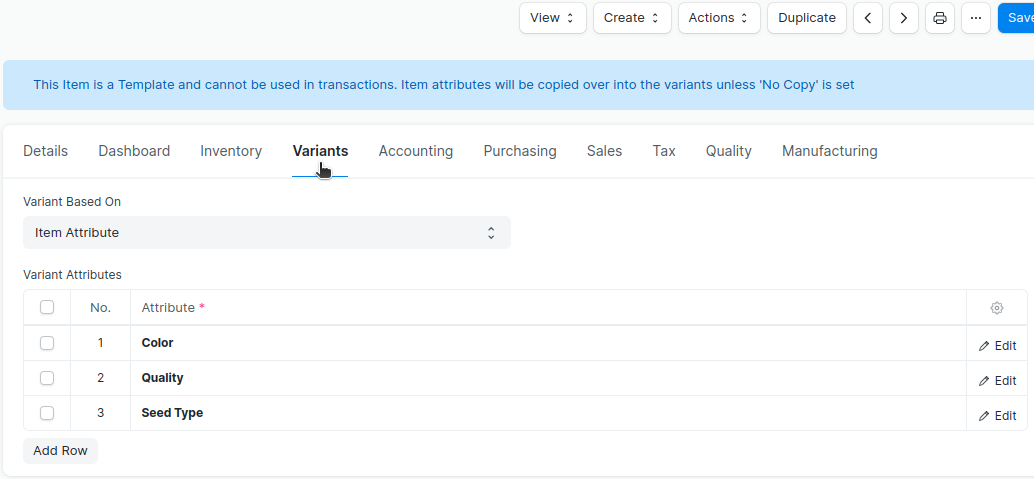
- After Save The Item, That Item Was Saved As A Template
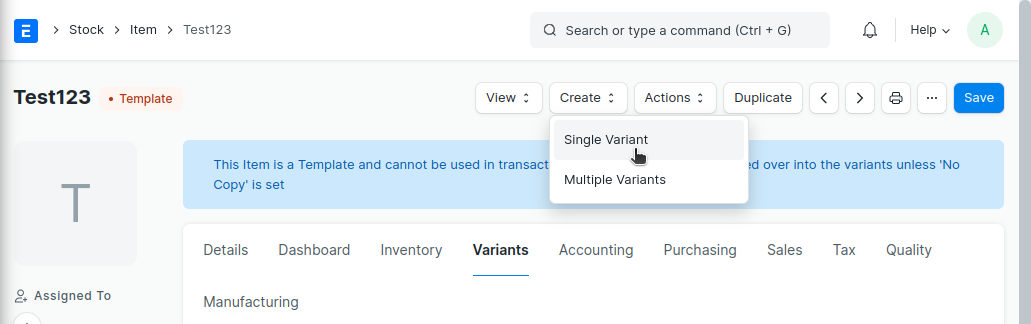
- Then Again Open That Item Template > Click Button > Create > Click Button> Single Variant
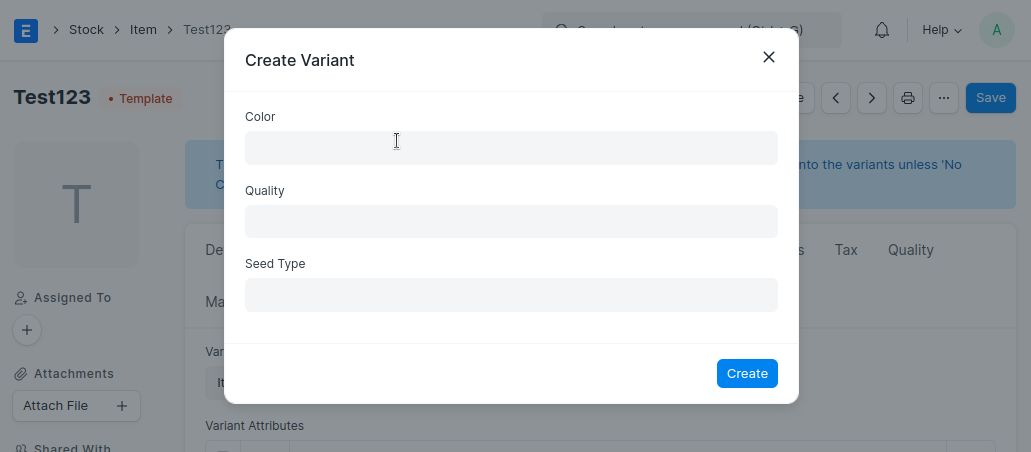
* Create Variant > Select Attributes > Click button > Create > Auto Fill A new Item > Select Item Type (Crop or Animal Husbundry ) > Save
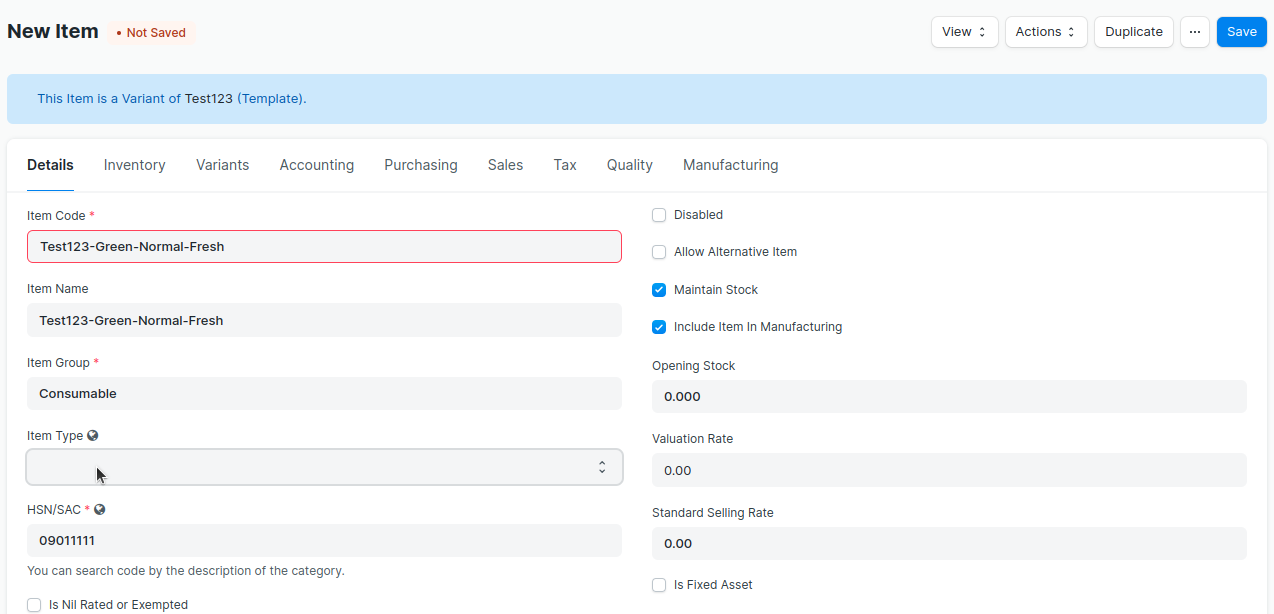
* Item And Item Variant Created Successfully.
Important Notes
For an item to appear in the mobile app, you must follow these instructions
• Must create Item Price (Standard Buying) against that item • Must select Item Type on the time of Item Creation and Variant Creation • Must Select Item Group On Country Based Item Group Table on Country Doctype