Momscode-AMIDC Demo Sales
Demo Request
- In Demo Request there is a field 'Demo Type'.
Demo Types are 4
- Exhibition/Events
- Customer(Paid)
- Customer(FOC Existing)
- Customer(FOC New)
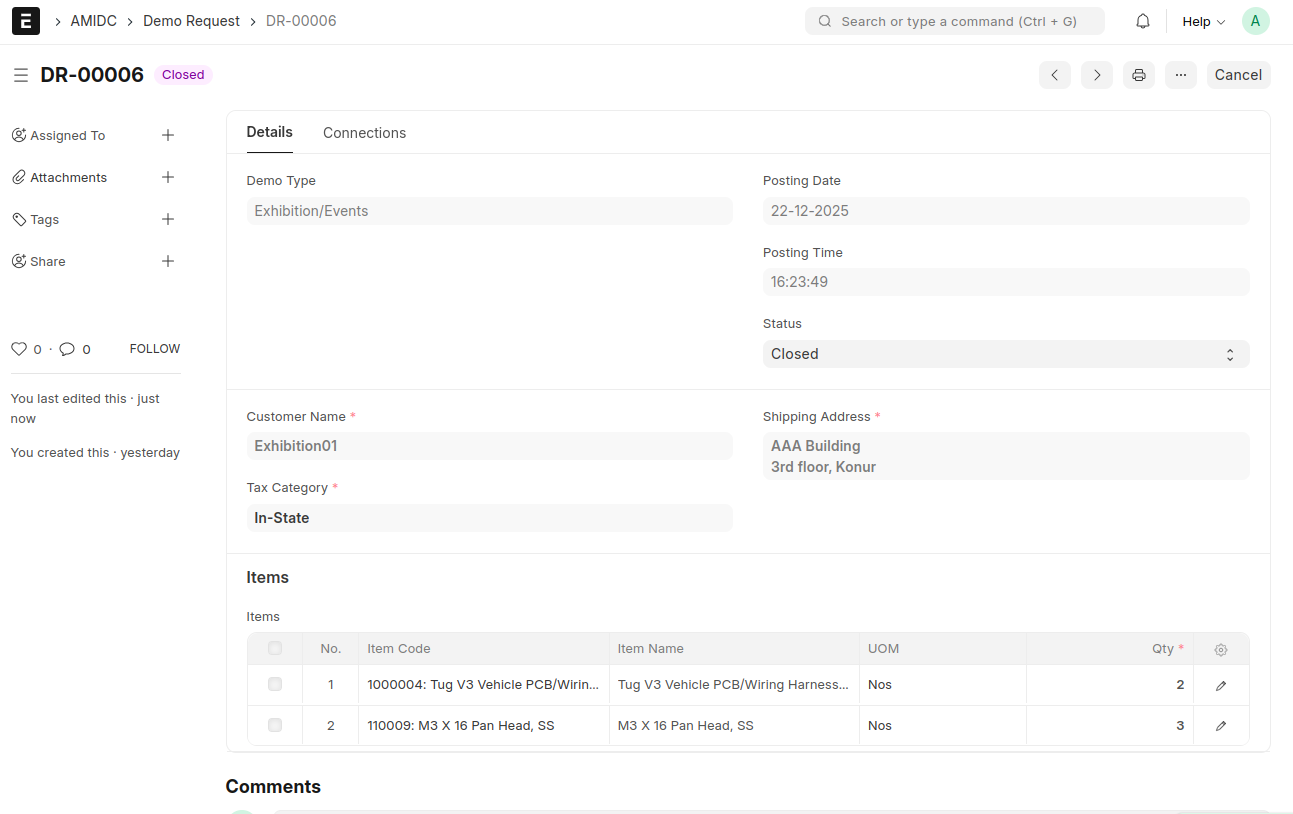
If the Demo Type is 'Exhibition/Events' : Customer Name(Data field- Manually entered), Tax Category and Shipping Address fields will be displayed.
- If the Demo Type is 'Customer(Paid)' : Customer(link field- Select/create a customer), Customer Location, billing and shipping address will be displayed. Based on the location the billing and shipping addess will be automatically fetched.
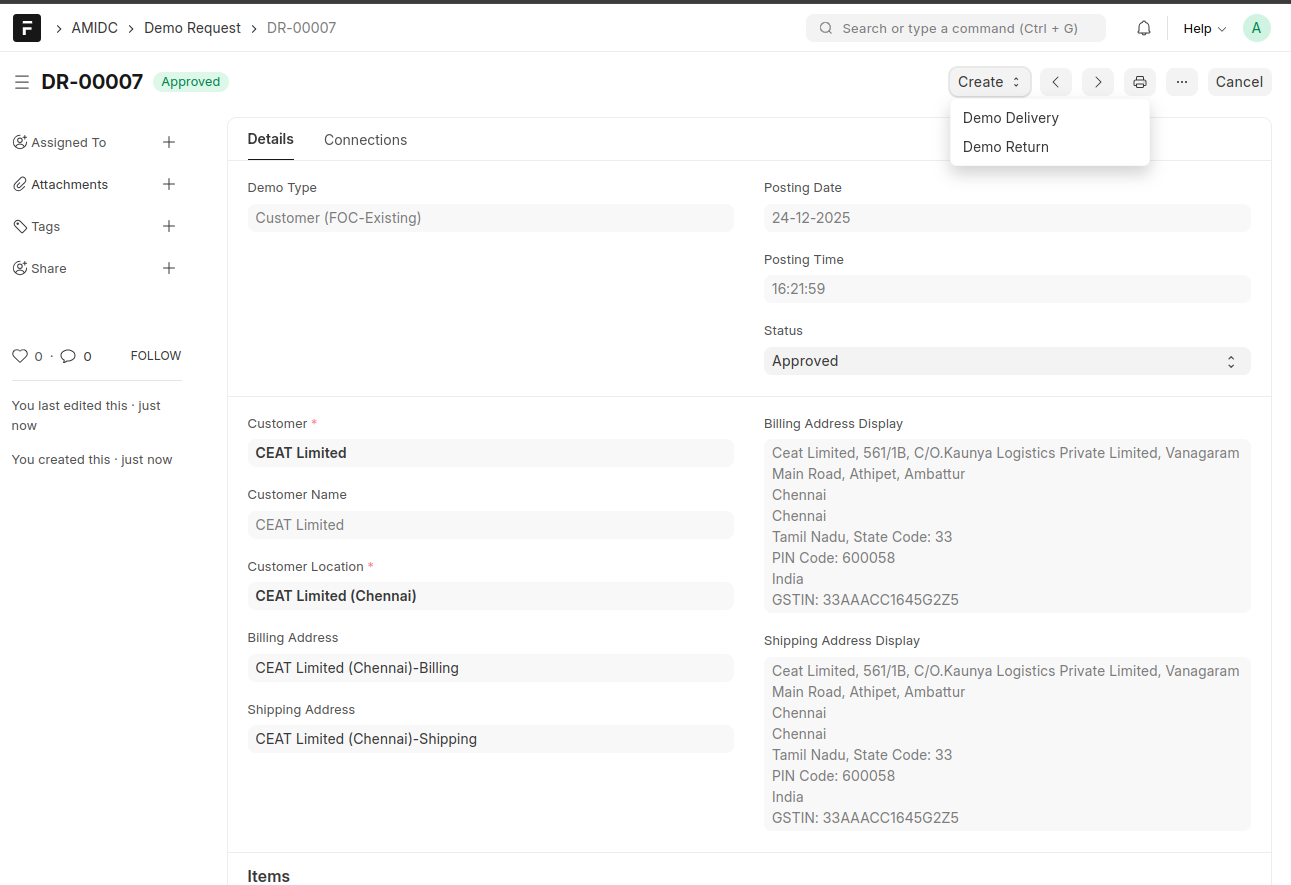
- If the Demo Type is 'Customer(FOC Existing)' : Customer(Link field-requester can select the customer), Customer Location, billing and shipping address will be displayed.
- If the Demo Type is 'Customer(FOC New)' : Customer Name(Data Field- Manually Entered), Tax Category, billing and shipping address will be displayed. Exhibition/events
- Select the demo type and add the items.Then Save and Submit.
- Then the status will be changed to 'Approved'.
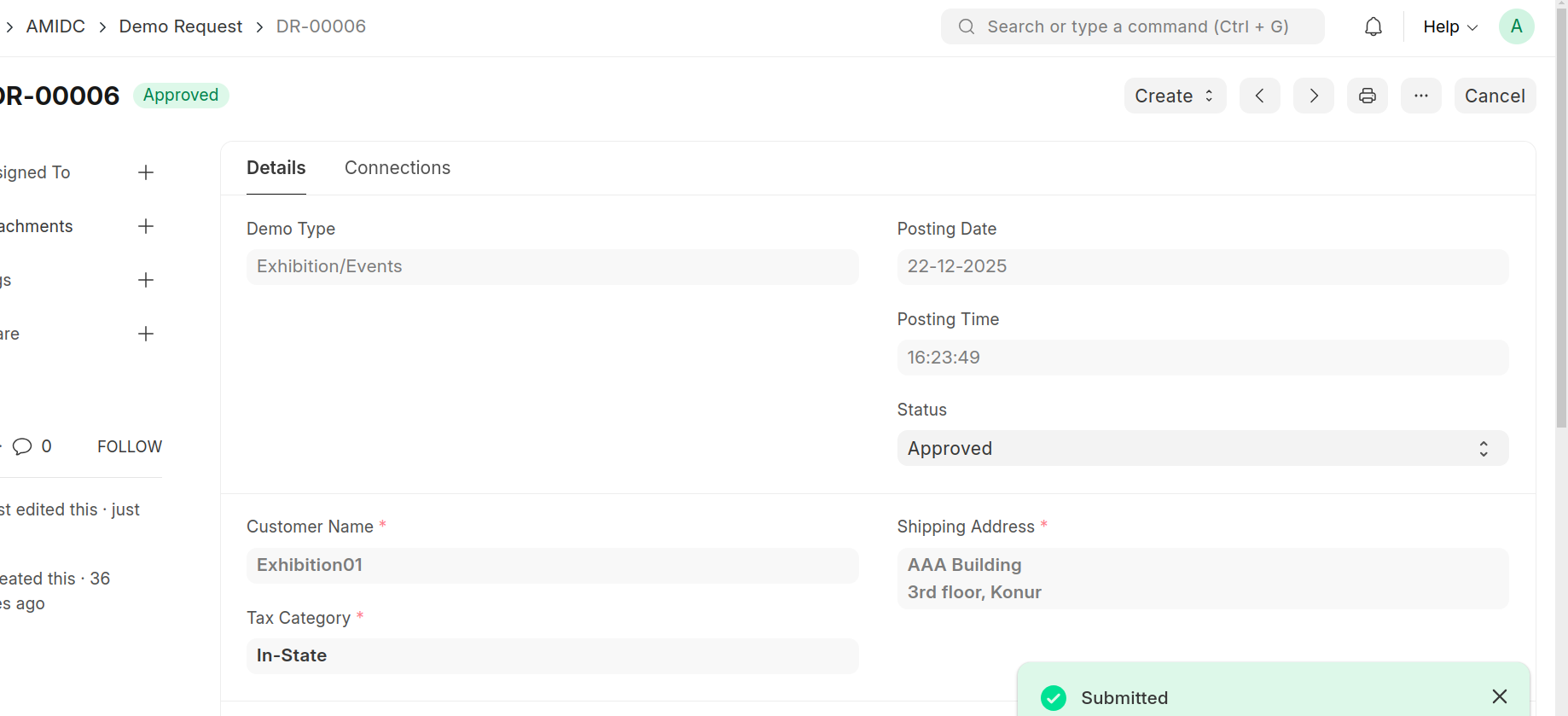
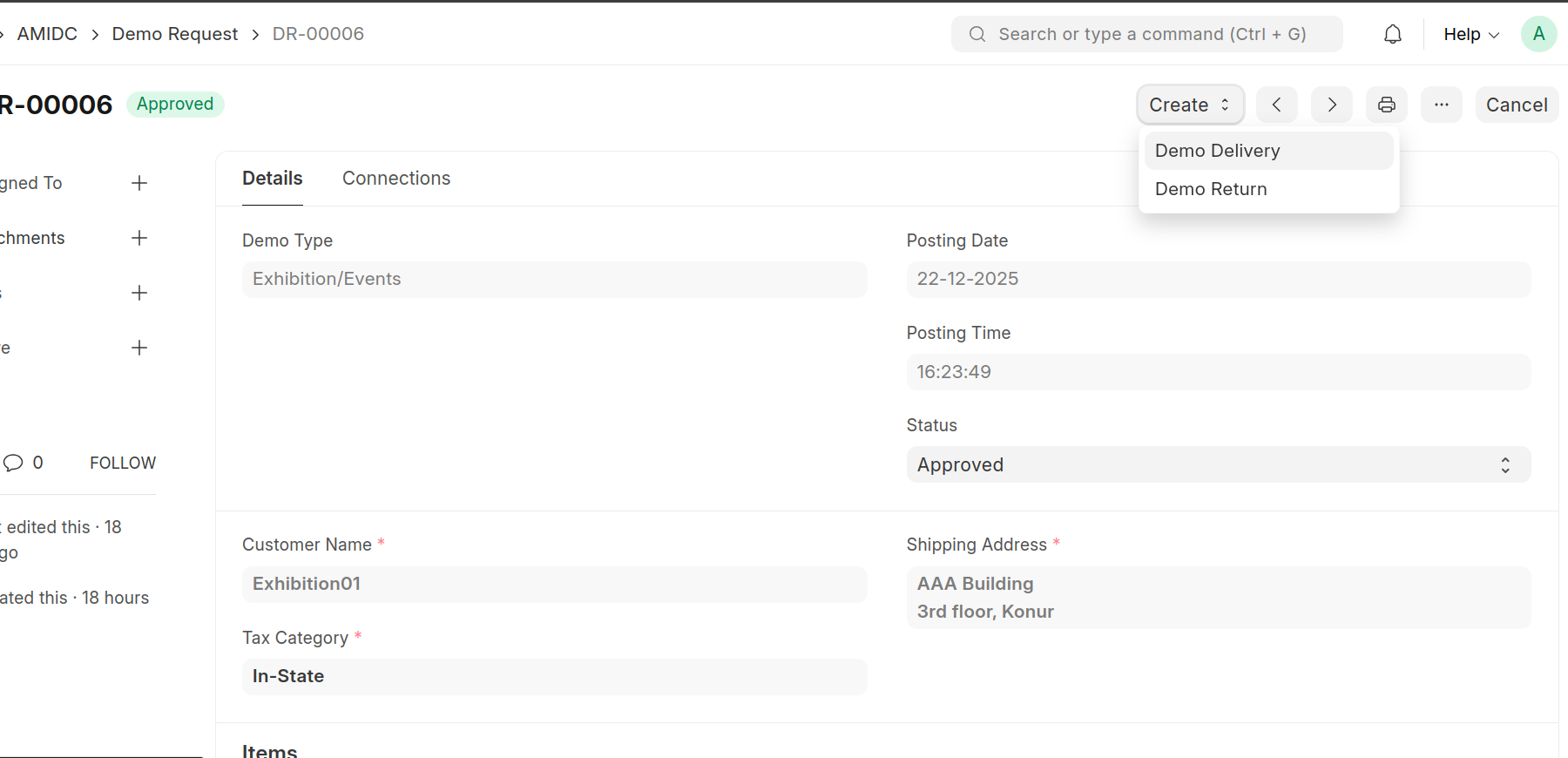
- After submitting the doctype, two buttons “Demo Delivery” and “Demo Return” will be displayed.
- When Demo Delivery is clicked, it will redirect to the Stock Entry page. The default settings will be configured in the MOMS custom settings.
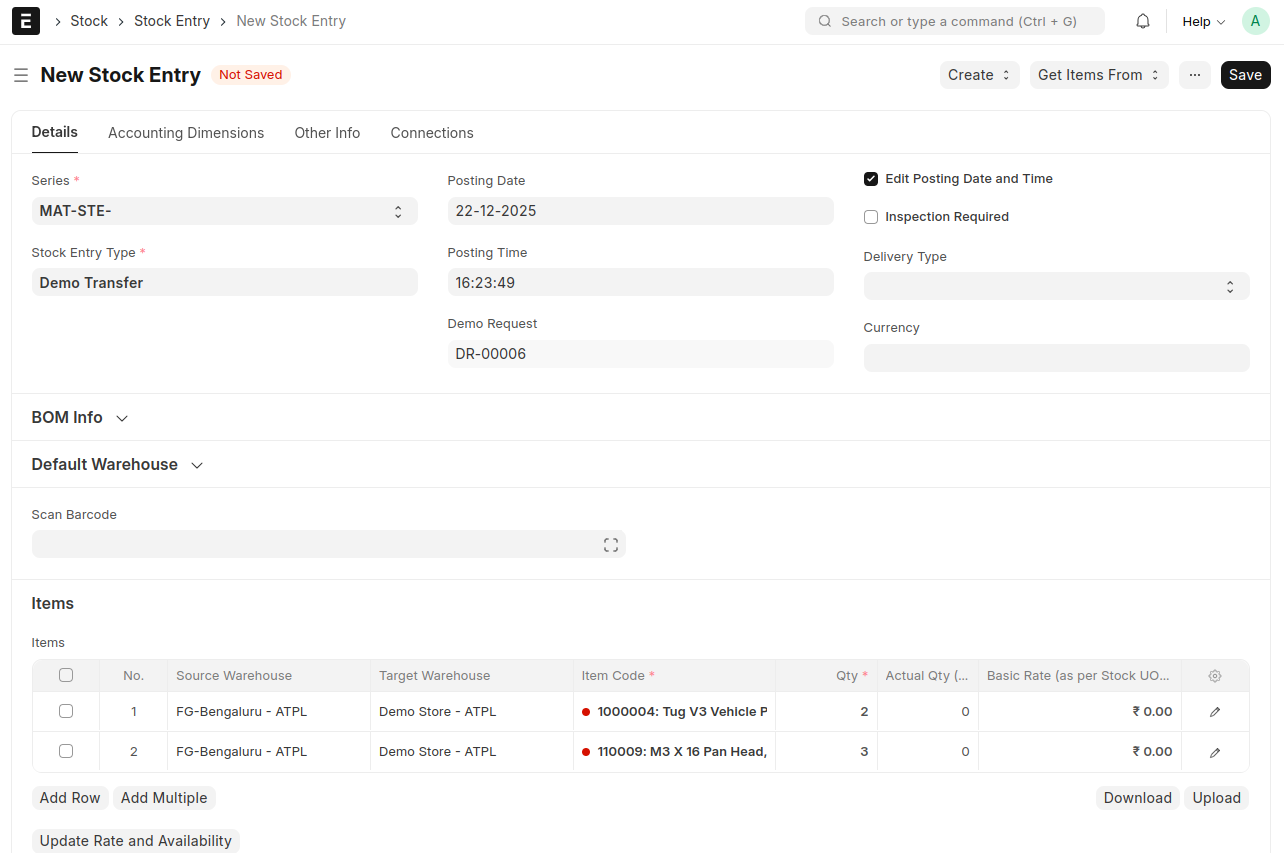
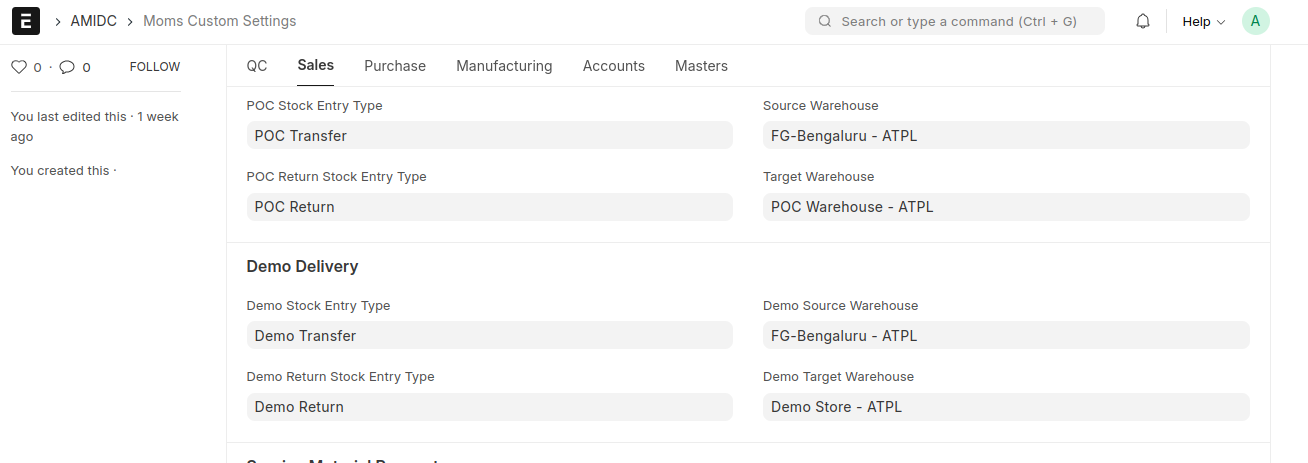
- Save and Submit the Stock Entry.Then the Demo Items will be transferred to the Demo stores (which is specified in the Moms Custom Settings.)
- You can create a Demo Return against the Demo Request after the exhibition or event is completed.
- When the Demo Return button is clicked, it will navigate to the Stock Entry, and the items will be transferred from the Demo Store to the AMIDC Store, as configured in the MOMS Custom Settings.
- After completing the return of all items, the user can update the status of the Demo Request to Closed.
 Customer (Paid)
- After submitting the Demo Request 3 buttons will be displayed.(Demo Delivery, Demo Return and Sales Invoice)
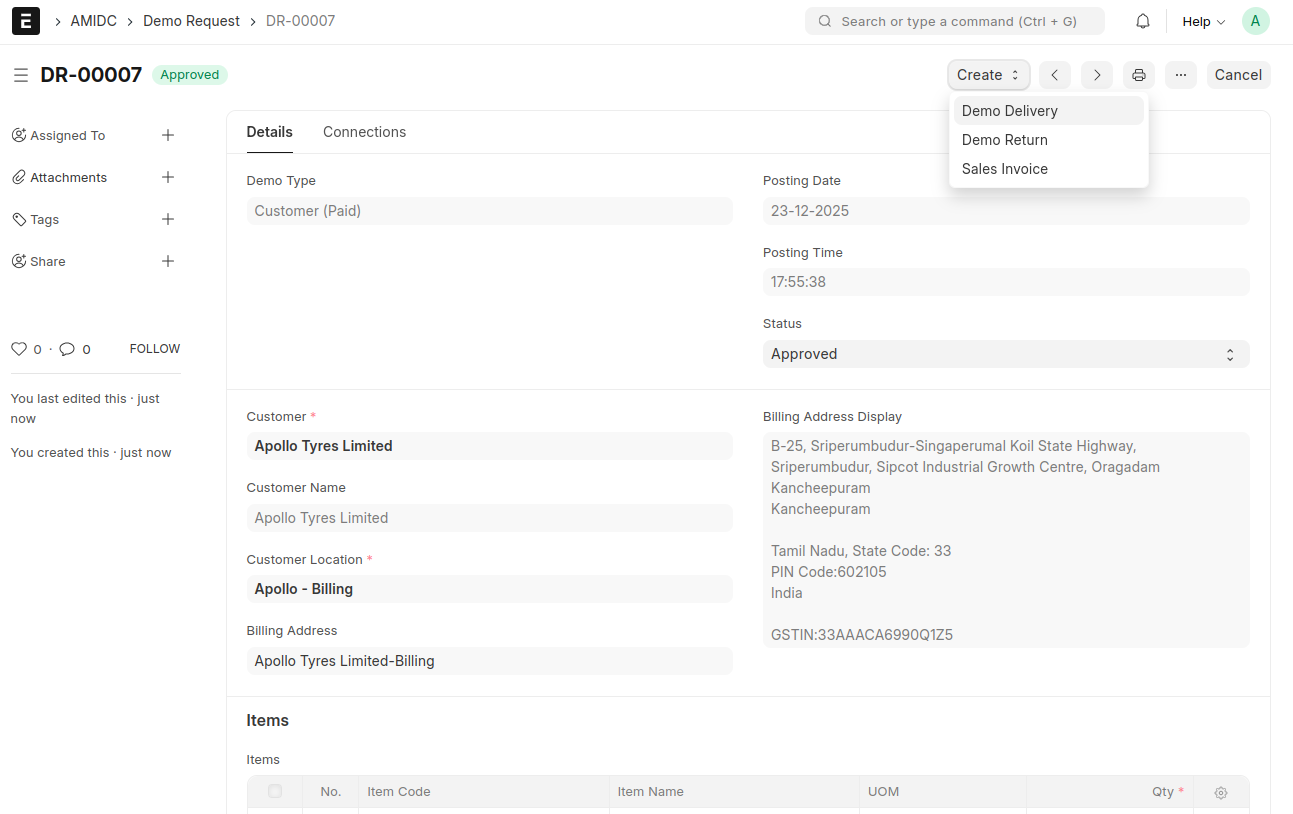
- Demo Delivery and Demo Return is similar to the Demo Request of 'Exhibition /events'.
- From the Demo Request, a Sales Invoice can be created if the Demo Type is set to Customer (Paid).
Customer (FOC-Existing)
- Select the Demo Type, Customer and Customer Location and add the items, then Save and Submit.
- While submitting 2 buttons 'Demo Delivery' and 'Demo Return' will be displayed.
 Customer (FOC-New)
- Manually enter the customer name, Tax Category and Shipping address and select the items, Save and Submit.
- 'Demo Delivery' and 'Demo Return' buttons will be displayed after submit the document.