Momscode-Club Sulaimani Monthly Attendance Customization
Outlet Workforce Scheduling and Attendance Tracking
prerequisites
- Moms Custom Settings
- Set default Standard Working Hours and Daily Working Hours for Outlet Workforce Scheduling and Attendance Tracking in Moms Custom Settings.
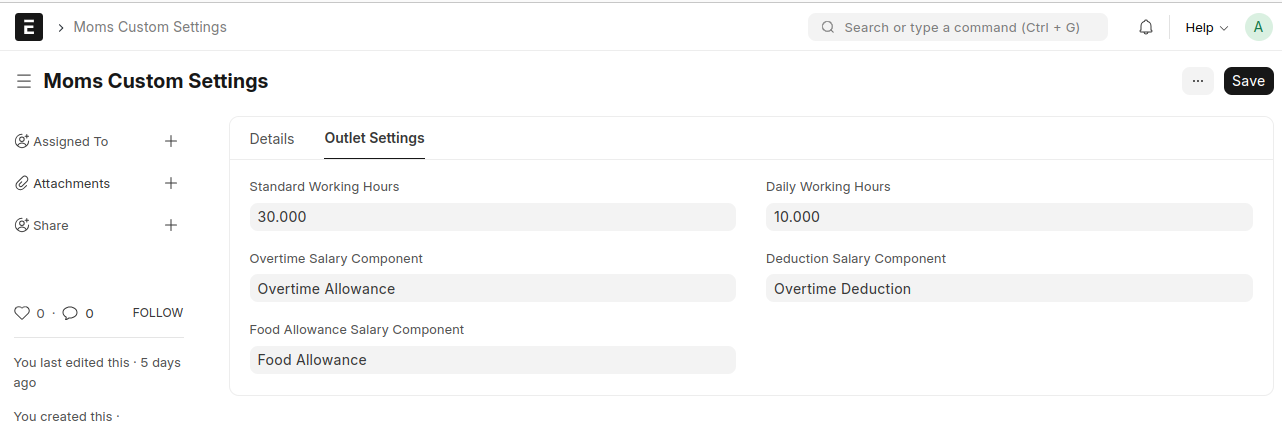
- Set default Standard Working Hours and Daily Working Hours for Outlet Workforce Scheduling and Attendance Tracking in Moms Custom Settings.
Customization Process
Fill in the required fields:
- Select the Branch.
- Choose the appropriate Area Manager.
- Add employees in the Outlet Workforce Details table.
- When employees are added to the Outlet Workforce Details table, they are automatically populated in the Update Working Hours table with default values.
- After selecting a Pick Date, the date is automatically assigned to all rows in the Update Working Hours table.
- Enter the number of hours worked for each employee on the selected date in the Update Working Hours table.
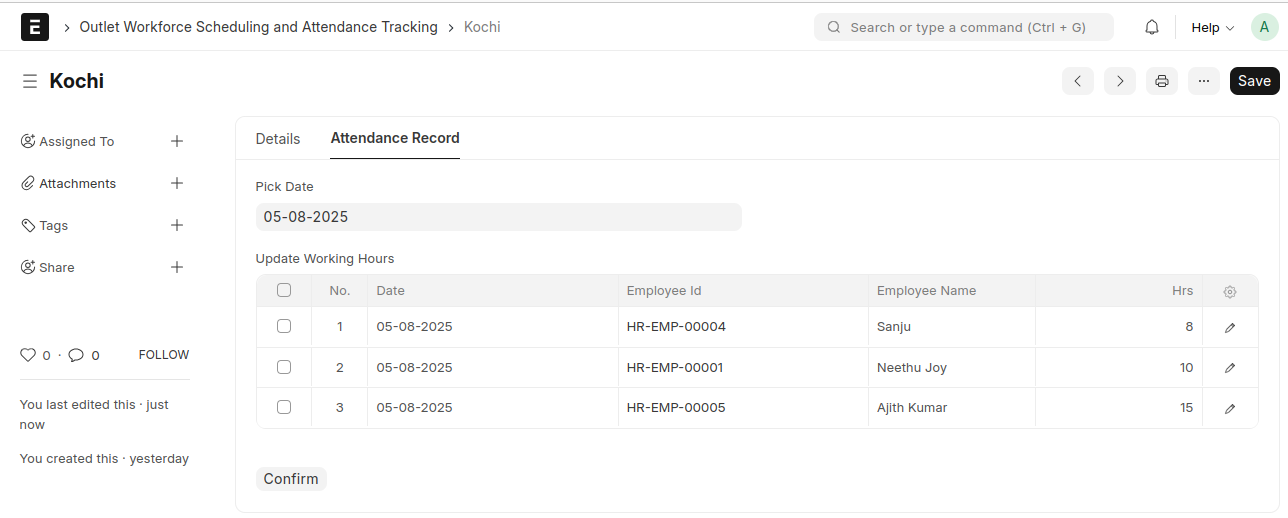
- After entering the hours, click the Confirm button.
- This action creates a new document titled Outlet Monthly Attendance Register for the corresponding 26th–25th attendance period.
- Check for Existing Outlet Monthly Attendance Register Document
- If a Outlet Monthly Attendance Register exists for the same company, branch, and date range:
- If it is submitted, the system stops and does not allow updates.
- If it is cancelled, the system stops and asks the user to delete the cancelled document first.
- If it is in draft, the system continues and updates the existing register.
- If a Outlet Monthly Attendance Register exists for the same company, branch, and date range:
- After the Monthly Attendance Register is successfully created, all dates and hours in the Update Working Hours table are cleared, and the Pick Date field is reset.
Outlet Monthly Attendance Register
prerequisites
- Moms Custom Settings
- Set Overtime Salary Component, Deduction Salary Component , and Food Allowance Salary Component in Moms Custom Settings.
Customization Process
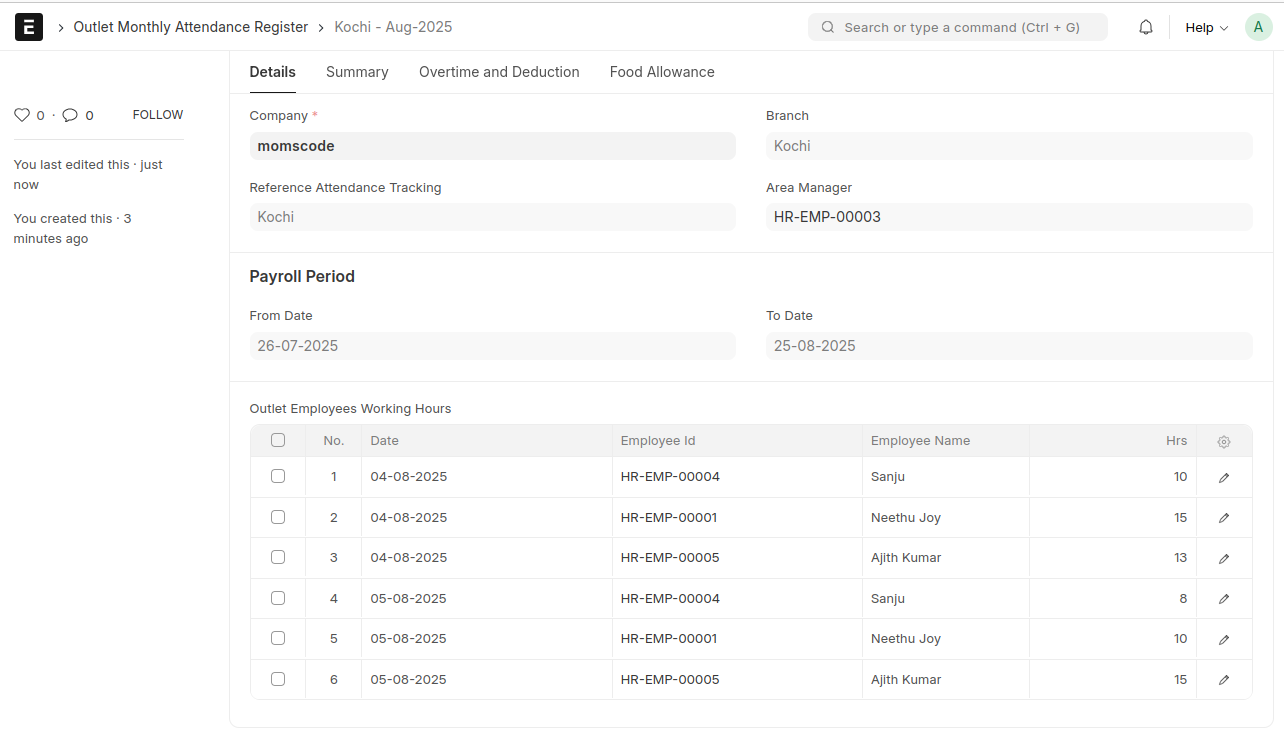
- The company, branch, area manager, and attendance reference are set from the Outlet Workforce Scheduling and Attendance Tracking document.
Populating Outlet Employees Working Hours
- The Update Working Hours data is appended to the 'Outlet Employees Working Hours' table of newly created or existing attendance register.
- If a record already exists for the same employee and date, the new hours are added to the existing value.
Monthly Attendance Summary Table
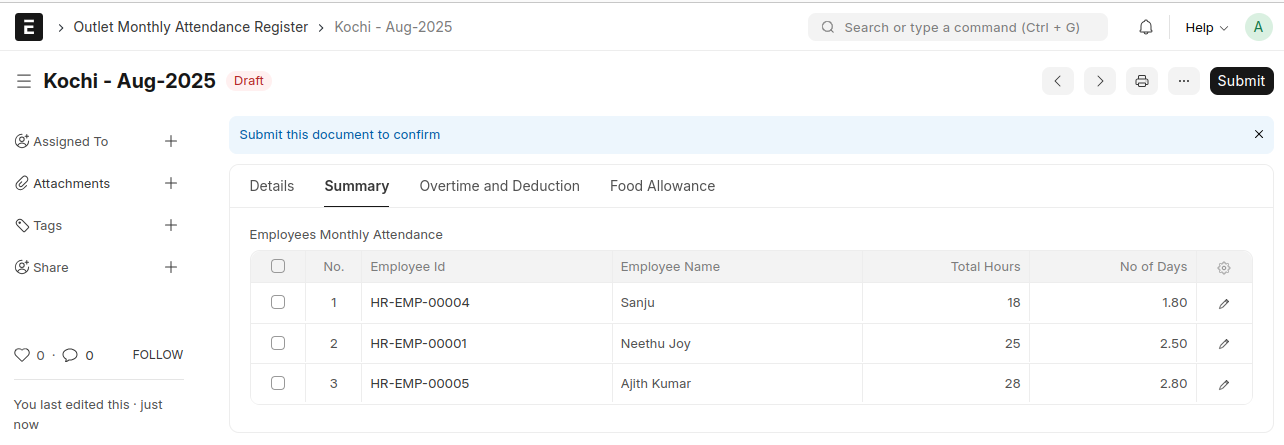
- The system aggregates total hours worked per employee.
- Based on these totals, it calculates the number of days worked by dividing total hours by daily working hours.
- Each employee’s summary is added to the Employees Monthly Attendance table.
OT and Deduction Calculation
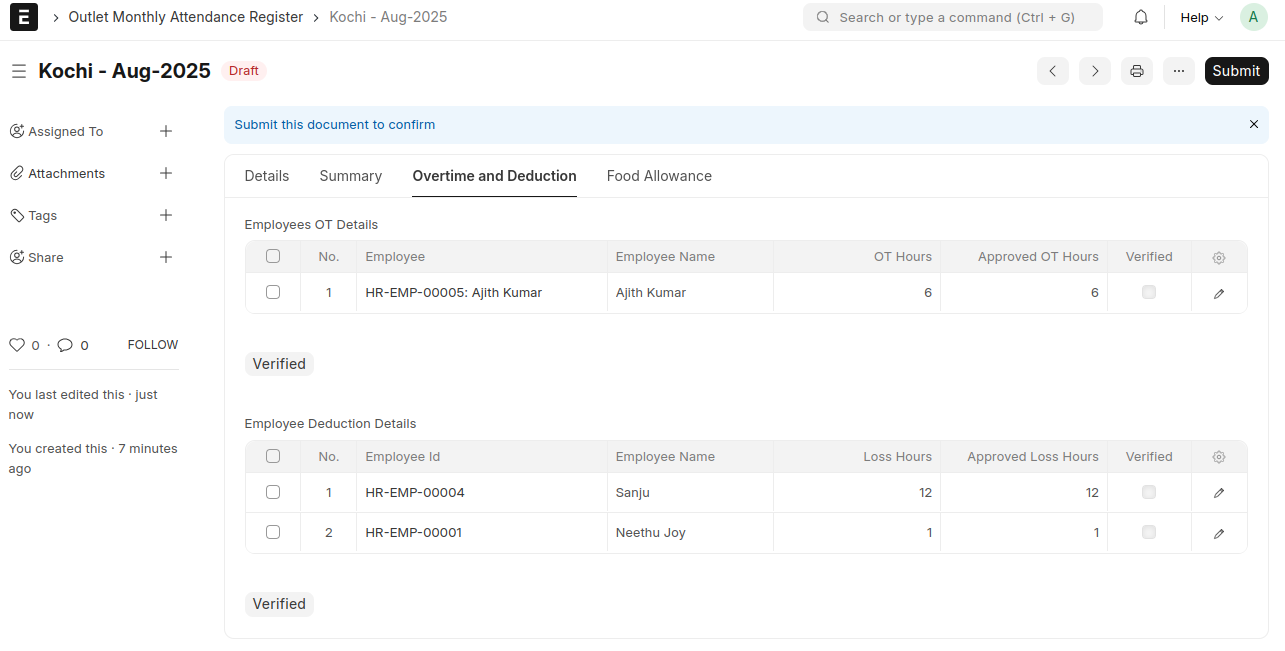
- If an employee's total hours exceed the standard monthly working hours:
- Overtime (OT) is calculated and added to the Employees OT Details table.
- If the total is below standard hours:
- Loss hours are calculated and added to the Employee Deduction Details table.
Food Allowance Calculation
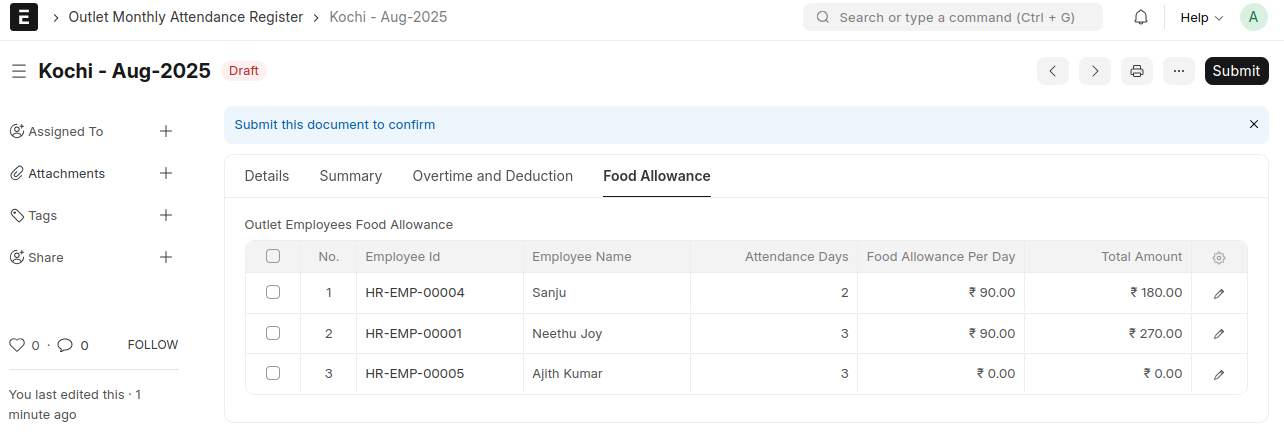
- The system calculates food allowance for employees based on the number of distinct attendance days.
- It fetches the per-day food allowance amount from the Employee master and multiplies it by attendance days.
- This data is added to the Outlet Employees Food Allowance table.
Create OT (Overtime) Additional Salary on submit the document
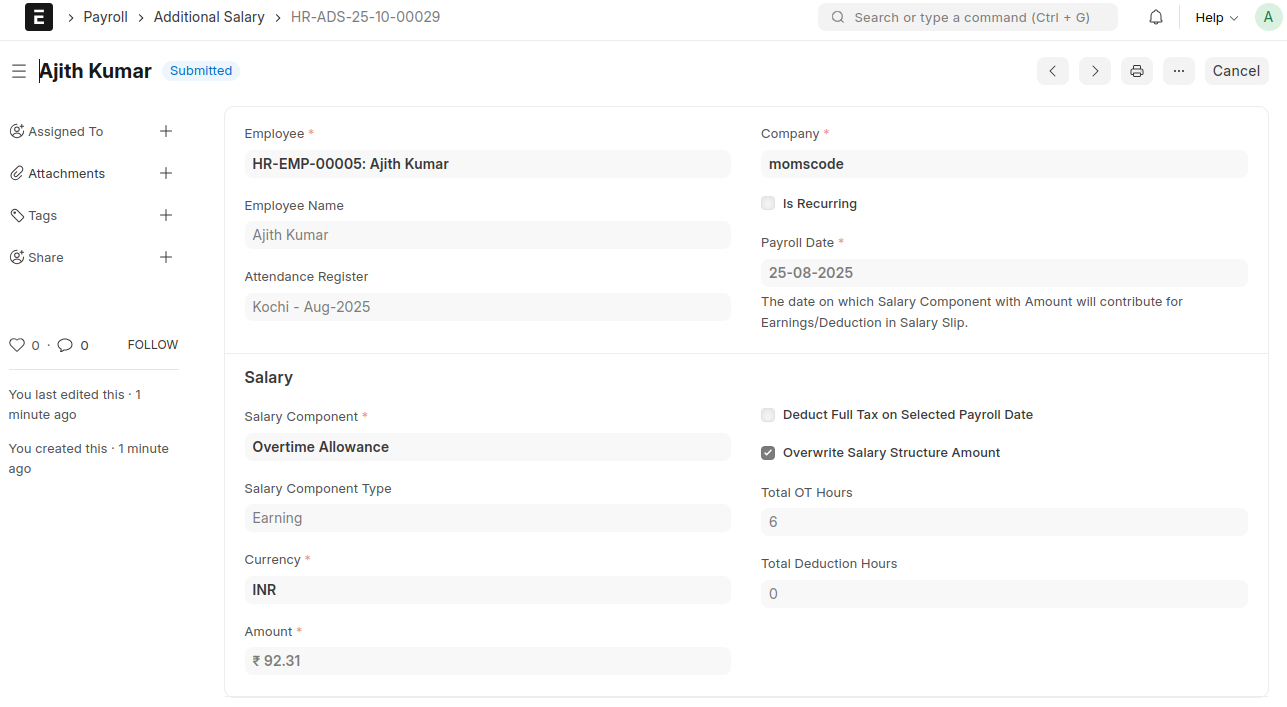
- If the Employees OT Details table contains approved OT entries, the system automatically creates OT Additional Salary records for each employee when the document is submitted.
- In the Additional Salary for OT, the amount is calculated using the formula: (Base Salary / 26 / Daily Working Hours) × Approved OT Hours
Create Deduction Additional Salary on submit the document
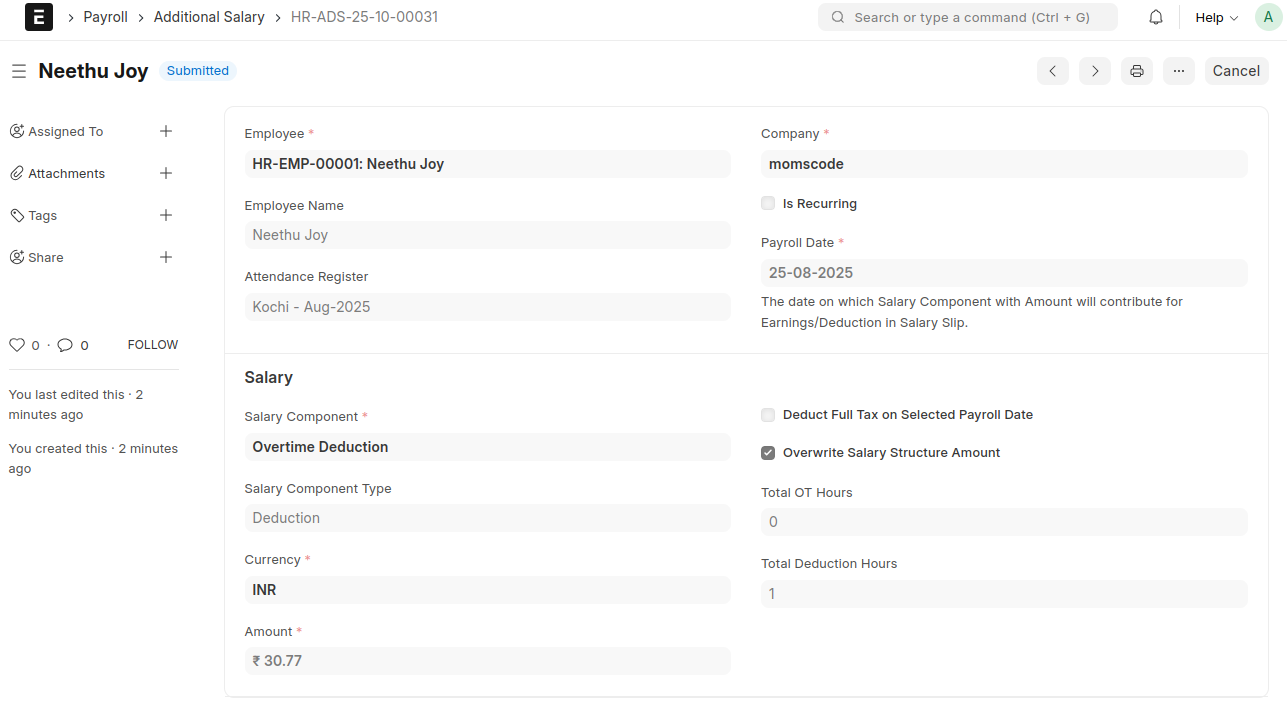
- If the Employee Deduction Details table contains approved Deduction entries, the system automatically creates Deduction Additional Salary records for each employee when the document is submitted.
- In the Additional Salary for Deduction, the amount is calculated using the formula: (Base Salary / 26 / Daily Working Hours) × Approved Loss Hours
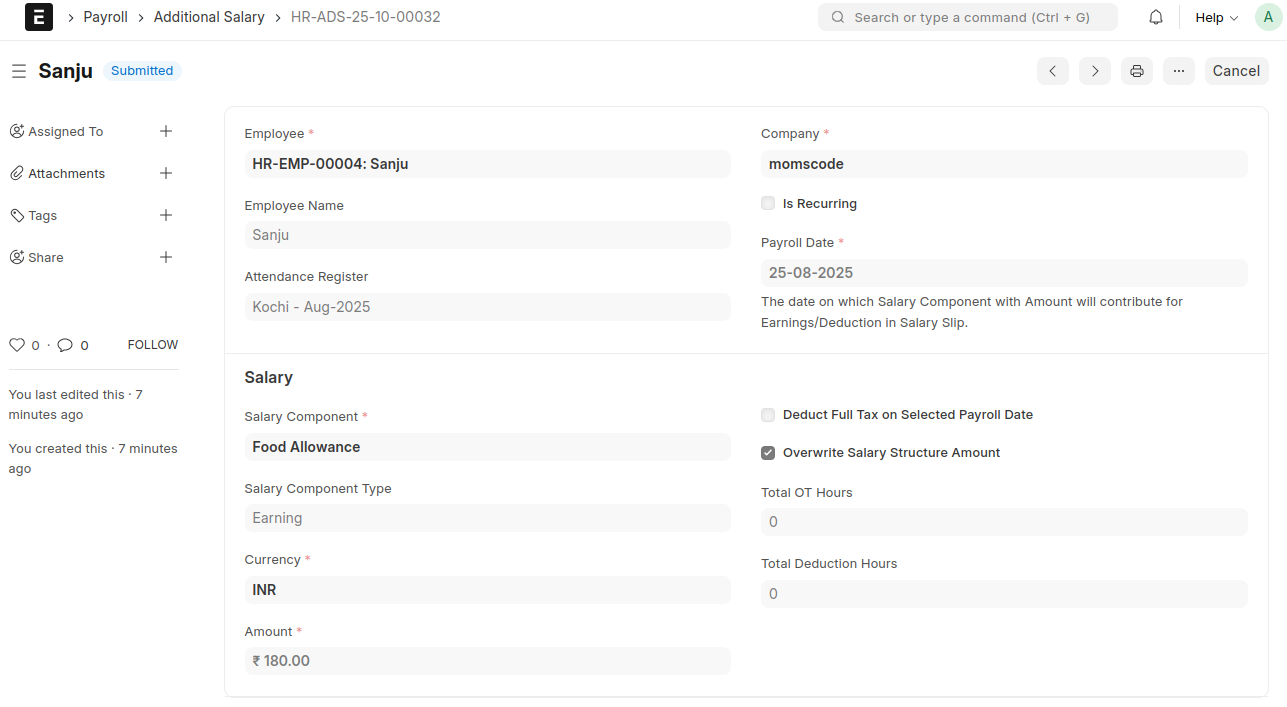
Create Food Allowance Additional Salary on submit the document
- If the Outlet Employees Food Allowance table contains entries, the system automatically creates Food Allowance Additional Salary records for each employee when the document is submitted.
- In the Additional Salary for Food Allowance, the amount is taken from the Total Amount in the Outlet Employees Food Allowance table of the Outlet Monthly Attendance Register Document.
Note: If attendance is marked in bulk, you need to manually enter the amounts for overtime, deductions, and food allowance through Bulk Additional Salary