Momscode - AMIDC Forex Card
Prerequisites
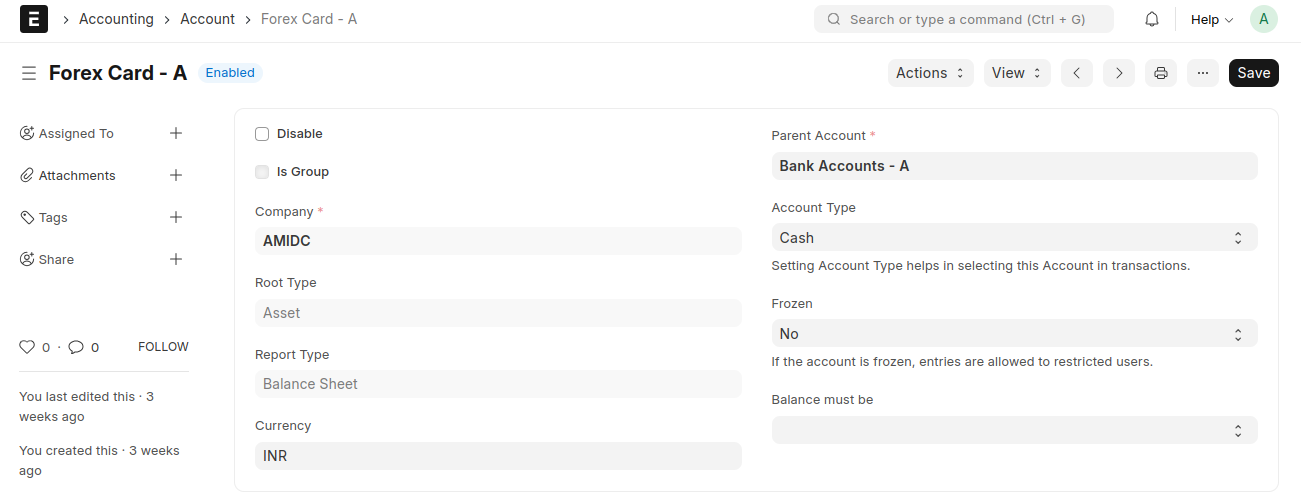
1. In Moms Custom settings, set 'Forex Card account'

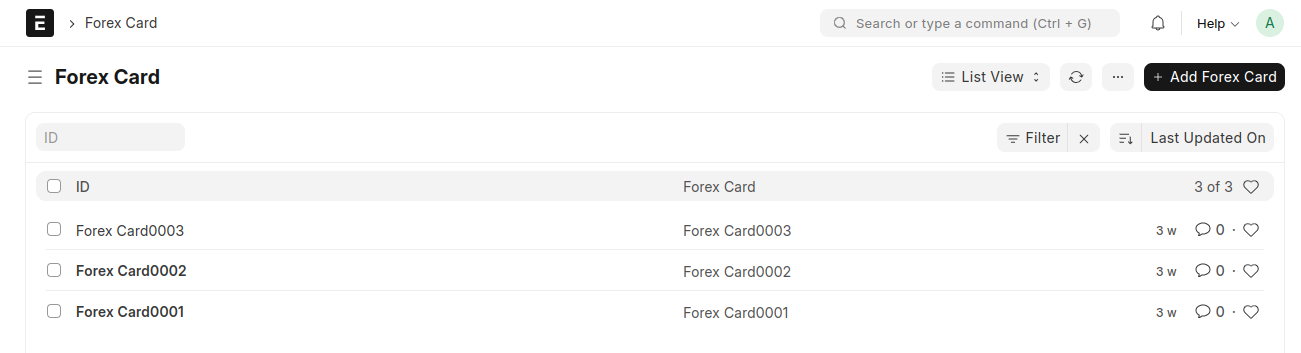
 2. Create 'Forex Card'
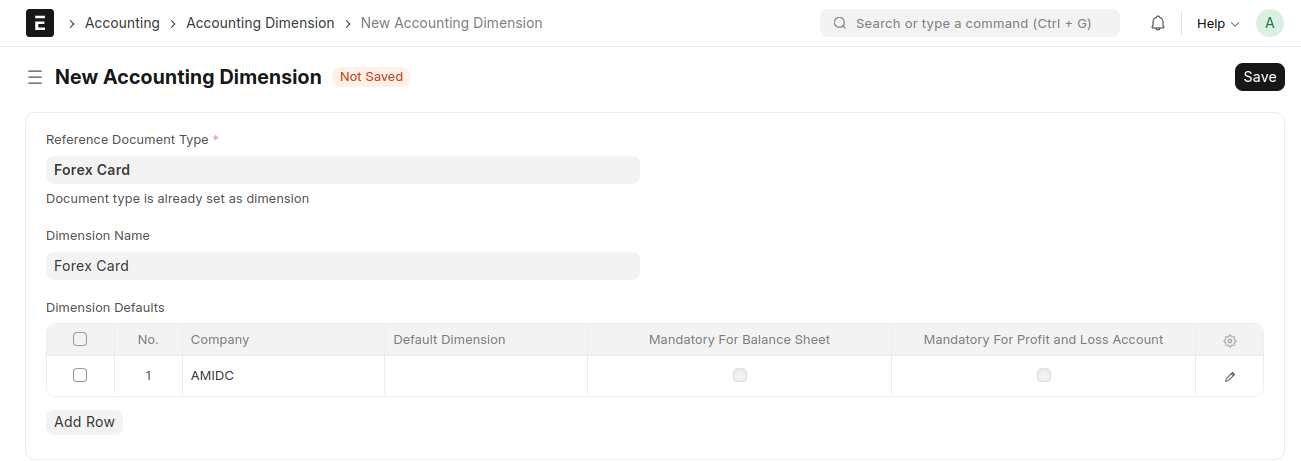
 3. Set 'Accounting Diamension'
(This is done to add an additional field, 'Forex Card', in the Accounting Dimension)
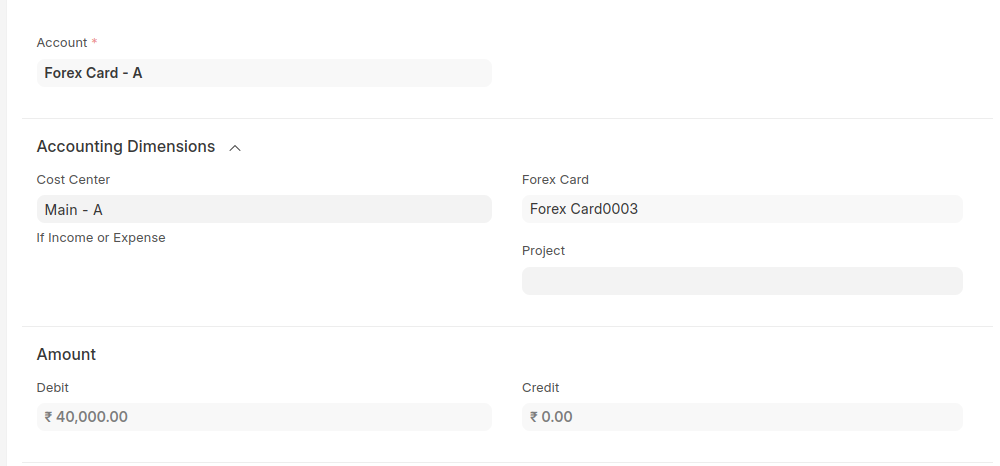
 4. Next, create a 'Journal Entry' to transfer funds from the Bank account to each of the created Forex Cards
Journal Entry
Add a new Jounal Entry
- Select an Entry Type
- Select the Debit and Credit Accounts
- Enter the amount to be transferred
- Select the appropriate Forex Card for the fund transfer
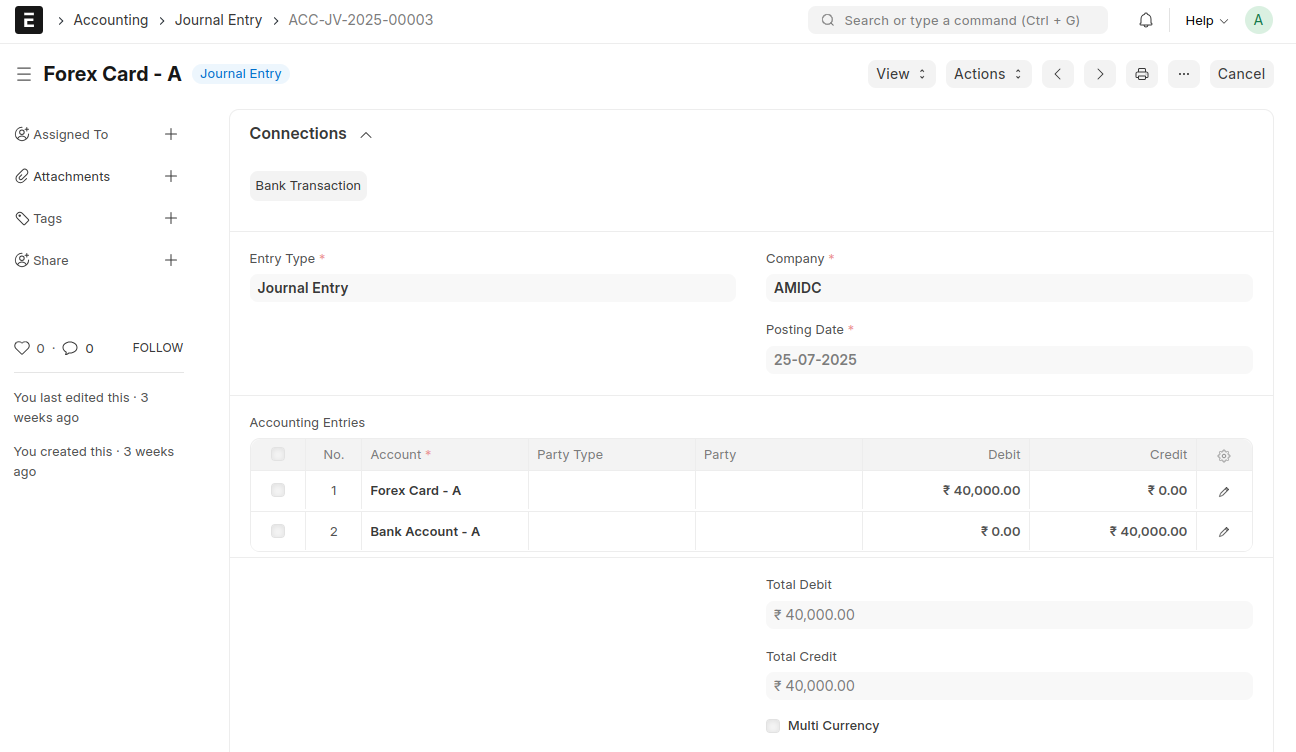 Save and Submit
A separate Journal Entry must be created for each Forex Card that is created
5. Create an Employee
6. Create Expense Claim Type Expense Claim Type Add an new Expense Claim Type
- Enter the Expense Claim name
Select the Company and Account Head
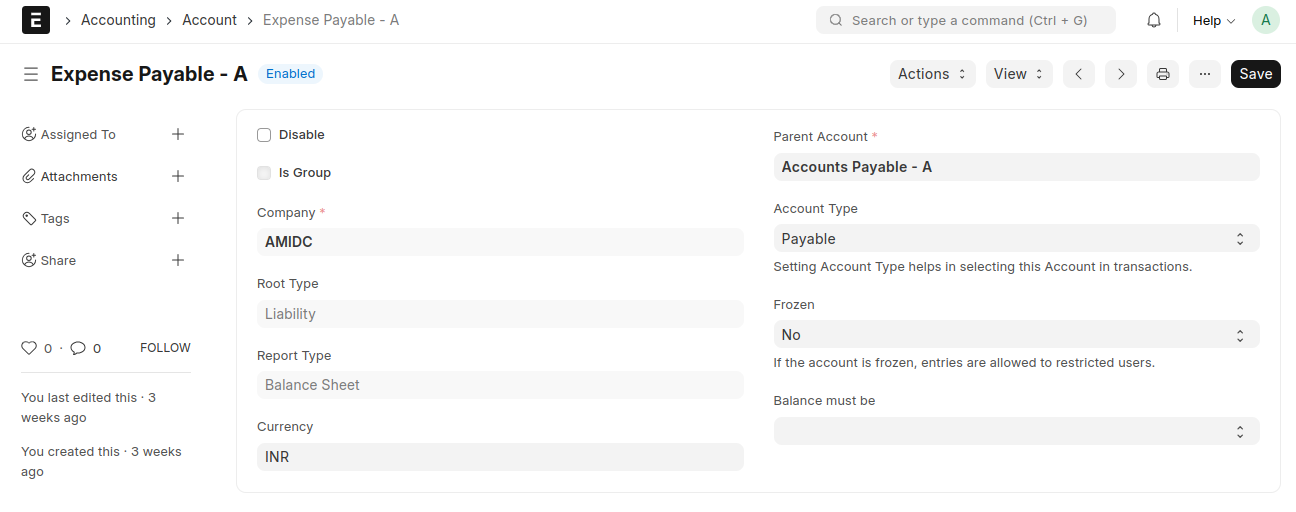
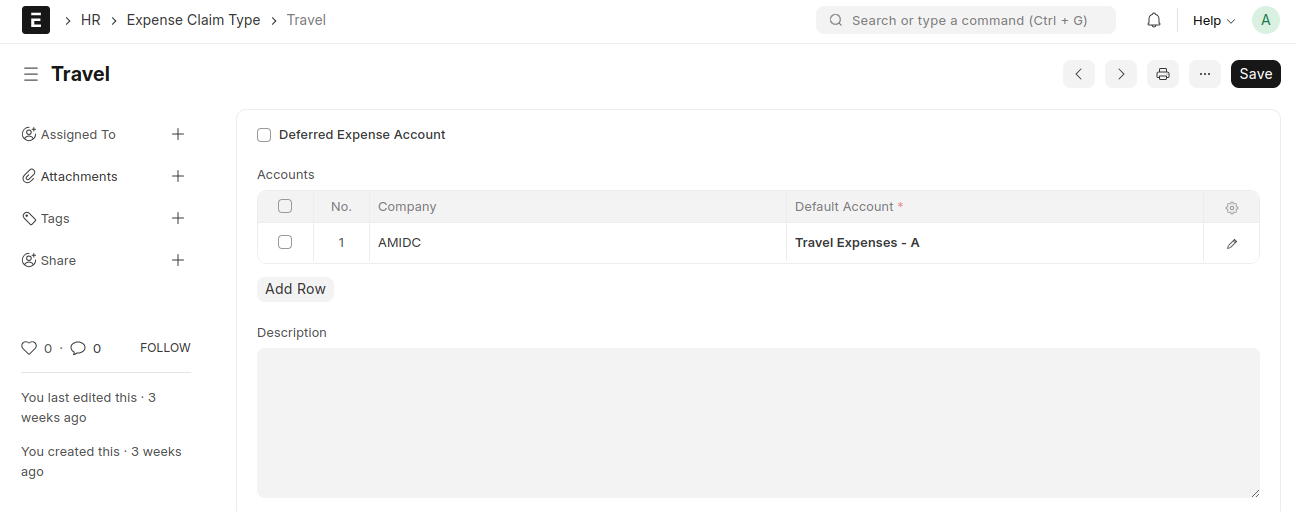 7. Create a Payable Account
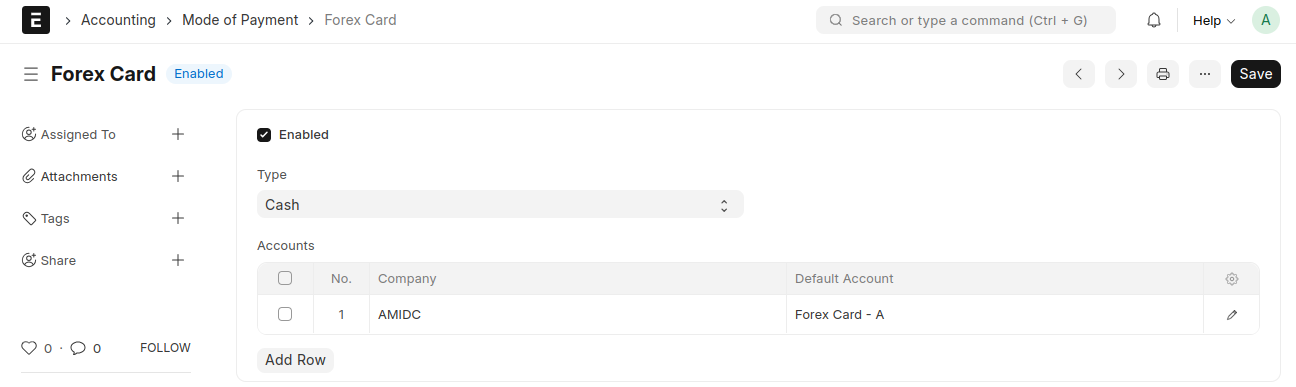
 8. Create a Mode of Payment
 Mode of Payment name as Forex Card
- Select Company
- Select Account Head Forex Card
Expense Claim
Add a new Expense Claim
- Select an Employee
- Select the Expense Approver
- Select the Expense Claim Type
- Enter the expense amount
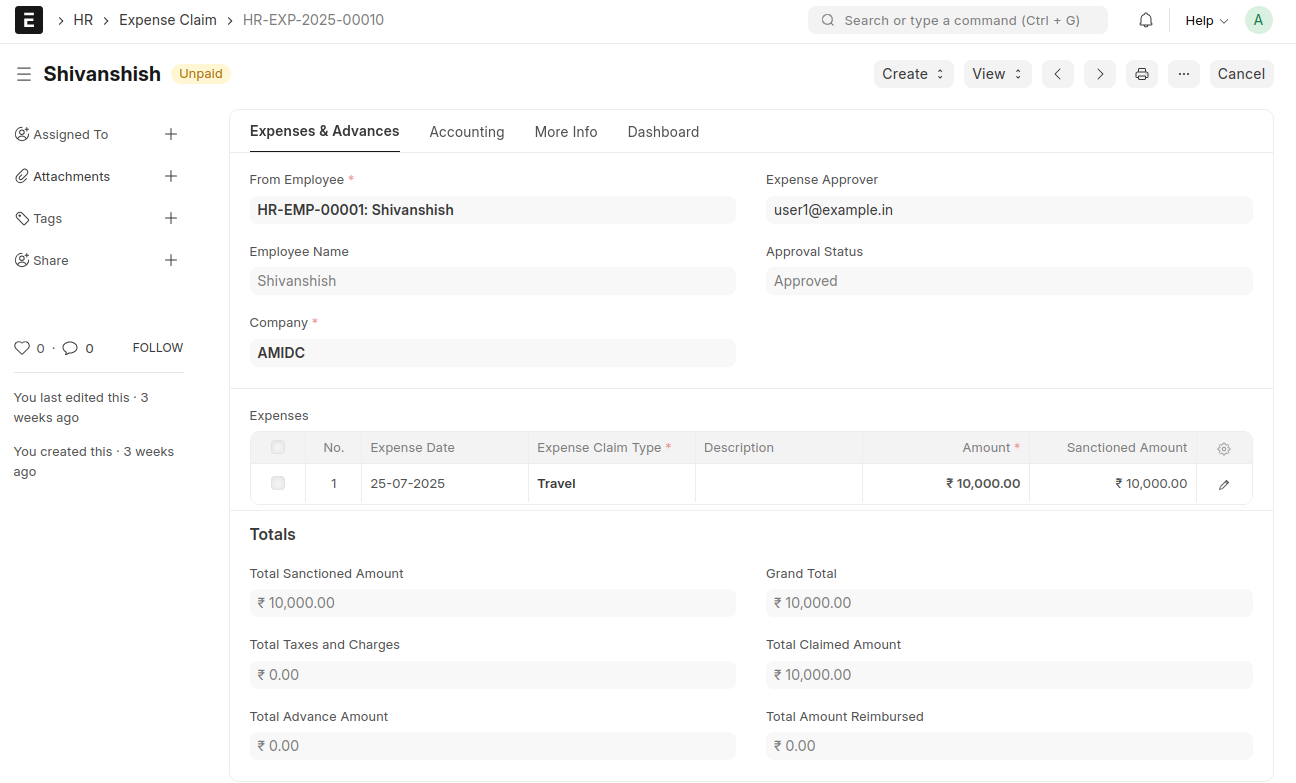 In Accounting tab,
- Select the Payable Account
- Select the Forex Card
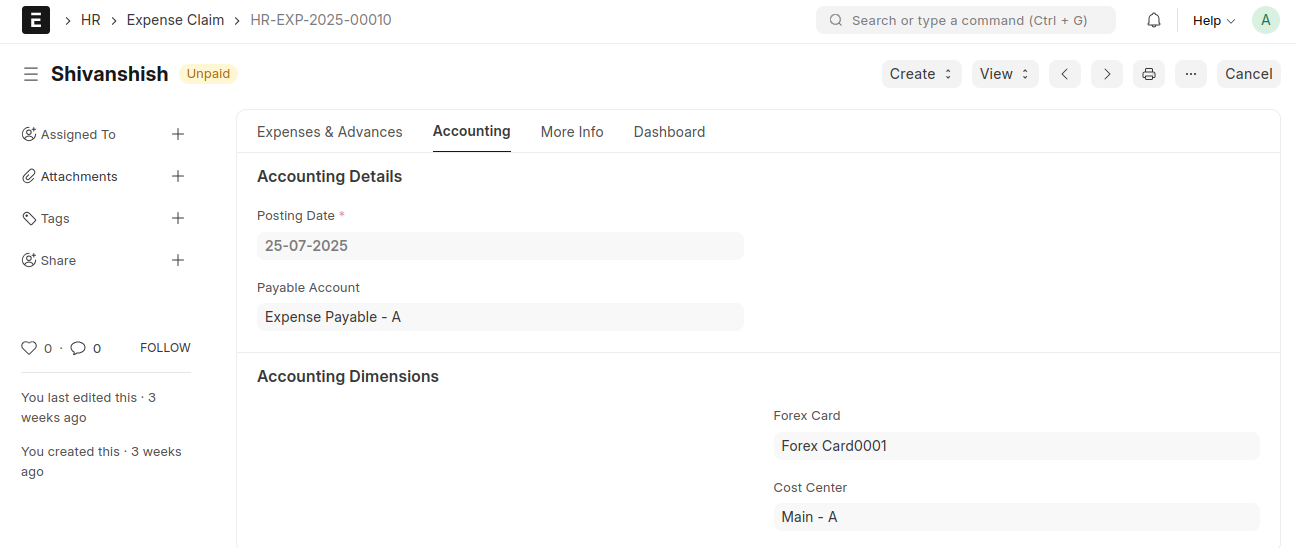 Save and Submit
Payment Entry
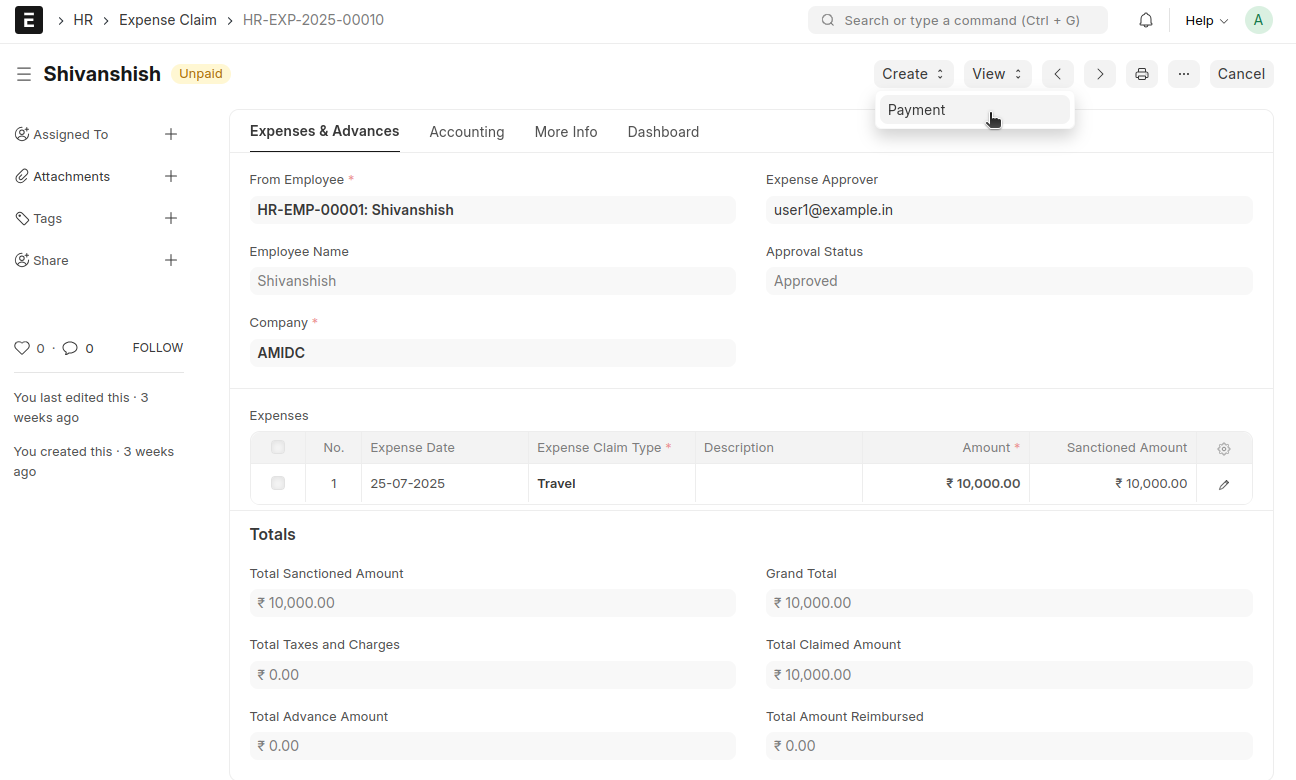
Create Payment Entry from Expense Claim
From Expense Claim → Click the 'Create' button → Select 'Payment'
- Select Mode of Payment as Forex Card
In Accounts section, Account Balance and Forex Card Balance will be shown
The account balance includes the total balance of all Forex Cards.
The Forex Card balance refers to the balance amount of the selected Forex Card
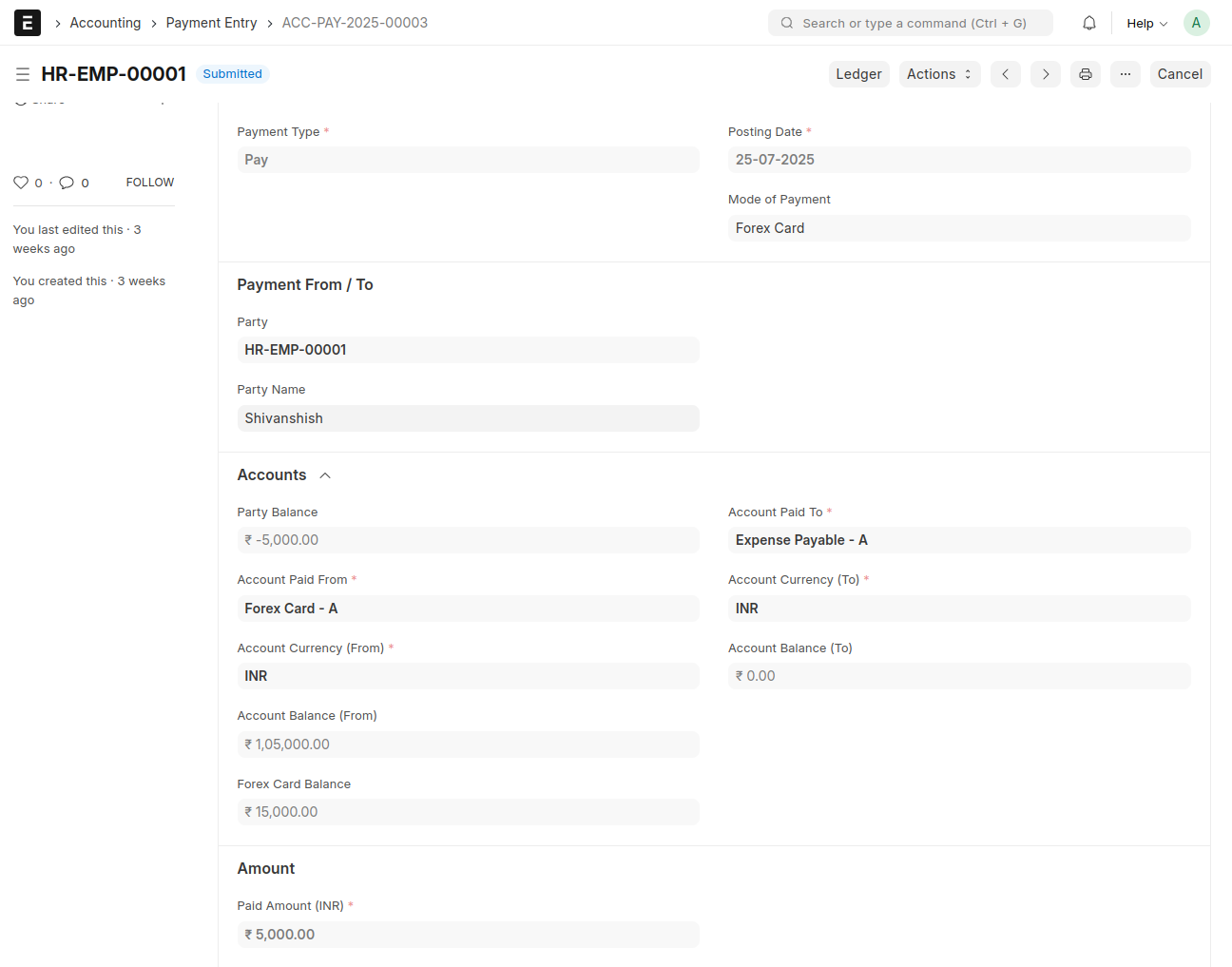
- Forex Card will be fetched from Expense Claim
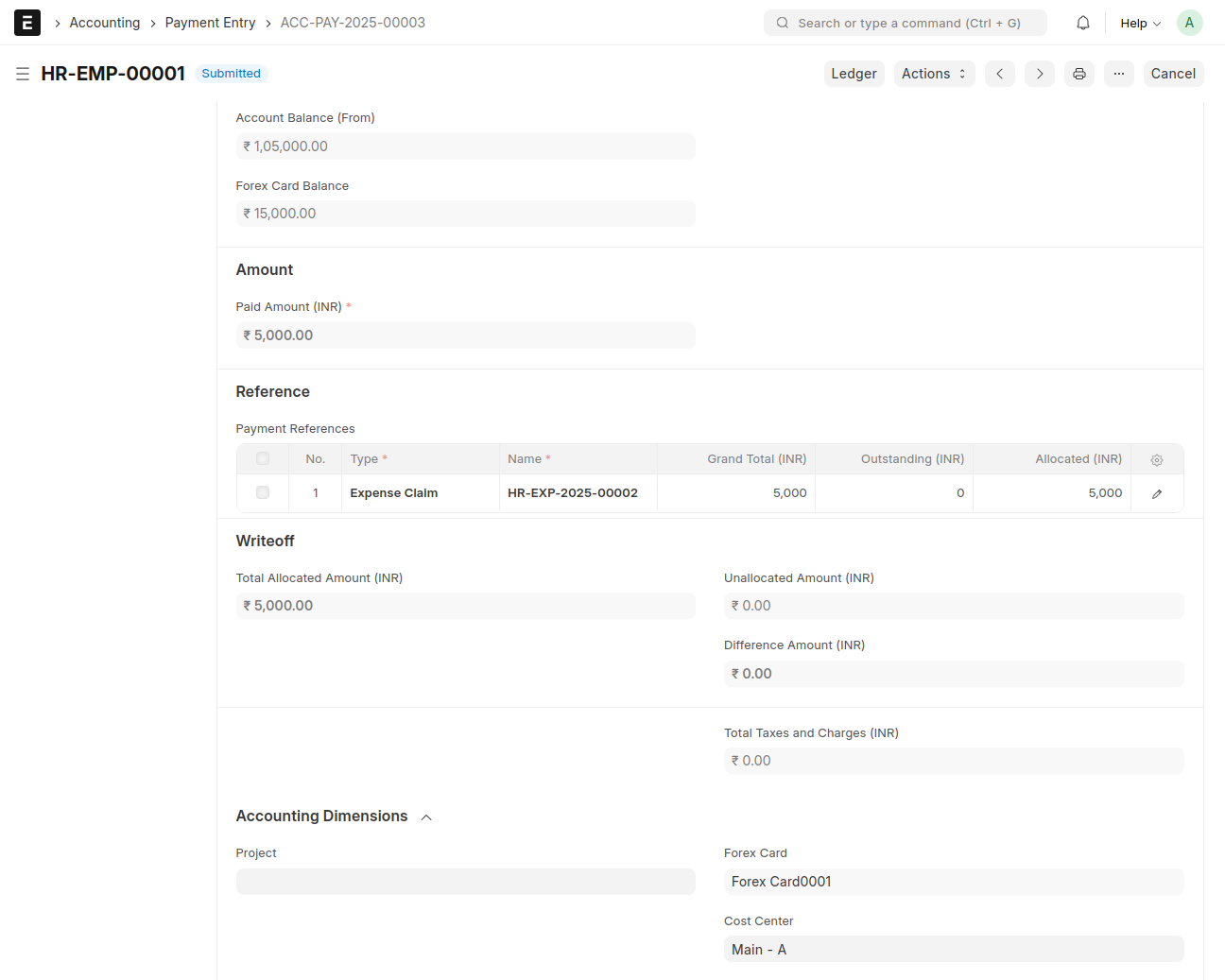 Save and Submit