Momscode-AMIDC RaaS Sales
Sales Order
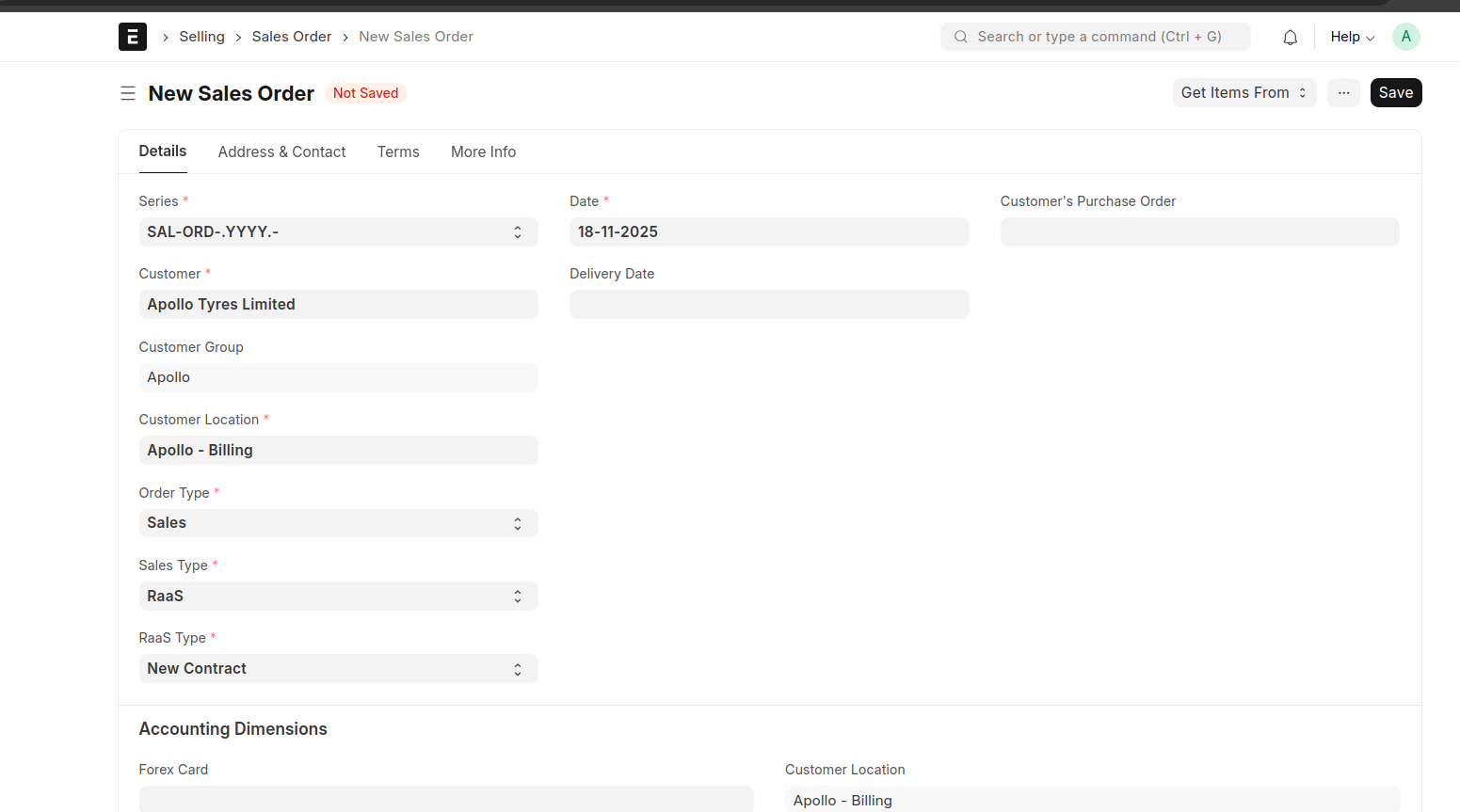
- Select the Customer
- Only the locations associated with the selected customer will appear in the Customer Location field. (Note: While creating a Customer Location an Asset Location will be created automatically.)
- Sales Type should be 'RaaS'.
- There is a field RaaS Type will be displayed if the Sales Type is 'RaaS'.
- The RAAS Type has two options: “New Contract” and “Renewal.”
- If the RaaS type is "Renewal" there is an option to select the Parent Sales Order of that Renewal SO.
- While selecting the parent sales order the items will be fetched from that sales order.
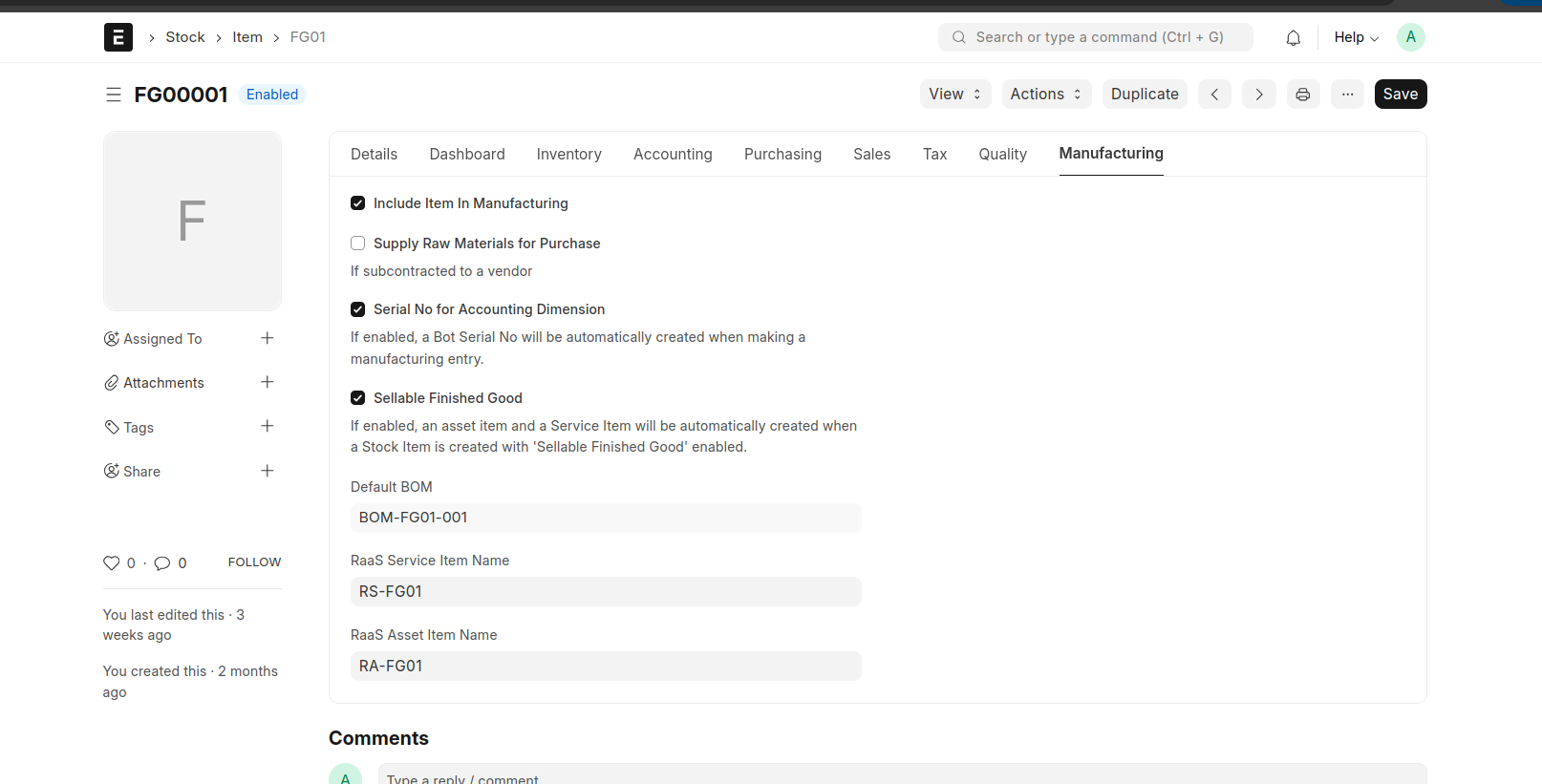
 * When creating an item with “Is Sellable Finished Good” enabled, an asset item and a service item will be created for it. The relevents informations will be fetched from moms custom settings for the Asset and Service Item Creation.
* For the Service item make sure you enabled the RaaS Service Item Checkbox.
- If the Sales Type is “RaaS,” then display only the items—not the “Is Sellable Finished Good”.
- In the case of RaaS Only the Service Items and other stock items will be listed in the items table for the selection.
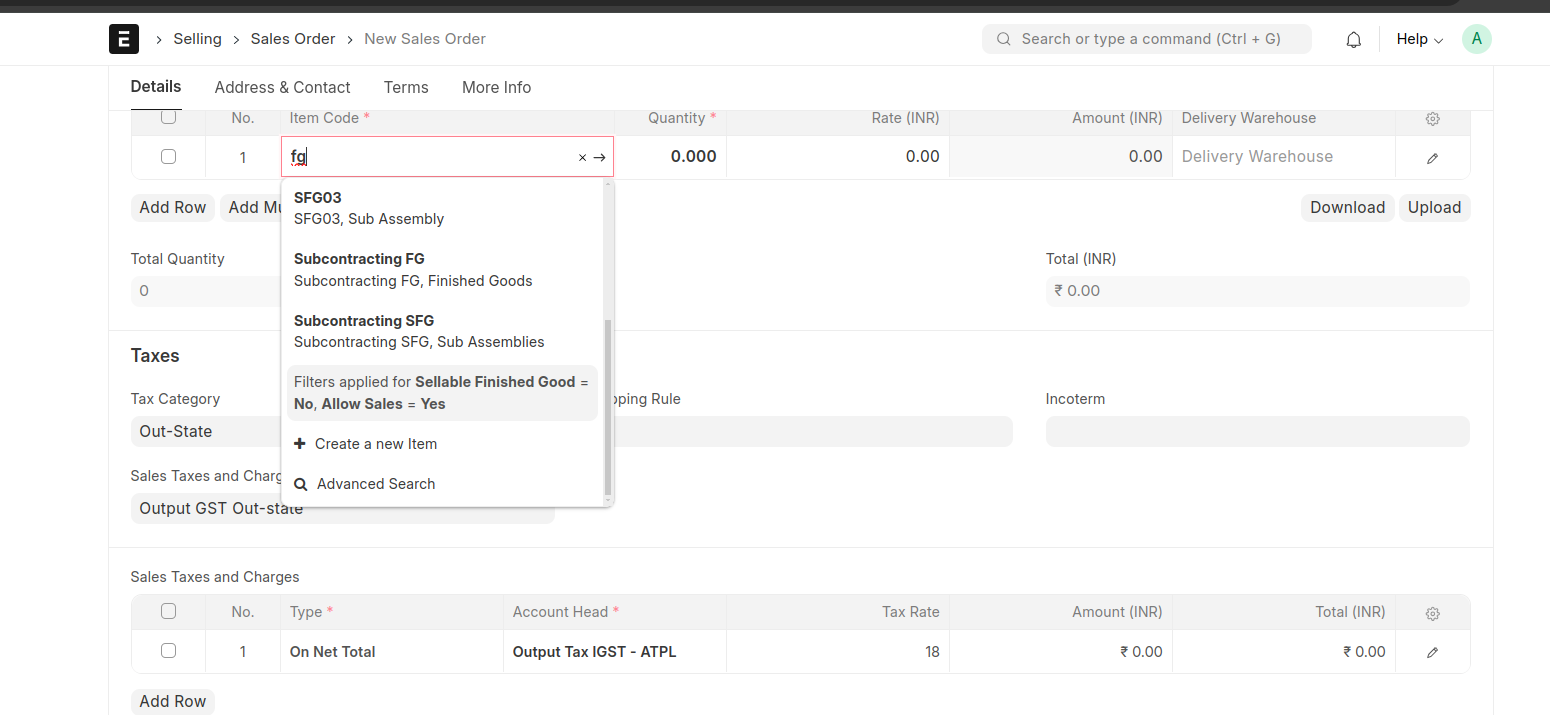
- Select the items, enter the Delivery Date and Warehouse.
- Before Submitting the sales order the user should enter some information in the items table.
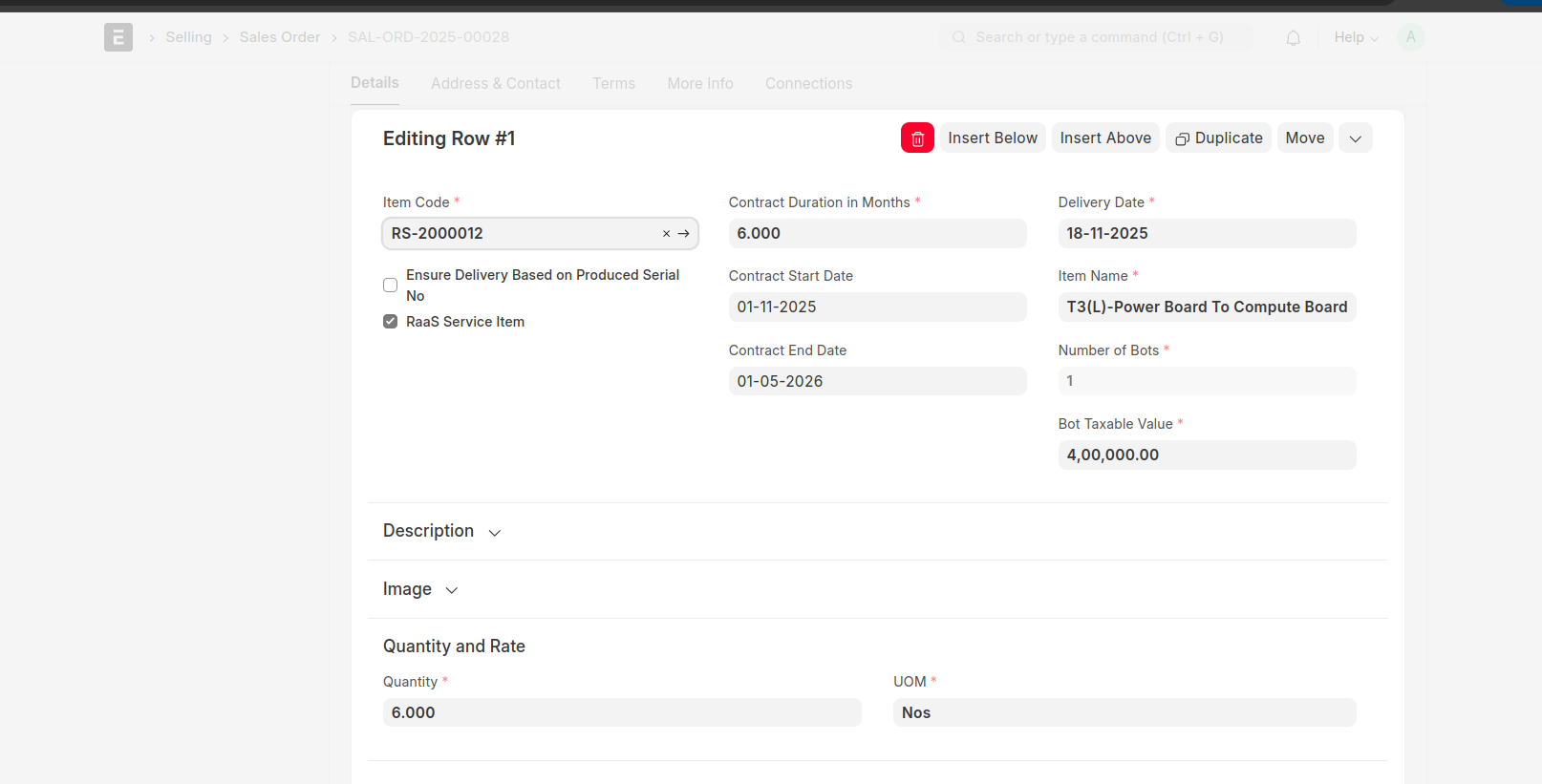
- If an item is RaaS Service Item then must enter contract duration in months, contract start date and the contract end date will be auto calculated based on the duration in months and contract start date.
- Also Bot Taxable Value should be entered for the RaaS Service Item.
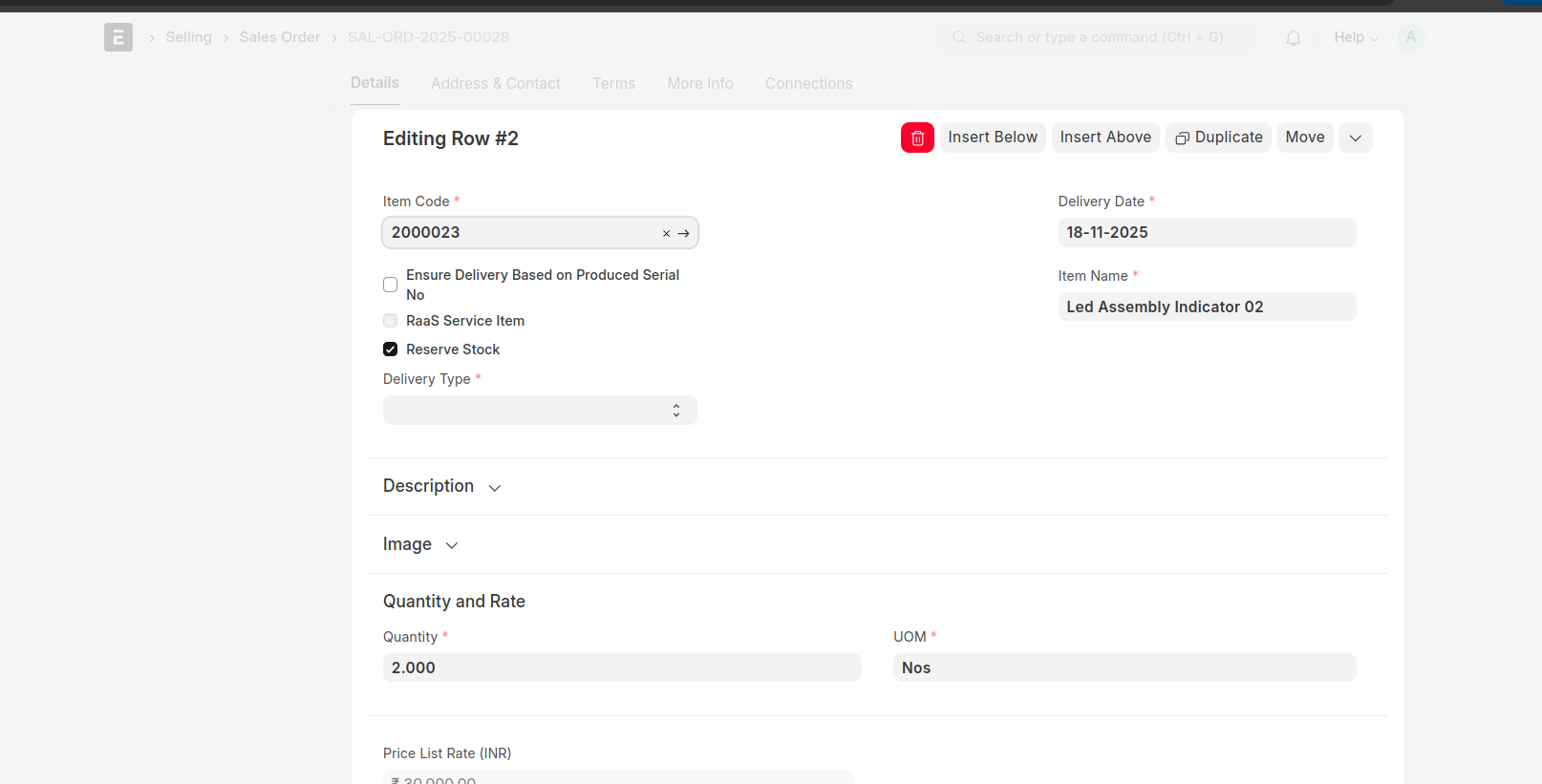
- Delivery Type should be selected for stock items of the RaaS Sales Order.
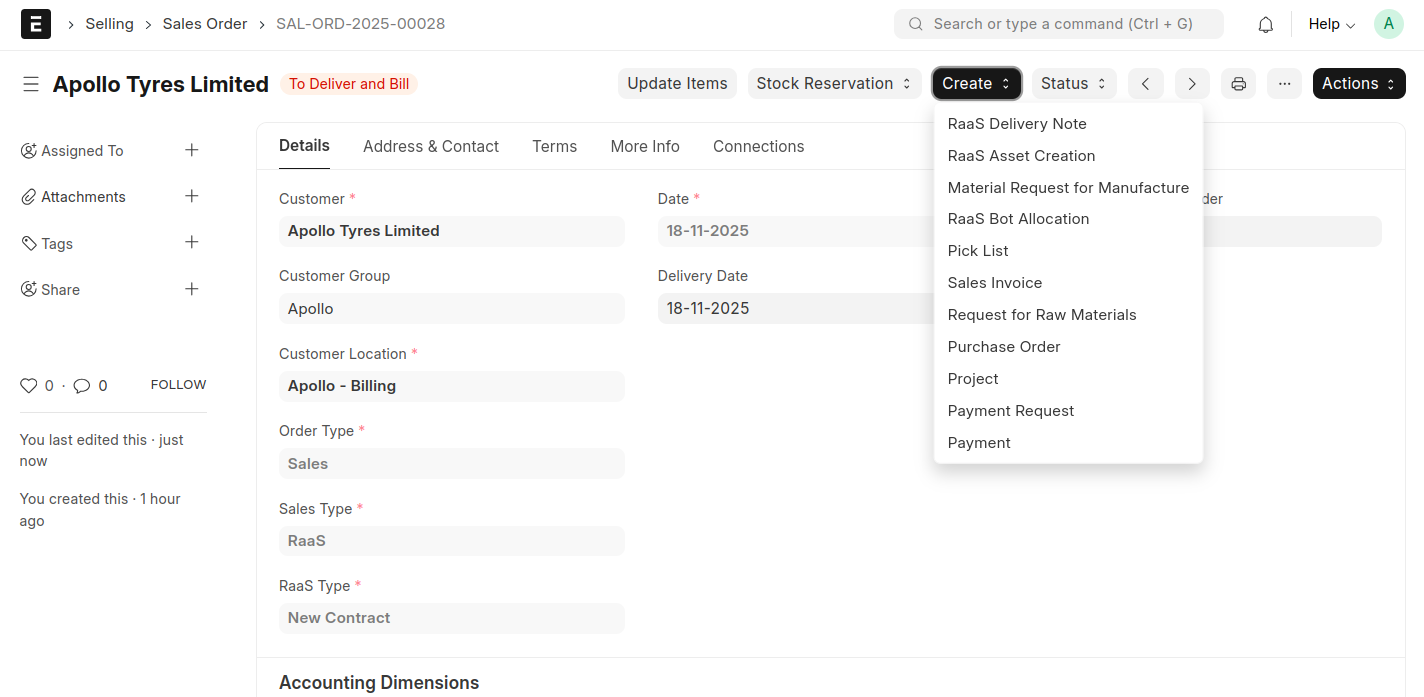
- After submitting the document, three buttons will appear to create RaaS Asset Creation, RaaS Bot Allocation, and RaaS Delivery Note.
RaaS Asset Creation
- You can create the RaaS Asset Creation either independently or directly from the Sales Order.
- Select the consumed stock item, then automatically filled the target asset item.
- Select the Item Source Warehouse.
- Only the bot serial nos associated with the consumed stock item and stock item source warehouse will be appear in the Bot Serial No field.

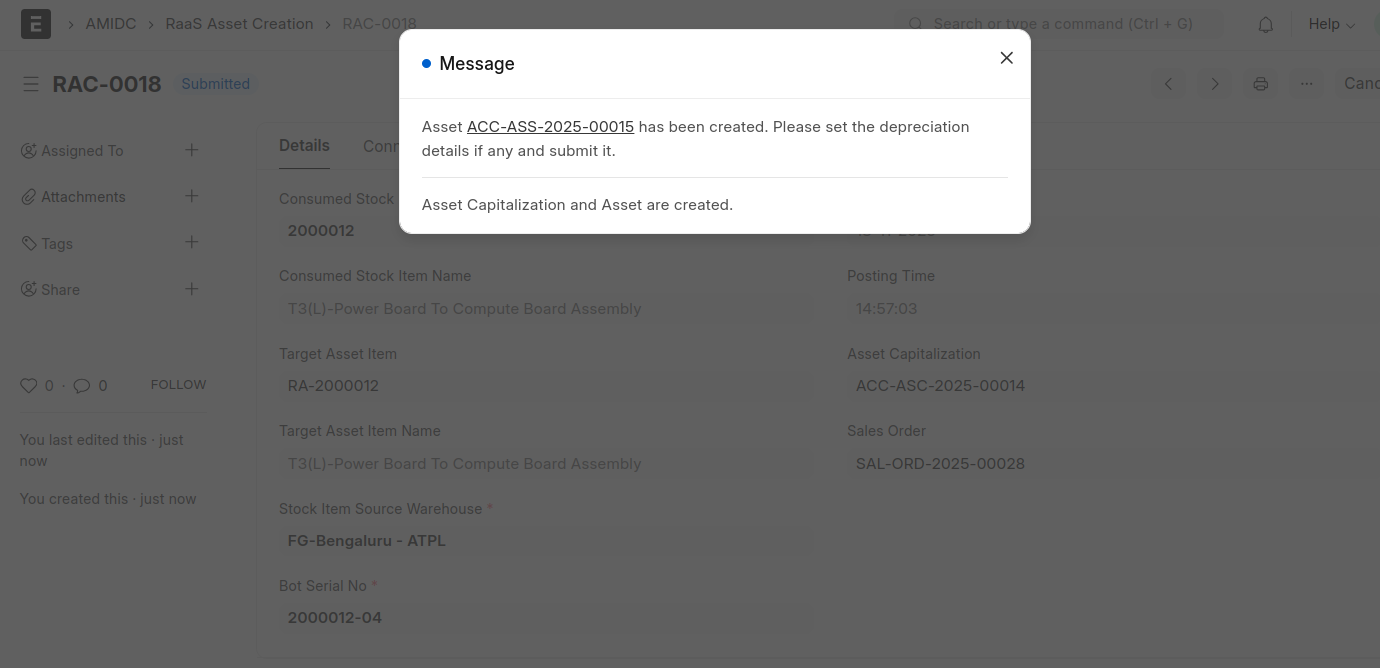
- An asset capitalization and an asset will be created during submission of the this document.
You need to manually submit the Asset document using the link displayed on the screen when submitting the RaaS Asset Creation document.
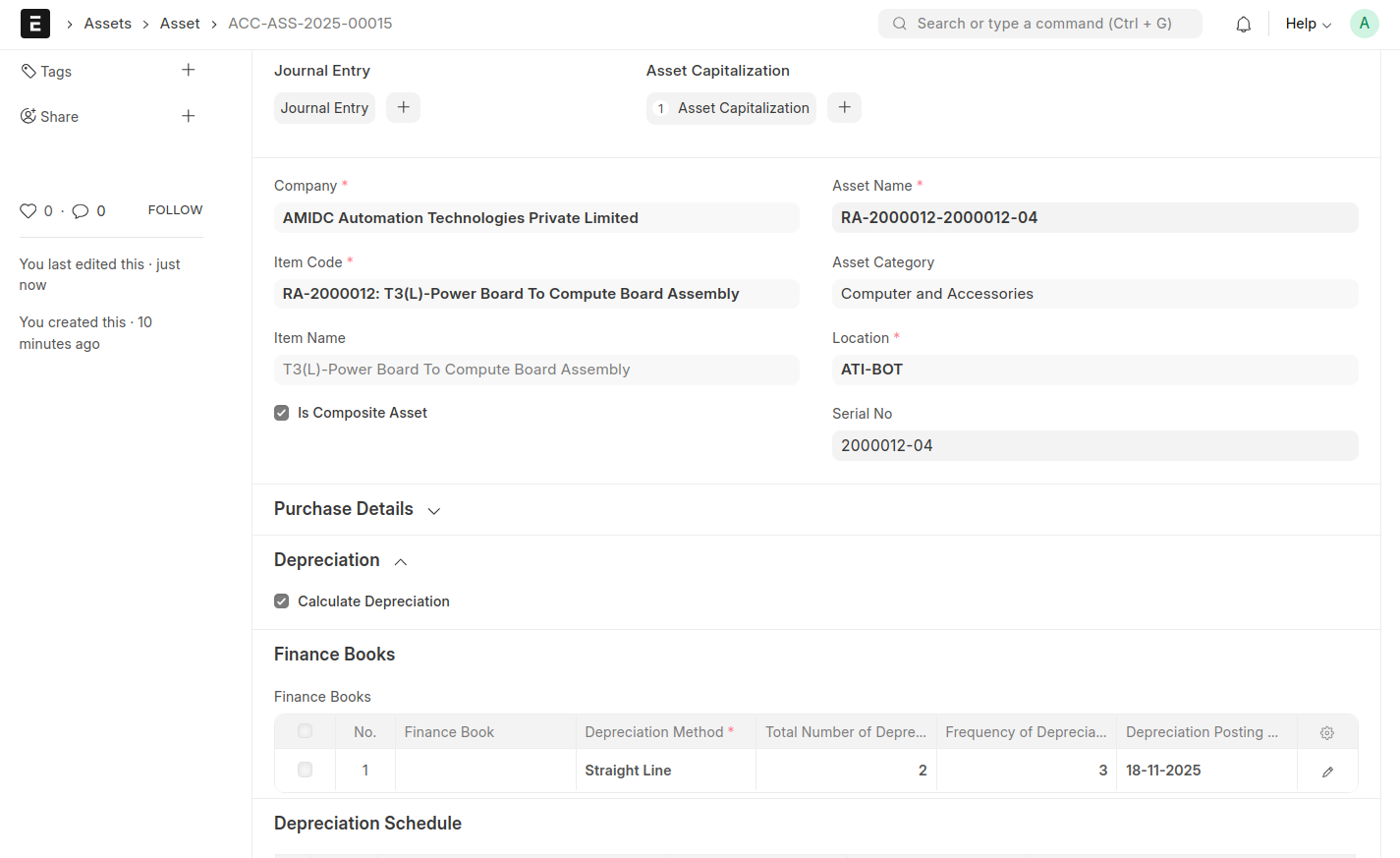
Depreciation needs to be set for that asset before submiiting it.
RaaS Bot Allocation
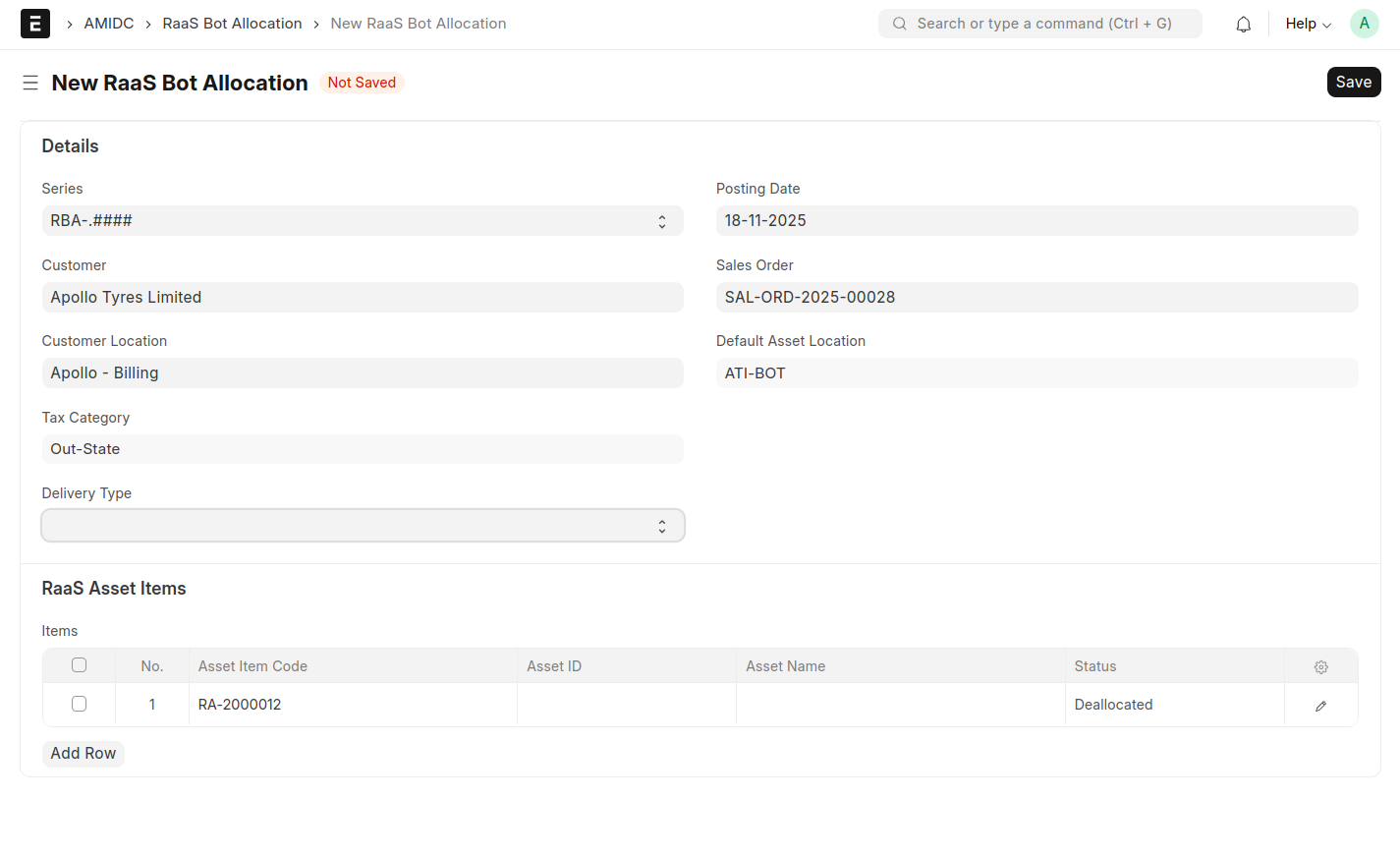
- RaaS Bot Allocation can be created either independently or directly from the Sales Order.
- While Clicking the button in the Sales Order then it will redirect to the RaaS Bot Allocation document and autofilled the details like Customer, Customer Location, Tax Cateogory, Sales Order and Default Asset Location (Fetched from Moms Custom Settings.)
- Also curresponding asset Items will be fetched to the items table from the Sales Order.
- You need to select the Delivery Type (Returnable/Non-returnable) in the RaaS Bot Allocation for it to appear in the Asset Movement print format.
- Here the assets associated with the selected asset item and default Asset Location will be appear in the Asset ID Field of child table.
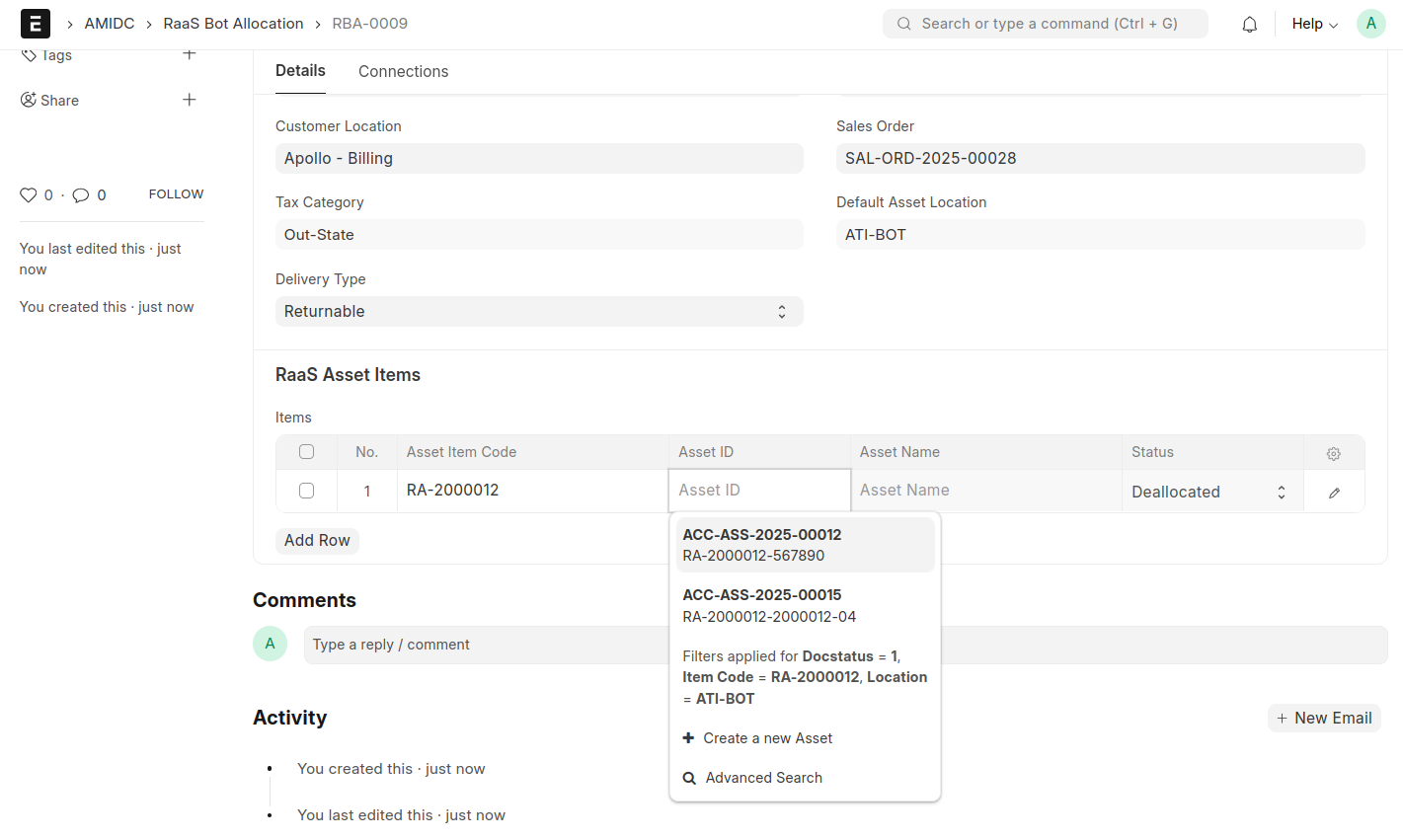
- When you select the asset, the Serial No, Sales Order Item, Inventory Item, and Bot Taxable Value(Bot Taxable value of the RaaS Service Item from sales Order) will all be filled in automatically.
- Initially the status of each row will be 'Deallocated'. We can allocate the asset by clicking 'Allocate' Button.
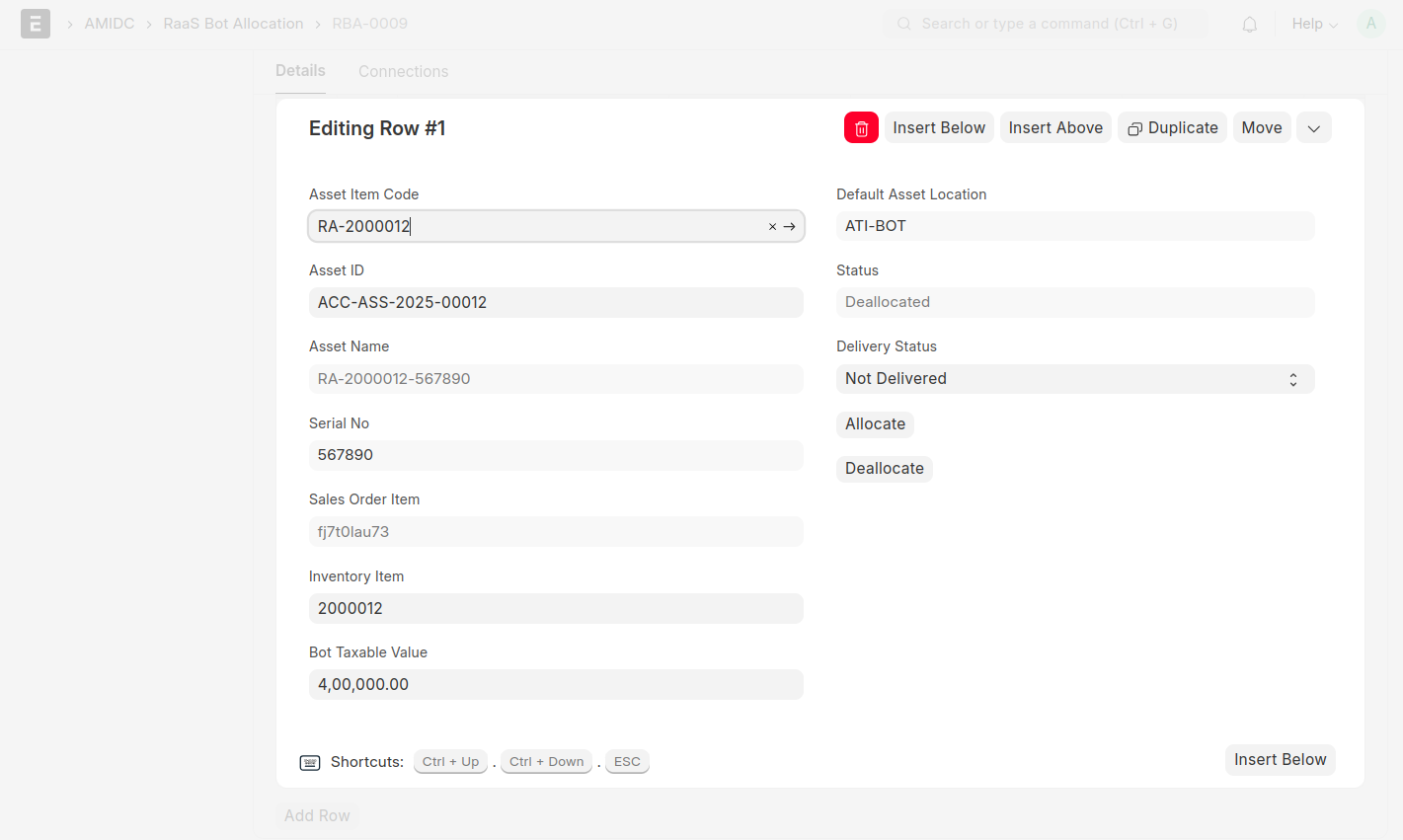
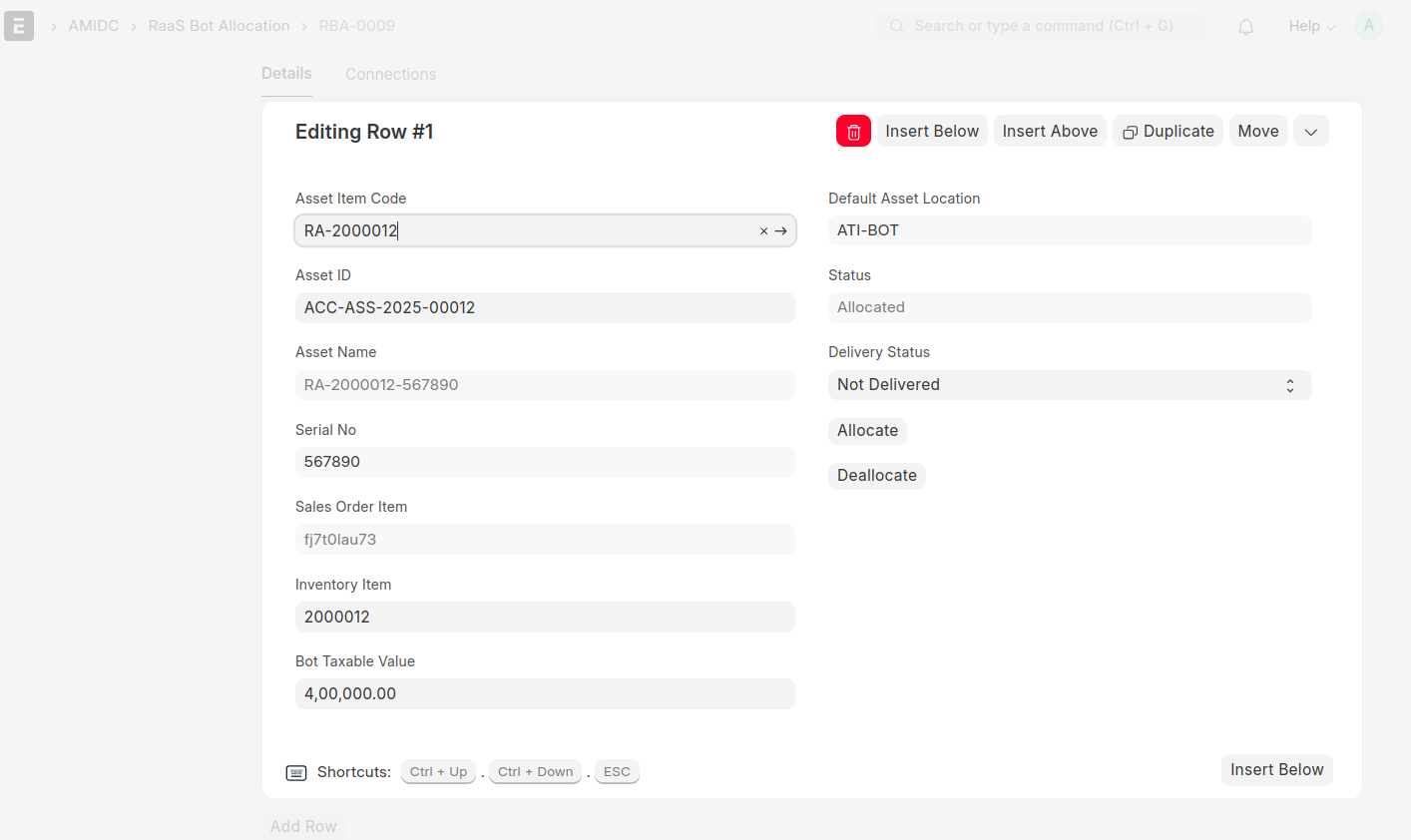
- While clicking the Allocate Button, The status will chane to 'Allocated'.
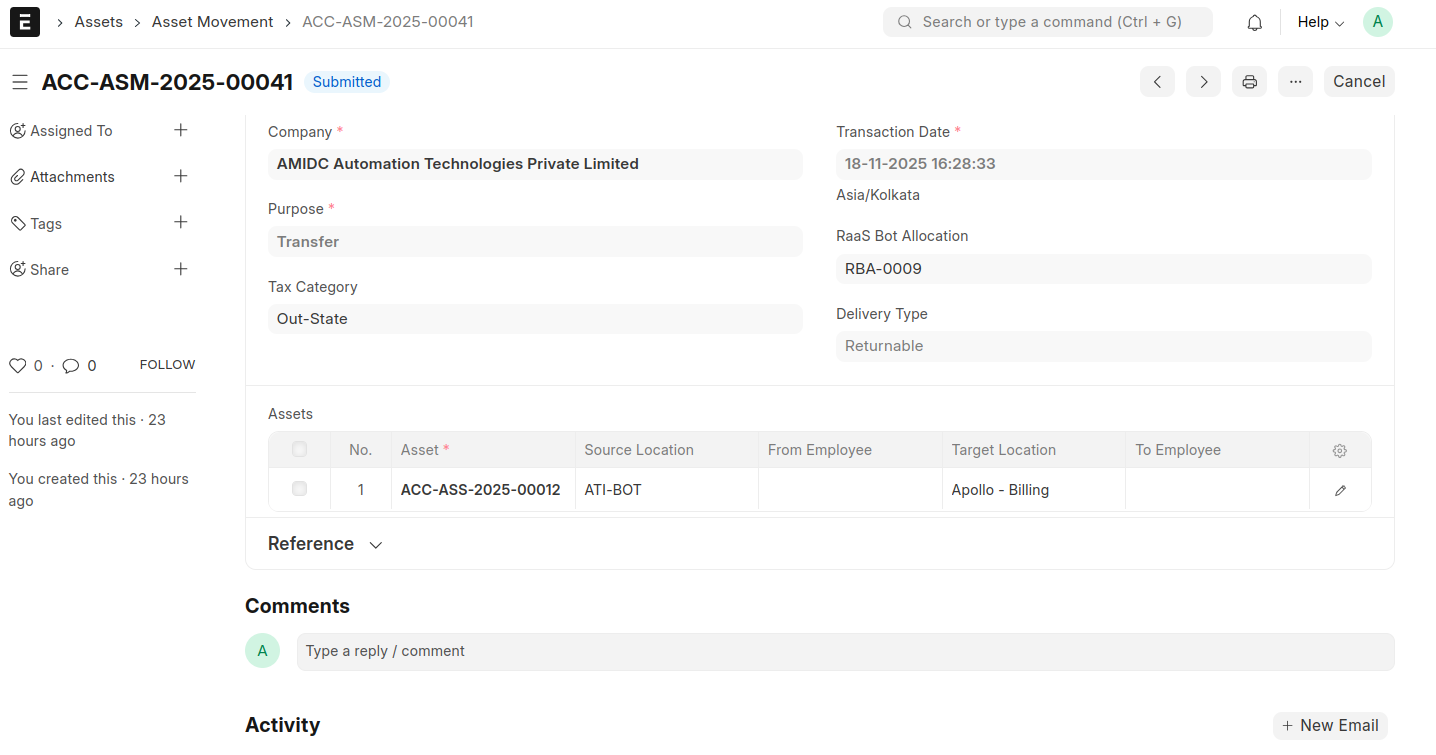
- Also an Asset Movement document will be created and the asset will be moved from the AMIDC Default Asset location to Customer Location.
- While clicking 'Deallocate' button the Asset will move from the client location to the AMIDC Default Asset Location.
Asset Movement
- In Asset Movement Document the Delivery Type and Tax Category and the asset details like Bot Taxable values will be fetched from the RaaS Bot Allocation.
- If you create Asset Movement manually you have to select the Tax Category, Delivery Type and Bot Taxable Value manually for the tax calculation.(It will appear in the print format.)
RaaS Delivery Note
- A button will be displayed for creating RaaS Delivery Note from the Sales Order.
- Only the RaaS service items that are allocated through RaaS Bot Allocation and have the delivery status ‘Not Delivered’ will be fetched into the RaaS Delivery Note.
- While submitting the RaaS Delivery Note the status of the raas bot allocation will be changed into Delivered.
- While saving the RaaS Delivery Note, the serial number of the ‘RaaS Service Item’ will be fetched from the RaaS Bot Allocation.
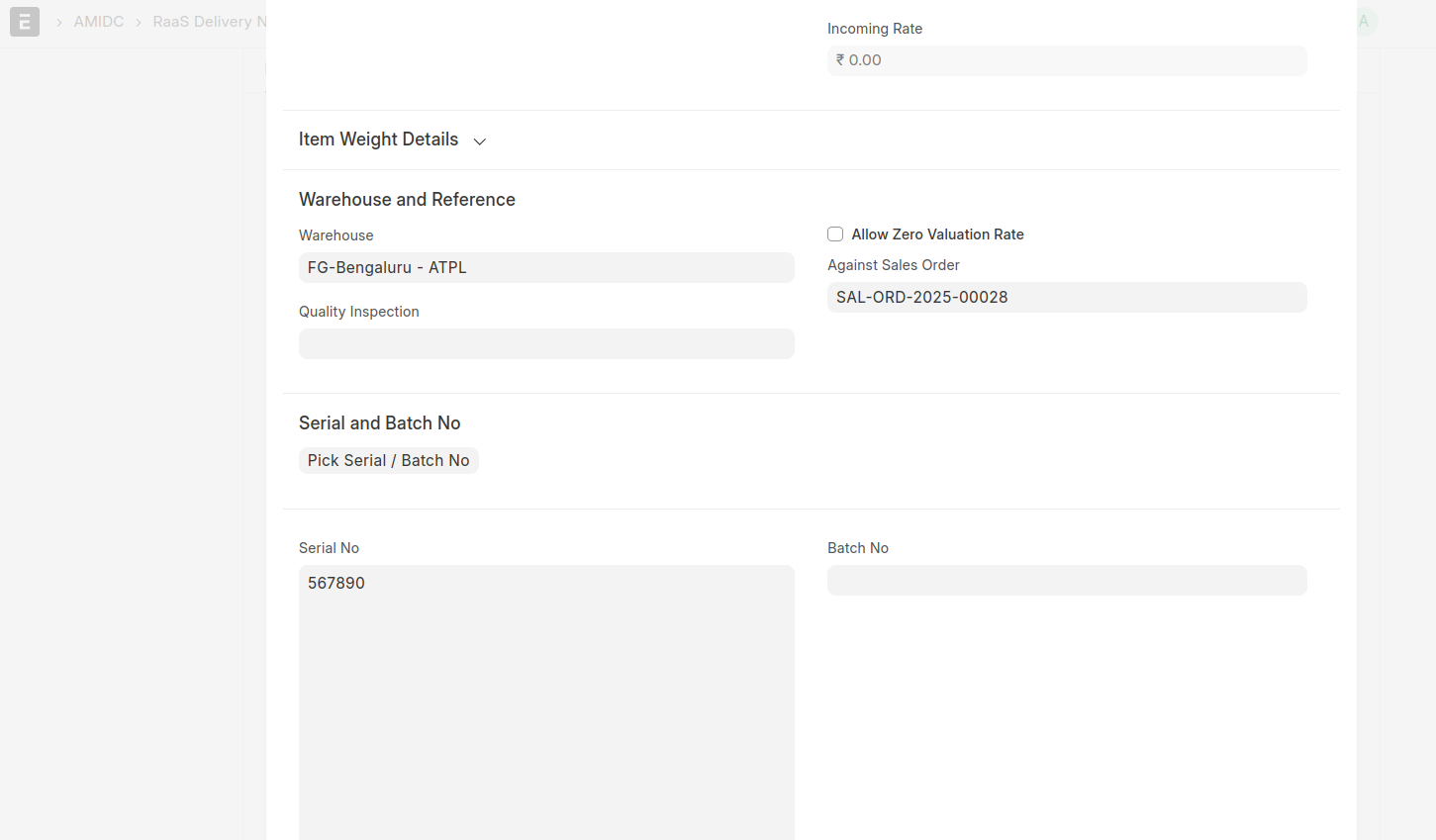
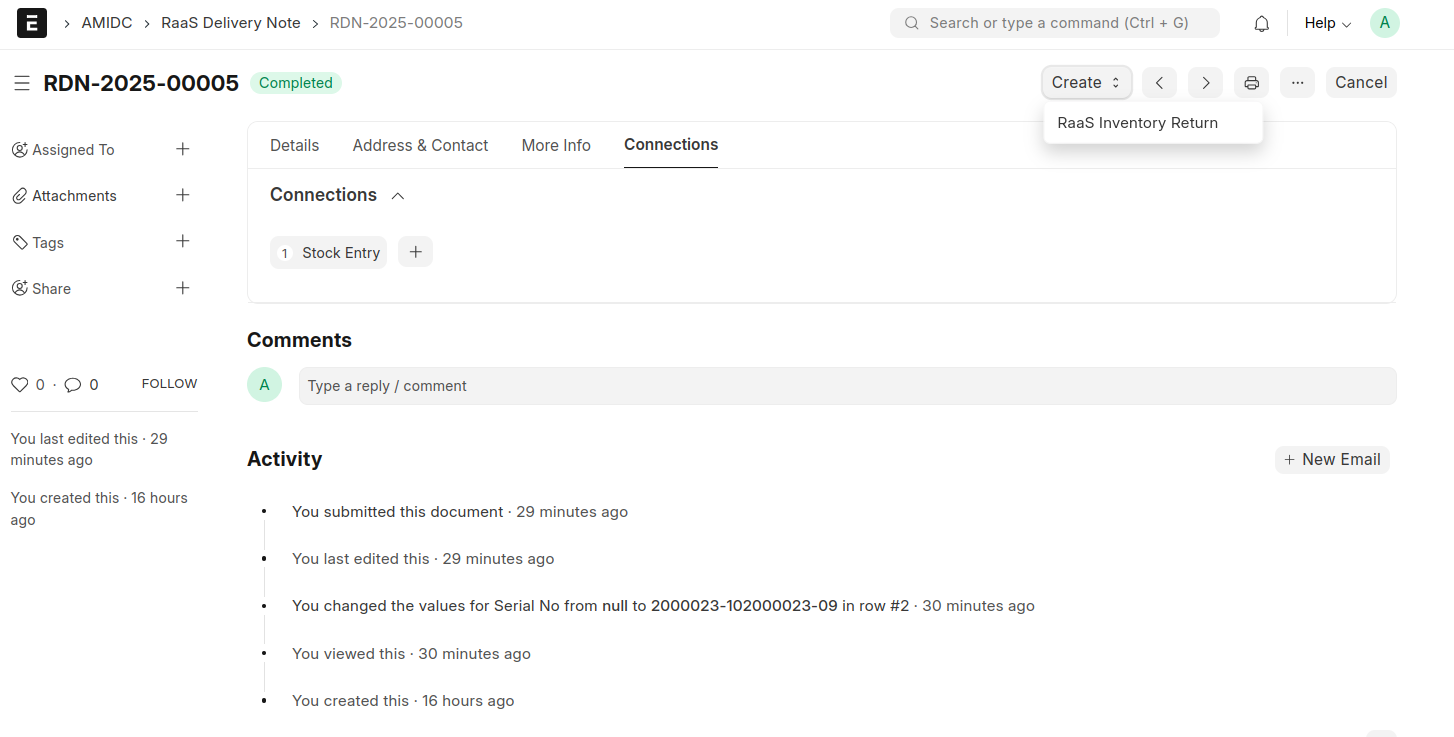
- When you submit this, the status will change to “Completed.”
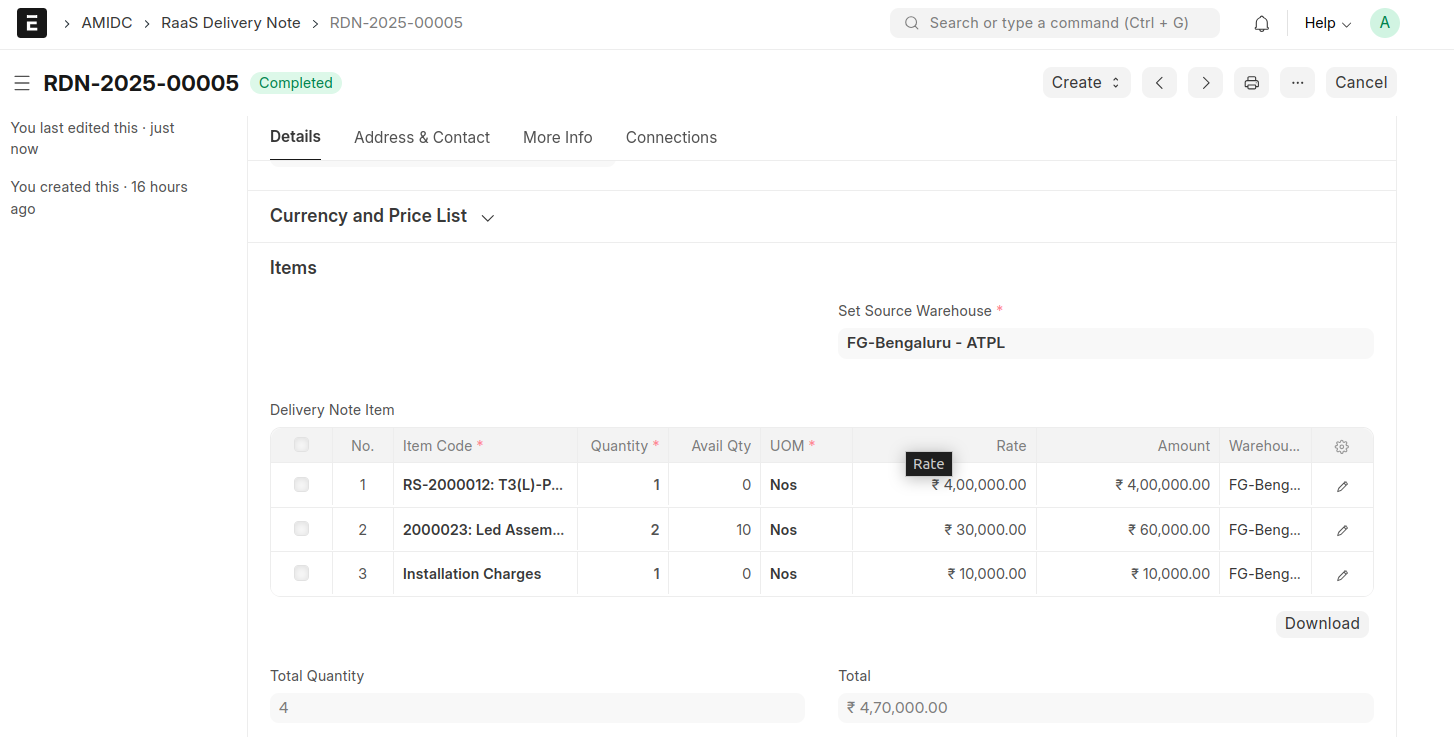
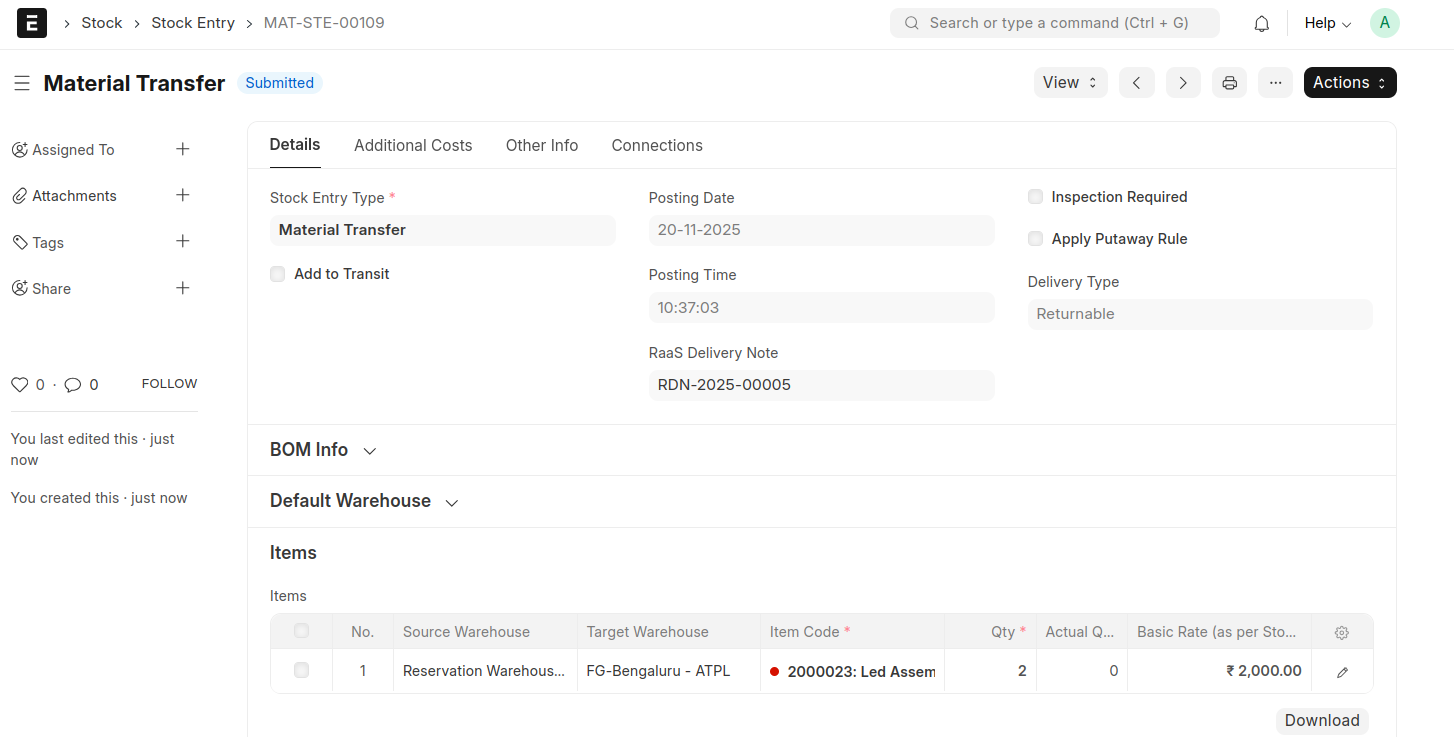
- There is a stock Entry will be generated against RaaS Delivery Note for the Inventory item.
- If the Delivery type of the inventory item is marked as'Returnable',A Material Transfer Stock Entry will be happen.
- If the Delivery type of the inventory item is marked as 'Non-returnable',A Material Issue Stock Entry will be created.
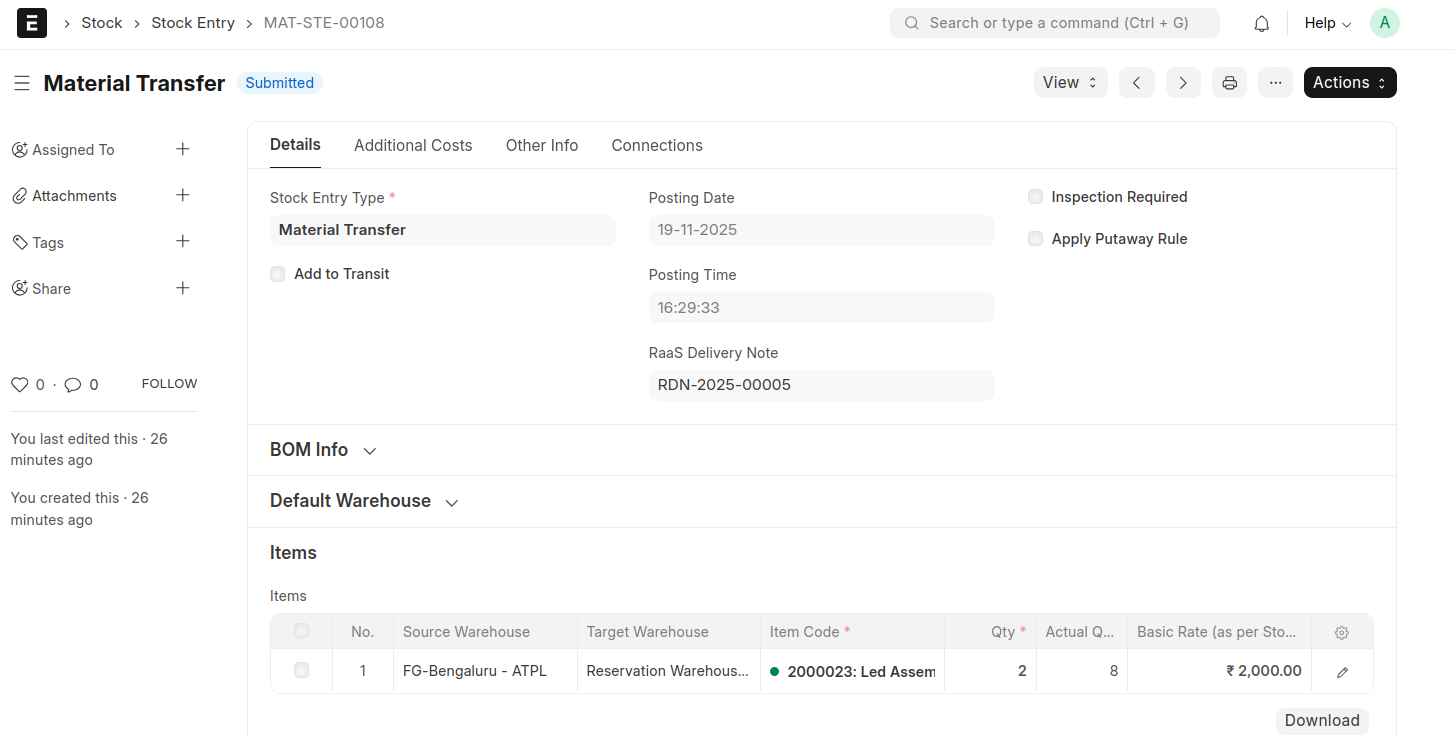
- A button will be displayed in the RaaS Delivery Note for Return the 'Returnable Inventory Items' to the store after the rental period.
- It will redict to the stock entry and the items will be transfered from RaaS Reserved warehouse to AMIDC Store.
- You have to set the all default warehouse in moms custom settings before doing these transactions.