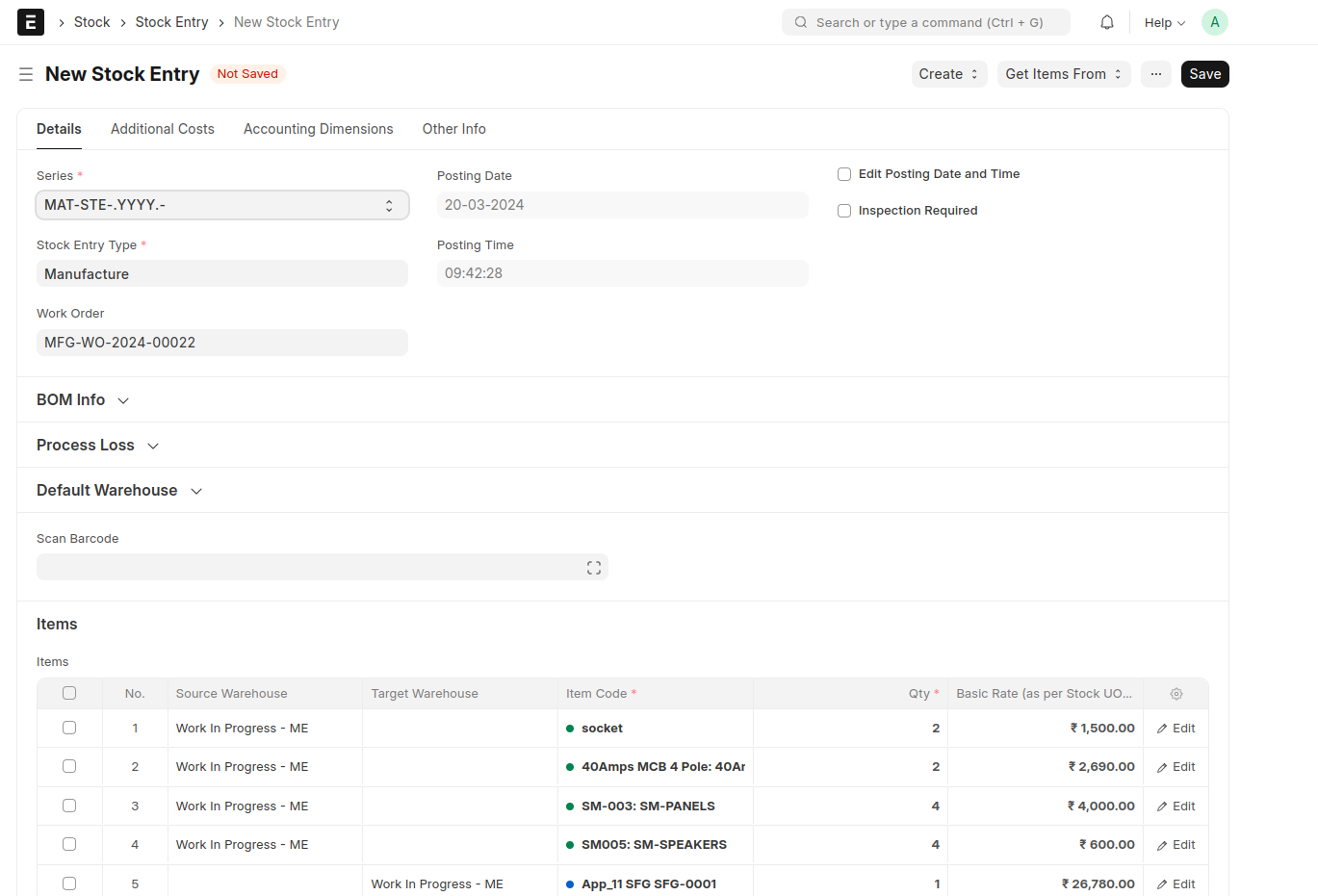
Momscode - Maya Engineering-Production
- ORDER AND DISPATCH
This document is created against Sales order on the basis of item and its qty
it have that perticular item Estimate BOM details
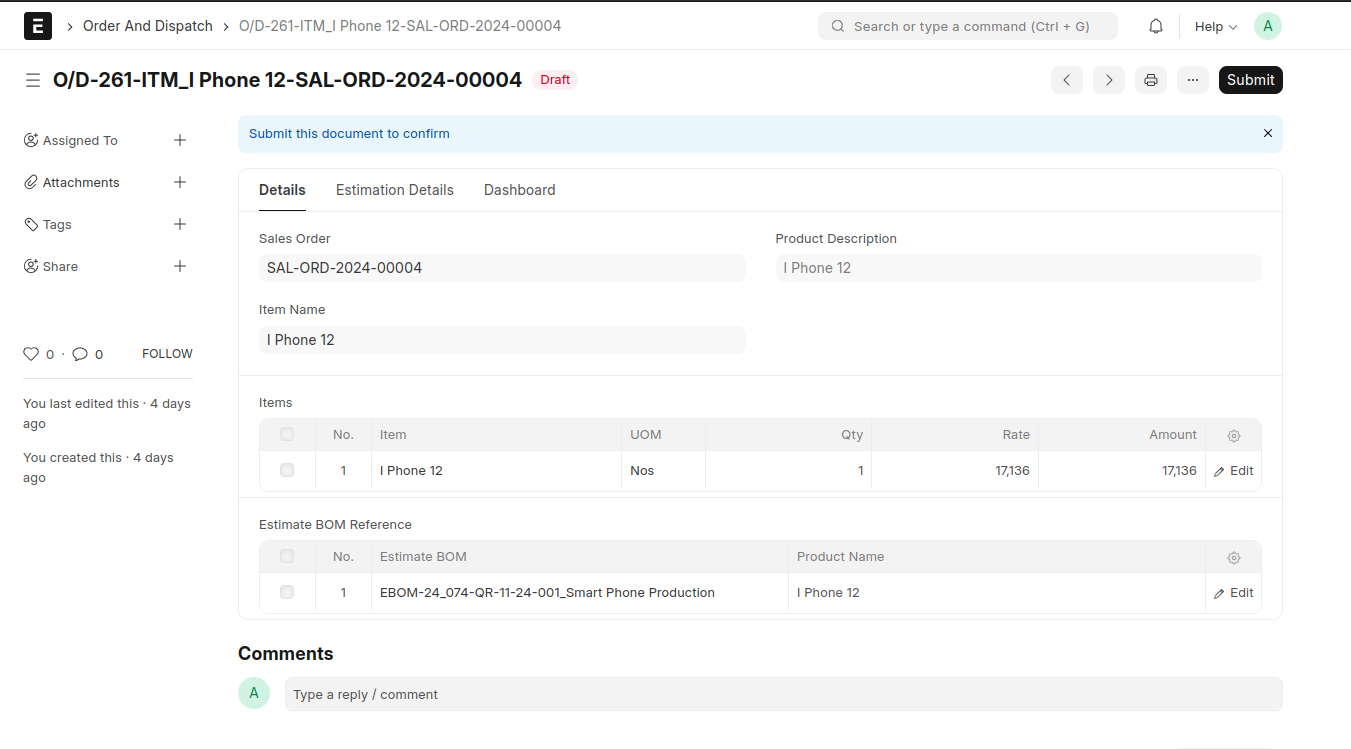
After submit ORDER and Dispatch show a create Button it have option for Create SFG BOM
click the button a SFG BOM was create against that Order&Dispatch
- SFG BOM
This is the place to make chenges in Estimation if an product want additional Raw material for production but we are create Estimate BOM for that particular item then SFG BOM will help us .
First time you create a SFG BOM that time Estimate BOM same datas are append here. You want to add or delete items and its operation here
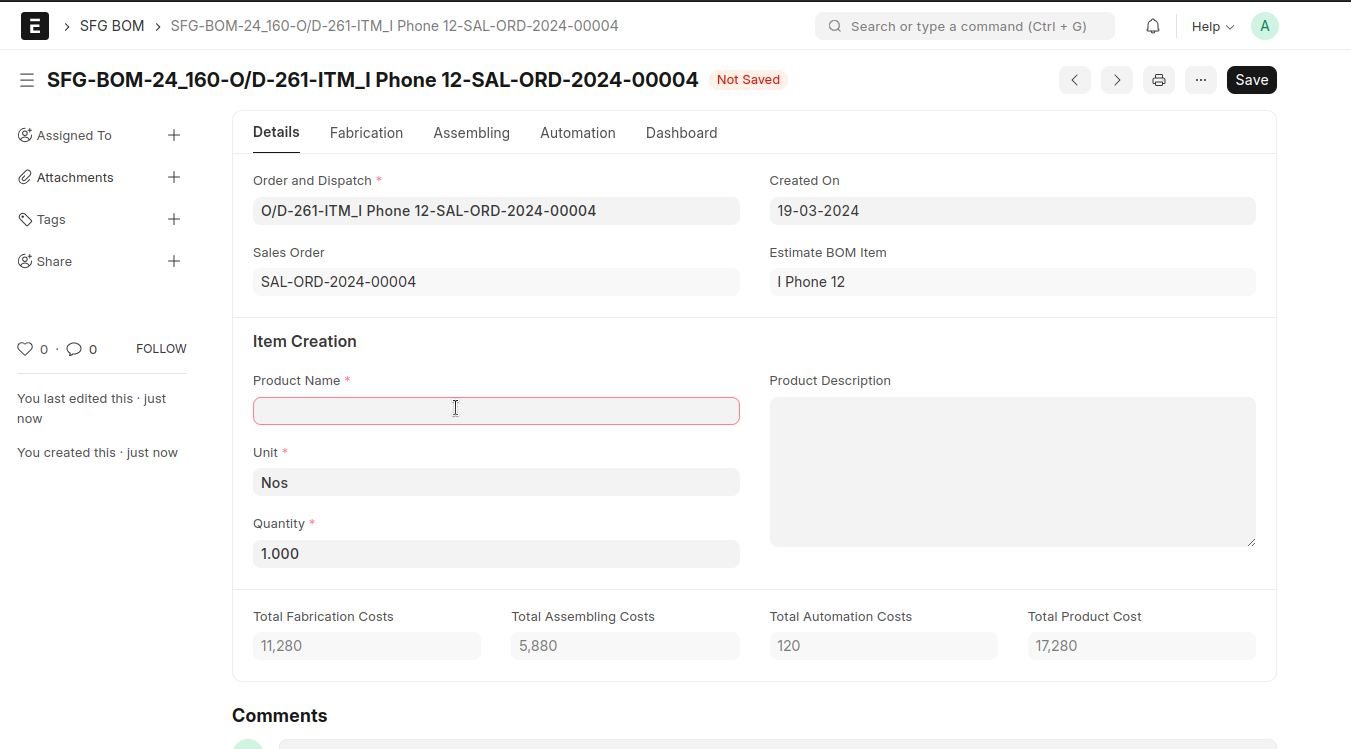
SFG BOM was we create a virtual item for manage the additional changes because already we create a Estimation for a finished good and start its production then no changes will doing in that document , then we create a virtual item for SFG BOM finished good this is very important.
fill the field Product Name then save the item was create Automatically
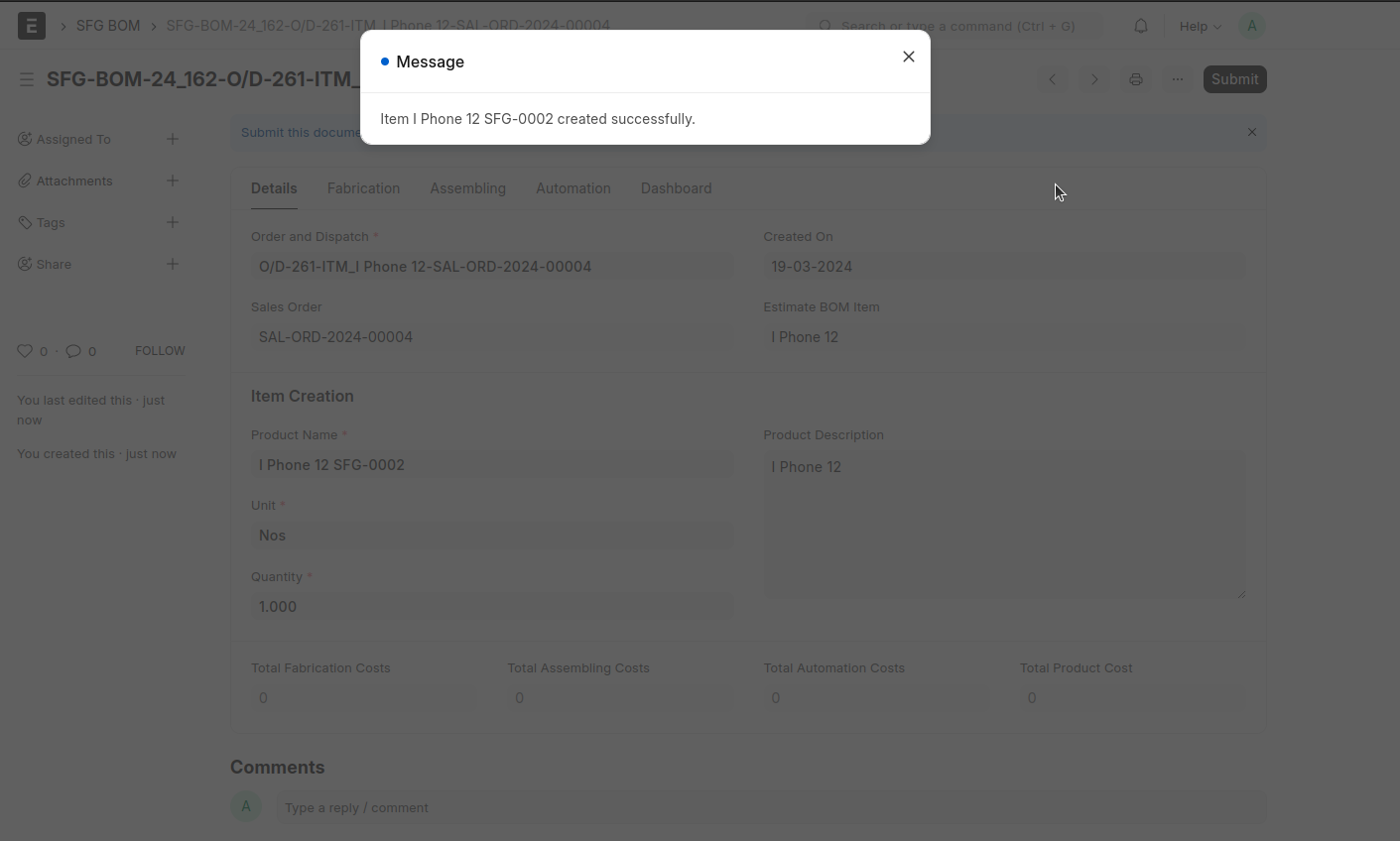
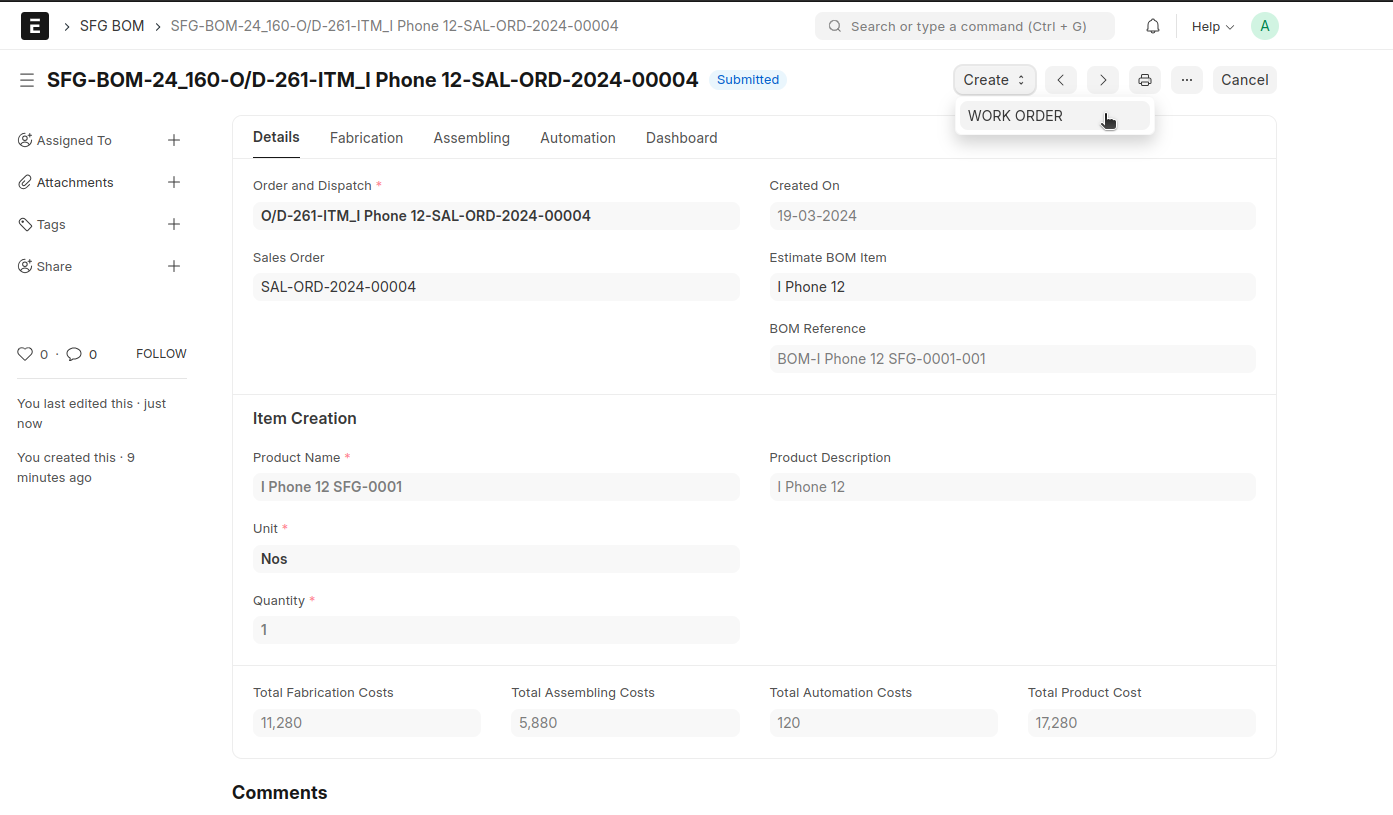
After Submit SFG BOM a button will show Create > Work Order .
you will create Work Order against the SFG BOM.
- FG BOM
FG BOM is the final BOM for production
Order And Dispatch > After create a SFG BOM against a Order and Dispatch then you can see a another Button Create > FG BOM
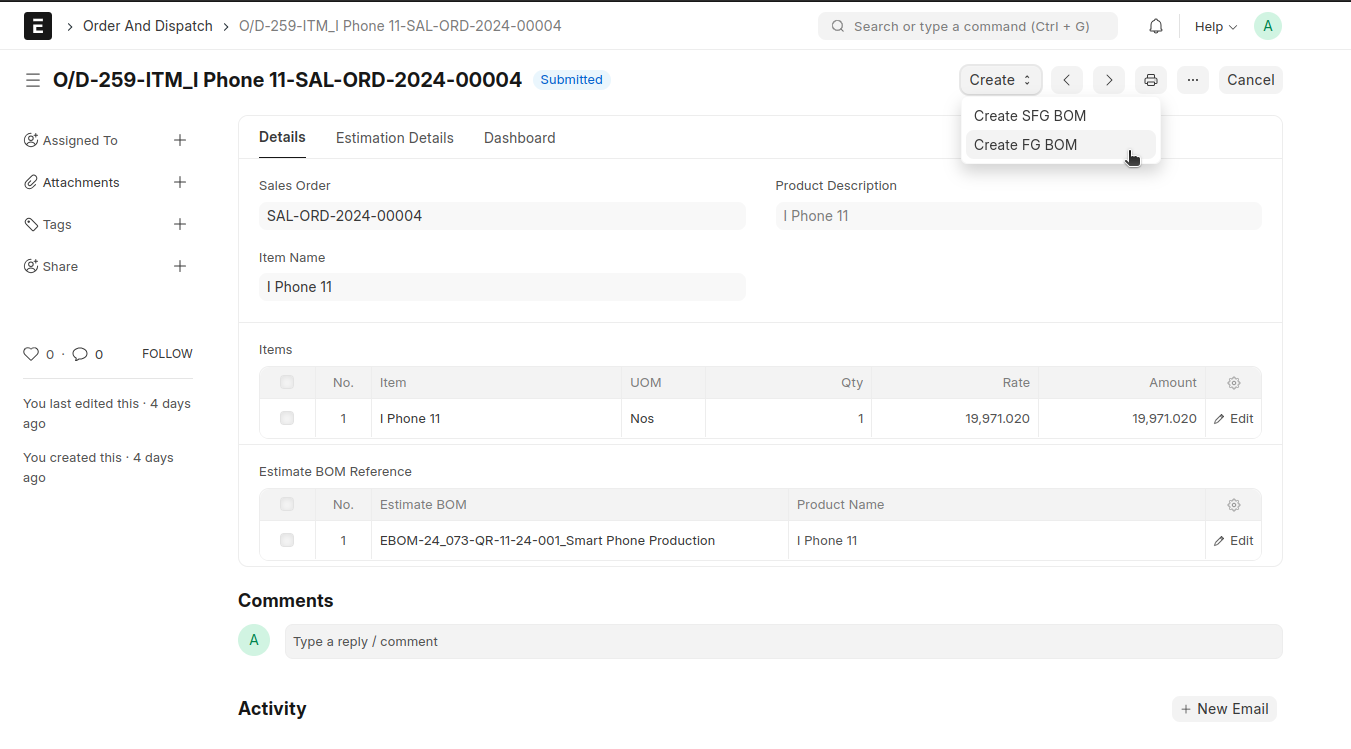
Then create a FG BOM with Quote Request Created item and Fetch all SFG BOMs Virtual item that create against this Order and Dispatch and that item is like Raw material in FG BOM > add > operations > Save > Submite
After Submit FG BOM u can see a button Create > WORK ORDER > create work order against the FG BOM
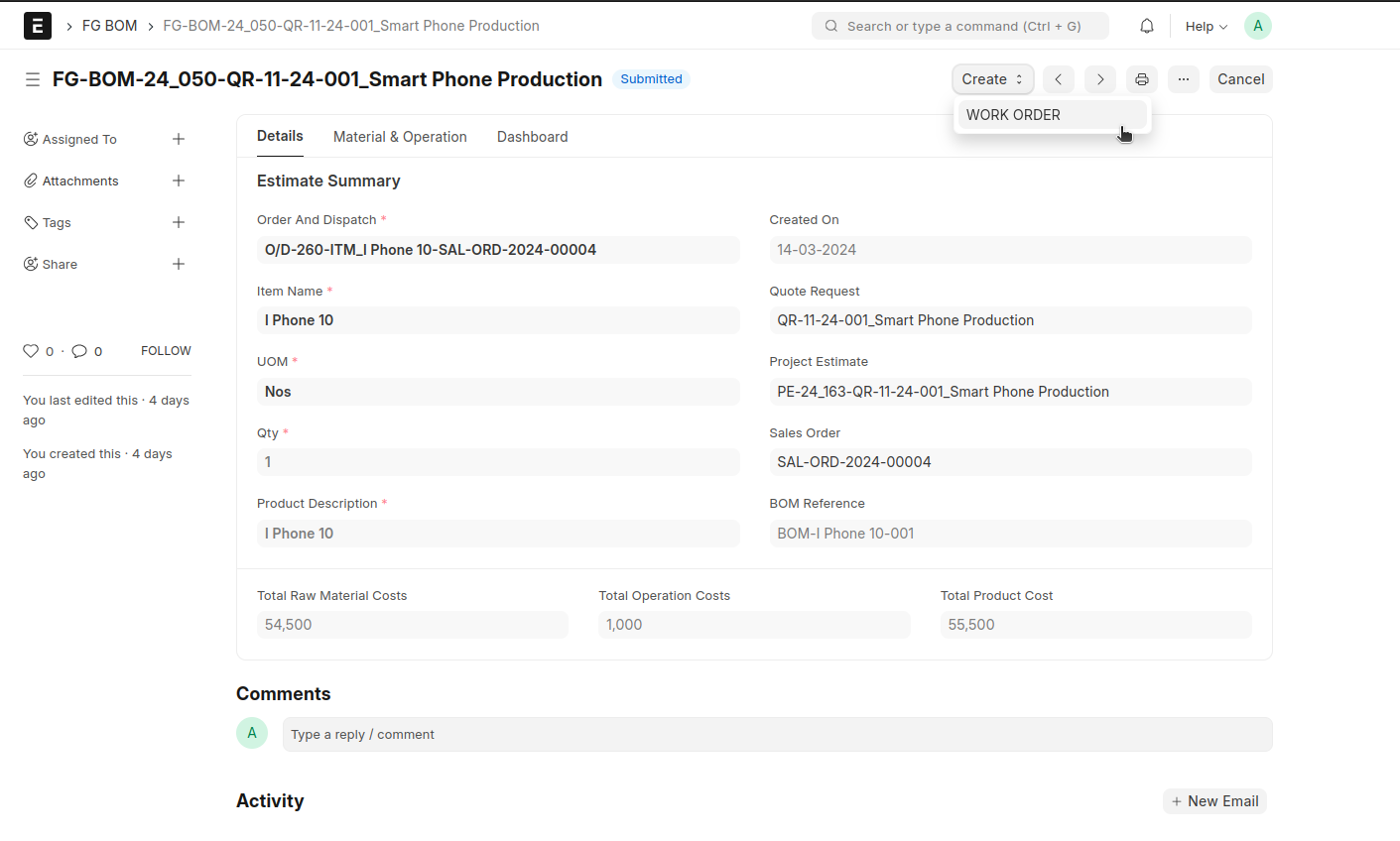
WORK ORDER creation
In SFG BOM and FG BOM was create Work Order
Work order > Save > Submit
Job Card is create automatically on the time of Submitting Work order
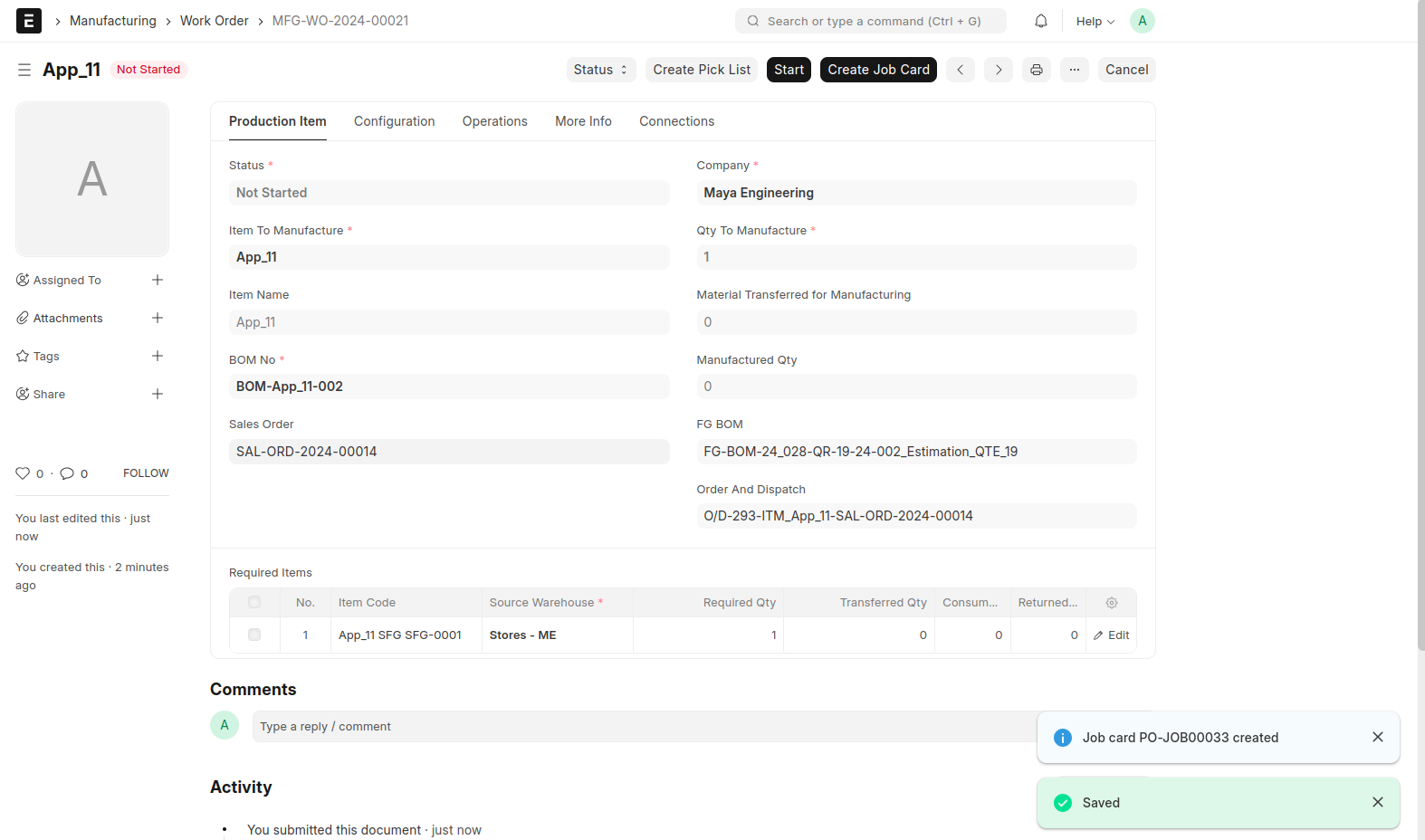
After submit Work order show a button Create Pick List
CREATE PICK LIST > Set Selected Quantity > Save > Submit
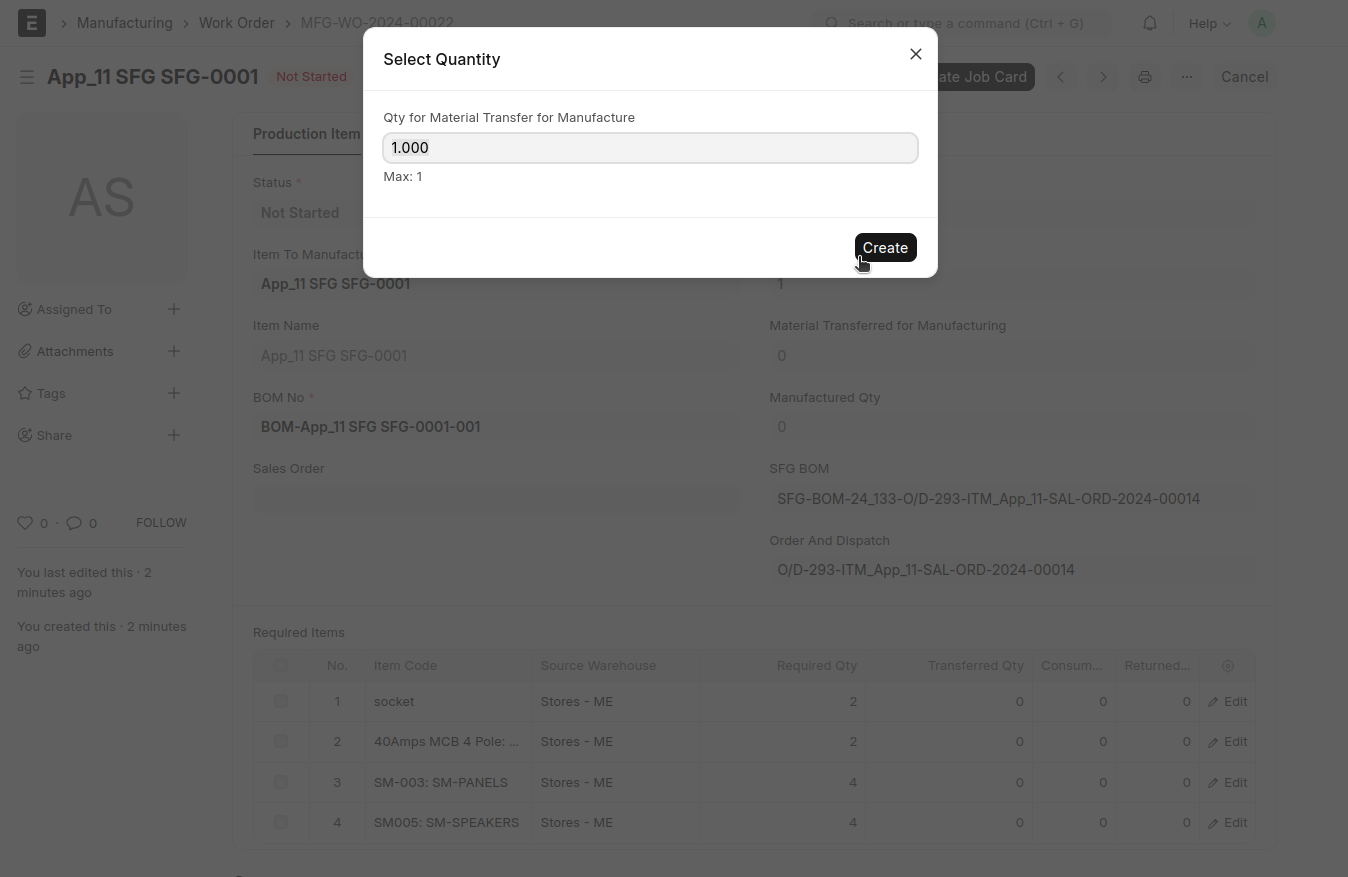
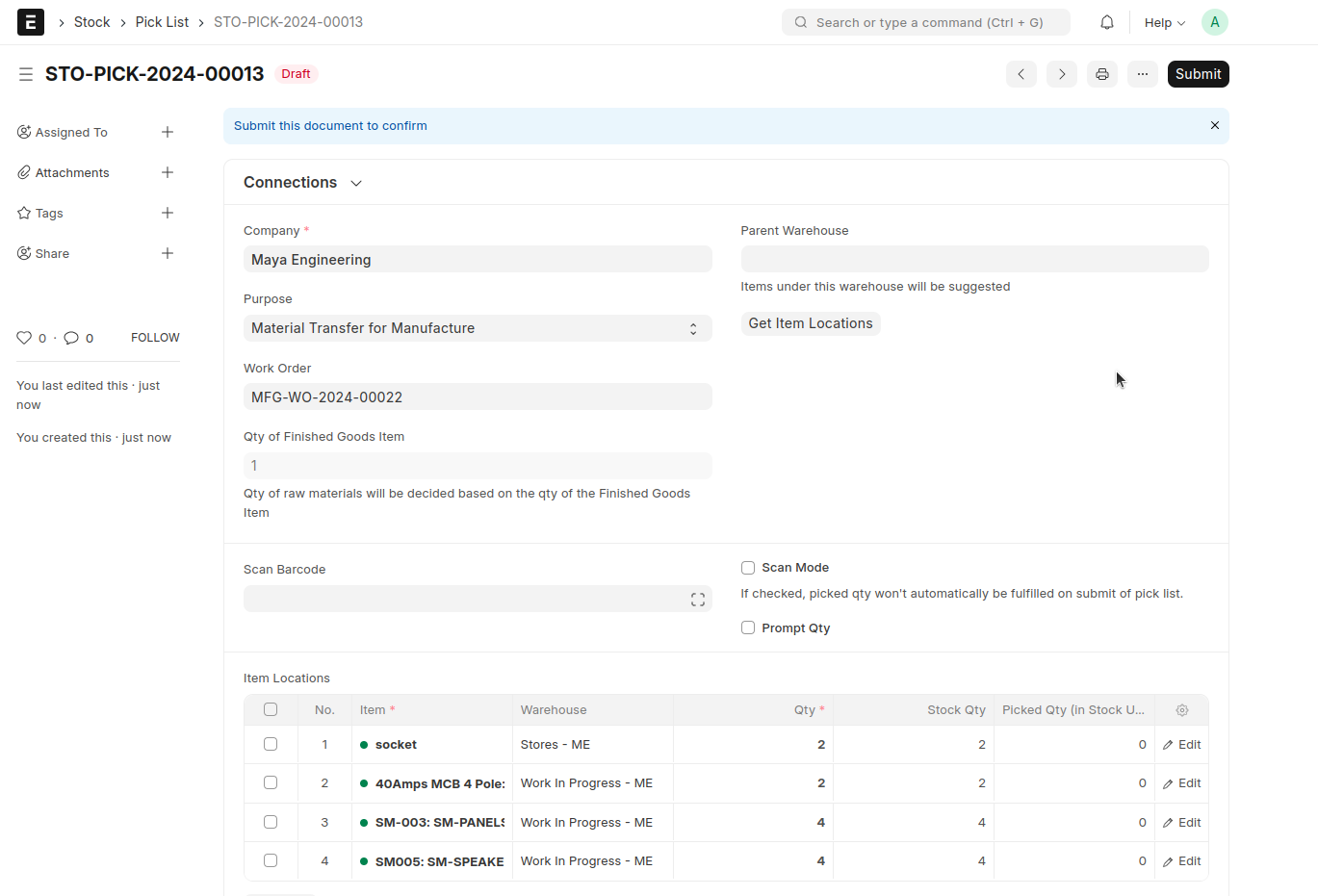
After Submit Pick List > Create button > Stock Entry > Save > Submit
create a stock entry against that pick list
Complete Job Card
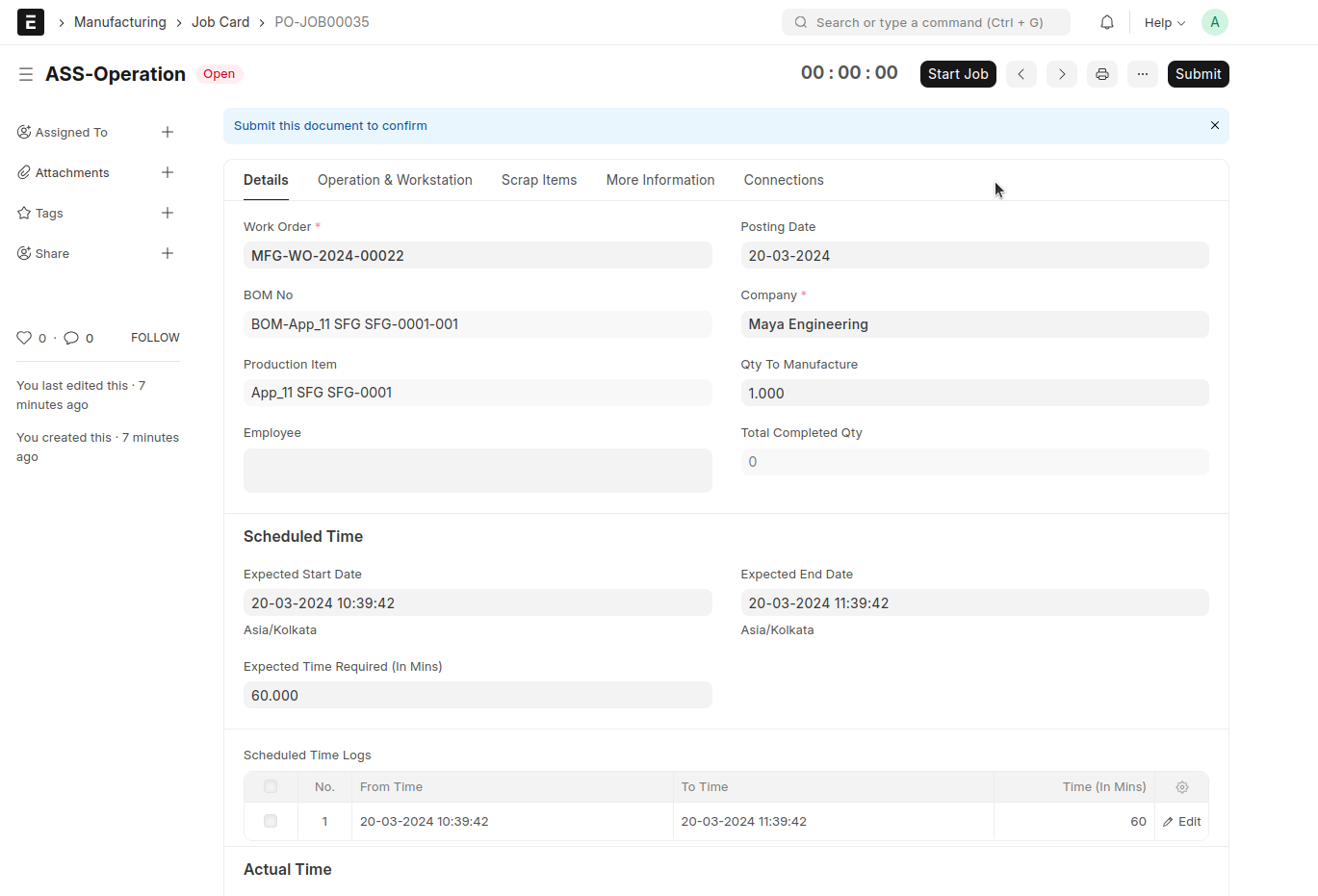
Job Card > (Input details) Time Log Details > Employee, From Time, To Time, Completed Qty > Save > Submit
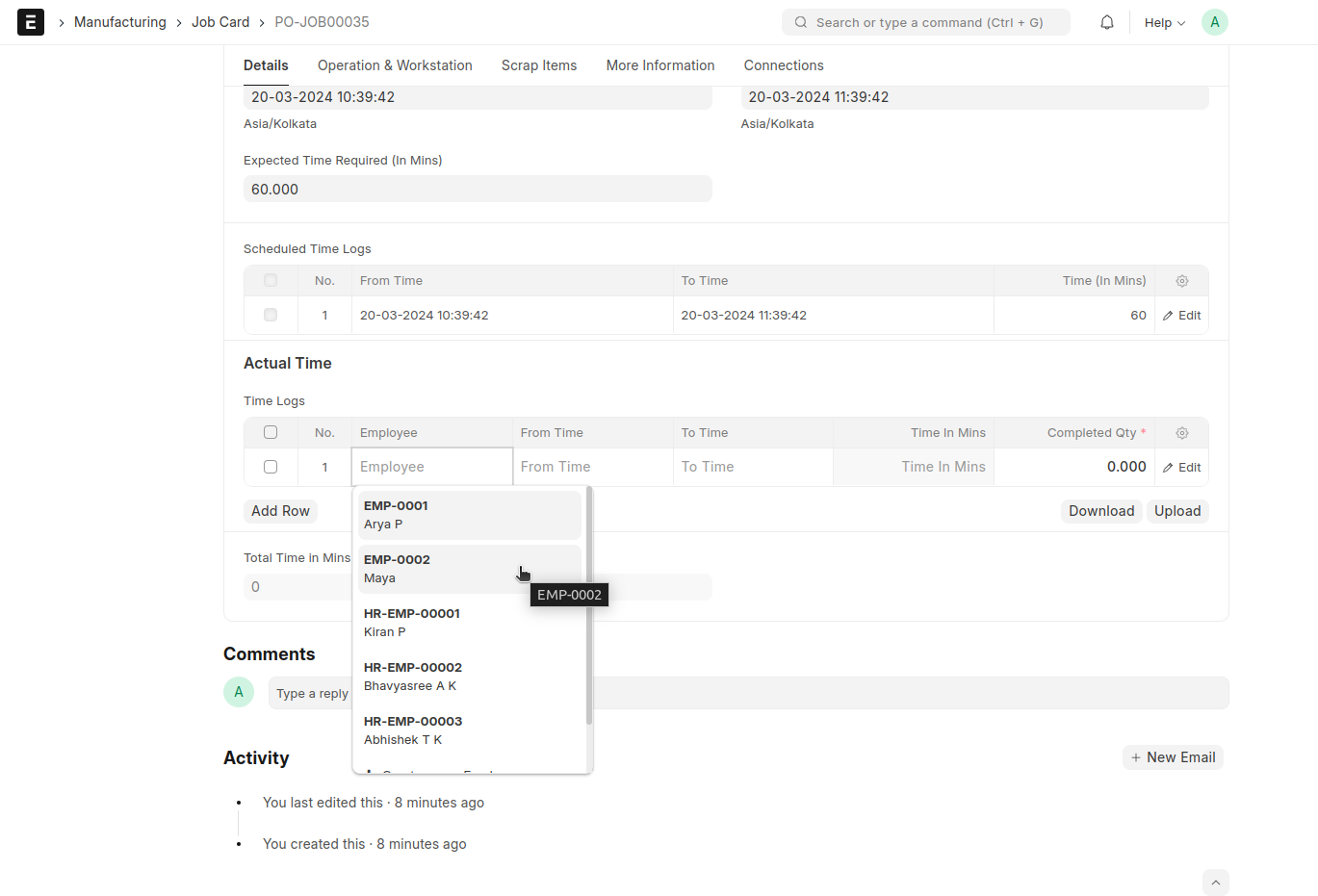
Then come back already submitted Work order
click button > Finish > Input Selected Qty > Create
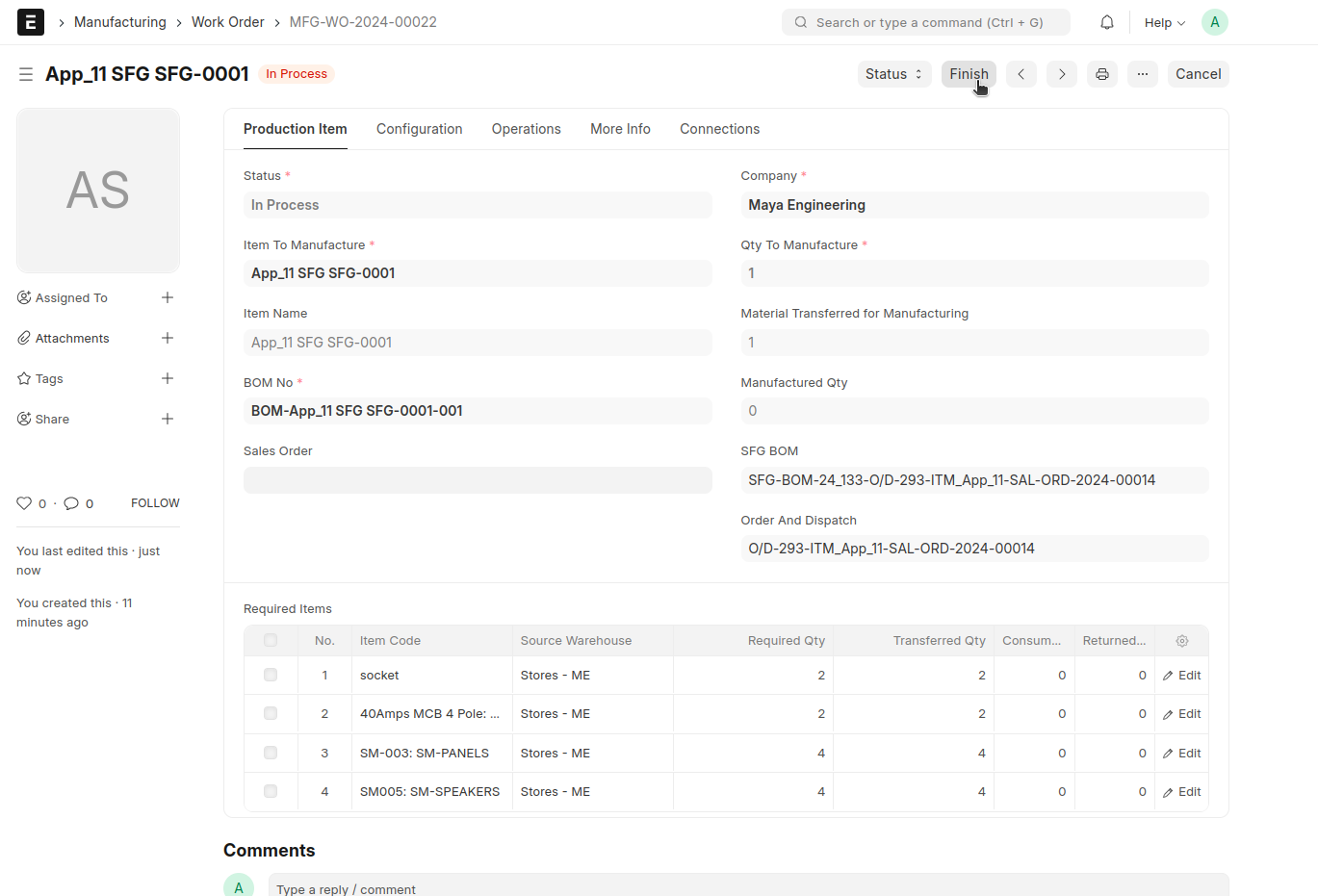
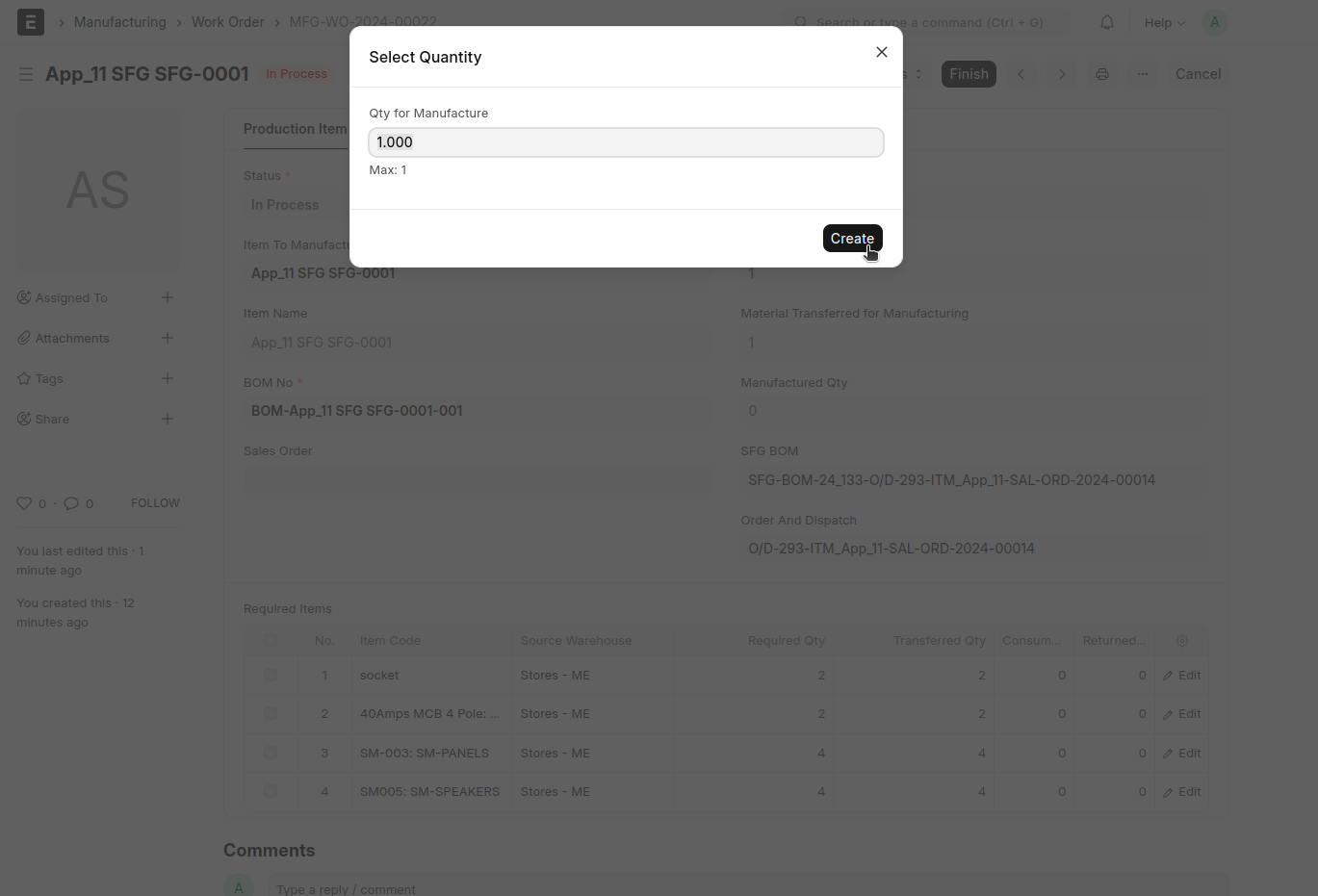
Auto Generate a Stock Entry > Save > Submit > Work order Completed