Momscode - Sales Module
Sales Order
A Sales Order is a confirmation of an order from your customer
Prerequisites,
- Customer (Mandatory)
- Item (Mandatory)
- Cost Center
- Project
- Employee ID
- Sales Order ID
- Price List
- Tax Category
- Sales Taxes and Charges Template
- Shipping Rule
- Incoterm
- Address & Contact
- Payment Terms
- Payment Terms Template
- Sales Person
How to Create a Sales Order
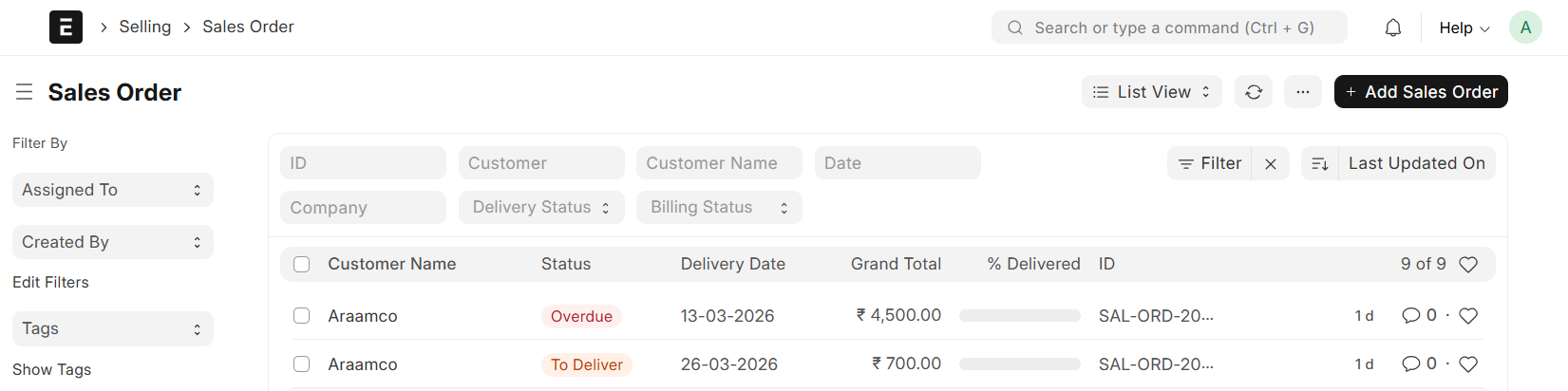
Go to Sales Order List and Click on "Add Sales Order"
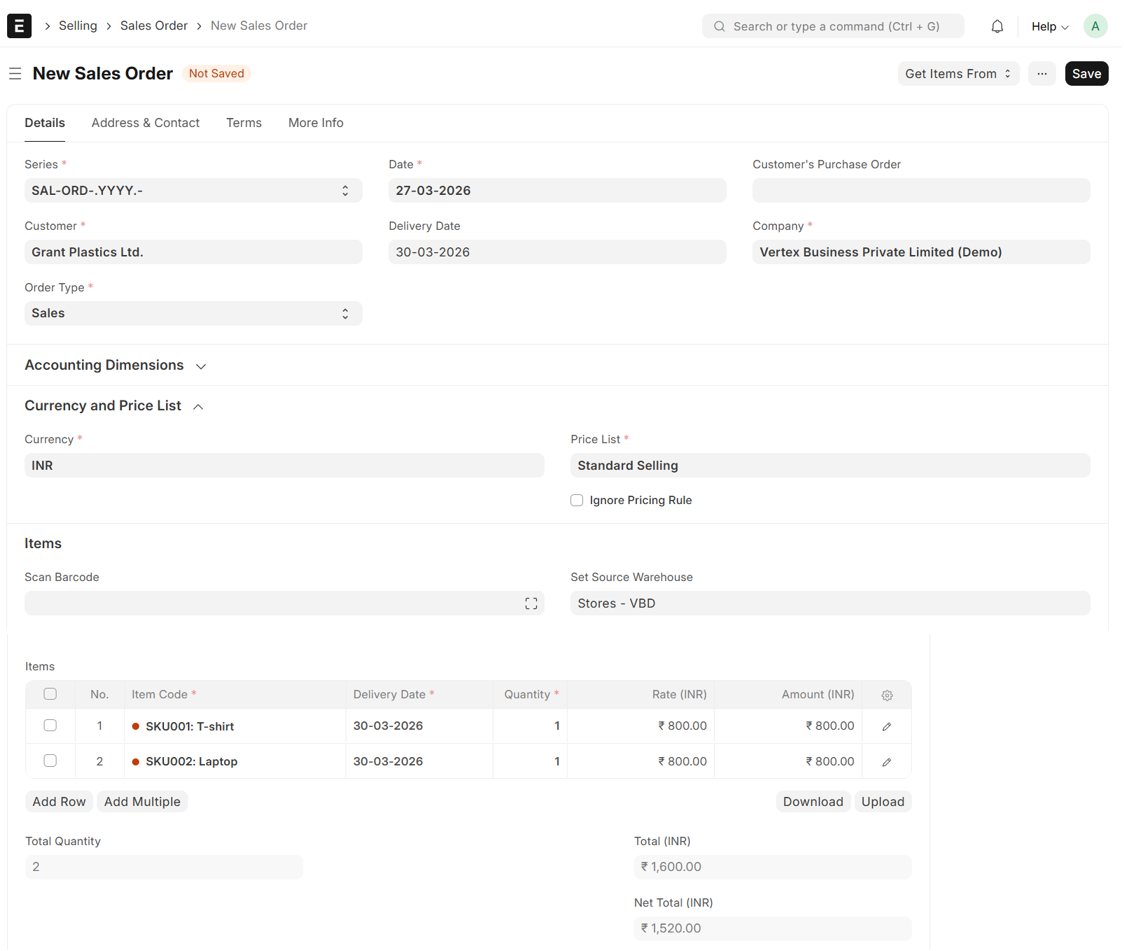
Details:
- Select Customer: Choose the customer for this order
- Set Posting Date
- Set Delivery Date: Specify the expected date of delivery
- Set Customer's Purchase Order: Enter the Customer's PO number for reference, if available
- Set Order Type (Sales, Maintenance or Shopping Cart), Sales is the default
- Source Warehouse: Specify the Source Warehouse from which items will be dispatched
- Currency and Price List: These fields are automatically populated based on the Company Master settings
- Enable 'Ignore Pricing Rule' to override the system's predefined pricing logic
- Select Item: Add the items required for the order
- The Delivery Date will be auto fethced from above
- Enter Quantity: Input the number of units for each item
- Enter Amount. If the item has a price list it will be auto fethced
- The Total amount will be auto calculated
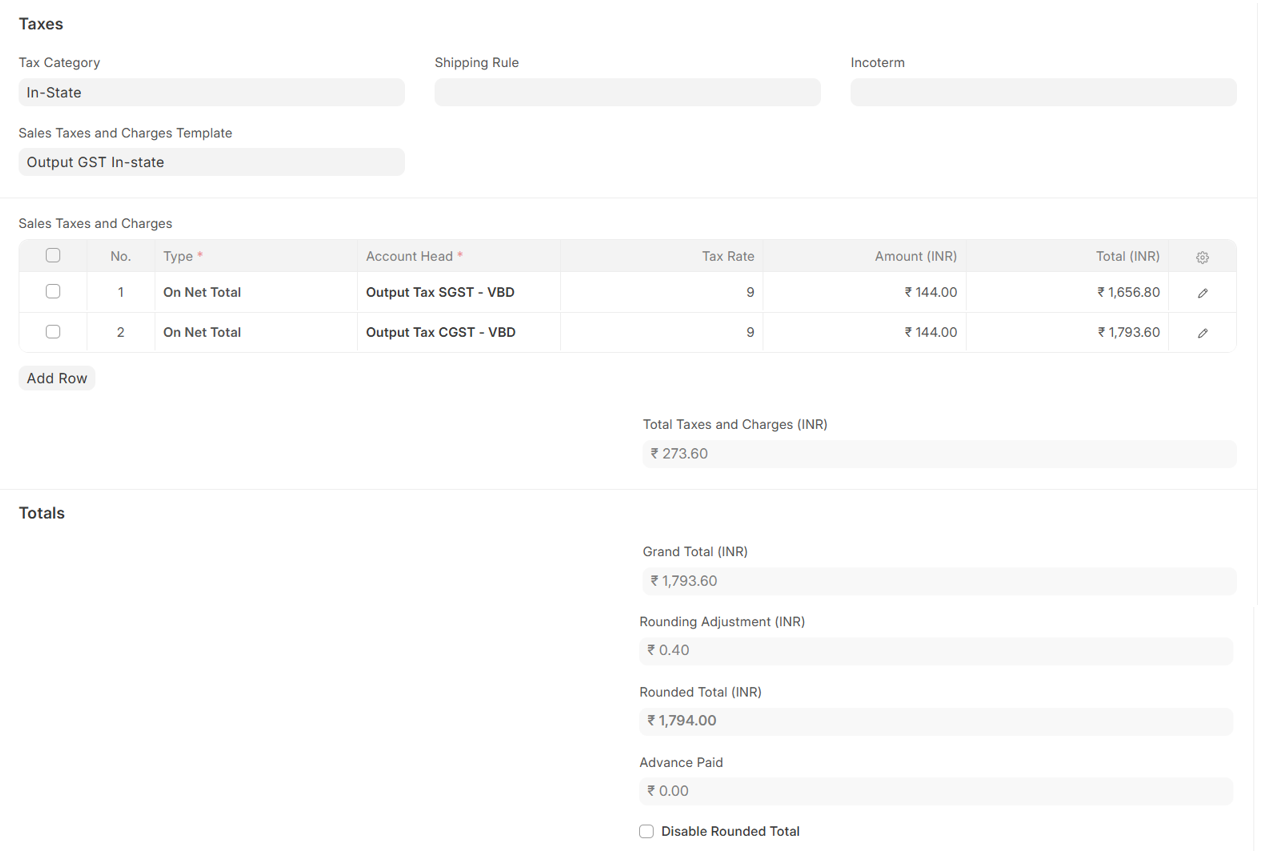
- Select Tax Category: Choose the applicable tax category for the transaction
- Sales Taxes and Charges Template: Select a template to automatically populate the taxes table
- The Tax charges will be auto calculated
- To view further Details, Click the Edit Row (pen icon) located at the far right of the row
- The system automatically calculates the Gross Total (Item Total + Taxes and Charges)
- Rounding Adjustment: To prevent the system from rounding the final amount, select the Disable Rounded Total checkbox
Note:
If an Item Tax Percentage is already defined in the Item Master, the corresponding Tax Charges will be auto-fetched immediately upon selecting the Item and this selection is also cross-referenced with the Tax Category assigned to the Customer Master to ensure accurate tax application
- Additional Discount: Enter details if applicable
- Net Total Calculation: The discount amount is automatically deducted from the Item Total, which updates both the Net Total and the Gross Total fields

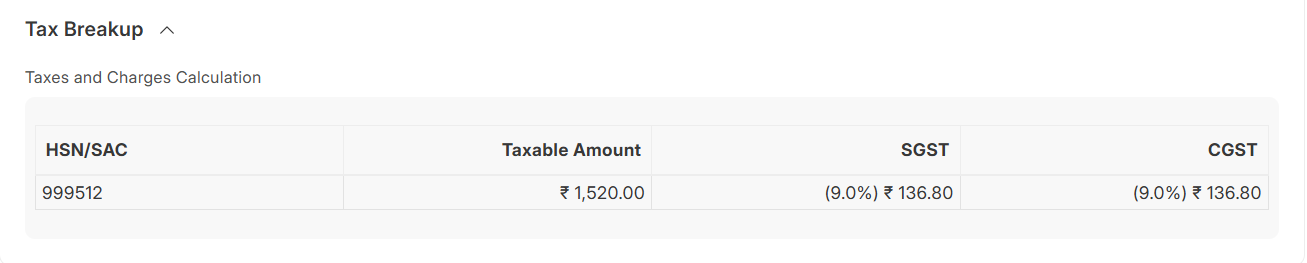
- The final tax breakdown will be shown in the footer section of the Sales Order
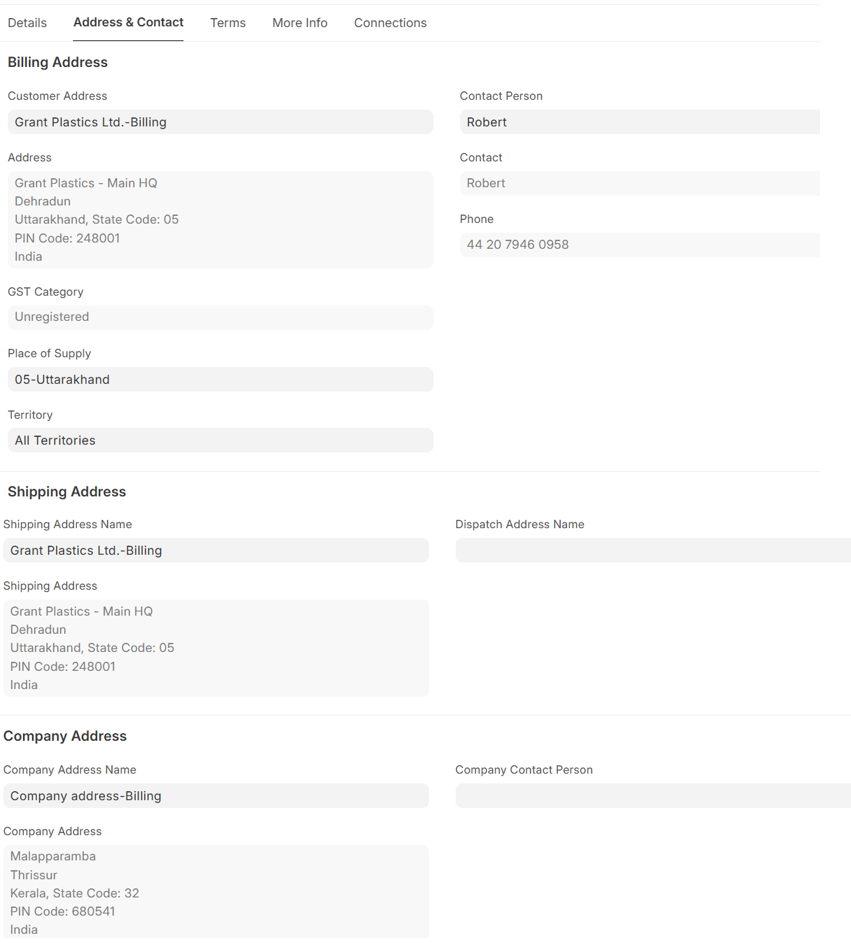
Address and Contact:
- The Address and Contact Section allows for the input of Billing, Shipping, and Company Addresses
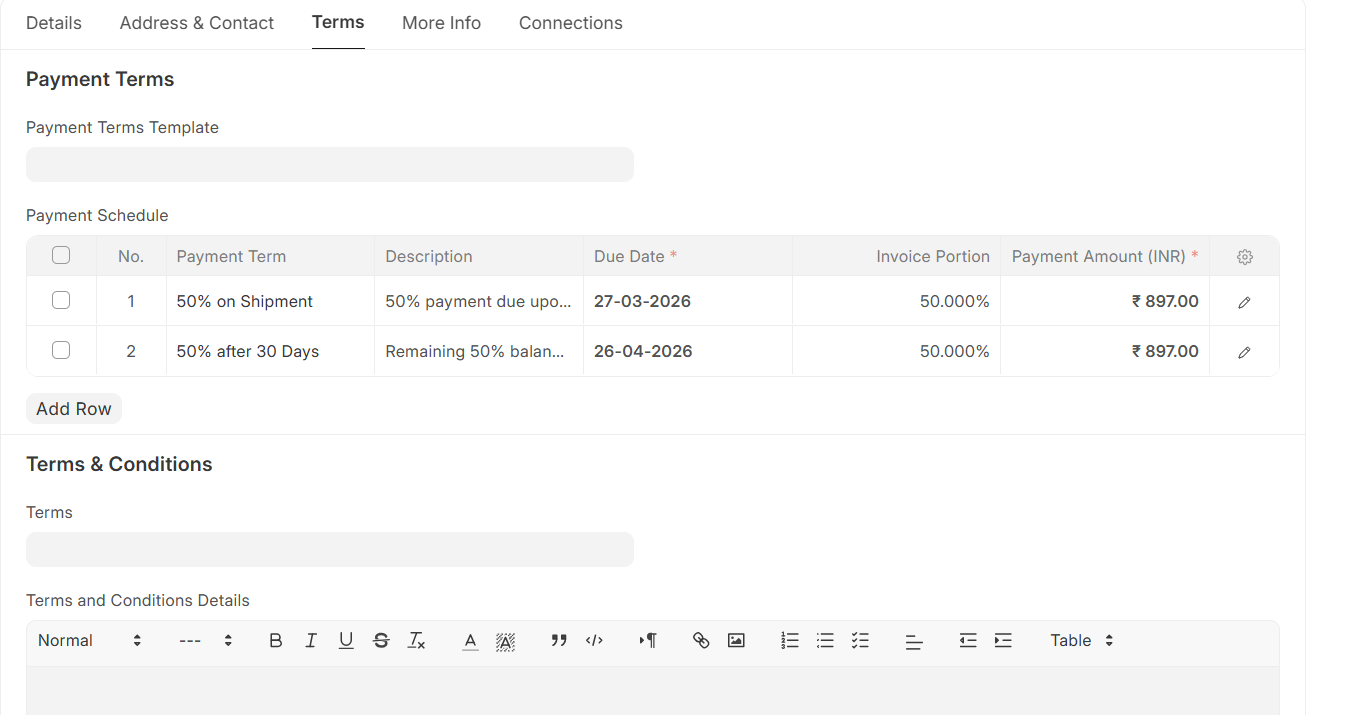
Terms:
- Payment Terms: Select a Payment Terms Template to automatically define the schedule, or enter the terms manually
- The system will generate a payment schedule based on these defined terms
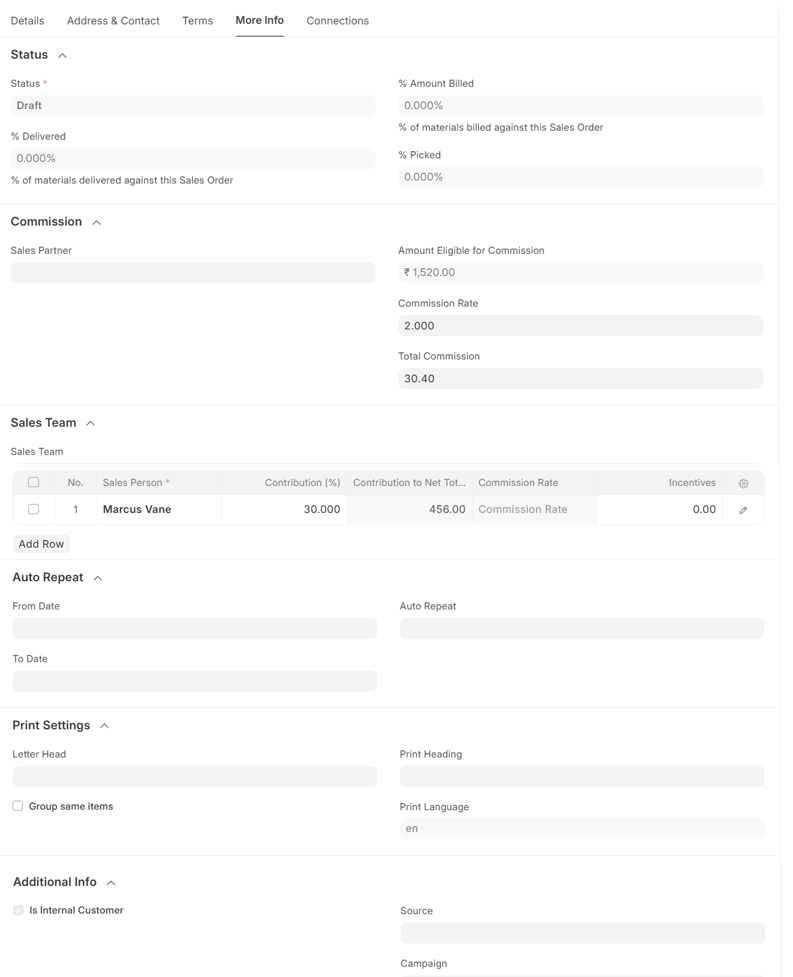
More Info:
- Status: The current status of the Sales Order (e.g., Draft, On Hold, Completed) will be displayed here
- Commission Details: Record any applicable sales commission for the transaction
- Sales Team: Track the Sales Team Contribution to credit the individuals responsible for securing the order
- Auto-Repeat: Enter Auto-Repeat period to schedule the recurring generation of this Sales Order at defined intervals (If applicable)
- Print Settings: Configure specific printing preferences
- Additional Info: Use the Is Internal Customer checkbox if the transaction is with a inter company or internal branch
- Save and Submit
Sales Invoice
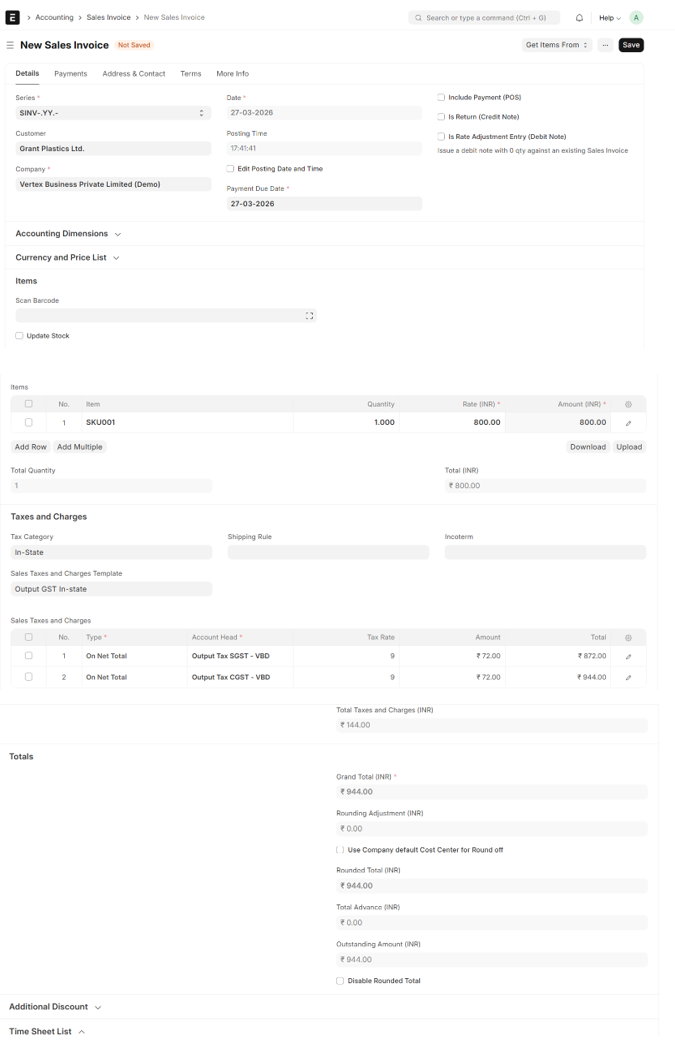
A Sales Invoice is a bill that you send to your Customers against which the Customer makes the payment
From Sales Order → Create → Sales invoice
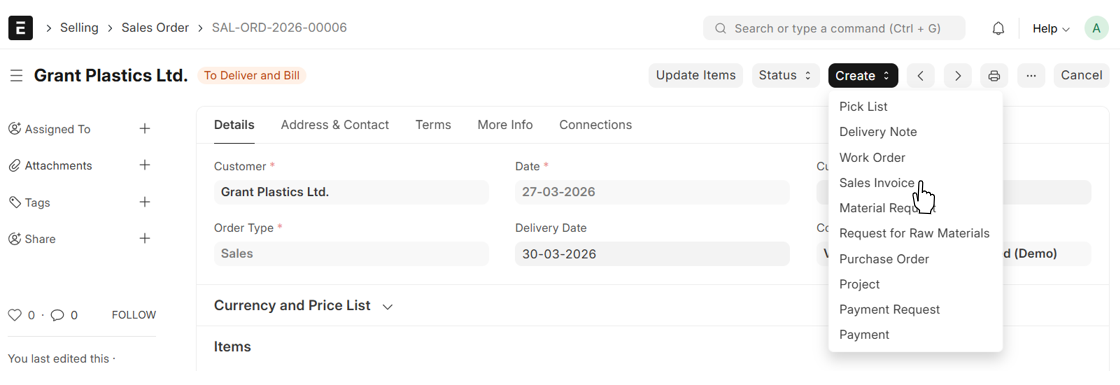
- The data will be auto fetched from the Sales Order
- Or Sales Invoice can be generated Individually by entring data mannually