Momscode - Creation of Purchase Cycle From PO to Payment - User Manual
Master Data
- Item
- Supplier
Item
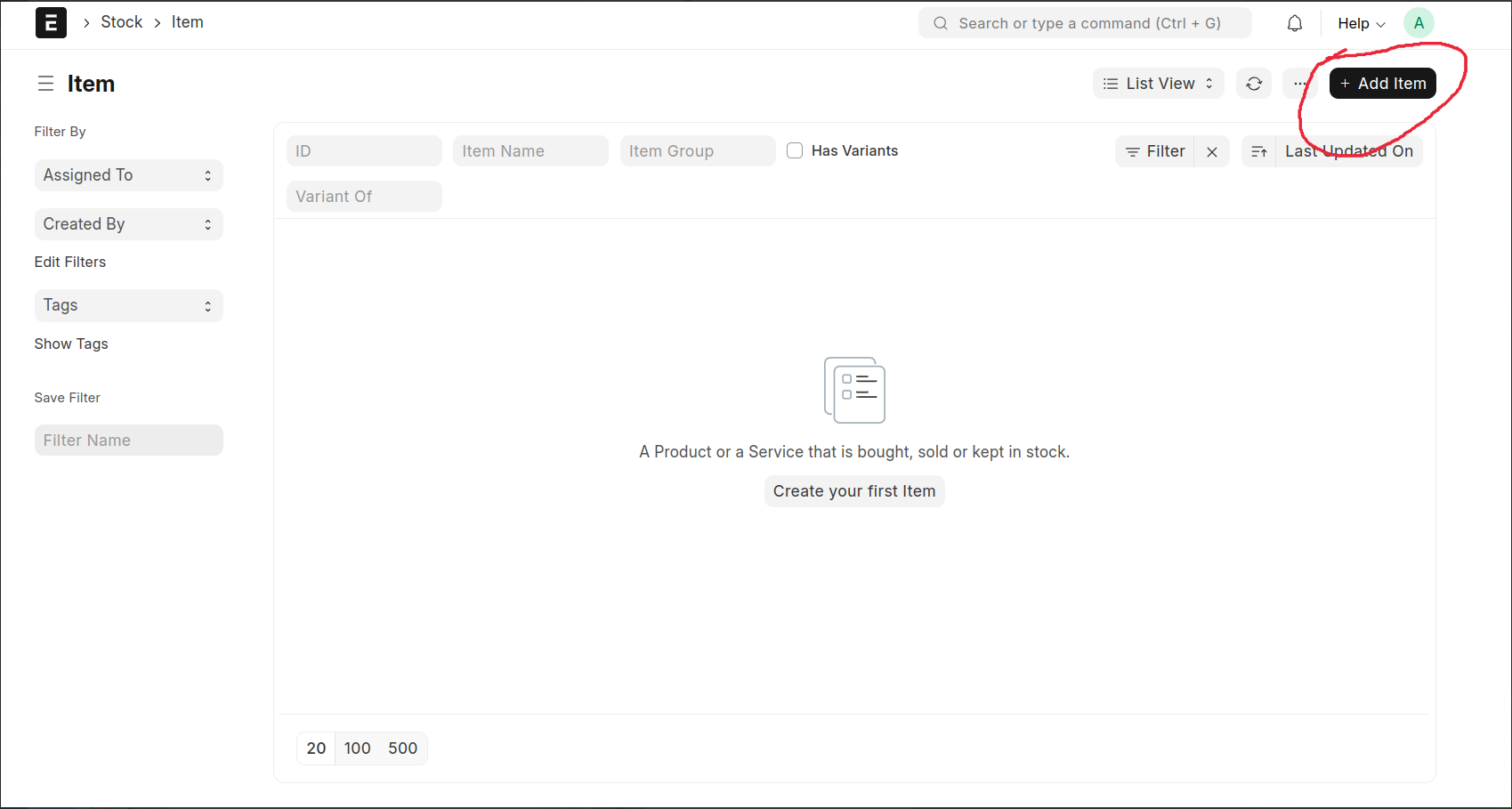
Select Item List -> Add New Item
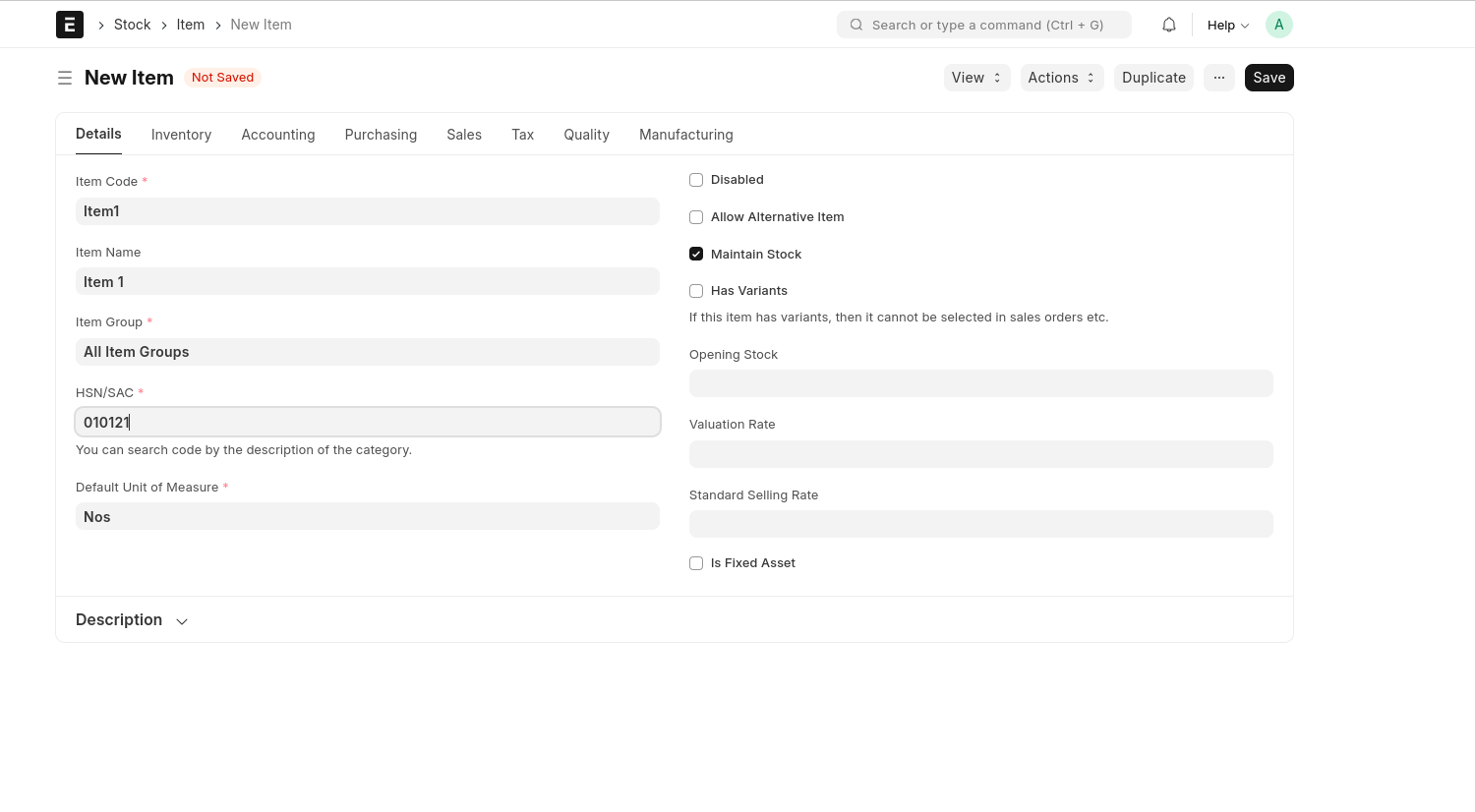
Fill The Mandatory Fields,
- Item Code
- Item Name
- Item Group
- HSN/SAC
- Default Unit of Measure
If The Item is a Tax item.
- Select Tax Category from the Item Tax Template Table
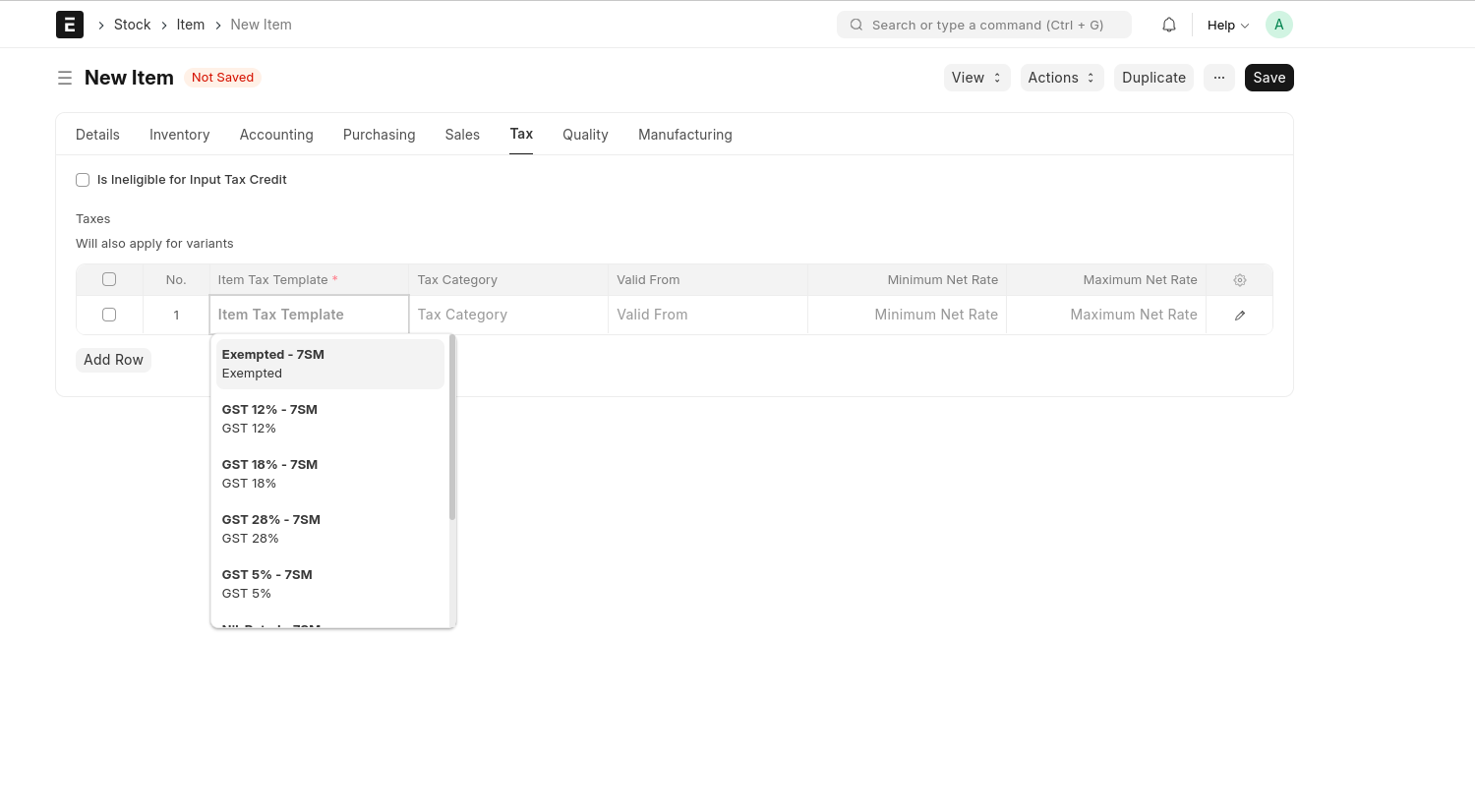
Save the item, Then The Item Created On the Dashboard
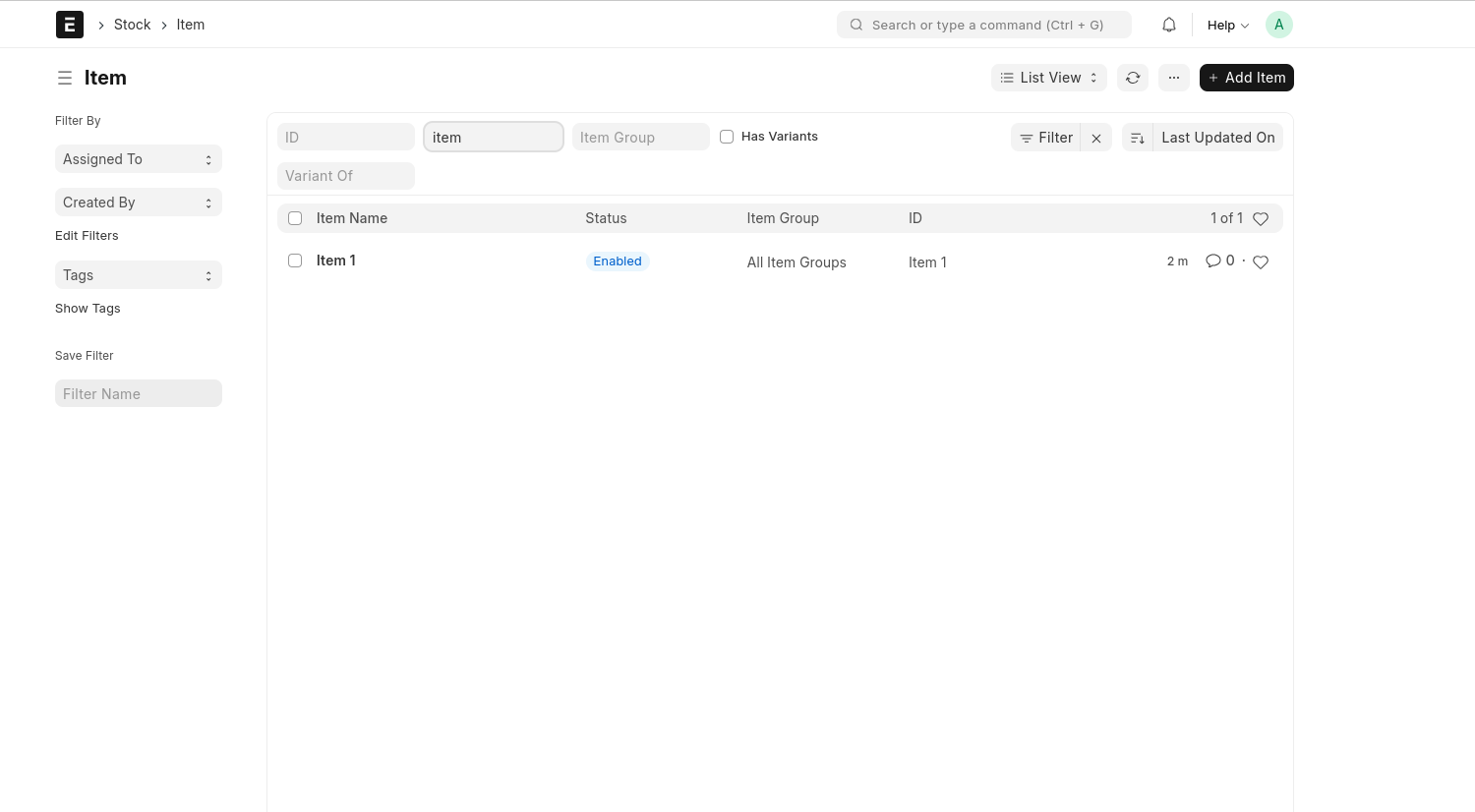
Supplier
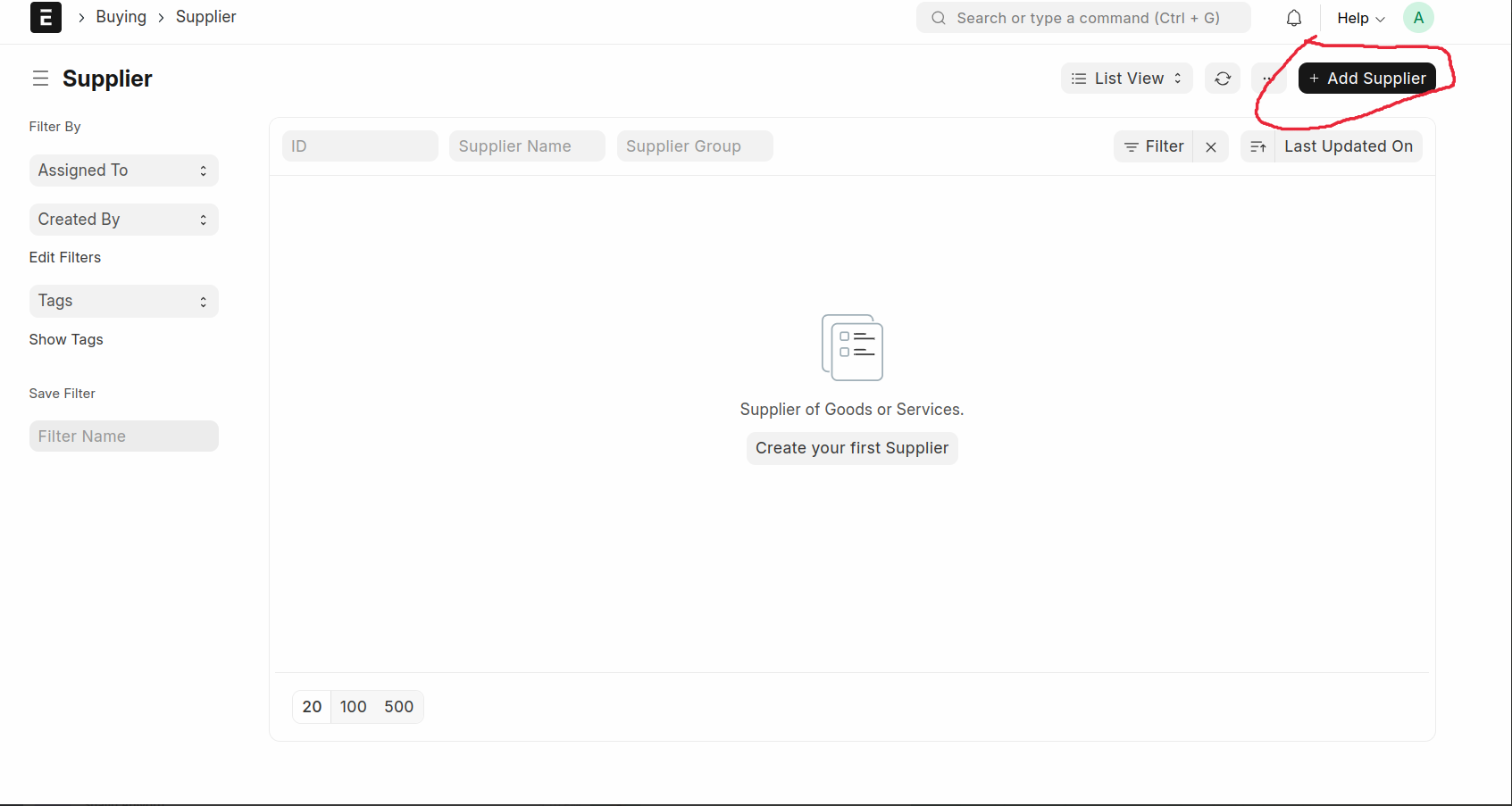
Select Supplier List -> Add New Supplier
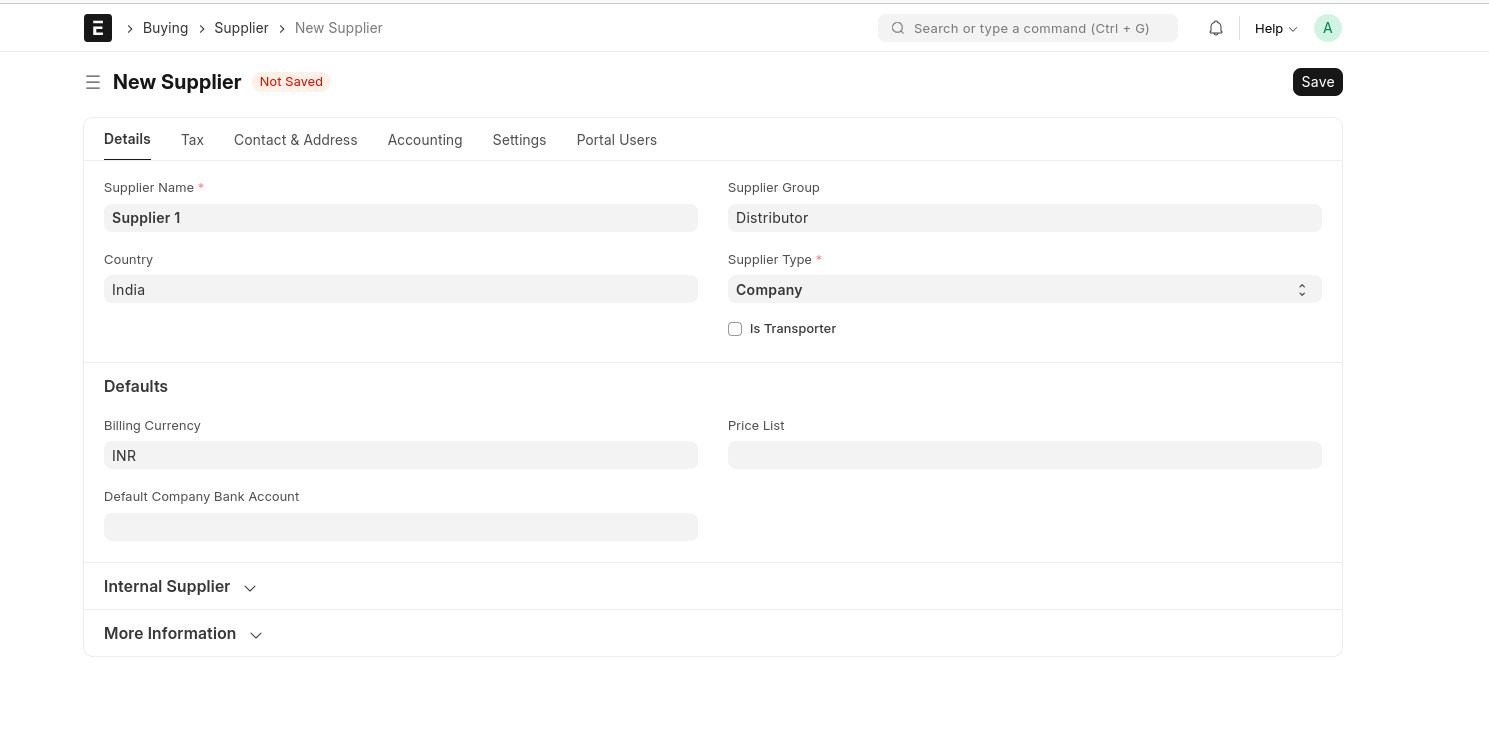
Fill The Mandatory Fields and Save the Document
- Supplier Name
- Supplier Group
- Supplier Type
The Supplier Have GST, Then fill The Fields
- Tax ID
- Tax Category
- Tax Withholding Category
- GSTIN / UIN
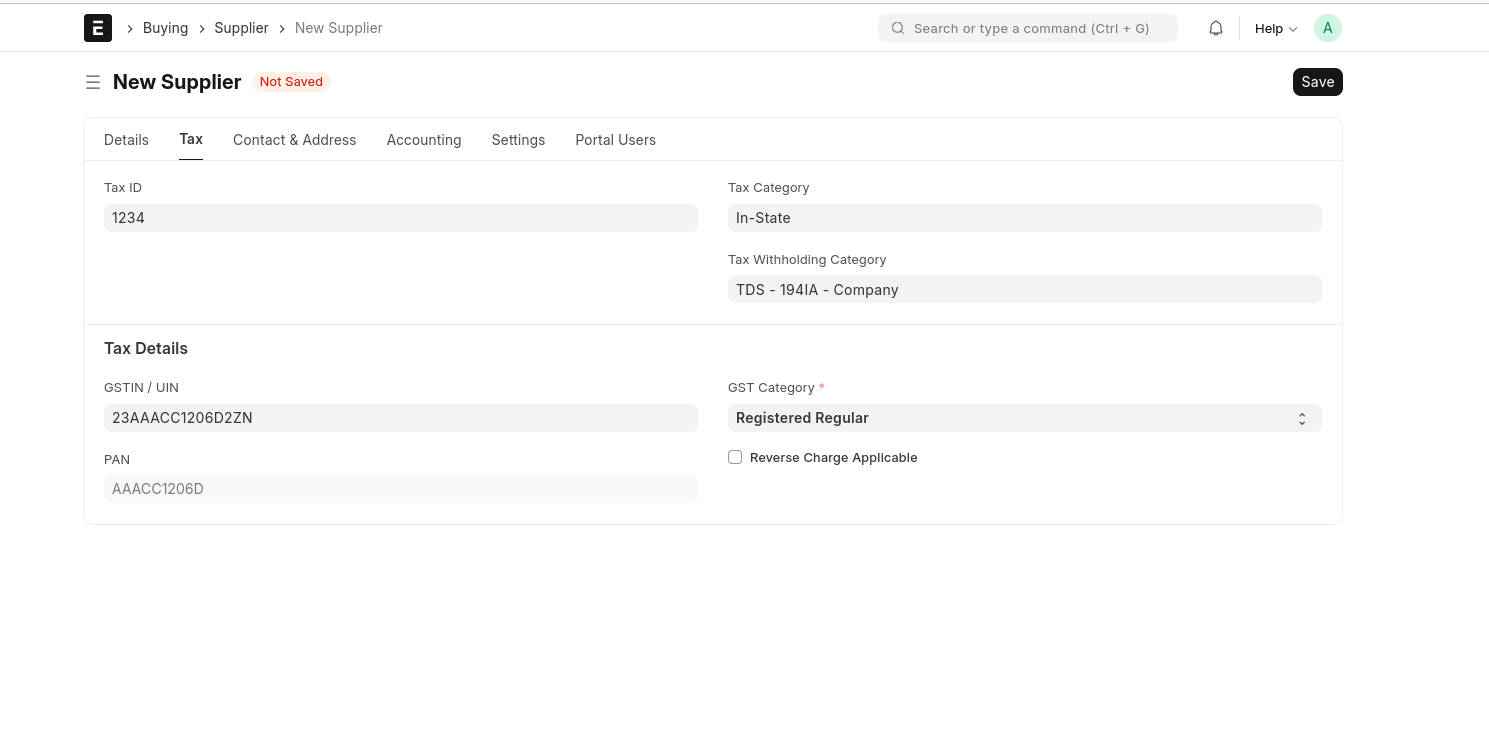
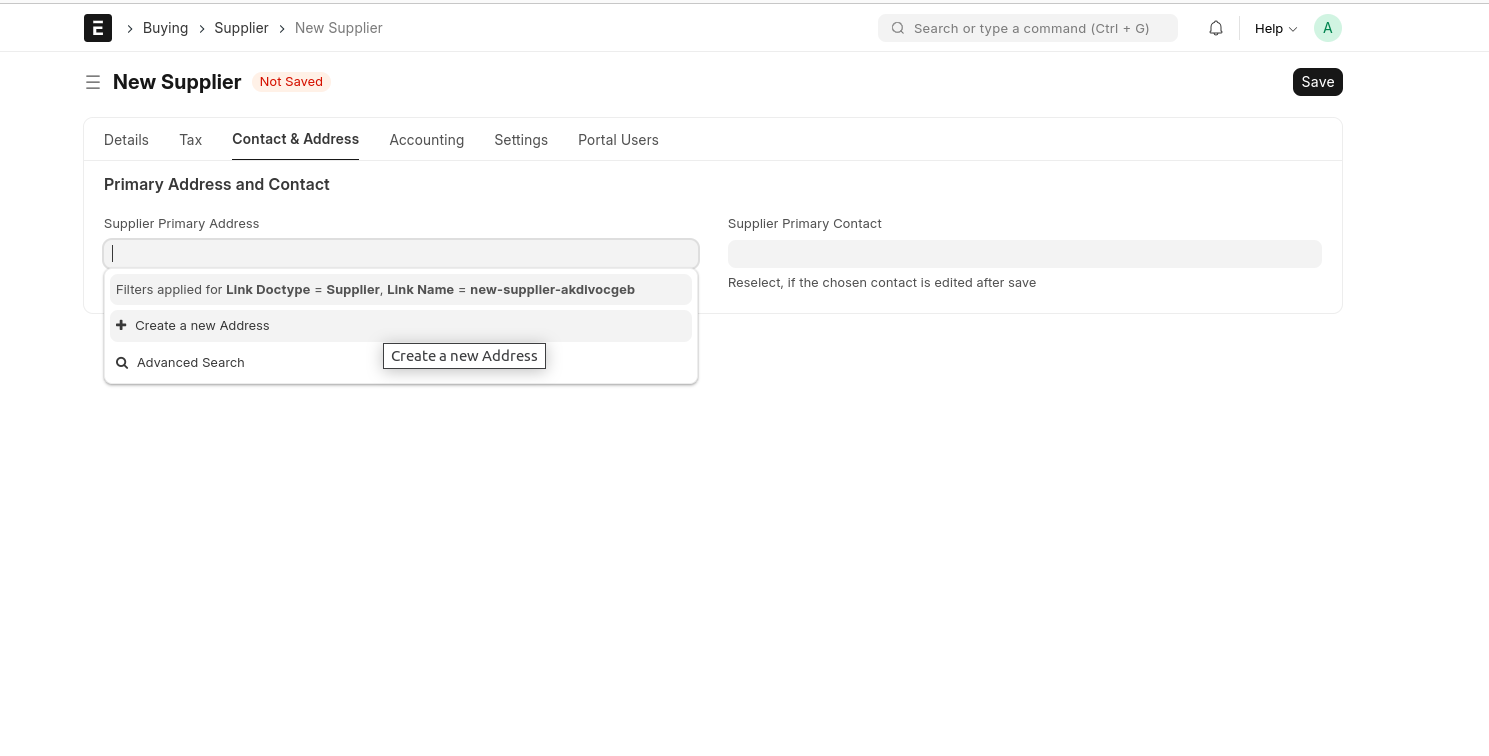
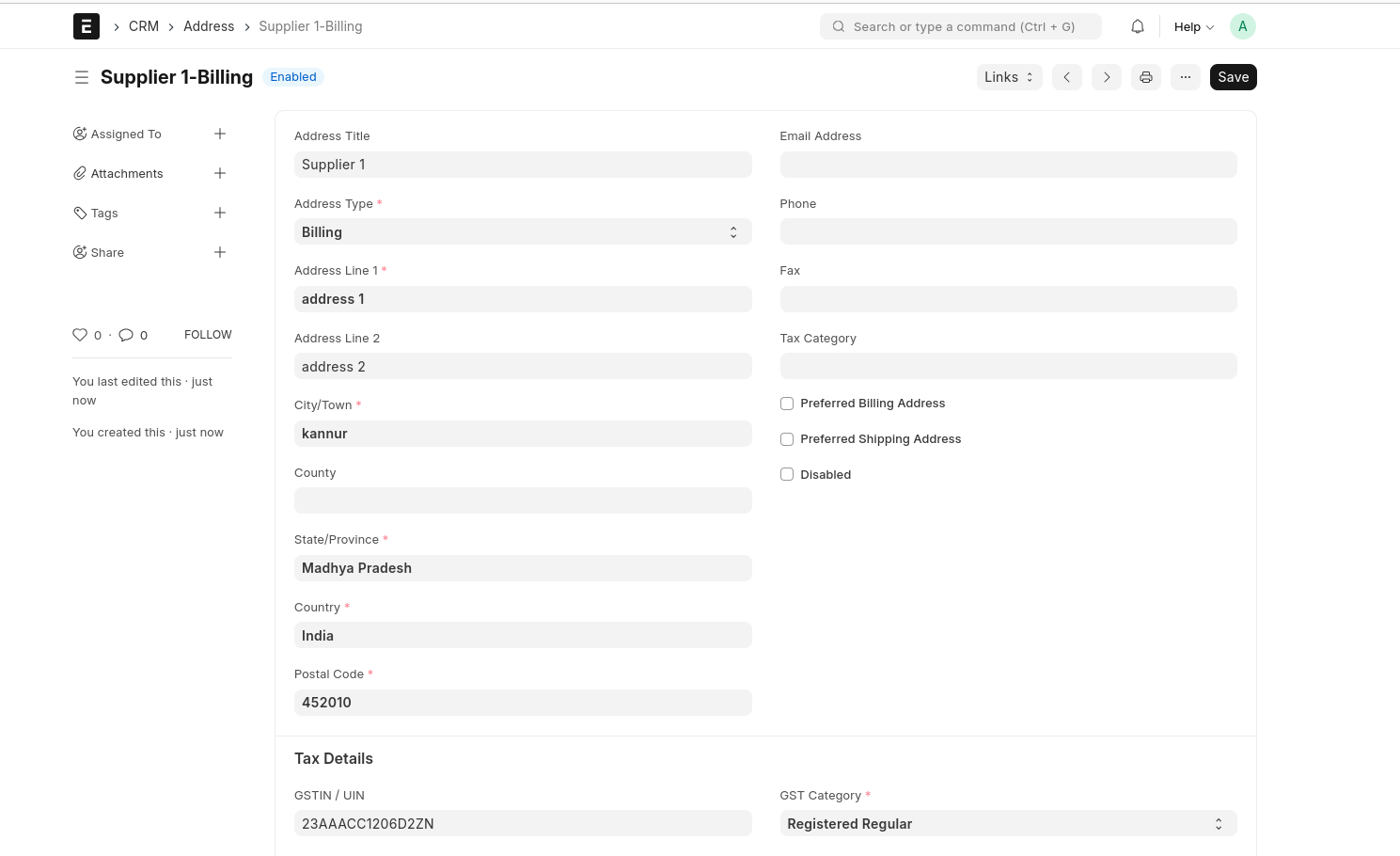
If The Supplier Have Address, Click 'Create A new Address' and Fill The Fields and Save
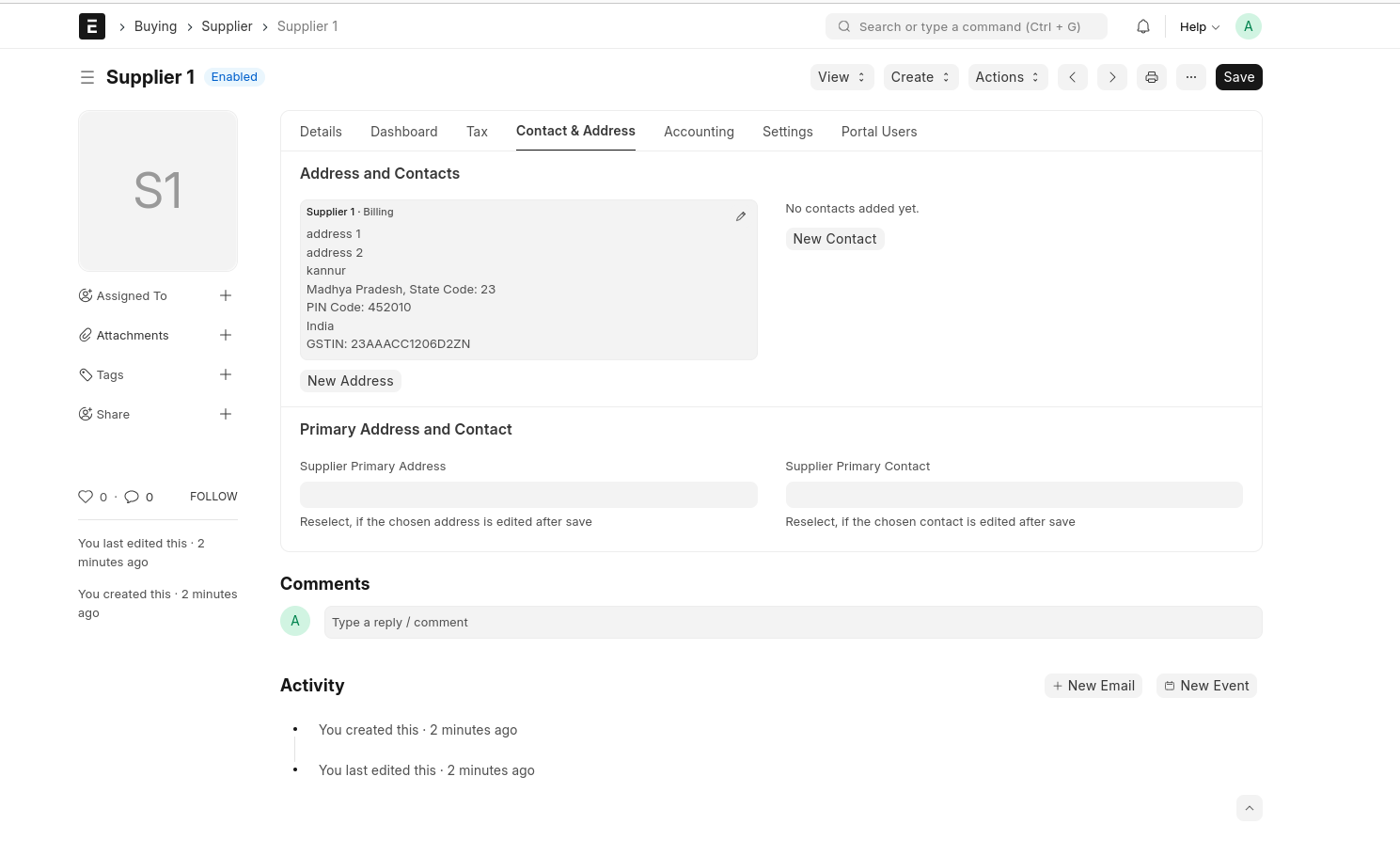
Save the Supplier, Then The Supplier Created On the Dashboard
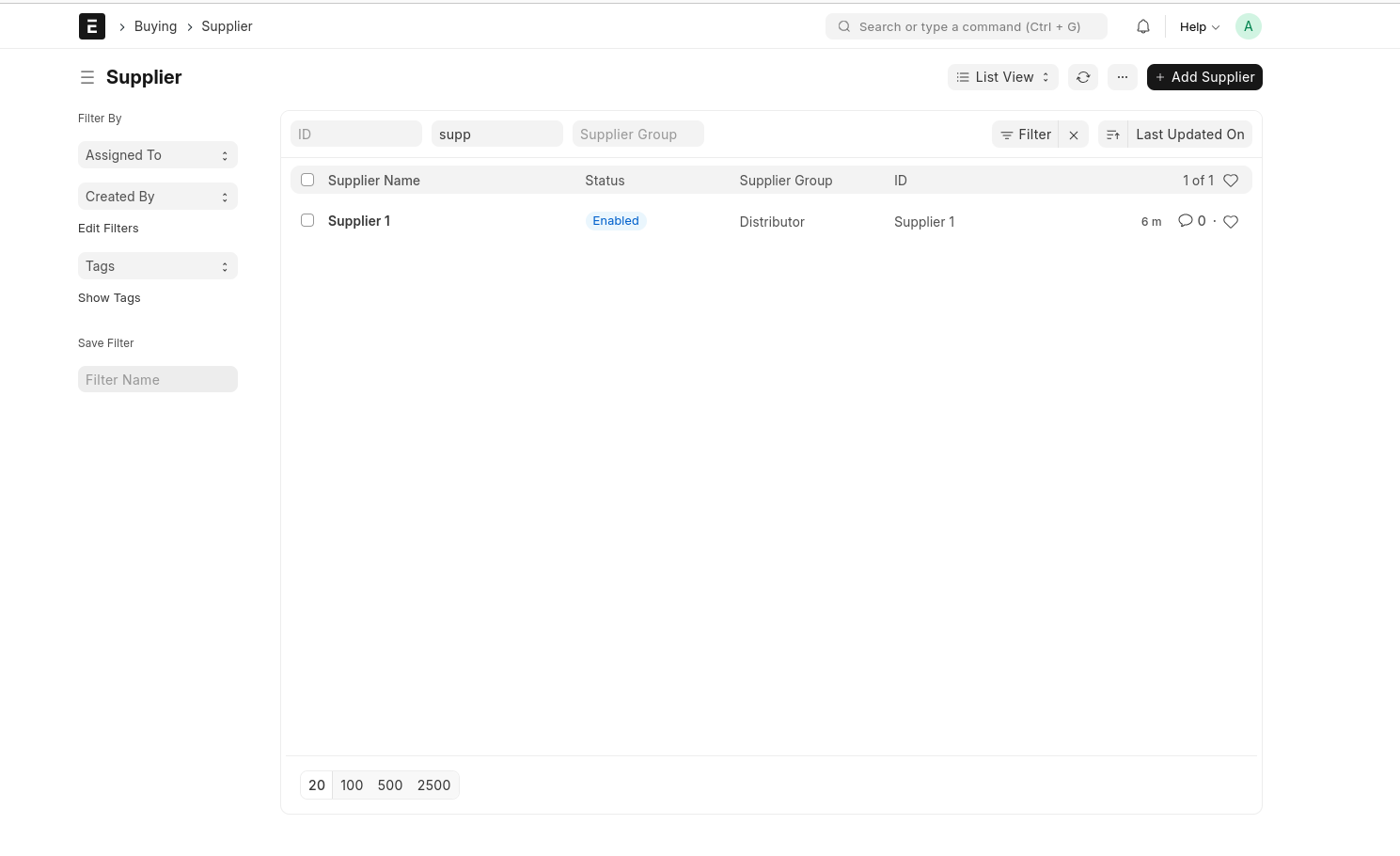
Purchase Order
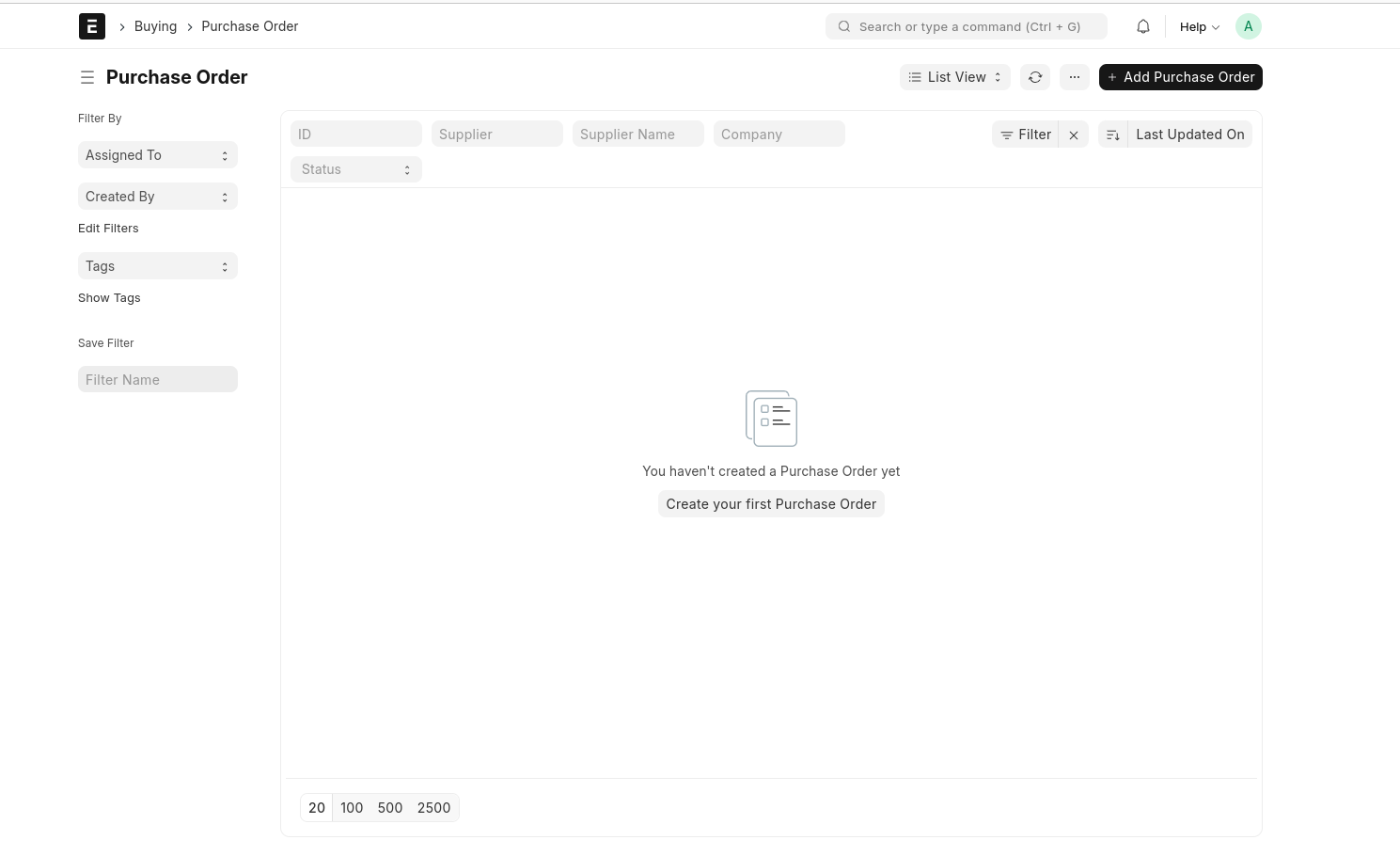
Create A New Purchase Order --> Select Purchase Order And Add Purchase Order
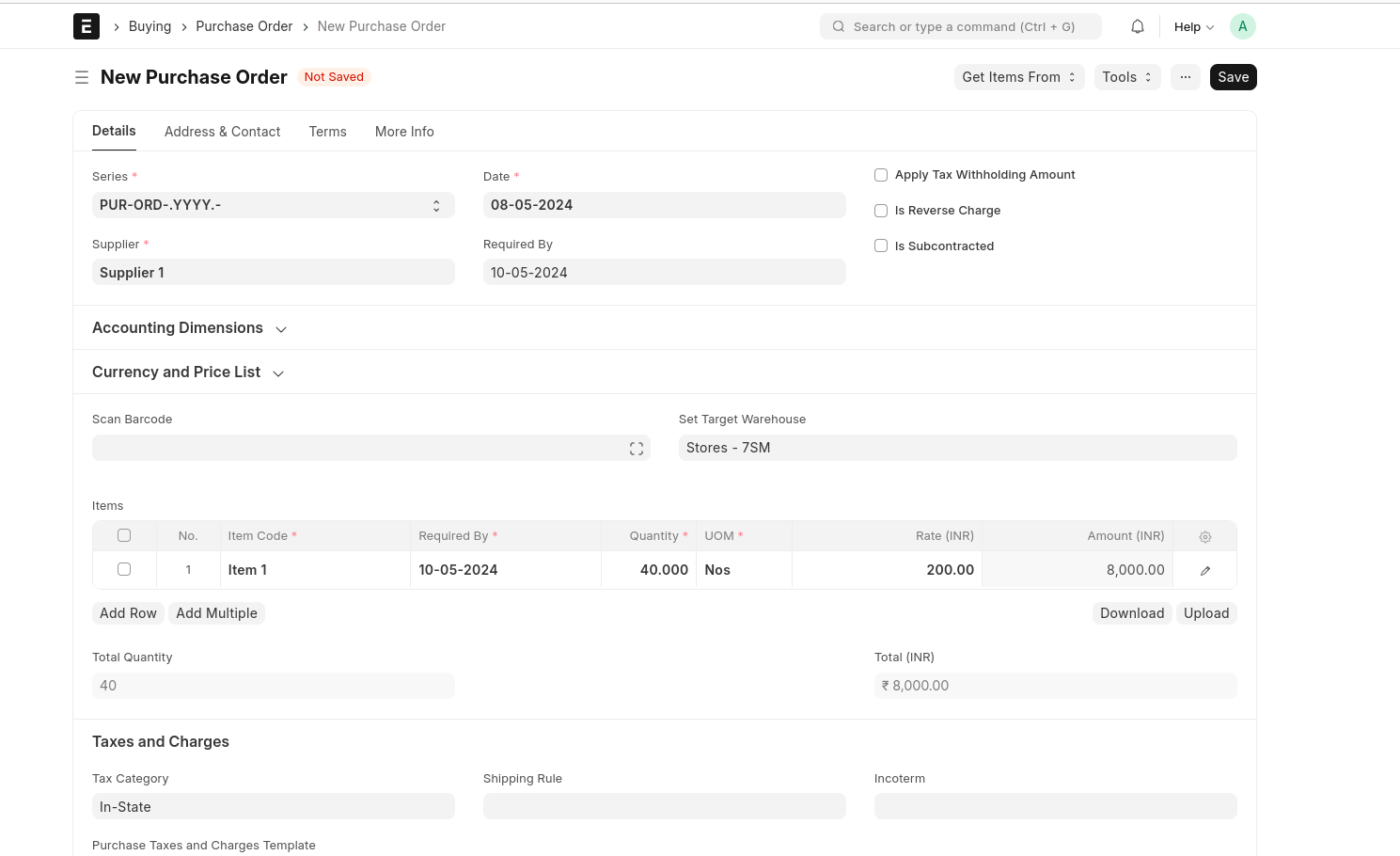
Fill The Fields
Select Supplier
Select Required By Date
Set the Target Warehouse
Select Item In The Items Table
Fill Quantity And Rate
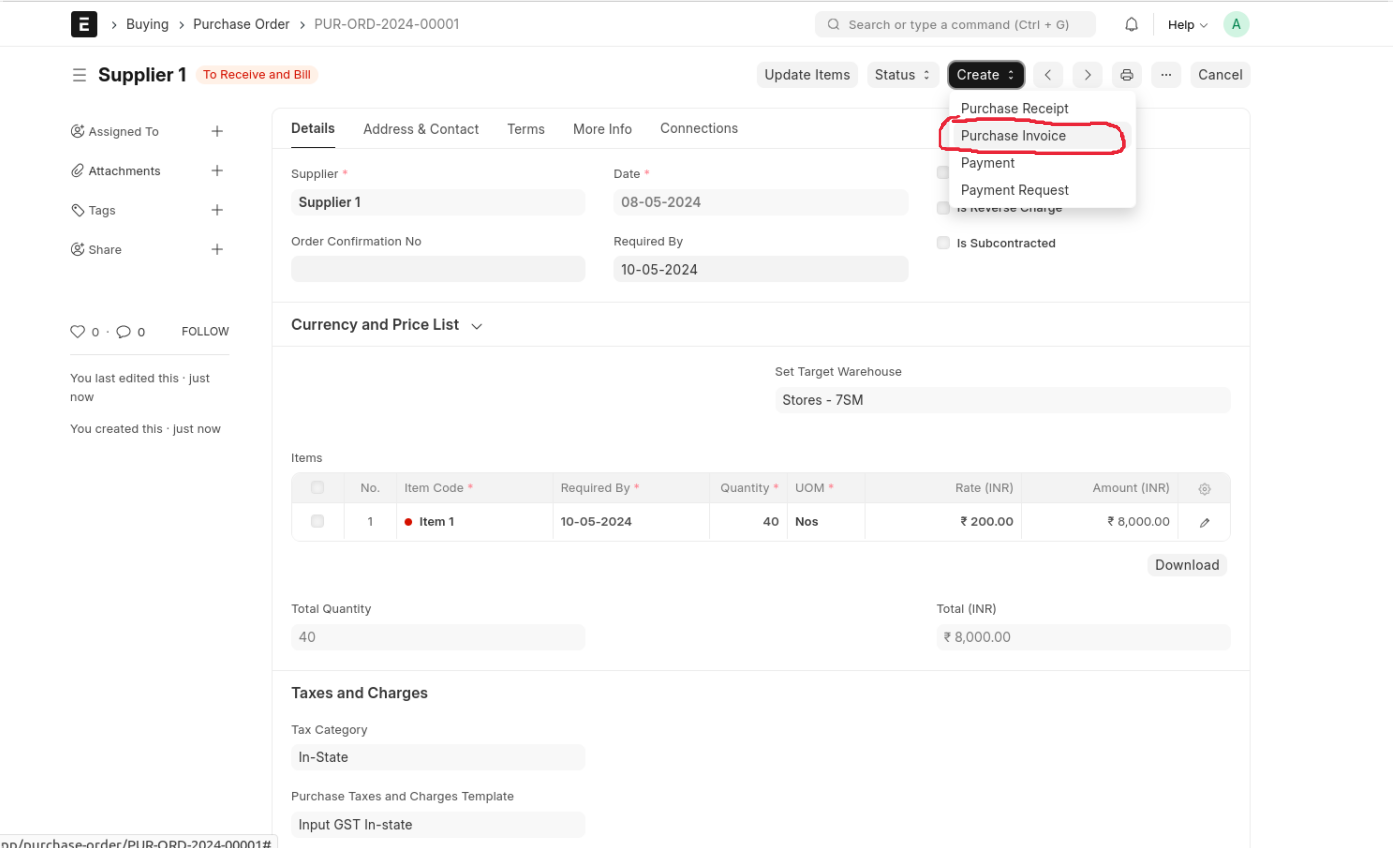
Save The Purchase Order And Submit Then Create 'Purchase Invoice'
Purchase Invoice
Enter Supplier Invoice No and Save The Document
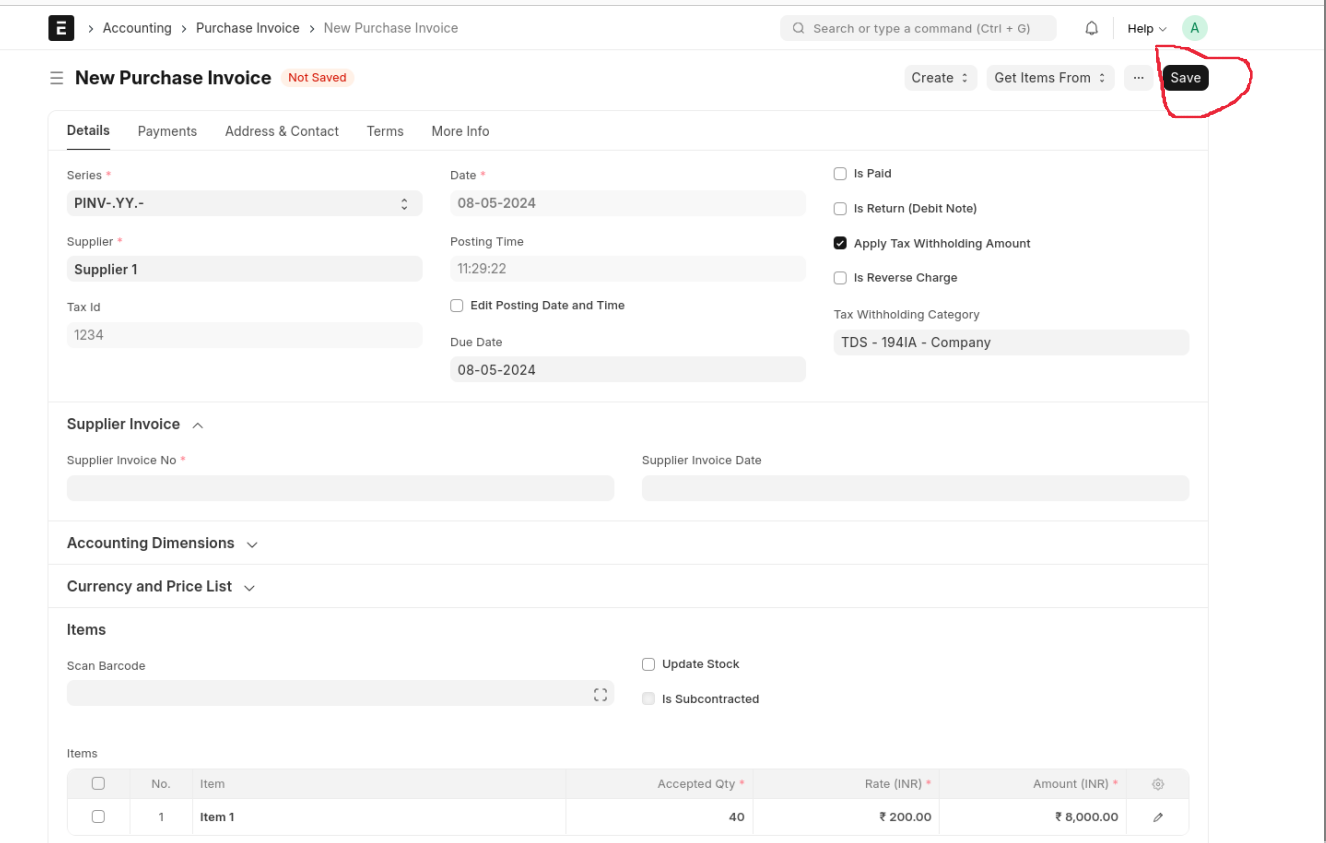
Submit the Purchase Invoice And Create Payment
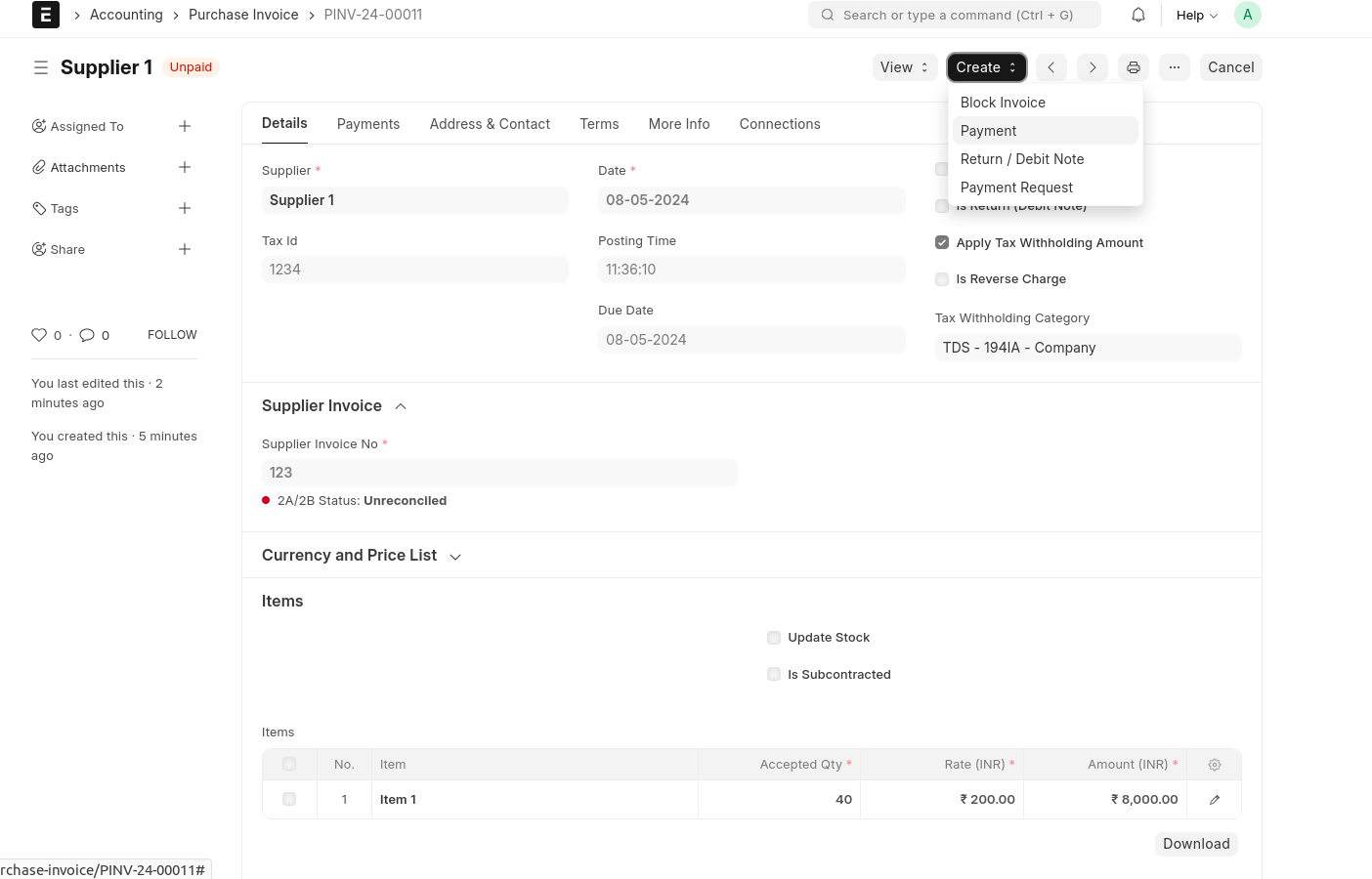
Payment
Select Mode Of Payment, Save and Submit The Document.
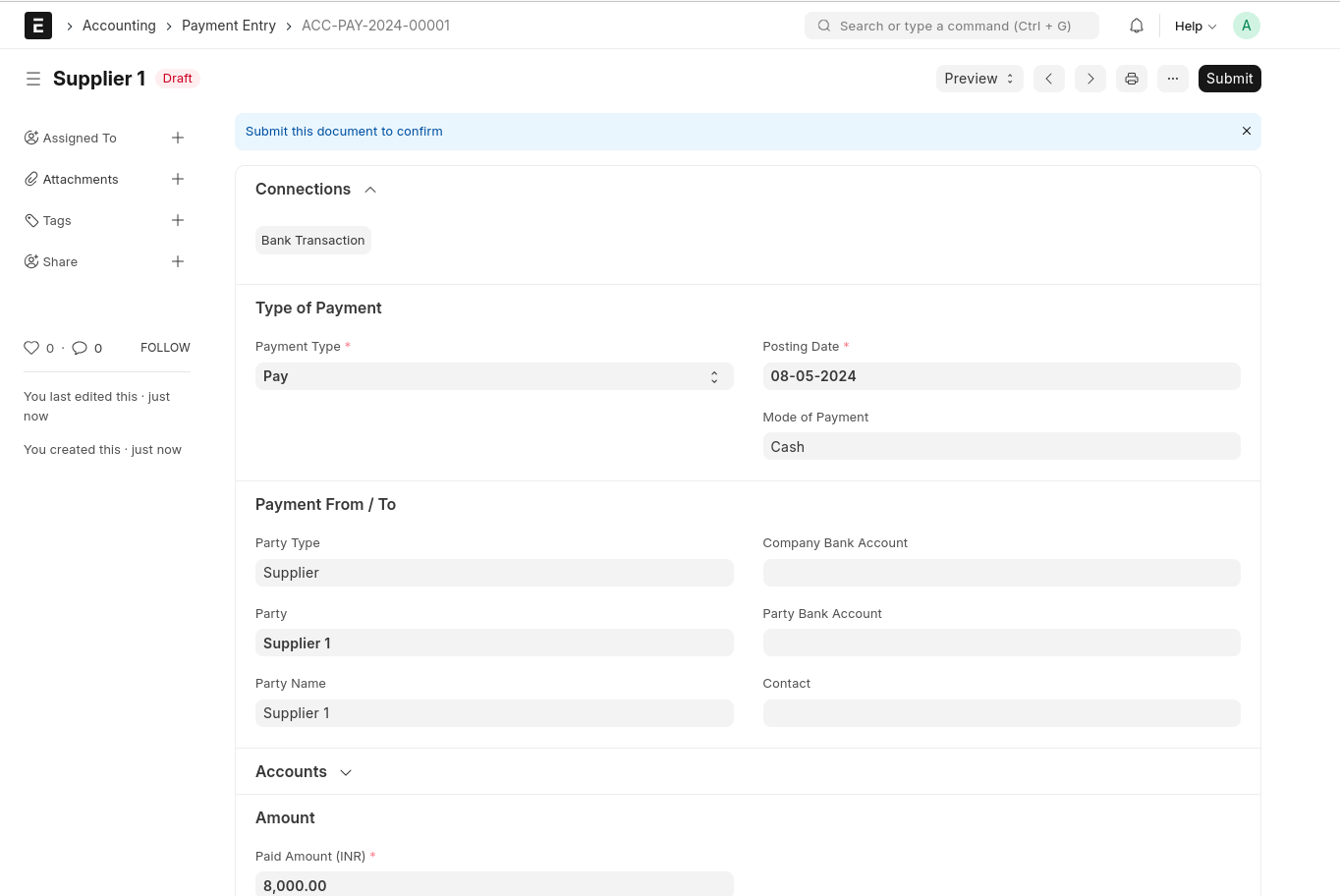
This Time The Payment Process Is Completed. Then Back Into The Purchase Invoice And Create Purchase Receipt.
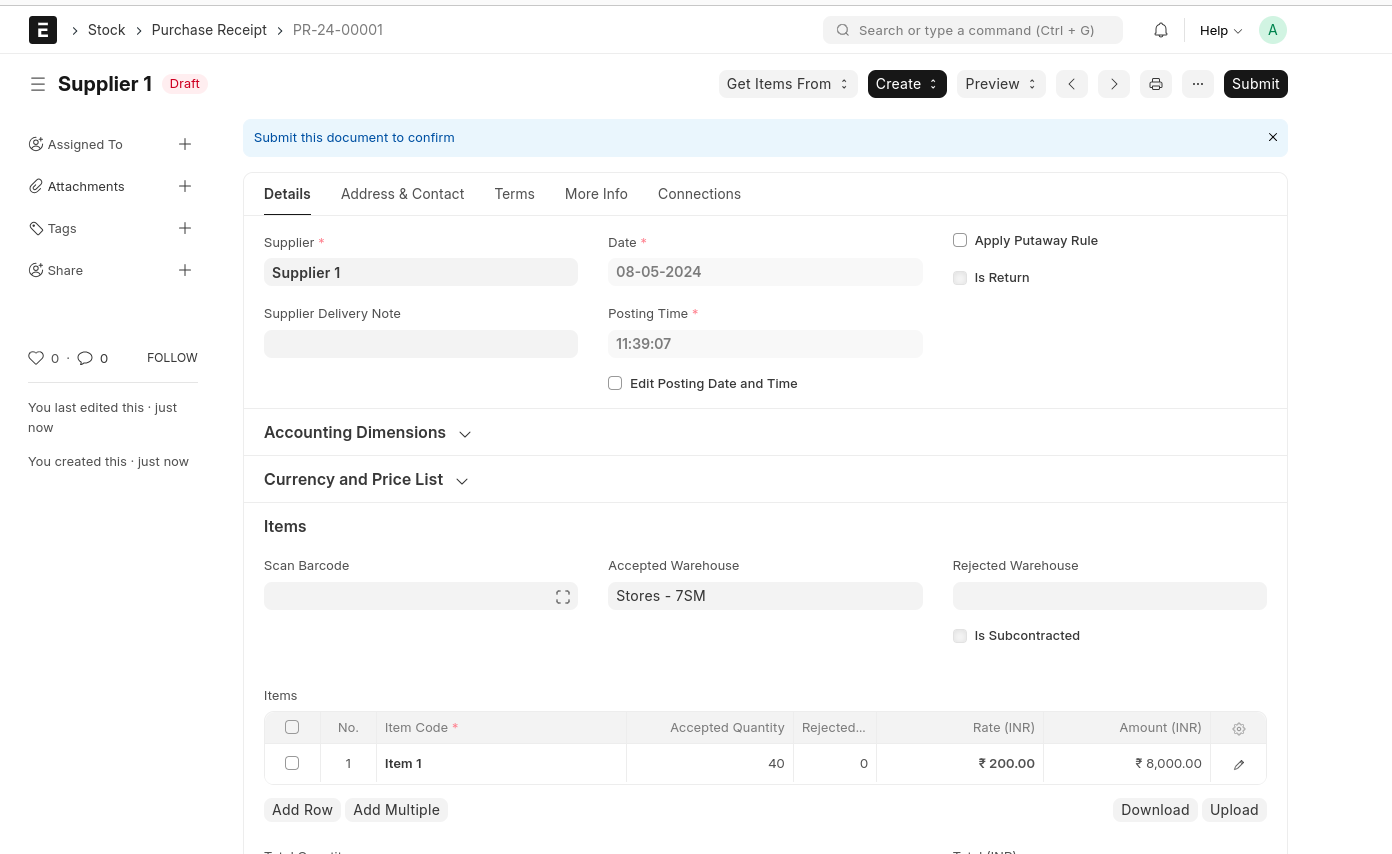
Create Purchase Receipt Against The Same Purchase Invoice
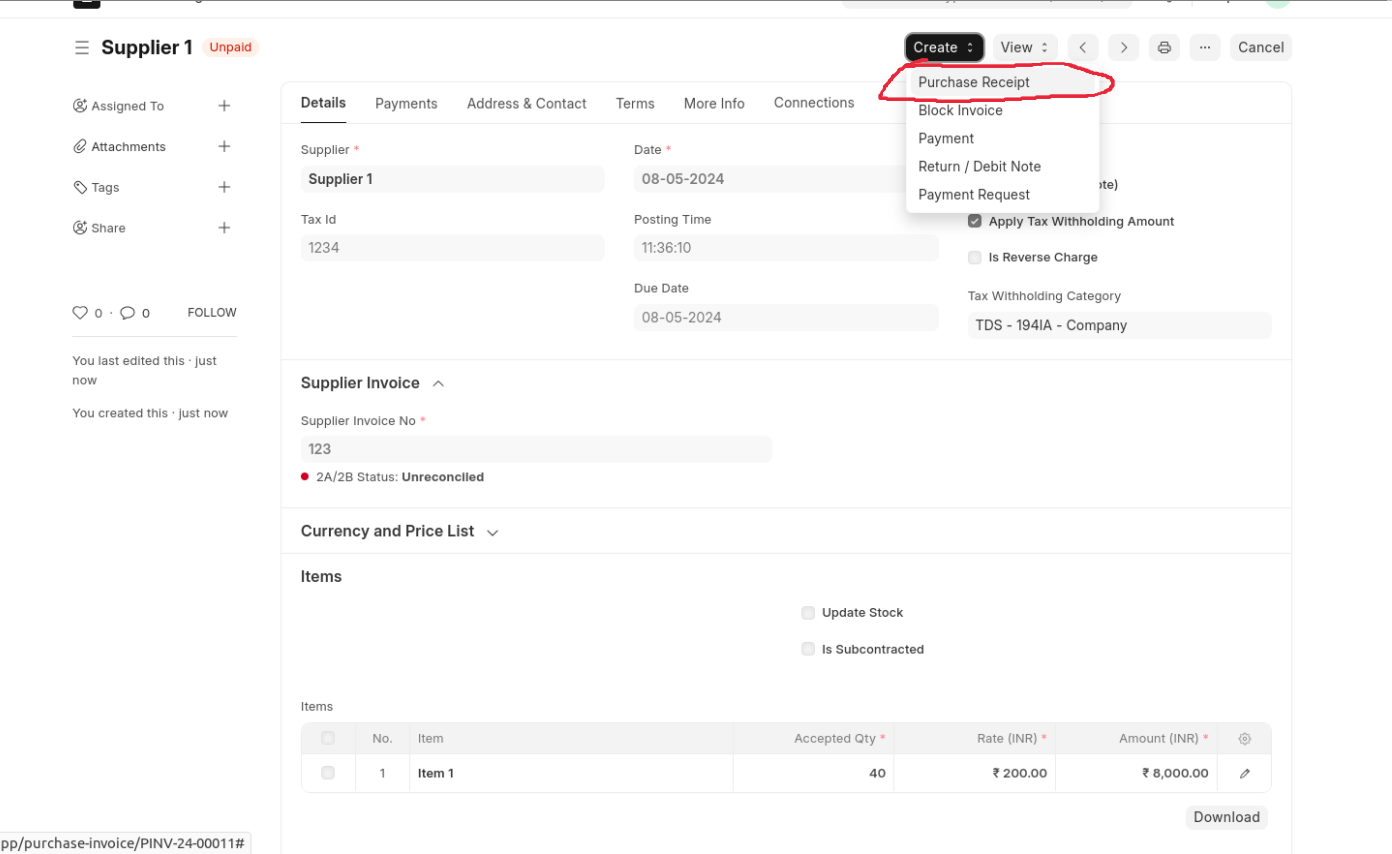
Purchase Receipt
Save And Submit The Purchase Receipt
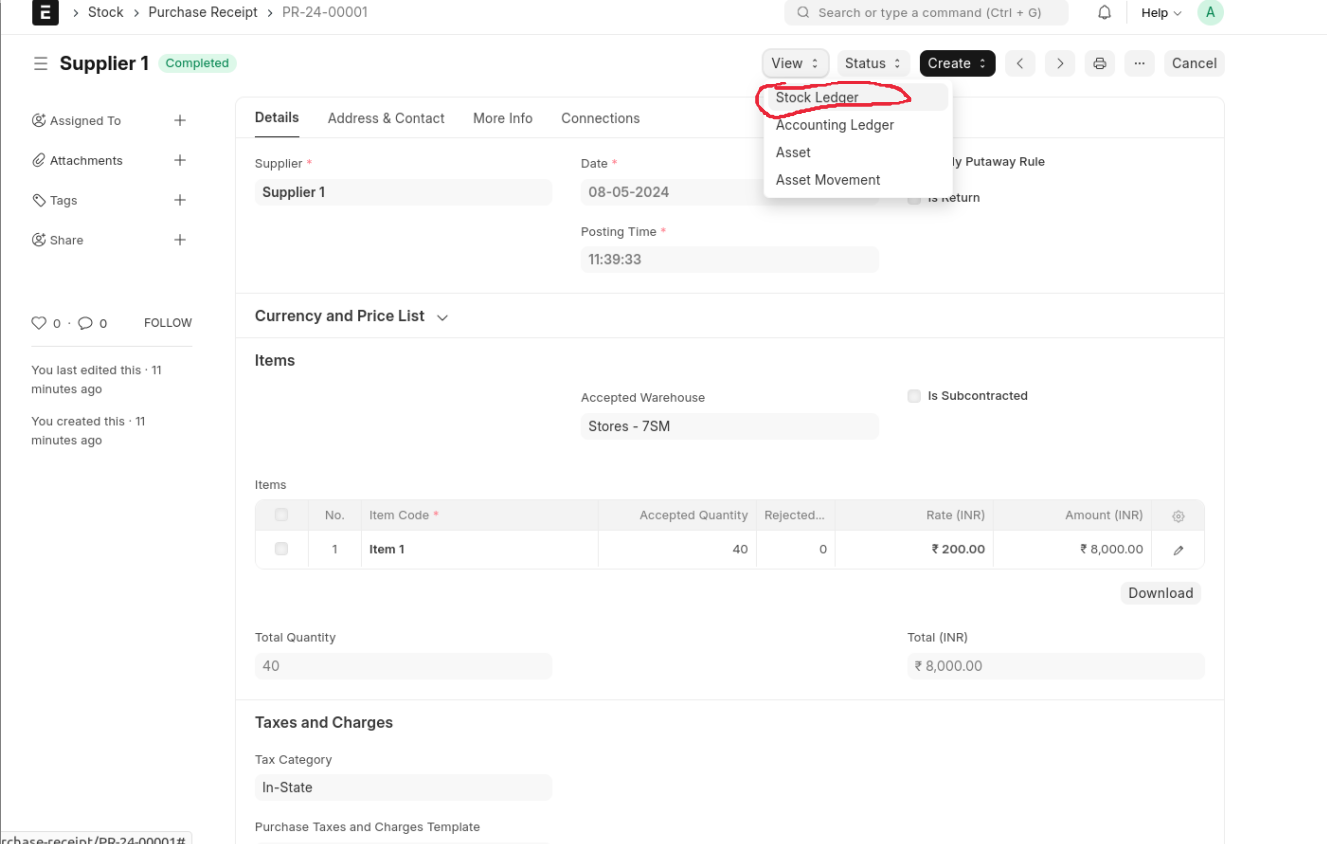
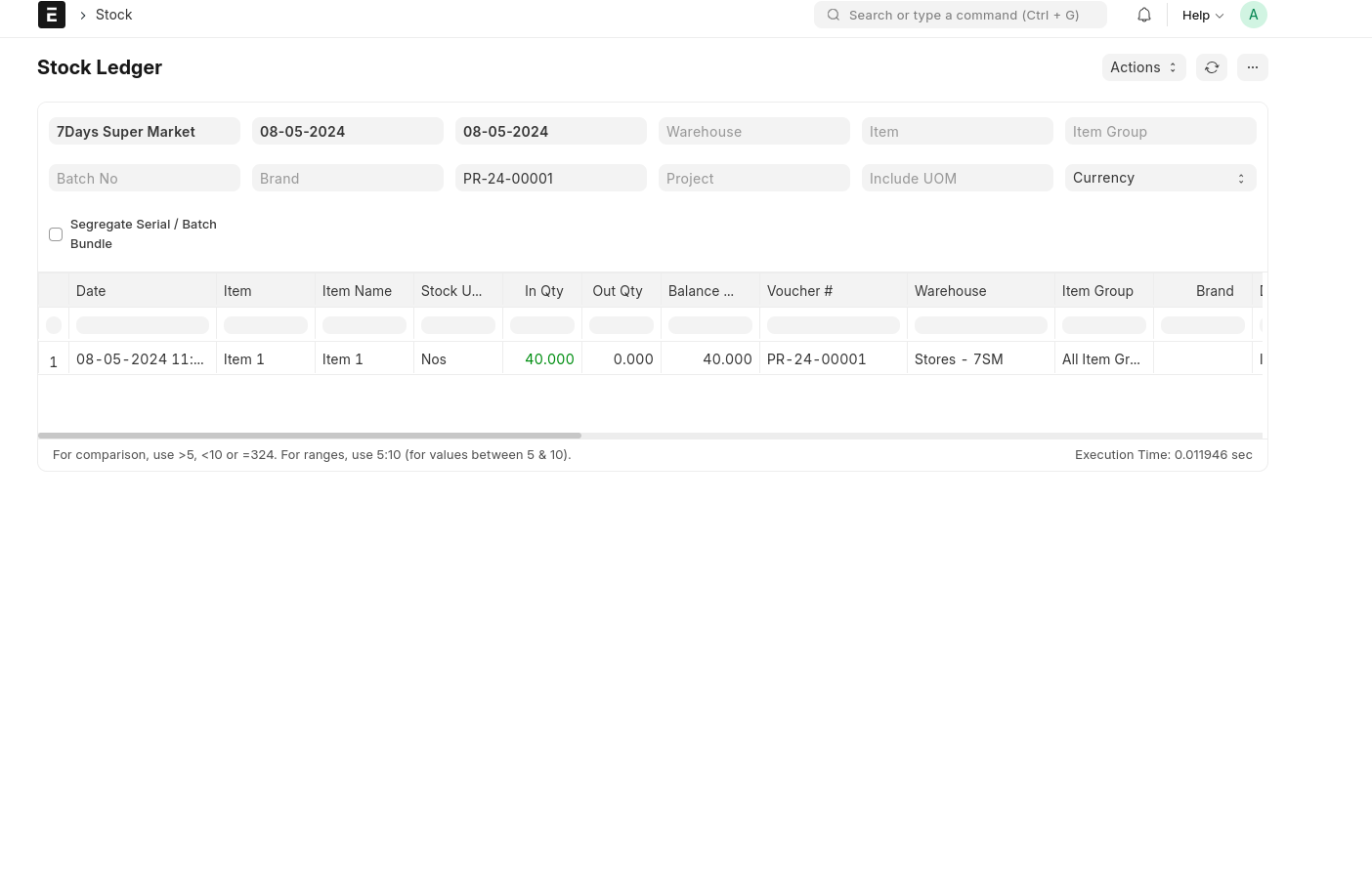
The item stock has arrived at the selected Target warehouse. Click 'View' and select 'Stock Ledger' to see the stock ledger details. The purchase cycle process is completed..