Momscode - Club Sulaimani - Outlet Monthly Attendance Register
Prerequisites
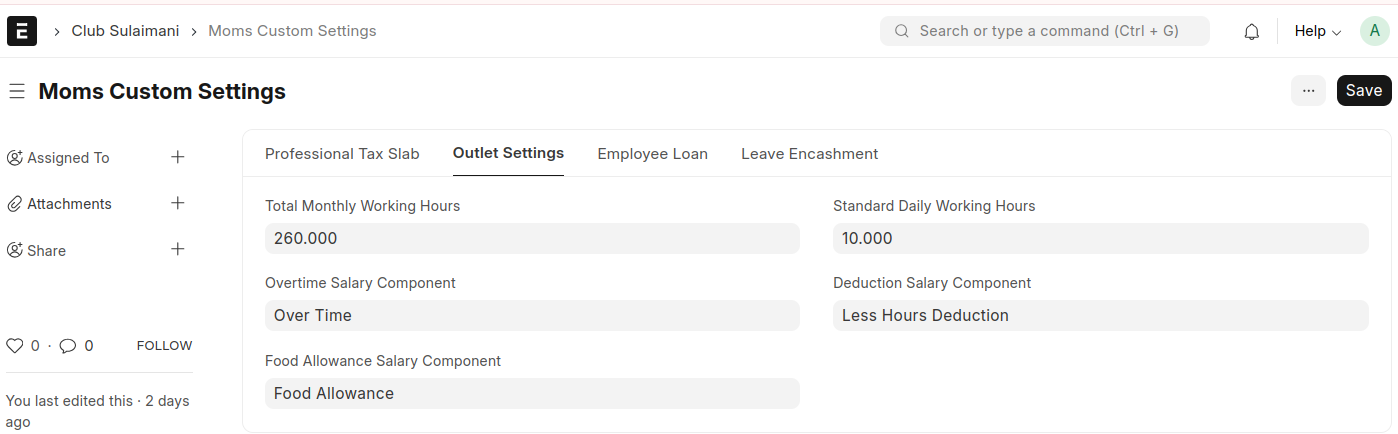
In Moms Custom Settings set values for,
- Total Monthly Working Hours
- Overtime Salary Component
- Food Allowance Salary Component
- Standard Daily Working Hours
- Deduction Salary Component
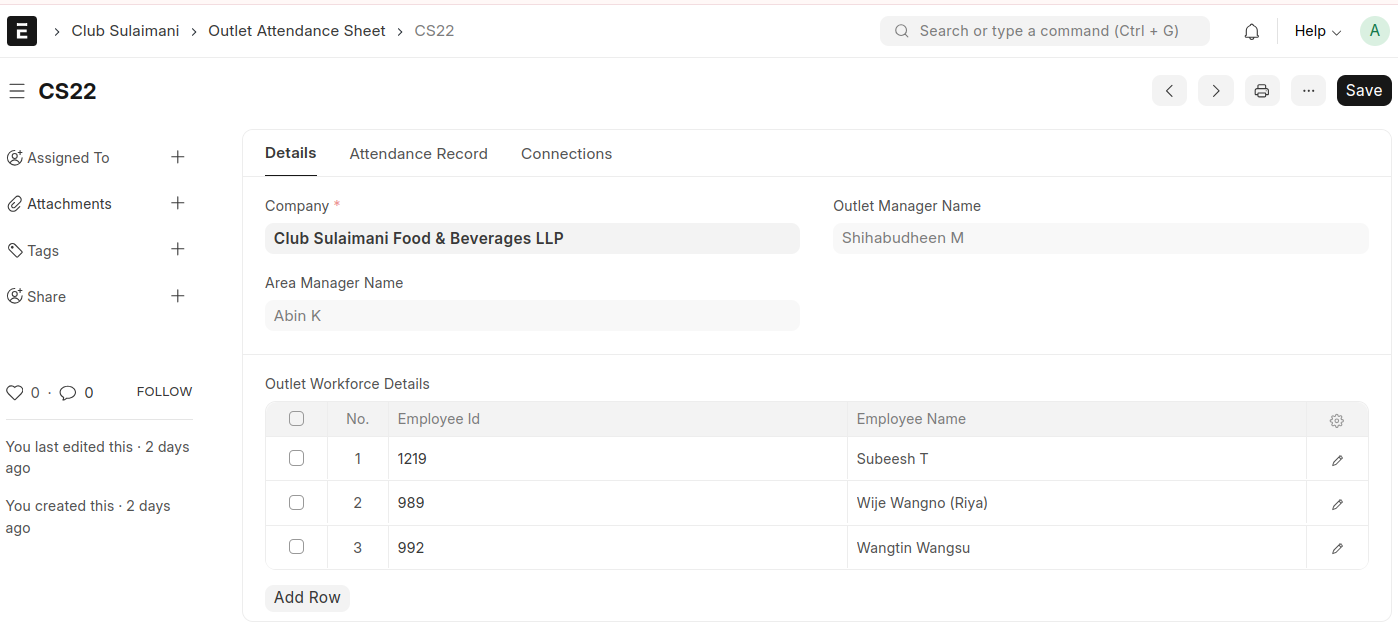
Outlet Attendance Sheet
- Add a new Outlet Attendance Sheet
- Select the Branch
- All employees associated with the selected branch will be fetched automatically
- The Area Manager and Outlet Manager names will also auto-populate based on the selected branch
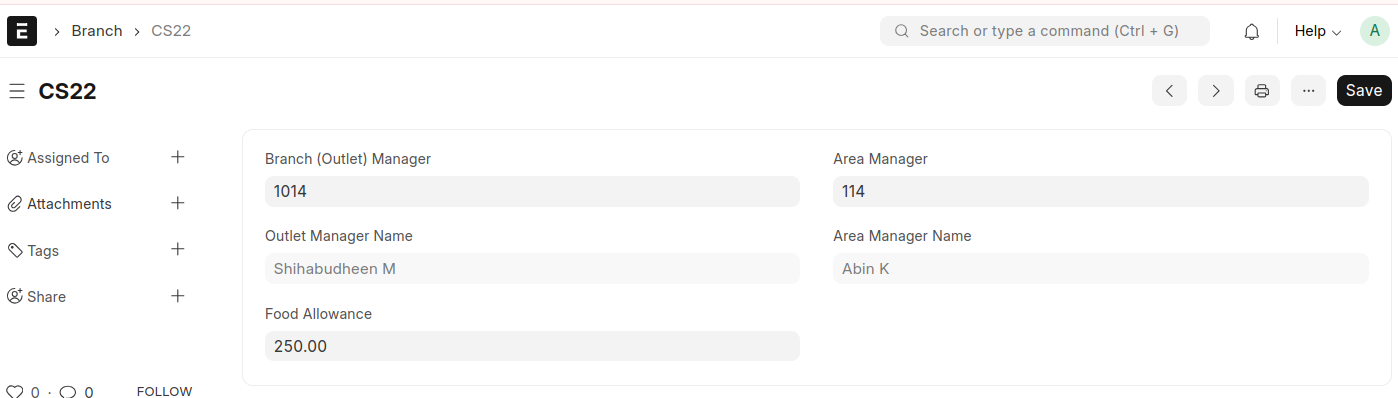
For this first in Branch mention the Branch (Outlet) Manager and Area Manager
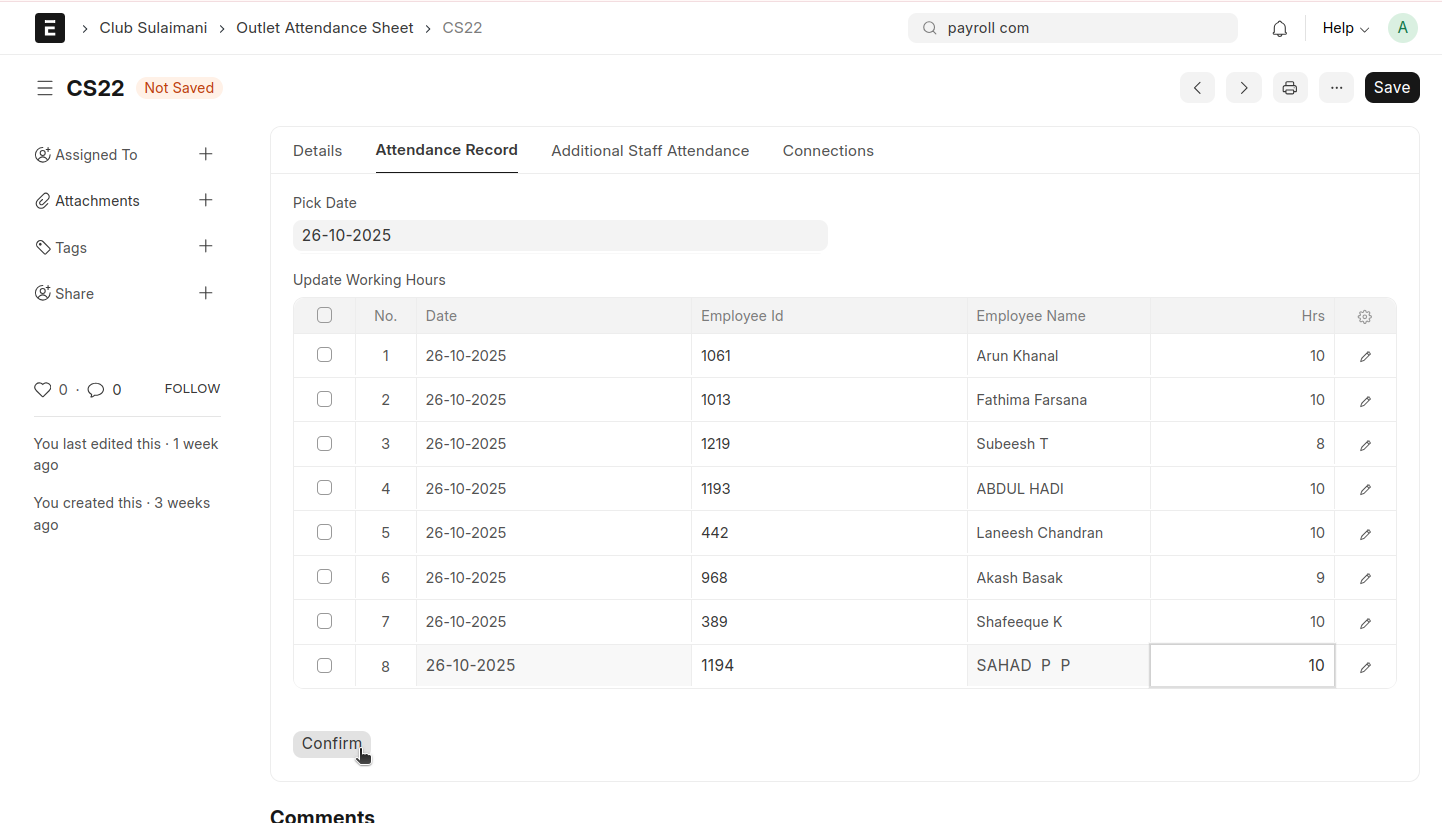
- Select a date in the ‘Pick Date’ field; this date will be automatically applied to each row in the table
- Enter Hours (Working Hours)
- Click Save and Confirm
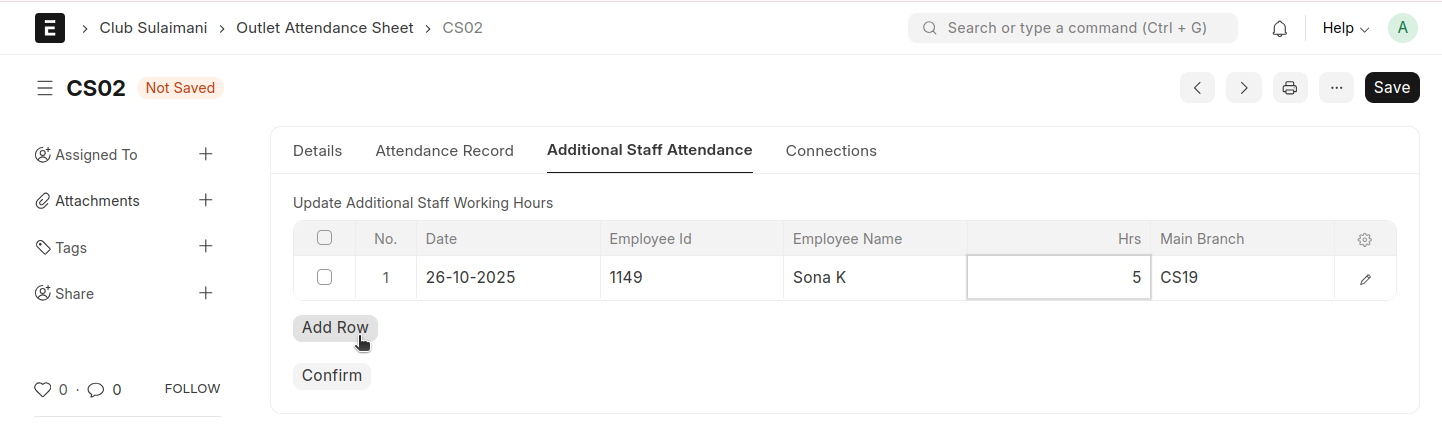
- If any employee from one branch is working in another branch where they are not assigned, their attendance can be marked in the Additional Staff Attendance tab
- Enter the Date and Employee ID; the Employee Name and Main Branch will be auto-fetched. Then enter the working hours and save and confirm
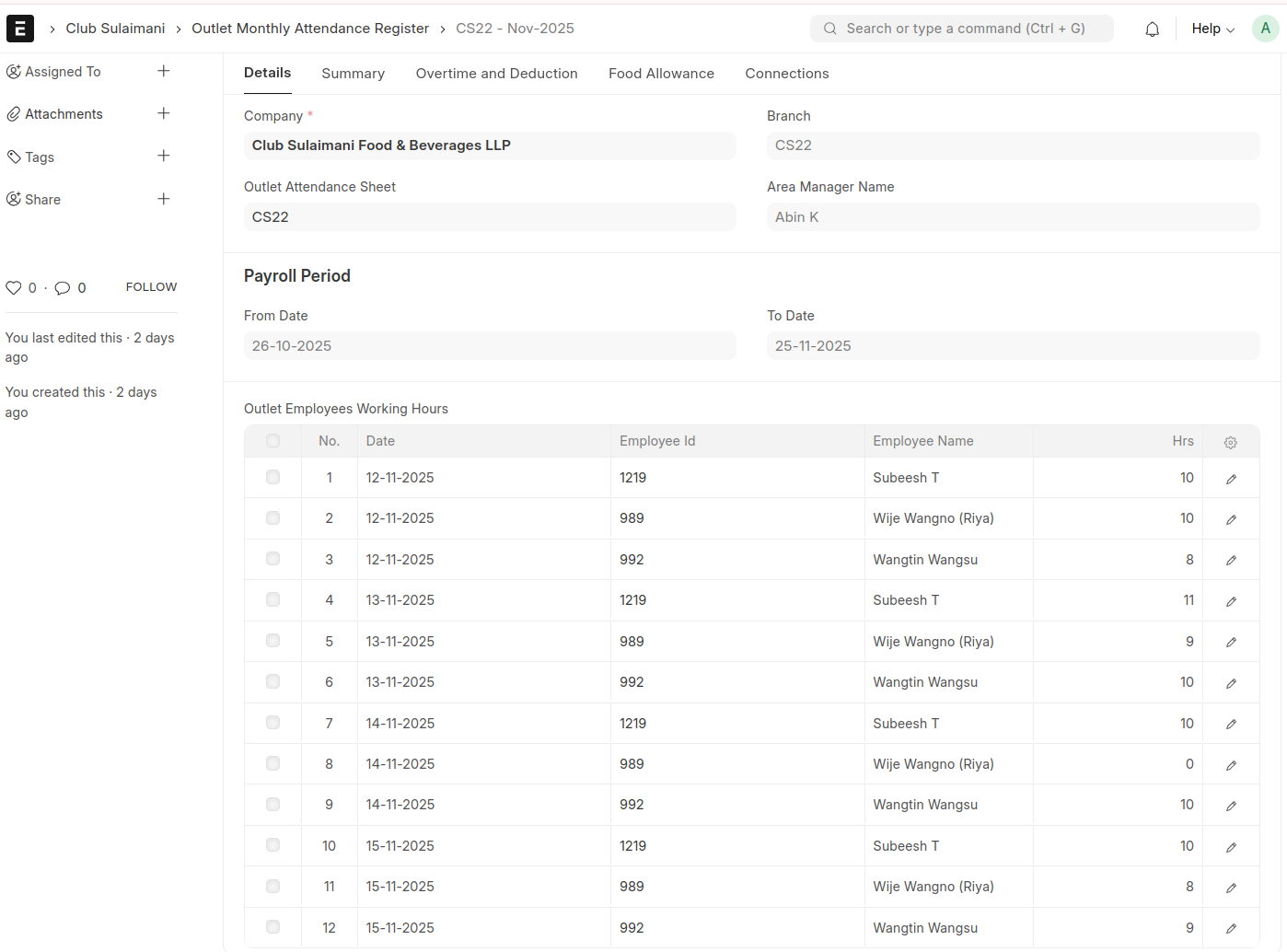
After confirmation, an Outlet Monthly Attendance Register will be automatically generated based on the provided details
- Once confirmed, the table will update, allowing you to enter another date. This new entry will also be added to the Outlet Monthly Attendance Register
- Repeat this process for each day of the month as needed
Outlet Monthly Attendance Register
- As you enter and confirm each date, the Outlet Monthly Attendance Register will continue to update automatically
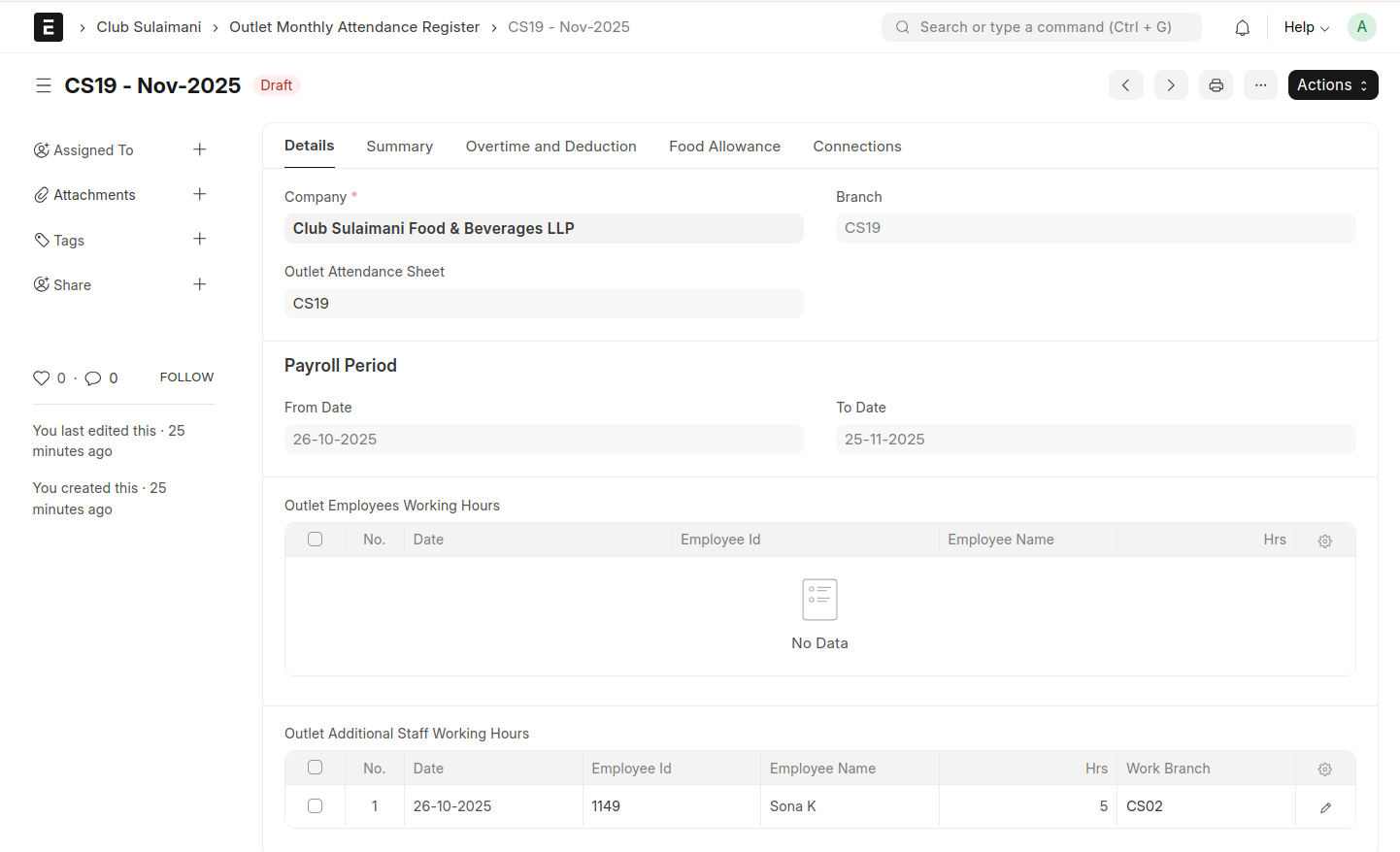
- If an employee from another branch works here, the recorded working hours will be added to the employee’s main branch Monthly Attendance Register
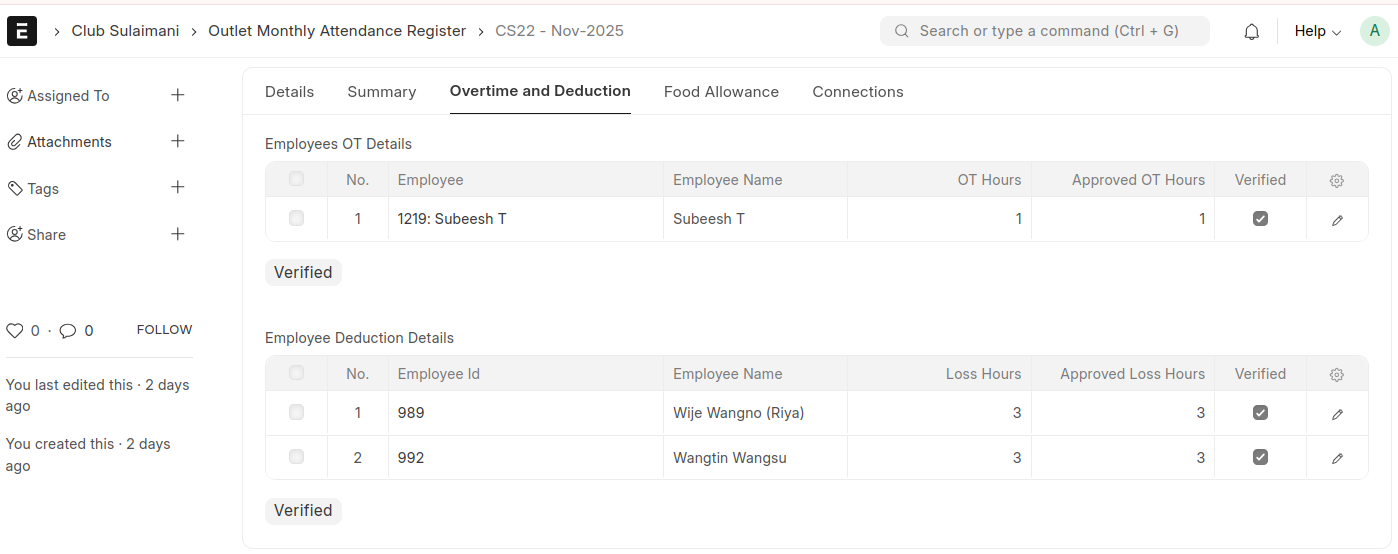
- Overtime will be calculated for employees who work more than the standard daily working hours(per day) or the total monthly working hours(per month). If the hours worked are less than these standards, the difference will be recorded as a deduction
- Click the Verified button for both overtime and deduction
- Food Allowance will be calculated for employees who are eligible
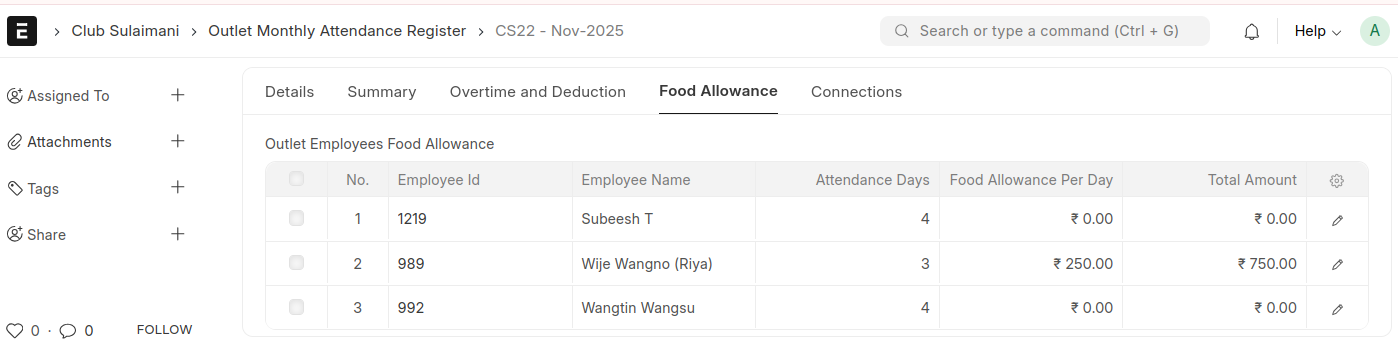
To enable this, first set the Food Allowance amount in the Branch
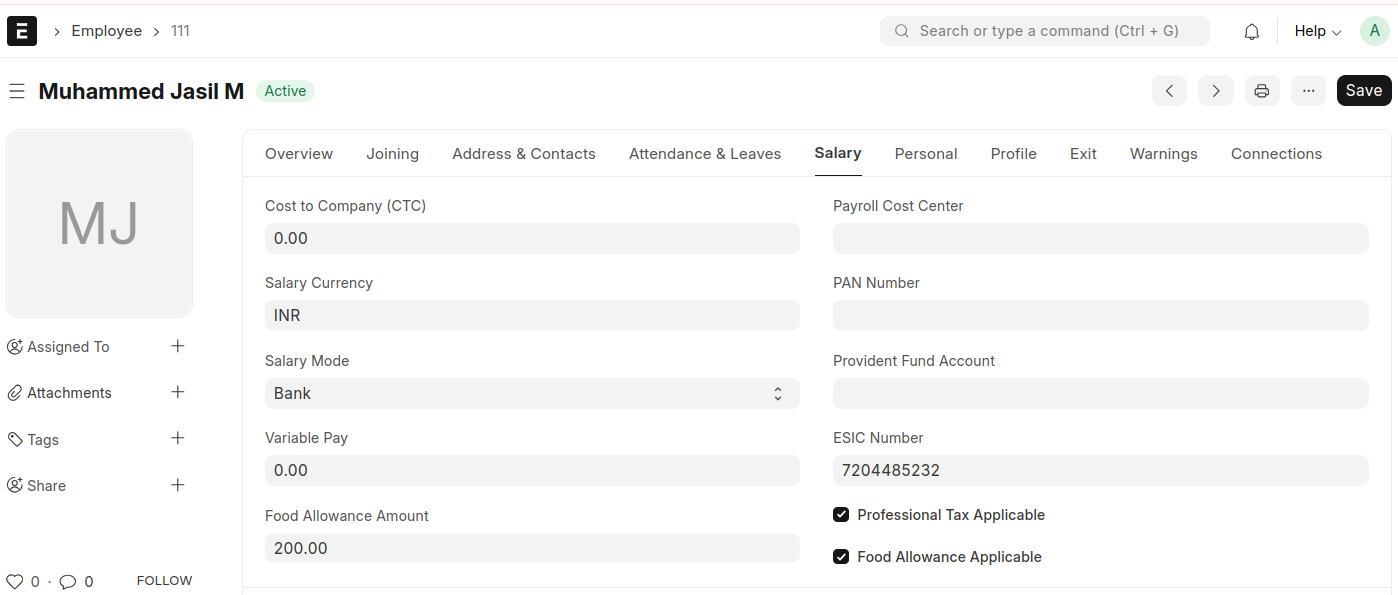
Then, in the Employee Master (for each employee eligible for this allowance in that specific branch), enable the checkbox “Food Allowance Applicable.” Once this checkbox is selected, the "Food Allowance Amount" field will be automatically populated based on the amount defined in the branch.
Then save and submit this Outlet Monthly Attendance Register
- Once this is submitted, Attendance will be generated for each day for every employee
- Additional salary will also be created for employees who have Overtime, Deductions and Food Allowance for the month
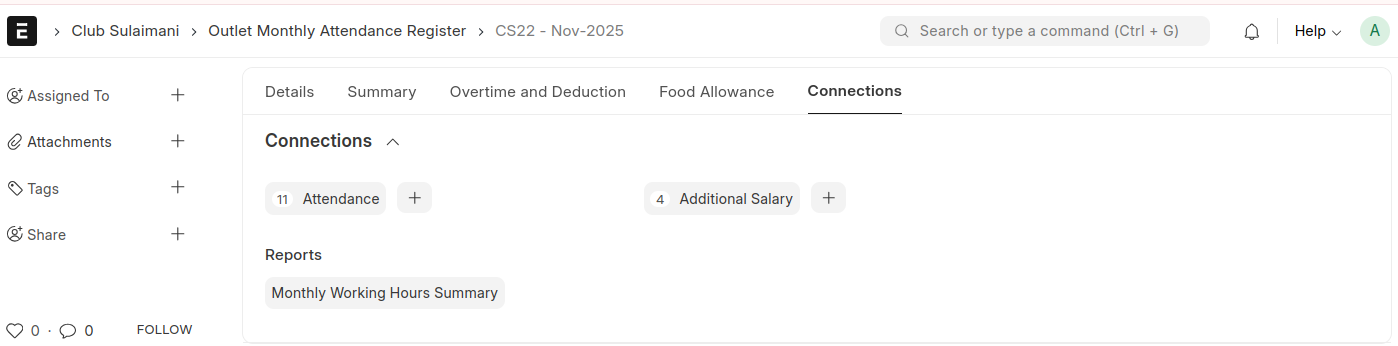
Monthly Working Hours Summary
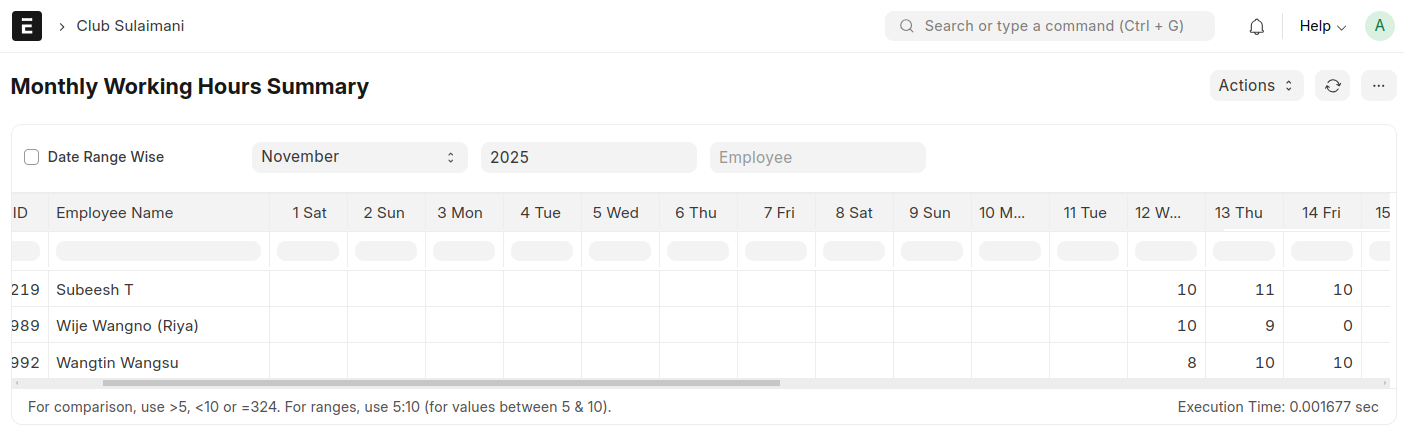
Along with the submission, a Monthly Working Hours Summary Report will be generated, detailing every employee’s present and absent days for the specified month