Momscode-Metalko Customization
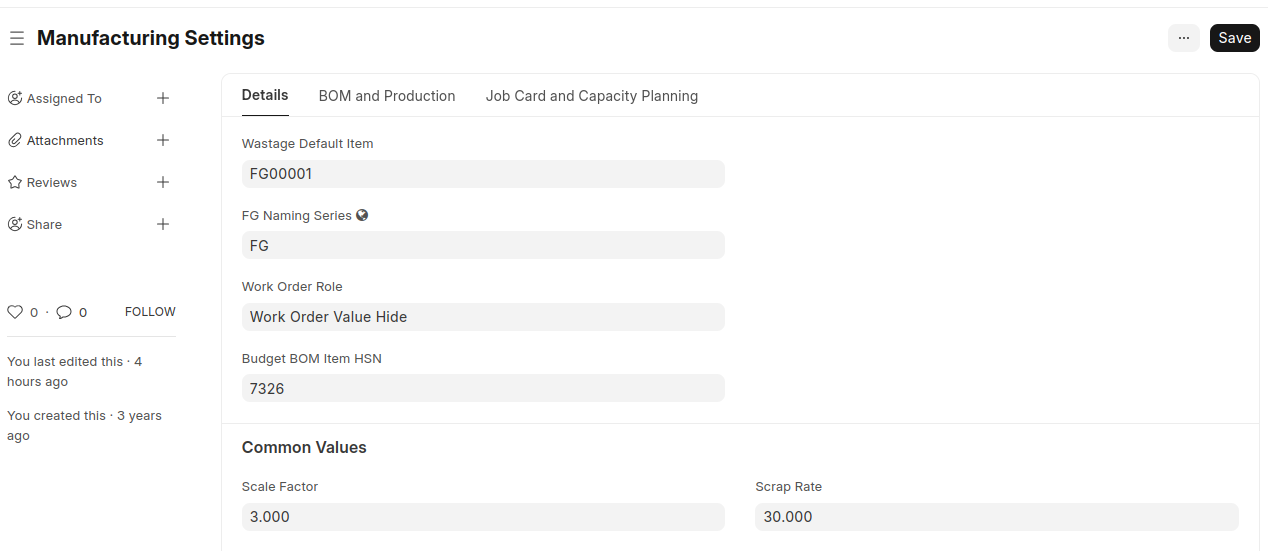
Manufacturing Settings :
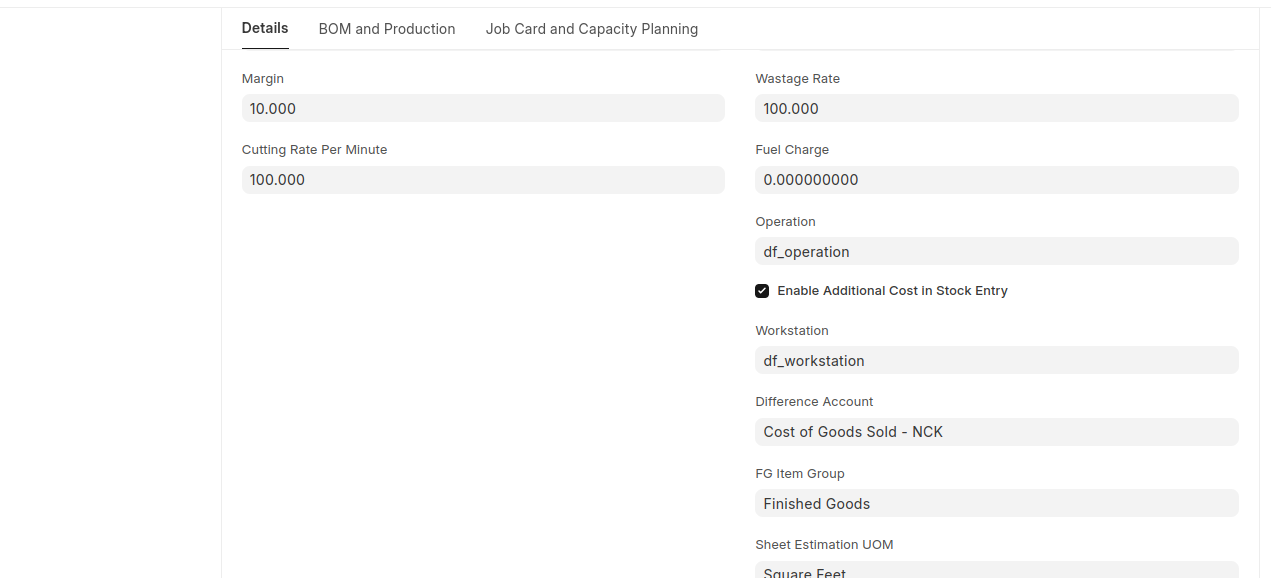
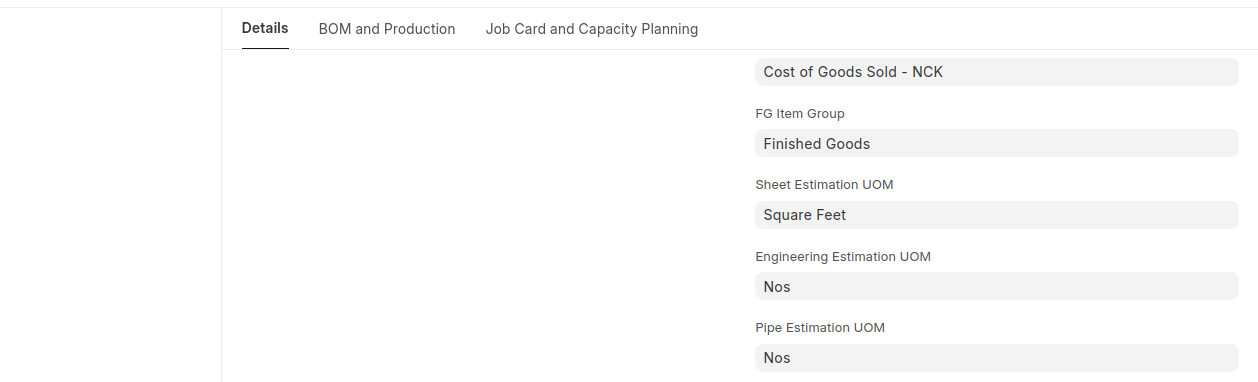
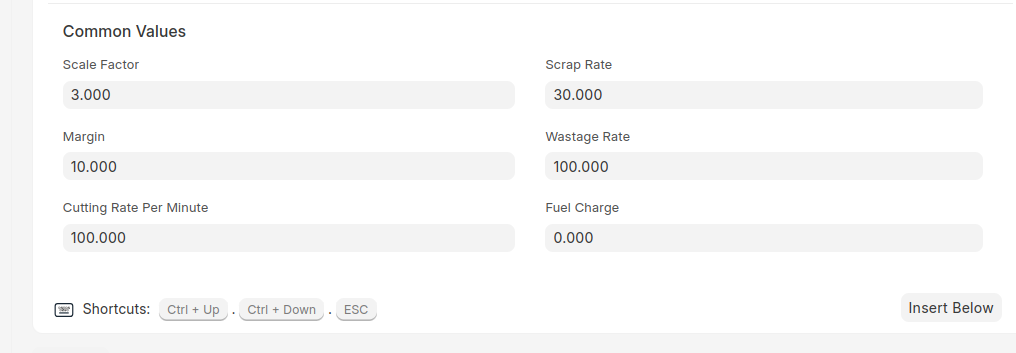
- It stores the default settings such as Wastage Default Item, FG Naming Series, Work Order Role, and Budget BOM Item HSN. Common values like Scale Factor, Scrap Rate, Wastage Rate, Cutting Rate per Minute, and Margin must also be set here.
Budget BOM :
- Budget BOM is the document that includes Budget BOM details, Delivery and Fuel Cost, Additional Operations Cost, and Finished Goods.
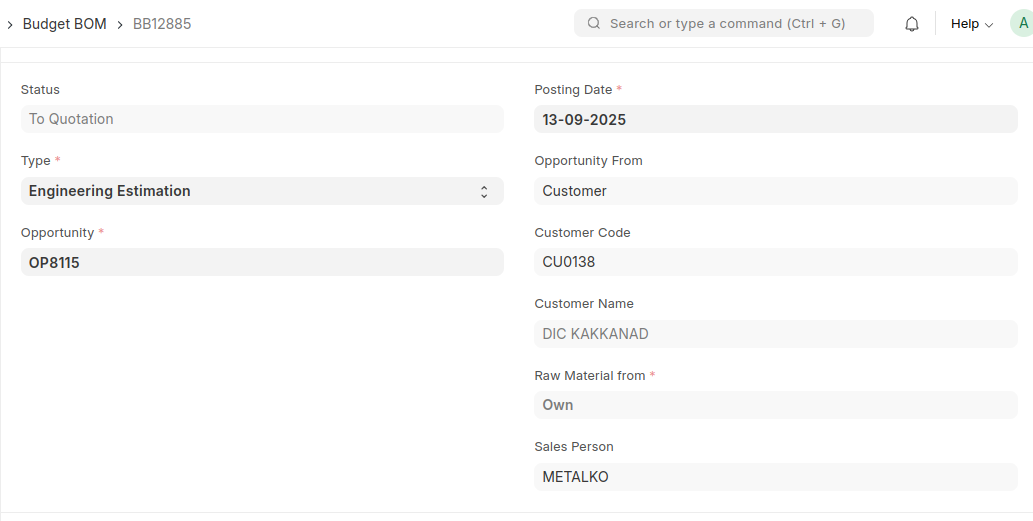
- Select the 'Raw Material From' field in the Budget BOM. The 'Raw Material From' field contains the values 'Customer' and 'Own'.After selecting the this field the opportunity is visible.
- After saving the Budget BOM, a “Create Item” button becomes visible.
- When you click the “Create Item” button, a Finished Good Item is created in the Item Master. After that, the Finished Good table is automatically updated with the item code,item name and values.Once the Create Item button is clicked, it will no longer be visible.
- The workstation and operation value must be selected in the finished good Table.
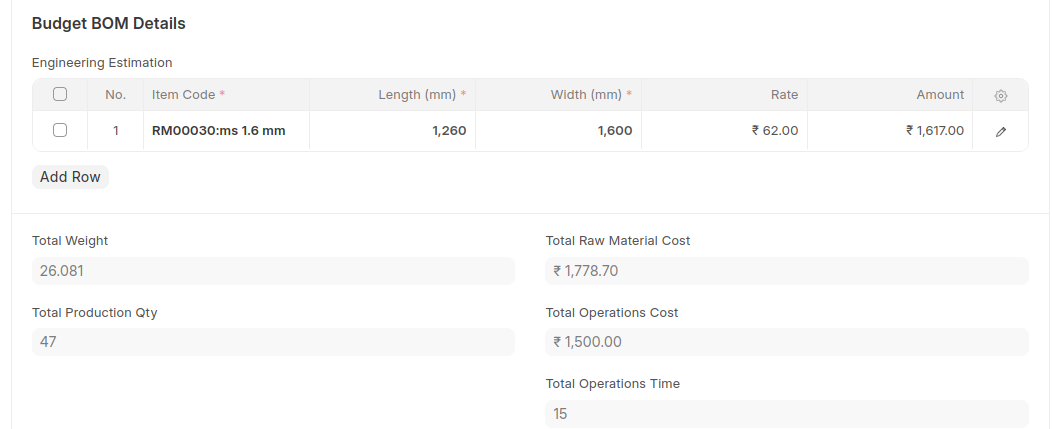
- Sheet Estimation, Engineering Estimation, Pipe Estimation, and Oxyfuel Estimation are the types defined in the Budget BOM.
- The Budget BOM Details table will be visible based on the selected type.
Budget BOM Details [Table in the Budget BOM]
- Item Code, not Finished Good, is filtered.
- The rate is fetched from the Item Price.
- The common values of "Budget BOM Details" Table are fetched from the 'Manufacturing Settings' Doctype.
- Sheet Thickness, Sheet Density, Default Scale Factor, and Scrap Rate are also set in the Item Master under the “More Information” section.
- Length, Width, Cutting Time (in minutes), and Handling Time are manually entered values. Based on these values, the Weight of Sheet, Area in Square Feet, Amount, Total Amount, and Operations Cost are calculated automatically.
- Total Weight, Total Operations Cost, and Total Operations Time are calculated based on the Budget BOM Details table.
Additional Operations Cost [Table in the Budget BOM]
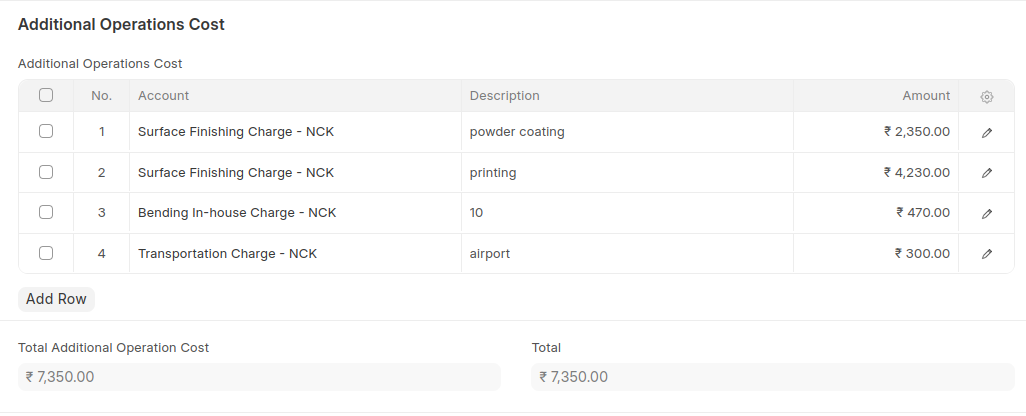
- This is the child table that includes Account, Description, and Amount.
- Select the Account and add the corresponding Description and Amount for each row.
- Based on these amounts, the Total Additional Operation Cost and overall total are calculated.
*The Status of the Budget BOM is listed below:
1. In Progress,To Quotation,Quotation in Progress,To material Request,To Purchase Order,To Sales Order,To BOM,To Purchase Invoice and Workorder,Completed,To Delivery,To Bill,To Workorder,Closed,To Deliver are the status.
* After submitting the Budget BOM, the status becomes “To Quotation,” and the buttons “Close,” “Quotation,” and “Create BOM” become visible.
* If the “Quotation” button is clicked, a Quotation is created in Draft state.
Quotation :
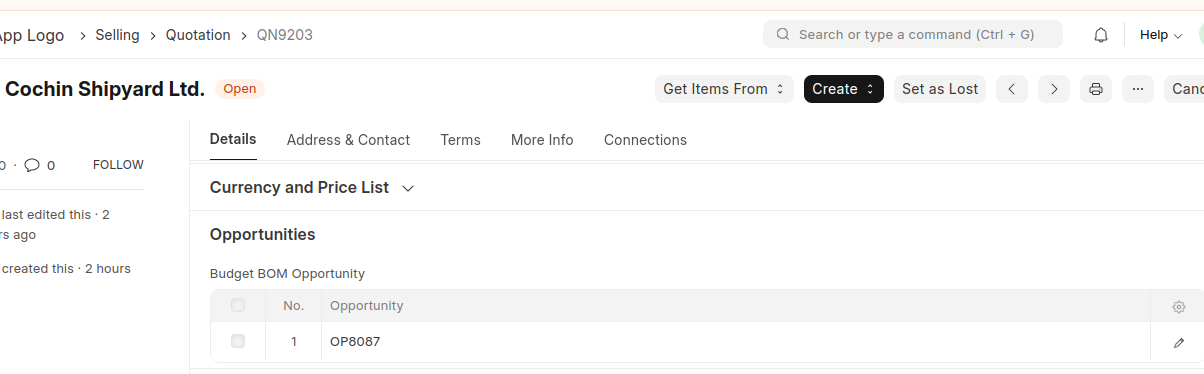
- In the Draft state, the Quotation contains the Opportunities and Reference sections in the Details tab.
- The Budget BOM Opportunity table is updated with the Opportunities selected in the Budget BOM.
 3. The Budget BOM Reference table is also updated with the Budget BOM details.
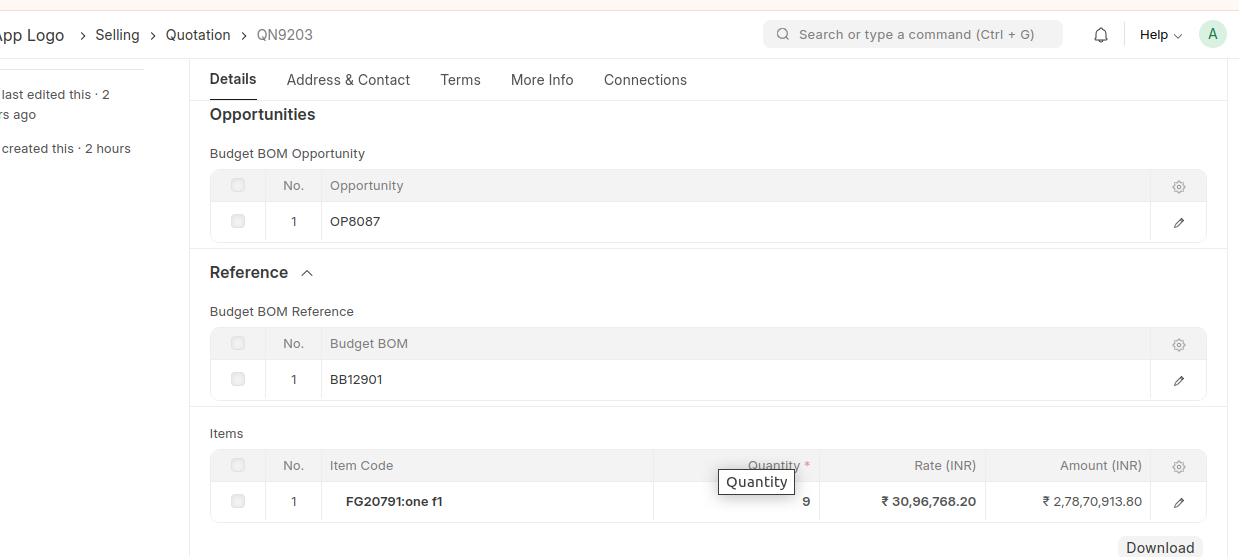 4. The Finished Good from the Budget BOM is fetched into the Items table in the Quotation.
- When the Quotation is submitted, the status of the Budget BOM changes to “Quotation In Progress.”
- After submitting the quotation, create the Sales Order. The status of the quotation changes to Ordered.
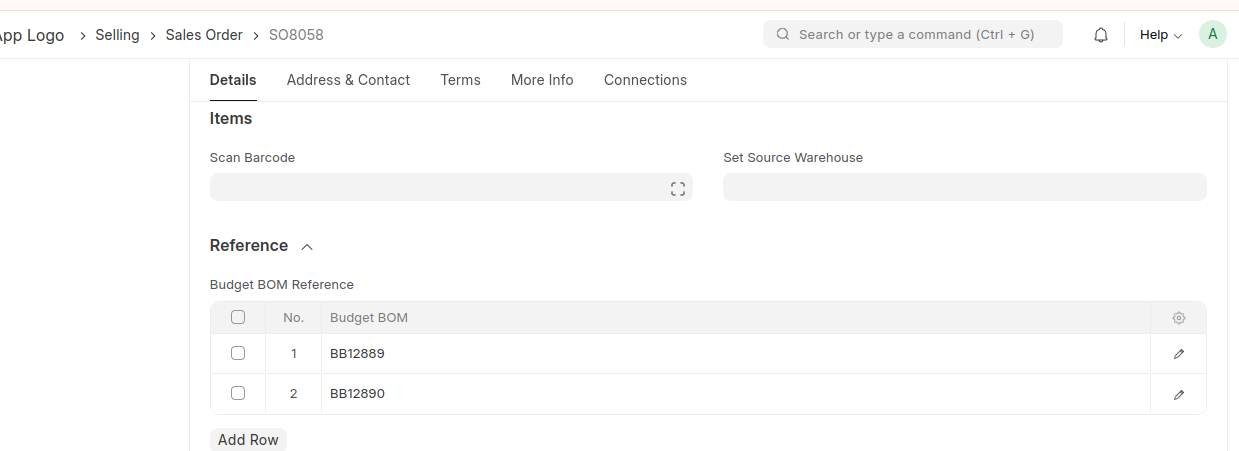
- The value of Budget BOM is also fetched into the reference section in the Details Tab of Sales Order.
- Add all the required values,then save and submit the Sales Order document.
BOM (Create BOM)
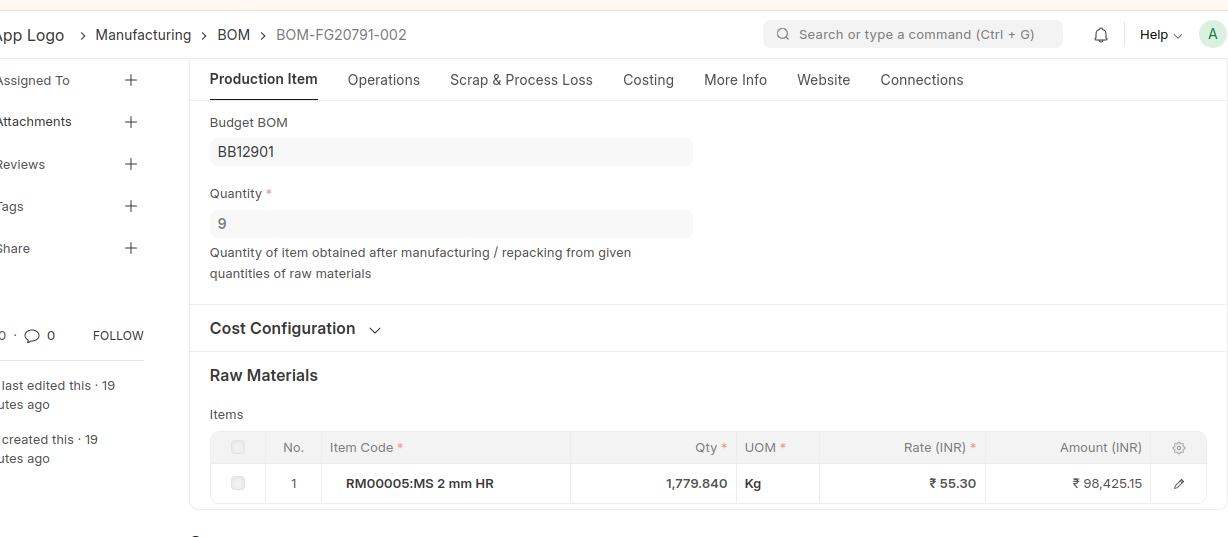
- Create a BOM (Bill of Materials) from the Budget BOM.
- Before creating the BOM, the Finished Good table in the Budget BOM must have a workstation and operation selected.
This BOM contains:
-Finished Good Item
-Raw Materials
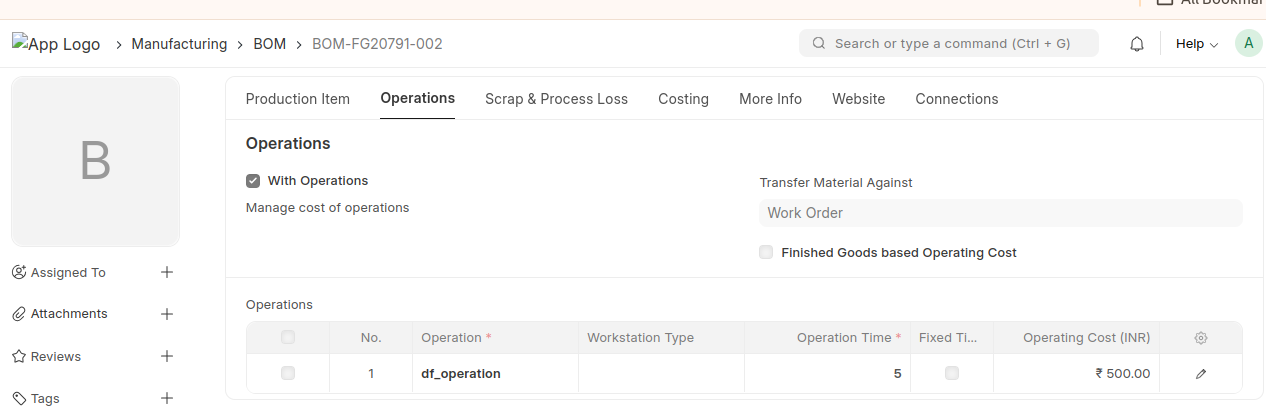
-Operations & WorkstationsThe BOM must have a Workstation and Operation in the Operations table, either fetched from the Manufacturing Settings or from the Finished Good table values in the Budget BOM.
Work Order
- From the Sales Order, you can generate a Work Order.
- Work Order fetches BOM details (raw materials, operations, workstation).
- The 'Create Work Order' button fetches the BOM Details. The BOM must include operations and a workstation.
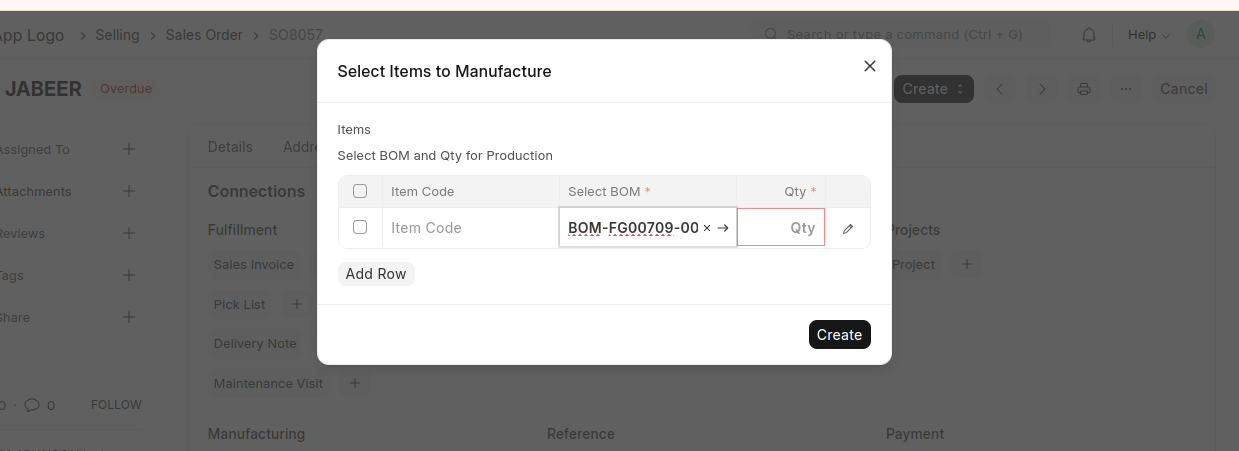 4. These workstations and operations are configured in the Manufacturing Settings also
The selected BOM must have both a workstation and an operation.
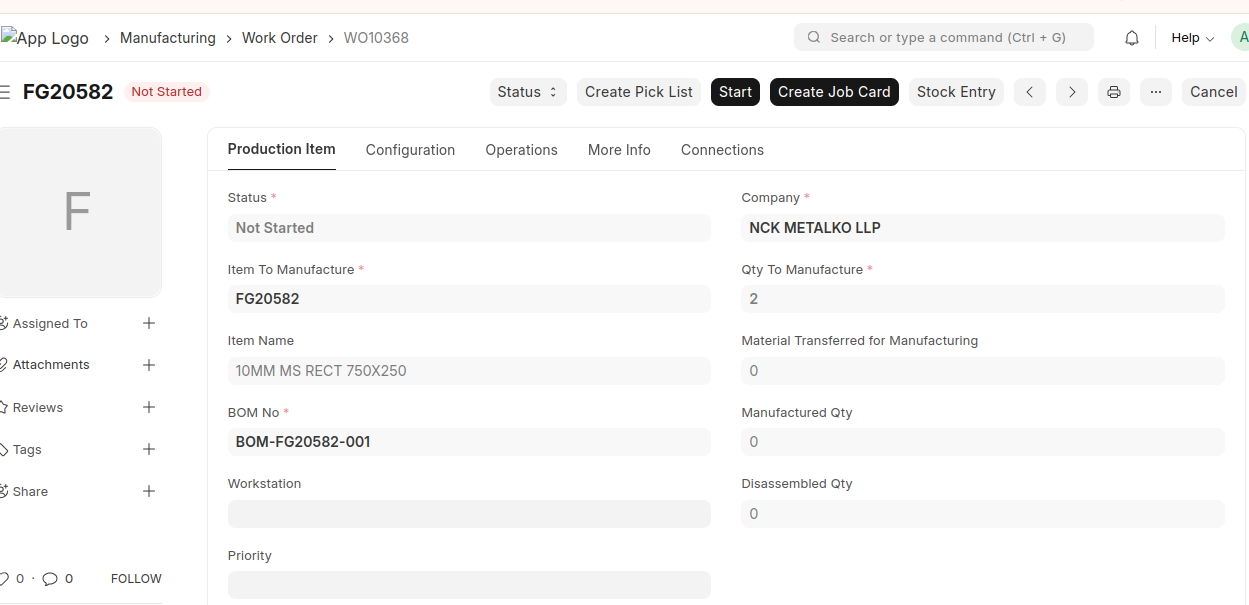
Sales Invoice
- From the Sales Order the Sales Invoice is created.
- The value of Budget Bom is also fetched into the reference section in the Details Tab of Sales Invoice.
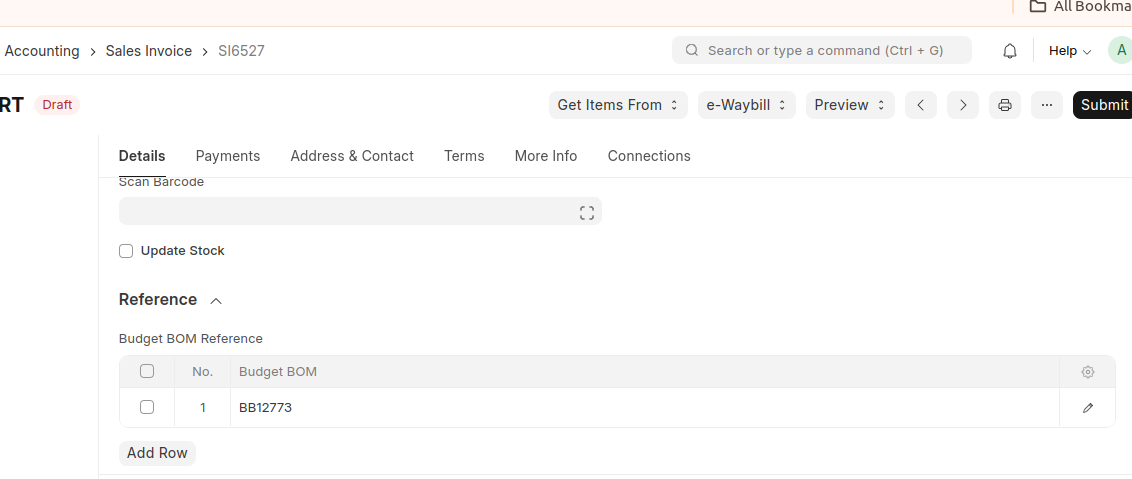 3. Add all the required values,then save and submit the document.