Momscode - Al Manarah - Project Budget
Project
Project Budget
This Module acts sets the Maximum Amount allowed to be spent on Manpower, Materials, and Equipment. It helps to see if the project is making a Profit by comparing the total Budget against the expected revenue
Prerequisites,
- Project Code
- Designation
- Designation Unit Cost
- Equipment or Vehicle Type
- Preliminary Cost Categories
- Item (Raw Materials)
Custom Setting:
- Standard Working Hours (Per Month)
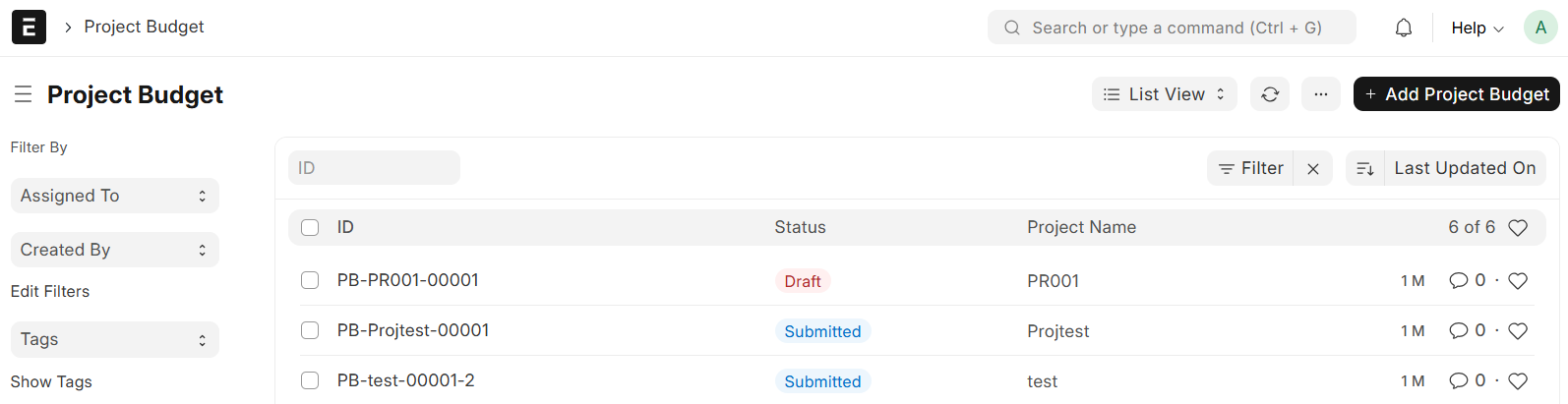
Go to Project Budget List and Click on "Add Project Budget"
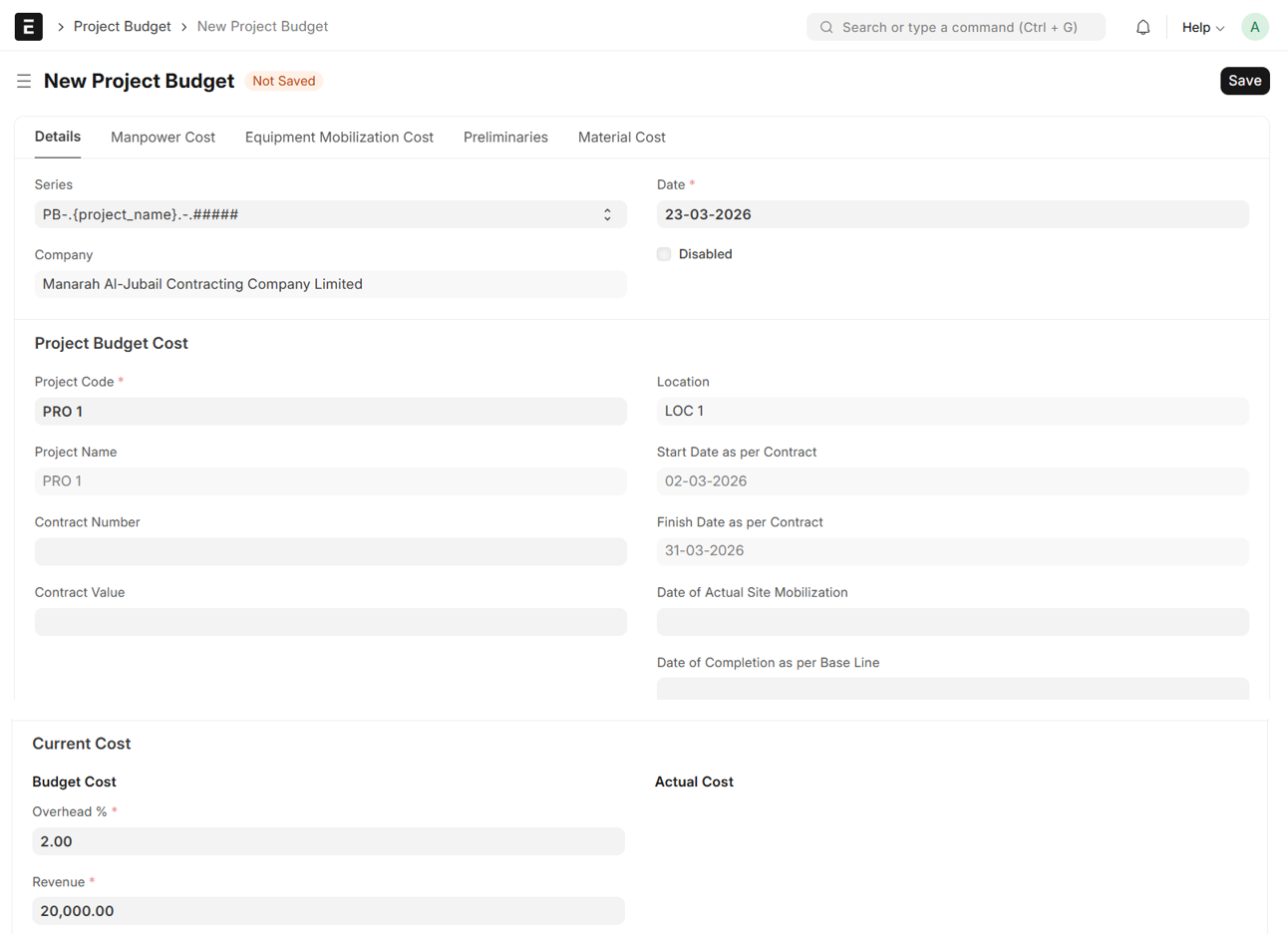
- Set Date
- Select Project Code
- Project Location, Project Name, Start Date as per Contract and Finish Date as per Contract will be auto fetched
- Enter Overhead %
- Enter Revenue
- Save
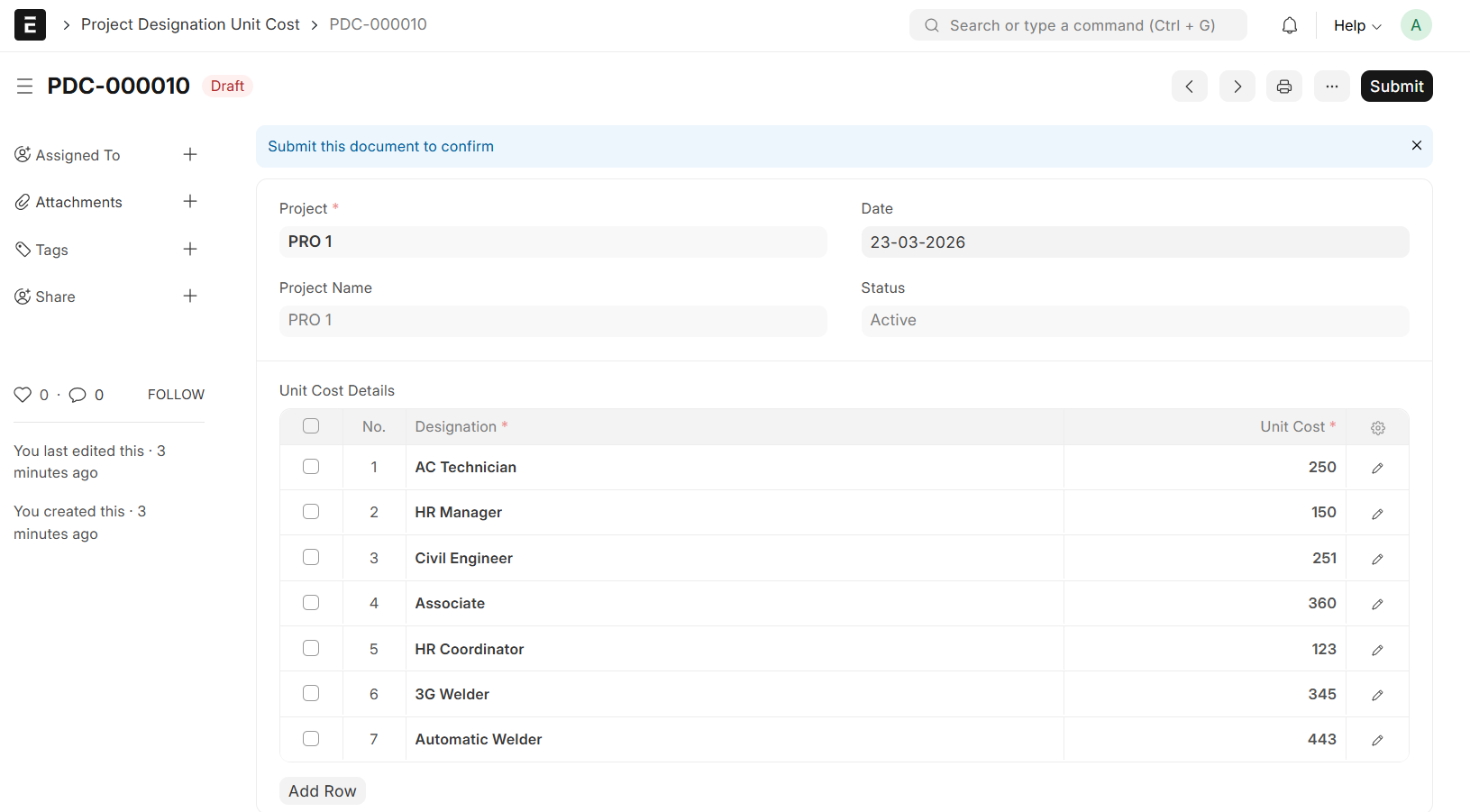
- Upon Saving, a Project Designation Unit Cost Document will be generated automatically
- Go to Project Designation Unit Cost and Update the Unit Costs if required, Then Submit the Project Designation Unit Cost
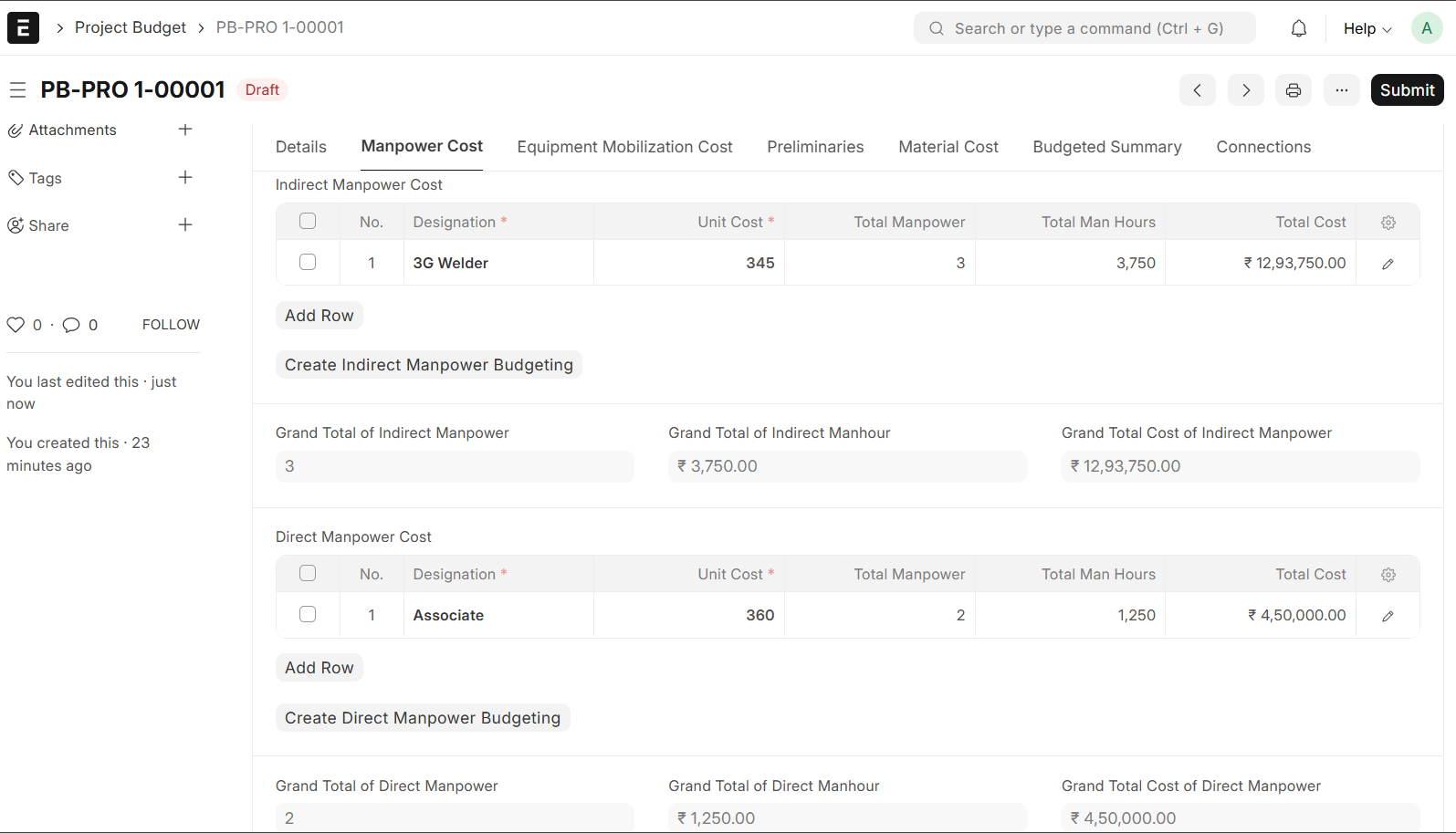
Manpower Cost
The Manpower Cost section is used to calculate and track the total expense of the people working on your project, ensuring every hour of work is accounted for in the budget
- In the Manpower Cost section, Add the Designation. The Unit Cost will be automatically fetched from the Project Designation Unit. Click Save to proceed
- Click on "Create Indirect Manpower Budgeting"
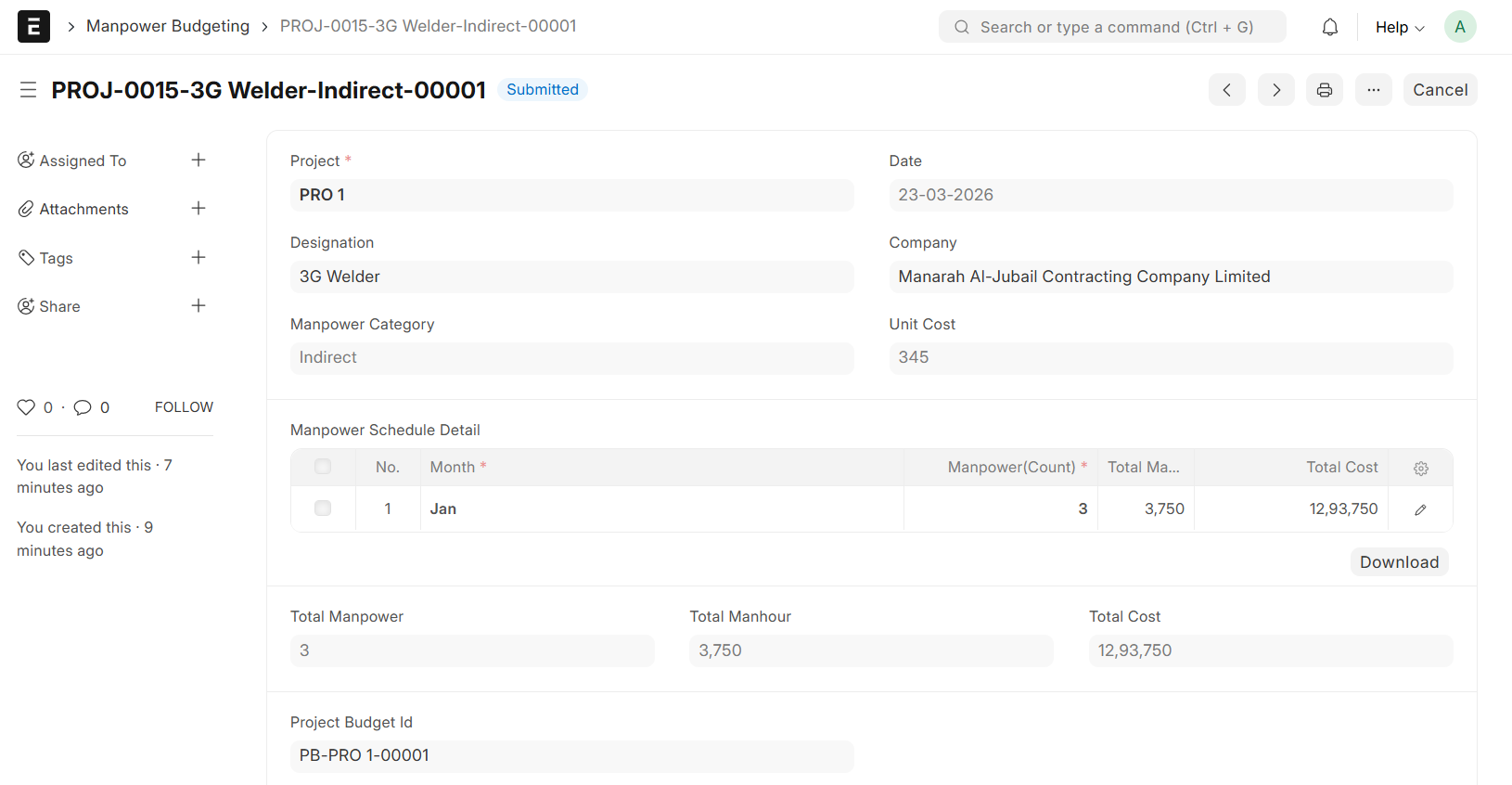
- Manpower Budgeting will be generated
- Go to Manpower Budgeting, Add Manpower Count, Unit Manhour, Working Days, Month and Save & Submit
- The Details will be auto fetched to Indirect Manpower Cost Table
- The same process applies to the Direct Manpower Cost section; follow the steps above to generate and Submit the corresponding Budgeting Detail
Equipment Mobilization Cost
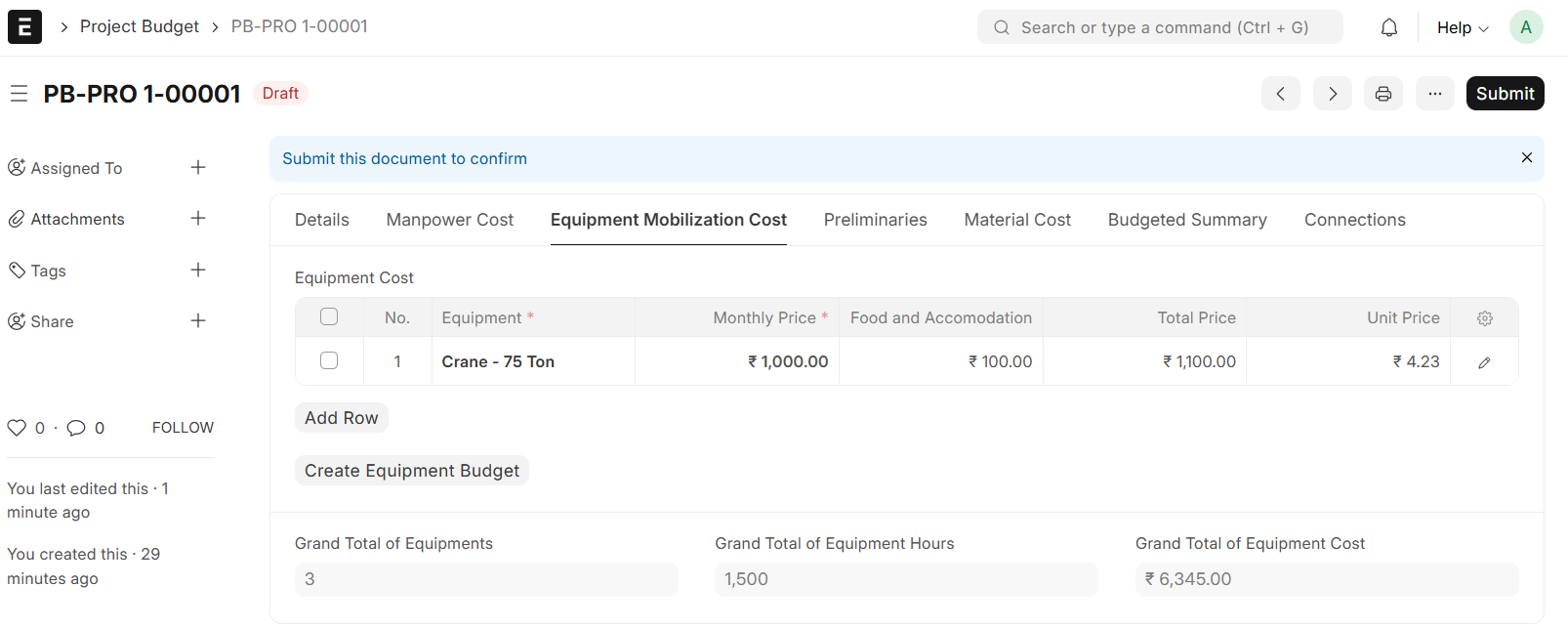
This section tracks the cost of bringing Machinery and Vehicles to the project. It calculates a hourly 'Unit Price' based on monthly Rental fees and Additional costs like Food and Housing for the operators
- Select Equipment or Vechicle Type
- Enter Monthly Price and Food & Accomadation
- The Unit Price will be auto calculated (Formula: Total Price / Standard Working Hours (Per Month)) and Save
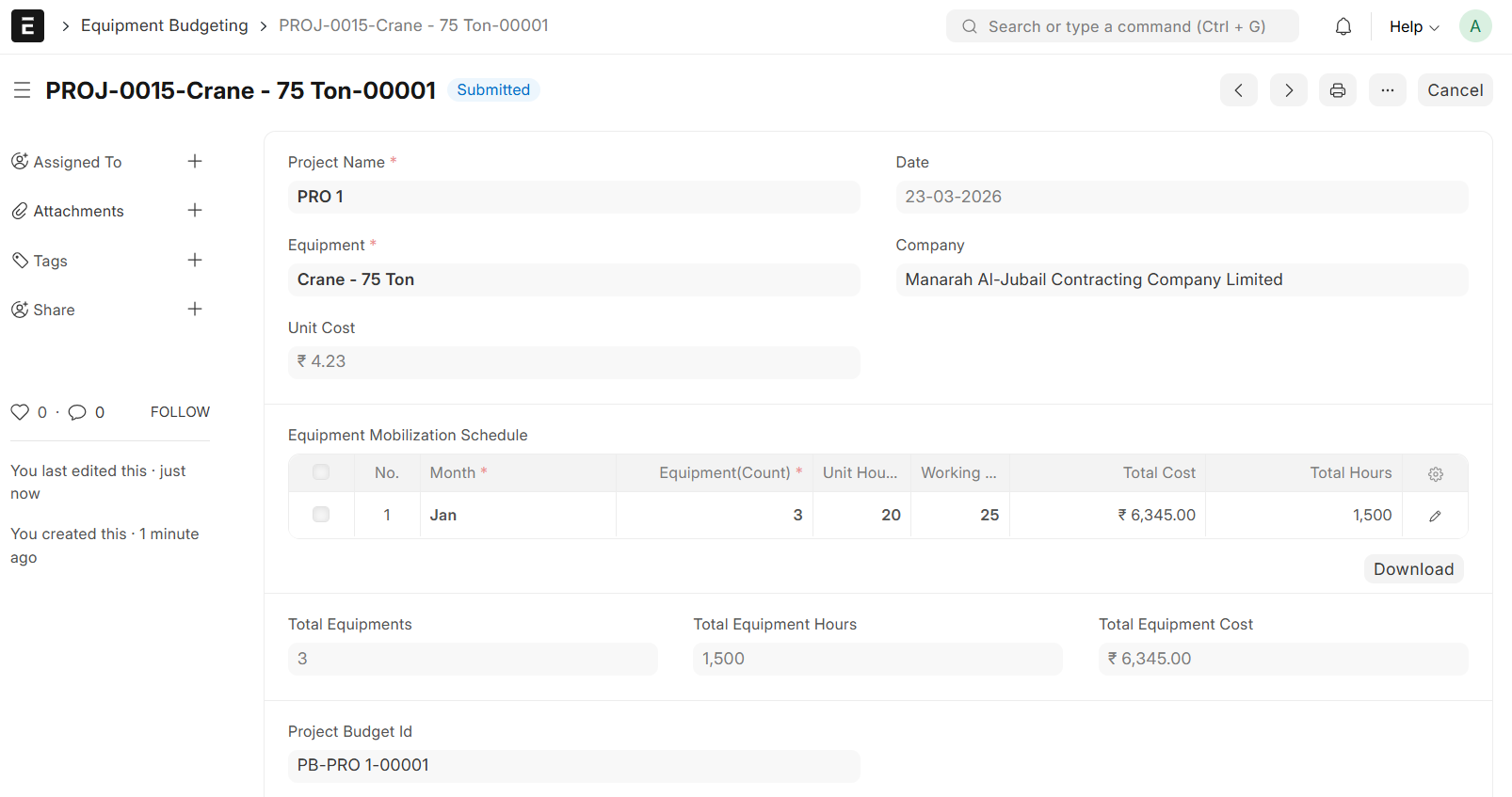
- Click on "Create Equipment Budget"
- Equipment Budget Document will be generated
- Go to Equipment Budgeting and Add Month, Equipment(Count), Unit Hour, Working Days and Save & Submit
- The Details will be auto fethced to the Equipment Cost Table
Preliminaries
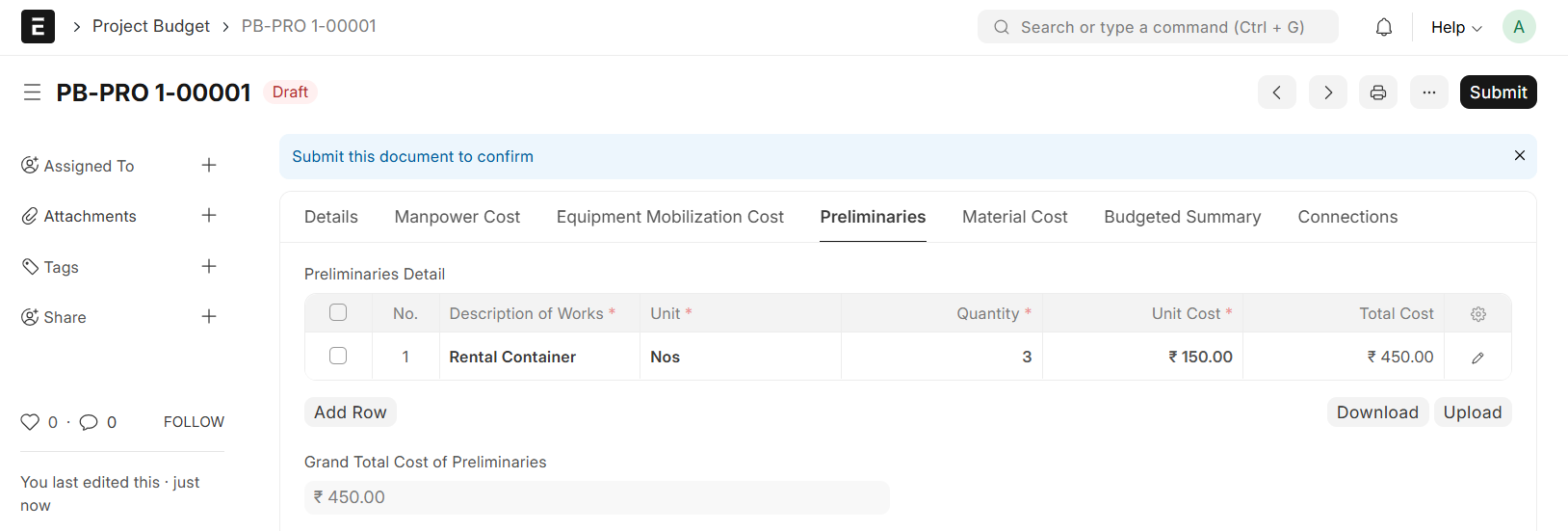
Preliminaries are the General Expenses required to run the Project that aren't tied to a specific building task
- Select Preliminary Cost Categories
- The Details will be auto fetched to the Table
- Add required Quantity and Save
- The Grant Total cost will be auto calculated
Material Cost
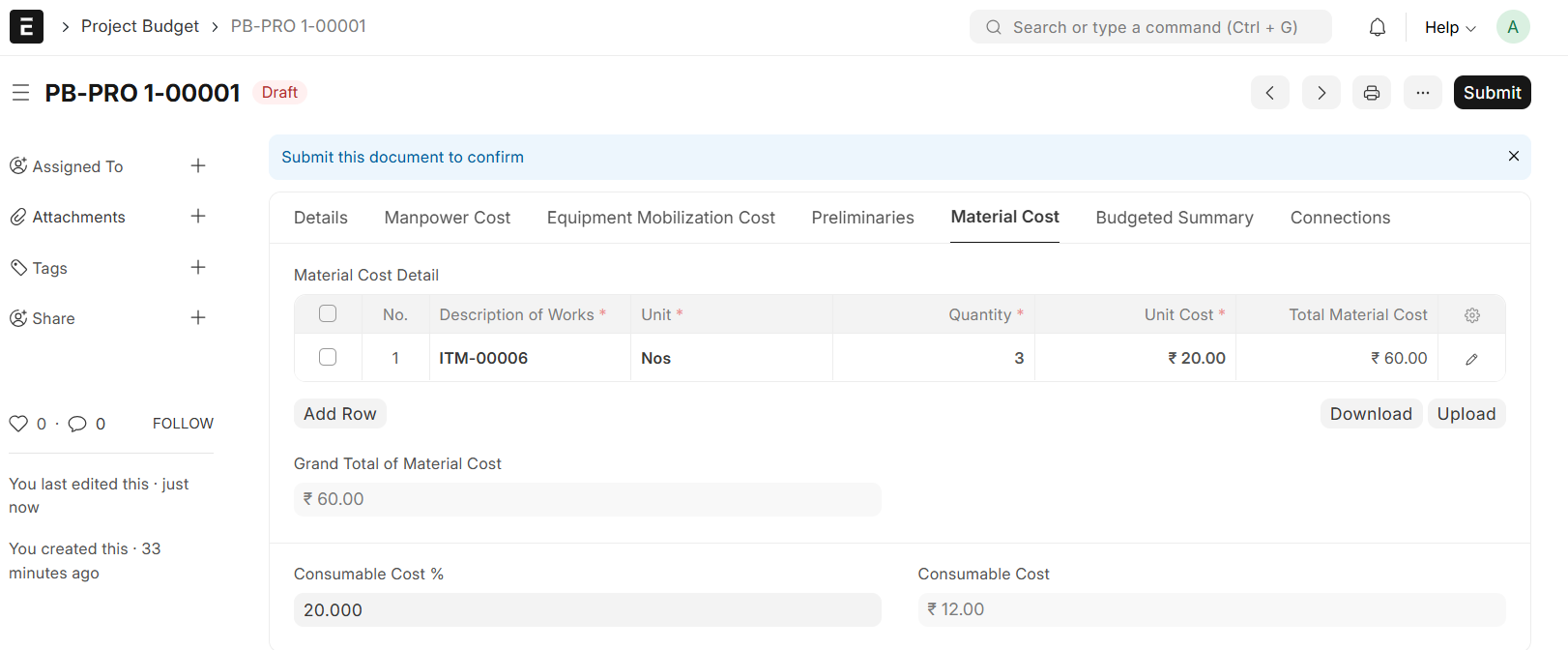
The Material Cost section is used to List all the physical items and supplies needed for the project. It calculates the Total Cost based on the Quantity required and adds a small extra percentage for 'Consumables'
- Select Item
- Unit and Unit Cost will be auto fetched
- Enter Required Quantity
- Enter Consumable Cost % and Save
- The Grant Total Material Cost and Consumable Cost will be auto calculated
- Then, Submit
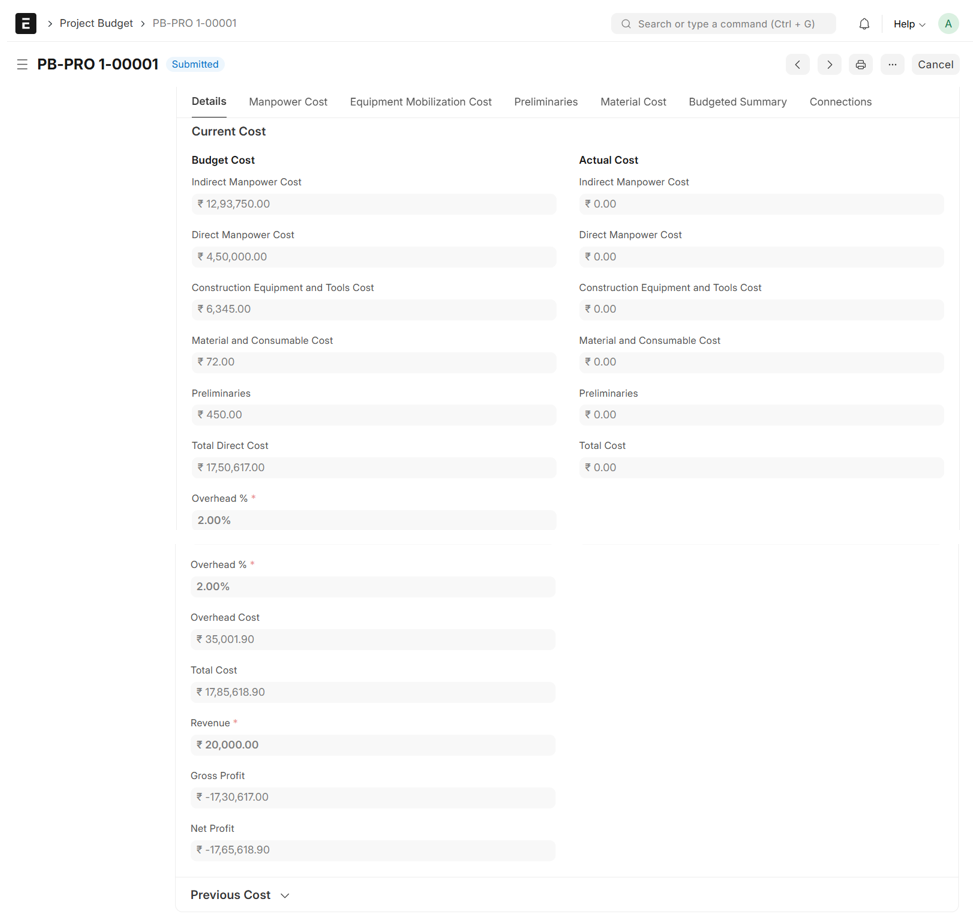
- The Whole Budgeted Costs will be displayed under Budget Cost
- The Budget Gross Profit and Net Profit will be calculated automatically
- The Actual Cost section is automatically updated upon the submission of the Project Timesheets and Other related Documents
Note:
To Revise an existing Budget, generate a new Project Budget entry with the revised values. Upon saving, the system will automatically deactivate the previous version and migrate its data to the Previous Cost section of the new budget for historical comparison