Momscode - Al Manarah - Payroll Process
Payroll Process
The purpose of the Payroll Process is to ensure accurate and timely compensation for all Employees by integrating Attendance data, Shift Assignments, and Statutory Requirements. This Process automates Salary calculations
Employees Assigned to Project
Prerequisites,
- Employee
- Project
- Project Budget
- Manpower Requisition Form
- Manpower Mobilization Record
- Mobilized Manpower Register
- Manpower Timesheet
- Employee Time Log
- Manpower OT Request
- Attendance
- Salary Component
- Salary Structure
- Salary Structure Assignment
- Holiday List
- Leave Type
- Leave Policy
- Leave Policy Assignment
- Leave Allocation
Employees not Assigned to Project
Prerequisites,
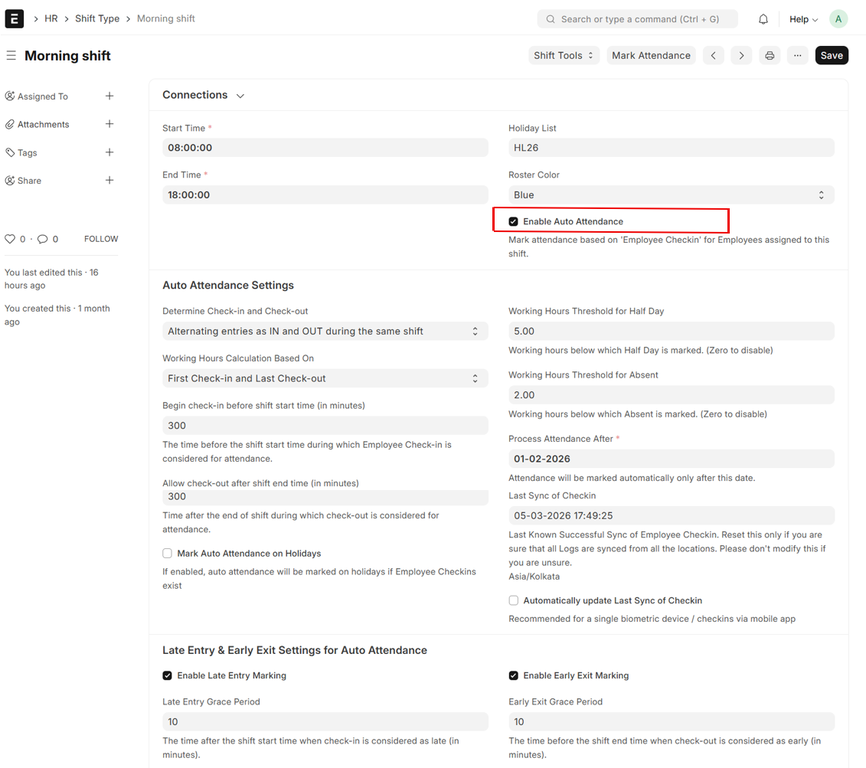
- Shift Type
- Go to Shift Type, Enter Name, Start and End Time and Holiday List
- Tick the 'Enable Auto Attendance' Checkbox
- Fill in all required fields
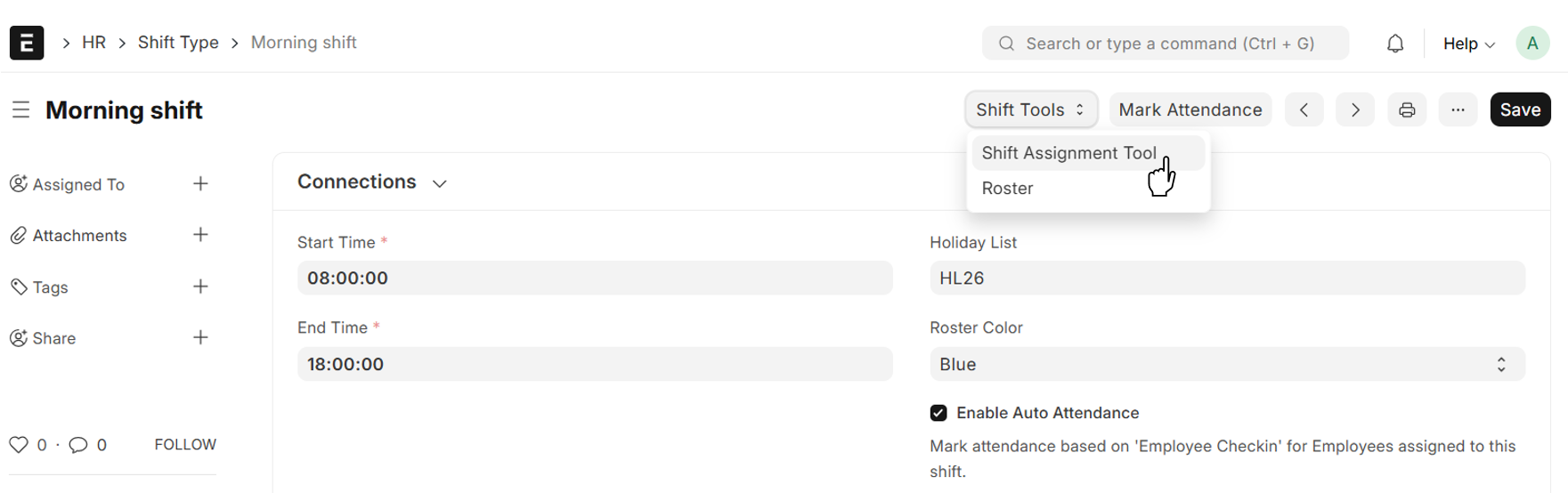
- Shift Assignment Tool
- From Shift Type → Shift Tool → Shift Assignment Tool
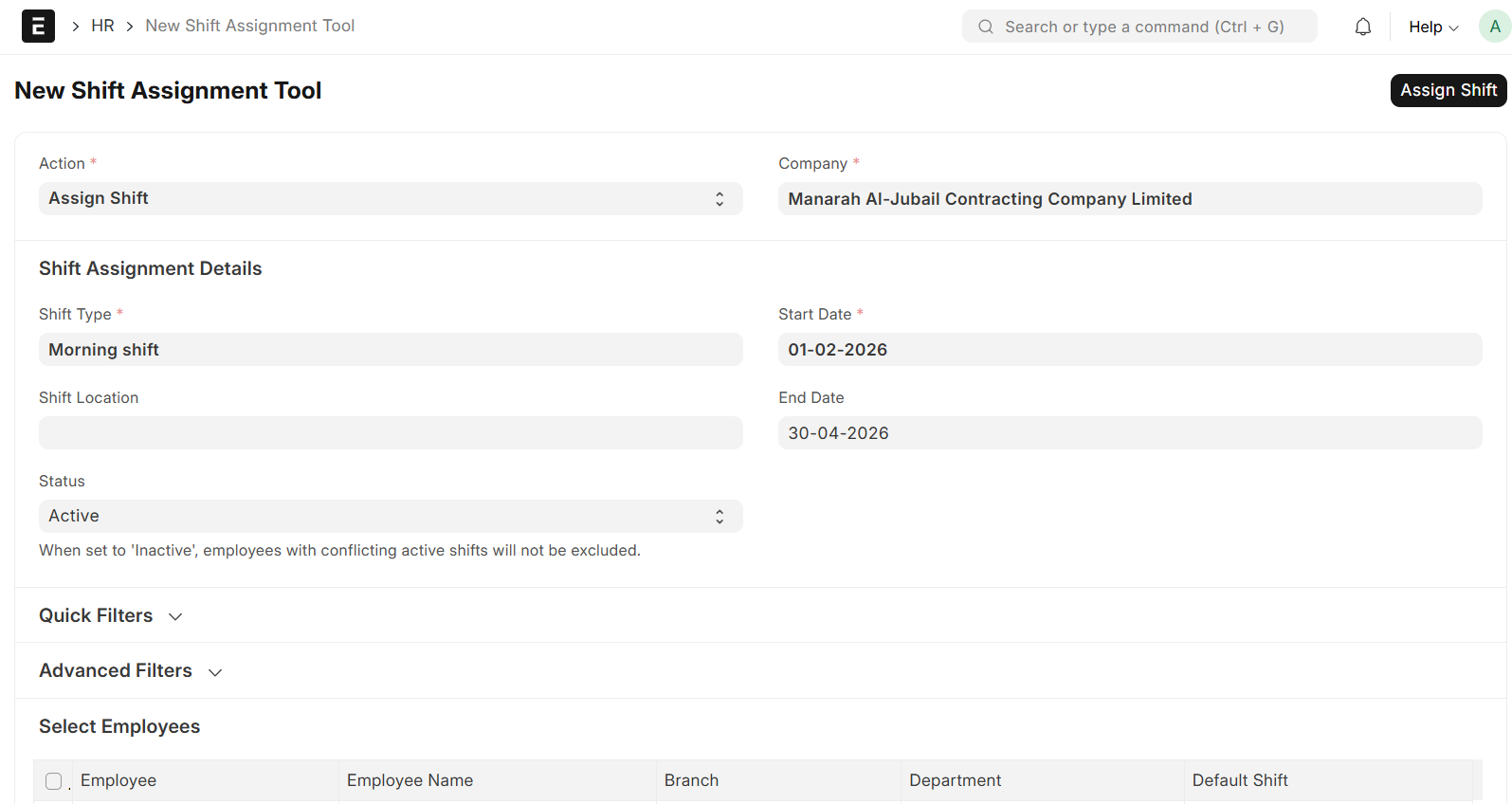
- Set Starting Date
- Set End Date (Optional)
- All Employees will be auto fetched to the Table
- Select the Employees required for the Shift
- Click on 'Assign Shift'
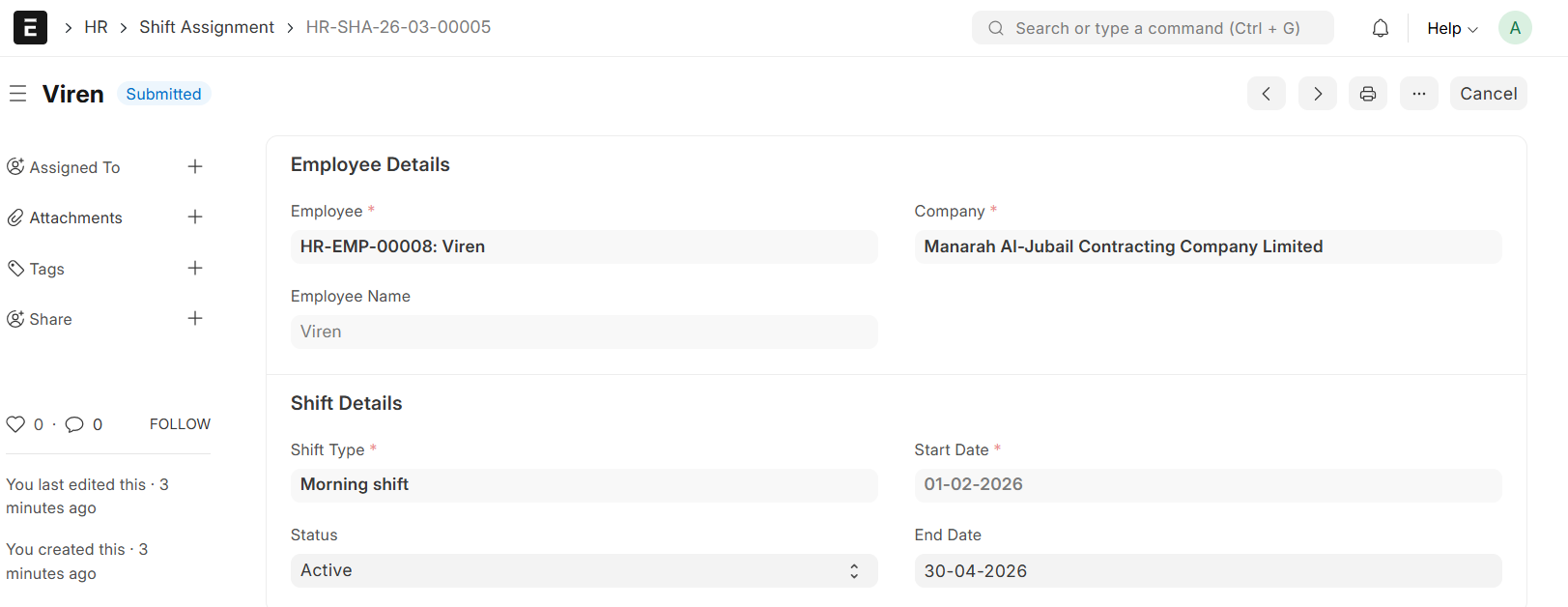
The system will Assign Shifts to the Selected Employees
- Employee Checkin
- Select Employee
- Set Time
- Select Log (Either IN or OUT)
- Tick the Check box 'Skip Auto Attendance'
- Save
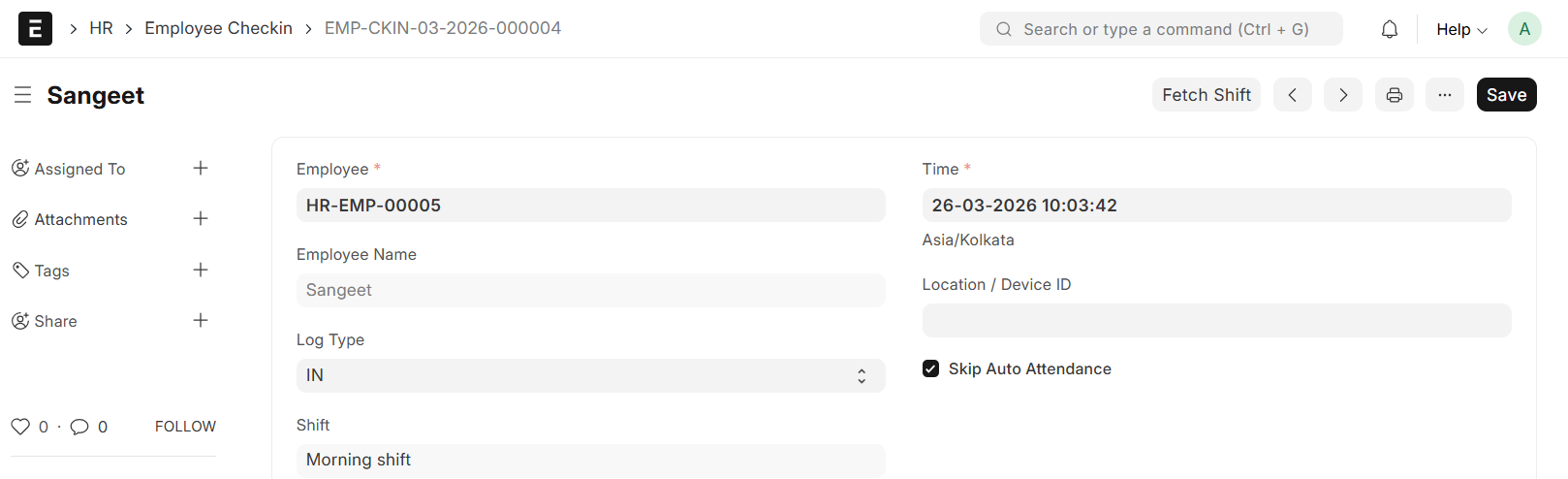
- Mark Attendance
- From Shift Type → Mark Attendance
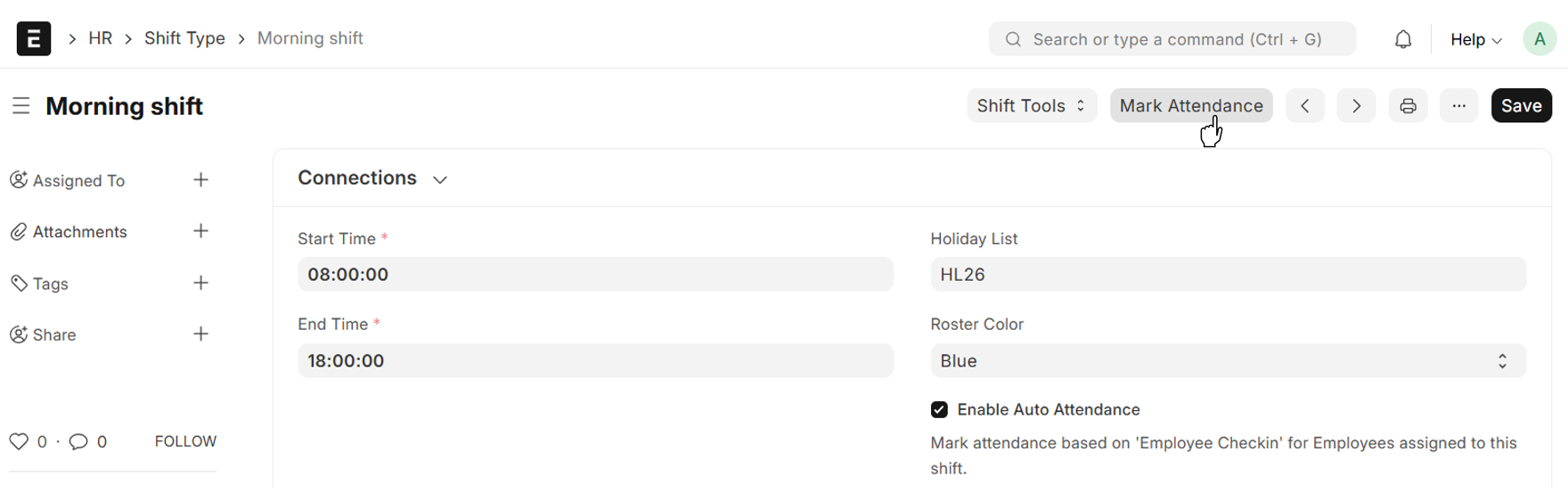
- Workings Hours will be fetched from Employee Master
- OT Hours are calculated as the time exceeding standard Working Hours
Payroll Entry
Prerequisites,
- In Employee Master, Enter GOSI Calculation Details
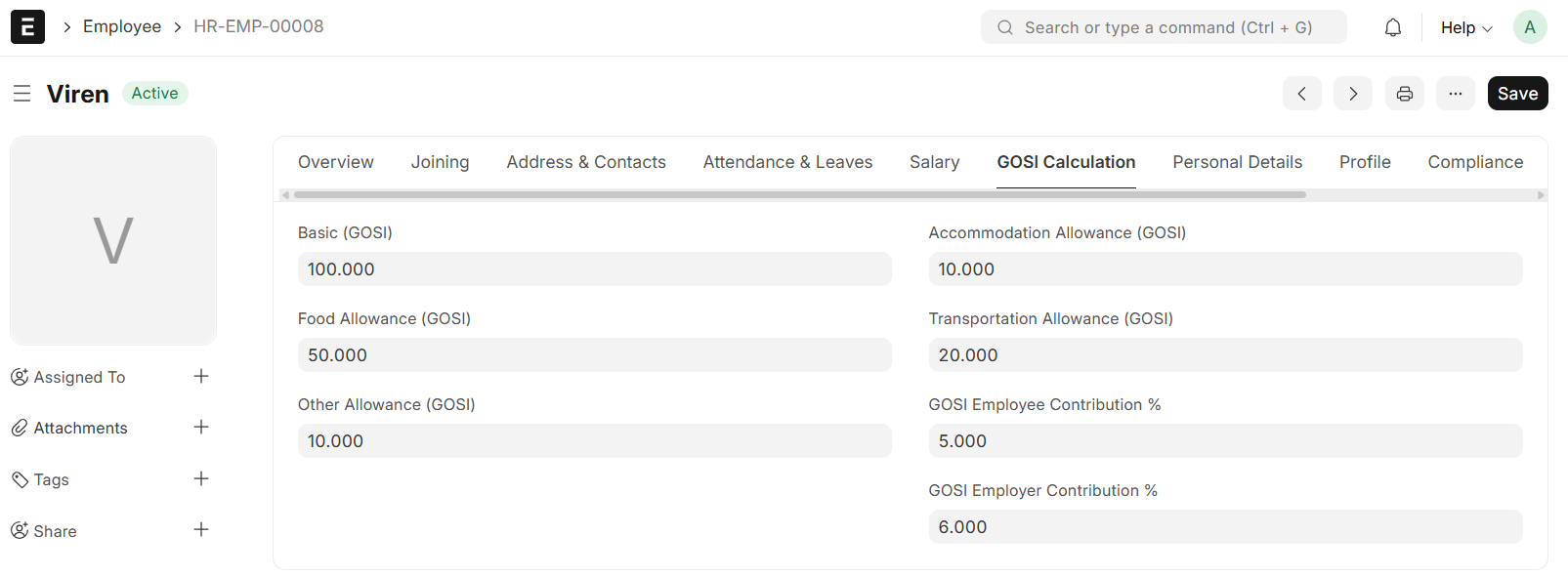
Go to Payroll Entry List and Click on "Add Payroll Entry"
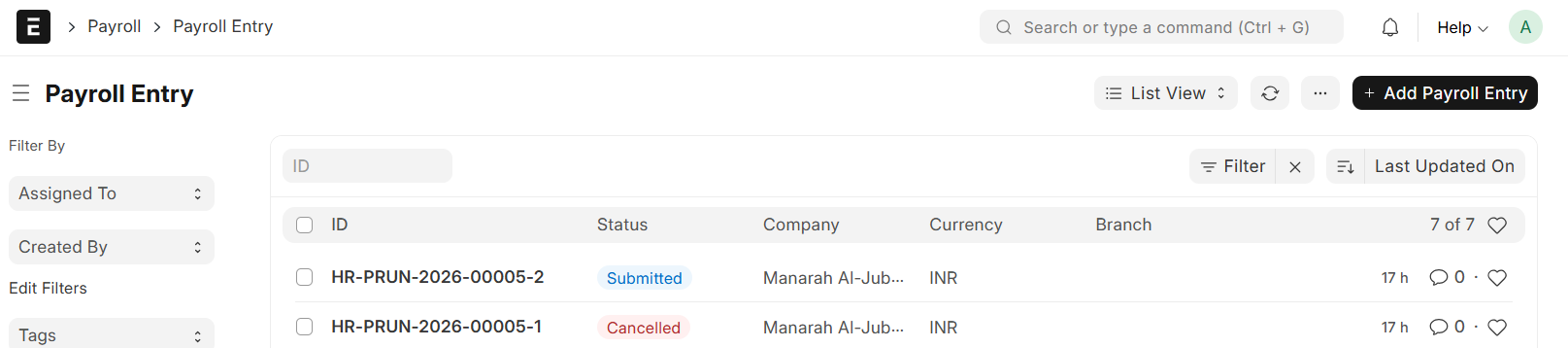
- Set Posting Date
- Set Payroll Frequency
- Set Start Date, End Date will be auto filled
- Save
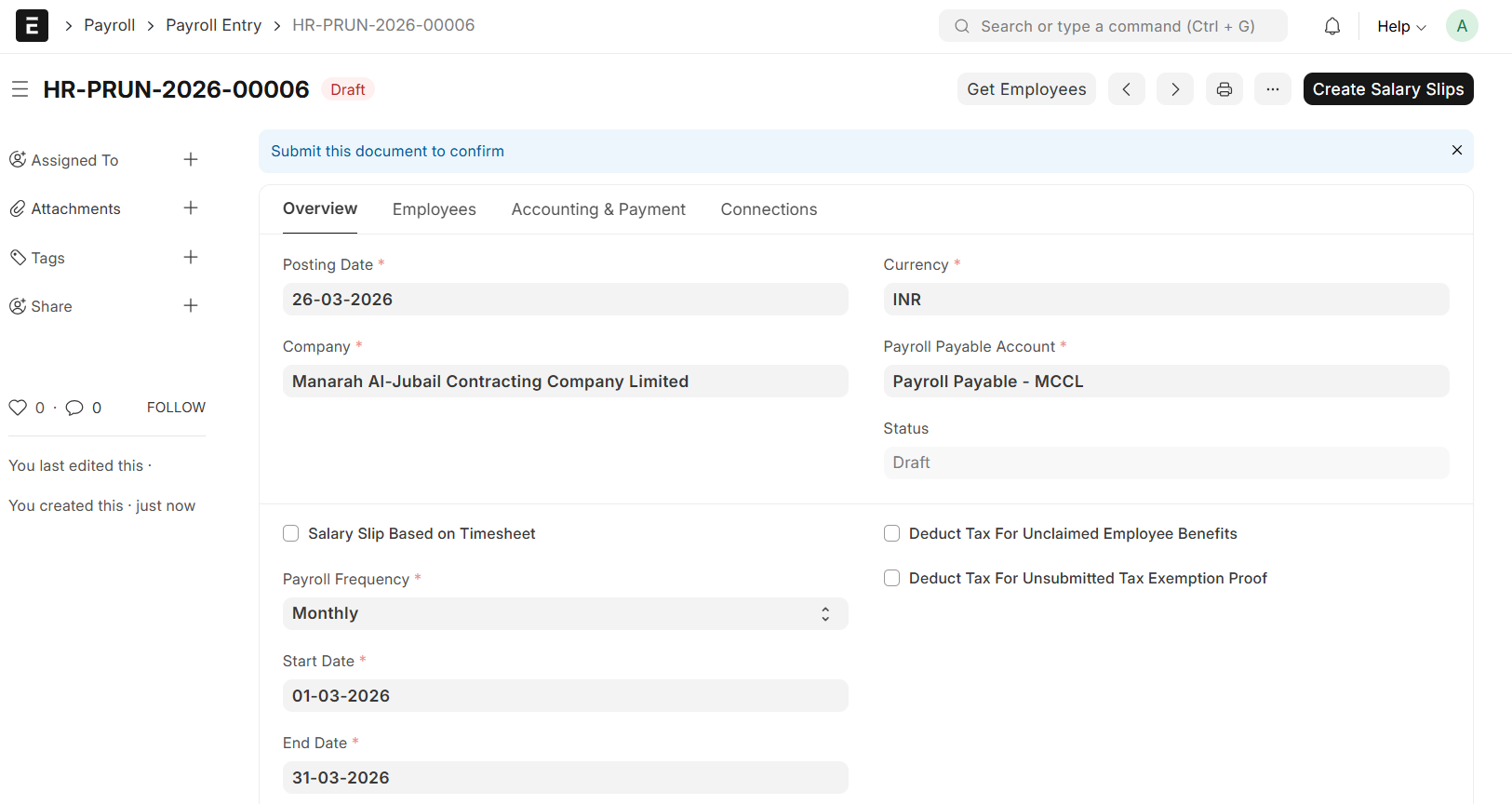
- Click on 'Get Employees'
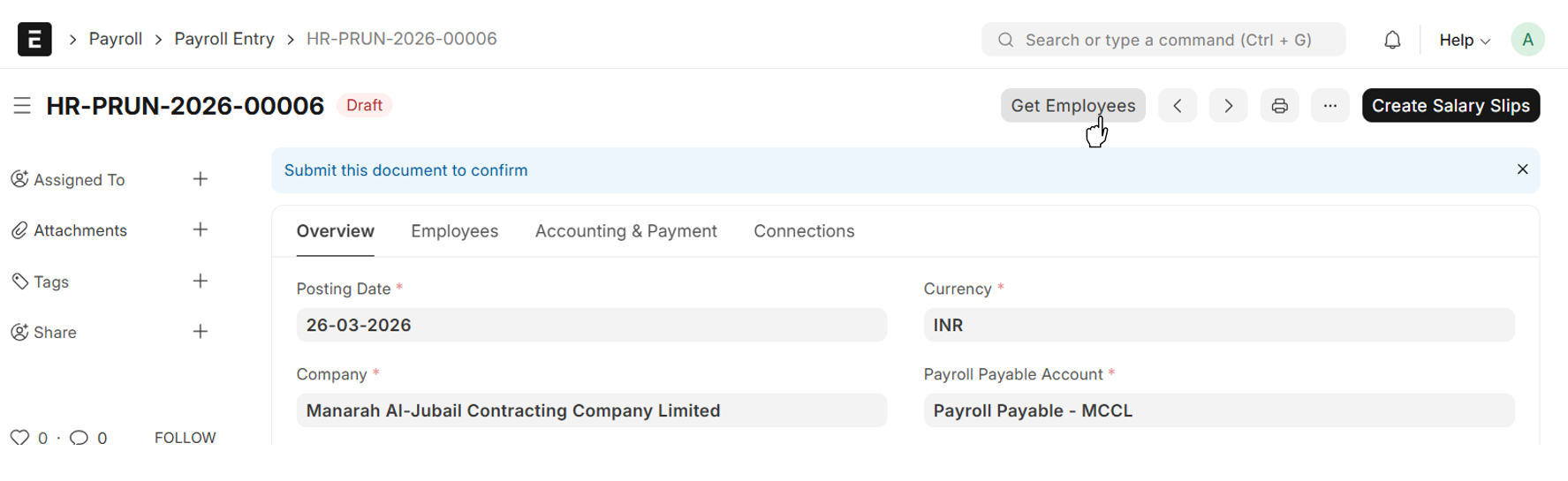
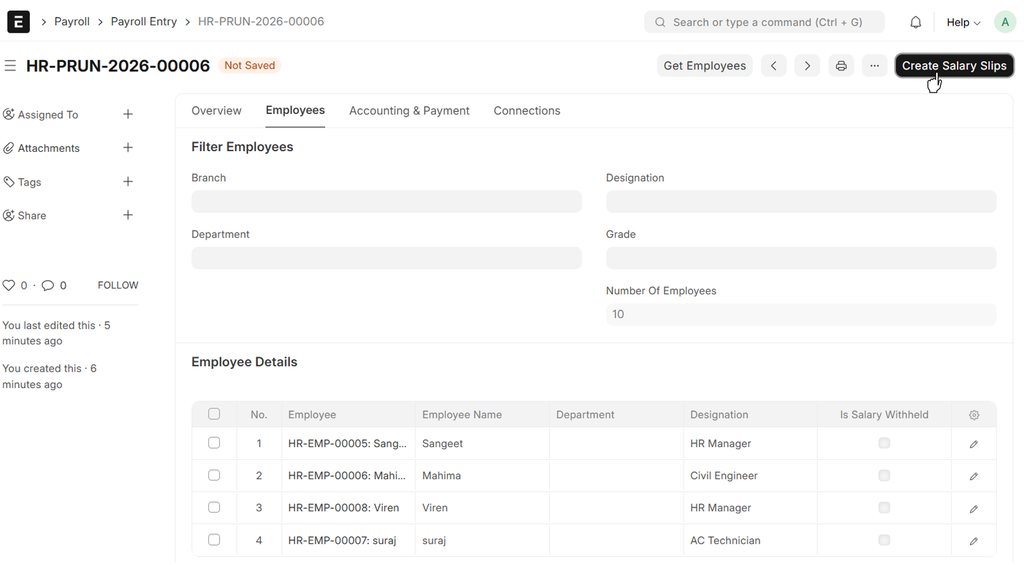
- The Employee Details will be auto fetched to the Employee Details Table
- Click on 'Create Salary Slip'
Navigate to the Salary Slip List to Submit the generated slips. All Slips are saved as Drafts by default
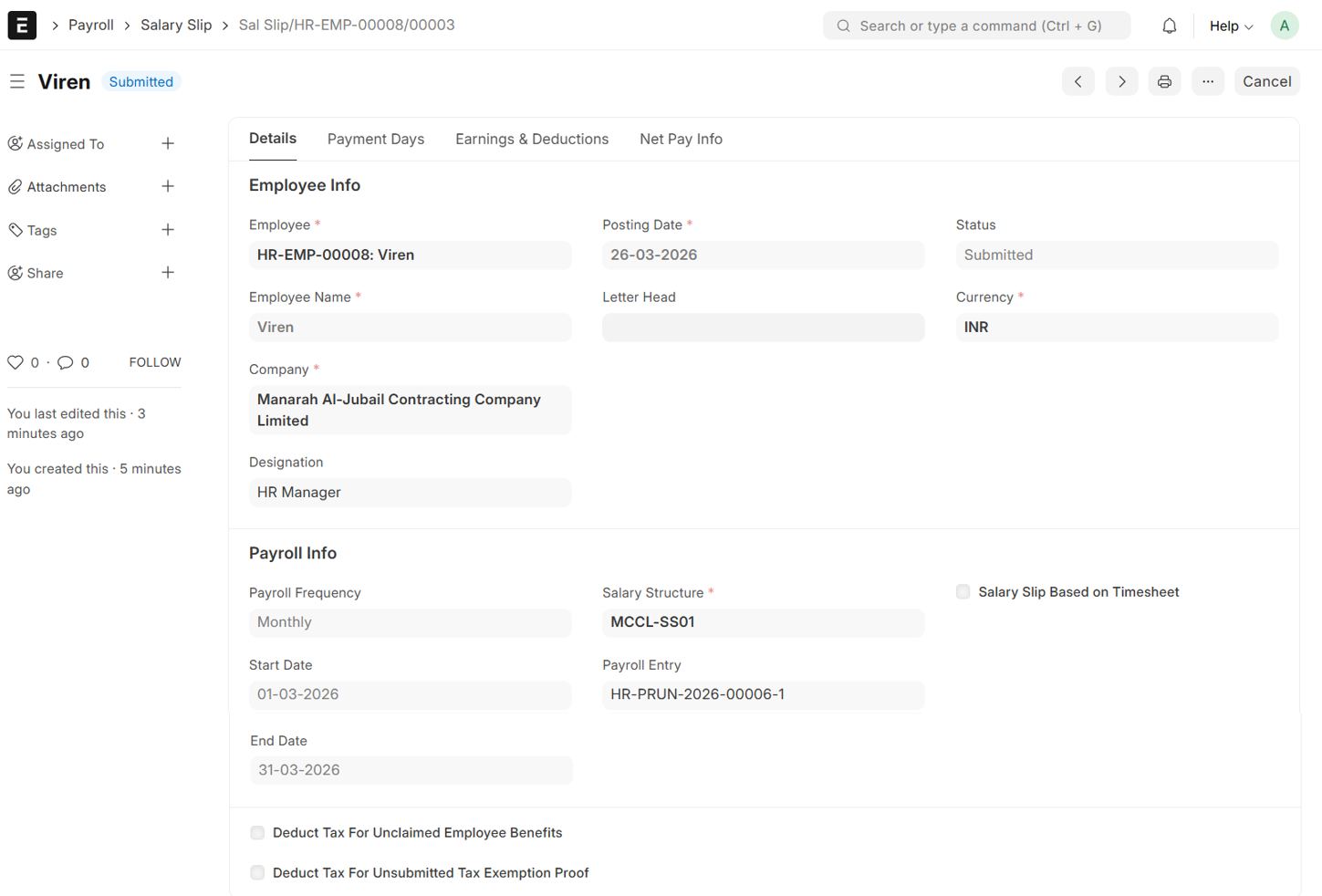
- The Salary Slip auto filled by Employee Master, Attendance and Salary Structure Assignment