Momscode - Al Manarah - Material Request
Material Request
A Material Request is an internal document used to ask for materials, consumables, or finished goods for a specific project
Go to the Material Request list and Click on "+ Add Material Request"
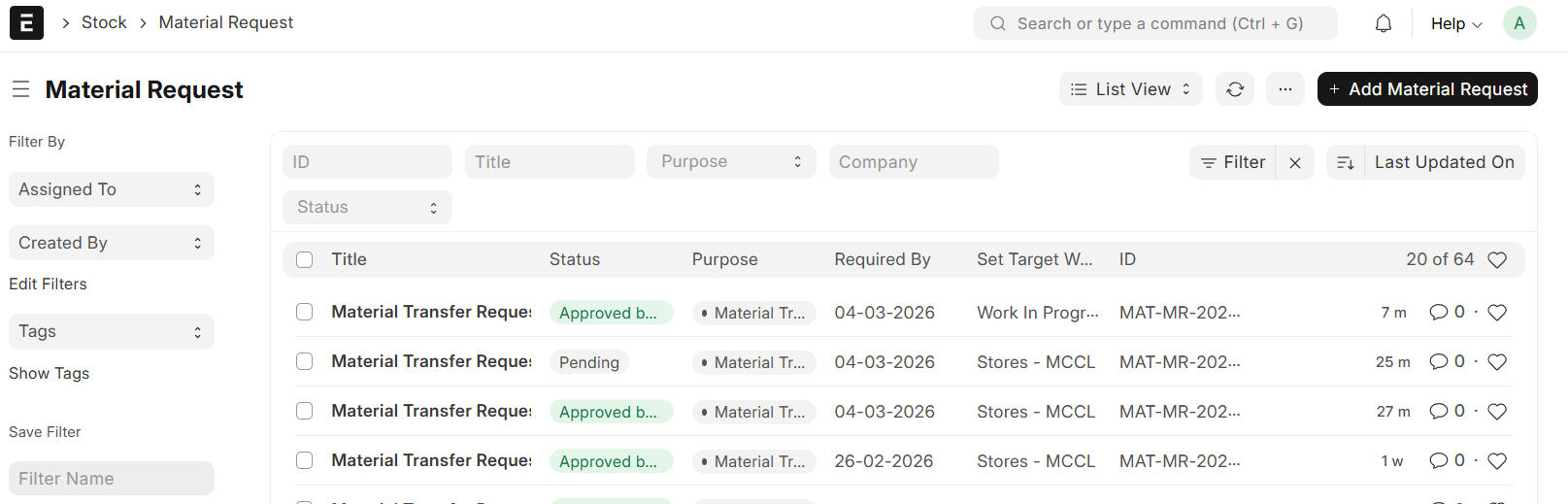
Material Transfer:
A Material Transfer is the process of moving items from one company warehouse to another
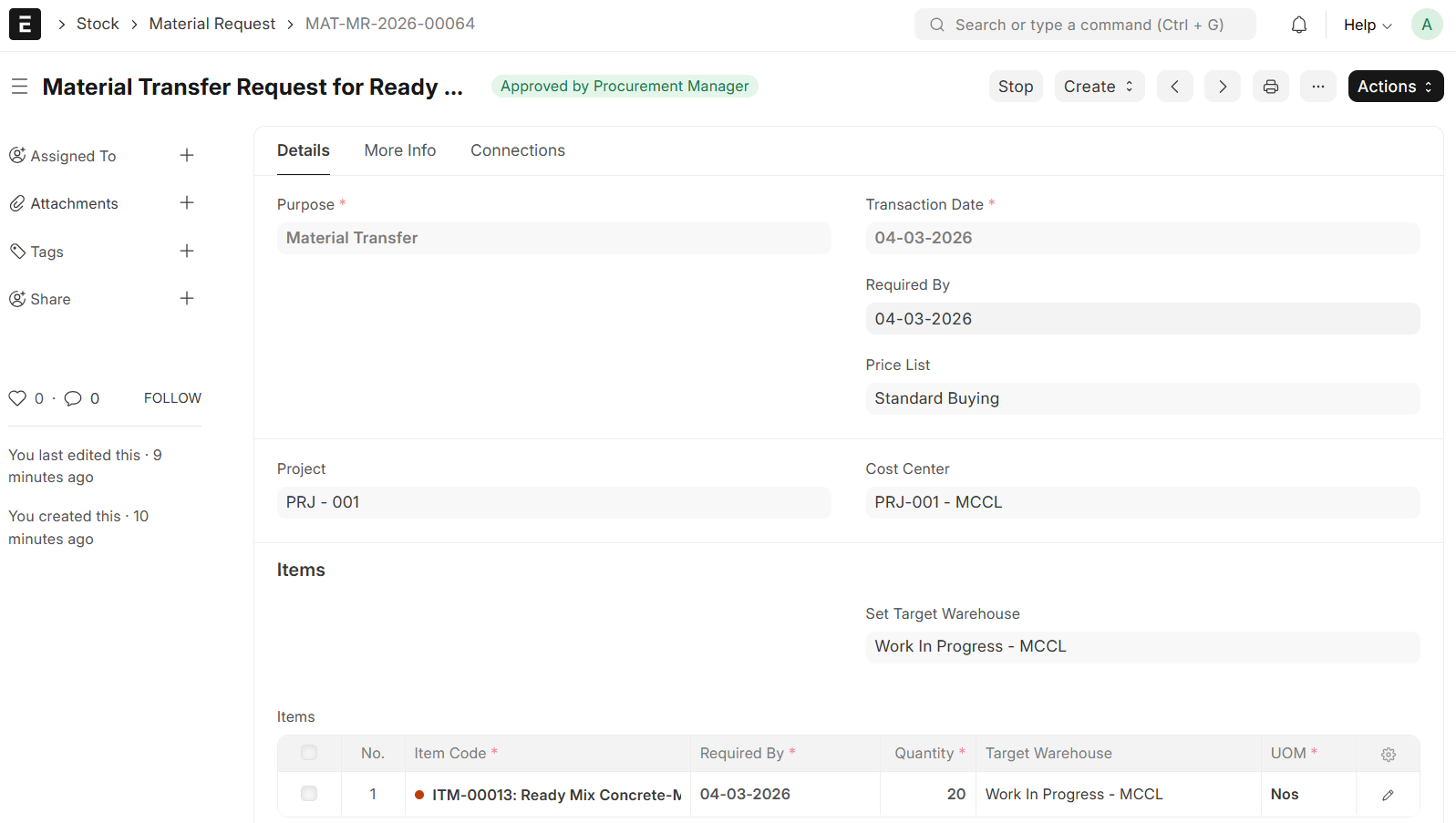
- Select the Purpose (Material Transfer)
- Enter the Required By Date
- Select the Project
- Cost Center will be automatically fetched
- Select Required Item and Set the Quantity
- Set Target Warehouse
- Required By, Target Warehouse and UOM will be automatically fetched in the Item Table
- Then, Save and Approve
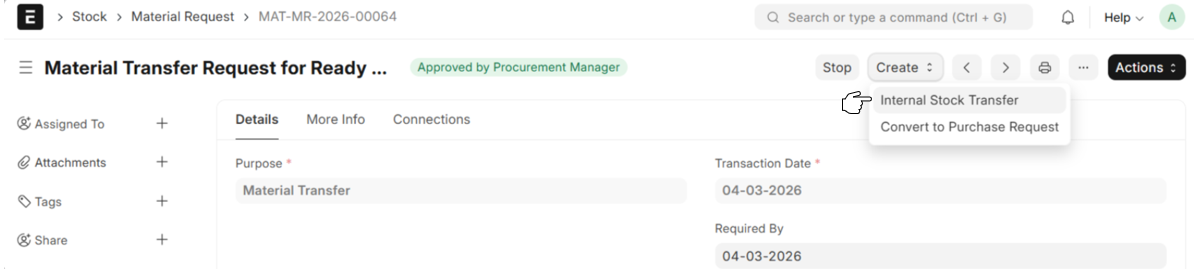
- From Material Request → Create → Internal Stock Transfer
Note:
If the required Item is available in another warehouse, an Internal Stock Transfer will be initiated first. If not, a Purchase Request will be created directly through the 'Convert to Purchase Request' option
Internal Stock Transfer
- Set the Source Warehouse
- Available Quantity will be auto fetched
- Enter the Required Quantity to be Internally Transferred
- Other Details will be auto fetched from the Material Request
- Save and Submit
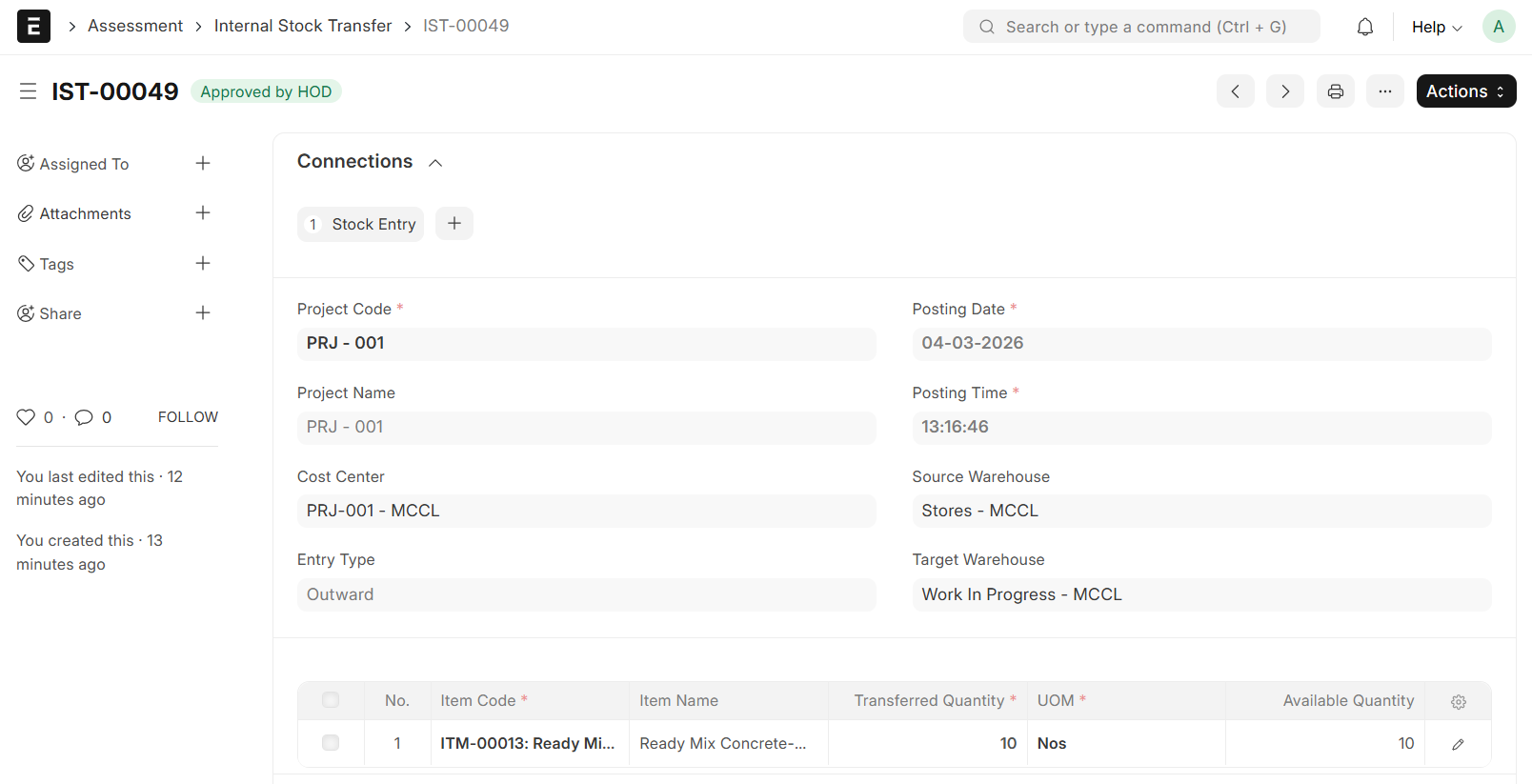
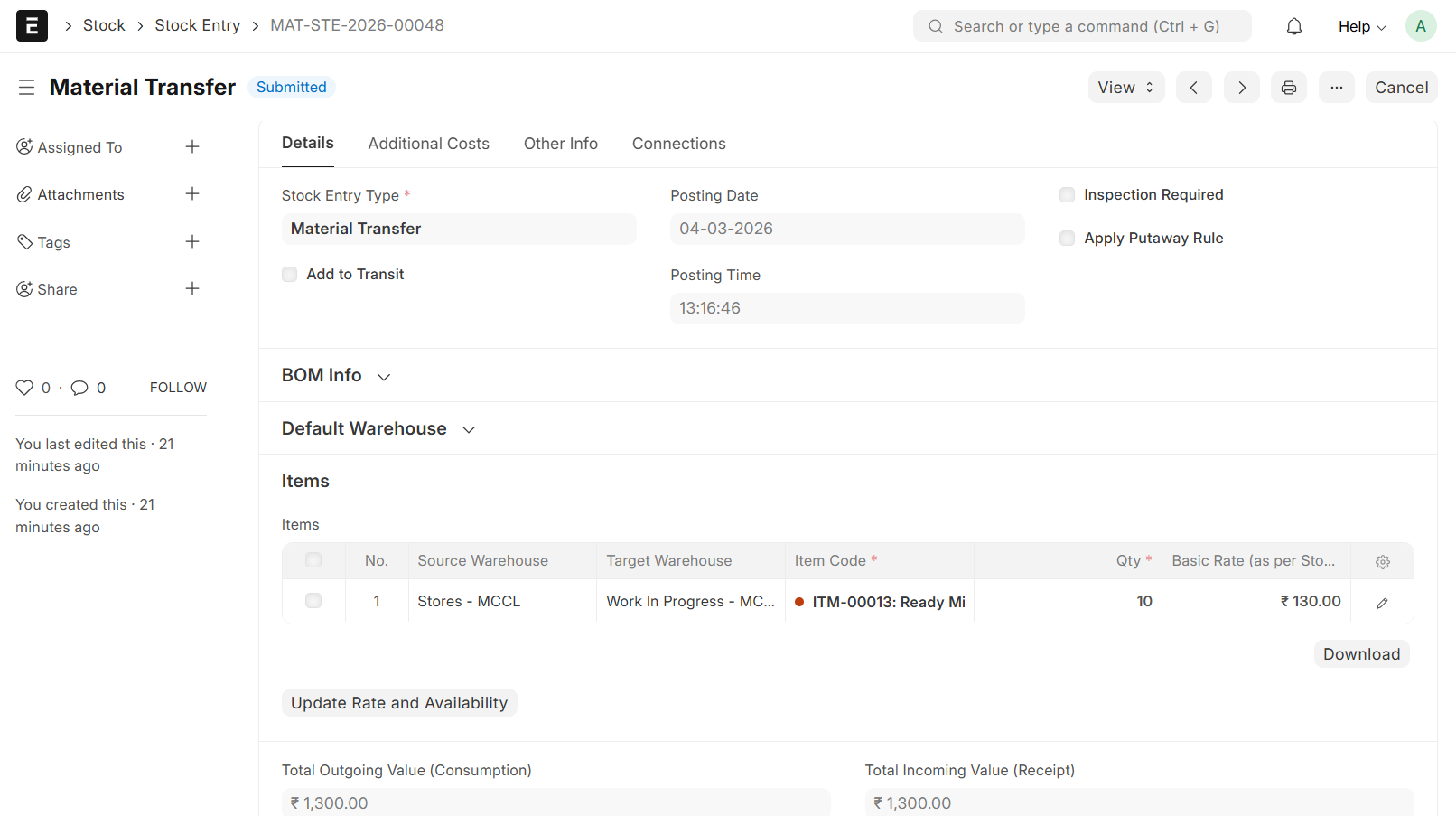
- On Submission, Stock Entry will be generated automatically
- The Item will transfer from Source Warehouse to Target Warehouse
- The Rate will be auto-fetched from the Item price
- The amount will be calculated automatically
- Go Back to Material Request
- From Material Request → Create → Convert to Purchase Request
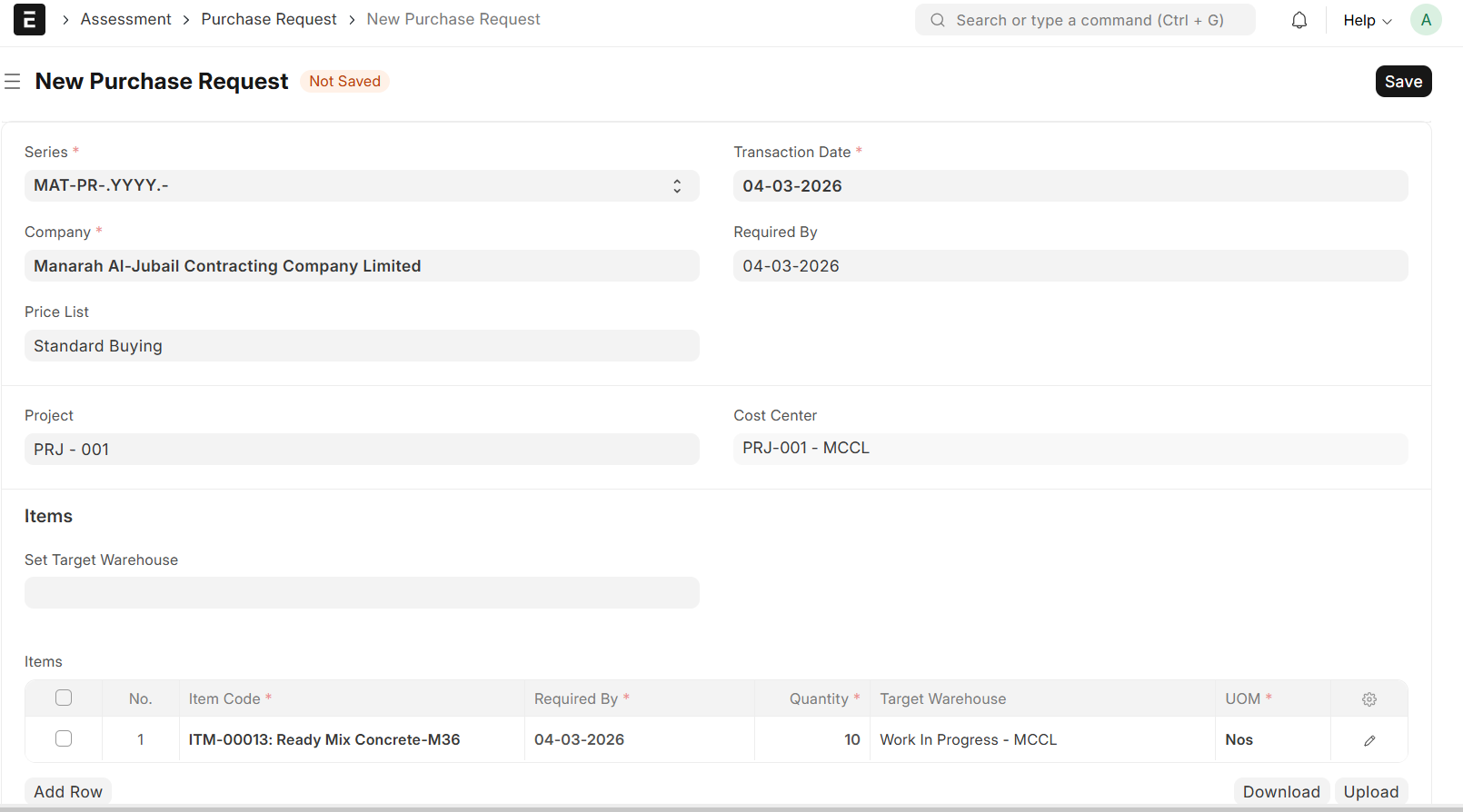
Purchase Request
It is the formal Instruction sent to the Buying Department when Materials are not available in any company warehouse
- Set Target Warehouse
- Enter the Required By Date
- Other Details will be auto fetched from the Material Request
- Save and Submit
Note:
When creating a Purchase Request, the Item Quantity will first be adjusted based on any Internal Stock Transfers. If no Internal Transfer is available, the full Quantity specified in the Material Request will be fetched into the Purchase Request
After Submission you can create the following documents:
Purchase Order
Request for Quotation
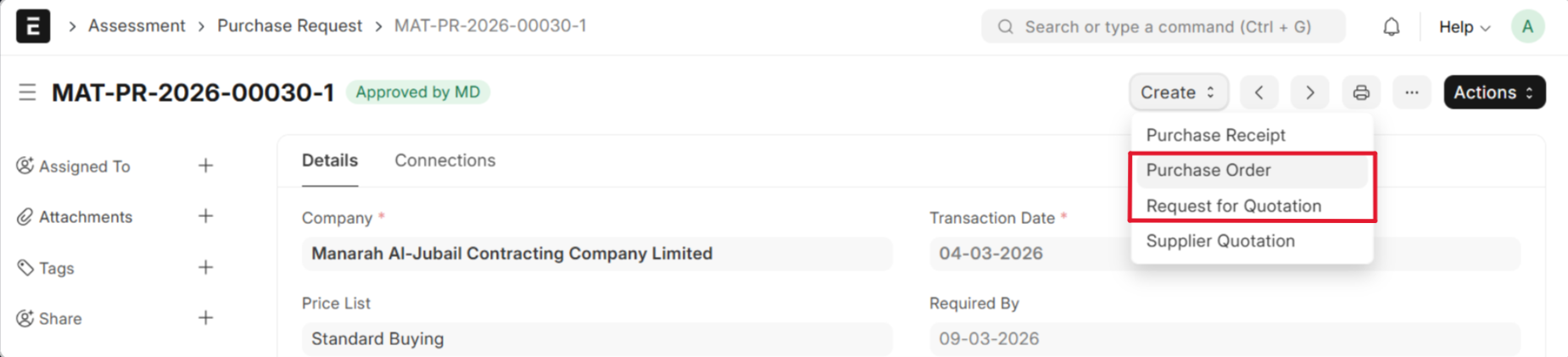
- From Purchase Request → Create → Purchase Order
A Purchase Order is a binding contract with your Supplier that you promise to buy a set of Items under given conditions.
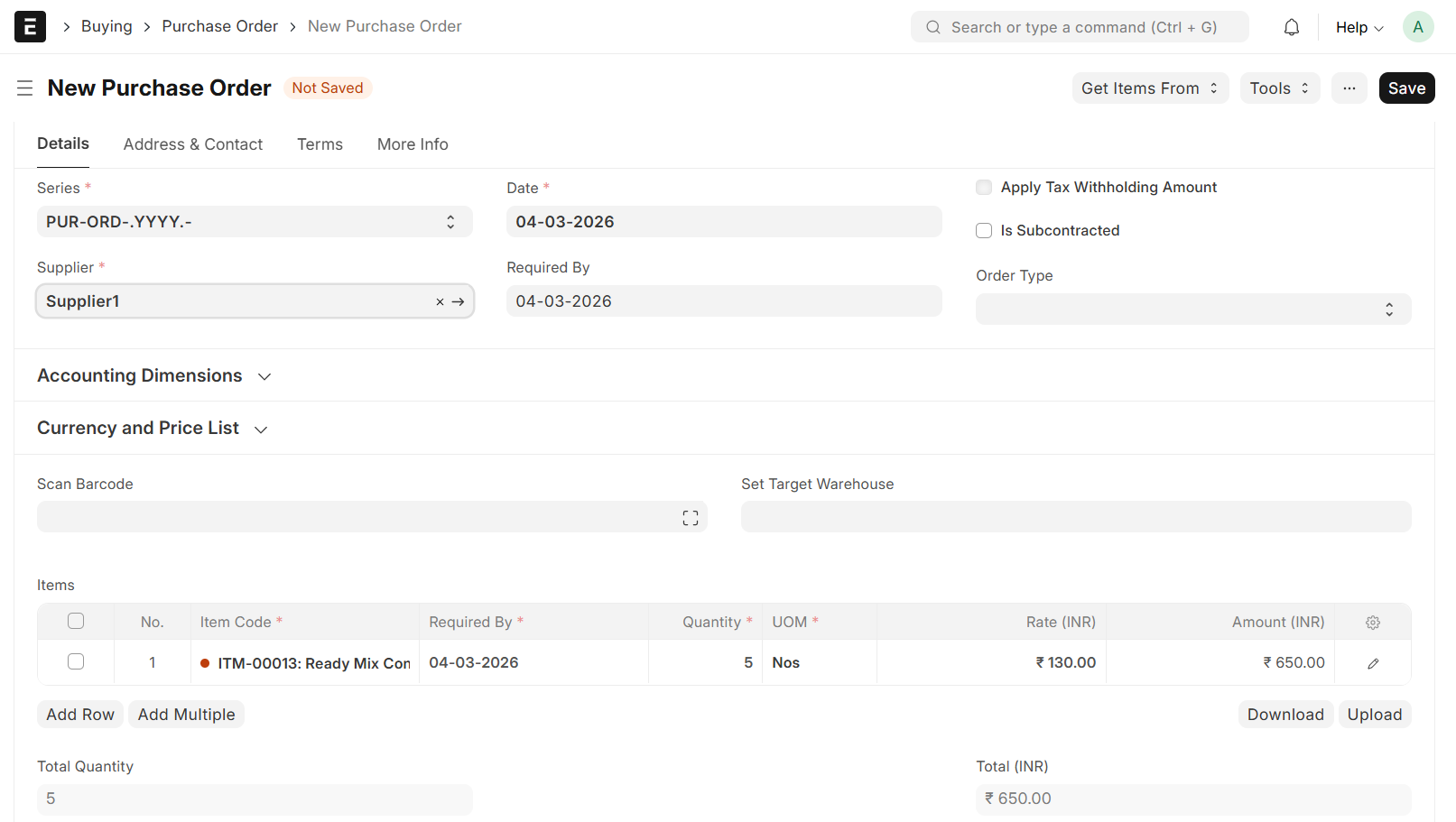
Purchase Order
- Select Supplier
- Details will be auto fetched from the Purchase Request
- Amount will be calculated automatically
- Fill in all other required details
- Then, Save and Submit
- From Purchase Request → Create → Request for Quotation
A Request for Quotation is a document that an Organization sends to one or more suppliers asking a Quotation for Items
Note:
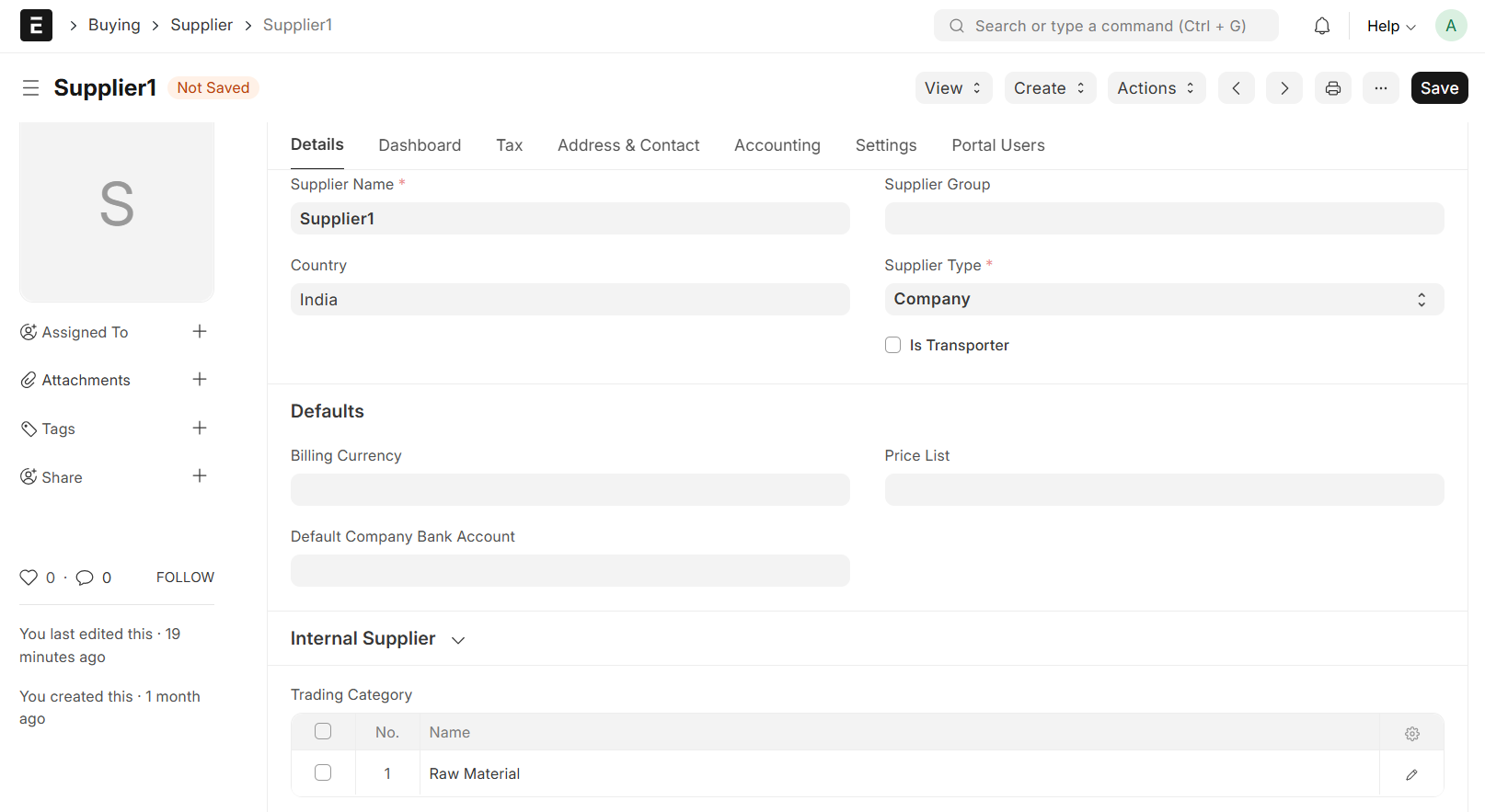
Ensure the Trading Category is added in the Supplier Details before creating Request for Quotation
- Supplier → Trading Category → Item Group → Save
Request for Quotation
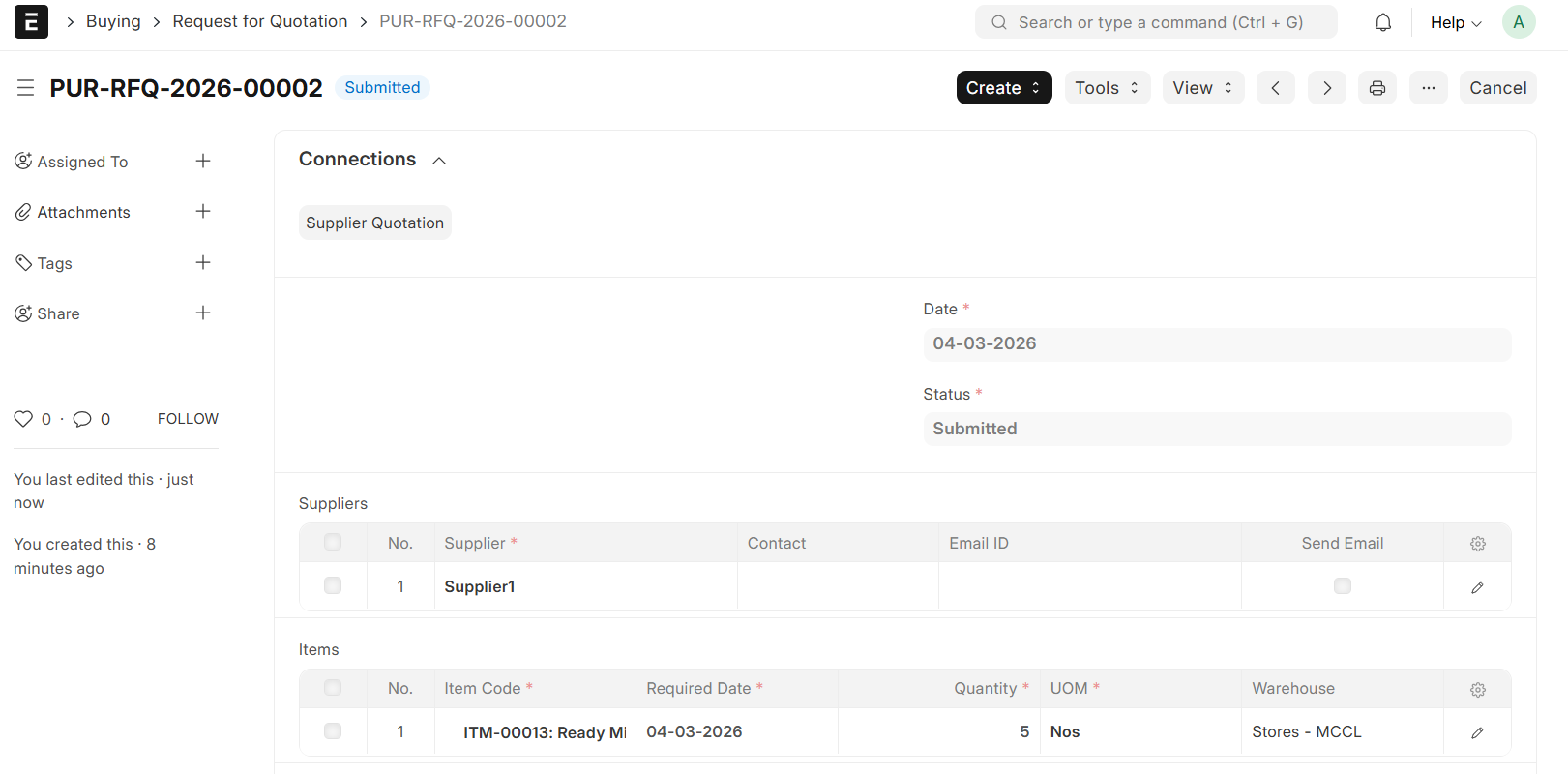
- Enter the Required Date
- Supplier Details are fetched when the "Get Supplier" Button is Clicked
- The Item Details will be auto fetched from the Purchase Request
- Amount will be calculated automatically
- Fill in all other Required Details
- Then, Save and Submit
Cash Purchase:
A Cash Purchase is a simplified procurement process used for urgent, low-value, or one-off items that are bought using petty cash or immediate payment. It moves straight from a Request to a Receipt
- Go to Material Request
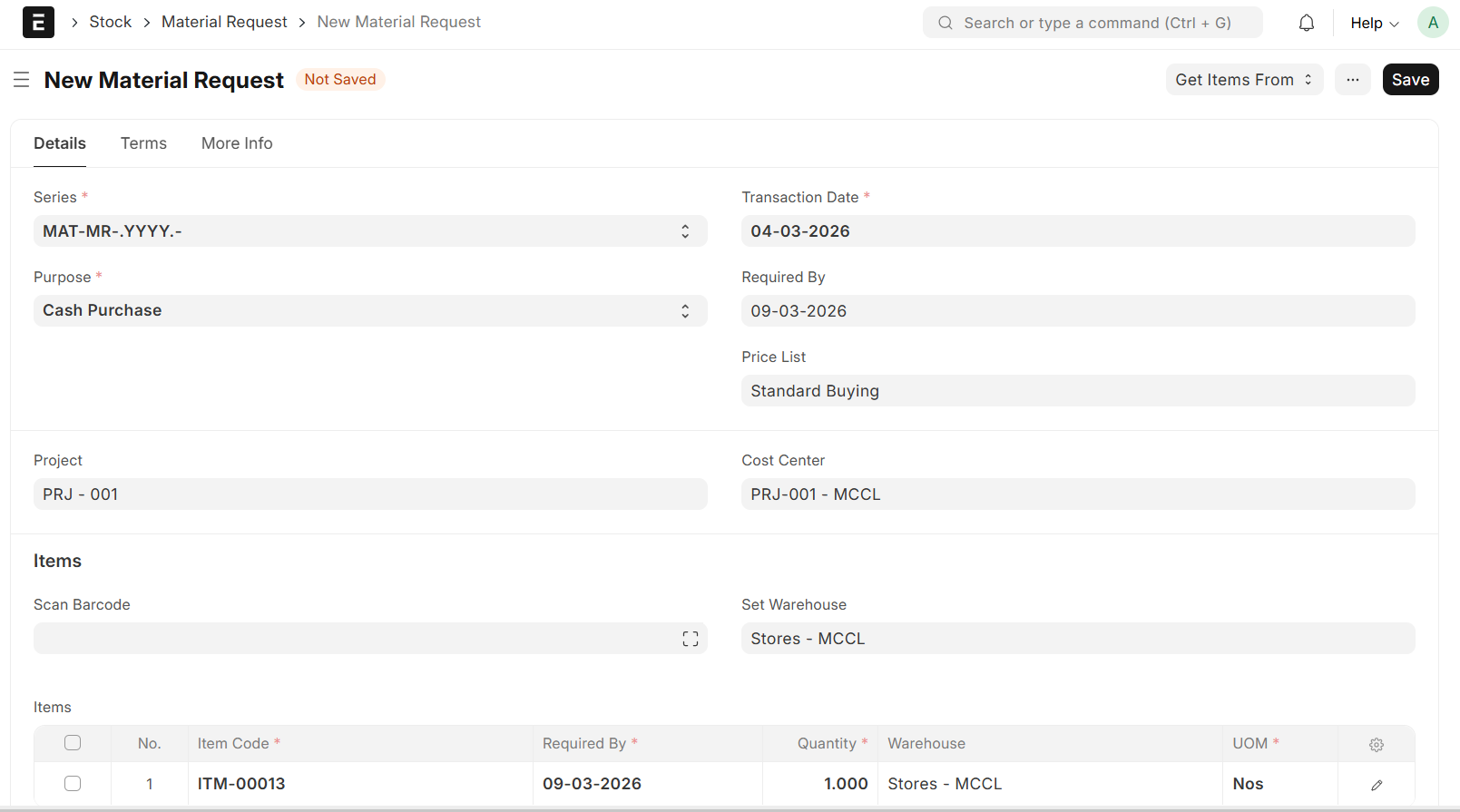
- Select the Purpose (Cash Purchase)
- Enter the Required By Date
- Select the Project
- Cost Center will be automatically fetched
- Select Required Item and Quantity
- Set Target Warehouse
- Required By, Target Warehouse and UOM will be automatically fetched in the Item Table
- Then, Save and Approve
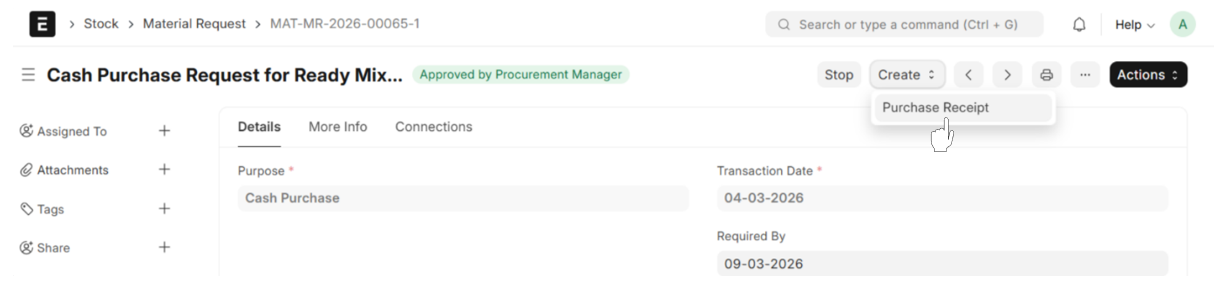
- From Material Request → Create → Purchase Receipt
Purchase Receipt
The Purchase Receipt is the official Confirmation that goods have physically arrived. It is the only action that increases your Stock balance in the system
- Select Supplier
- The Rate will be automatically fetched from the Item price
- The Total Amount will be calculated automatically
- Fill in all other Required Details
- Then, Save and Submit
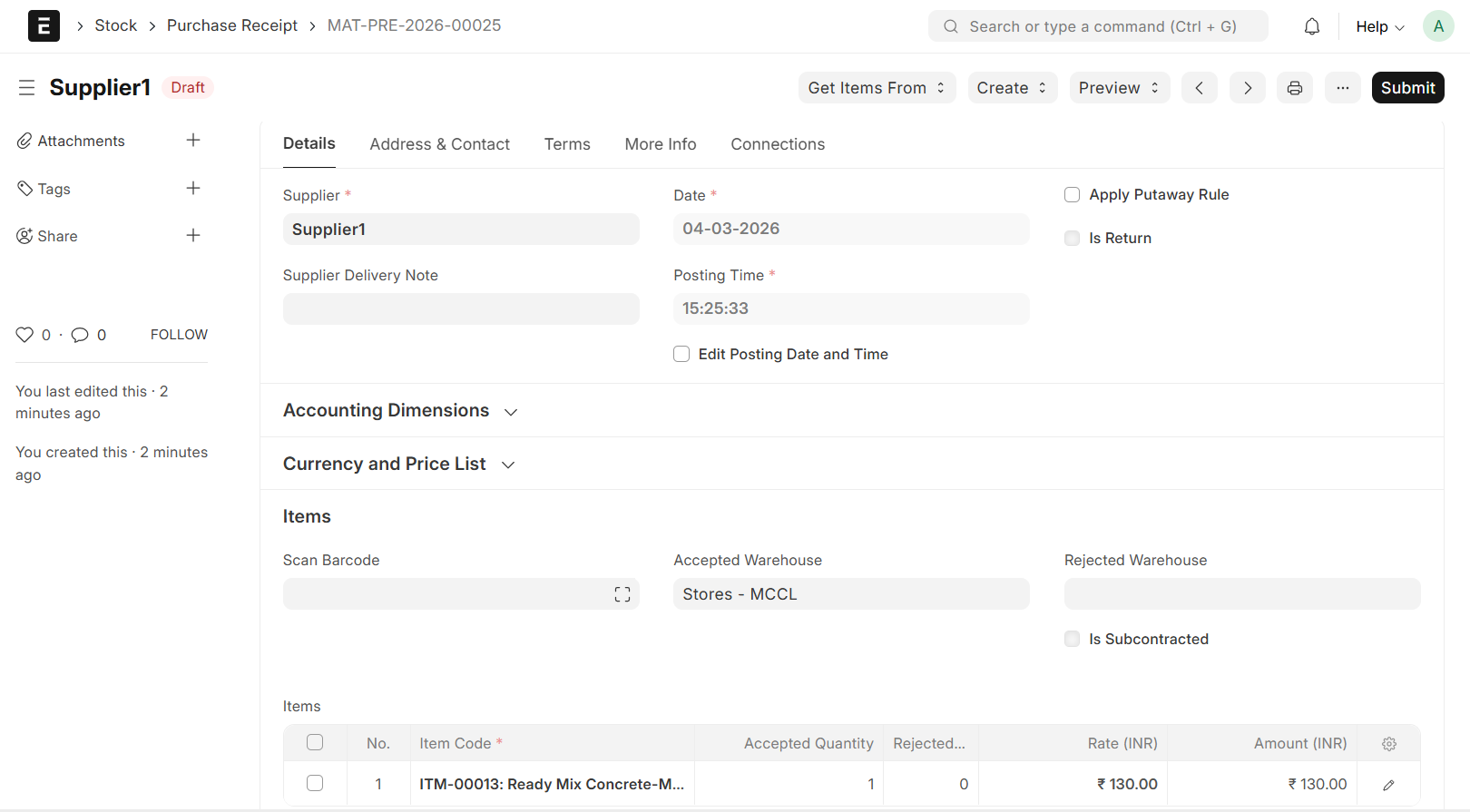
- After Submission you can create Purchase Invoice