Momscode - Al Manarah - Estimation
Prerequisites,
Create the following doctypes before proceeding,
- Discipline
- Activity Category
- Activity Breakdown
- Item - Raw Material & Consumables
- Designation
- Equipment Register
- Estimation Manpower Rate Master
- Equipment and Vehicle Hourly Rate Calculator
- Customer
- Cost Breakdown Type
- Cost Estimate Breakdown
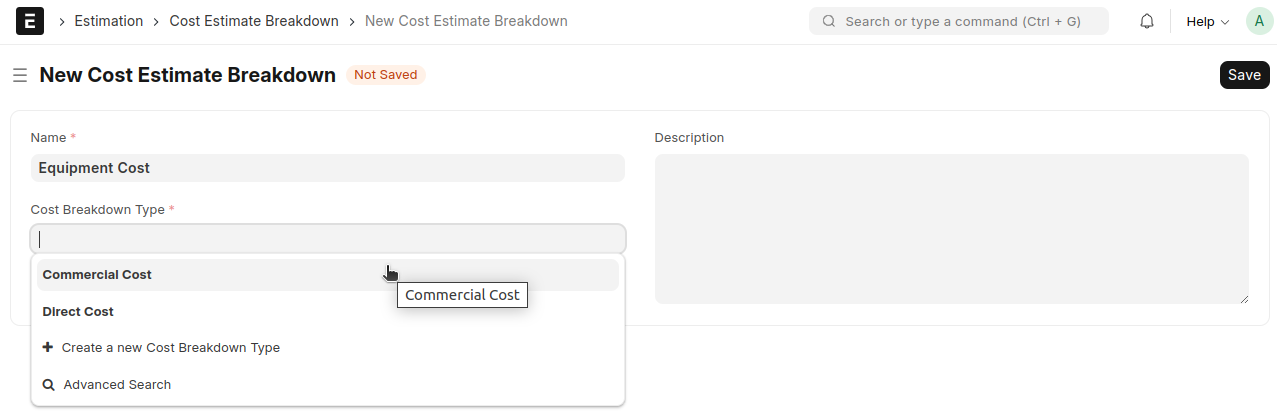
In the Estimate Breakdown, select the appropriate Cost Breakdown Type under which this Estimate Breakdown should be categorized
In Custom Settings :
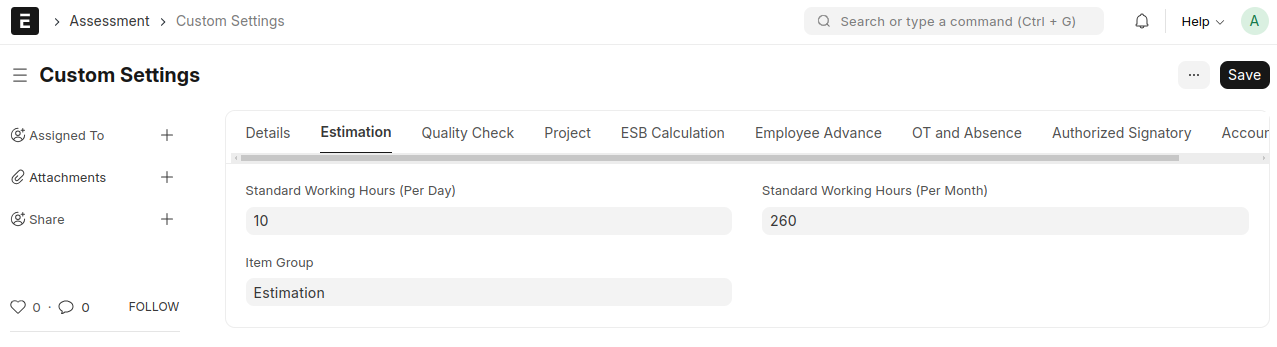
- Set the Standard Working Hours (per month)
- Set the Item Group of the Estimated Items
Estimation Manpower Rate Master
- Select the Designation
- Select the Category (Rental or Owned)
For the Rental Category :
- Enter the Average Rental Rate
- Enter the Last Rental Rate
For the Owned Category :
- Enter the Wage per Hour
- Then, Save and Submit
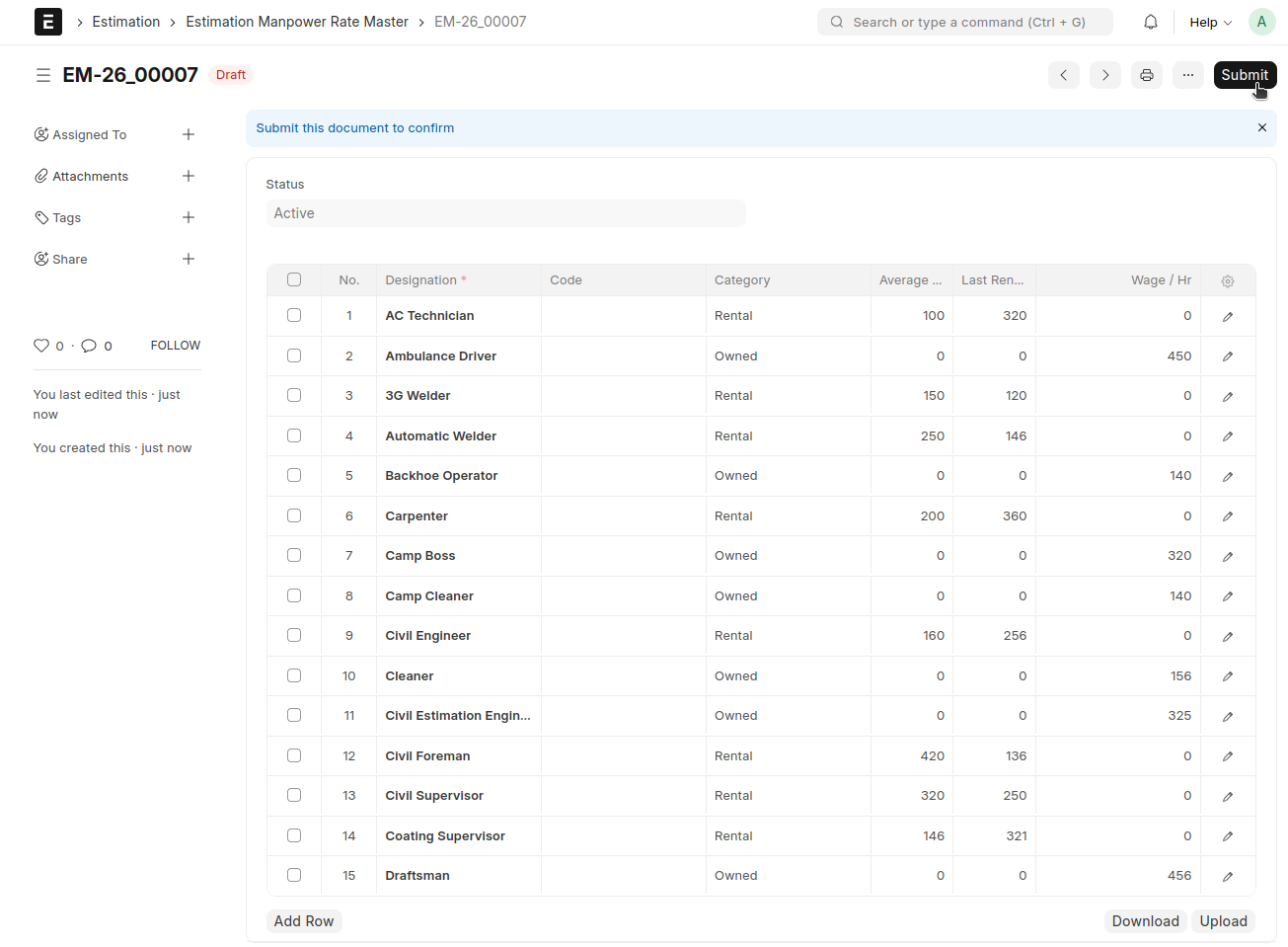
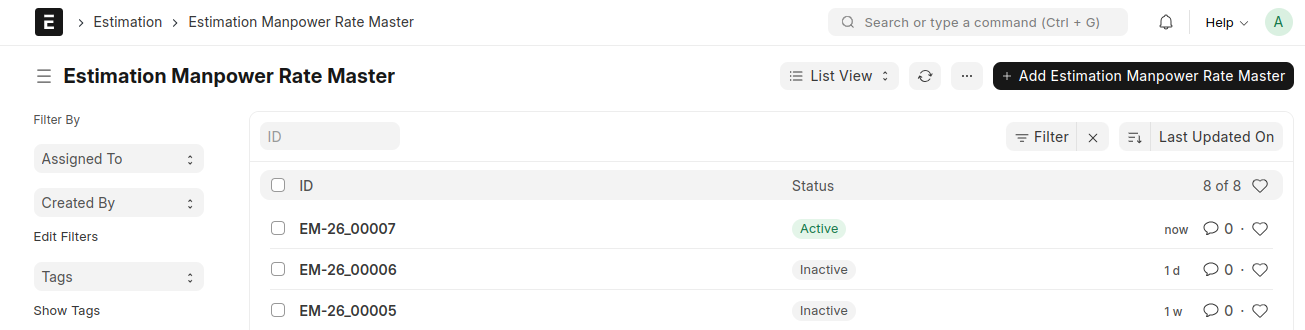
The latest Estimation Manpower Rate Master will be set to Active, and all previously created records will be automatically changed to Inactive. The active record will be used in the Resource BOQ as the Direct Manpower Cost
Equipment and Vehicle Hourly Rate Calculator
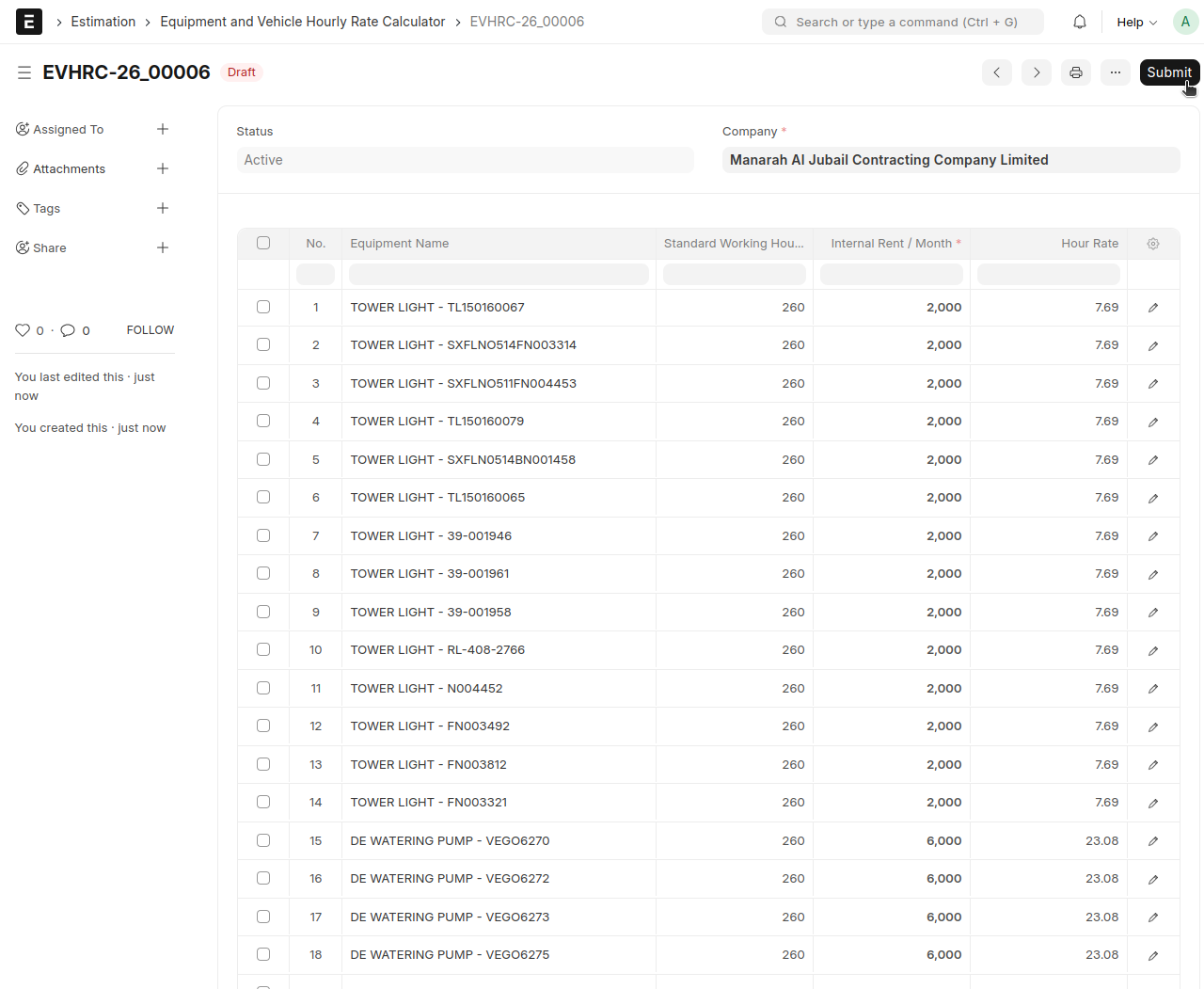
- Select the Item Name (from the Equipment Register)
- Standard Working Hours (per month) will be automatically fetched from the custom settings
- Enter the Internal Rate per Month for each Equipment
The Hourly Rate will be calculated automatically
Hourly Rate = Internal Rate per Month ÷ Standard Working Hours (per month)
Then, Save and Submit
Note :
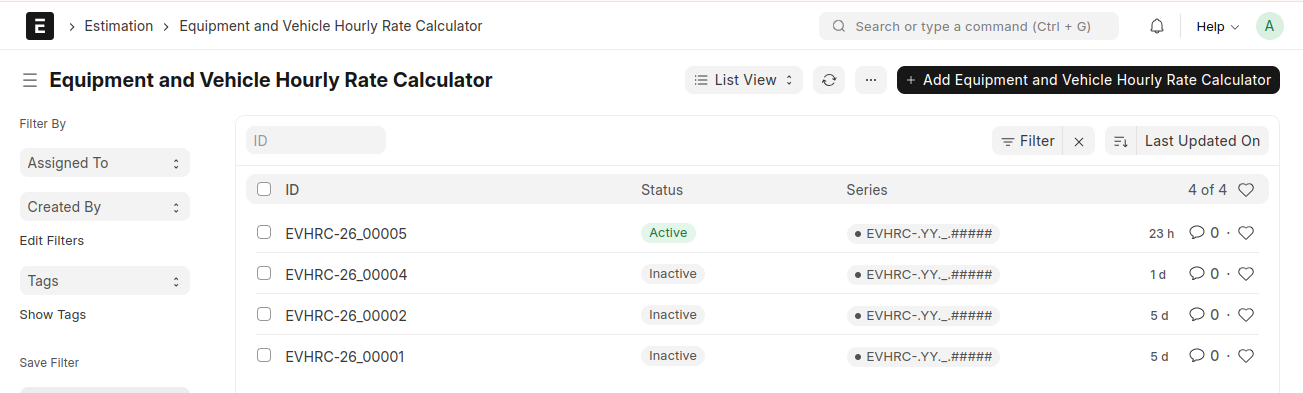
The latest Equipment and Vehicle Hourly Rate Calculator will be set to Active, and all previously created records will be automatically changed to Inactive. The active record will be used in the Resource BOQ as the Equipment Cost
Lead
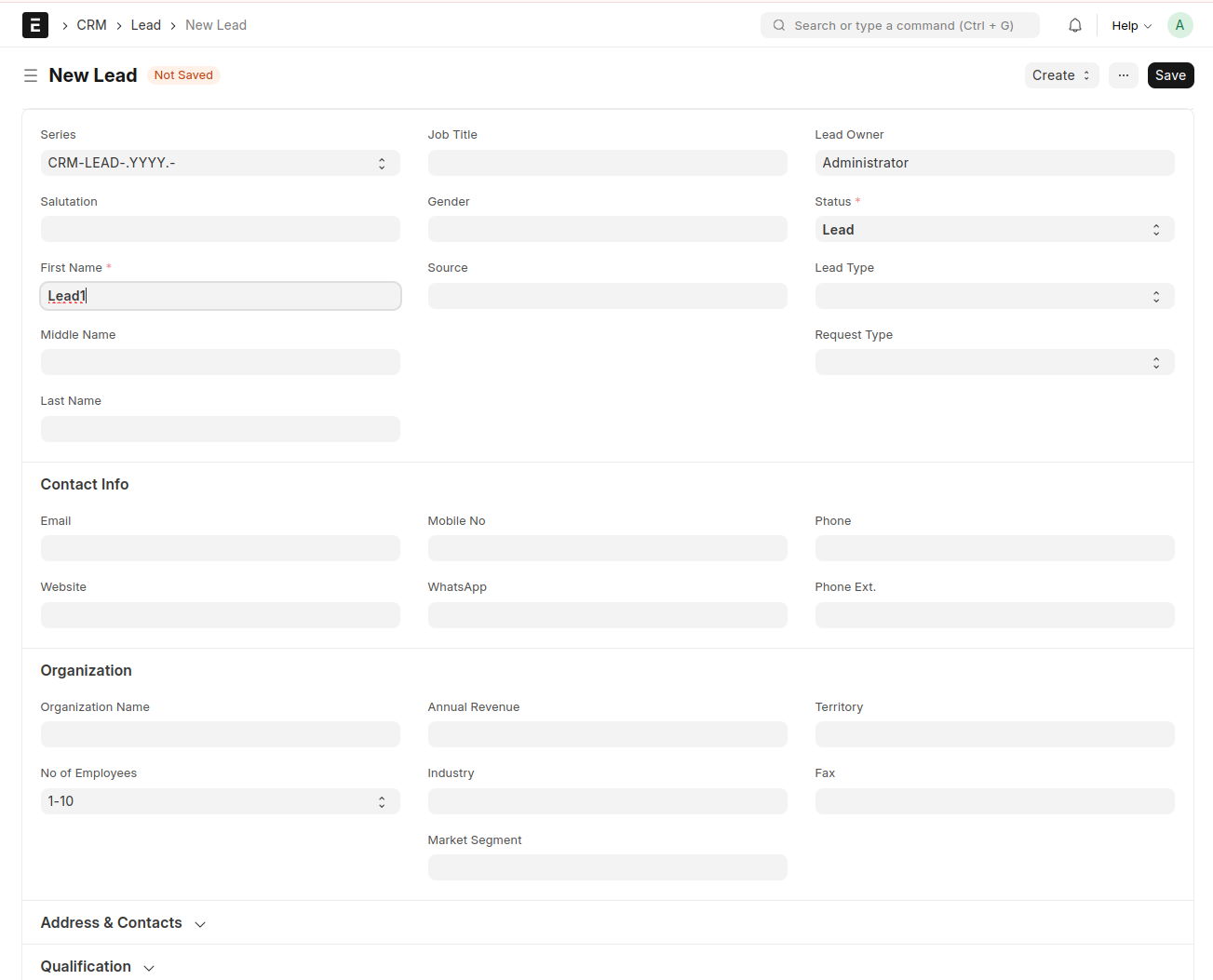
- Create a new lead
- Enter all the required details and save
Opportunity
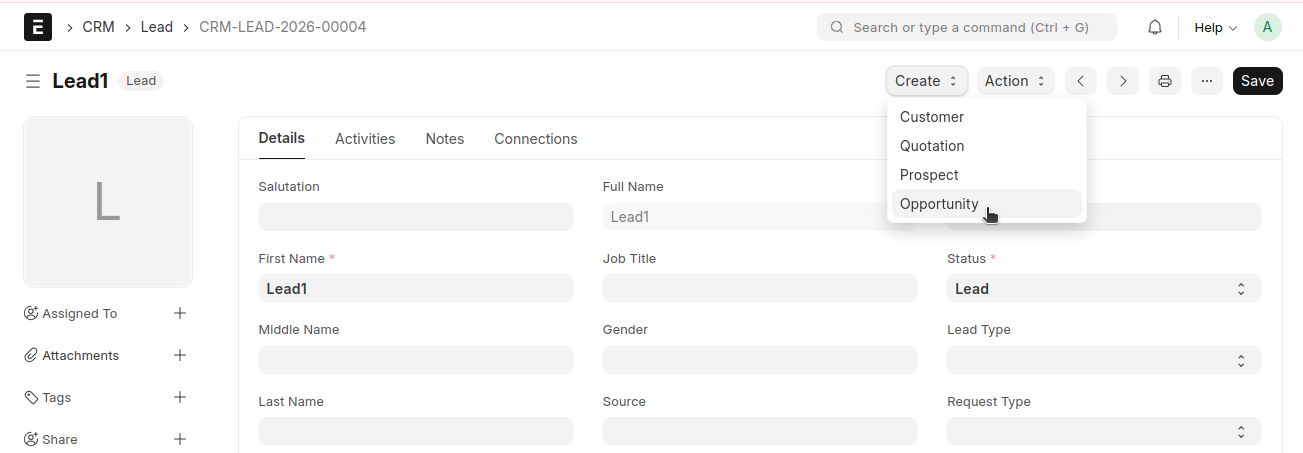
- From Lead → Create → Opportunity
Save
- From opportunity → Create → Tender Register
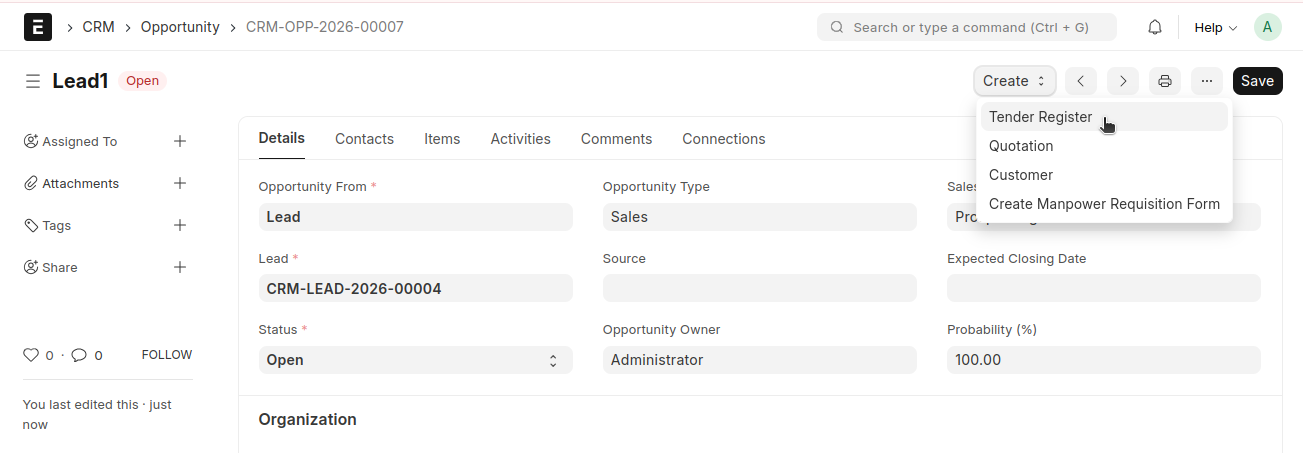
Tender Register
- Fill in all the required details
- Then, Save and Submit
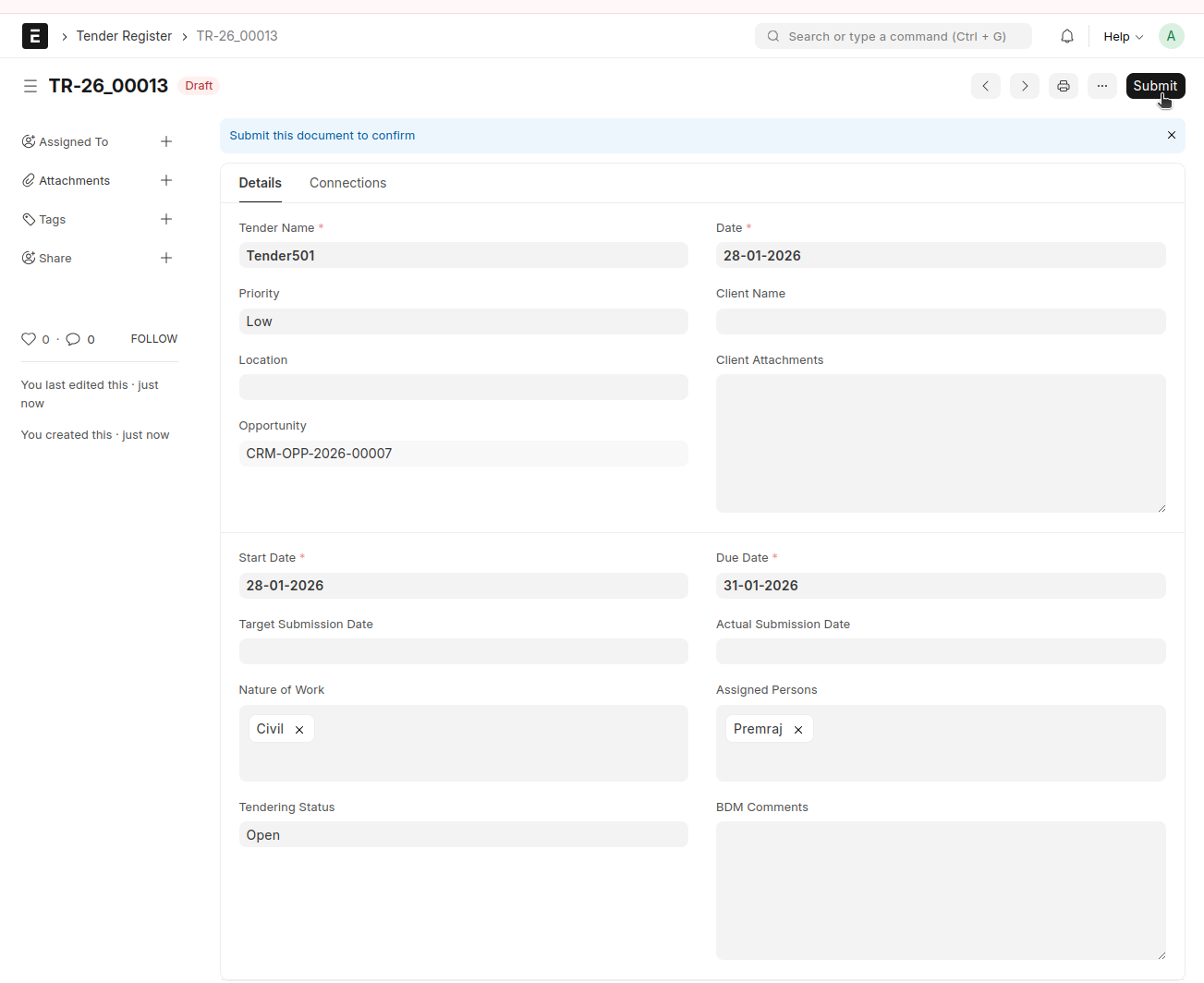
- From Tender Register → Create → Discipline Assignment
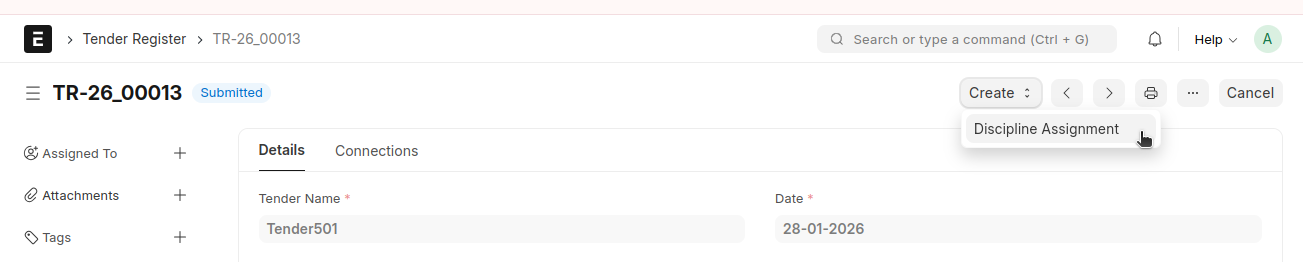
Discipline Assignment
- Posting Date, Tender ID, Tender Name, Start Date and Due Date will be fetched from the Tender Register
- Select the Disciplines
- Select the Assigned Engineers and other required details
- Then, Save and Submit
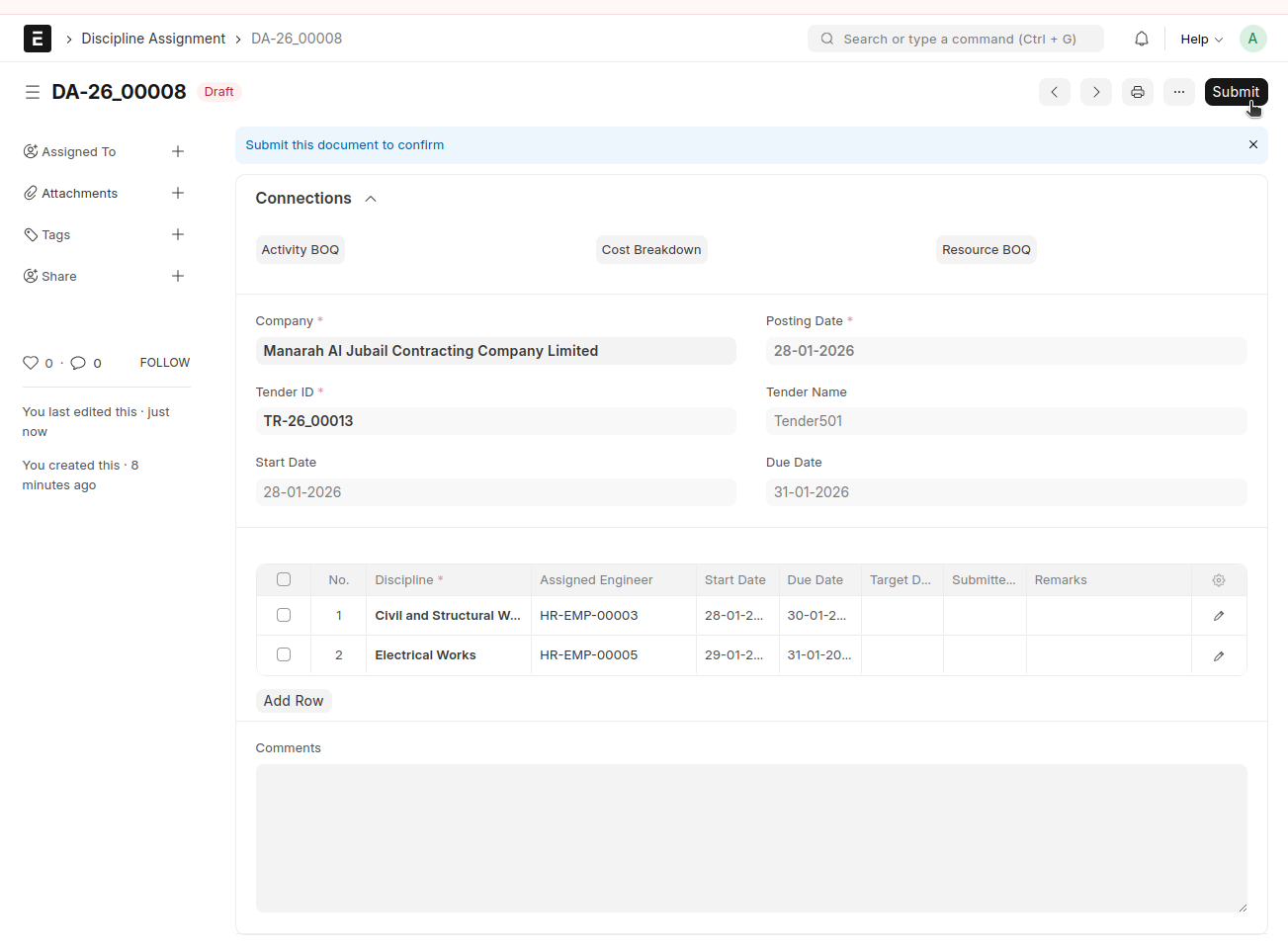
Upon submission, the Activity BOQ will be automatically generated based on the number of disciplines selected
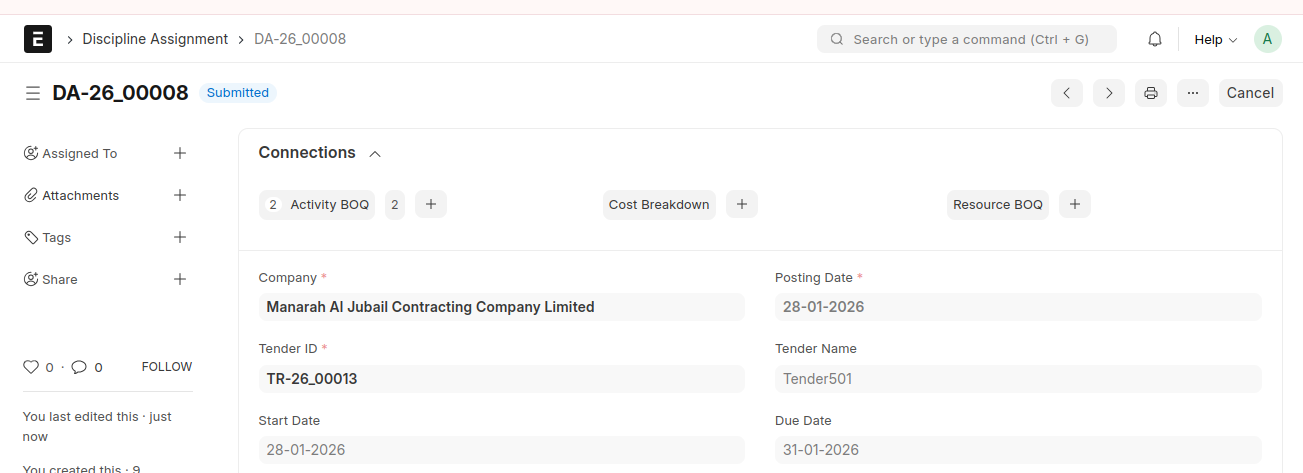
Activity BOQ
- Posting Date, Tender ID, Tender Name, Start Date, Due Date, Discipline Assignment ID, Discipline, and Assigned Engineer will be fetched from the Discipline Assignment
Upload details through upload button in Activity BOQ
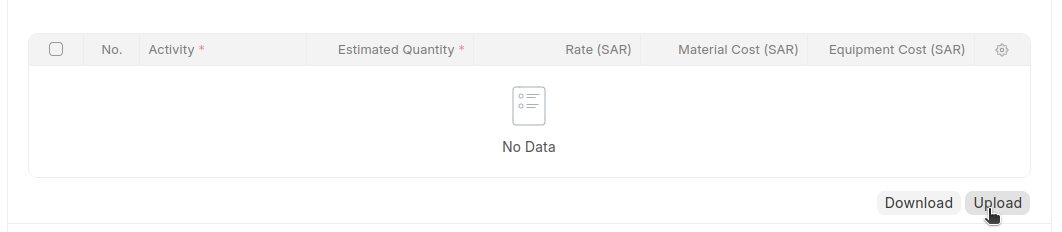
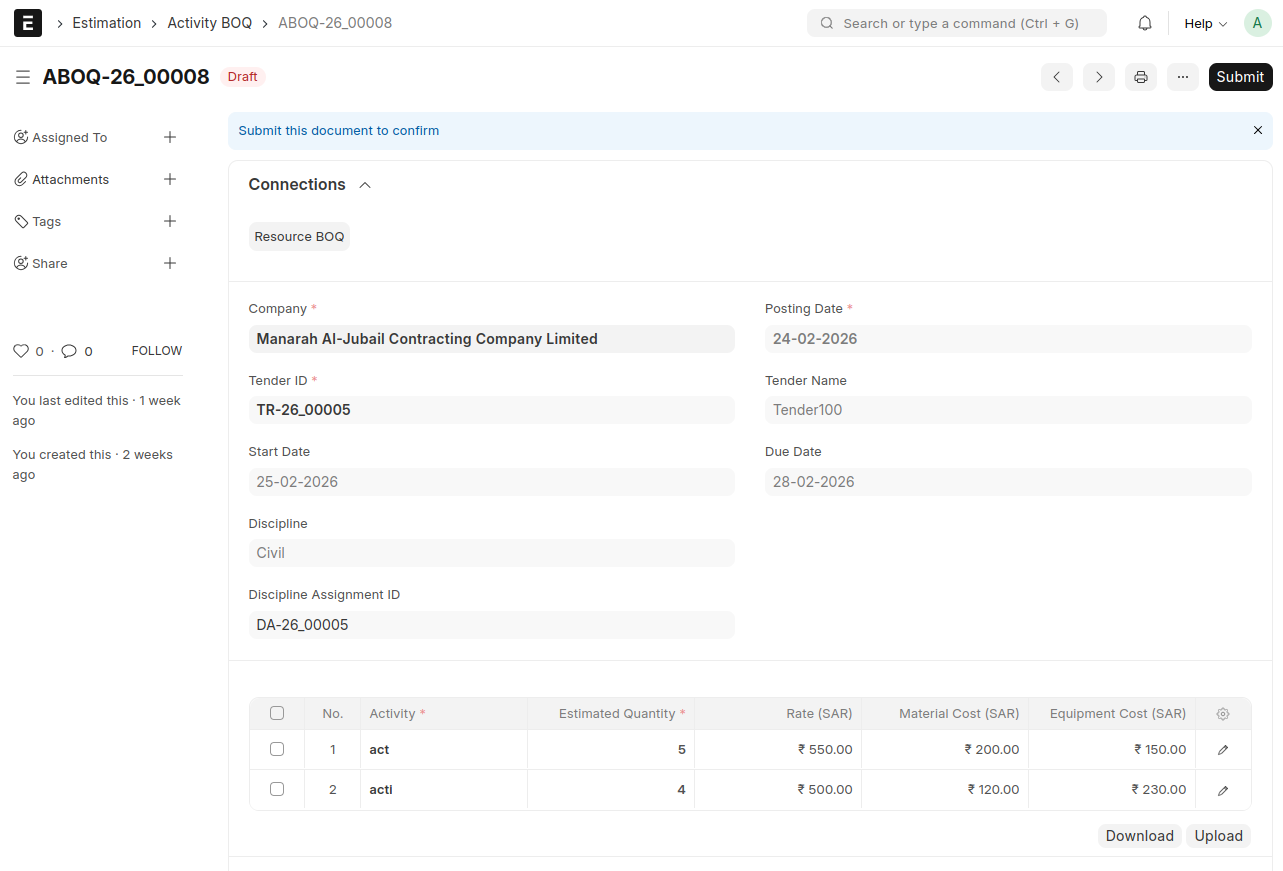
- Then, Save and Submit
Or else, Resource BOQ can be created if needed
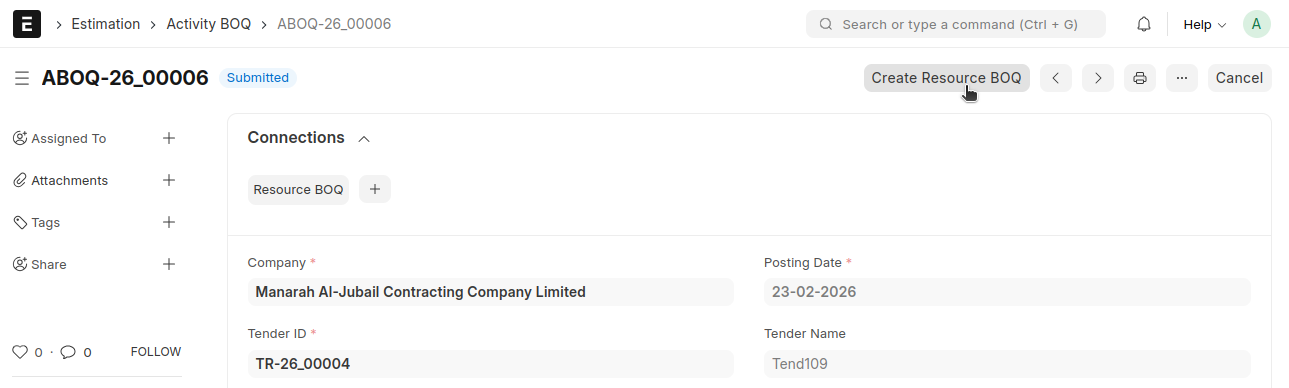
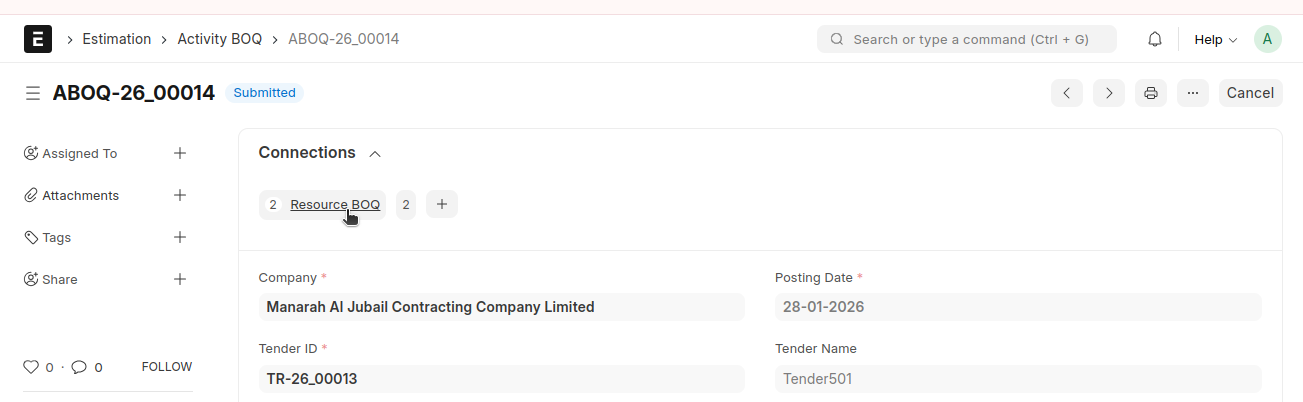
Resource BOQ
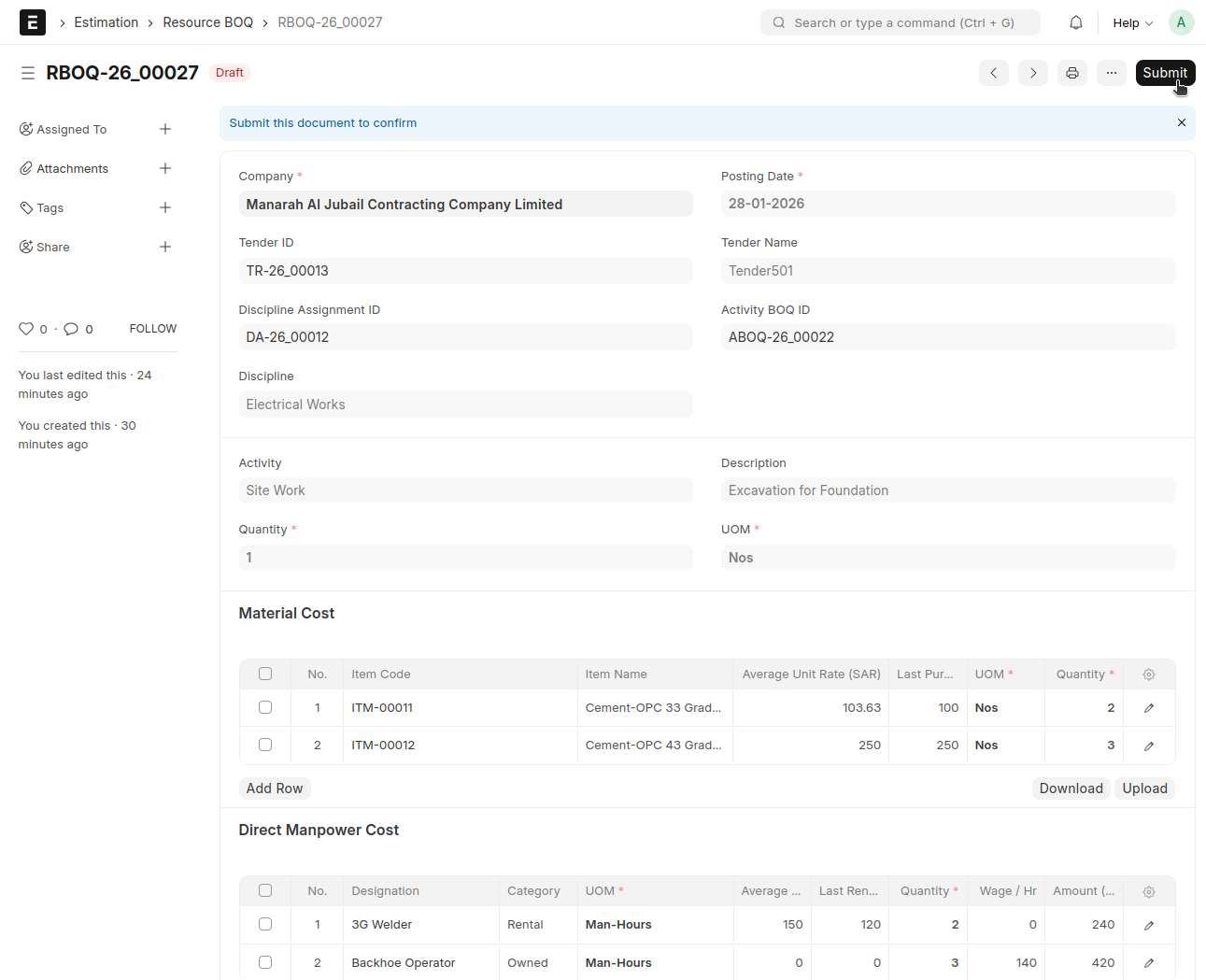
- Posting Date, Tender ID, Tender Name, Descipline Assignment ID, Discipline, Activity BOQ ID, and Activity details will be fetched from the Activity BOQ
Material Cost
- Select the Item (Raw Material Item)
- The UOM and Item Name will be auto-fetched from the selected item
- The Rate will be auto-fetched from the item price
- The item’s Average Unit Rate and Last Purchase Rate will also be auto-fetched
- Enter the Qty, the amount will be calculated automatically
If needed you can upload details through upload button
Direct Manpower Cost
- Select the designation (from the Estimation Manpower Rate Master)
- The category will be auto-fetched as defined in the Estimation Manpower Rate Master
- UOM will be Man-Hours by default
- Average Rental Rate and Last Rental Rate will be automatically fetched from the Estimation Manpower Rate Master
- The Rate will be taken as the last rental rate and can be changed if required
- Enter the Qty, the amount will be calculated automatically
If needed you can upload details through upload button
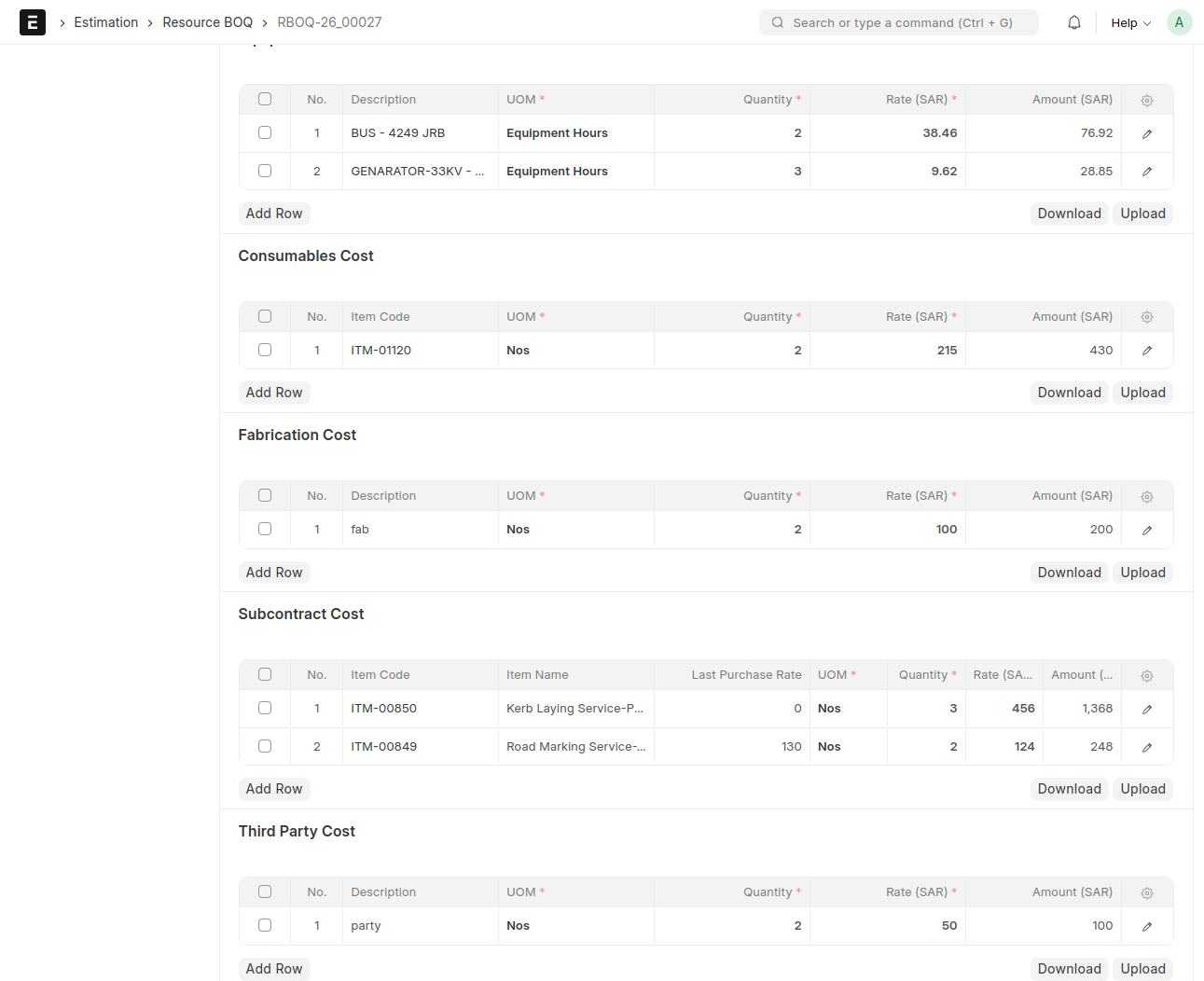
Equipment Cost
- Select the description (from the Equipment and Vehicle Hourly Rate Calculator)
- UOM will be Equipment hours by default
- The Rate will be taken as the Hour Rate
- Enter the Qty, the amount will be calculated automatically
If needed you can upload details through upload button
Consumable Cost
- Select the Item (Consumable Item)
- The UOM and Item Name will be auto-fetched from the selected item
- The Rate will be automatically fetched from the item price
- Enter the Qty, the amount will be calculated automatically
If needed you can upload details through upload button
Fabrication Cost
- Enter the Description
- Enter the Qty and Rate, amount will be calculated automatically
If needed you can upload details through upload button
Subcontract Cost
- Select the Item (Consumable Item)
- The UOM and Item Name will be auto-fetched from the selected item
- The Rate will be automatically fetched from the item price
- The item’s Last Purchase Rate will also be auto-fetched
- Enter the Qty, the amount will be calculated automatically
If needed you can upload details through upload button
Third Party Cost
- Enter the Description
- Enter the Qty and Rate, amount will be calculated automatically
If needed you can upload details through upload button
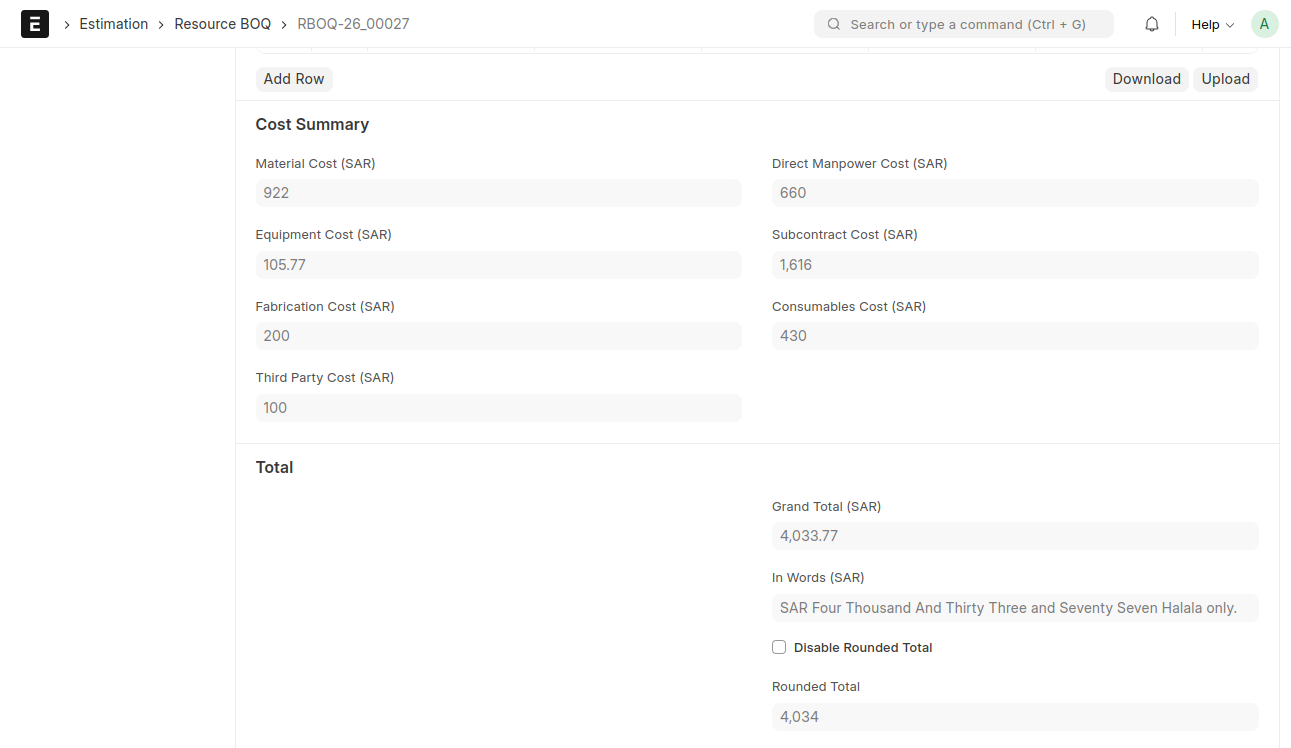
All values will be reflected in the Cost Summary
Finally, Save and Submit
Navigate back to the Discipline Assignment
From Discipline Assignment → Create → Cost Breakdown
Note : The Cost Breakdown can only be created after submitting either the Activity BOQ or the Resource BOQ
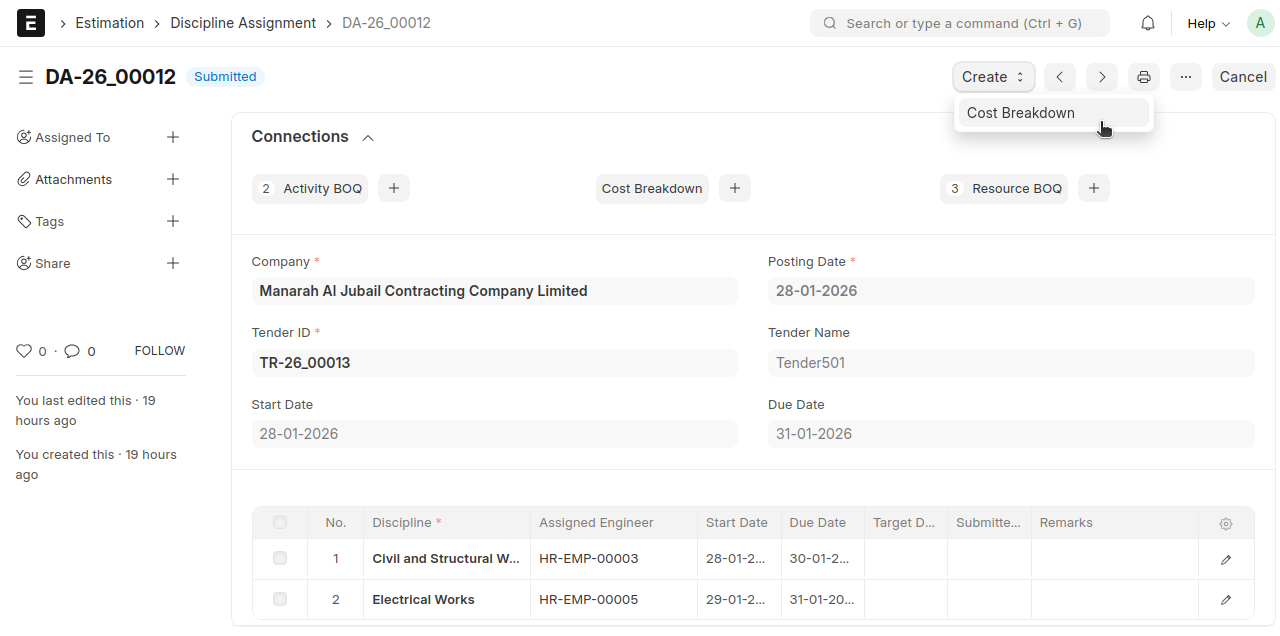
Cost Breakdown will be created
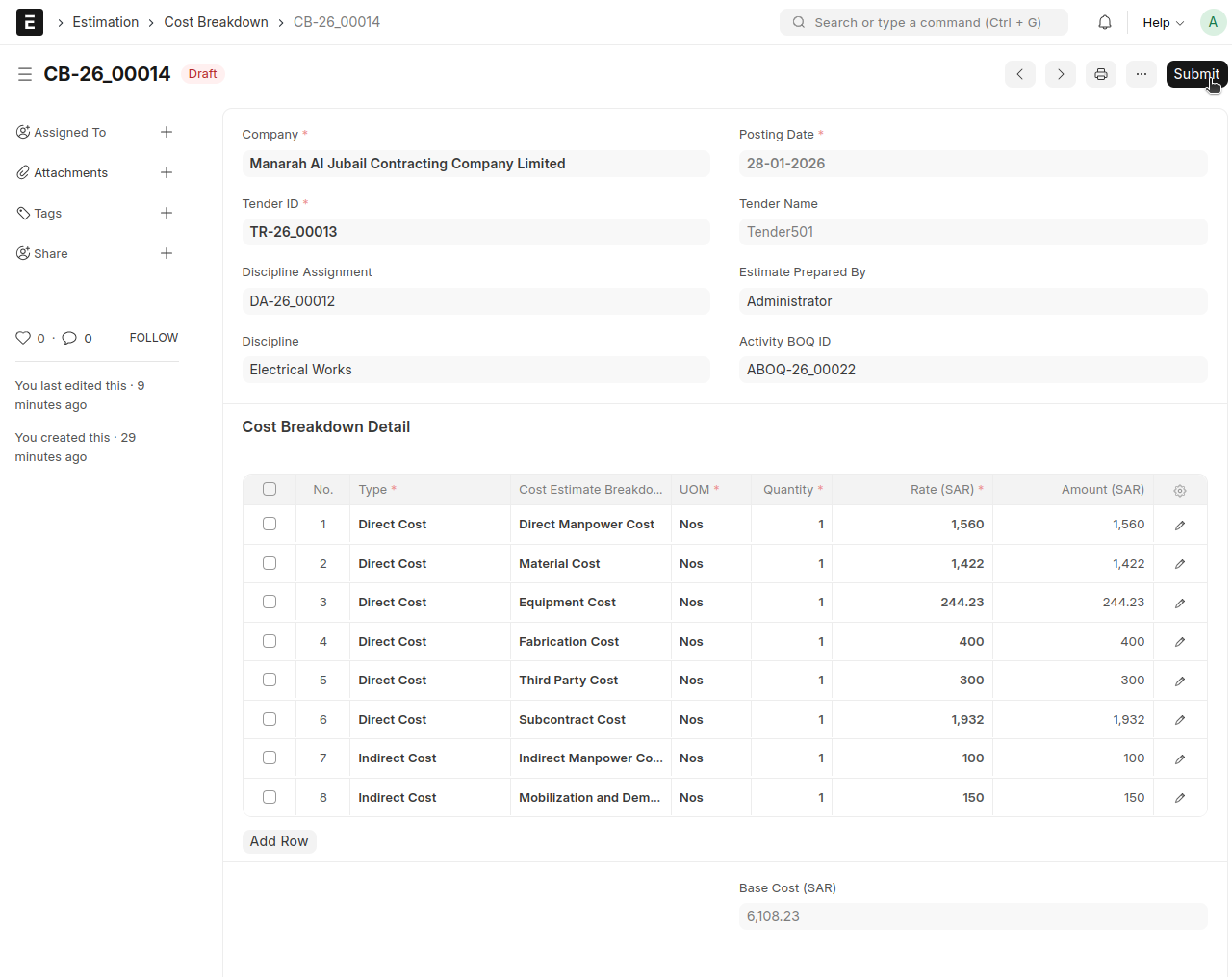
Cost Breakdown
- Posting Date, Tender ID, Tender Name, Descipline Assignment ID, Discipline, and Activity BOQ ID will be auto-fetched
- The Direct Cost, along with its corresponding Cost Estimate Breakdown and amount, will be auto-fetched as defined in the Activity BOQ
- The Indirect Cost and its corresponding Cost Estimate Breakdown and rate can be selected and entered manually
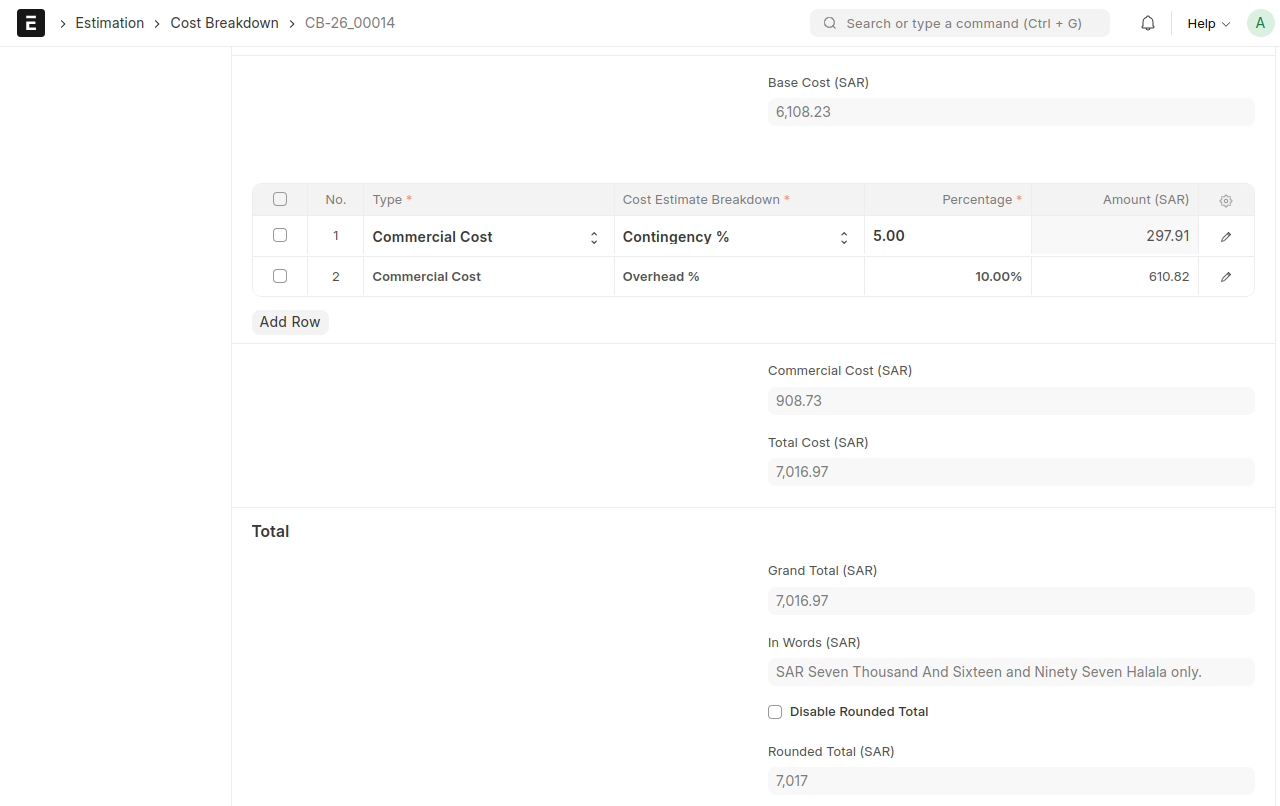
- The Commercial Cost can be applied by specifying a percentage
- The Grand Total will be calculated automatically based on the applied values
- Then, save and Submit
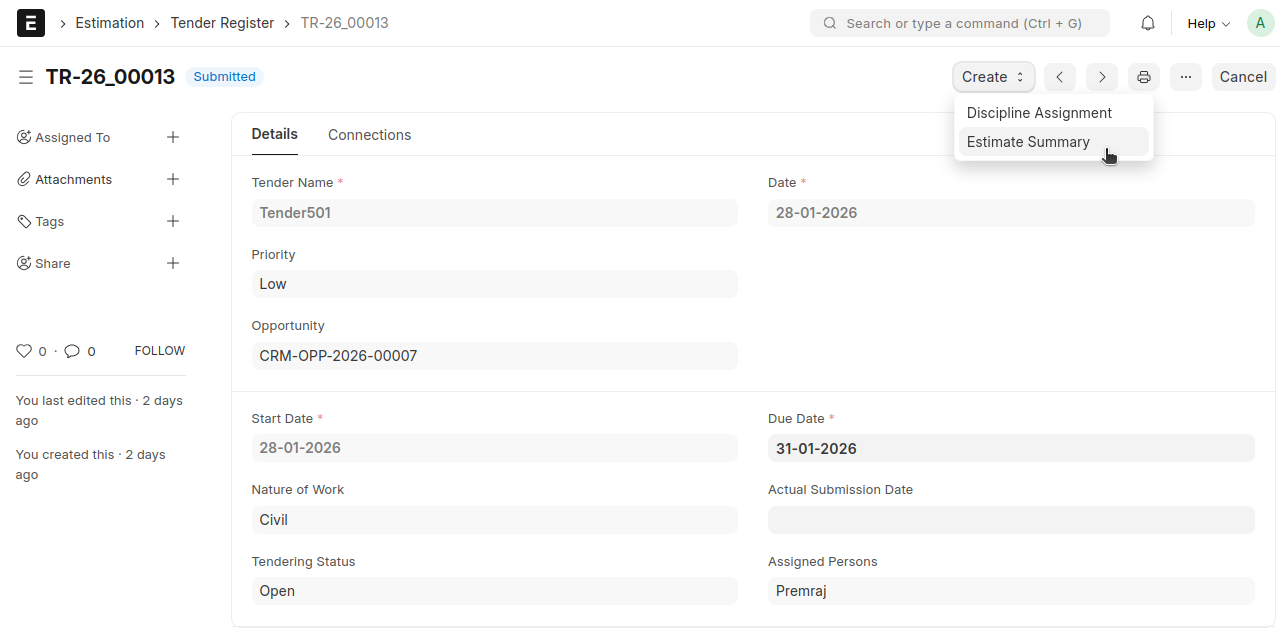
Navigate back to the Tender Register
From Tender Register → Create → Estimate Summary
Note : The Estimate Summary will be created only after all Activity BOQs or Resource BOQs and the Cost Breakdowns are submitted
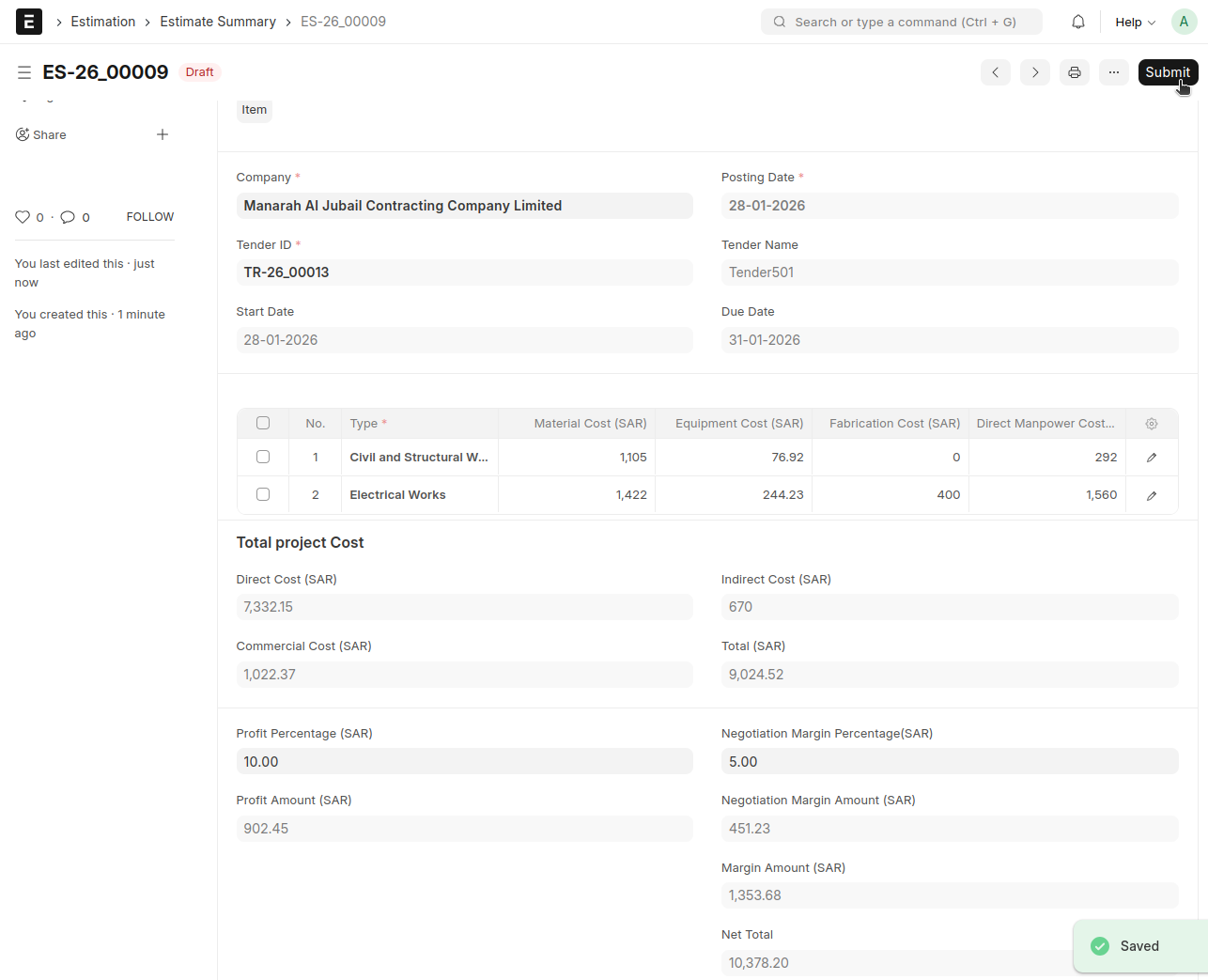
Estimate Summary
- The Direct, Indirect, and Commercial costs will be updated automatically from the Cost Breakdown
- he Profit Percentage and Negotiation Margin Percentage can be applied
The Net Total will be calculated automatically
Net Total = Direct Cost + Indirect Cost + Commercial Cost + Profit Amount + Negotiation Margin AmountAn Additional Discount can be applied, either as a percentage or a fixed amount
Based on this, the Grand Total will be calculated automatically
Grand Total = Net Total - Discount Amount
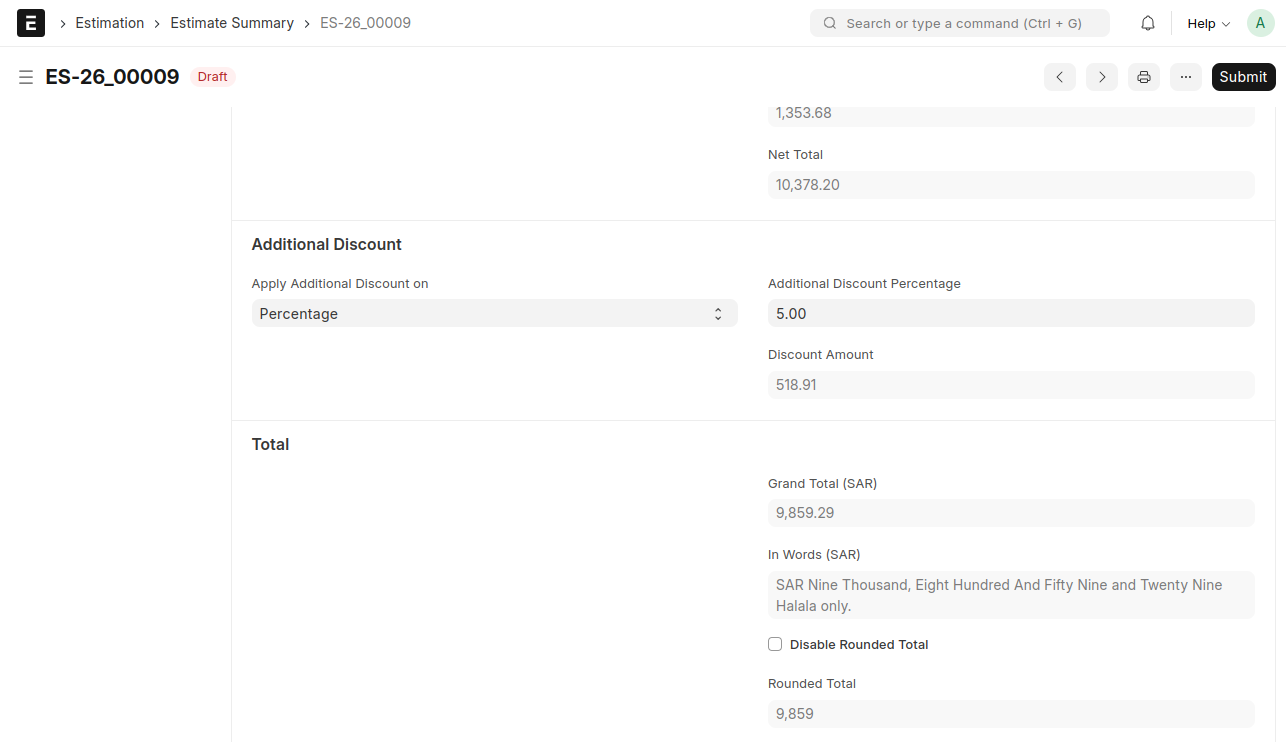
Finally, Save and Sumbit
Once this is submitted, items will be created automatically based on the number of activities created
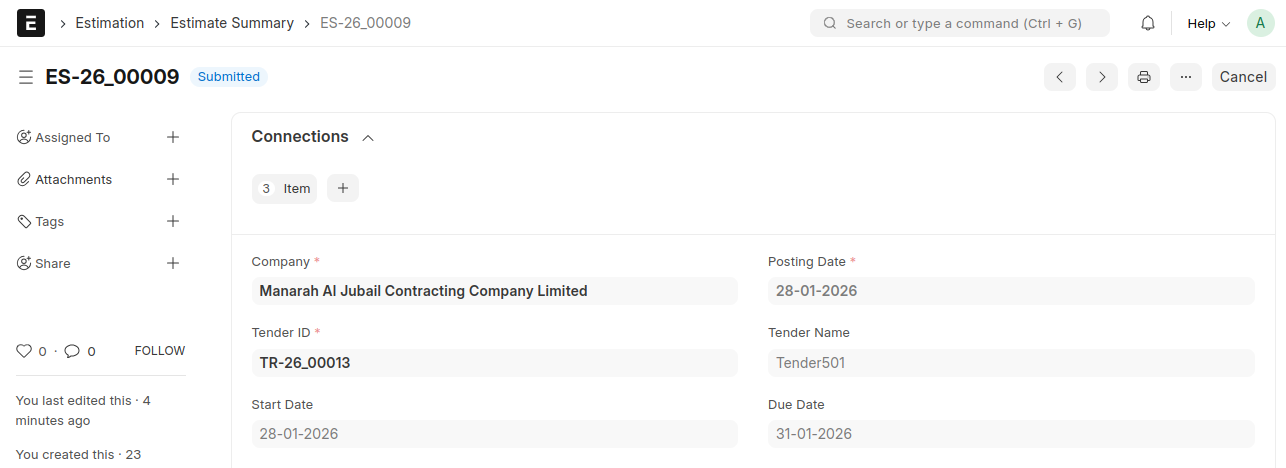
Navigate back to the Opportunity
From Opportunity → Create → Quotation
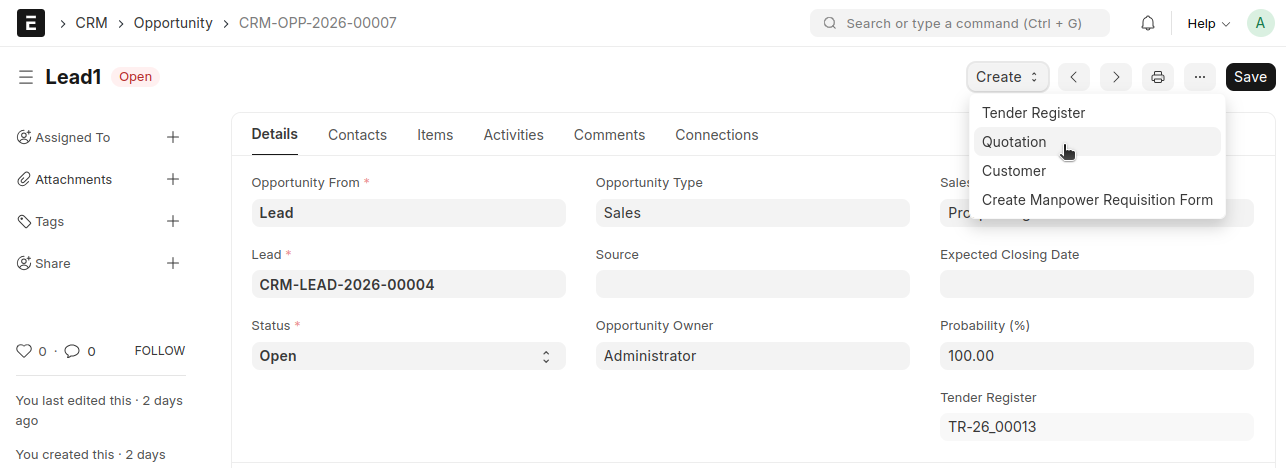
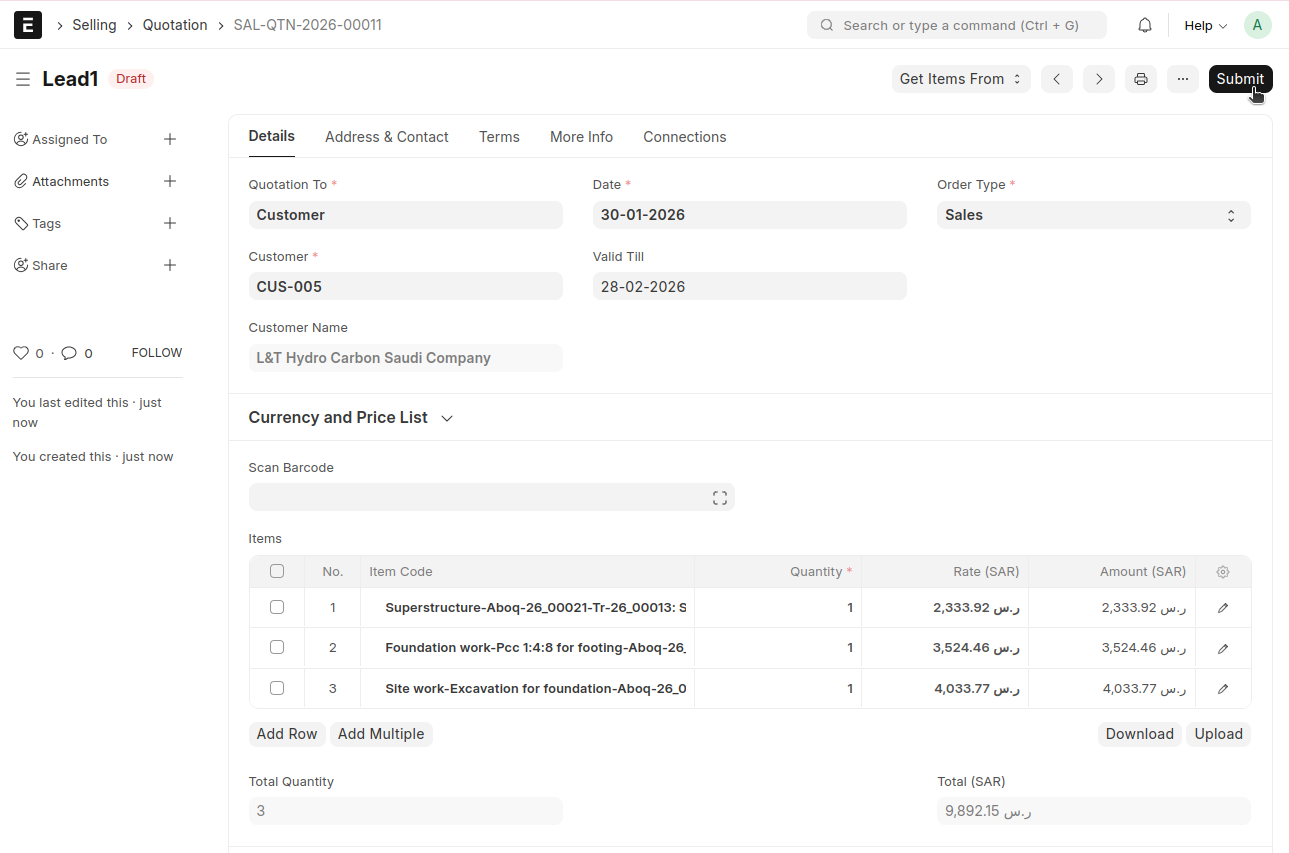
Quotation
- Item will be auto-fetched into the Quotaion
- Select “Quotation To” as Customer, and then select the customer in the Customer field
- Verify the details, then save and submit
From Quotaion → Create → Sales Order
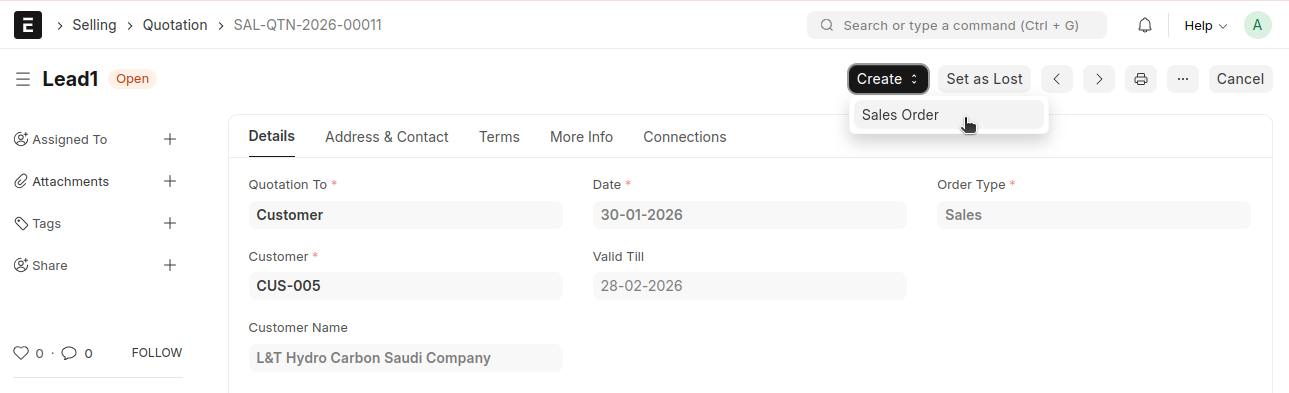
Sales Order
- Items will be auto-fetched from the Quotaion
- Select delivery date
- Verify the details, then save and submit