Momscode - Aliph-Purchase & Manufacturing Customization
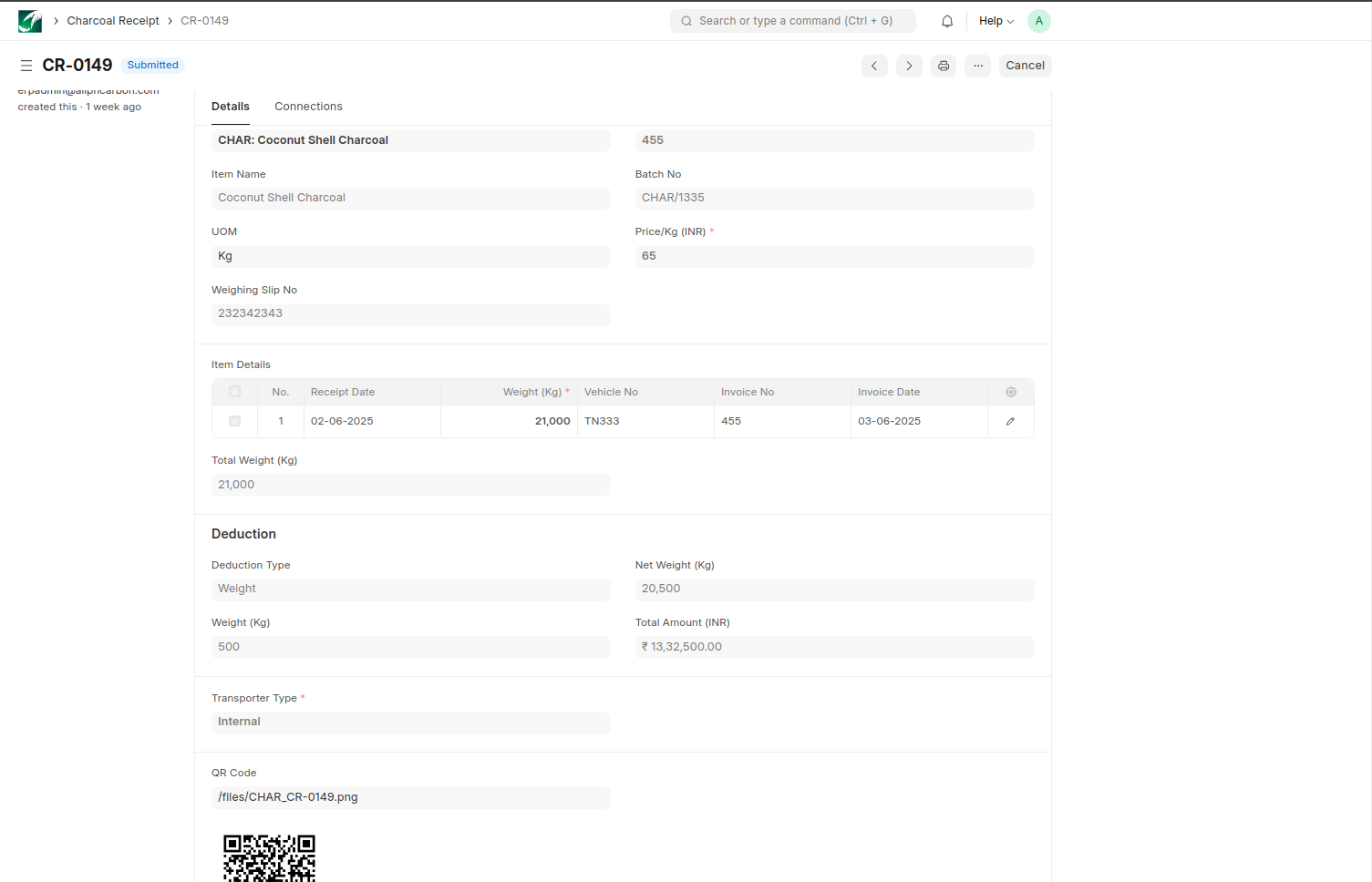
Charcoal Receipt
Charcoal is purchased from suppliers.
Create Charcoal Receipt Doucmnet
Company ,Branch and Warehouse details are fetched from the Moms Custom Settings.
A Charcoal Quality Check document is automatically created when the Charcoal Receipt is saved.
After submitting the Charcoal Quality Check, the Charcoal Receipt document is submitted. This triggers the creation of the following documents:
Purchase Receipt

Purchase Invoice (linked to the Purchase Receipt)

Expense Claim

Batch
Based on the Charcoal Quality Check, if there is a quantity to be returned (instead of applying a discount), the system will:
Create a Debit Note

Create a corresponding Credit Note

The return calculation should be based on the selected Deduction Type.
A QR code containing item details is generated upon submitting the Charcoal Receipt.
Pre Activation Work Order
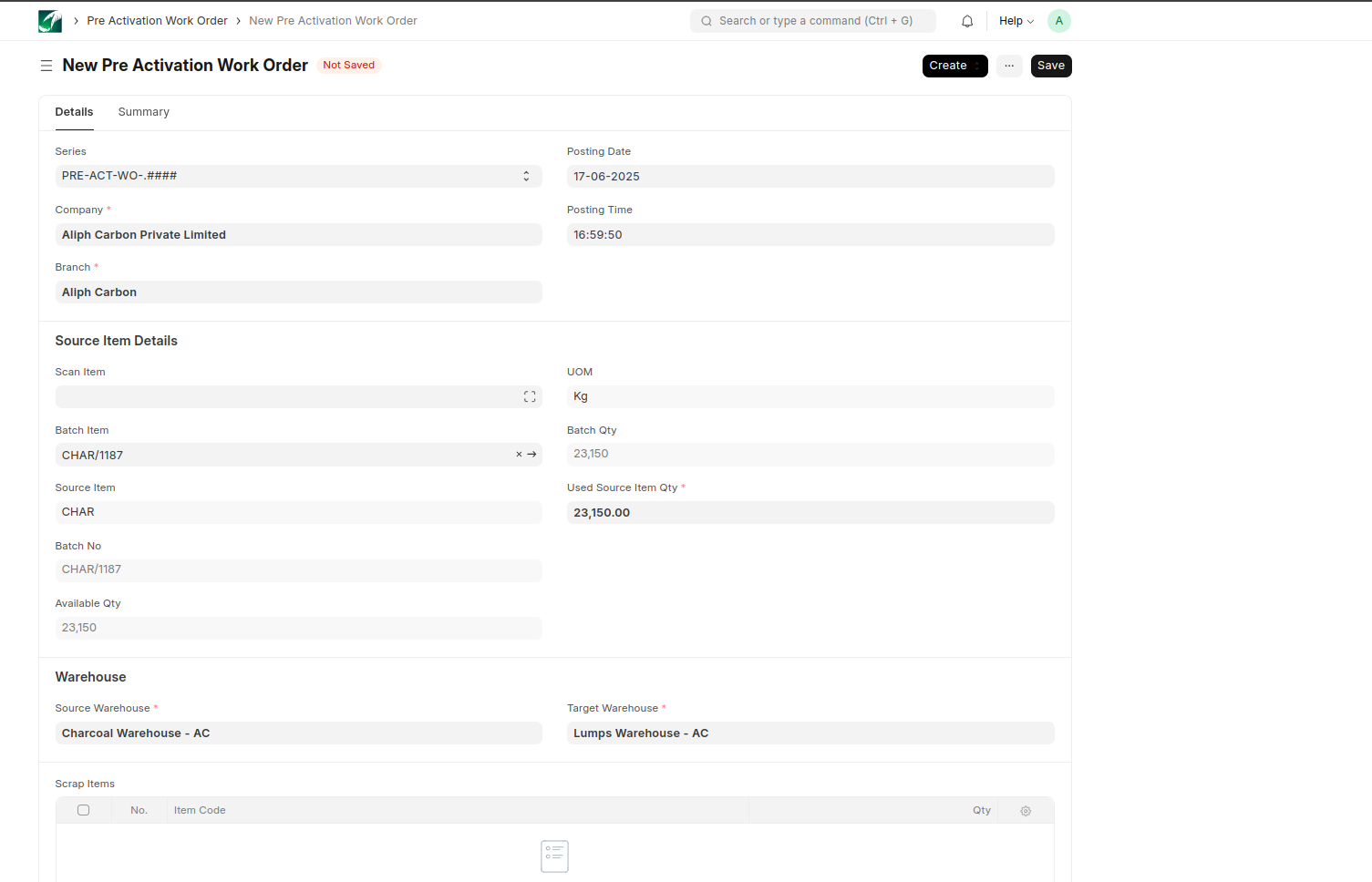
Select the Batch of the charcoal item under the Batch Item field.
Confirm the Used Source Item Qty (this should be less than or equal to the Available Qty).
Source Warehouse and Target Warehouse will be fetched automatically from Moms Custom Settings.
Save the document.
Click the Create button and create a Pre Activation Batch to record the different Lumps batches produced from the selected Charcoal batch through the manufacturing process.
Add the scrap item and its quantity in the Scrap Items table.
A manufacturing entry is created upon submitting the Pre Activation Work Order document.
The following documents are created through the Pre Activation Work Order:
• Pre Activation Batch
• Pre Activation Job Card
• Stock Entries
• Batch (Created from Pre Activation Batch)
Activation Work Order
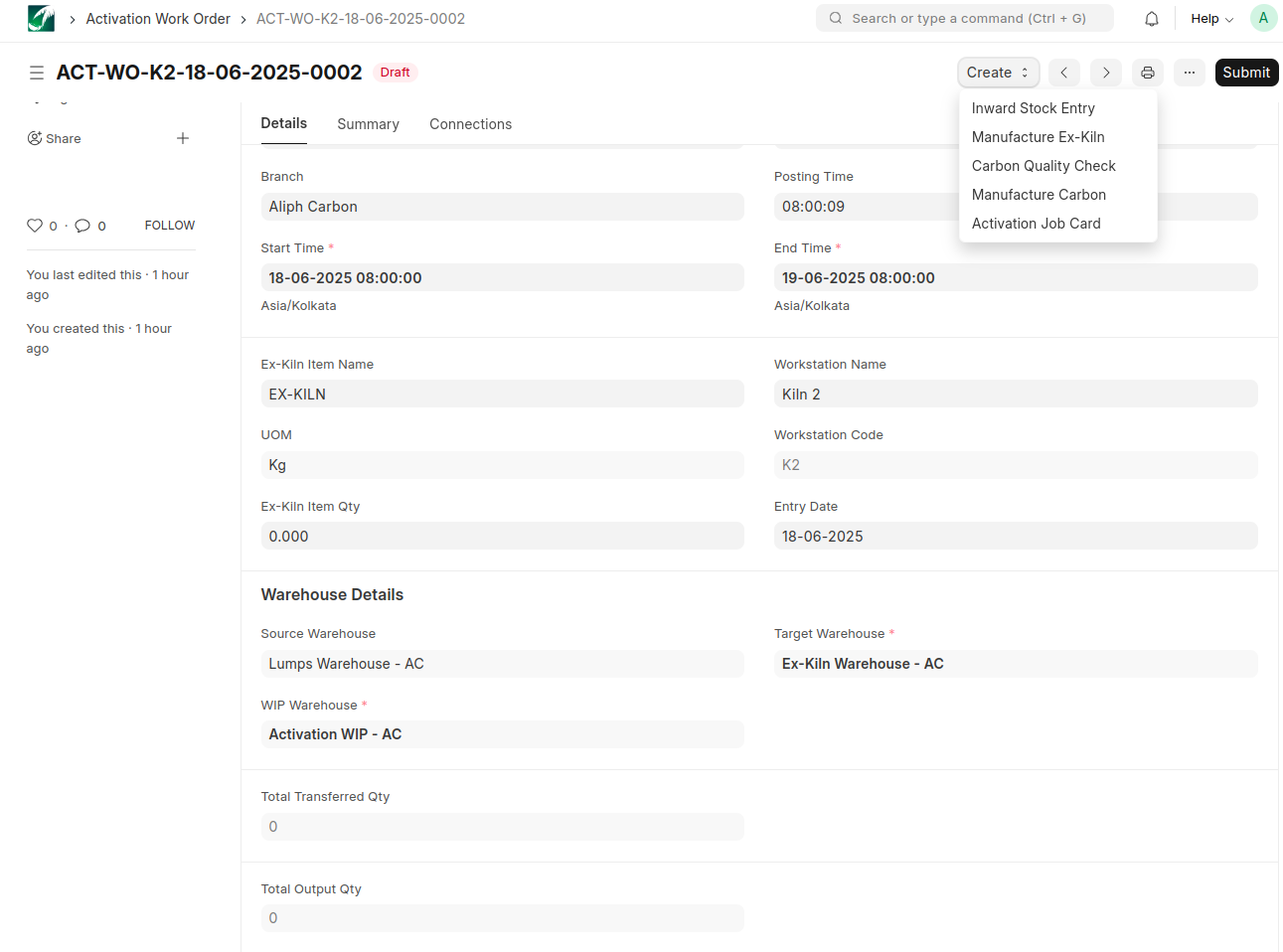
This document is used to record the manufacturing of Activated Carbon from Lumps.
The Activation Work Order document is created daily through a scheduler.
Warehouses and Company details are fetched automatically from Moms Custom Settings at the time of document creation.
Create inward entries using the ‘Inward Stock Entry’ button. The input items are Lumps, which are transferred to the WIP Warehouse through this entry for the manufacturing process.
Use the ‘Manufacture Ex-Kiln’ button to record the manufacture entry for producing Ex-Kiln items.
Use the Carbon Quality Check button to segregate different types of activated carbon based on the quality parameters.A separate batch is created for each item during this process.
Use the ‘Manufacture Carbon’ button to create a manufacture entry for producing Activated Carbon.
Use the ‘Activation Job Card’ button to generate a job card for the activation process.
The following documents are created through the Activation Work Order:
• Inward Stock Entry
• Carbon Quality Check
• Activation Job Card
• Stock Entries
• Batch (Created from Carbon Quality Check)
Carbon Quality Check
The Carbon Quality Check can be created in two ways:
From the Carbon Receipt:
• When purchasing carbon, a Carbon Quality Check is created through the Carbon Receipt document.
From the Activation Work Order:
• During the manufacturing of Activated Carbon, a Carbon Quality Check is created through the Activation Work Order.
Select the Activated Carbon item and enter the quantity
A batch and QR code will be created based on the item and quantity when this document is submitted.
Destoner Work Order
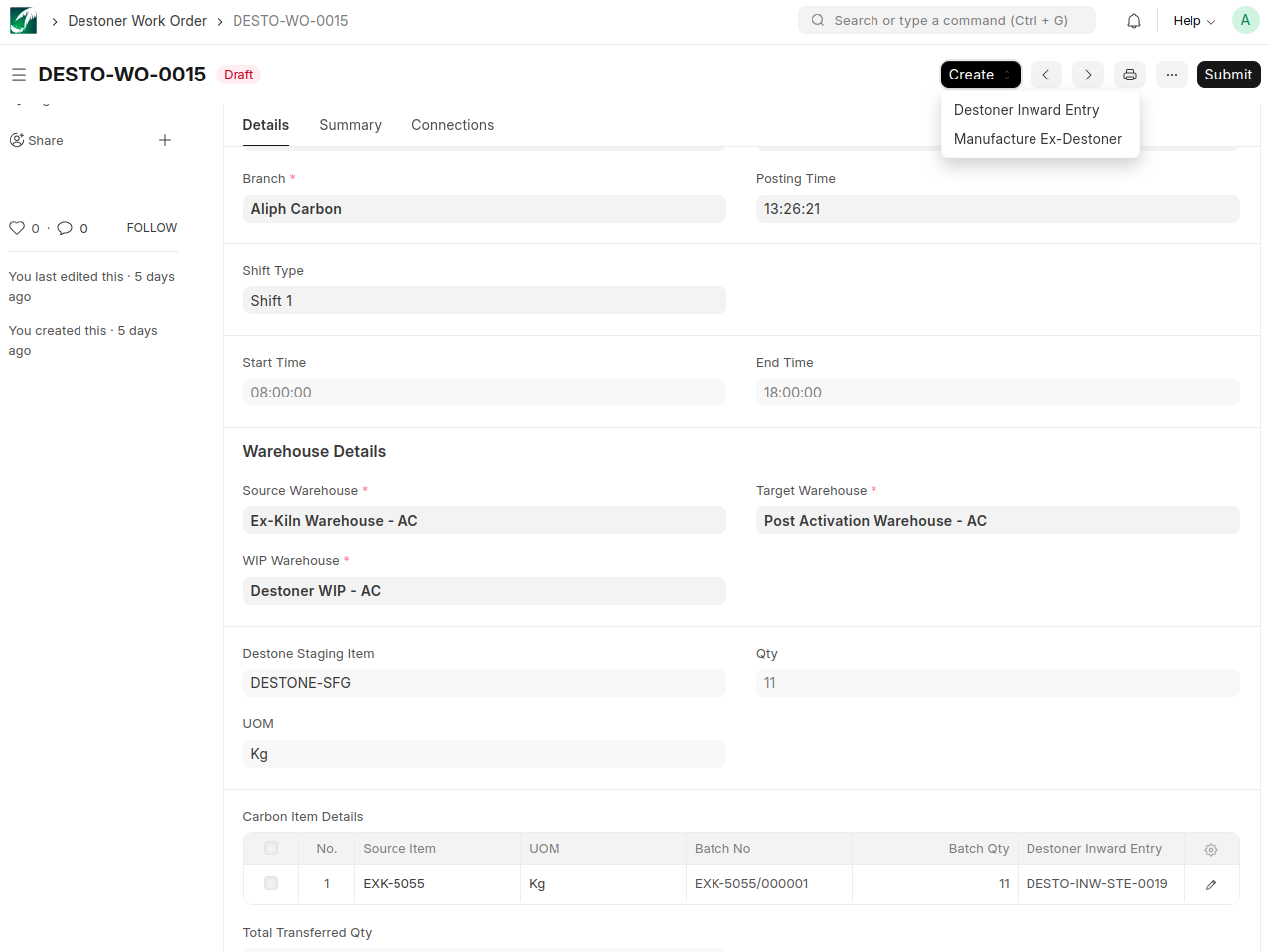
This document is used to record the manufacturing of Ex-Destoned item from Activated Carbon.
Warehouses and Company details are fetched automatically from Moms Custom Settings at the time of document creation.
Create inward entries using the ‘Destoner Inward Entry’ button. The input items are Activated Carbons and also Ex-Destoned items , which are transferred to the WIP Warehouse through this entry for the manufacturing process.
Use the ‘Manufacture Ex-Destoner’ button to record the manufacture entry for producing Ex-Destoned items.
The following documents are created through the Destoner Work Order:
• Destoner Inward Entry
• Stock Entries
Destoner Quality Check
Select the batch of the Ex-Destoned item.
Fill in the quality parameters.
When this document is submitted, a QR code will be generated based on the quality parameters and item details (Item, Batch, Quantity).
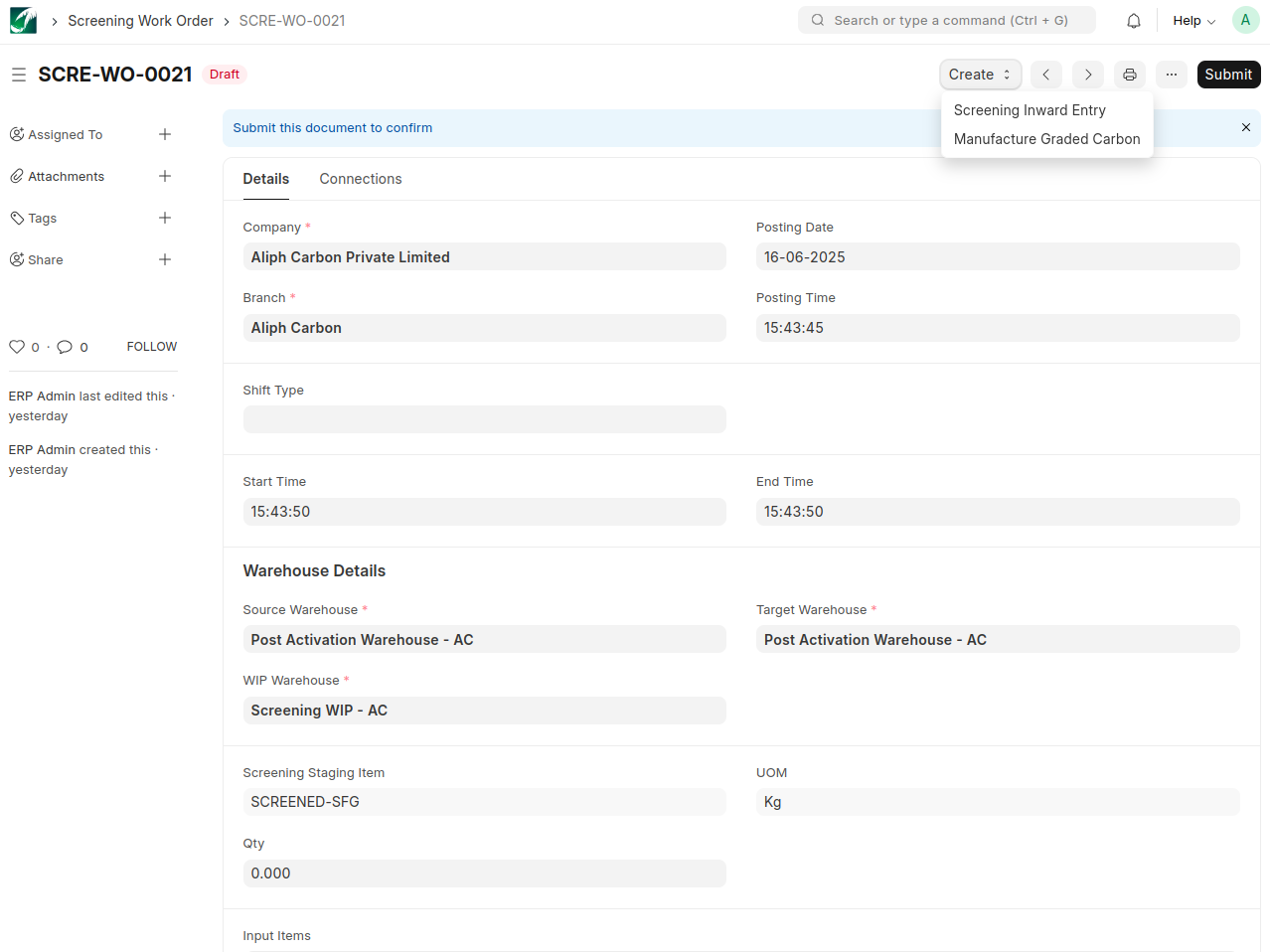
Screening Work Order
Screening is the process of separating materials based on size, shape, or other characteristics using specialized equipment
Create inward entries for screening using the ‘Screening Inward Entry’ button. The input items are Activated Carbons , which are transferred to the WIP Warehouse through this entry for the screening process.
Use the ‘Manufacture Graded Carbon’ button to create the manufacture entry for screened items (Activated Carbon).
The following documents are created through the Screening Work Order:
• Screening Inward Entry
• Stock Entries
Screening Quality Check
Select the batch of the Activated Carbon item.
Fill in the quality parameters.
When this document is submitted, a QR code will be generated based on the quality parameters and item details (Item, Batch, Quantity).
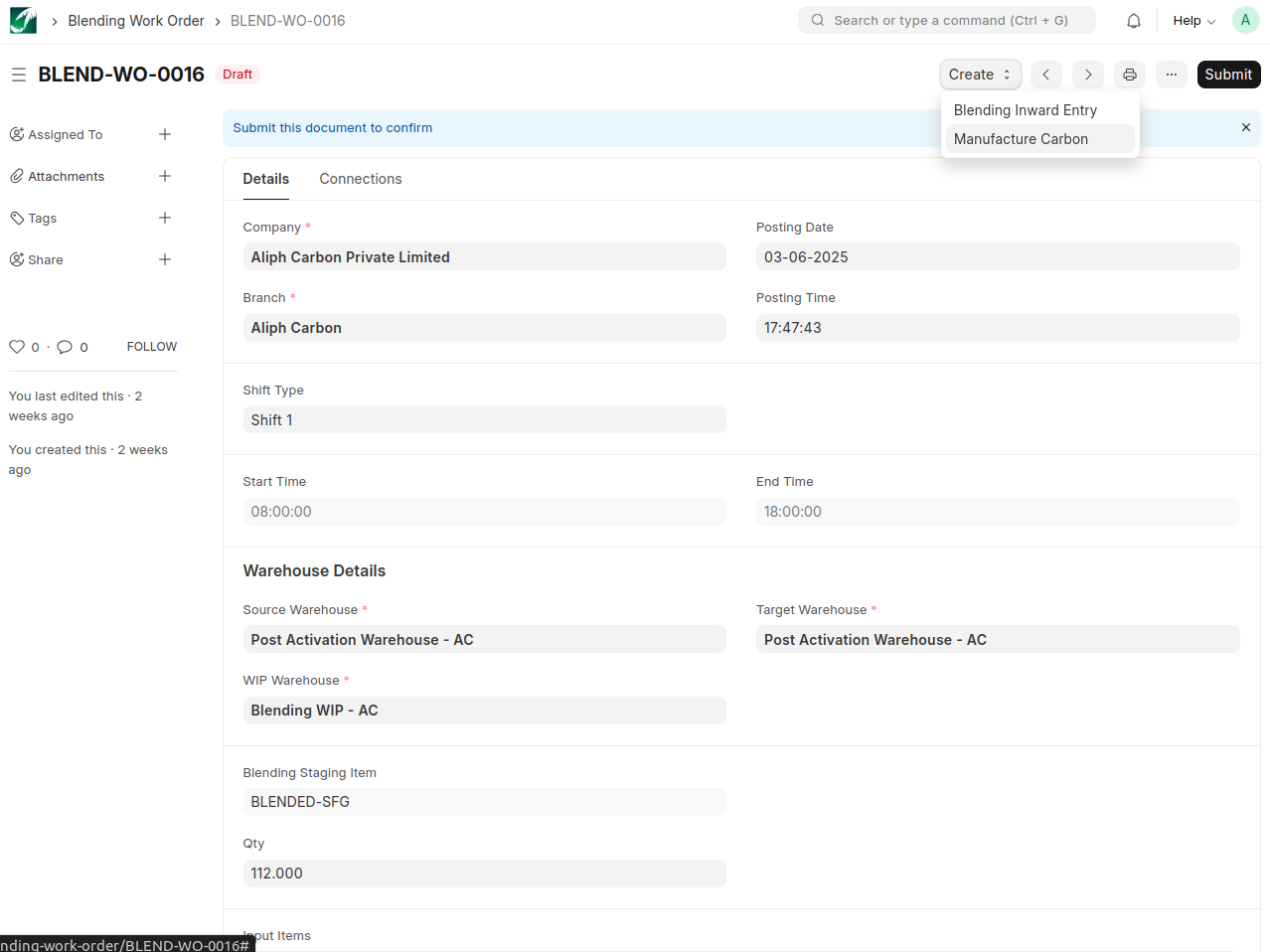
Blending Work Order
Blending is the process of combining different activated carbon to achieve the final products.
Create inward entries for blending using the ‘Blending Inward Entry’ button. The input items are Activated Carbons , which are transferred to the WIP Warehouse through this entry for the blending process.
Use the ‘Manufacture Carbon’ button to create the manufacture entry for blended items (Activated Carbon).
The following documents are created through the Work Order:
• Blending Inward Entry
• Stock Entries
Blending Quality Check
Select the batch of the Activated Carbon item.
Fill in the quality parameters.
When this document is submitted, a QR code will be generated based on the quality parameters and item details (Item, Batch, Quantity).
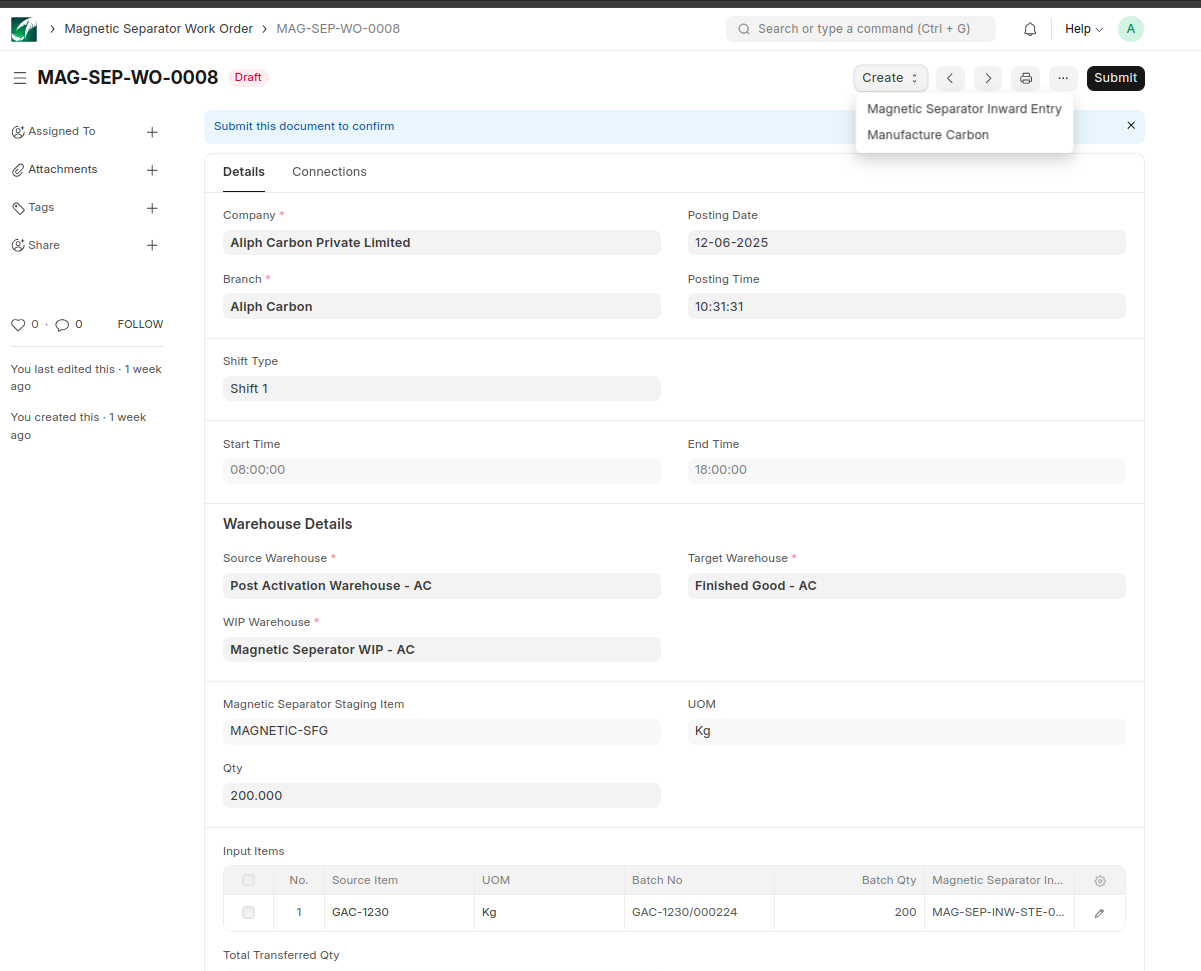
Magnetic Separator Work Order
Magnetic Separator is the process used to remove the magnetic impurities ,like iron based materials from Carbon.
Create inward entries for magnetic separator process using the ‘Magnetic Separator Inward Entry’ button. The input items are Activated Carbons , which are transferred to the WIP Warehouse through this entry for the Magnetic Separator process.
Use the ‘Manufacture Carbon’ button to create the manufacture entry for items (Activated Carbon).
The following documents are created through the Work Order:
• Magnetic Separator Inward Entry
• Stock Entries
Magnetic Separator Quality Check
Select the batch of the Activated Carbon item.
Fill in the quality parameters.
When this document is submitted, a QR code will be generated based on the quality parameters and item details (Item, Batch, Quantity).
Item
The folloowing fields added in Item matster
Batch Series
Branch
Dust
Waste
Carbon Receipt
Carbon is purchased from suppliers.
Create Carbon Receipt Doucmnet
Company ,Branch and Warehouse details are fetched from the Moms Custom Settings.
A Carbon Quality Check document is automatically created when the Carbon Receipt is saved.
After the Carbon Quality Check is submitted, the next step is to submit the Carbon Receipt document. This triggers the creation of the following documents:
Purchase Receipt

Purchase Invoice (linked to the Purchase Receipt)

Expense Claim

Batch
Based on the Carbon Quality Check, if there is a quantity to be returned (instead of applying a discount), the system will:
Create a Debit Note

Create a corresponding Credit Note

The return calculation should be based on the selected Deduction Type.