Momscode - Maya Engineering - Production Updated
Order And Dispatch
Sales Order → Click on 'Create' Button → Select 'Order And Dispatch'
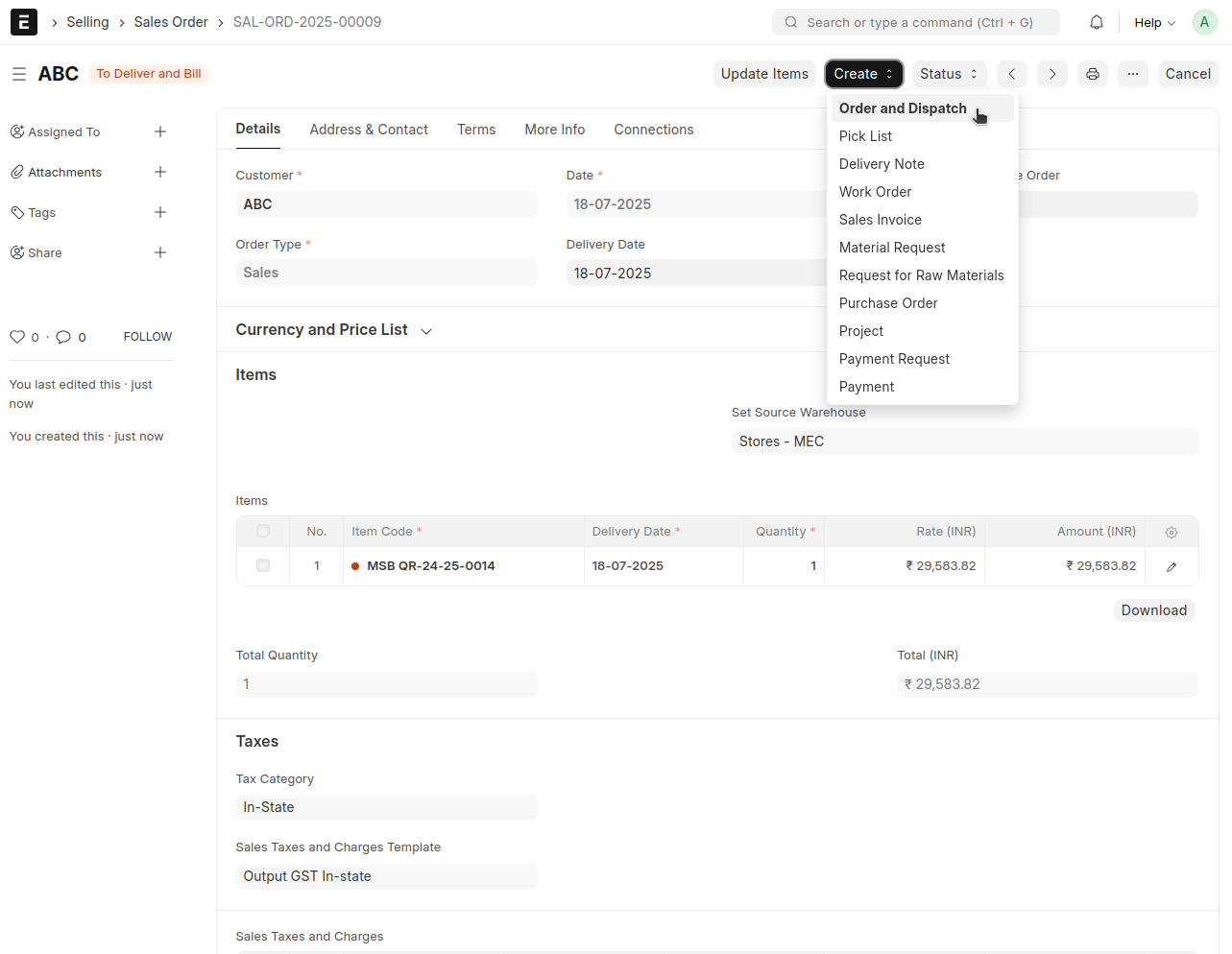
This doctype is generated against the Sales Order, based on the item and quantity defined in the Estimated BOM
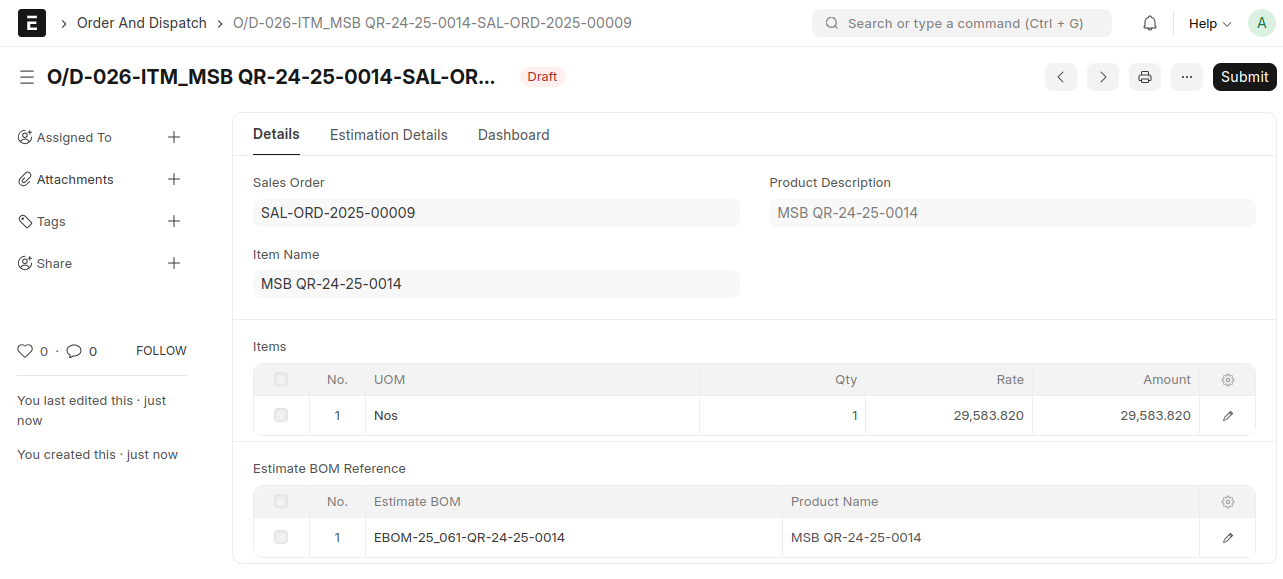
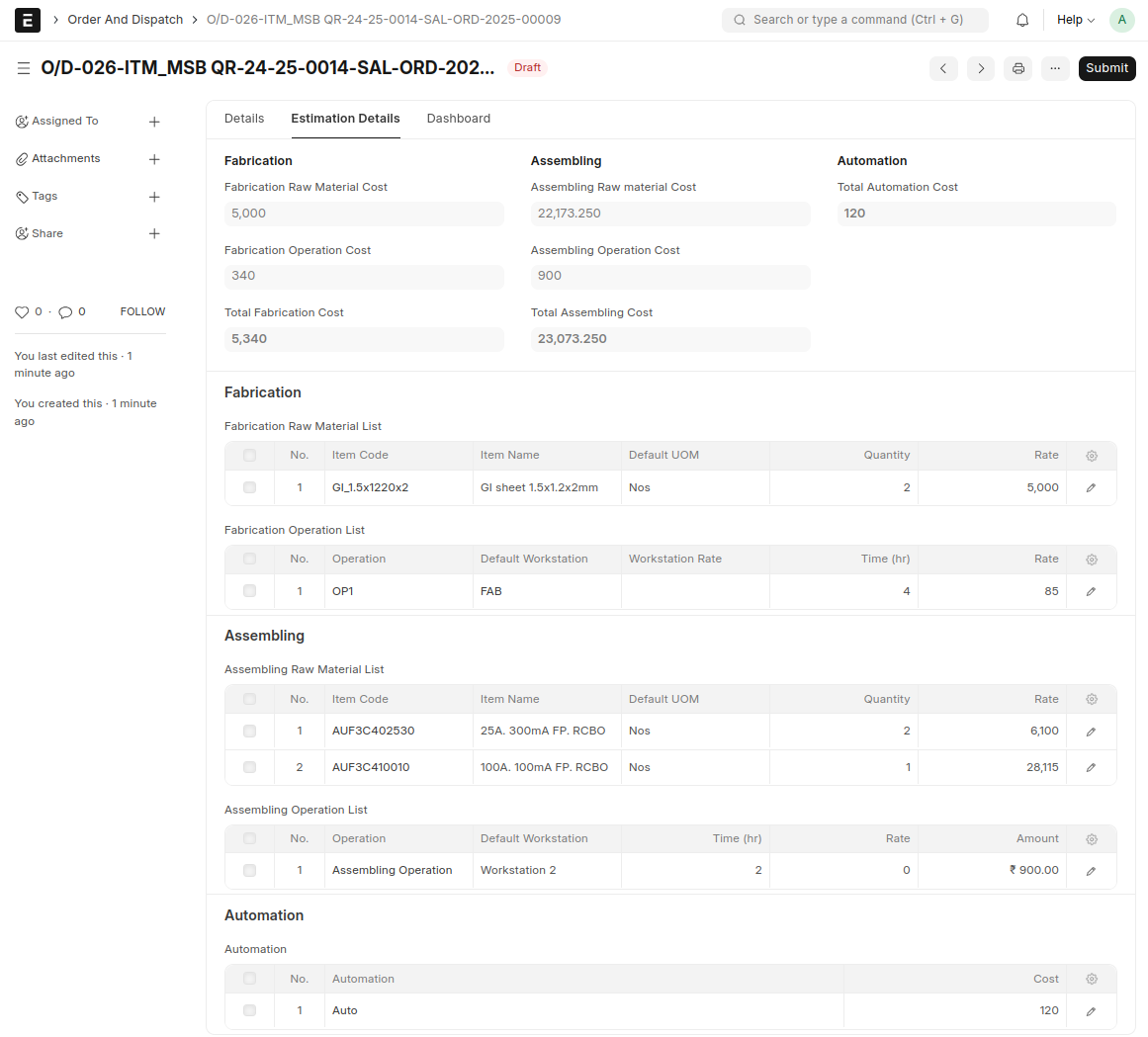
Save and Submit
SFG BOM
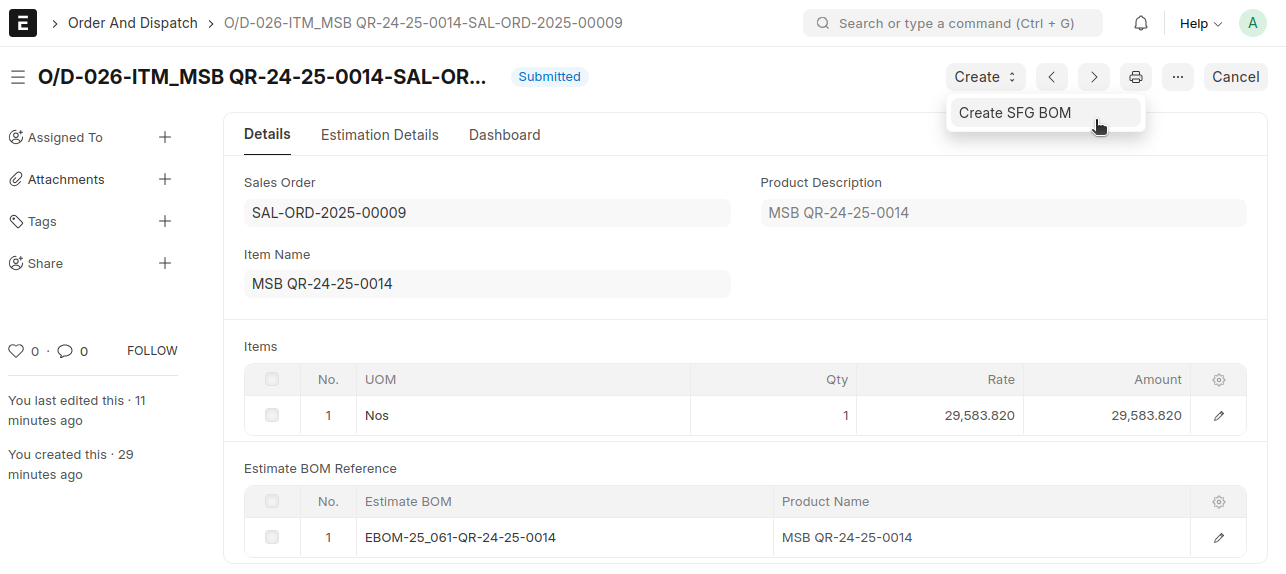
After submitting Order And Dispatch, a create button will appear from where we can create 'SFG BOM'
Order And Dispatch → Click on 'Create' Button → Select 'SFG BOM'
An SFG BOM is created in draft state
This is the place to make changes in the estimation if a product requires additional raw material for production. If we have already created an Estimate BOM for that particular item, then the SFG BOM will assist us
When you create an SFG BOM for the first time, the same data from the Estimate BOM is appended here. You can add or delete items and their operations as needed
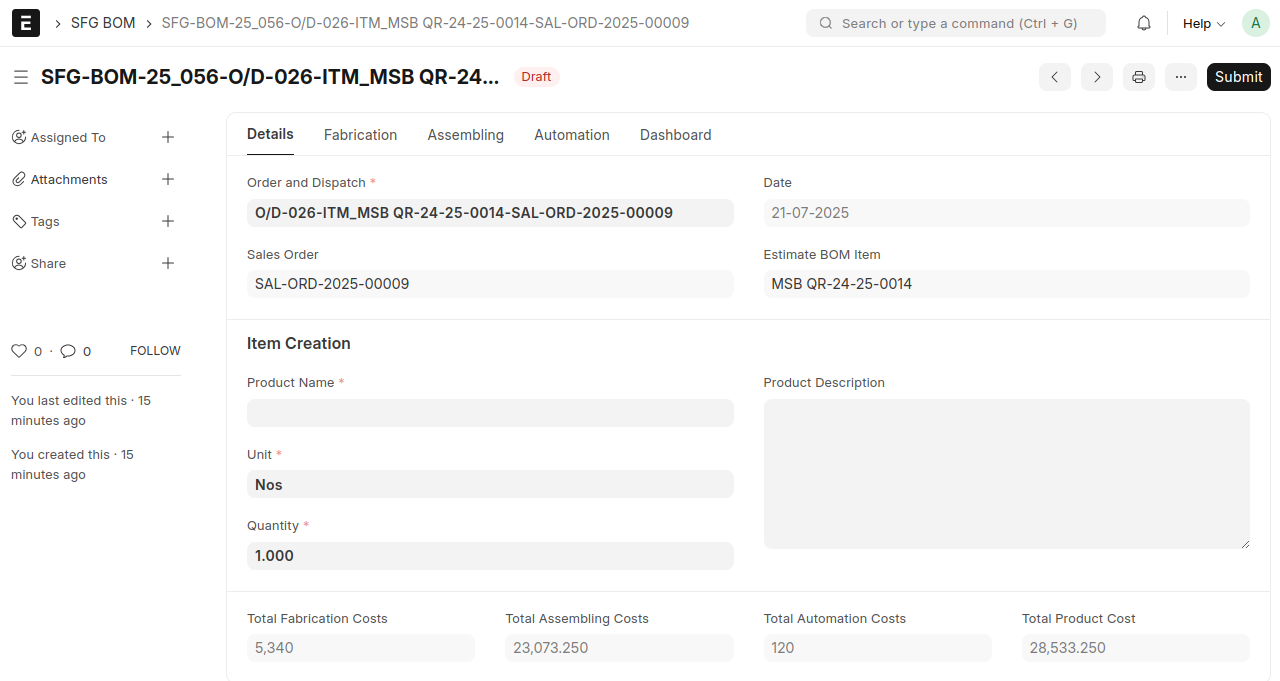
We create an SFG BOM as a virtual item to manage additional changes because an Estimation has already been created for the finished good and its production has started. Since no changes can be made to the original Estimation document, creating a virtual item for the SFG BOM of the finished good becomes very important.
To proceed, fill in the 'Product Name' field, then save and submit
An item and a BOM will be created automatically after submission
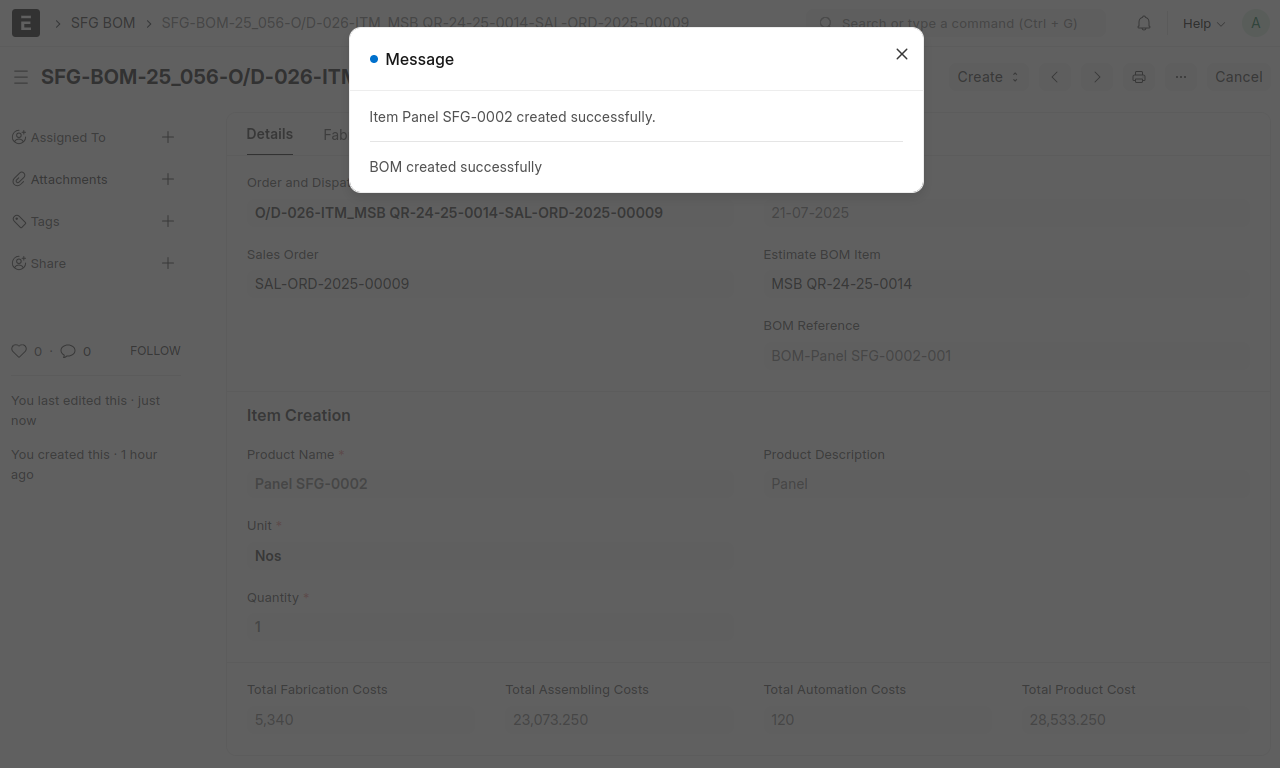
Work Order
After submitting the SFG BOM, a 'Create' button will appear, allowing you to create a Work Order
Create a Work Order against the SFG BOM
SFG BOM → Click on 'Create' Button → 'Work Order'
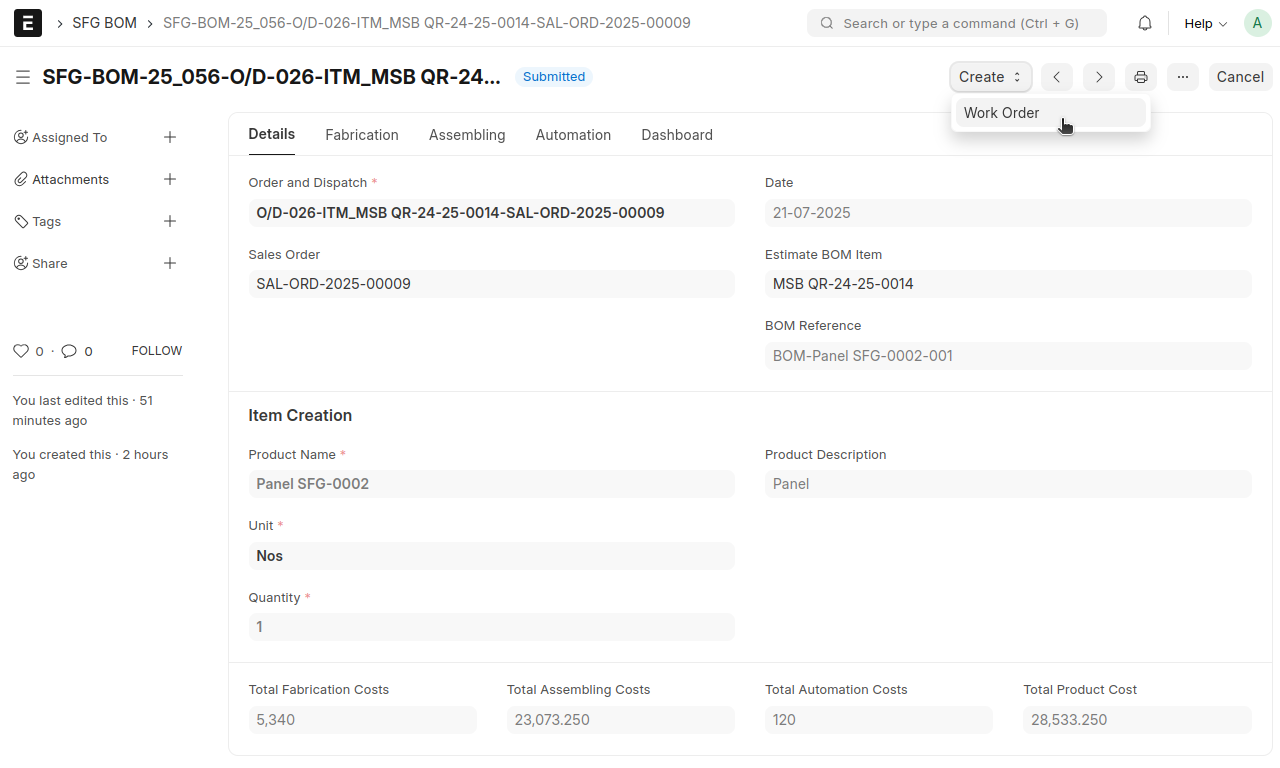
A Work Order will be created in a draft state
Items and Operations will be fetched from the 'SFG BOM'
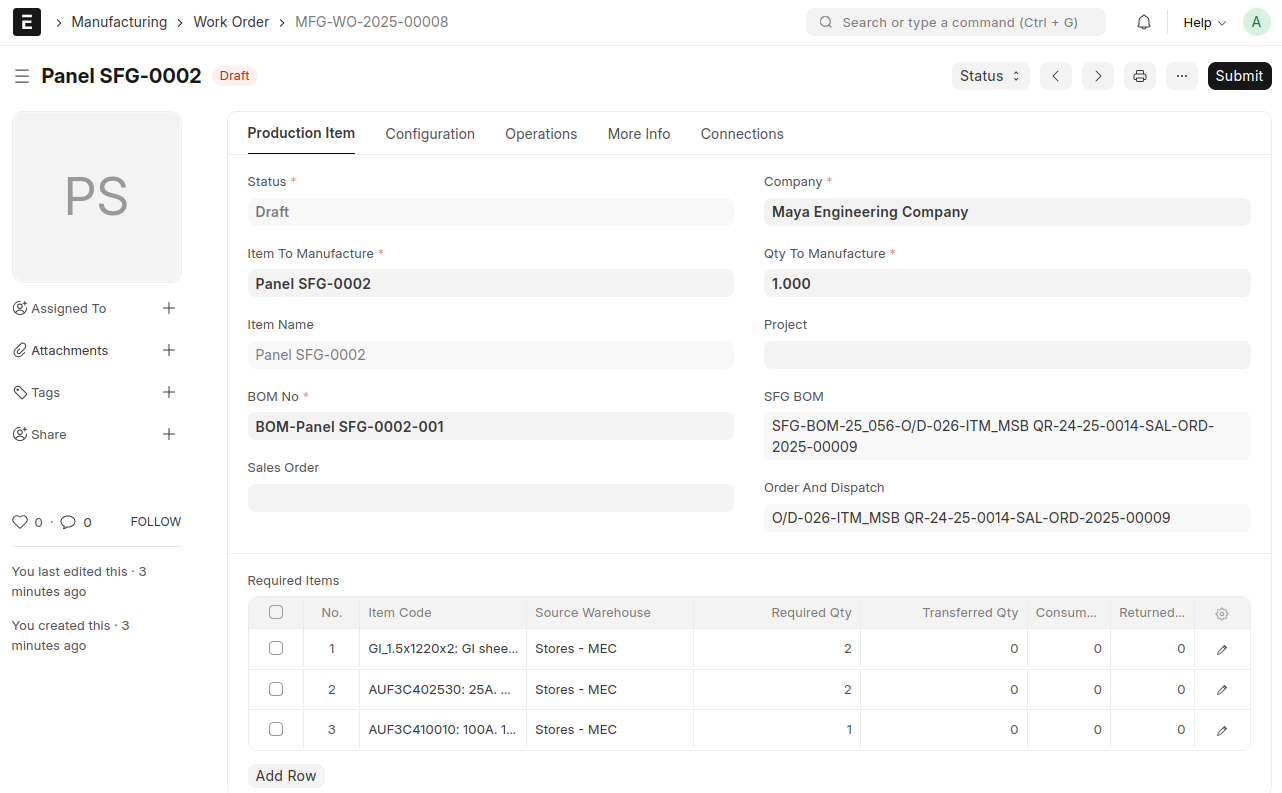
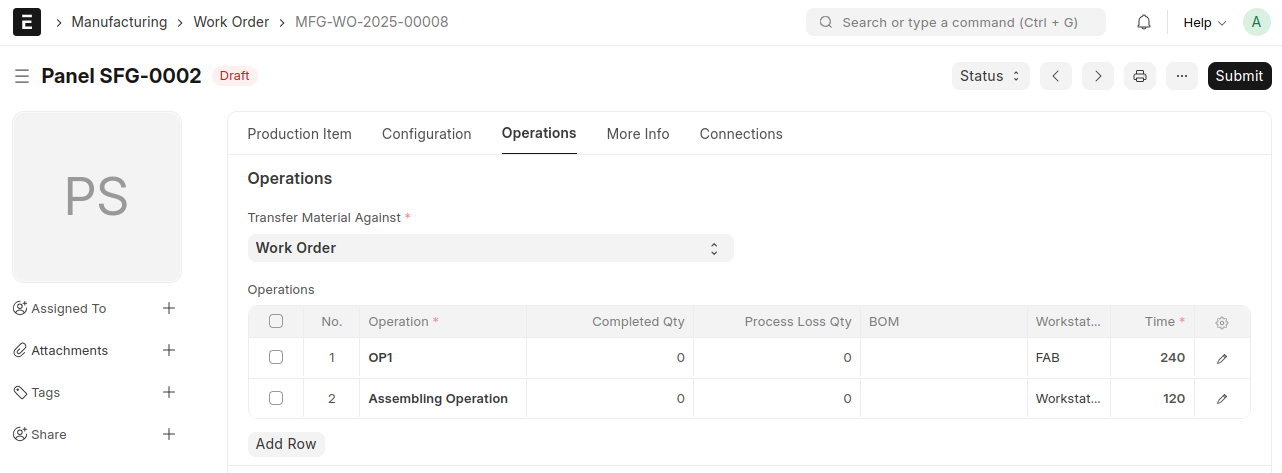
Save and submit
Stock Entry (Material Transfer for Manufacture)
After the Work Order is submitted, a Start button will be displayed to generate the Stock Entry
Create a 'Stock Entry' against this Work Order
Work Order→ Click on 'Start' Button → 'Stock Entry'
Then Save and Submit
Stock Entry (Manufacture)
Once the Material transfer for manufacturing stock Entry is Submitted a Finish button will display in the Work Order. Back to Work Order → Click on 'Finish' Button
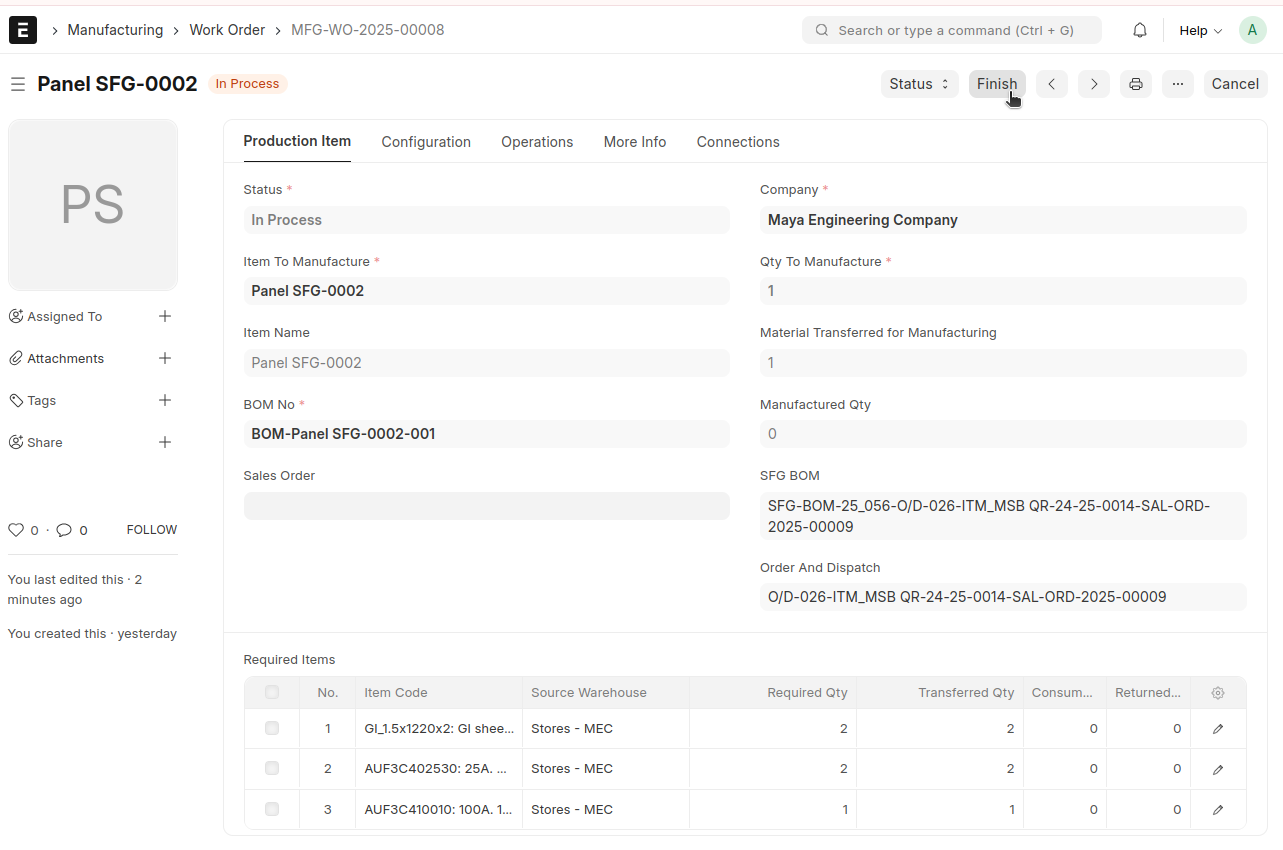
A manufacturing Stock Entry will be auto-generated
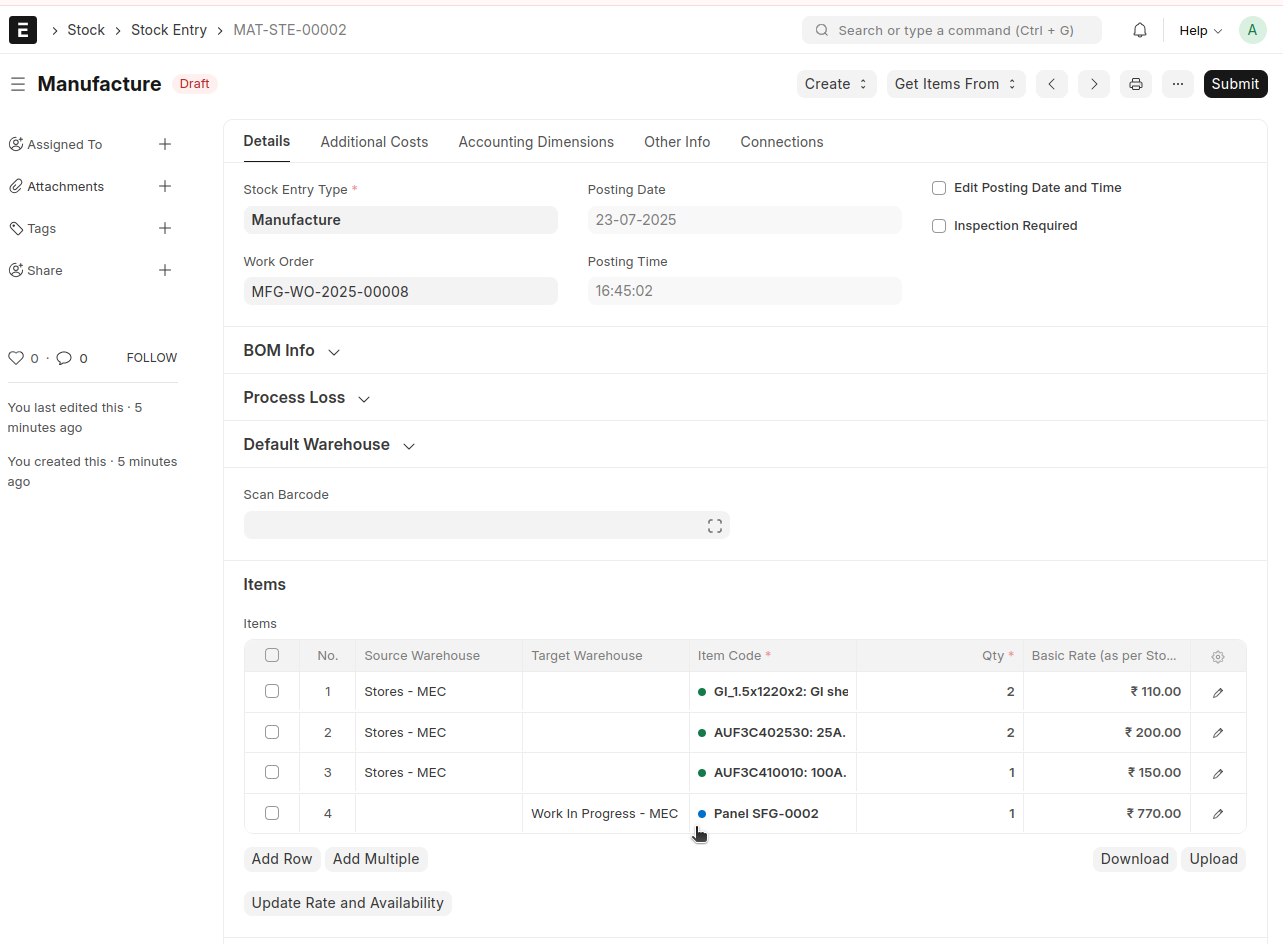
save and Submit
'Work Order' will be completed
FG BOM
Back in Order and Dispatch, once the SFG BOM is submitted, the option to create an FG BOM will be enabled
FG BOM is the final BOM for the production
Order And Dispatch → Click on 'Create' Button → Select 'FG BOM'
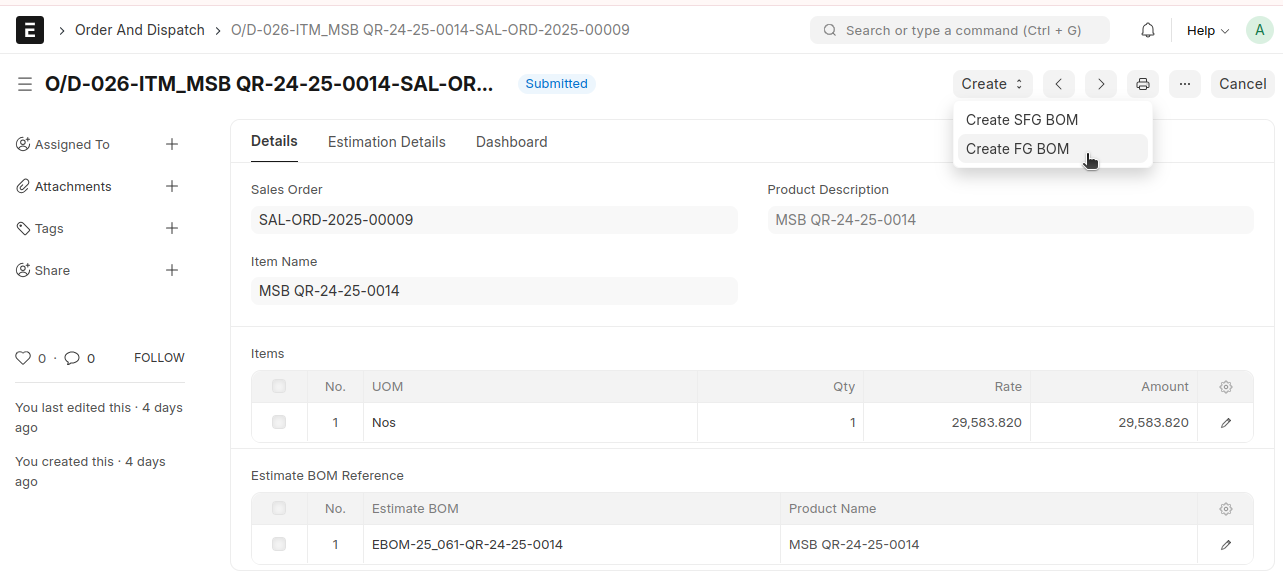
An FG BOM will be created in draft state
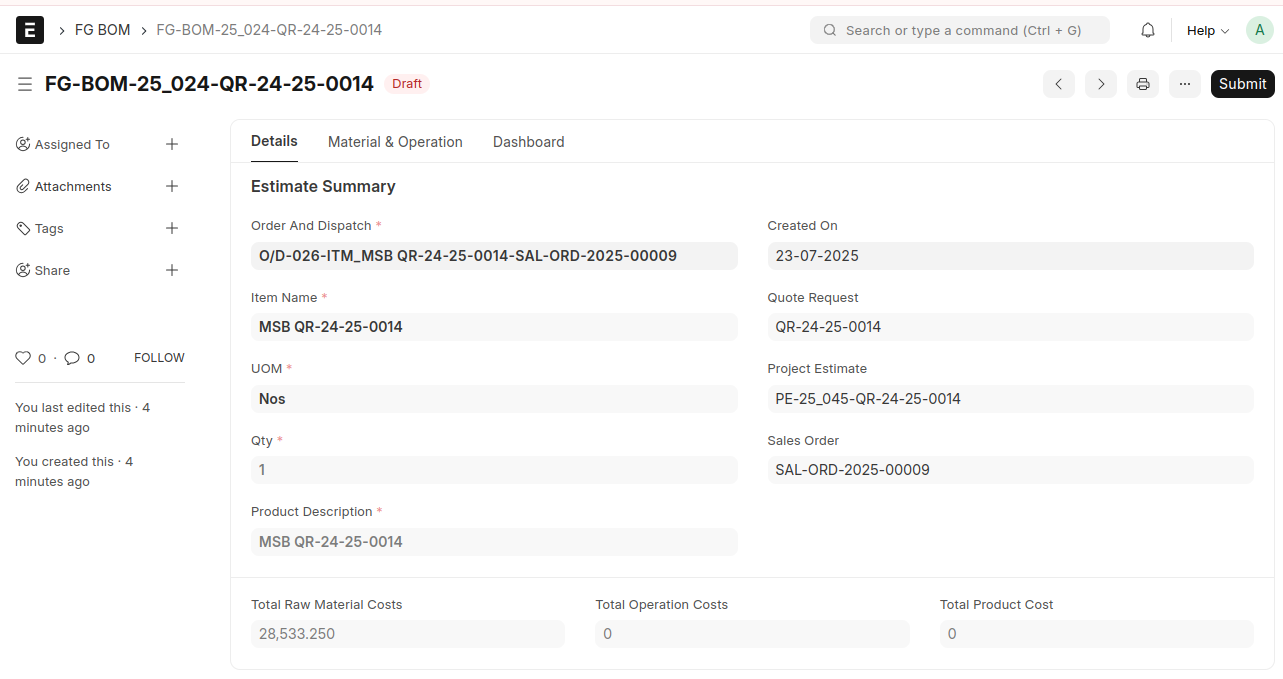
The item name will be fetched from the item specified in the Quote Request
The estimated raw material cost will be fetched from the SFG BOM
The raw material listed in the FG BOM is the item that was created when the SFG BOM was submitted
You can add 'Operations' in the Operation List
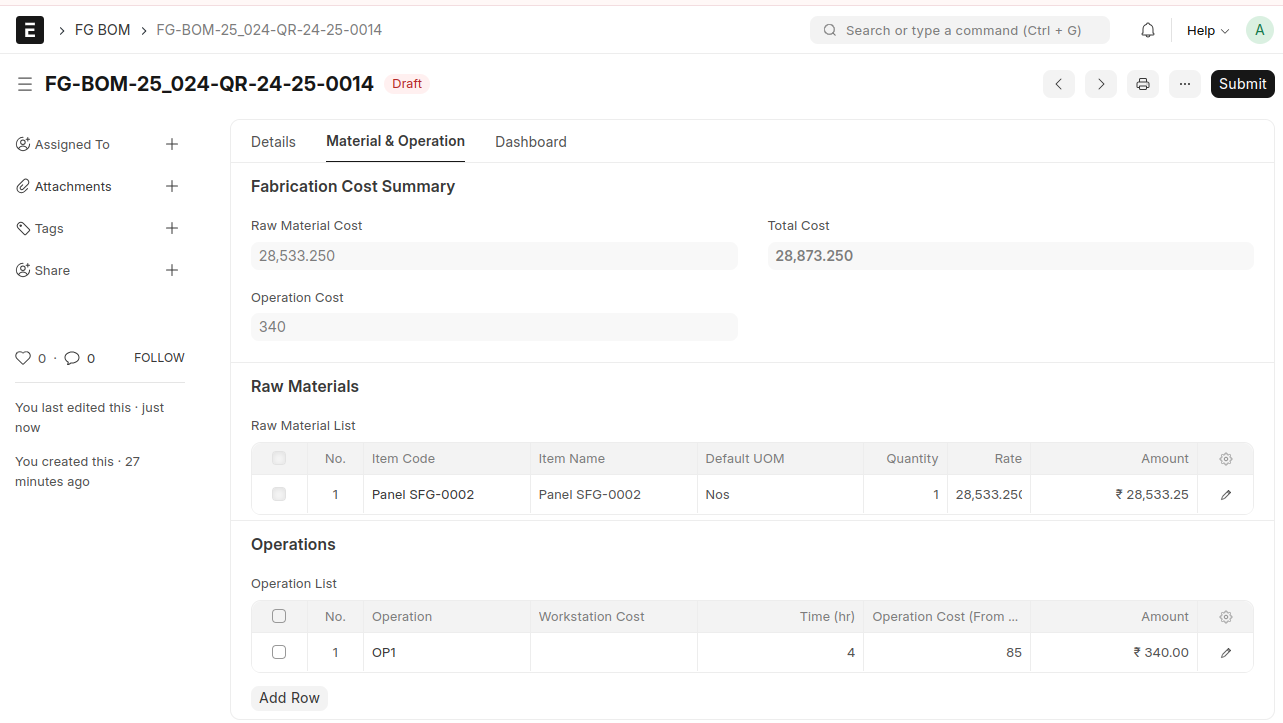
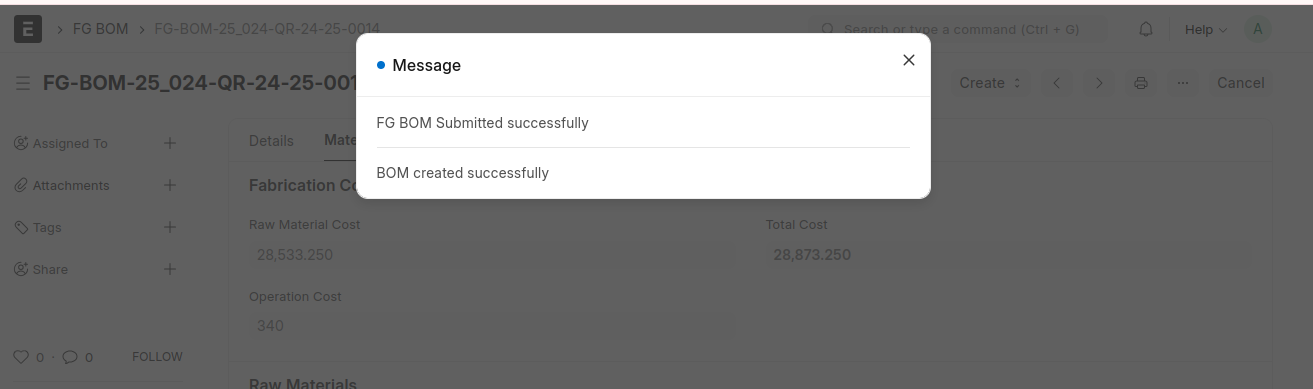
Save and Submit
An item and a BOM will be created automatically after submission
The item created here will be the same as the one mentioned in the 'Quote Request'
Work Order
After submitting the FG BOM, a 'Create' button will appear, allowing you to create a Work Order
Create a Work Order against the FG BOM
FG BOM → Click on 'Create' Button → 'Work Order'
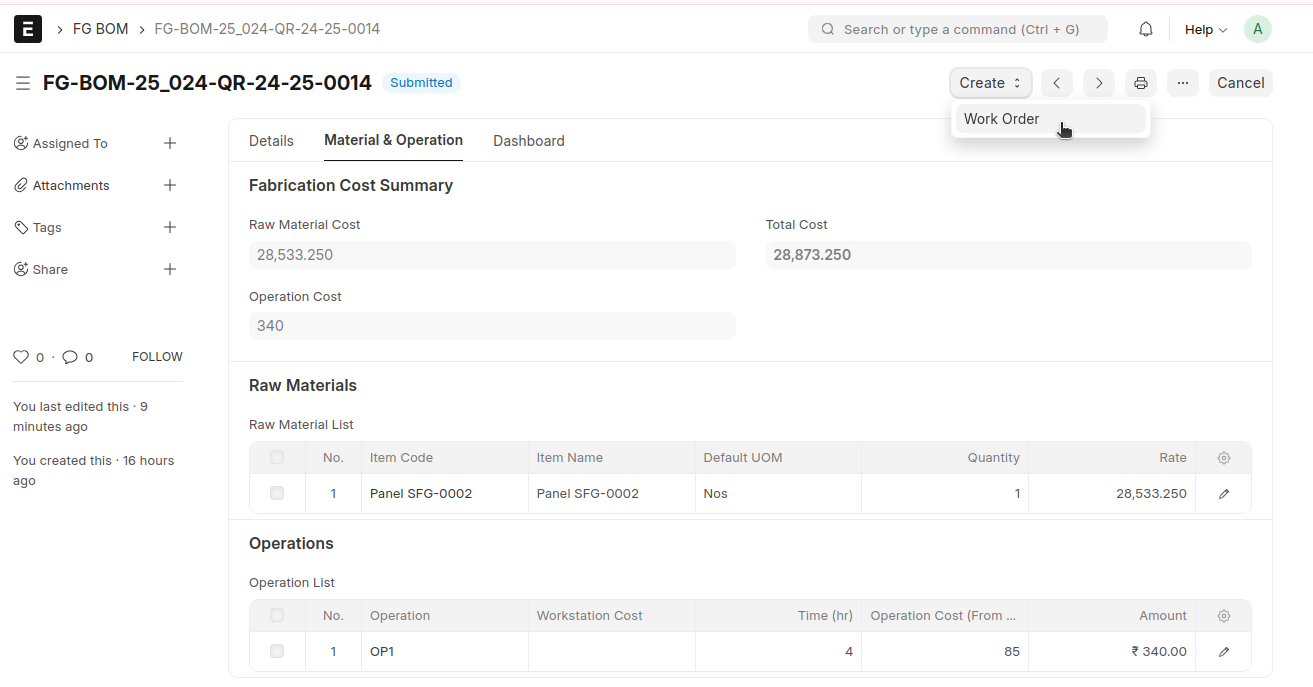
A Work Order will be created in a draft state
Items and Operations will be fetched from the 'FG BOM'
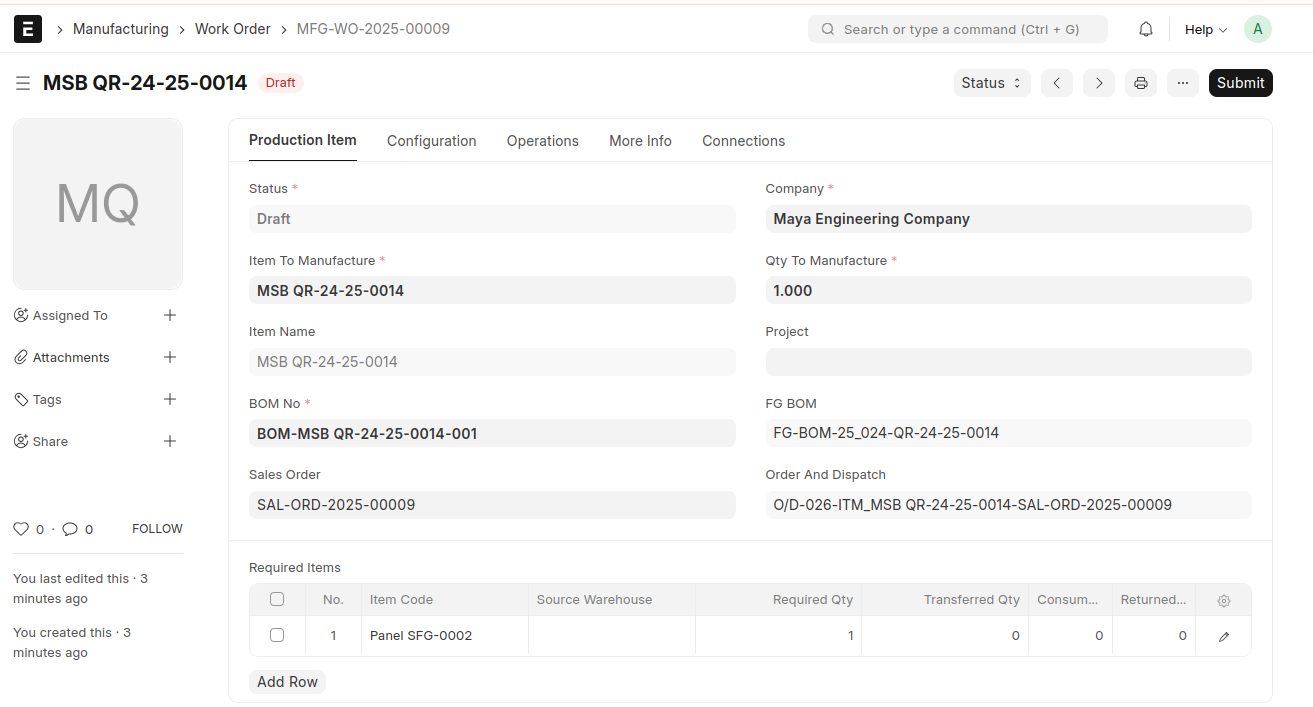
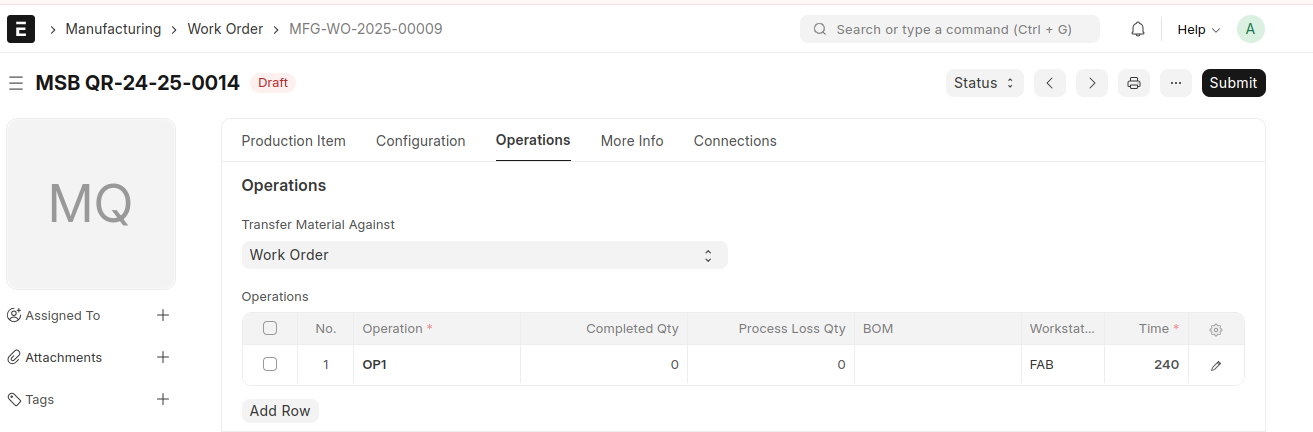
Enter the 'Source Warehouse', then Save and submit
Stock Entry (Material Transfer for Manufacture)
Once the Material transfer for manufacturing stock Entry is Submitted a Finish button will display in the Work Order. Back to Work Order → Click on 'Finish' Button
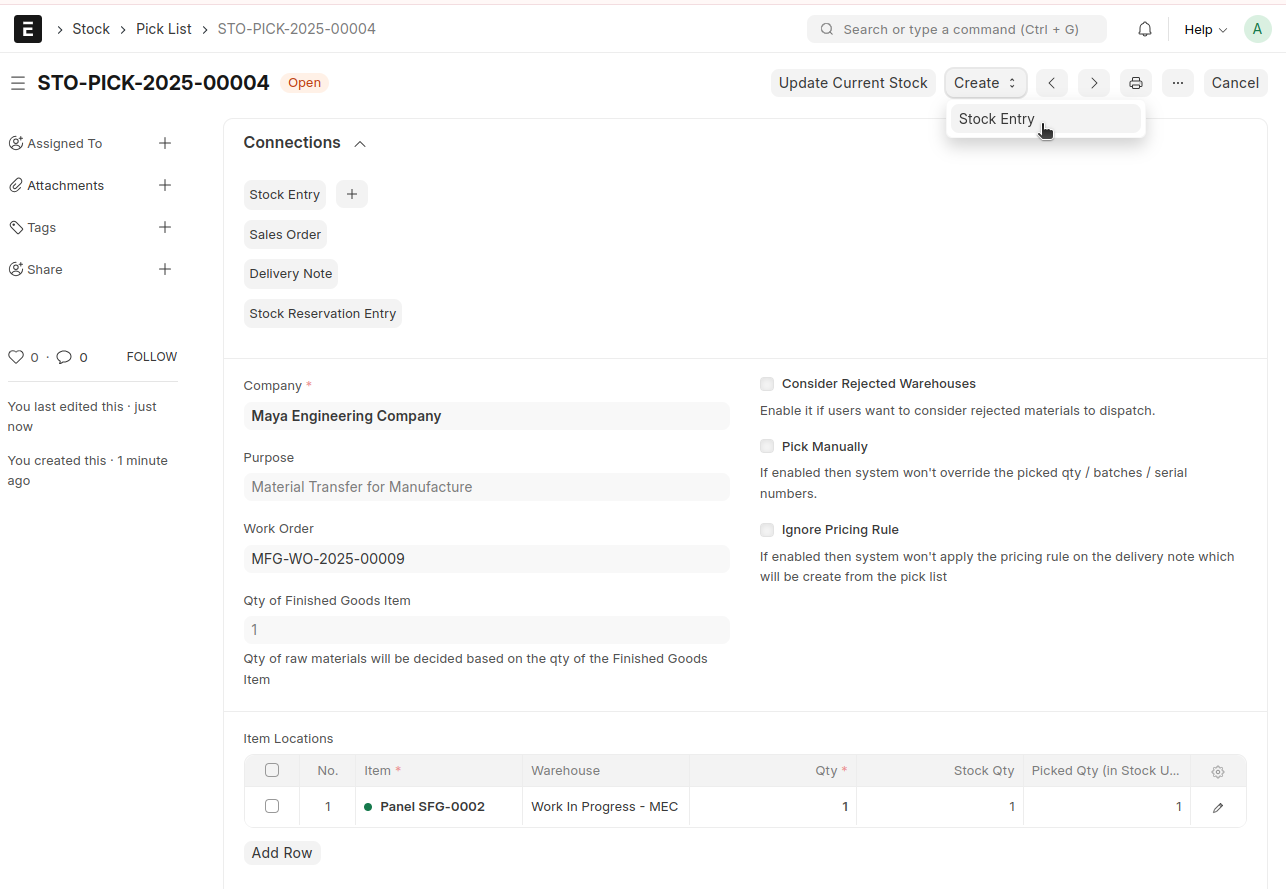
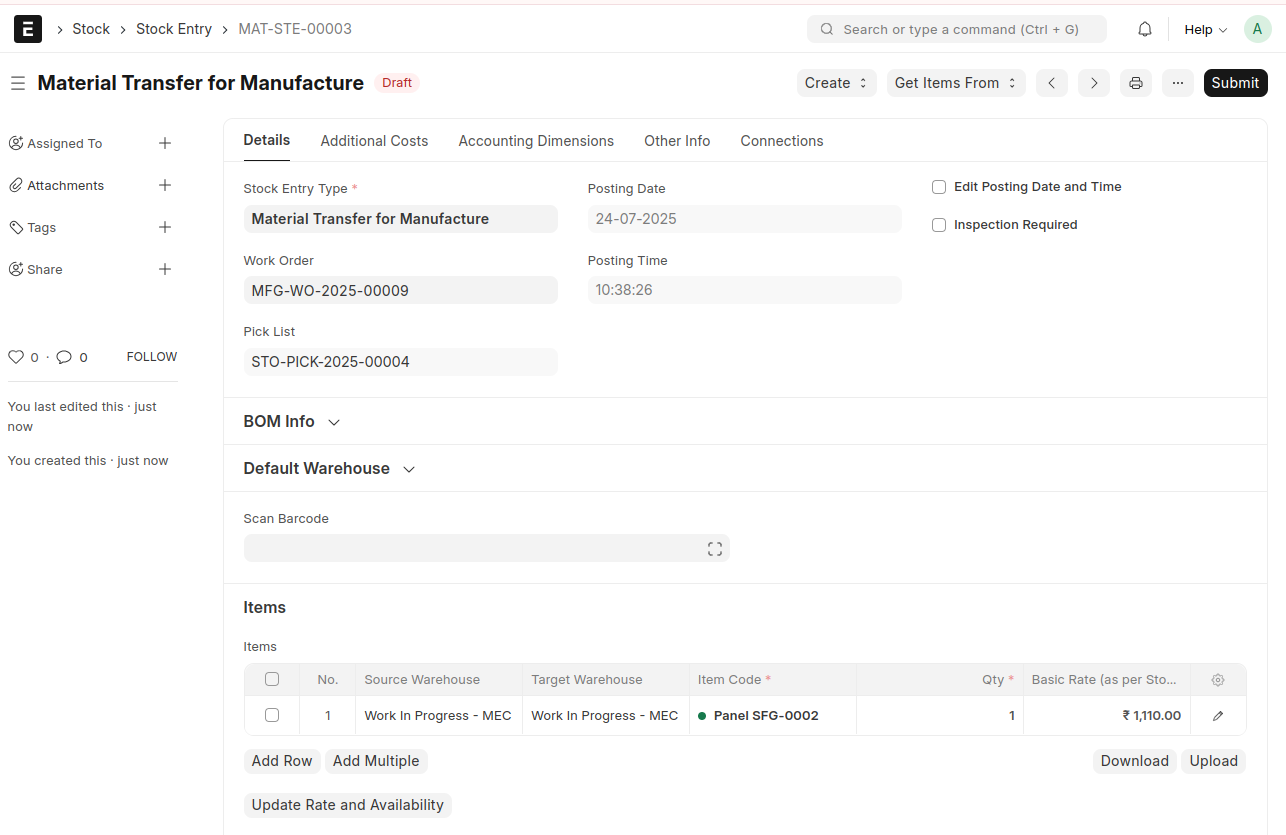
Then Save and Submit
Stock Entry (Manufacture)
Once the Job Card is submitted, a button will appear to finish the Work Order. (The Work Order can only be completed after all Job Cards have been submitted)
Back to Work Order → Click on 'Finish' Button
A manufacturing Stock Entry will be auto-generated
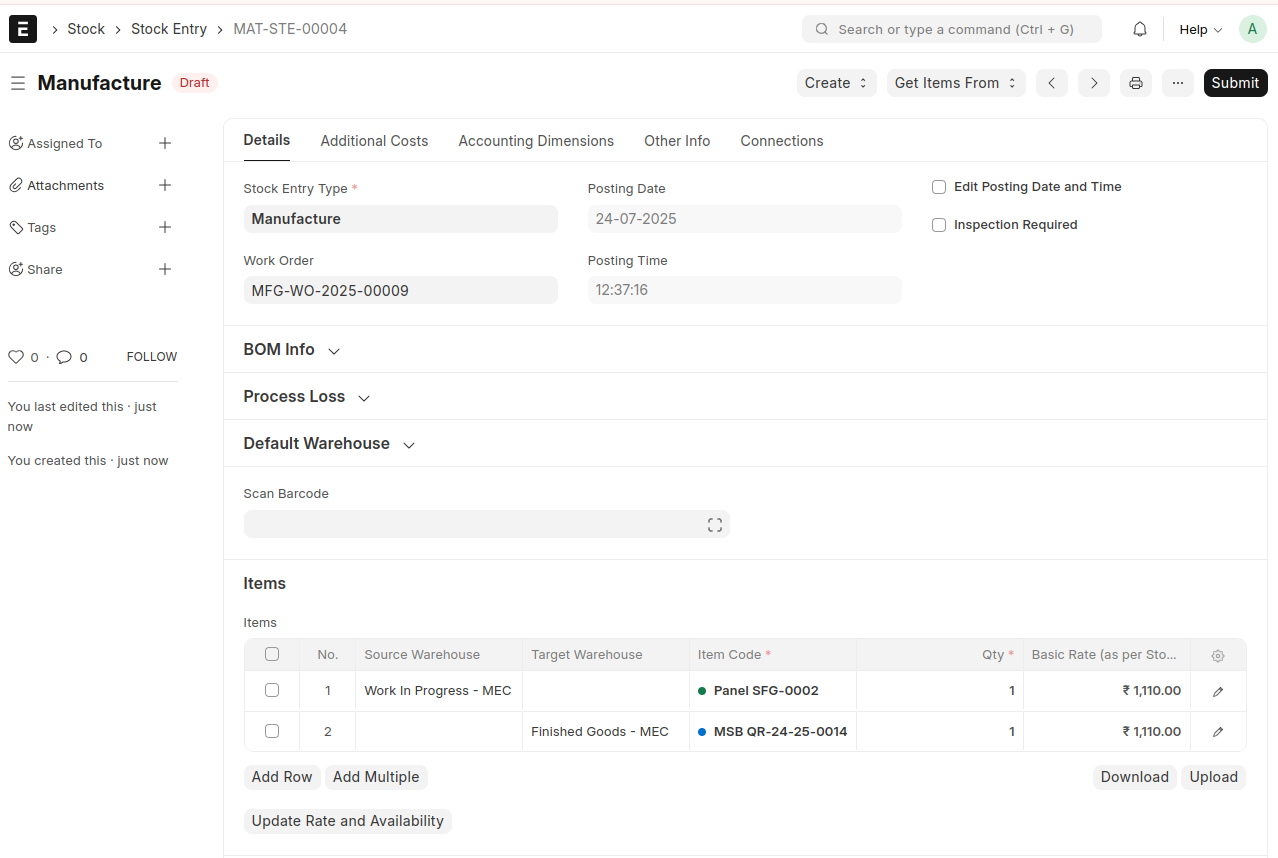
save and Submit
'Work Order' will be completed