Momscode - Maya Engineering - Estimation Updated
Master Datas
- Item
- Item group
- Item price
- Workstation
- Operation
- Automation
- Estimation Master Data
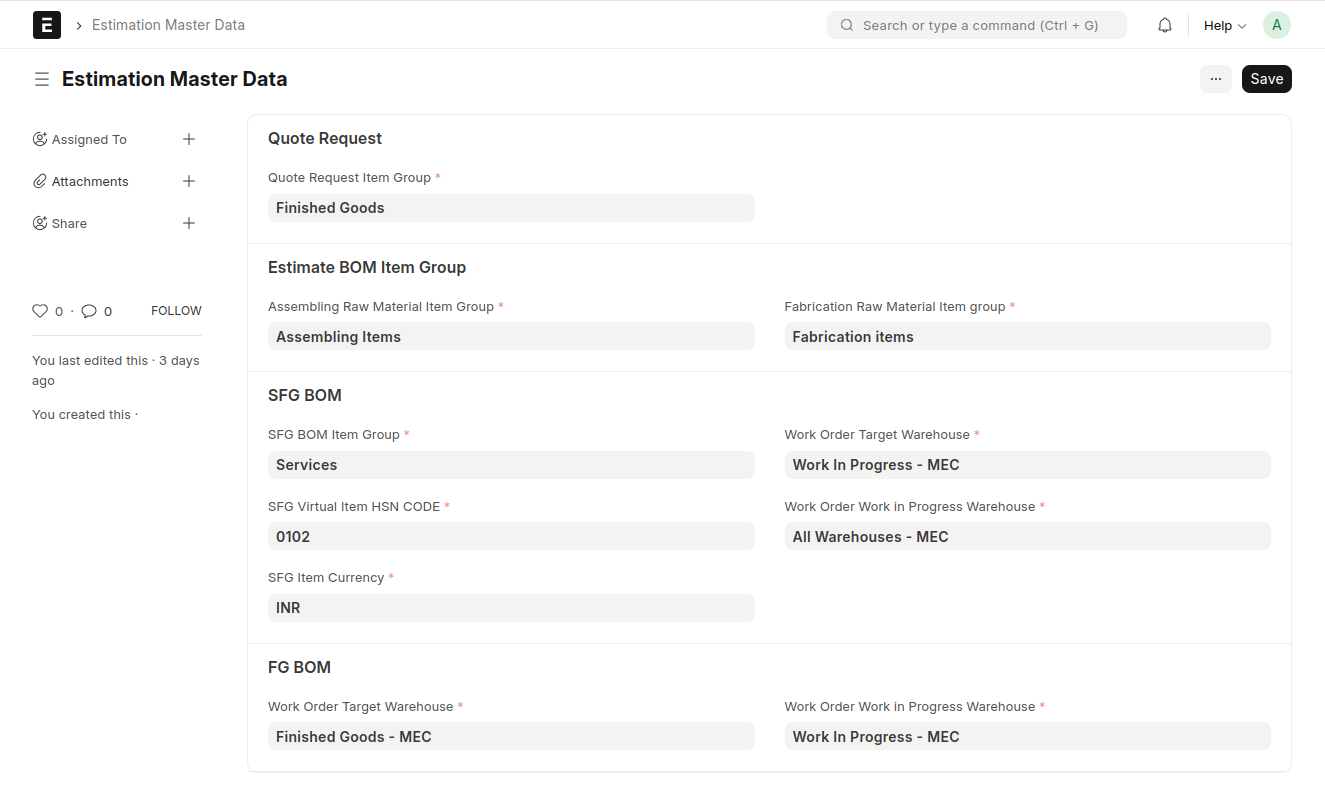
Estimation Master Data
Pre-requisites
Quote Request
- Quote Request Item Group
- Select Item Group 'Finished Goods'
Estimate BOM Item Group
* Assembling Raw Material Item group
Select an Item Group for 'Assembling Raw Material Items'
* Fabrication Raw Material Item group
Select an Item Group for 'Fabrication Raw Material Items'
SFG BOM
* SFG BOM Item Group
Select Item Group 'Services'
* Work Order Target Warehouse
Select Warehouse 'Work In Progress'
* SFG Virtual Item HSN CODE
* Work Order Work in Progress Warehouse
Select Warehouse 'All Warehouses'
* SFG Item Currency
Select Curreny 'INR'
FG BOM
* Work Order Target Warehouse
Select Warehouse 'Finished Goods'
* Work Order Work in Progress Warehouse
Select Warehouse 'Work In Progress'
Item Creation
Before creating an Item, it is advised that you create the following first
* Item group
* warehouse
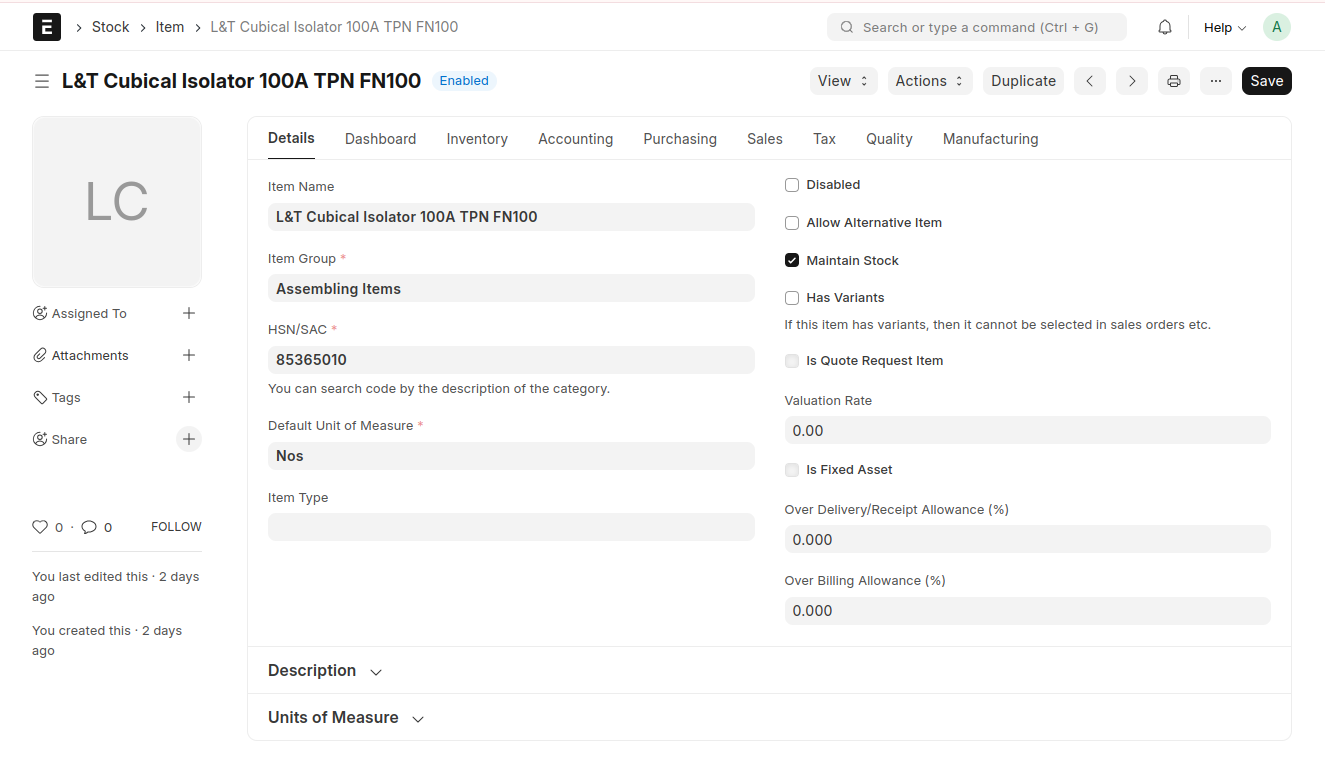
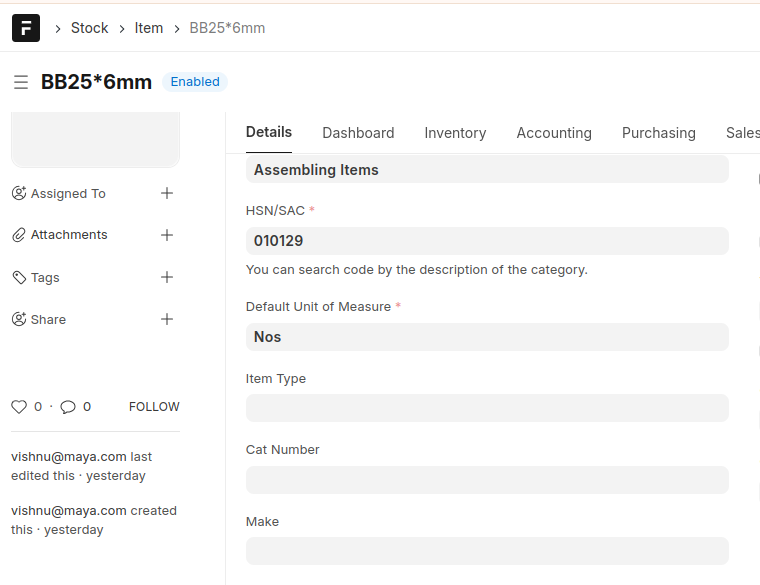
Go to the Item list → Add Item
Fill in all the mandatory fields and cat number,make also.Save the document.
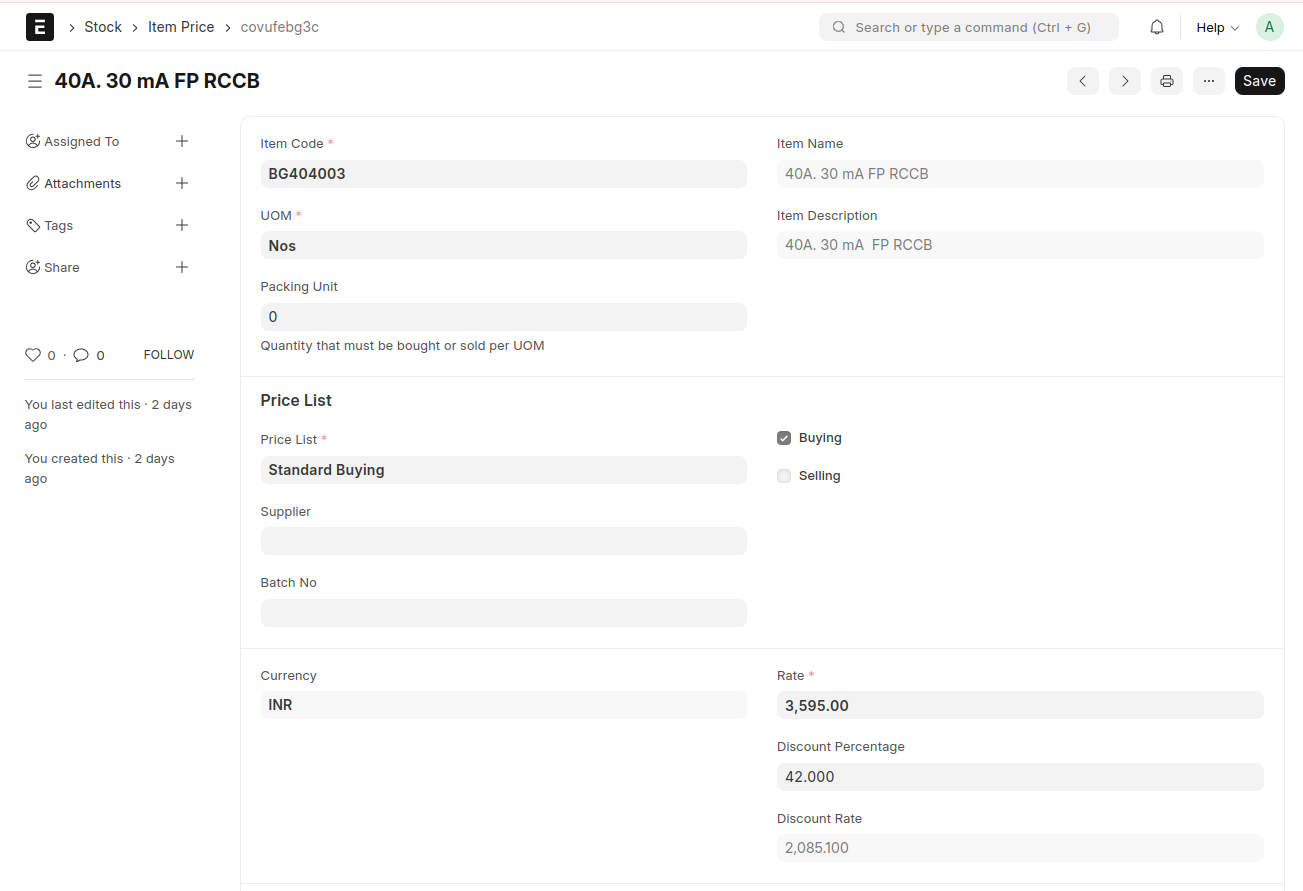
Create an 'Item Price' for this item
* Select the Price List as Standard Buying, Standard Selling, or any other Price List you may have created
* Enter a rate and apply a discount percentage, the discount rate will be calculated automatically
Estimation Flow
Quote Request → Estimate BOM → Project Estimate
Opportunity → Quotation → Sales Order
Quote Request
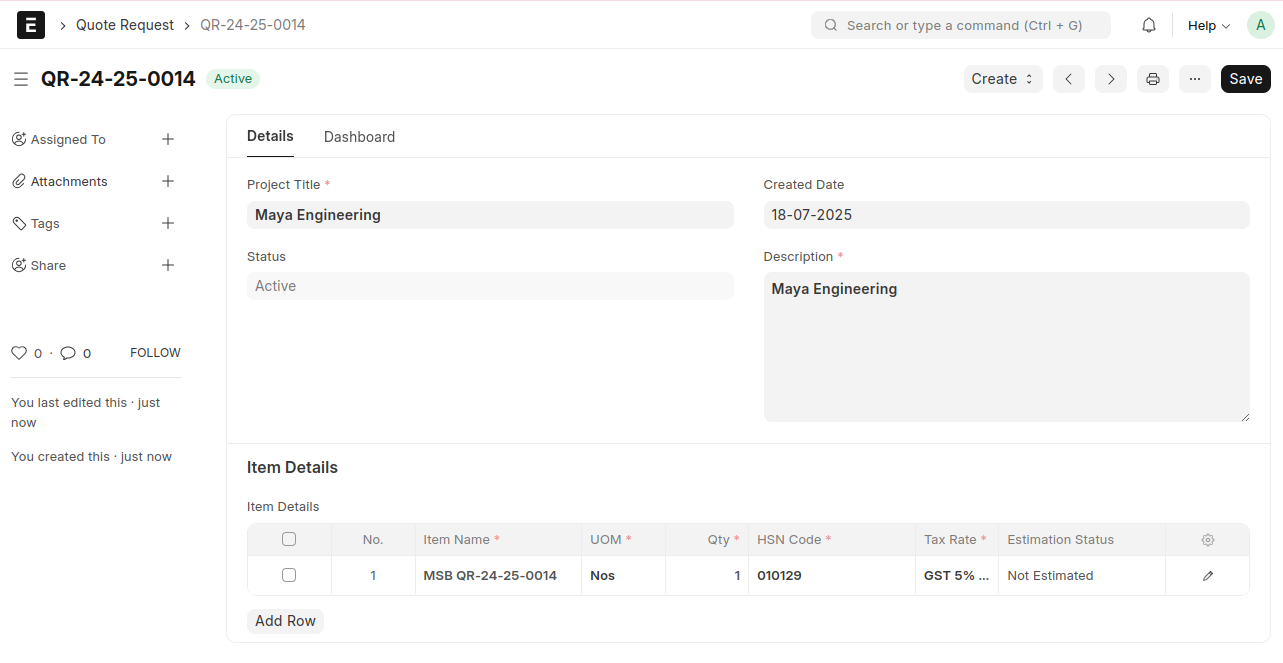
Go to Quote Request list → Add New Quote Request
Fill in all the mandatory fields, such as :
* Project Title
* Description
* Item Name
* UOM
* Quantity (Qty)
* HSN Code
* Tax Rate
Then, click Save
You can add more items by clicking on 'Add Row'
After saving, items will be created based on the details provided in the Quote Request. These items can be viewed in the Item Master
Estimate BOM
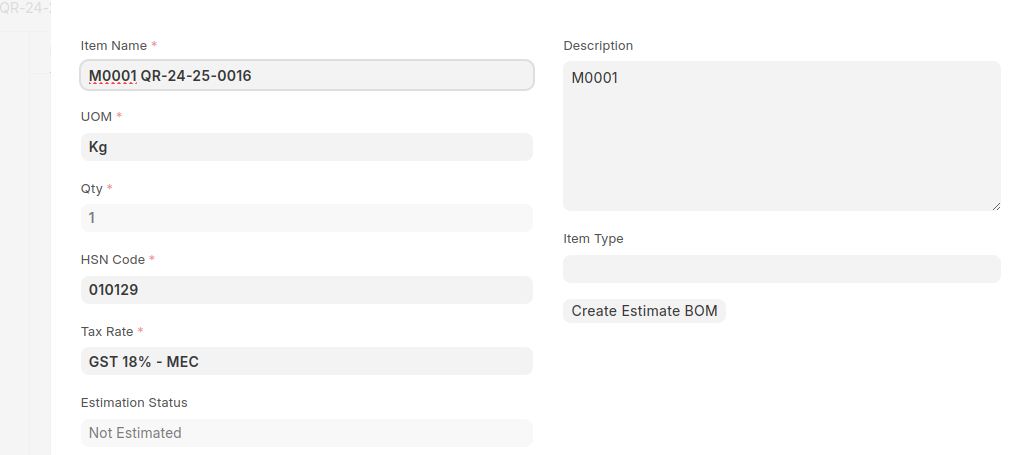
Create an Estimated BOM from the Quote Request
From Quote Request → Click the 'Create Estimate BOM' button from the Item Details Child Table.
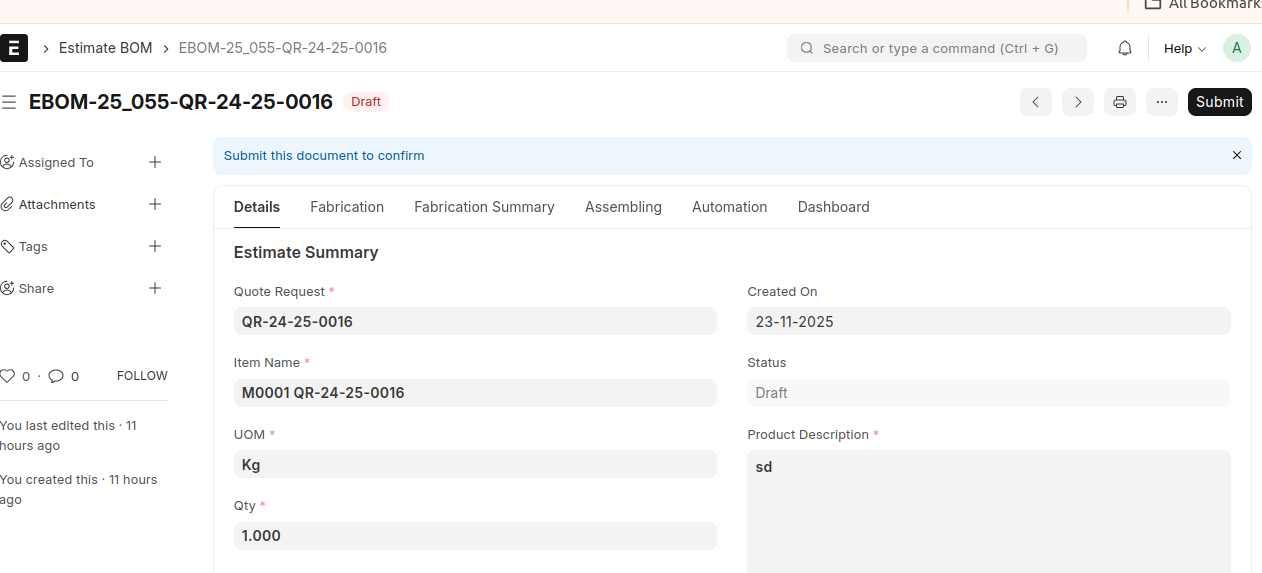
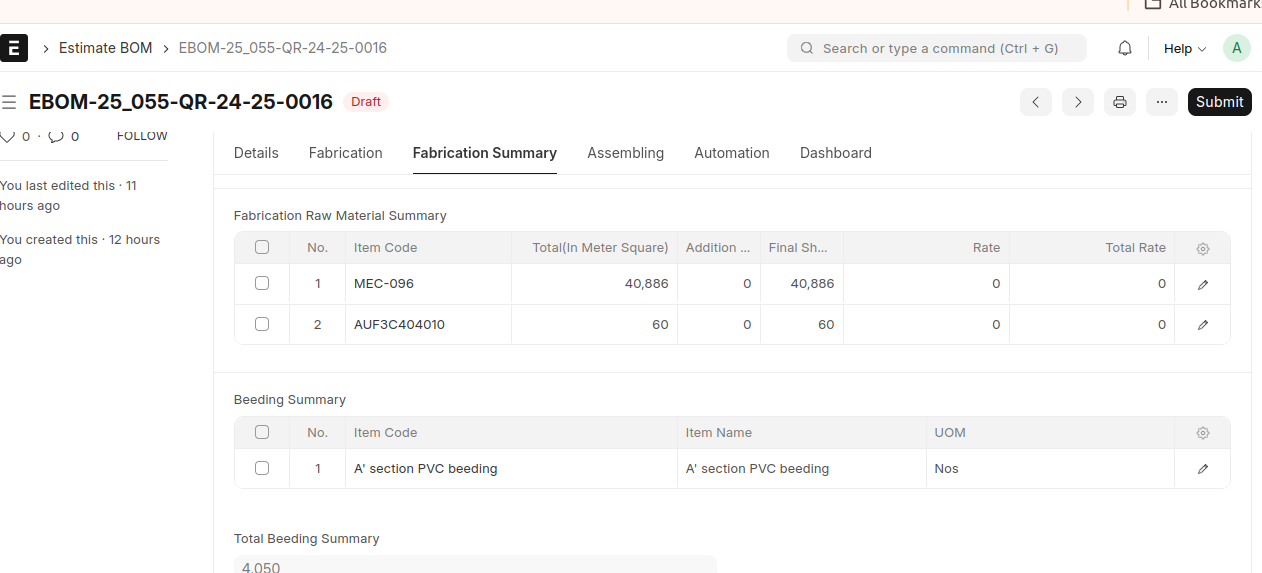
 * In the Estimate BOM, the Fabrication, Fabrication Summary, Assembling, and Automation tabs are available.
* The Fabrication tab contains Sheet Metal, Foundation Channel Items, Beeding, and Busbar Details.
* Select the required items in the child table and enter the corresponding values. Based on the entered values, the calculations are automatically performed and the information is updated in the Fabrication Summary tab(information of sheet metal and foundation channel items) and Beeding Summary(Beeding information only).
Before creating an Estimate BOM, it is advised that you create the following first :
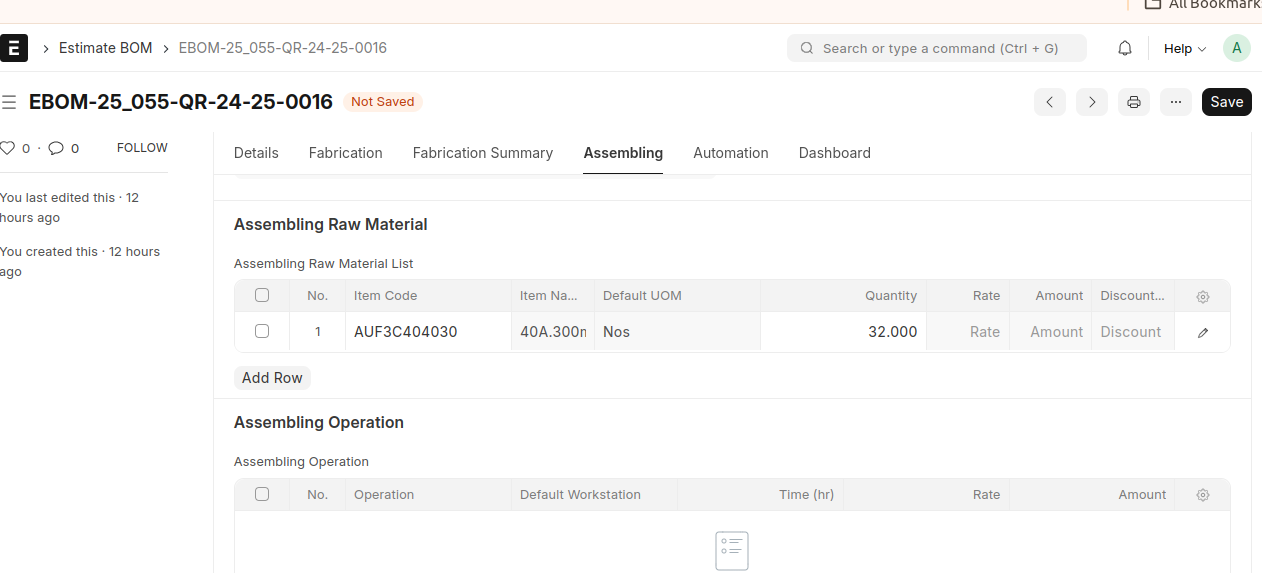
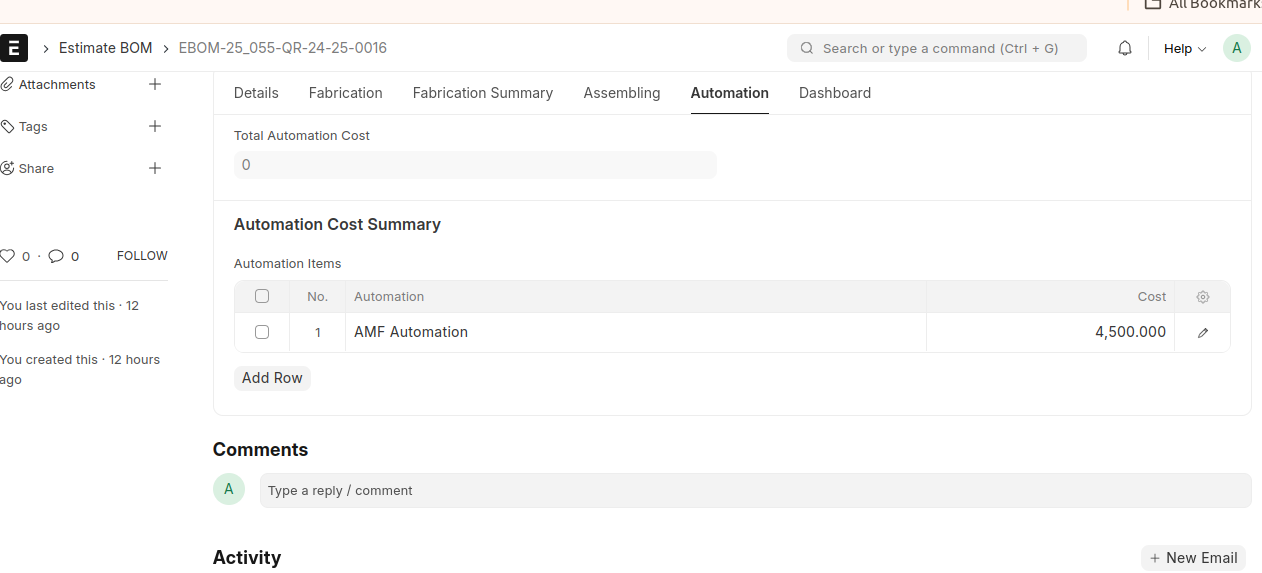 * Item
Items with Item Groups 'Fabrication' and 'Assembling'
* Operation
* Workstation
* Automation
You need to create the Workstation first before creating the Operation
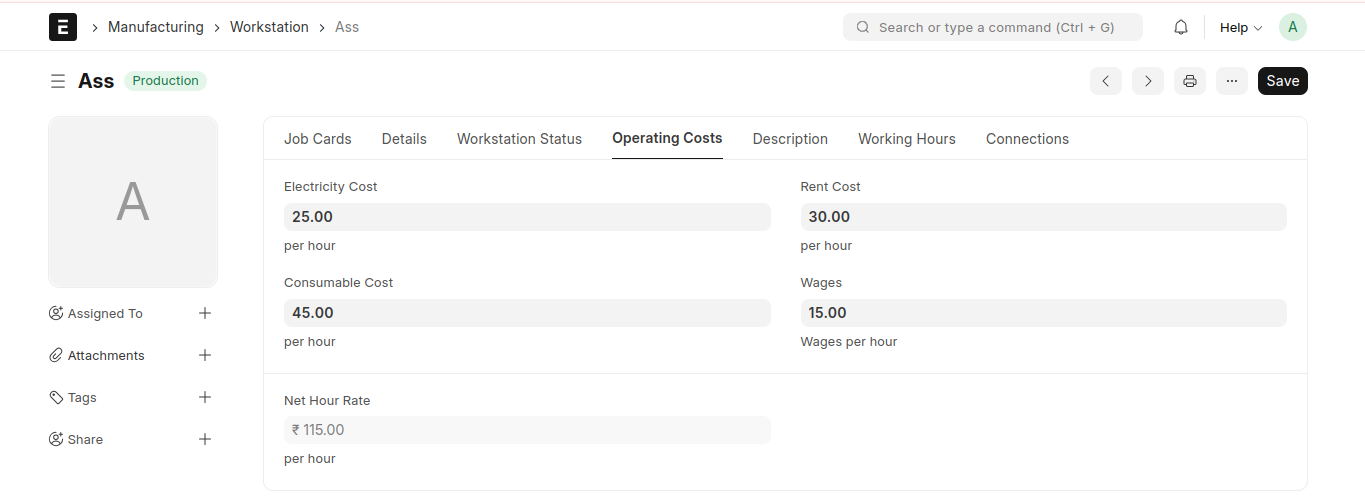
Workstation
Go to Workstation list → Add Workstation
Enter Workstation Name
In the Operating Costs tab, enter the Electricity Cost, Rent Cost, Consumable Cost, and Wages, then save.
Net Hour Rate will be auto-calculated
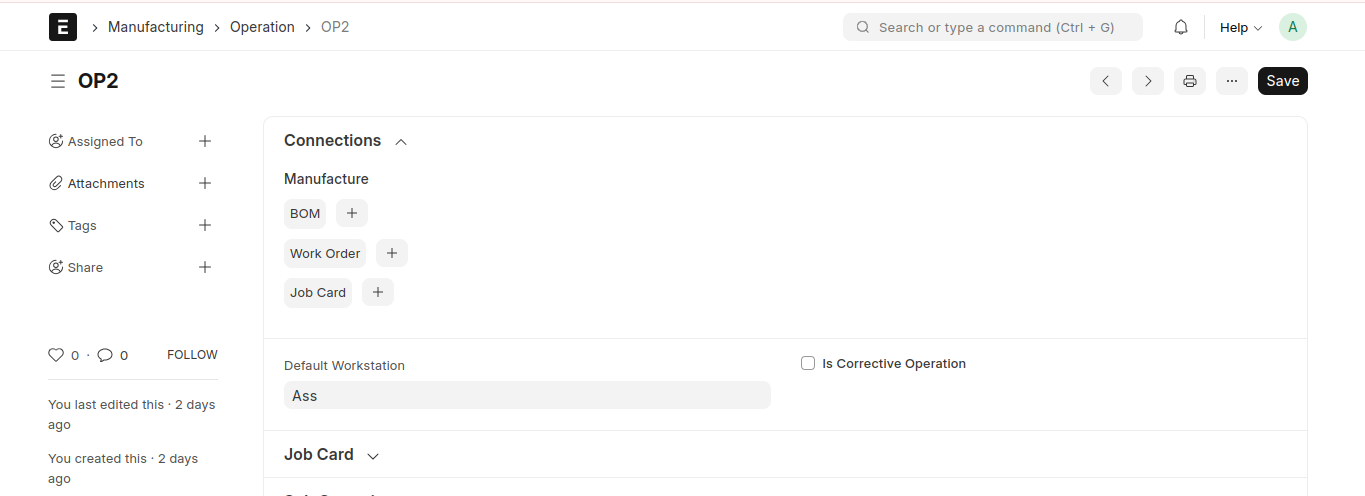
Operation
Go to Operation → Add Operation
Enter Operation Name
Select a Default Workstation and Save
Automation
Go to Automation list → Add Automation
Enter an Automation Name
Apply a Rate and Save
There are three operations included in the Estimate BOM, which are required to create the item specified in the Quote Request
1. Fabrications
* Fabrication Raw Material
* Fabrication Operation
2. Assembling
* Assembling Raw Material
* Assembling Operations
3. Automation
* Automation Items
If a discount is applied to the item in Item Price, the discounted rate will be used. Otherwise, the net rate will be considered
If an operating cost is specified in the Workstation, it will be used as the rate for Fabrication and Assembling operations. Otherwise, you can enter a rate in the 'Workstation Rate' field.
Fill in all the details in the Estimate BOM
After filling in all the details, the total cost will be displayed in the 'Details' tab.
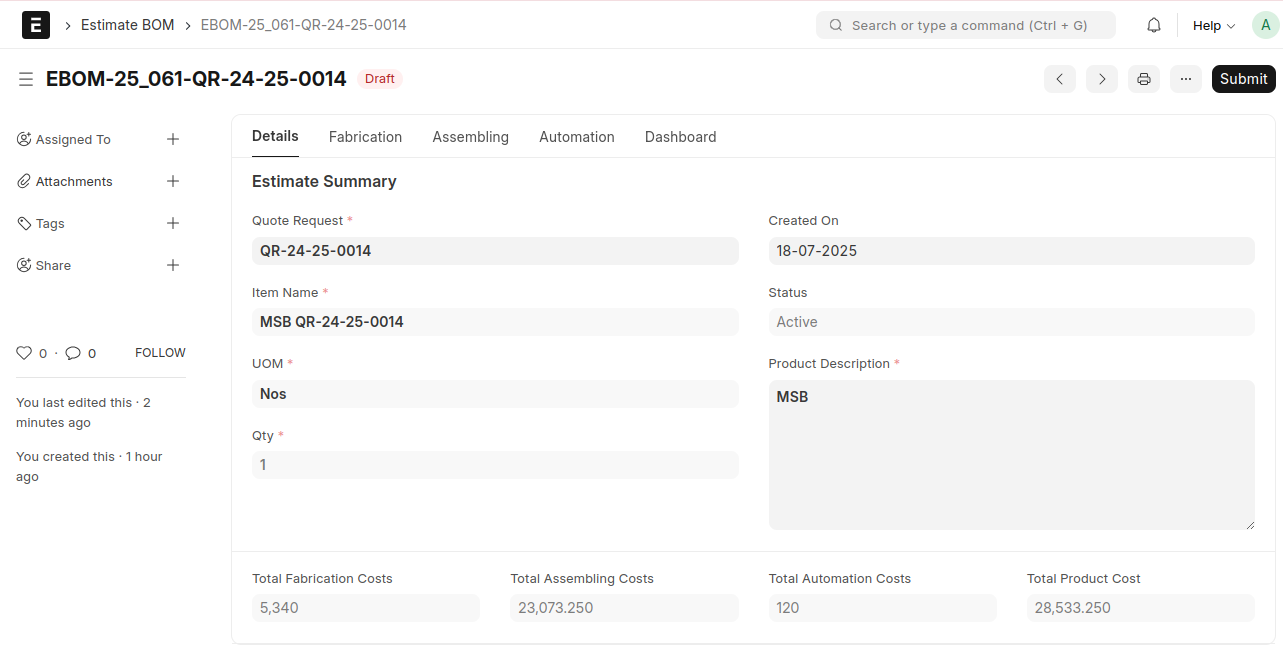 Save and Submit
Project Estimate
Go back to Quote Request → Click on 'Create' Button → Select 'Project Estimate'
(A Project Estimate can be created only if all items in the Quote Request have been estimated)
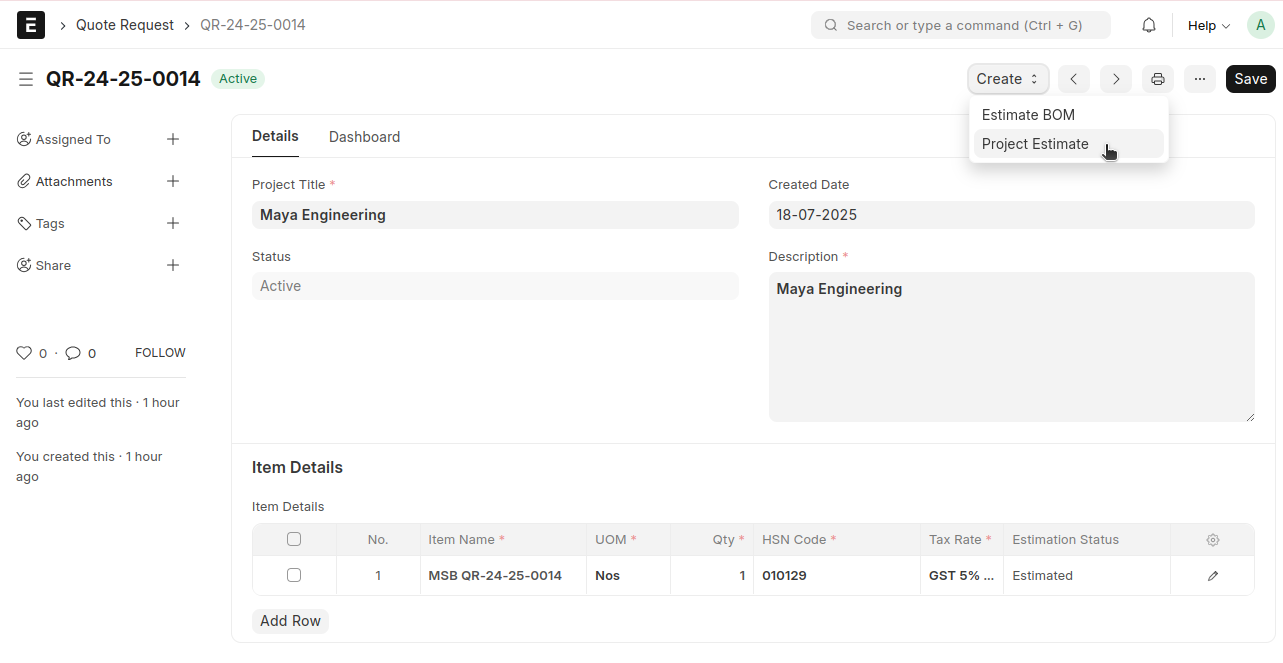 The details will be fetched from the 'Estimate BOM'
A single 'Project Estimate' will be created for all the estimated items in the Quote Request, and the details of these items will be fetched into the Project Estimate.
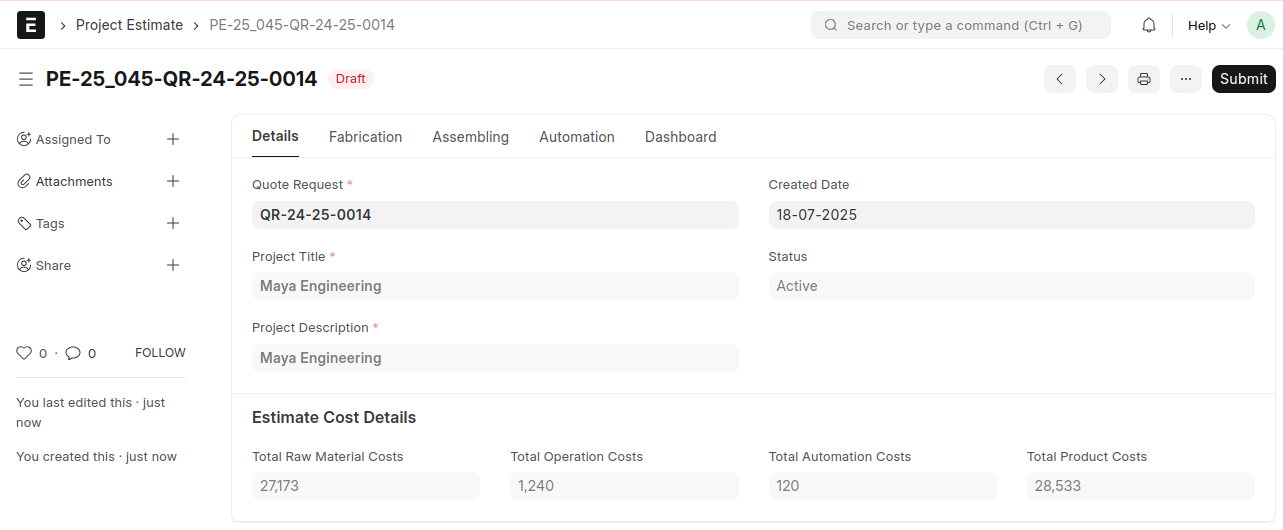
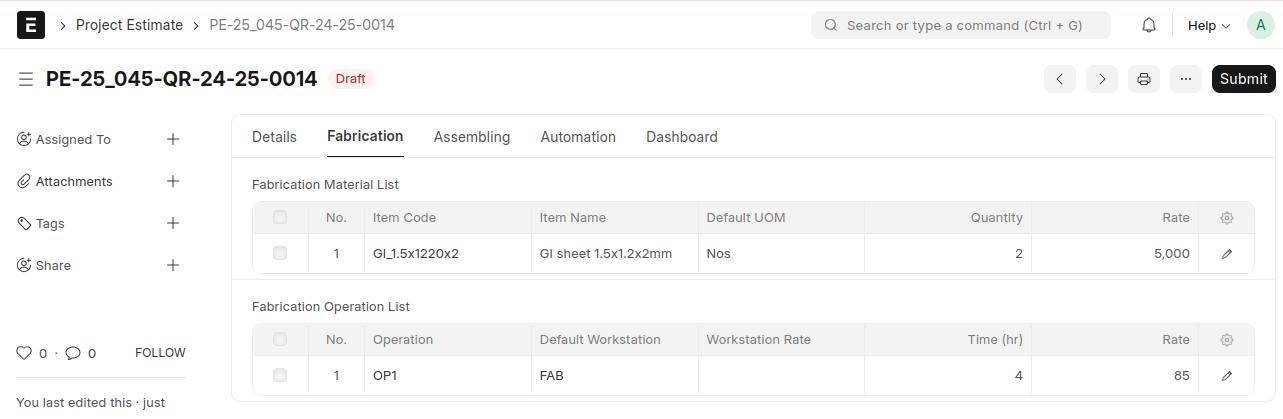
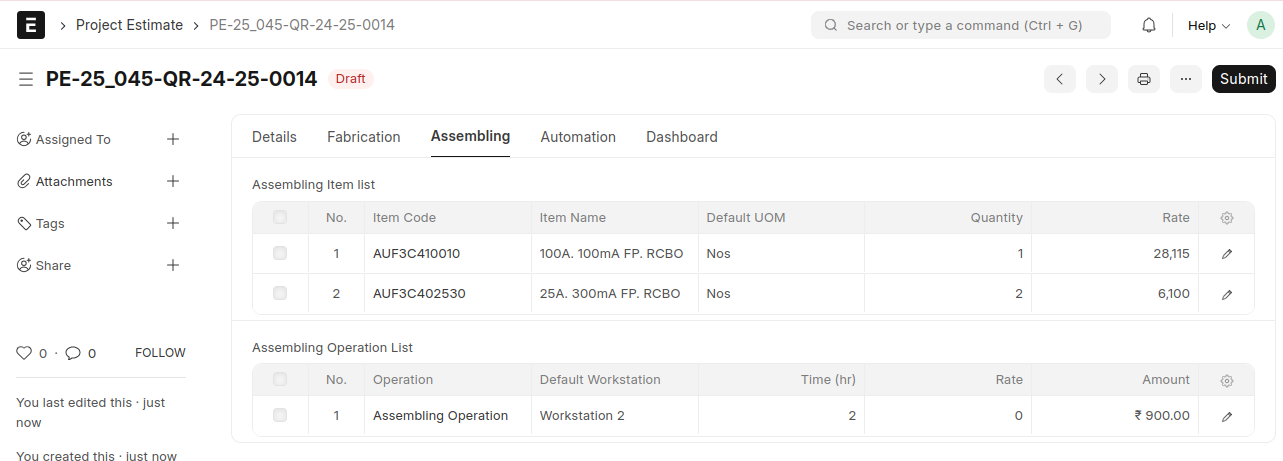
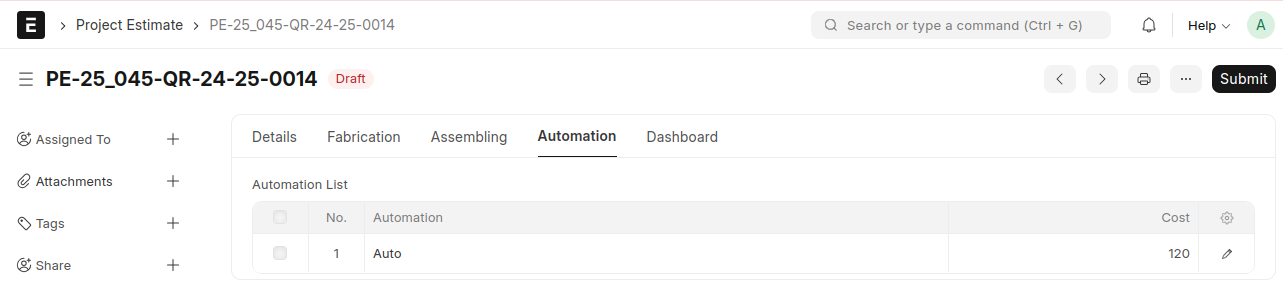
Verify them, then save and submit
Opportunity
Opportunity is a qualified lead
Opportunity → Click on 'Add Opportunity'
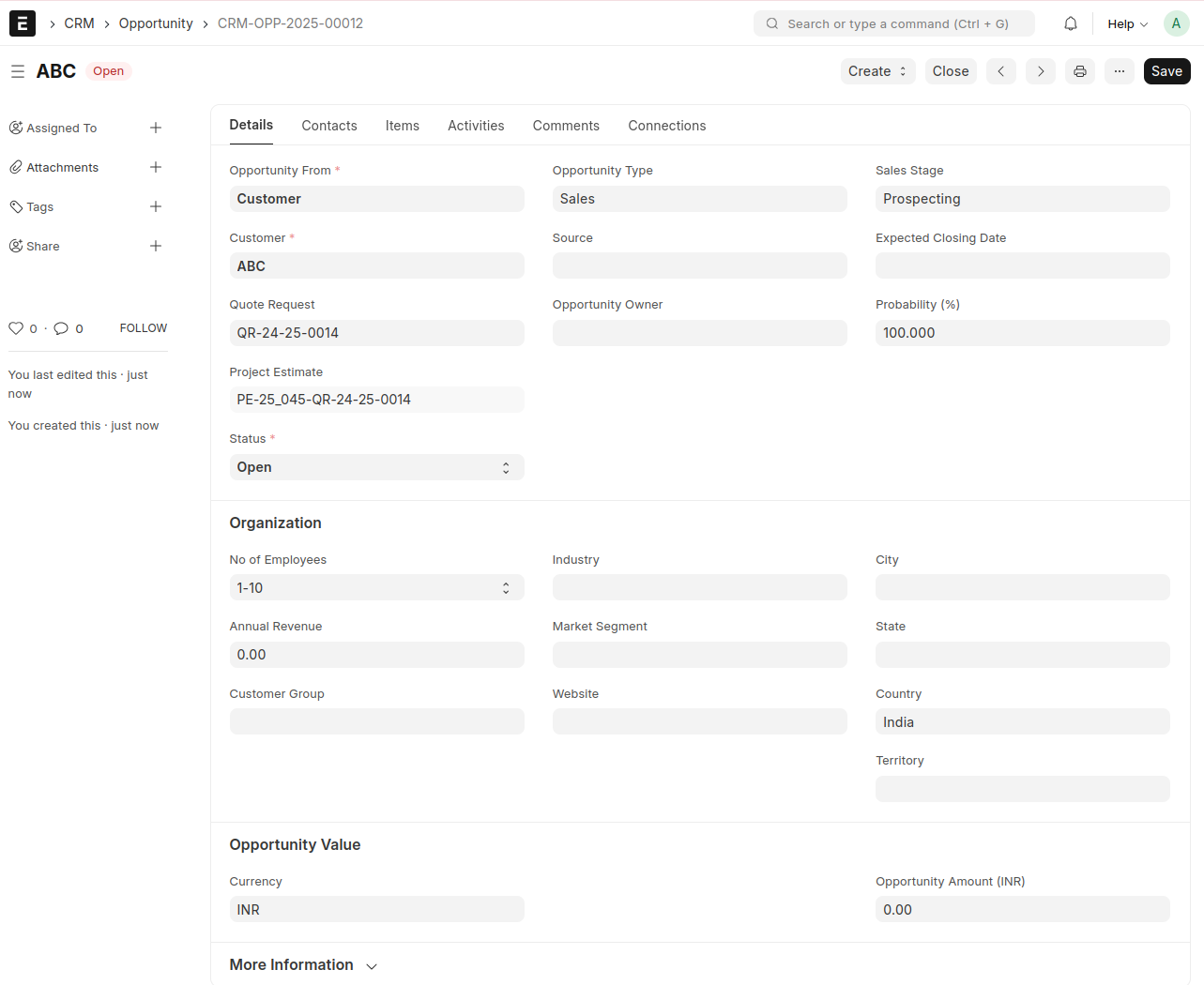
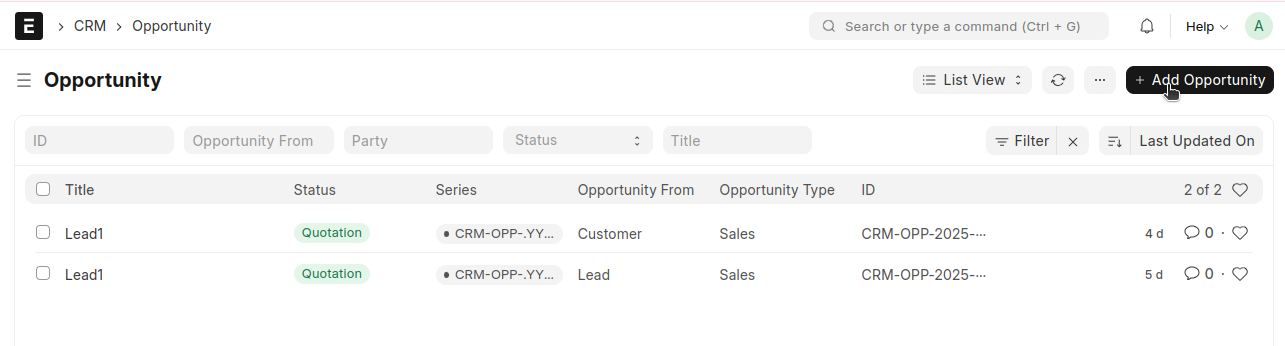 * In the 'Opportunity From' field, select 'Lead' if the opportunity is from a lead, or select 'Customer' if it is from a customer
* Select 'Company'
* Select 'Quote Request', the corresponding 'Project Estimate' will be displayed under the Quote Request field
Quotation
Opportunity → Click on 'Create' Button → Select 'Quotation'
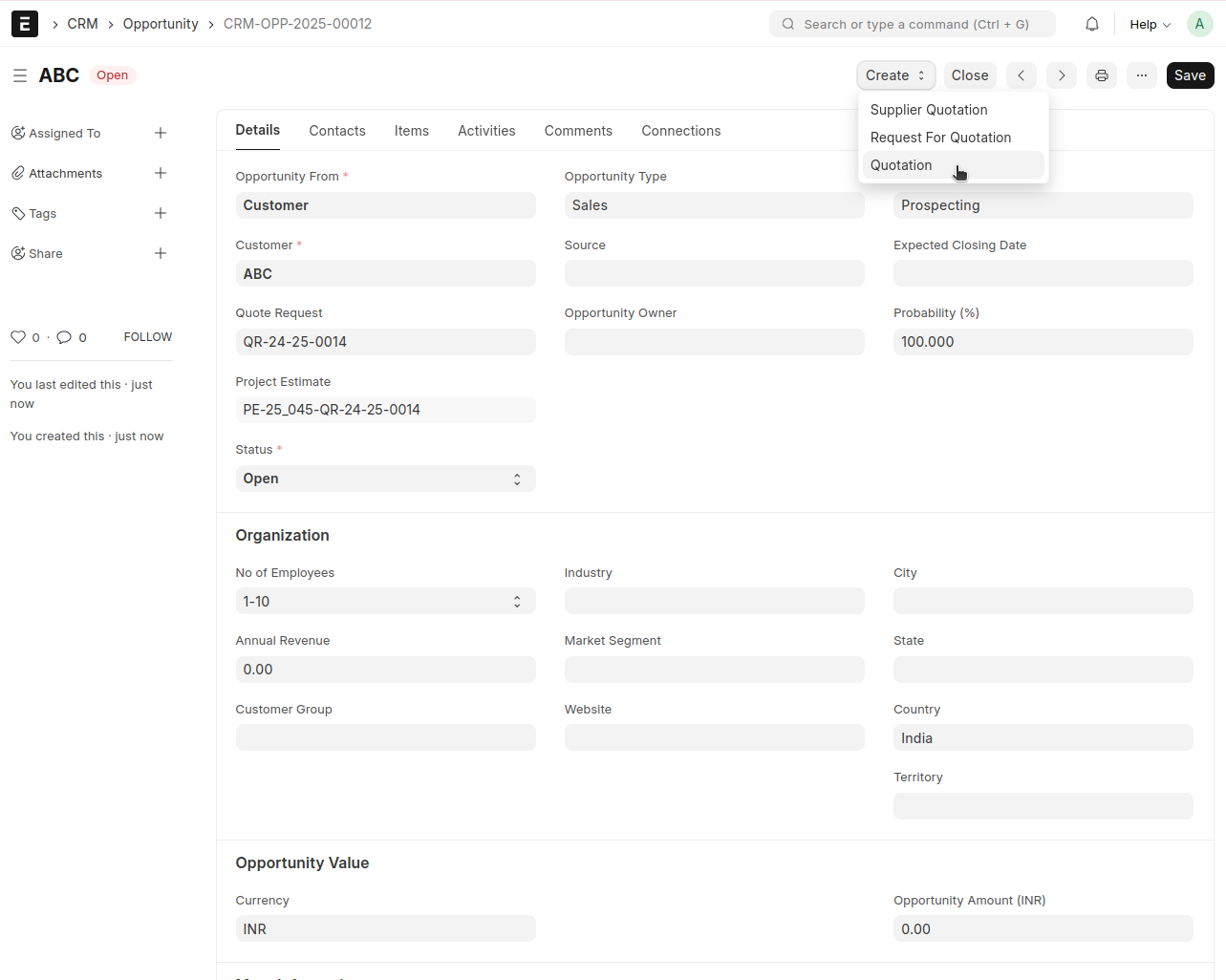 The item and Estimate BOM details will be fetched from the Project Estimate
* You may specify margin percentages in the 'Default Material Margin Percentage' and 'Default Operation Margin Percentage' fields.
(The margin amount will be added to the actual cost)
* Click the 'Apply Margin' button
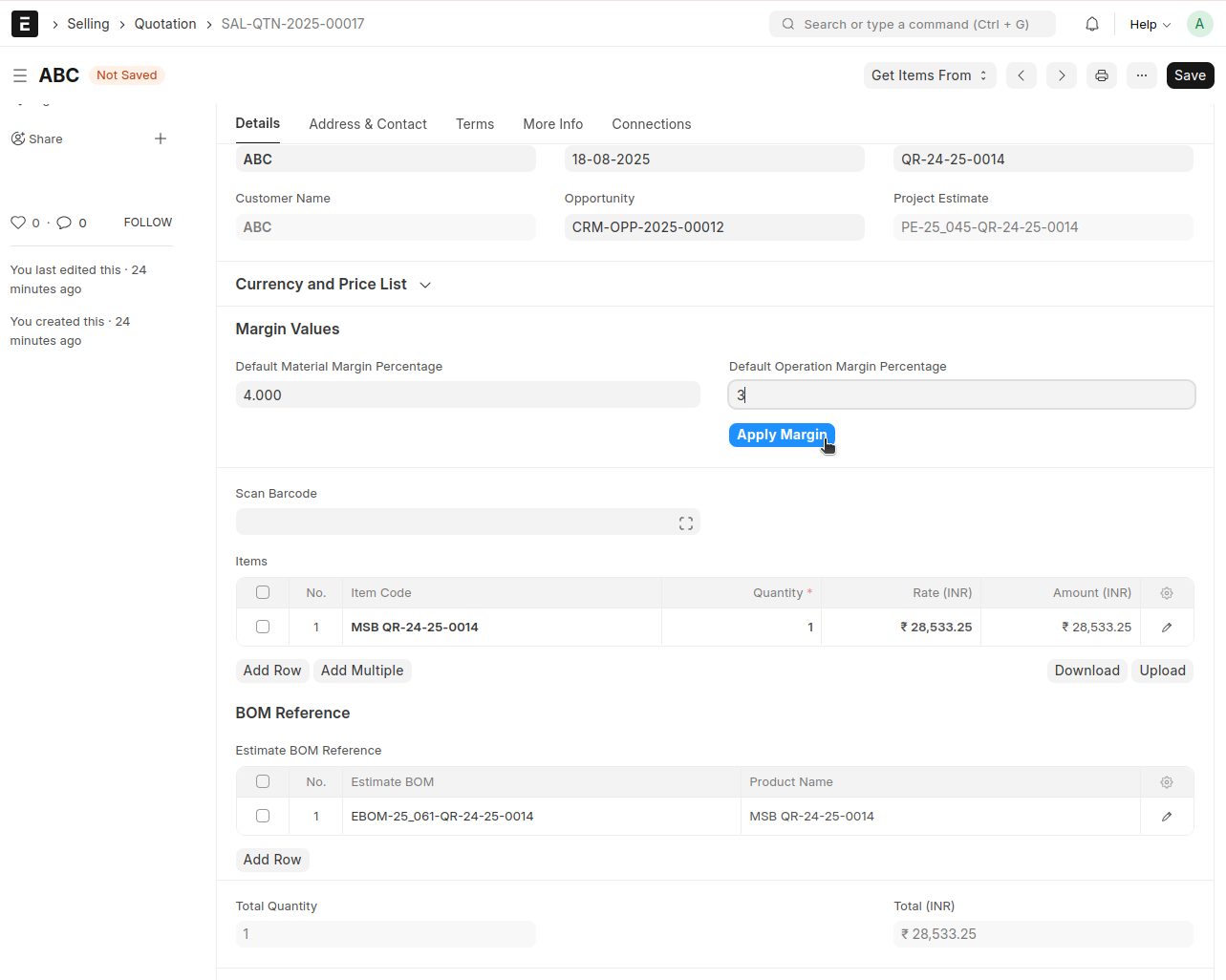 The specified margin percentages will be applied to the 'Estimated BOM Material Cost' and 'Estimated BOM Operation Cost', respectively
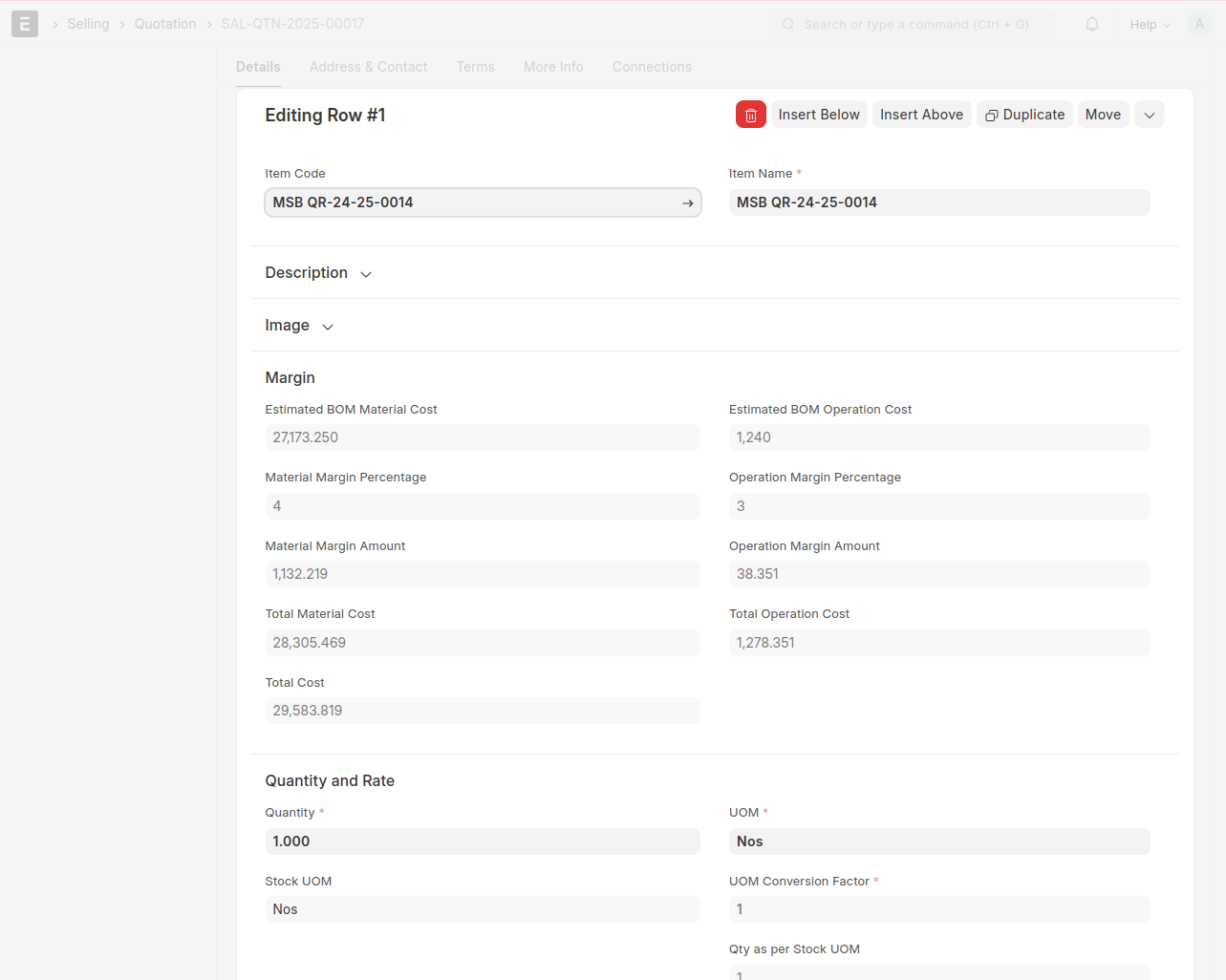 Verify the details, then save and submit
Sales Order
From Quotation → Click on 'Create' Button → Select 'Sales Order'
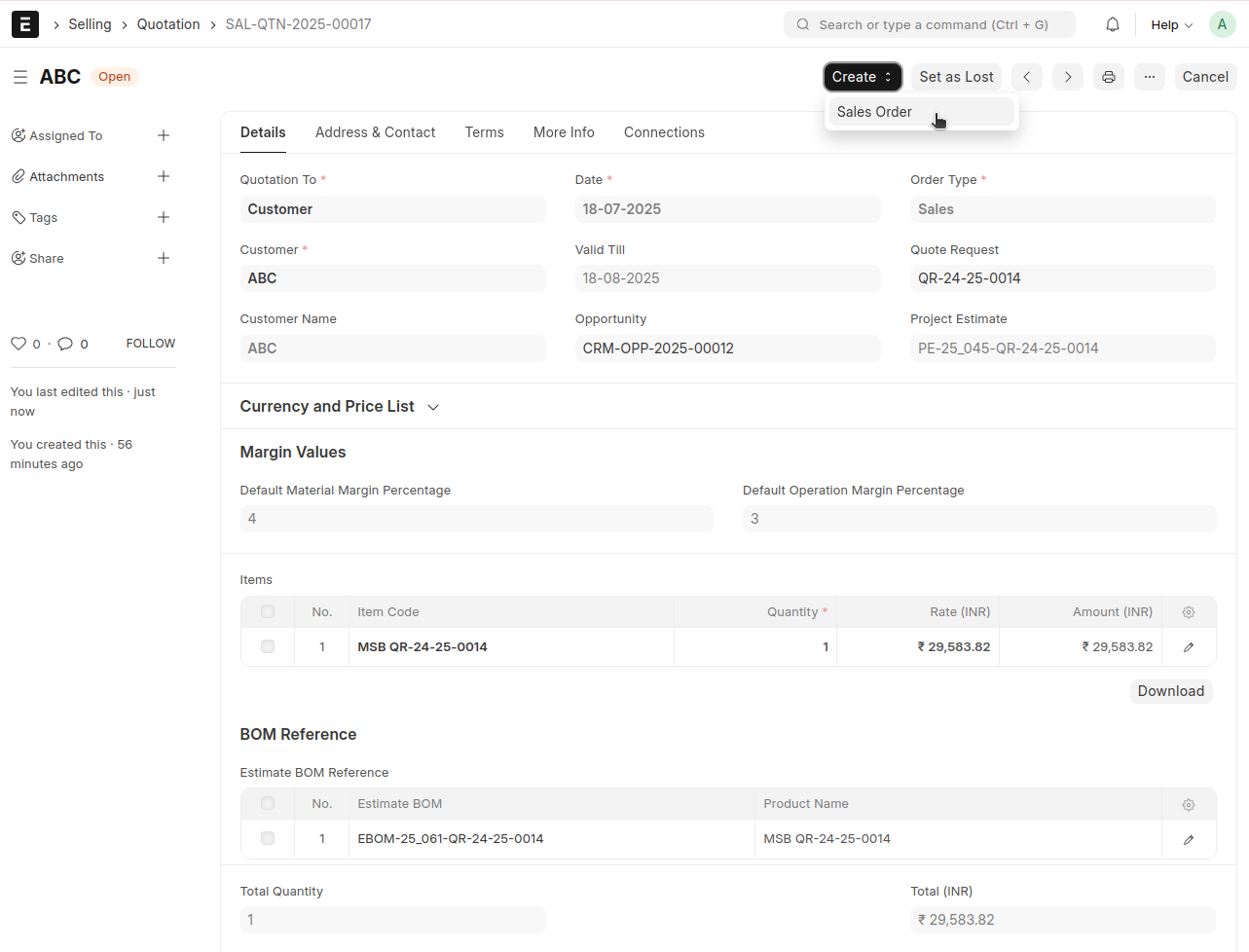 All details will be fetched from 'Quotation'
* Select a 'Delivery Date'
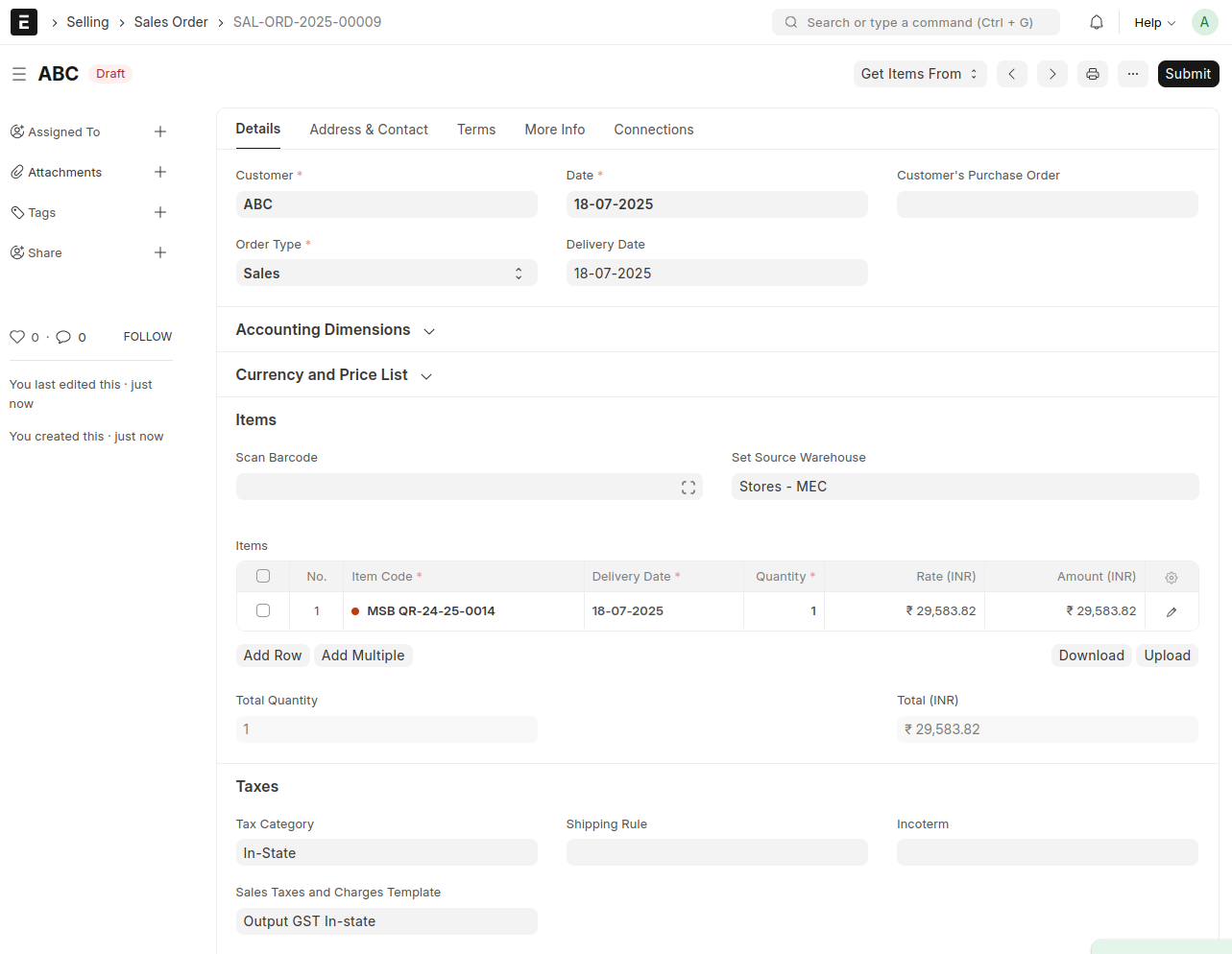
Verify all details, then Save and Submit.